10 Reasons Your Gmail Signature Is Not Showing and How to Fix It
Users frequently encounter issues with Gmail signatures that can undermine their professional image in digital communications. With over 62% of users relying
Sophie Grant
Email Signature Specialist, Scribe
On this page
- Introduction
- Signature Does Not Appear at All
- Signature Option Disabled in Gmail Settings
- Gmail Composer Set to Plain Text Mode
- Incorrect Signature Selected
- Signature Formatting Issues
- HTML Code Errors in Signature
- Signature Hidden in Replies or Forwards
- Technical Glitches Affecting Signature Display
- Regularly Update Your Signature
- Use Scribe for Efficient Signature Management
- Conclusion
- Frequently Asked Questions
- List of Sources
Introduction
Users frequently encounter issues with Gmail signatures that can undermine their professional image in digital communications. With over 62% of users relying on Gmail, the visibility of email signatures significantly impacts branding and engagement. Let’s explore ten common reasons your Gmail signature might not show up as you expect and how to fix them. Understanding these common pitfalls can empower users to maintain a polished and effective email presence.
Signature Does Not Appear at All
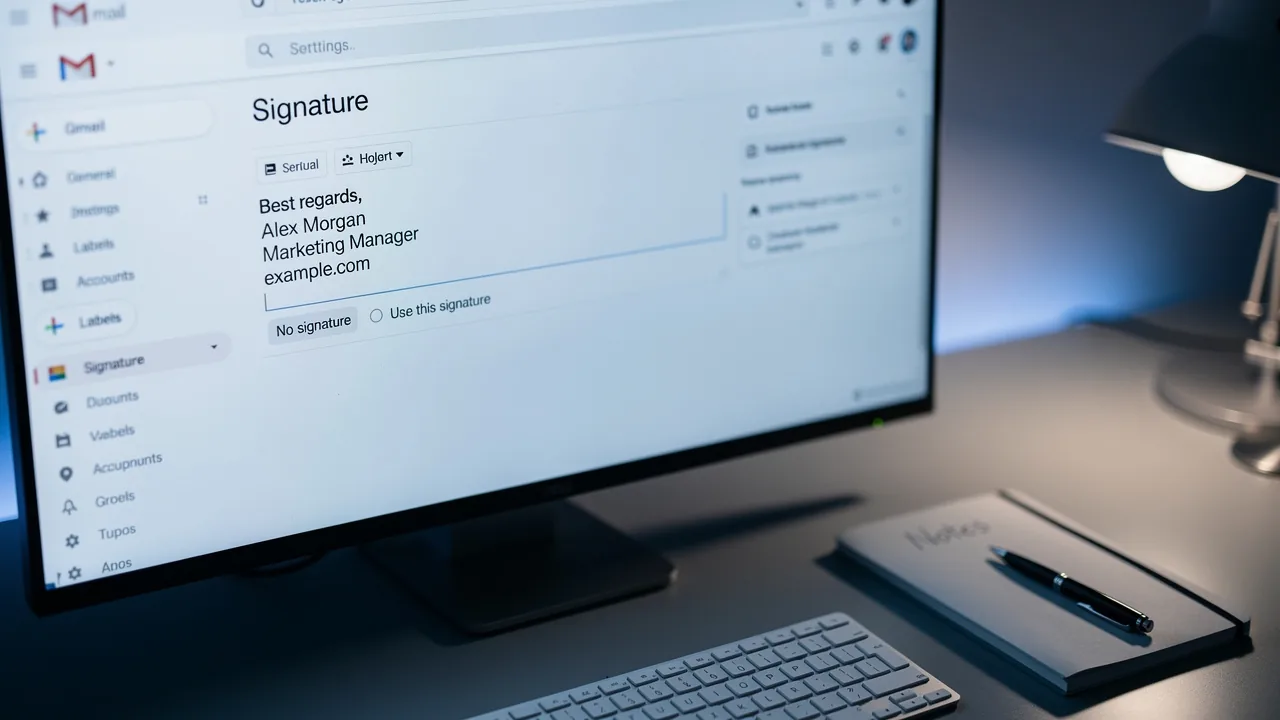
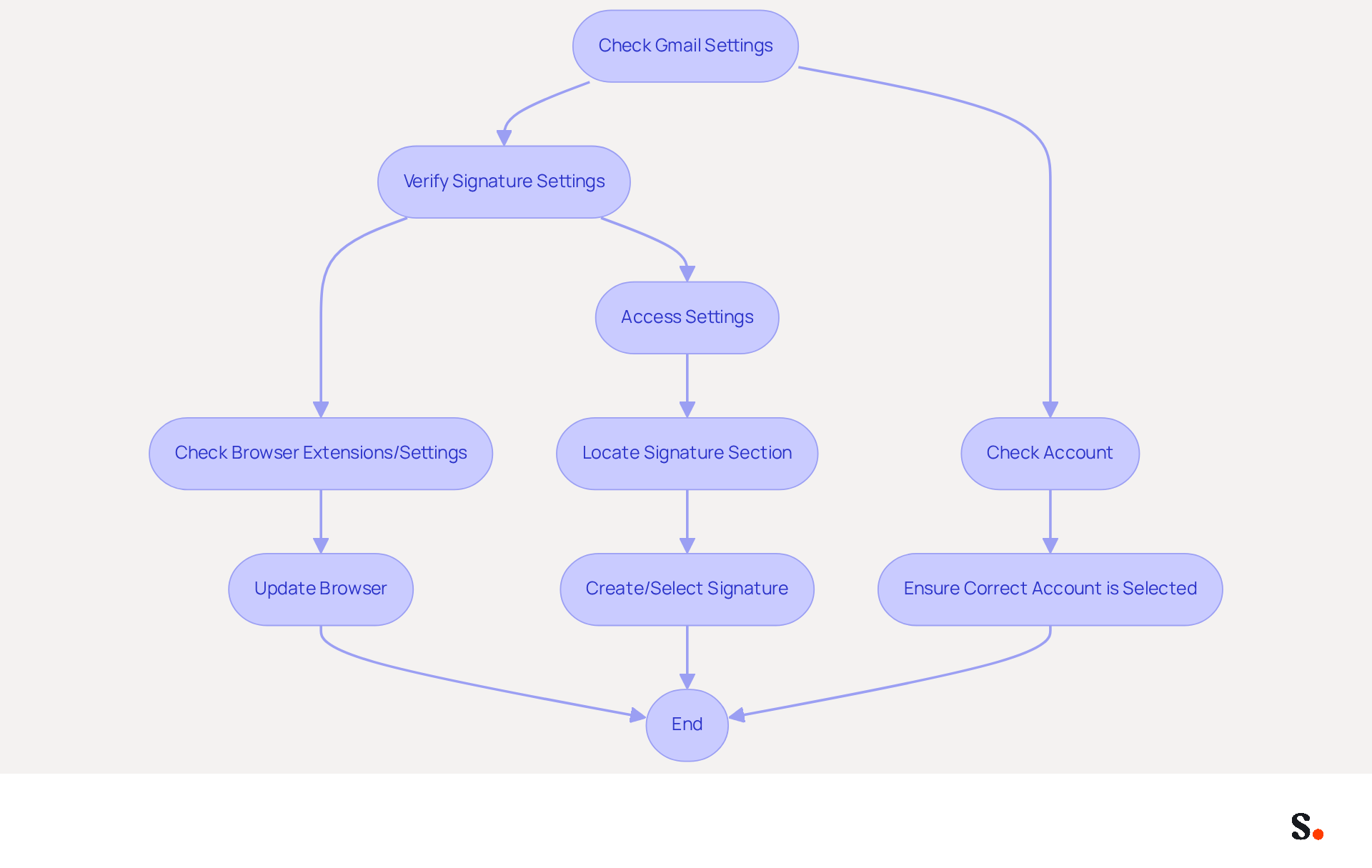
To ensure your Gmail footer displays correctly, start by verifying your settings. Click the gear icon to access Gmail settings, then select 'See all settings.' Under the 'General' tab, locate the 'Signature' section to confirm that a mark is created and selected. If no mark is set, create one and save your changes. Additionally, verify that you are using the correct account, especially if multiple accounts are linked to your Gmail.
Recent statistics show that 44.4% of users modify their contact details only 2-4 times a year. This infrequency can lead to outdated settings. Moreover, with Gmail commanding a substantial market share of 62.2% among messaging clients, ensuring your sign-off is visible is essential for upholding professional communication.
If your mark still doesn’t show up, check for any browser extensions or settings that might be causing the Gmail signature not showing problem. Issues may arise from browser compatibility or outdated software, so keeping your browser updated can help resolve visibility problems.
Using Scribe's automated sync with Google Workspace can really streamline how you manage electronic signatures. By syncing your Google Workspace with Scribe, any modifications made to your teammates' details-such as job roles or group assignments-will automatically refresh in their contact details. This not only saves time but also ensures brand consistency across all communications. Additionally, the platform is SOC 2 Type II certified and compliant with GDPR and CCPA, ensuring secure data handling. Addressing these issues promptly is crucial for maintaining effective communication and a professional image.
Signature Option Disabled in Gmail Settings
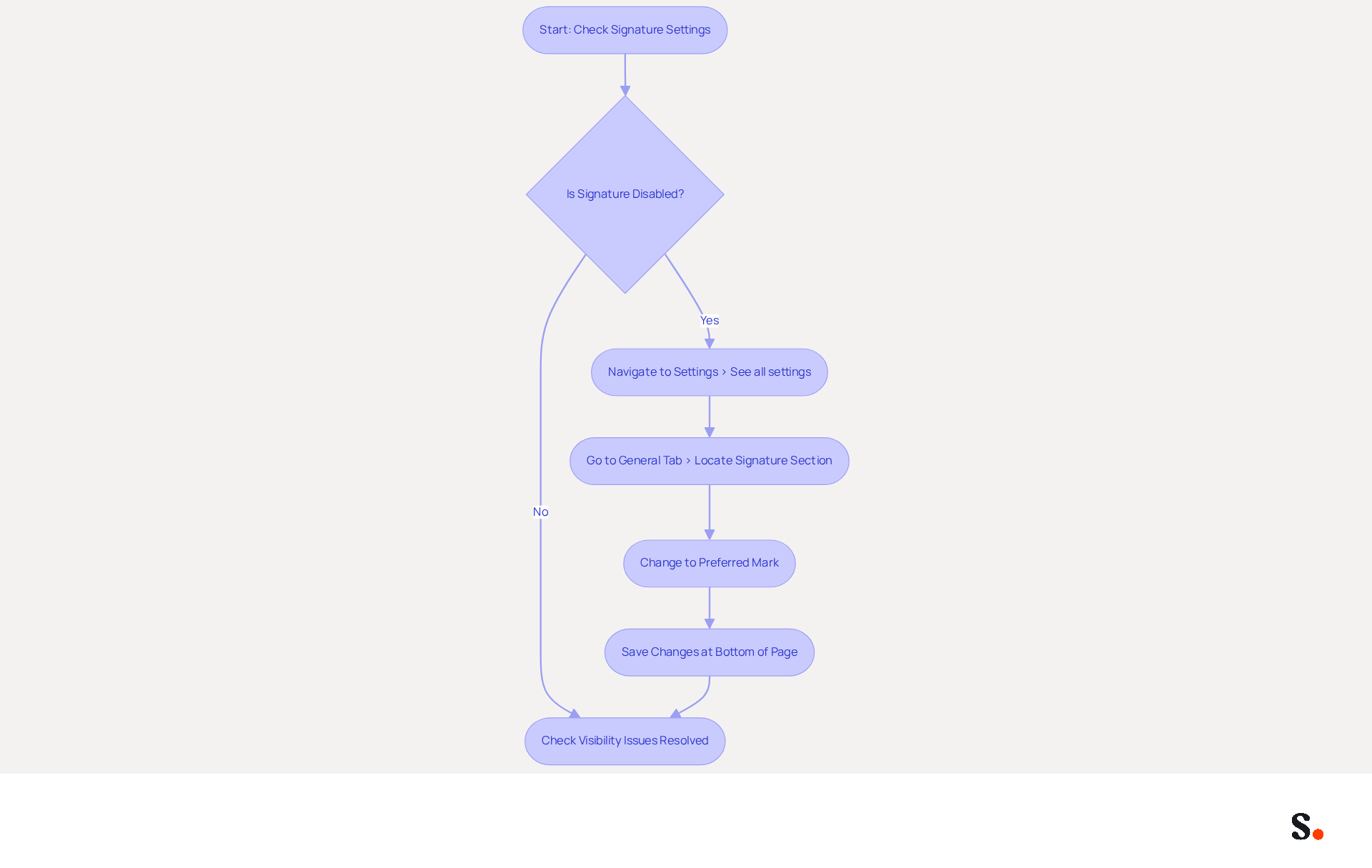
Users often encounter issues with their custom marks not displaying in emails due to settings being disabled. To verify this, navigate to 'Settings' and select 'See all settings.' Under the 'General' tab, locate the 'Signature' section.
If it is set to 'No mark,' change it to your preferred mark. Ensure you save your changes at the bottom of the page to activate your endorsement.
According to user feedback, ensuring the authentication is properly enabled resolves a significant number of visibility issues, making this a crucial step in troubleshooting.
Gmail Composer Set to Plain Text Mode
When Gmail's composer is in plain text mode, it strips away rich text formatting, including images and links in your email footer. To revert to rich text mode, follow these steps:
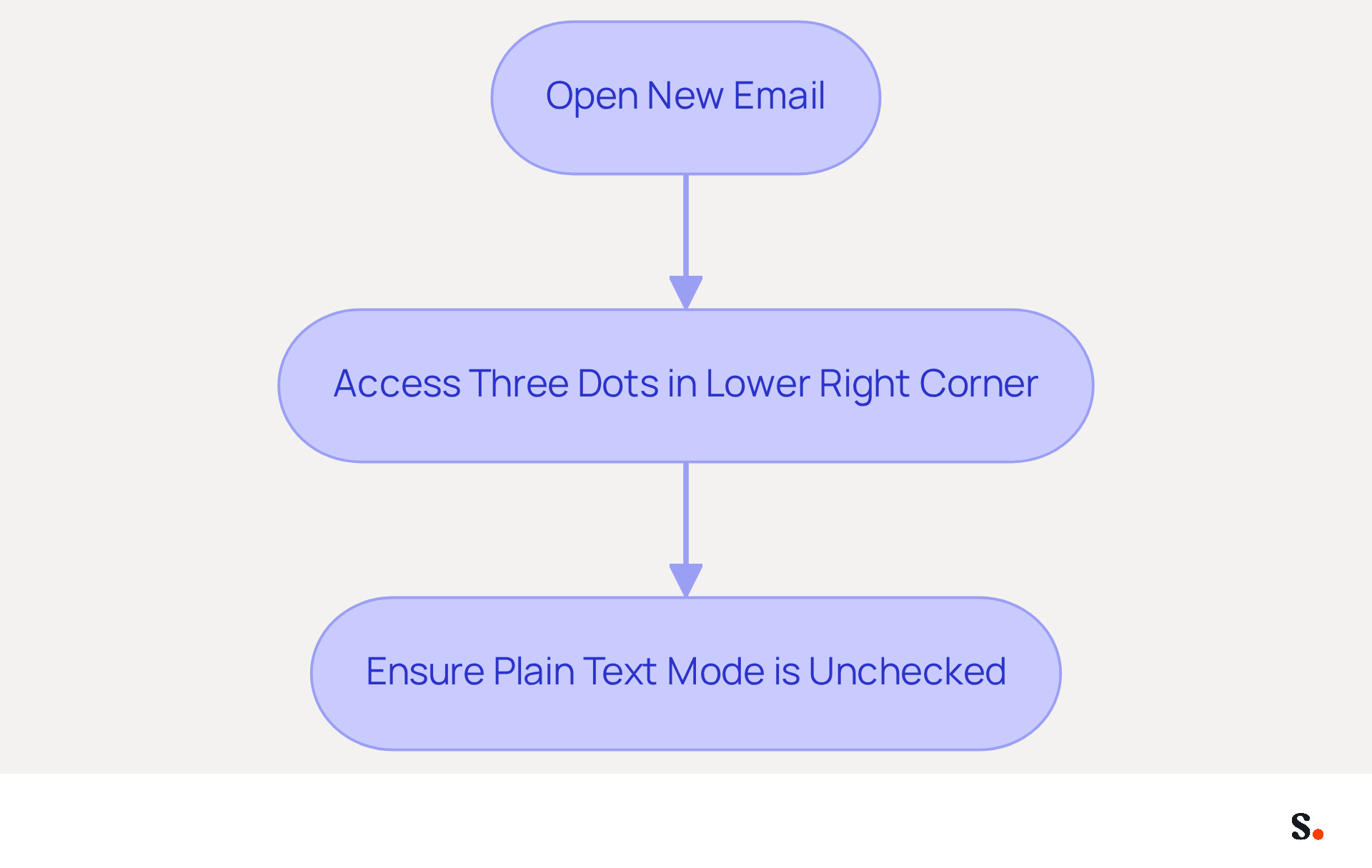
- Open a new email by clicking 'Compose.'
- Access the three dots in the lower right corner of the compose window.
- Ensure 'Plain text mode' is unchecked.
This change ensures that your email footer displays correctly, maintaining all intended formatting. Many users encounter issues when their email footers are truncated due to exceeding Gmail's character limit.
Additionally, ensure that your settings for replies and forwards are correctly selected, and be aware that browser extensions may interfere with the visibility of your Gmail signature not showing. After making these changes, verify your settings to ensure everything is functioning as intended.
By syncing your Google Workspace with Scribe, you can save time and simplify your email handling. This integration allows for automatic updates of your teammates' information, ensuring that any changes made in Google Workspace are reflected in Scribe without manual input, thus enhancing efficiency and consistency across your organization.
Incorrect Signature Selected
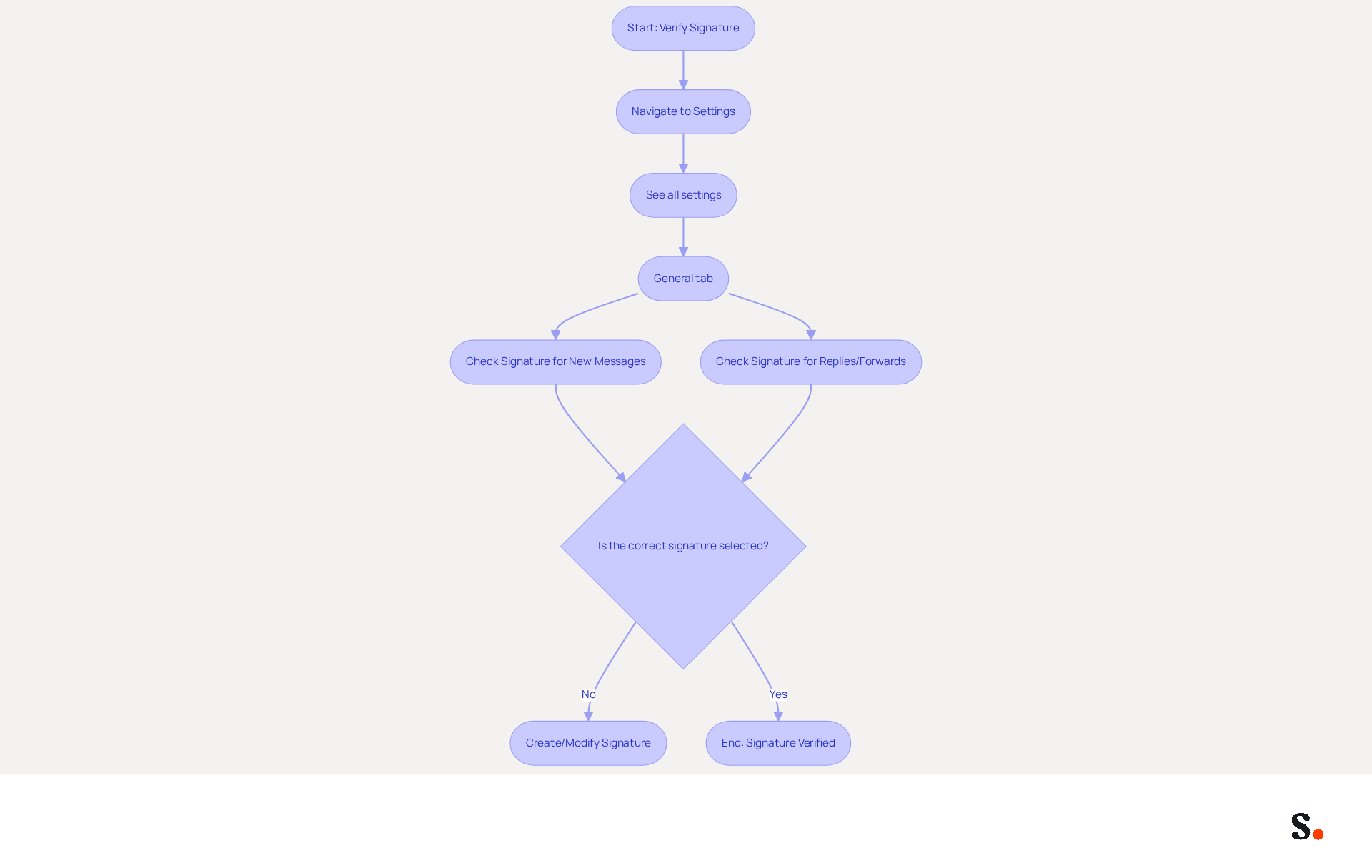
Choosing the correct identity in Gmail is crucial for effective communication. To verify this, navigate to 'Settings' and then 'See all settings.' Under the 'General' tab, locate the 'Signature' section. Here, you can confirm that the preferred mark is selected for both new messages and replies/forwards. If adjustments are needed, you can create a new mark or modify an existing one to align with your branding requirements.
Statistics show that 89.9% of users generally maintain a single digital identifier. This common practice can lead to significant confusion when users manage multiple identifiers. For those who do employ multiple identifiers, it’s essential to regularly review and refresh them to ensure they reflect current branding and messaging.
Granting Super Admin permissions allows for one-click synchronization with your service provider. This efficient process enables seamless updates and centralized management over digital identifiers across various clients and brands. With Scribe, any changes you make in your provider directory sync automatically, keeping everything up to date and compliant with security standards, including SOC 2 Type II certification.
Research shows that an efficient method for managing approvals can significantly enhance communication effectiveness. By ensuring the correct sign-off is in use, businesses can maintain brand consistency and utilize digital identifiers as powerful marketing tools. Furthermore, case studies indicate that organizations that effectively manage their digital branding report enhanced engagement rates and lead generation, highlighting the critical role of effective digital branding in boosting engagement and generating leads.
Signature Formatting Issues
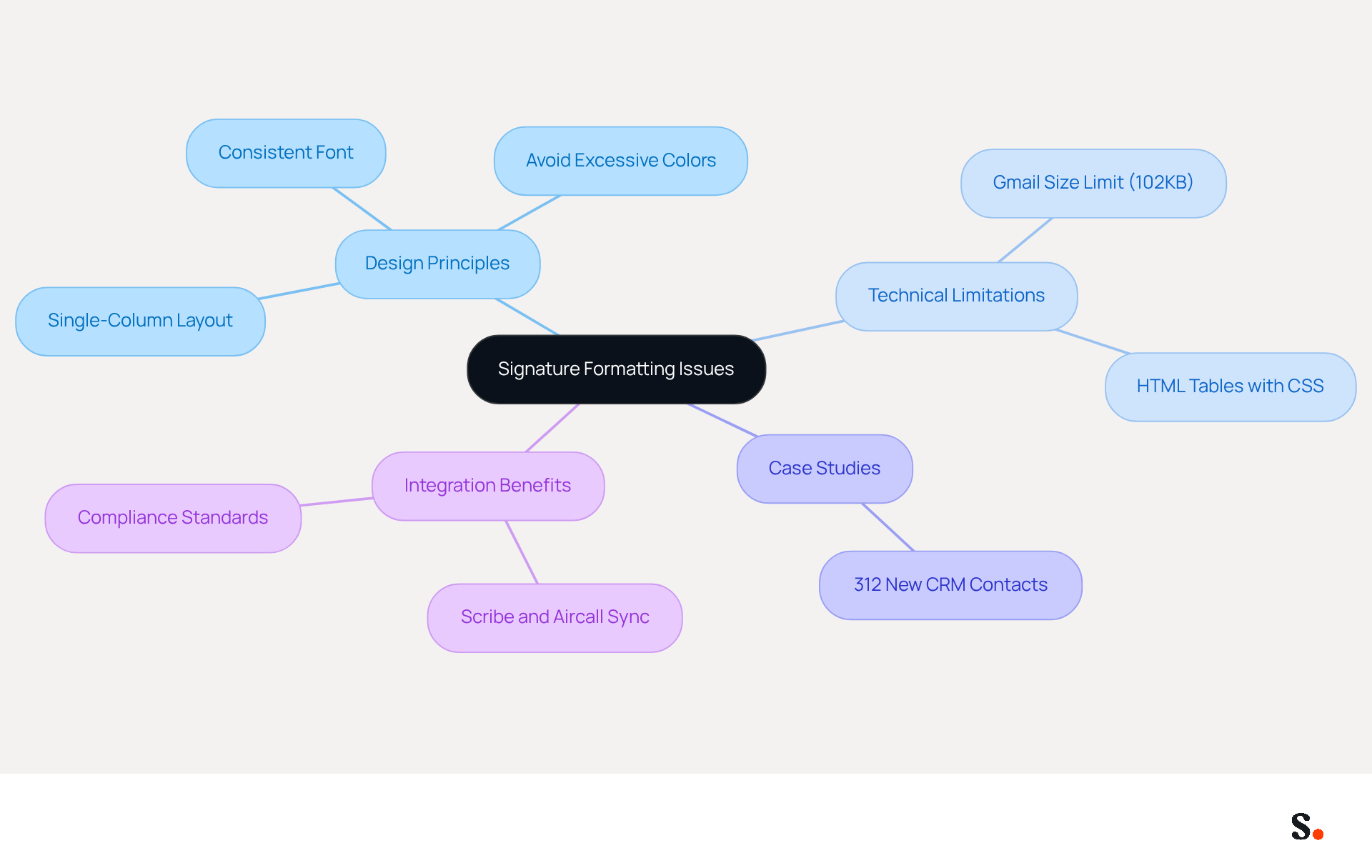
Excessive styling in electronic communications often leads to formatting issues that hinder effective communication. To ensure your mark displays correctly across all messaging clients, simplify your design by using a consistent font and size. Avoid incorporating too many colors or complex styles that may not render well, particularly in Gmail, as this can lead to issues such as a Gmail signature not showing due to specific limitations.
For example, Gmail footers must stay below a total size of 102KB, and utilizing HTML tables with inline CSS is advised for improved compatibility. After making adjustments, save your mark and test it by sending a message to yourself. Regular evaluations of your endorsement can help maintain its effectiveness and compliance with current standards.
A case study revealed that a redesigned email footer helped a sales team gain 312 new CRM contacts in just 30 days through regular email interactions, demonstrating how effective formatting can boost engagement. Additionally, left-aligned, single-column designs have been shown to achieve 3x higher CTA click rates than multi-column layouts, reinforcing the importance of simplicity in design.
Furthermore, with Scribe's automated synchronization with Aircall, any modifications made in your Aircall configuration will be automatically reflected in your Scribe profiles, ensuring brand consistency and effortless updates. This integration not only streamlines the management process but also supports SOC 2 Type II compliance and adheres to GDPR and CCPA standards for secure data handling.
HTML Code Errors in Signature
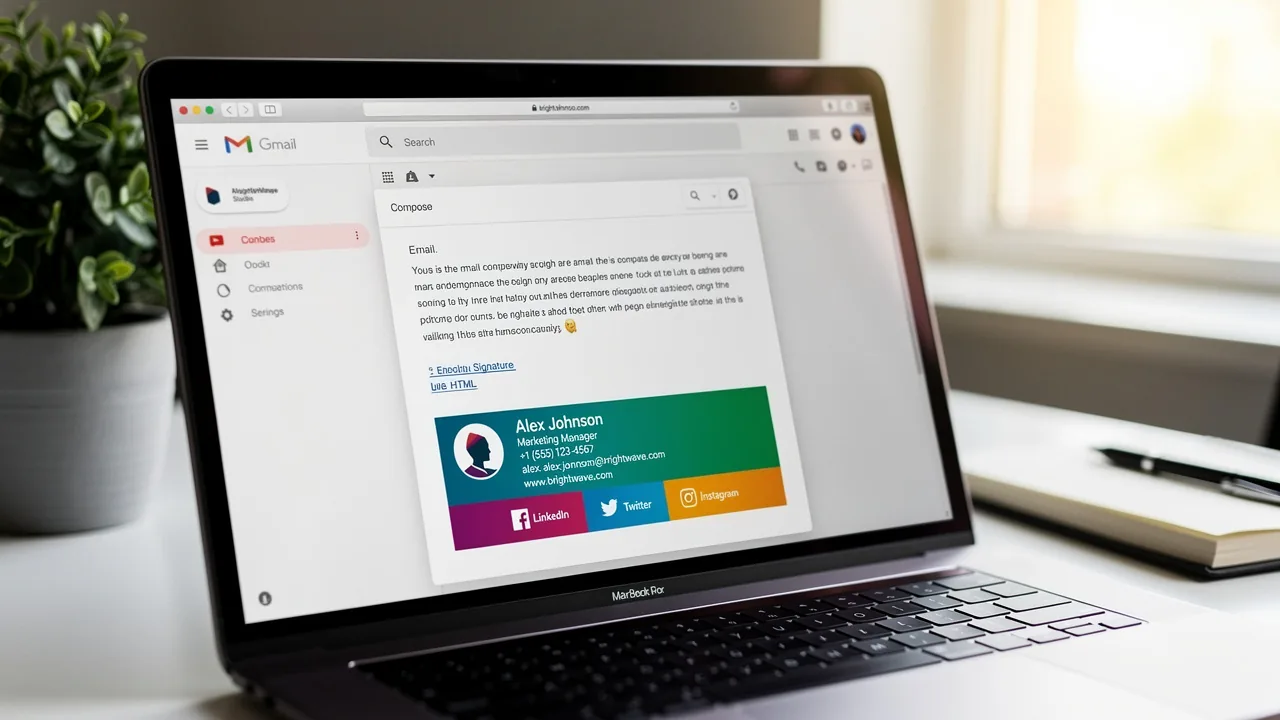
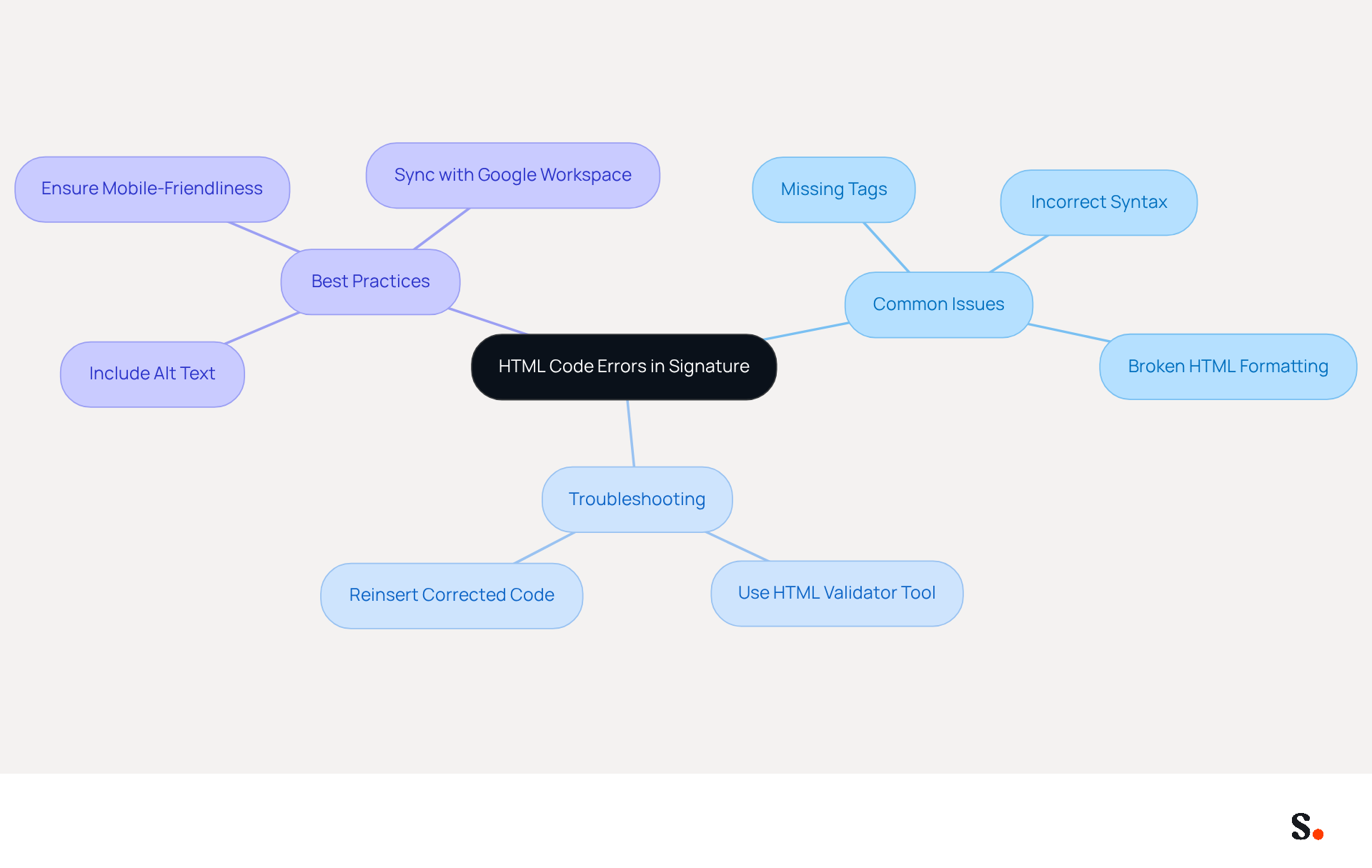
While HTML elements can enhance brand visibility, errors in the code can severely limit their effectiveness. Common issues include:
- Missing tags
- Incorrect syntax
- Broken HTML formatting
These common pitfalls can lead to significant visibility issues for your brand. To troubleshoot these problems, consider using a reliable HTML validator tool, such as W3C Validator, to pinpoint and fix any coding errors. Once the issues are resolved, reinsert the corrected HTML code into your Gmail settings to address the Gmail signature not showing and save your changes.
Research shows that businesses with well-crafted HTML email footers experience a significant boost in engagement. In fact, branded identifiers can increase response rates by as much as 22% and elevate website click rates from 3% to 15%. Regularly reviewing your digital identifiers is essential to maintain their accuracy and compliance, particularly in regulated sectors.
Furthermore, ensure that your message footer contains alt text for images to enhance accessibility and that it is mobile-friendly, as many individuals check notifications on their phones. By syncing your Google Workspace with Scribe, you can simplify management of your email identifiers. It saves you time and ensures that any updates to your teammates' information are automatically reflected. This streamlined approach not only saves time but also ensures that your brand remains consistently represented across all communications.
Signature Hidden in Replies or Forwards
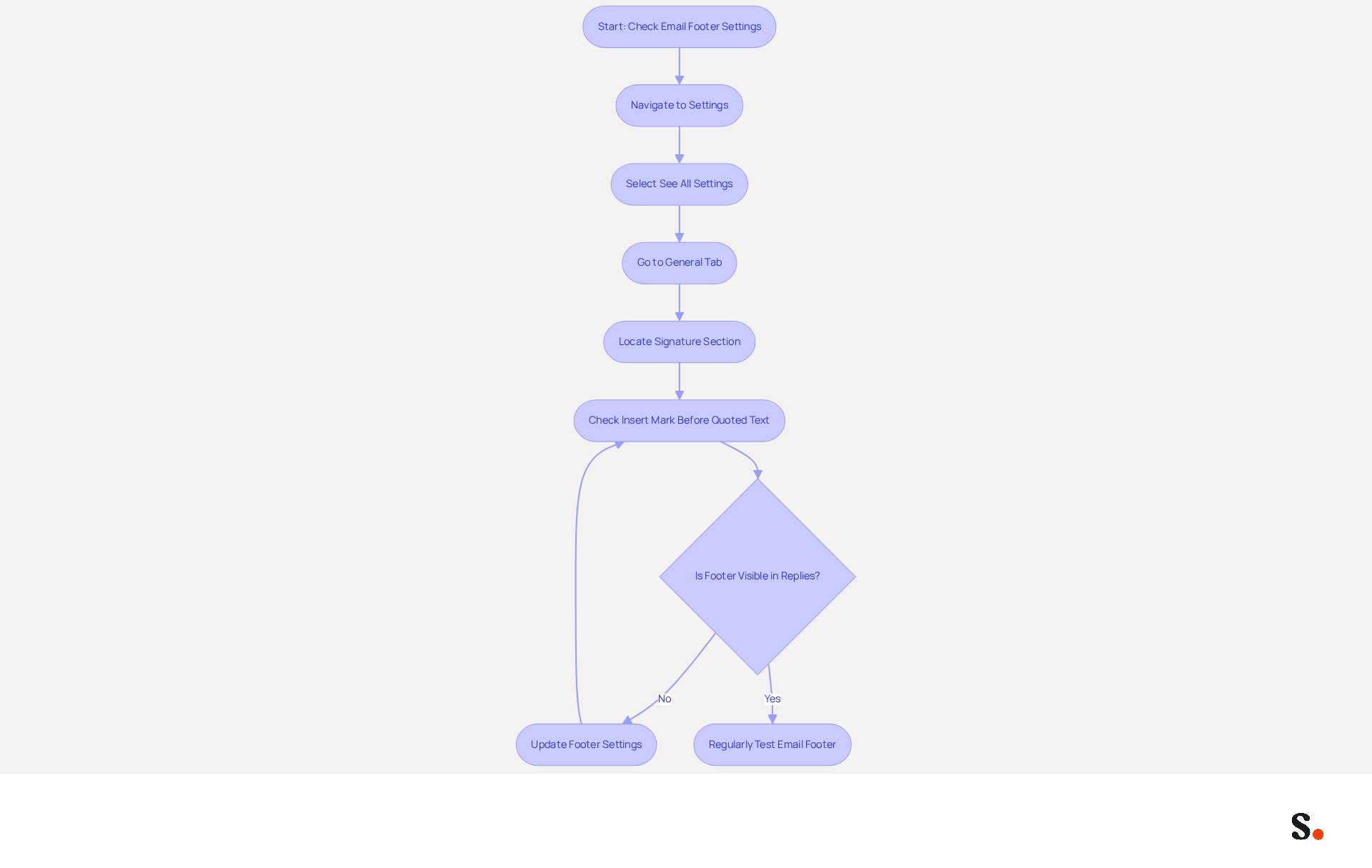
To ensure your email footer is consistently visible in replies and forwards in Gmail, it is crucial to verify your footer settings. Navigate to 'Settings' and select 'See all settings.' Under the 'General' tab, locate the 'Signature' section. Ensure you check the option labeled 'Insert this mark before quoted text in replies and forwards.' This configuration is essential as it guarantees that your mark will be included in all correspondence threads, enhancing your professional image and ensuring that important contact details are readily accessible to recipients.
Statistics show that 75.1% of businesses use email footers to promote their brands and products, emphasizing the importance of maintaining a visible footer. Keeping your email footer updated and properly configured helps avoid issues that may result in a Gmail signature not showing in replies. Additionally, consider simplifying the formatting of your sign-off to avoid complications that may arise from complex HTML or excessive images, which can hinder visibility. Adhering to these recommended methods will assist you in maintaining a consistent and effective communication footer across all interactions. Regular testing of your email footer can help identify any display issues before they affect your communication.
Using Scribe means that any changes you make in your Aircall settings will automatically update your email signatures, helping you maintain brand consistency effortlessly. Consistently check your contact information, branding elements, and personal details in your correspondence to ensure accuracy. By implementing these strategies, you can enhance your professional image and ensure your communication remains effective and consistent.
Technical Glitches Affecting Signature Display
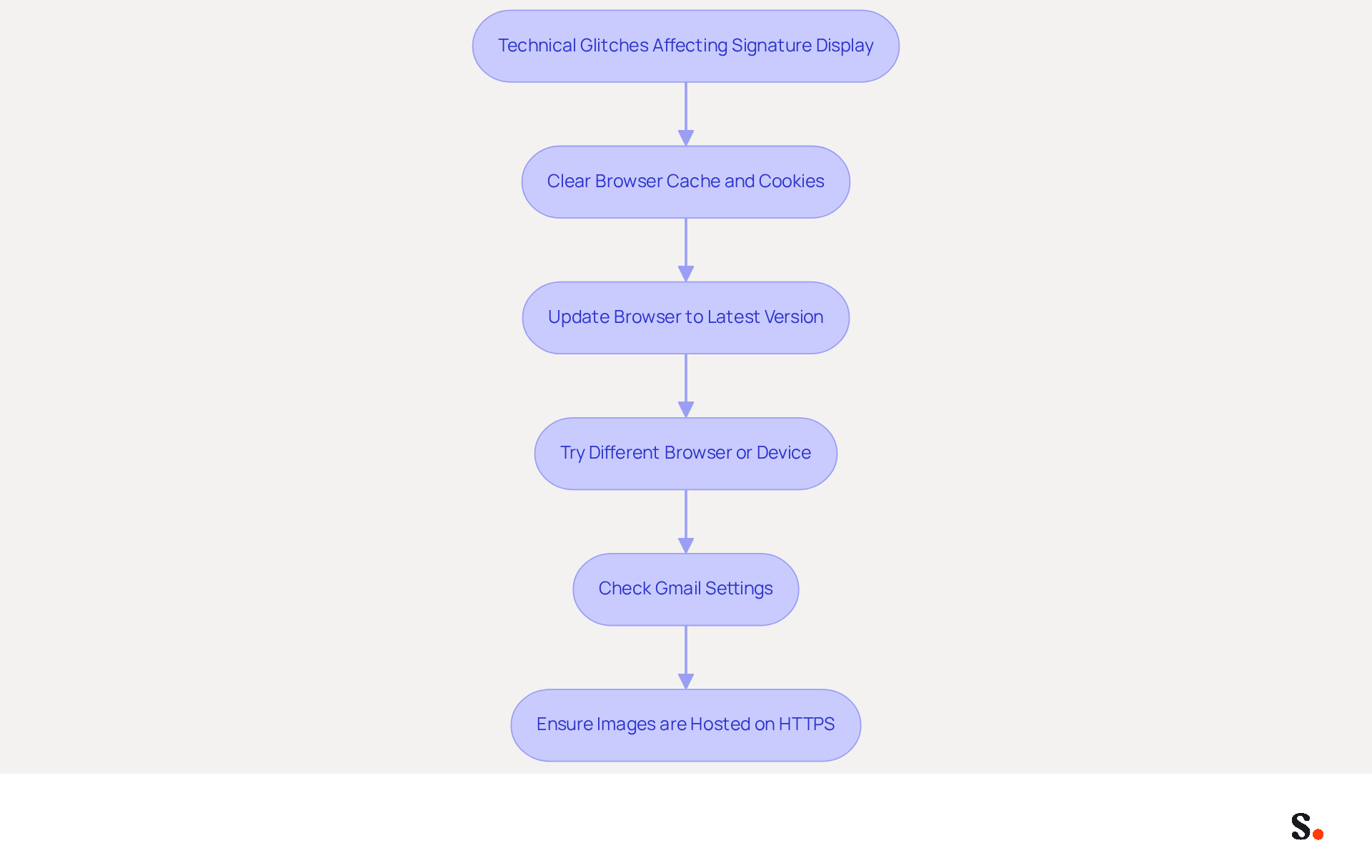
Technical glitches can significantly disrupt the display of email identifiers in Gmail, impacting professionalism. Common issues can lead to significant disruptions in professional communication, including browser-related problems, such as outdated versions or cache interference, which can result in a Gmail signature not showing as intended. Start by clearing your browser cache and cookies; this simple step often resolves many display issues. Additionally, ensuring that the browser is updated to the latest version is crucial for optimal performance.
If the mark still does not display correctly, accessing Gmail from a different browser or device can help determine if the issue is specific to the current setup. For example, technical issues may occur due to server errors or conflicts with third-party extensions, which can interfere with the display of the mark. Regularly checking your digital identifiers helps identify and fix formatting issues that can prevent images from displaying correctly, as they assist in detecting and correcting problems that may hinder images from appearing or lead to distortions due to excessive formatting.
To simplify management of digital signatures, syncing your Google Workspace with Scribe can greatly improve efficiency. By automating the synchronization of your teammates' data, any changes made in Google Workspace - such as modifications to job positions or group assignments - are automatically reflected in Scribe. This not only saves time but also ensures that your email identifiers are always up-to-date, reducing the likelihood of display issues. The auto-fill feature enables quick updates to account information, further simplifying the process for users.
Case studies reveal that many users have successfully resolved the issue of Gmail signature not showing by verifying their Gmail settings, ensuring that the correct option is selected, and confirming that the feature is enabled. It's also crucial to ensure that images in correspondence are hosted on trustworthy HTTPS servers to prevent display problems. Ultimately, effective management of email signatures is essential for fostering trust and credibility with consumers. In fact, 42% of consumers perceive businesses lacking a branded identity negatively, and 76% of consumers have greater trust in brands that utilize branded communication, emphasizing the significance of effective management of branding in communications.
Regularly Update Your Signature
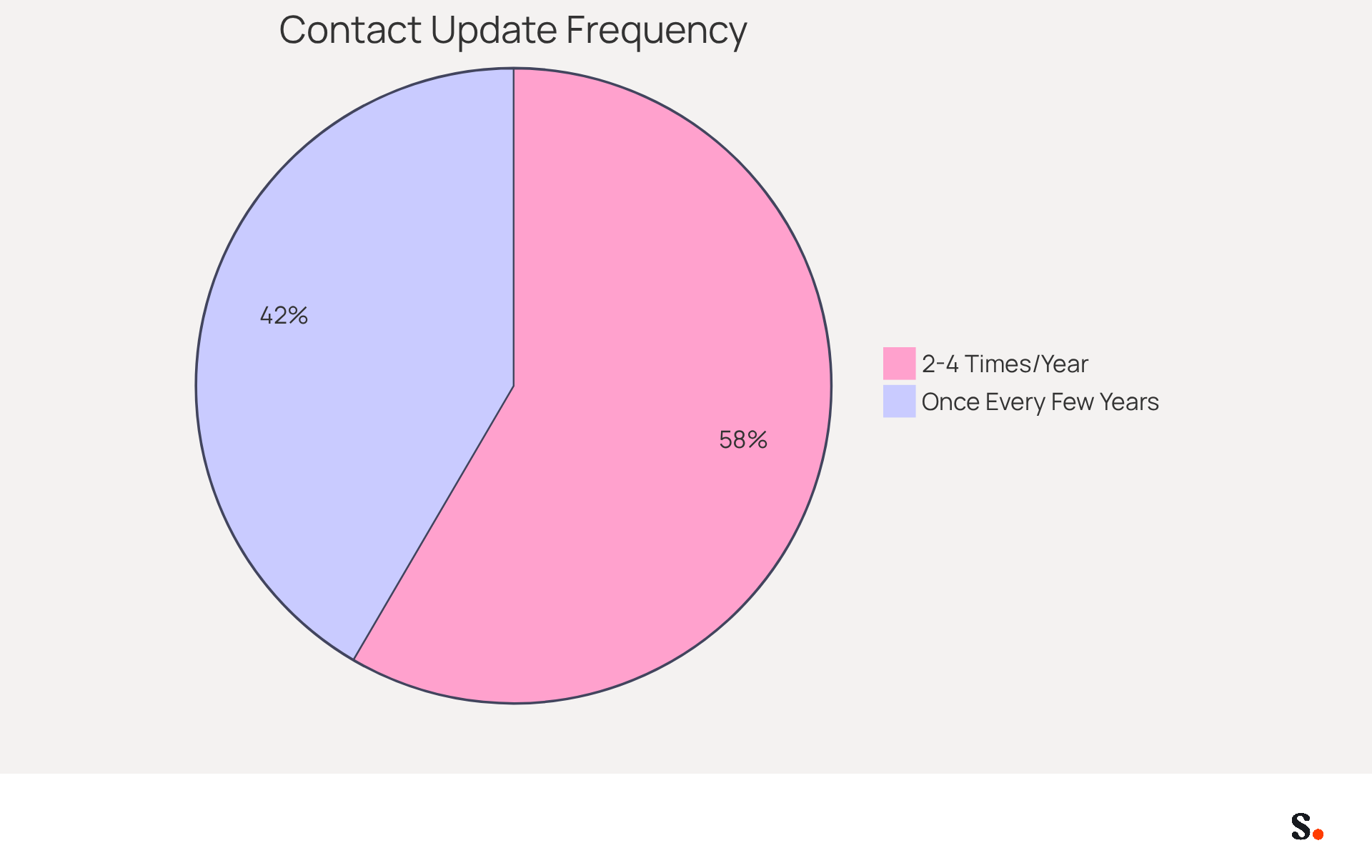
To maintain a professional image, it is essential to regularly update your contact details to reflect any changes in branding or promotional content. Statistics indicate that:
- 44.4% of professionals refresh their contact details 2-4 times a year
- 31.6% do so only once every few years
Neglecting to update your contact details can lead to missed connections and a weakened brand image. Setting a reminder to review your signatory every few months or whenever significant changes occur within your organization ensures that your signatory remains relevant and effective in your communications.
This tool simplifies the process by allowing one-click synchronization with your provider, which automatically updates your signatures. To enable this synchronization, you must grant permission to Scribe to connect with your provider, and you need to be a Super Admin to provide these permissions. Any modifications made in your provider directory are reflected in Scribe, ensuring that your branding remains consistent and up-to-date. The application automatically syncs teammate information from your provider daily at your local time, and for instant updates, you can click 'Refresh' in the Teammates tab. Additionally, Scribe's SOC 2 Type II compliance ensures the security of your data, offering reassurance as you manage your digital identities.
Research shows that a strong electronic communication footer is crucial for building trust and enhancing brand identity, with 80% of participants considering it a significant element of a company's image. Organizations that uphold consistent branded communication formats report over a 22% increase in response rates, illustrating the tangible advantages of regular updates.
Research indicates that organizations investing in efficient management of their digital signatures, such as those utilizing Scribe, not only improve their branding but also foster trust with clients. By incorporating key elements such as updated contact information, promotional banners, and call-to-action buttons, businesses can significantly improve engagement rates. Thus, by prioritizing regular updates, organizations can significantly enhance their visibility and foster stronger client relationships.
Use Scribe for Efficient Signature Management
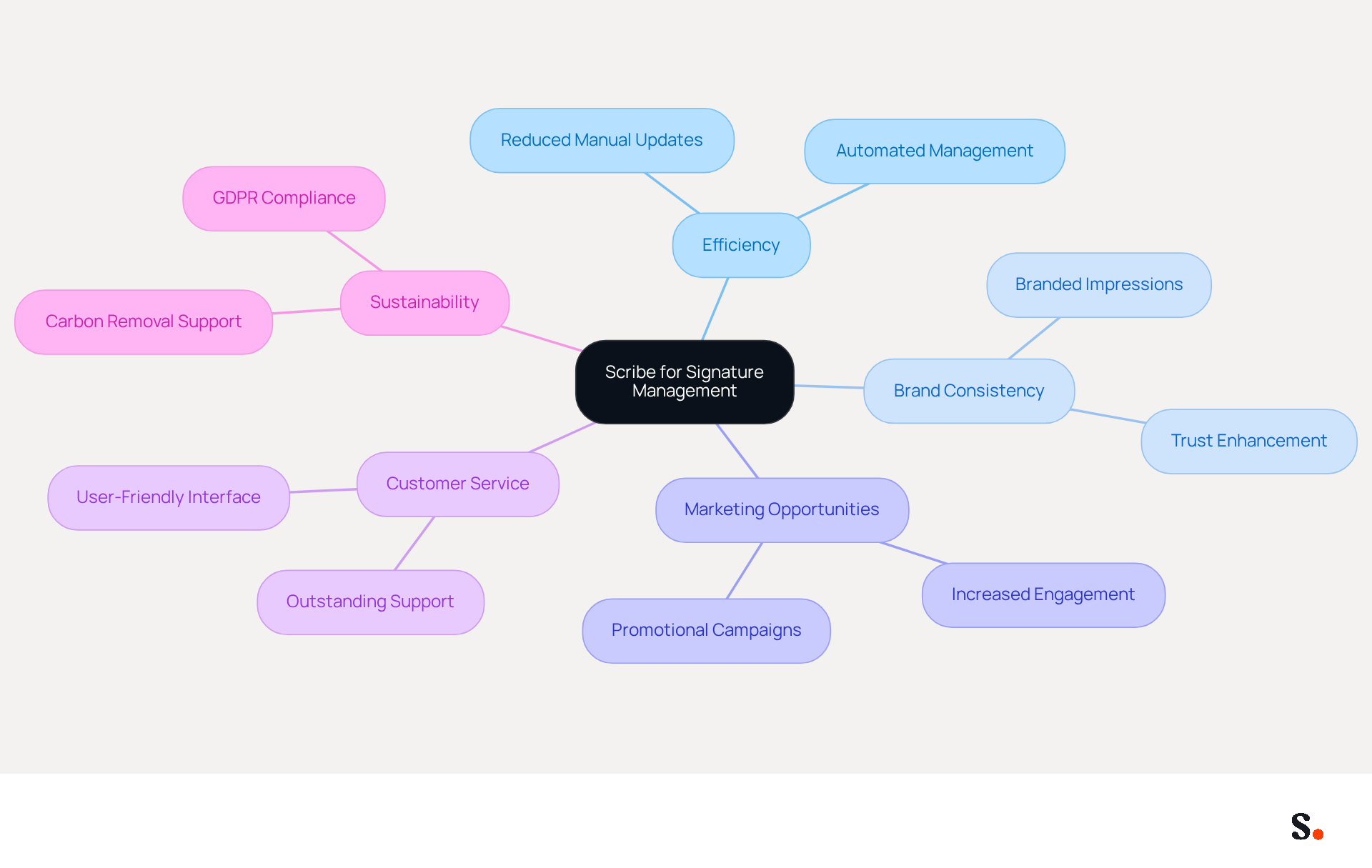
Many businesses struggle with the complexities of managing digital signatures, leading to inconsistencies and wasted resources. Scribe offers an innovative solution supported by outstanding customer service. Scribe enables you to create, modify, and manage digital identifiers for your team quickly, empowering marketing teams to take charge after the initial IT setup. This streamlined process ensures brand consistency across all communications, maximizing marketing opportunities with every email sent.
By automating the management of sign-offs, Scribe removes the inefficiencies linked to manual updates, allowing your team to concentrate on essential business activities while presenting a professional image. Companies leveraging Scribe generate between 60,000 and 80,000 branded impressions monthly, significantly enhancing their visibility without incurring extra expenses.
Moreover, 76% of marketers concur that branded digital identifiers enhance trust in the sender, highlighting the significance of maintaining a refined and consistent online identity. Scribe's automation keeps your signatures current and turns your messaging into a valuable marketing opportunity.
Additionally, Scribe is committed to environmental sustainability, directing 1% of revenue to support carbon removal technologies, and ensures compliance with GDPR, SAML single sign-on integration, and holds SOC 2 Type II certification for secure email signature management.
Conclusion
Ensuring your Gmail signature displays correctly is not just a technical necessity; it’s a vital component of your professional image. Addressing common issues like incorrect settings and browser compatibility can greatly improve how your email signature appears. Scribe simplifies signature management and allows marketing teams to keep brand consistency without ongoing support.
Key insights from the article highlight the importance of:
- Regularly updating contact details
- Verifying signature settings
- Troubleshooting technical glitches
With Scribe's automated synchronization capabilities, organizations can ensure that any changes made in Google Workspace are reflected in their email signatures, saving time and reducing the likelihood of errors. Furthermore, the platform's compliance with SOC 2 Type II, GDPR, and CCPA standards guarantees secure data handling, reinforcing trust with clients.
Ultimately, effective email signature management can be the difference between a standard communication and a powerful brand statement. By leveraging Scribe's innovative features, businesses can turn their email signatures into effective marketing tools that enhance engagement and credibility. Regularly reviewing and updating signatures not only reflects professionalism but also maximizes the potential for meaningful connections in every email sent.
Frequently Asked Questions
Why is my Gmail signature not appearing at all?
To ensure your Gmail footer displays correctly, verify your settings by clicking the gear icon, selecting 'See all settings,' and checking the 'Signature' section under the 'General' tab. Make sure a mark is created and selected. If not, create one and save your changes. Also, confirm you are using the correct account if multiple accounts are linked to your Gmail.
What should I do if my Gmail signature still doesn’t show up?
If your signature is still not visible, check for any browser extensions or settings that might be causing the issue. Ensure your browser is updated, as compatibility or outdated software can affect visibility.
How can Scribe help with managing Gmail signatures?
Scribe's automated sync with Google Workspace streamlines the management of electronic signatures. Any modifications made to teammates' details will automatically refresh in their contact details, ensuring brand consistency and saving time.
What if the signature option is disabled in my Gmail settings?
If your custom mark is not displaying, navigate to 'Settings,' select 'See all settings,' and check the 'Signature' section under the 'General' tab. If it is set to 'No mark,' change it to your preferred mark and save your changes.
How does plain text mode affect my Gmail signature?
When Gmail's composer is in plain text mode, it strips away rich text formatting, including images and links in your email footer. To revert to rich text mode, open a new email, click 'Compose,' access the three dots in the lower right corner, and ensure 'Plain text mode' is unchecked.
What should I do if my email footer is truncated?
Ensure that your email footer does not exceed Gmail's character limit, and check that your settings for replies and forwards are correctly selected. Be aware that browser extensions may also interfere with the visibility of your Gmail signature.
How does syncing Google Workspace with Scribe enhance efficiency?
Syncing Google Workspace with Scribe allows for automatic updates of teammates' information, ensuring that any changes made in Google Workspace are reflected in Scribe without manual input, thus enhancing efficiency and consistency across your organization.
List of Sources
- Signature Does Not Appear at All
- 100 Professional Email Signature Quotes: Best Ideas - NEWOLDSTAMP (https://newoldstamp.com/blog/email-signature-quotes)
- Email Signature Statistics: A Closer Look at Email Signatures in 2026 (https://mysignature.io/blog/email-signature-statistics)
- Gmail Statistics: What Google Has Actually Published (2026) (https://dragapp.com/blog/gmail-stats)
- Signature Option Disabled in Gmail Settings
- Gmail Signature Troubleshooting | WiseStamp Help Center (https://support.wisestamp.com/en/articles/13366705-gmail-signature-troubleshooting)
- Solving a Gmail signature problem (https://signitic.com/en/guides/solving-a-gmail-signature-problem)
- Read our guide for troubleshooting Gmail signatures issues (https://wisestamp.com/guides/how-to-fix-gmail-signature-not-showing)
- Troubleshoot issues with Gmail signatures - Gmail Help (https://support.google.com/mail/answer/11468381?hl=en)
- Gmail Composer Set to Plain Text Mode
- Gmail Signature Not Showing? 9 Fixes That Actually Work (2026) (https://email-tools.me/posts/gmail-signature-not-showing)
- Gmail Signature Troubleshooting | WiseStamp Help Center (https://support.wisestamp.com/en/articles/13366705-gmail-signature-troubleshooting)
- Troubleshooting: Signatures losing all formatting when applied (https://signaturky.com/kb/troubleshooting-signatures-losing-all-formatting-when-applied)
- Incorrect Signature Selected
- Email Signature Statistics: A Closer Look at Email Signatures in 2026 (https://mysignature.io/blog/email-signature-statistics)
- Email Signature Essentials: Key Statistics to Know for 2023 (https://blog.hubspot.com/marketing/email-signature-statistics)
- Signature Formatting Issues
- The Complete Email Signature Guide 2026: Best Practices and Policy (https://opensense.com/complete-email-signature-guide)
- Email Signature Best Practices for 2026 (+ 15 Pro Examples) (https://wavecnct.com/blogs/email-signature-best-practices-2026)
- HTML Code Errors in Signature
- Fix Your Missing Gmail Signature: 8 Troubleshooting Steps & Best Practices | Newoldstamp - NEWOLDSTAMP (https://newoldstamp.com/blog/gmail-signature-not-showing-up)
- Master HTML Signatures in Gmail: Best Practices for Marketing Success (https://scribe-mail.com/en-US/blog/master-html-signatures-in-gmail-best-practices-for-marketing-success)
- How to Add HTML Signature to Gmail (Step-by-Step Guide) - NEWOLDSTAMP (https://newoldstamp.com/blog/html-email-signature-gmail)
- Signature Hidden in Replies or Forwards
- Fix Your Missing Gmail Signature: 8 Troubleshooting Steps & Best Practices | Newoldstamp - NEWOLDSTAMP (https://newoldstamp.com/blog/gmail-signature-not-showing-up)
- What To Do When Your Gmail Signature is Not Showing Up (https://appointlet.com/blog/gmail-signature-not-showing-up)
- Reply Email Signature | Best Practices & Examples | Exclaimer (https://exclaimer.com/email-signature-handbook/reply-email-signatures)
- Why won't my Gmail signature show up in replies to new senders? (https://webapps.stackexchange.com/questions/39513/why-wont-my-gmail-signature-show-up-in-replies-to-new-senders)
- Technical Glitches Affecting Signature Display
- Email signature statistics: Why every business should optimize their email signatures — Stripo.email (https://stripo.email/blog/email-signature-statistics-why-every-business-should-optimize-their-email-signatures)
- Gmail Signature Not Showing? Here’s How to Fix It (https://linkedin.com/pulse/gmail-signature-showing-heres-how-fix-newoldstamp-f3ckf)
- Why Is My Gmail Signature Not Showing Up? Common Causes Explained (https://scribe-mail.com/en-US/blog/why-is-my-gmail-signature-not-showing-up-common-causes-explained)
- Fix Your Missing Gmail Signature: 8 Troubleshooting Steps & Best Practices | Newoldstamp - NEWOLDSTAMP (https://newoldstamp.com/blog/gmail-signature-not-showing-up)
- 40+ Email Signature Statistics for 2026 (Data + Insights) (https://wavecnct.com/blogs/email-signature-statistics)
- Regularly Update Your Signature
- 40+ Email Signature Statistics for 2026 (Data + Insights) (https://wavecnct.com/blogs/email-signature-statistics)
- Email signature statistics: Why every business should optimize their email signatures — Stripo.email (https://stripo.email/blog/email-signature-statistics-why-every-business-should-optimize-their-email-signatures)
- Did You Know Your Email Signature Could be a Security Weak Point? - Oklahoma Society of CPAs (https://oscpa.com/news/990e5e16-6ad4-4ff4-91bb-236c7634b1f6:did-you-know-your-email-signature-could-be-a-security-weak-point)
- Use Scribe for Efficient Signature Management
- 40+ Email Signature Statistics for 2026 (Data + Insights) (https://wavecnct.com/blogs/email-signature-statistics)
- Why Email Signature Management Software is Essential for Marketing Success (https://scribe-mail.com/en-US/blog/why-email-signature-management-software-is-essential-for-marketing-success)
- 4 Email Signatures Best Practices for Effective Marketing (https://scribe-mail.com/en-US/blog/4-email-signatures-best-practices-for-effective-marketing)
- Scribe Integration (https://front.com/integrations/scribe)
- Maximize Marketing Impact with Automated Email Signatures Best Practices (https://scribe-mail.com/en-US/blog/maximize-marketing-impact-with-automated-email-signatures-best-practices)
Get started with Scribe
Create your signature in minutes
Free 14-day trial — no credit card.