3 Steps to Gmail Insert HTML Signature for Effective Marketing
Digital communication has fundamentally changed how brands engage with their audiences, underscoring the importance of every detail, particularly email
Sophie Grant
Email Signature Specialist, Scribe

On this page
Introduction
Digital communication has fundamentally changed how brands engage with their audiences, underscoring the importance of every detail, particularly email signatures. These elements, often overlooked, function not only as sign-offs but also as potent marketing tools that can enhance brand visibility and engagement.
This article outlines the key steps for crafting an effective HTML signature in Gmail, highlighting the benefits of using such signatures for marketing purposes. However, many organizations struggle with formatting issues and other common pitfalls that can undermine their efforts.
This raises the question of how organizations can create email signatures that not only appear professional but also yield measurable results.
Understand HTML Signatures and Their Importance for Marketing
Digital identifiers serve as crucial marketing tools that enhance brand visibility and foster customer interaction. Unlike plain text formats, coded formats enable the addition of images, links, and styled text, making them visually appealing and informative. Here are some essential points to consider:
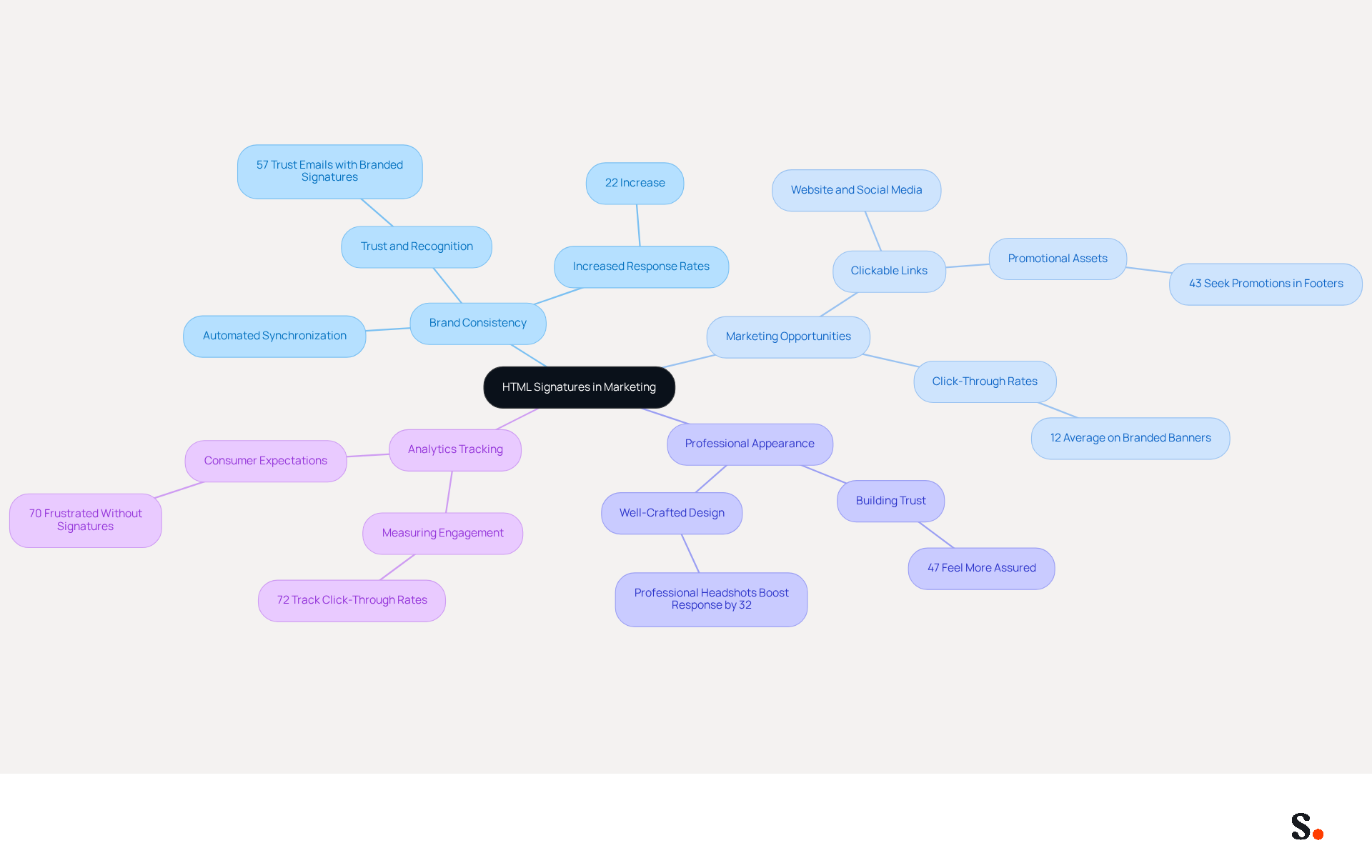
- Brand Consistency: HTML signatures ensure that every email sent reflects your brand's identity, maintaining consistency across all communications. With Scribe's automated synchronization with Aircall, any changes made in your Aircall configuration will automatically be reflected in your Scribe profiles, reinforcing this uniformity. However, many businesses struggle to maintain brand consistency across their digital communications. Research indicates that businesses with consistent branded digital identifiers see over a 22% increase in response rates.
- Marketing Opportunities: By incorporating links to your website, social media profiles, or promotional banners, you can transform every message into a marketing opportunity. In fact, 43% of consumers seek promotional assets in email footers, demonstrating their ability to attract traffic and boost engagement. Additionally, Scribe boasts an average click-through rate of 12% on branded banners, underscoring their strategic importance in lead generation.
- Professional Appearance: When an email footer is well-crafted, it not only looks professional but also builds trust and credibility with recipients. Research indicates that 47% of consumers feel more assured with messages that include professionally branded identifiers, emphasizing the importance of a refined presentation.
- Analytics Tracking: By using gmail insert html signature, HTML formats can be integrated with tracking tools to measure engagement, allowing you to assess the effectiveness of your marketing efforts. Click-through rates are a key metric, with 72% of marketers tracking this indicator to evaluate email effectiveness. Furthermore, 70% of consumers show annoyance when brands do not include any form of identification, highlighting the importance of integrating them.
In summary, grasping the significance of digital identifiers, particularly with Scribe's features for automated synchronization, is the initial step toward utilizing them for effective marketing strategies. This transformation not only boosts visibility but also fosters deeper connections with customers.
Add Your HTML Signature in Gmail: Step-by-Step Instructions
Using a gmail insert html signature can significantly enhance your professional communications.
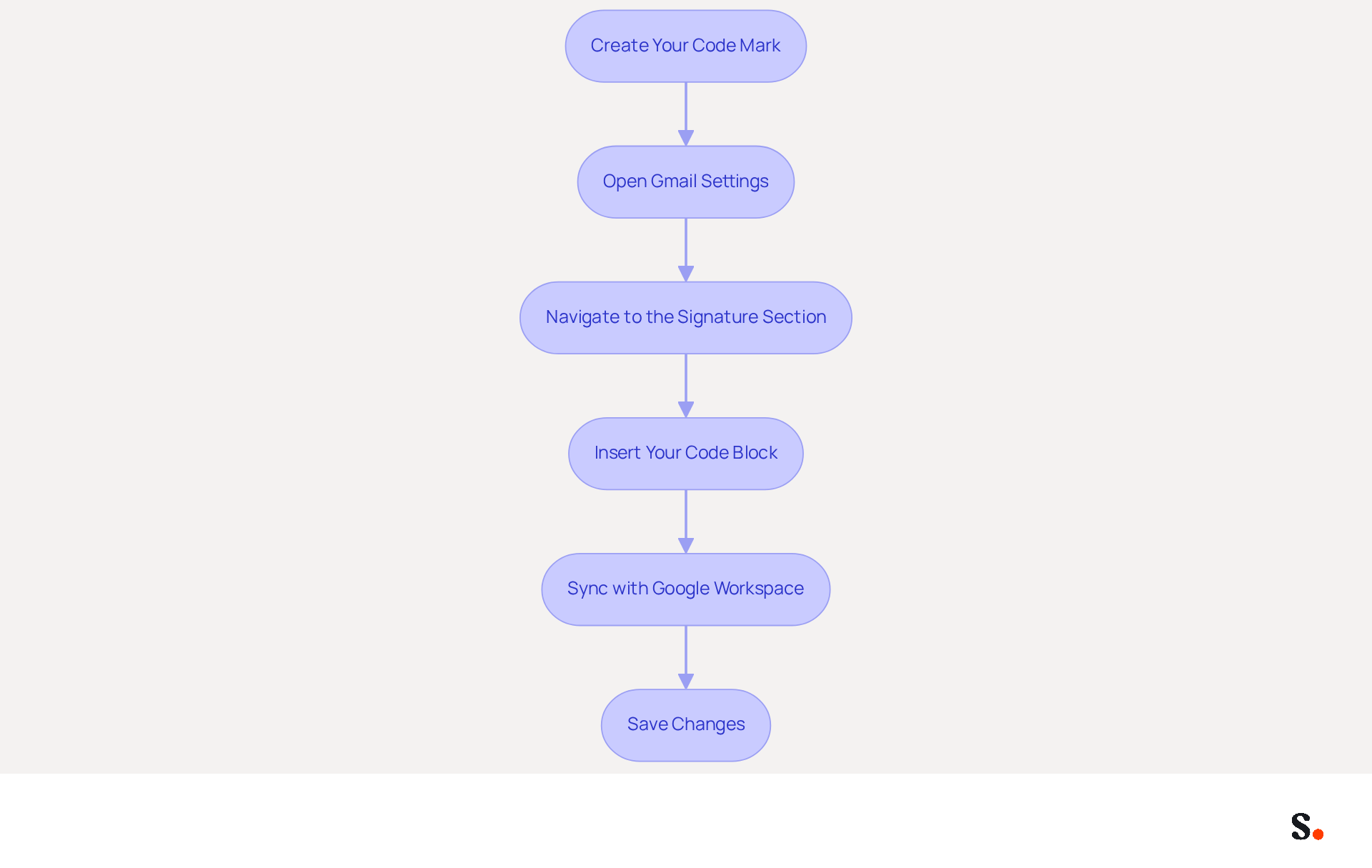
- Create Your Code Mark: Utilize a code editor or a generator to design your mark. Ensure it includes essential elements such as your name, title, company logo, and links to your website and social media profiles. An effective HTML footer enhances brand visibility and conveys professionalism in every email.
- Open Gmail Settings: Log into your Gmail account. Click on the gear icon in the top right corner and select 'See all settings'. This will take you to the settings menu where you can customize your email experience.
- Navigate to the Signature Section: In the 'General' tab, scroll down to the 'Signature' section. Here, you can create a new sign or modify an existing one.
- Insert Your Code Block: Open your code block in a web browser. Select all (Ctrl+A) and copy (Ctrl+C) the autograph. Return to the Gmail settings, click on the box for your email footer, and paste (Ctrl+V) your HTML footer. This approach guarantees that your signature maintains its intended formatting and functionality, ensuring all links are active.
- Sync with Google Workspace: By syncing your Google Workspace with the platform, you can save time as your teammates' information will be automatically updated in the application. Managing signatures manually can be time-consuming and prone to errors. By automating updates, you can focus on more strategic tasks instead of manual data entry. Additionally, Scribe complies with security standards such as SOC 2 Type II, GDPR, and CCPA, ensuring that your data is handled securely and responsibly.
- Save Changes: Scroll down to the bottom of the settings page and click 'Save Changes'. Your web page footer is now prepared for use in your messages.
By following these steps, you can create a gmail insert html signature that boosts your marketing efforts and engages your audience effectively. Studies indicate that digital endorsements with targeted calls-to-action can boost engagement by as much as 40% over standard sign-offs, making this a valuable addition to your email communications. Furthermore, ensuring your email footer is mobile-optimized is crucial for maintaining professionalism on all devices. Regularly test your branding to confirm that all links are functional and direct to the correct profiles, enhancing your brand's visibility.
Troubleshoot Common Issues with HTML Signatures in Gmail
Creating a professional gmail insert html signature can present several challenges that, if not addressed, may affect your brand image. Here’s how to troubleshoot them:
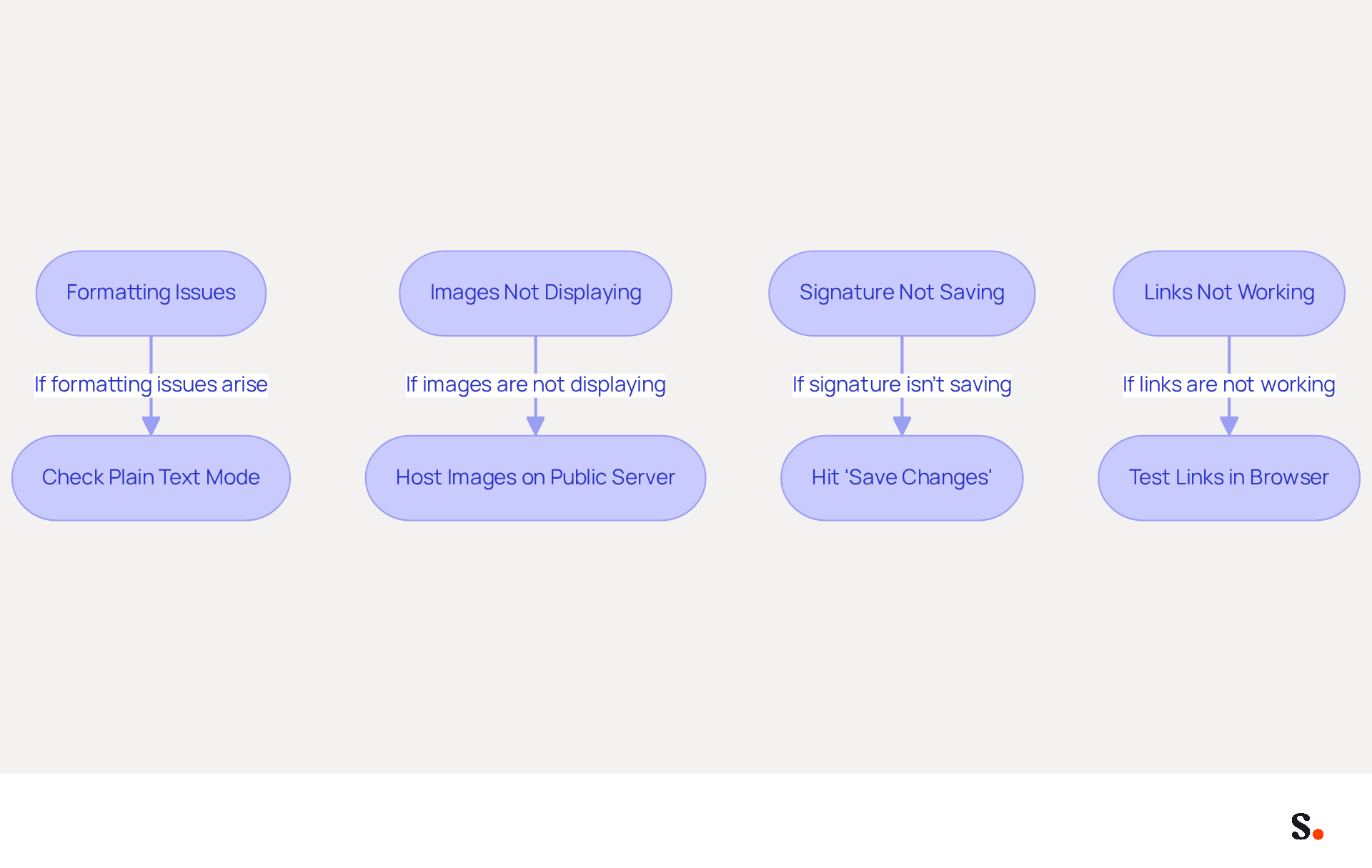
- Formatting Issues: If your signature looks off, first check that you're not in 'Plain text mode'. Switch to 'Rich text mode' if necessary. This adjustment can prevent extra characters from appearing in your sign-off, a common issue reported by users.
- Images Not Displaying: If your email footer images aren't showing up, make sure they're hosted on a public server. Gmail may not display images from private servers, resulting in broken icons or question marks in your email. To avoid this, use reliable platforms for hosting images and ensure they are properly linked.
- Signature Not Saving: If your signature isn't saving, just double-check that you hit 'Save Changes' at the bottom of the settings page. Sometimes, refreshing the page can help. Users have reported that signatures may not sync across devices promptly, so patience may be necessary after making updates.
- Links Not Working: If your footer links aren't clickable, make sure you copied the code right. Test the links in a web browser to confirm they work before pasting them into Gmail. This step can help avoid issues where links appear but do not function as intended.
By proactively troubleshooting these common issues, you can ensure that your gmail insert html signature effectively represents your brand.
Explore Tools for Efficient Email Signature Management
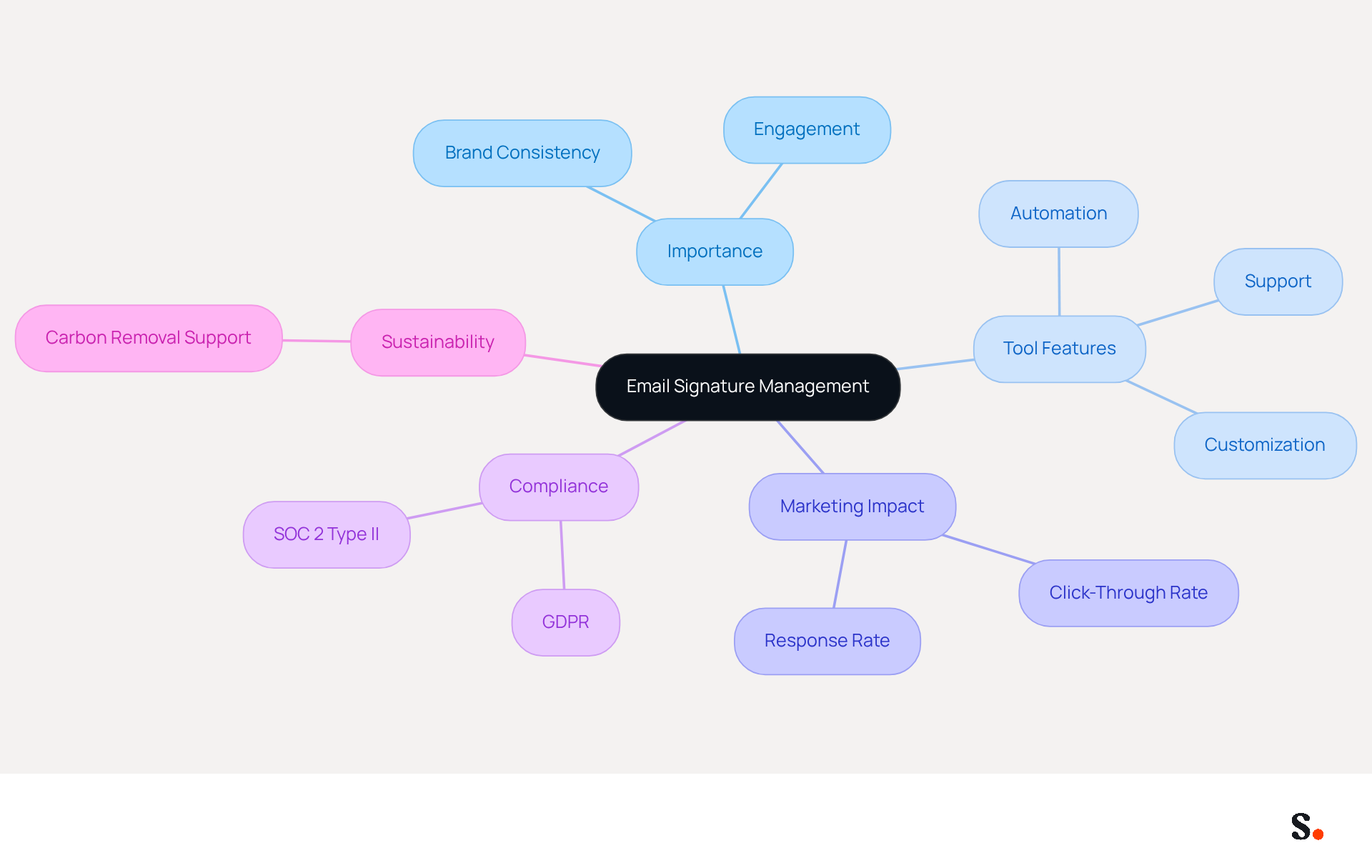
Managing email signatures effectively is crucial for maintaining brand consistency and maximizing marketing impact. To streamline this process, consider utilizing specialized tools like Scribe. This innovative platform automates the creation and management of email signatures, allowing marketing teams to easily manage their branding and engage audiences with personalized banners and call-to-action buttons. The platform leads to a notable increase in marketing performance, as evidenced by a 12% average click-through rate on signature banners.
With Scribe, you can count on real people for support whenever you need it. The platform is also SOC 2 Type II compliant and GDPR compliant, ensuring that your data is secure and privacy is maintained.
Using Scribe enhances your branding in correspondence, making your identifiers visually appealing and effective in driving marketing results. Research indicates that companies using consistent branded email signatures report over a 22% increase in response rates, highlighting the importance of effective email signature management in your marketing efforts. Furthermore, Scribe is committed to environmental sustainability, directing 1% of its revenue to support carbon removal technologies, which aligns with the values of many modern organizations. Ultimately, adopting Scribe not only enhances your branding but also positions your organization as a leader in effective communication strategies.
Conclusion
Implementing an HTML signature in Gmail is essential for businesses aiming to enhance their marketing strategies. By utilizing visually appealing and informative signatures, companies can ensure brand consistency, create marketing opportunities, and present a professional image that builds trust with recipients. The steps outlined in this guide provide a clear pathway to effectively implement an HTML signature, ensuring that every email sent serves as a powerful marketing tool.
Key insights from this article highlight the importance of HTML signatures in driving engagement and maintaining brand identity. From the step-by-step instructions for adding a signature in Gmail to troubleshooting common issues, each aspect is designed to empower marketing teams. Using tools like Scribe makes this process smoother, ensuring automated management while meeting important security standards like SOC 2 Type II, GDPR, and CCPA. With an average click-through rate of 12% on signature banners, businesses can expect a significant boost in engagement.
Without effective HTML signatures, routine email communications may fail to leverage their full marketing potential. Organizations are encouraged to adopt these practices and leverage tools like Scribe to ensure brand consistency and maximize marketing ROI. By doing so, businesses not only enhance their visibility but also foster deeper connections with their audience, positioning themselves for success in a competitive landscape.
Frequently Asked Questions
What are HTML signatures and why are they important for marketing?
HTML signatures are digital identifiers that enhance brand visibility and foster customer interaction by allowing the inclusion of images, links, and styled text in emails, making them visually appealing and informative.
How do HTML signatures contribute to brand consistency?
HTML signatures ensure that every email reflects your brand's identity, maintaining consistency across all communications. Scribe's automated synchronization with Aircall allows any changes in Aircall to be automatically reflected in Scribe profiles, reinforcing this uniformity.
What impact does brand consistency have on response rates?
Research indicates that businesses with consistent branded digital identifiers see over a 22% increase in response rates.
How can HTML signatures create marketing opportunities?
By incorporating links to websites, social media profiles, or promotional banners, every email can become a marketing opportunity. 43% of consumers seek promotional assets in email footers, which can attract traffic and boost engagement.
What is Scribe's average click-through rate on branded banners?
Scribe boasts an average click-through rate of 12% on branded banners, highlighting their strategic importance in lead generation.
How do HTML signatures affect the professional appearance of emails?
A well-crafted email footer looks professional and builds trust and credibility with recipients. Research shows that 47% of consumers feel more assured with messages that include professionally branded identifiers.
What role does analytics tracking play in HTML signatures?
HTML formats can be integrated with tracking tools to measure engagement, allowing marketers to assess the effectiveness of their efforts. Click-through rates are a key metric, with 72% of marketers tracking this indicator.
What do consumers think about brands that do not include identification in their emails?
70% of consumers show annoyance when brands do not include any form of identification, emphasizing the importance of integrating digital identifiers in communications.
How does Scribe facilitate the use of HTML signatures for effective marketing strategies?
Scribe's features for automated synchronization help businesses utilize digital identifiers effectively, boosting visibility and fostering deeper connections with customers.
List of Sources
- Understand HTML Signatures and Their Importance for Marketing
- Research Recap: Branded Email Signatures Increase Company Recognition, Trust - Demand Gen Report (https://demandgenreport.com/industry-news/research-recap-branded-email-signatures-increase-company-recognition-trust/47252)
- Best practices for business email signatures in 2026 (https://bybrand.io/blog/best-practices)
- Master Gmail Signature HTML: Best Practices for Marketing Success (https://scribe-mail.com/en-US/blog/master-gmail-signature-html-best-practices-for-marketing-success)
- Optimize Your Signature HTML Outlook for Effective Marketing (https://scribe-mail.com/en-US/blog/optimize-your-signature-html-outlook-for-effective-marketing)
- Using Email Signatures for Marketing | CloudM (https://cloudm.io/blog/using-email-signatures-for-marketing-how-every-email-can-boost-your-brand)
- Add Your HTML Signature in Gmail: Step-by-Step Instructions
- How to Install a Gmail Signature • Signature Hound (https://signaturehound.com/news/gmail-signature-install)
- Make Your Brand Stand Out: Easily Add an HTML Email Signature to Gmail and Outlook.
Here at Legal Growth, we help to make your brand stand out in customer emails. Add a professionally designed flare to each email sent from Gmail and Outlook with HTML email signatures. They can help promote important information such as contact details. Read on to learn how adding an HTML signature to your business emails is easy.
What HTML email signatures are and why they matter
HTML email signatures are necessary because they allow you to include stylised text and images in your email signature. It helps promote your brand or website or add personality to your emails. Additionally, HTML email signatures can include clickable links, making it easy for recipients to contact or visit your website. A good example is when you get an email from one of us here at Legal Growth.
Create an HTML email signature, Simply today.
When it comes to creating an HTML email signature, there are a few simple steps that you need to follow. To get started, you'll need to create a file called signature.html and then save it in your email signature folder. In this file, you can include any text or images you'd like to appear in your signature.
Next, you'll need to add the following code to your email template:
Your HTML content goes here.
Be sure to replace "Your HTML content goes here." with the actual content of your signature. You can also customise the appearance of your signature by adding some CSS styling. For example, you can add the following code to create a border around your signature:
.signature {
border: 1px solid black;
}
How to add an HTML email signature in Outlook and Gmail
Adding an HTML email signature in Outlook and Gmail is a great way to show your brand personality and add some flair to your emails. It can also be a great way to promote your business or website. This post will show you how to add an HTML email signature in Outlook and Gmail.
To add an HTML email signature in Outlook, follow these steps:
1. Open Outlook and click on the File tab.
2. Select Options from the menu.
3. Click on the Mail tab.
4. Select the Signature option and click on the Edit button in the Signature section.
5. In the Edit Signature window, enter your signature text in the text box and click on the OK button.
6. Click the OK button in the Options window to save your changes.
To add an HTML email signature in Gmail, follow these steps:
1. Open Gmail and click on the Settings gear icon.
2. Select Settings from the menu.
3. Click on the General tab.
4. In the Signature section, type your signature text in the text box and click on the Save Changes button.
Of course, if you are struggling to follow any of these tips or tricks, then please email or phone one of our team at Legal Growth, where we can take all the stress of it, smooth the process out and get you a professional-looking Signature that fits your brand the best.
Here are some tips for creating an HTML email signature:
-Keep your signature file size small. Large files can slow down the loading of your email messages.
-Include a link to your website or social media profile. It will help your contacts learn more about you and your business.
-Include a tagline that expresses who you are and what you do.
-Make sure your signature looks good on all devices. Test it on different devices and browsers to ensure that it looks correct.
Following these simple steps will help you create an HTML email signature that is both stylish and professional. If you want to learn more about adding an HTML email signature in Outlook and Gmail, check out our other post.
— Legal Growth (https://legalgrowth.co.uk/news/make-your-brand-stand-out-easily-add-an-html-email-signature-to-gmail-and-outlook) - How to Add HTML Signature to Gmail (Step-by-Step Guide) - NEWOLDSTAMP (https://newoldstamp.com/blog/html-email-signature-gmail)
- Add a responsive HTML signature in Gmail (1 minute guide) (https://wisestamp.com/guides/how-to-create-gmail-html-signature)
- Master Gmail Signature HTML: Best Practices for Marketing Success (https://scribe-mail.com/en-US/blog/master-gmail-signature-html-best-practices-for-marketing-success)
- Troubleshoot Common Issues with HTML Signatures in Gmail
- How to Add HTML Signature to Gmail (Step-by-Step Guide) - NEWOLDSTAMP (https://newoldstamp.com/blog/html-email-signature-gmail)
- Fix Your Missing Gmail Signature: 8 Troubleshooting Steps & Best Practices | Newoldstamp - NEWOLDSTAMP (https://newoldstamp.com/blog/gmail-signature-not-showing-up)
- Gmail HTML email signature format is getting messed up if any external text is copied in the email - Gmail Community (https://support.google.com/mail/thread/50190848/gmail-html-email-signature-format-is-getting-messed-up-if-any-external-text-is-copied-in-the-email?hl=en)
- Troubleshoot issues with Gmail signatures - Gmail Help (https://support.google.com/mail/answer/11468381?hl=en)
- Email Signature Troubleshooting - Problems & Solutions - Gimmio (https://blog.gimm.io/email-signature-troubleshooting)
- Explore Tools for Efficient Email Signature Management
- WiseStamp Launches the Industry's First AI-Powered Email Signature Platform, Eliminating the Gap Between Brand Design and Instant Deployment (https://prnewswire.com/news-releases/wisestamp-launches-the-industrys-first-ai-powered-email-signature-platform-eliminating-the-gap-between-brand-design-and-instant-deployment-302774232.html)
- 40+ Email Signature Statistics for 2026 (Data + Insights) (https://wavecnct.com/blogs/email-signature-statistics)
- Scribe vs. Competitors: Best Email Signature Design Service for Marketers (https://scribe-mail.com/en-US/blog/scribe-vs-competitors-best-email-signature-design-service-for-marketers)
- Email Signature Software Market Size, Share & Forecast 2034 (https://theinsightpartners.com/reports/email-signature-software-market)
- WiseStamp Sets a New Standard for Email Signature Creation (https://finance.yahoo.com/news/wisestamp-sets-standard-email-signature-110000168.html)
Get started with Scribe
Create your signature in minutes
Free 14-day trial — no credit card.