4 Steps to Attach Your Signature in the Outlook App
Despite the importance of email signatures in professional communication, many users find themselves overwhelmed by the complexities of managing them in the
Sophie Grant
Email Signature Specialist, Scribe
Introduction
Despite the importance of email signatures in professional communication, many users find themselves overwhelmed by the complexities of managing them in the Outlook app. A well-crafted signature not only enhances brand recognition but also provides essential contact information and promotes marketing initiatives, transforming every email into a potential marketing channel.
How can professionals ensure their email signatures are not only functional but also impactful in conveying their brand's message? Let’s explore four essential steps that will help you attach and customize your signatures in the Outlook app, empowering you to elevate your communication and maintain brand consistency.
By mastering these four steps, professionals can ensure their email signatures not only function effectively but also reinforce their brand identity in every communication.
Understand the Importance of Email Signatures in Outlook
In the digital landscape, email identifiers play a pivotal role in shaping your professional identity. A well-crafted signature can:
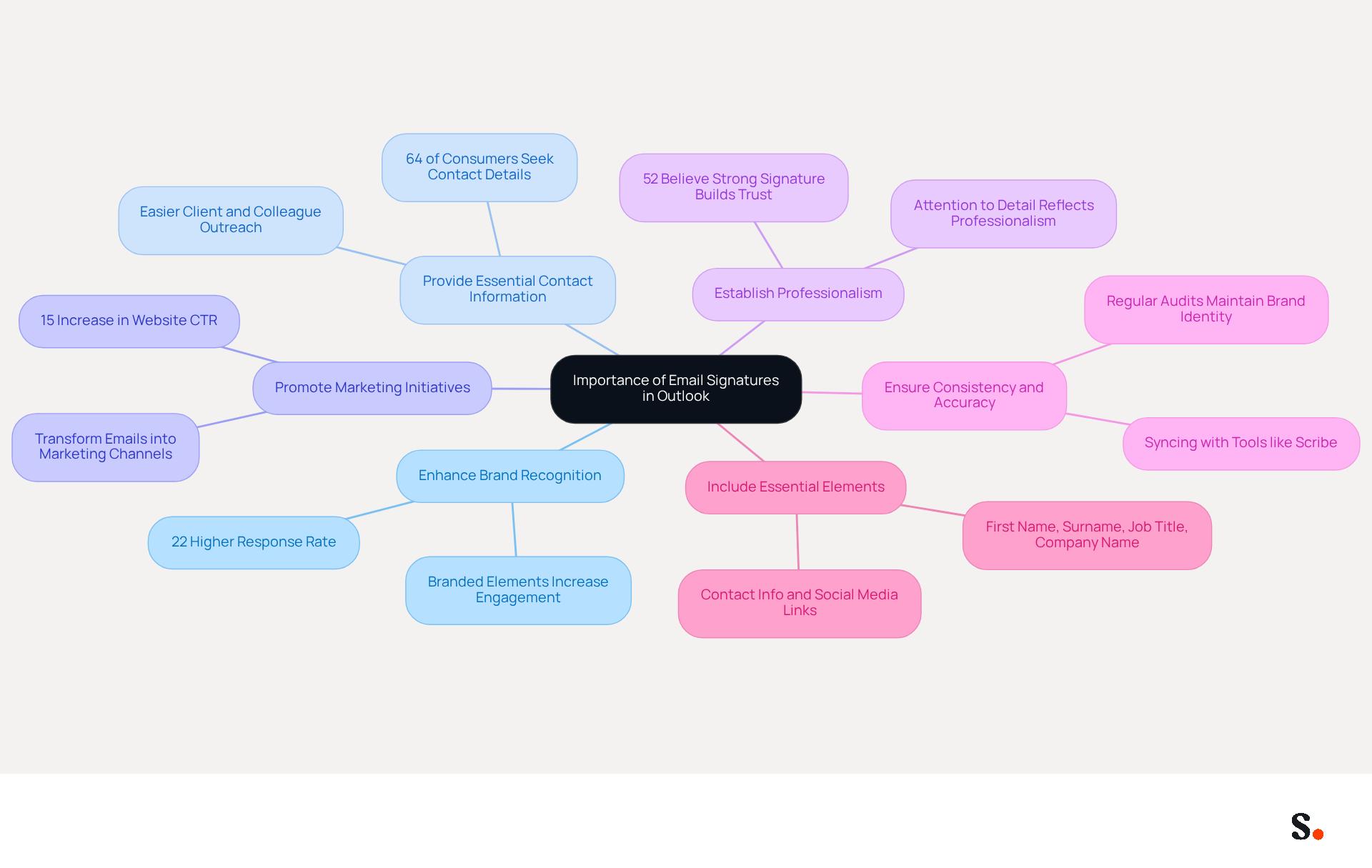
- Enhance Brand Recognition: Each email sent serves as a branding opportunity. Incorporating your logo and consistent branding elements ensures that recipients remember your company. Research shows that messages with branded elements achieve a 22% higher response rate, highlighting the importance of branding in message exchanges.
- Provide Essential Contact Information: With a well-designed signature, your contact details are readily available, making it easier for clients and colleagues to reach out. A survey indicated that 64% of consumers seek contact details in correspondence, emphasizing their significance in professional interactions.
- Promote Marketing Initiatives: Including links to your latest campaigns, social media profiles, or company website transforms every message into a marketing channel. Organizations employing branded digital identifiers see a 15% rise in website click-through rates, illustrating the effectiveness of this approach.
- Establish Professionalism: A well-crafted email signature not only reflects professionalism but also demonstrates attention to detail, positively influencing how recipients perceive you and your organization. In fact, 52% of professionals believe a strong digital identifier is essential for establishing trust and effective communication with clients.
- Ensure Consistency and Accuracy: Regular audits of email branding are essential to maintain consistent identity and accurate information. Without regular audits, inconsistencies in branding can lead to confusion and miscommunication. By syncing your Google Workspace with Scribe, you save time as your teammates' data is automatically updated, allowing for seamless management of information. Any changes in your Google Workspace, such as moving teammates from one group to another or updating their information (e.g., job position), will be automatically reflected in Scribe without any input on your part.
- Include Essential Elements: Key components such as your first name, surname, job title, company name, contact information, and social media links should be included to enhance professionalism and accessibility.
Acknowledging these advantages highlights the importance of establishing a mark that aligns with your brand's identity and communication goals, while also utilizing Scribe's unique capabilities for efficient management. By leveraging Scribe's capabilities, you can ensure your email signatures not only reflect your brand but also enhance your communication effectiveness.
Access Signature Settings in the Outlook App
Accessing signature settings in the Outlook app can often be a challenge for users, but following these steps simplifies the process:
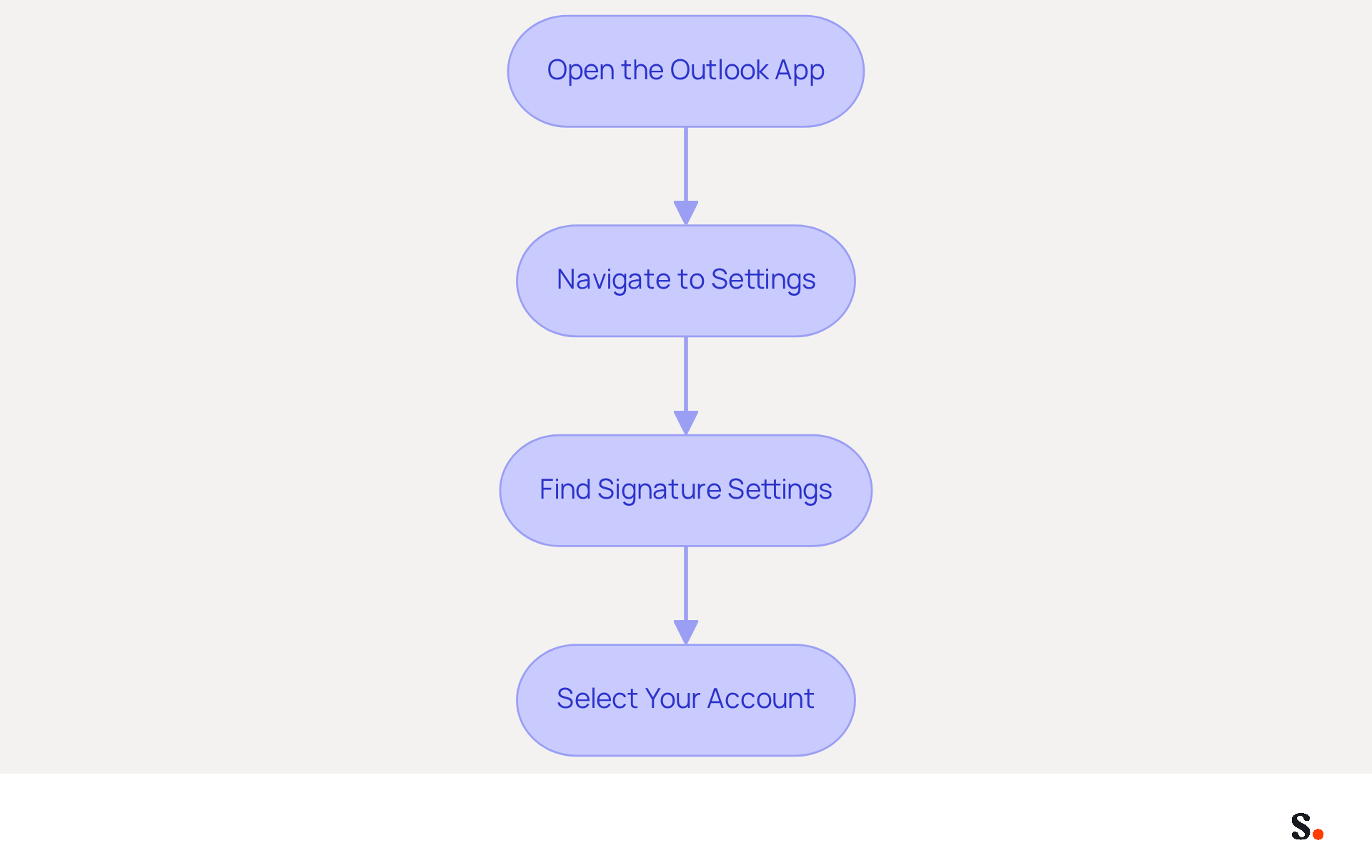
- Open the Outlook App: Launch the Outlook application on your mobile device.
- Navigate to Settings: Tap on your profile icon or the menu icon (three horizontal lines) in the upper left corner to open the menu. Then, select the gear icon (settings) at the bottom left.
- Find Signature Settings: Scroll down to the 'Mail' section and tap on 'Signature'. This will lead you to the section where you can create or modify your message.
- Select Your Account: If you have multiple accounts set up, ensure you choose the correct one for which you want to create or modify the identifier.
By following these steps, you will learn how to attach a signature in the Outlook app and efficiently access your signature settings to enhance your professional correspondence. Notably, with 60% of users accessing their messages via the Outlook mobile application, effective management of signatures is crucial. Furthermore, by syncing your Google Workspace with Scribe, including the integration with Aircall, any modifications made to your teammates' information will be automatically reflected in your email footers. This synchronization saves you time and ensures brand consistency across your organization. With Scribe's automated management feature, you can effortlessly update approvals, aligning with Scribe's commitment to secure data handling and compliance with SOC 2 Type II standards. Moreover, organizations utilizing Scribe have reported an average click-through rate of 12% on banner ads, demonstrating the effectiveness of this solution in enhancing marketing performance. Ultimately, effective email signature management can significantly elevate your organization's professional image and communication efficiency.
Create and Customize Your Email Signature
Knowing how to attach signature in Outlook app is essential for crafting a professional email for effective communication.
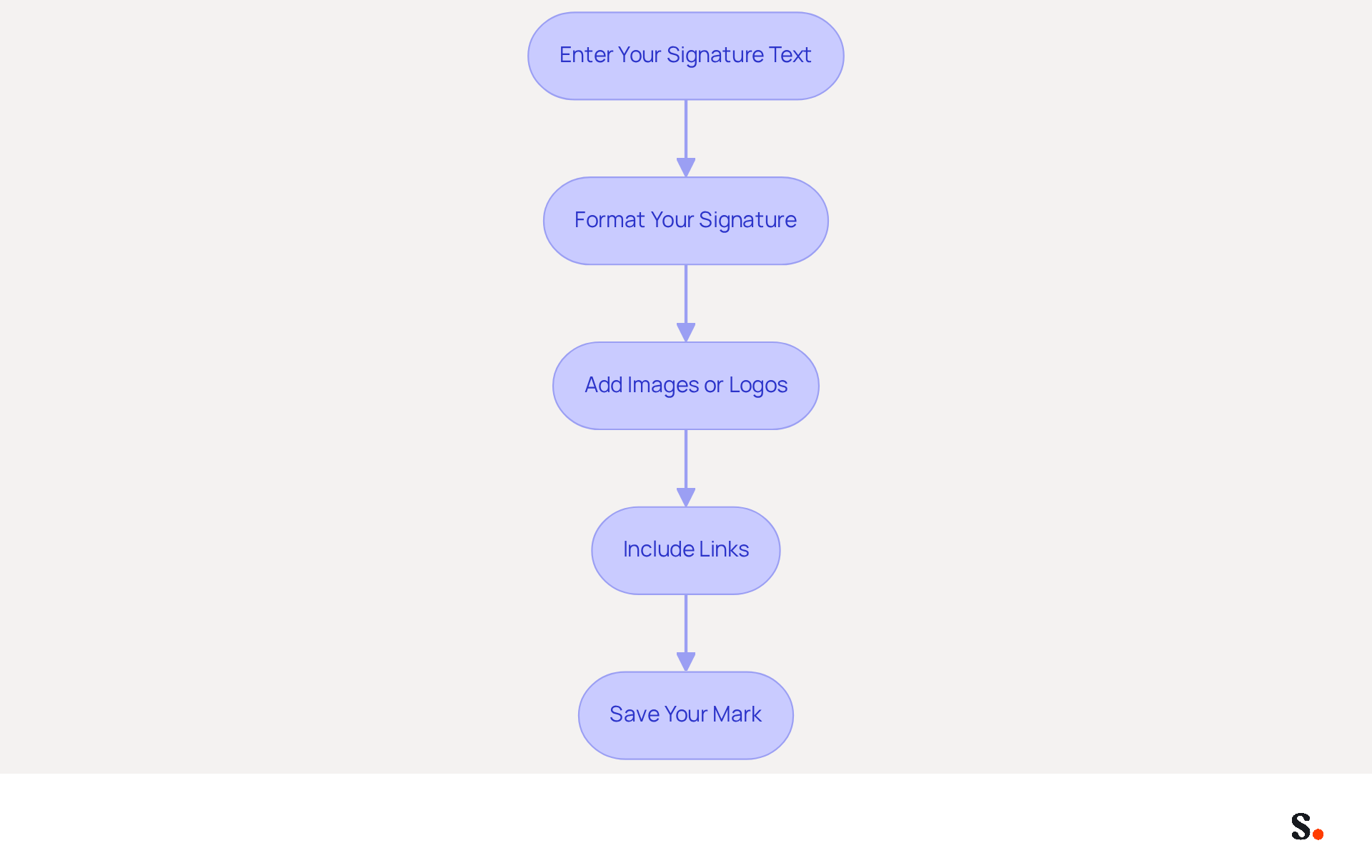
- Enter Your Signature Text: In the settings for your sign-off, type your desired text, including your full name, title, company name, and essential contact information. A clear and organized sign-off reflects your professionalism.
- Format Your Signature: Utilize the available formatting options to enhance visual appeal. Choose appropriate font sizes, styles, and colors that align with your brand identity. Consistency in branding can enhance recognition and trust, with 82% of marketers utilizing branding elements for this aim.
- Add Images or Logos: To include a logo or image, click on the image icon and upload your chosen graphic. Unoptimized images can lead to delays in message delivery, affecting recipient perception. Ensure the image is optimized for messaging to maintain professionalism.
- Include Links: Enhance engagement by adding hyperlinks to your website or social media profiles. Highlight the text you wish to link, then use the link option to insert the URL. This strategic integration can foster deeper connections and increase brand visibility.
- Save Your Mark: After finalizing your mark, save your changes to ensure it is automatically included in your outgoing messages. Regular updates to your branding are essential for maintaining compliance with brand guidelines and legal standards.
By following these steps on how to attach signature in Outlook app, you will create a professional communication footer that enhances your correspondence and reinforces your brand identity. Ultimately, a well-designed signature can transform your emails into impactful branding opportunities.
Troubleshoot Common Signature Issues in Outlook
Even after configuring your message footer, users frequently encounter common issues that require troubleshooting. Here are some tips to resolve them:
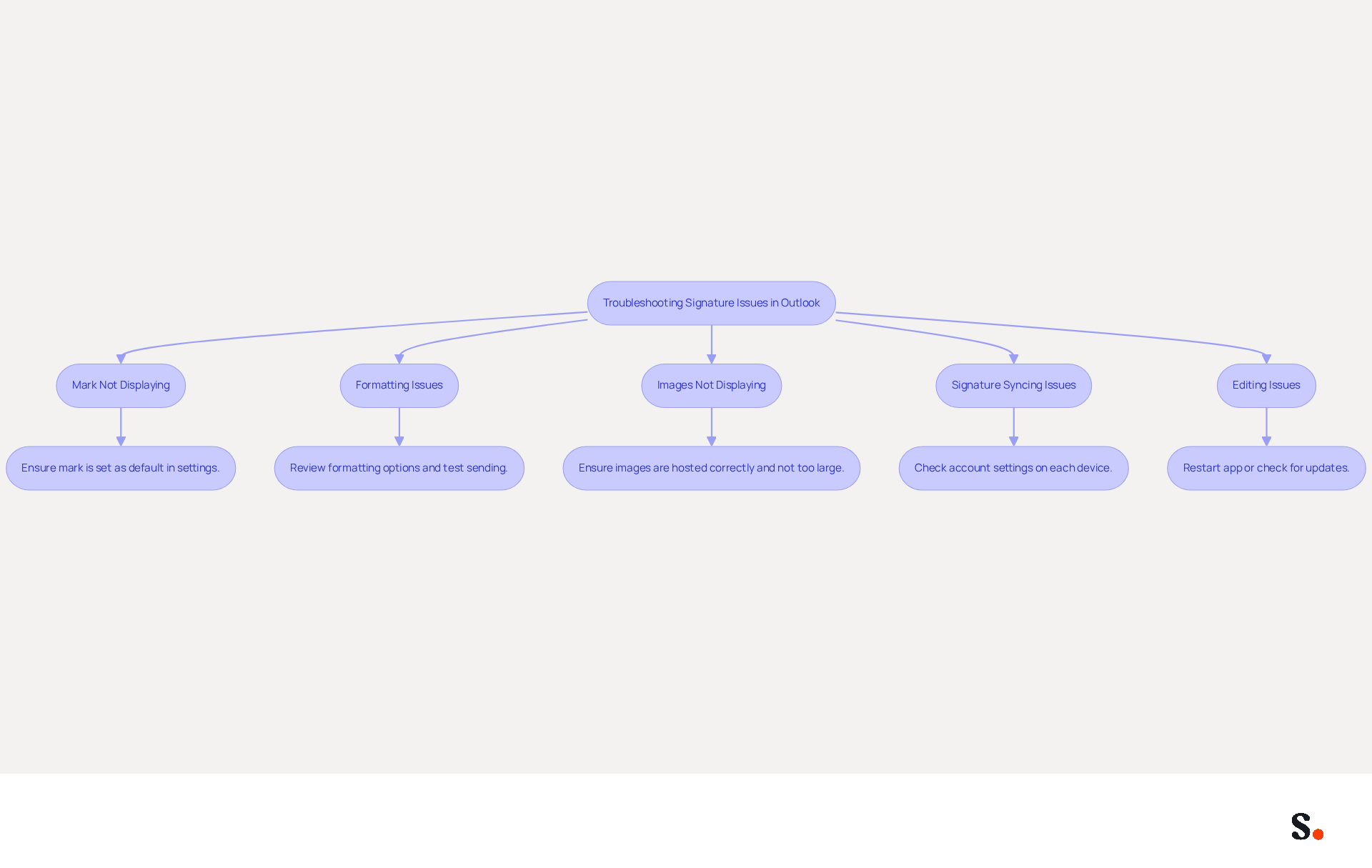
- Mark Not Displaying: If your mark is not appearing in your messages, ensure that you have chosen it as the default mark for new communications and responses in the mark settings. Many users overlook this step, leading to confusion.
- Formatting Issues: If your mark looks different when sent, review the formatting options. Some messaging clients may not support certain styles or images, which can lead to discrepancies. Testing your mark by sending emails to various accounts can help identify these issues.
- Images Not Displaying: If images in your email are not appearing, ensure they are hosted online or embedded correctly. Avoid using large image files, as they may not load properly. Research indicates that 42% of consumers view businesses without a branded identifier negatively, highlighting the importance of proper image display.
- Signature Syncing Issues: If you have multiple devices and your email is not syncing, check your account settings on each device. You may need to manually configure the sign-off on each platform. This is especially crucial as mobile applications do not automatically inherit credentials from Outlook desktop or web versions.
- Editing Issues: If users often encounter challenges when attempting to modify their identification, try restarting the app or checking for updates. Keeping your application updated can help prevent these issues.
Failure to resolve these issues can lead to a lack of professionalism in communication.
Conclusion
In the realm of professional communication, the significance of a well-crafted email signature often goes unrecognized, yet it plays a crucial role in shaping brand perception. A well-crafted email signature serves as more than just a digital sign-off; it is essential for professional communication, enhancing brand recognition, providing key contact information, and supporting marketing efforts. By effectively utilizing the Outlook app to manage signatures, professionals can ensure that their emails reflect their brand identity while fostering trust and engagement with recipients.
The steps outlined in this guide - accessing signature settings, creating and customizing your signature, and troubleshooting common issues - are designed to empower users to take control of their email communications. Not only does this save time, but it also boosts the organization's professionalism. With the integration of Scribe, organizations can streamline the management of email signatures, ensuring consistency and accuracy across all communications.
In a landscape where first impressions are crucial, dedicating time to craft a polished email signature can profoundly influence how recipients view your brand. By utilizing tools like Scribe, known for its rapid deployment and adherence to security standards, businesses can transform their email signatures into powerful marketing assets. Embrace the opportunity to elevate your professional image and communication effectiveness by mastering the art of email signatures in the Outlook app. Ultimately, neglecting the potential of your email signature could hinder your brand's credibility and engagement with clients.
Frequently Asked Questions
Why are email signatures important in Outlook?
Email signatures are important because they enhance brand recognition, provide essential contact information, promote marketing initiatives, establish professionalism, ensure consistency and accuracy, and include essential elements that improve communication.
How can a well-crafted email signature enhance brand recognition?
A well-crafted email signature enhances brand recognition by incorporating your logo and consistent branding elements, making it easier for recipients to remember your company. Research indicates that branded messages achieve a 22% higher response rate.
What essential contact information should be included in an email signature?
An email signature should include your first name, surname, job title, company name, contact information, and social media links to enhance professionalism and accessibility.
How can email signatures promote marketing initiatives?
Email signatures can promote marketing initiatives by including links to your latest campaigns, social media profiles, or company website, effectively turning every message into a marketing channel. Organizations using branded digital identifiers see a 15% increase in website click-through rates.
What role does professionalism play in email signatures?
Professionalism in email signatures reflects attention to detail and positively influences how recipients perceive you and your organization. A strong digital identifier is considered essential for establishing trust and effective communication, with 52% of professionals agreeing on its importance.
Why is it important to ensure consistency and accuracy in email signatures?
Ensuring consistency and accuracy in email signatures is crucial to avoid confusion and miscommunication. Regular audits help maintain a consistent identity, and syncing your Google Workspace with Scribe allows for automatic updates of teammates' information.
How does Scribe assist in managing email signatures?
Scribe assists in managing email signatures by automatically updating teammates' data from Google Workspace, ensuring that any changes, such as job positions or group assignments, are reflected without manual input.
List of Sources
- Understand the Importance of Email Signatures in Outlook
- Email signature statistics: Why every business should optimize their email signatures — Stripo.email (https://stripo.email/blog/email-signature-statistics-why-every-business-should-optimize-their-email-signatures)
- Email Signature Statistics: A Closer Look at Email Signatures in 2026 (https://mysignature.io/blog/email-signature-statistics)
- Why Are Email Signatures Key to Brand Awareness? | QuickMail (https://quickmail.com/role-of-email-signatures-in-brand-awareness)
- Research Recap: Branded Email Signatures Increase Company Recognition, Trust - Demand Gen Report (https://demandgenreport.com/industry-news/research-recap-branded-email-signatures-increase-company-recognition-trust/47252)
- Access Signature Settings in the Outlook App
- How To Add An Email Signature in Outlook (2026) (https://hubspot.com/email-signature-generator/add-signature-outlook)
- Outlook Statistics And Facts (2025) (https://electroiq.com/stats/outlook-statistics)
- Removing “Get Outlook...” Signature in Outlook Mobile (https://velonexit.com/2023/04/removing-get-outlook-signature-in-outlook-mobile)
- CCI Technology Services And Support Site (https://support.cci.drexel.edu/software-courses/office-365-or-office365/office-365-public-documentation-home/office-365-outlook/outlook-changing-email-signature-ipad-or-iphone)
- Signature settings not available in New Outlook? - Microsoft Q&A (https://learn.microsoft.com/en-us/answers/questions/4710706/signature-settings-not-available-in-new-outlook)
- Create and Customize Your Email Signature
- Email Signature Branding: Consistency and Impact | Crossware365 (https://crossware365.com/blog/mastering-email-signature-branding-market-presence)
- Why Are Email Signatures Key to Brand Awareness? | QuickMail (https://quickmail.com/role-of-email-signatures-in-brand-awareness)
- constantcontact.com (https://constantcontact.com/blog/email-signature-branding)
- The impact of email signatures on your branding (https://signitic.com/en/resources/the-impact-of-email-signatures-on-your-branding)
- 4 Best Practices for Your Work Email Signature Strategy (https://scribe-mail.com/en-US/blog/4-best-practices-for-your-work-email-signature-strategy)
- Troubleshoot Common Signature Issues in Outlook
- 4 Steps to Fix Your Outlook Signature Not Showing Issues (https://scribe-mail.com/en-US/blog/4-steps-to-fix-your-outlook-signature-not-showing-issues)
- How to solve problems with email signatures in Microsoft 365? (https://mail-signatures.com/articles/problems-email-signatures-office-365)
- Email Signatures vanishing - New Outlook | Microsoft Community Hub (https://techcommunity.microsoft.com/discussions/outlookgeneral/email-signatures-vanishing---new-outlook/4418809)
- Outlook Signature Not Working in Office 365: Causes & Fixes (https://exclaimer.com/email-signature-handbook/outlook-signature-not-working-in-office-365)
Get started with Scribe
Create your signature in minutes
Free 14-day trial — no credit card.