4 Steps to Automatically Add Your Signature in Gmail
A professional email signature is essential for effective communication and brand representation. This guide offers a straightforward, four-step process to
Sophie Grant
Email Signature Specialist, Scribe
Introduction
A professional email signature is essential for effective communication and brand representation. This guide offers a straightforward, four-step process to automatically add a signature in Gmail, ensuring that every email sent reinforces professionalism and consistency.
Many users struggle with the complexities of Gmail's signature settings; understanding these can simplify the process and enhance brand consistency.
This guide will help you streamline your email signature management and strengthen your brand's presence.
Access Gmail Settings to Create Your Signature
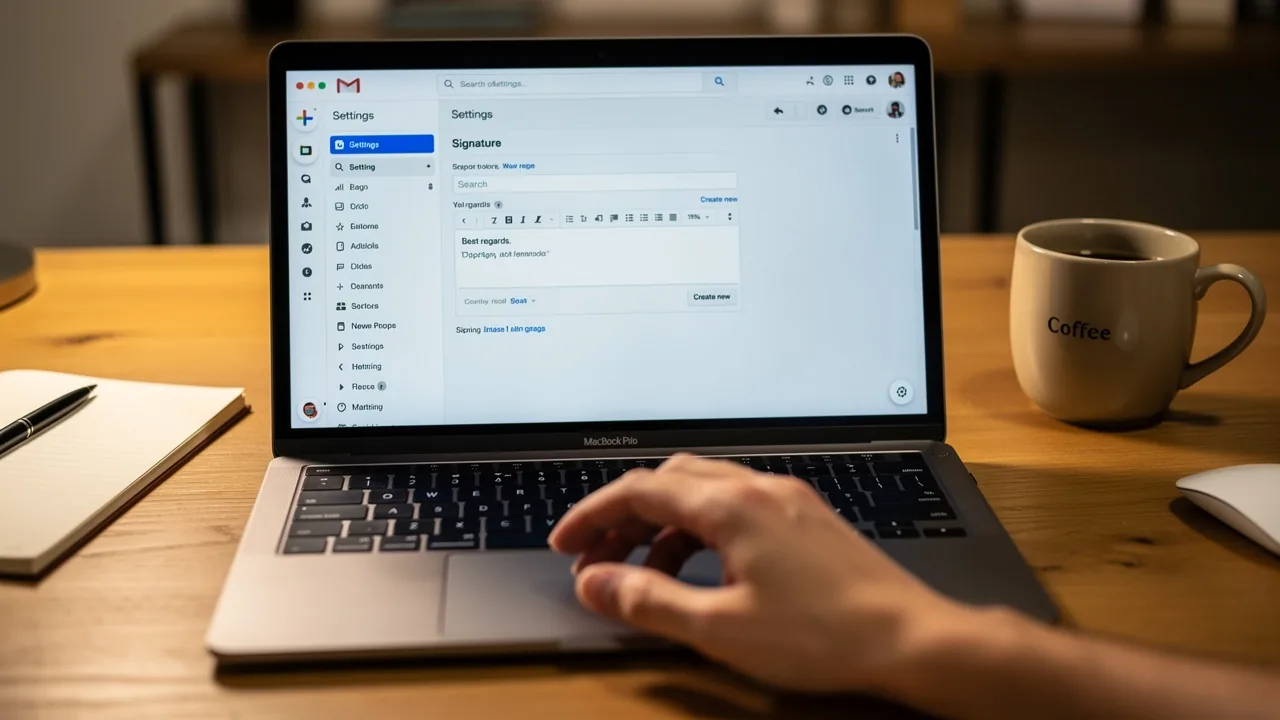
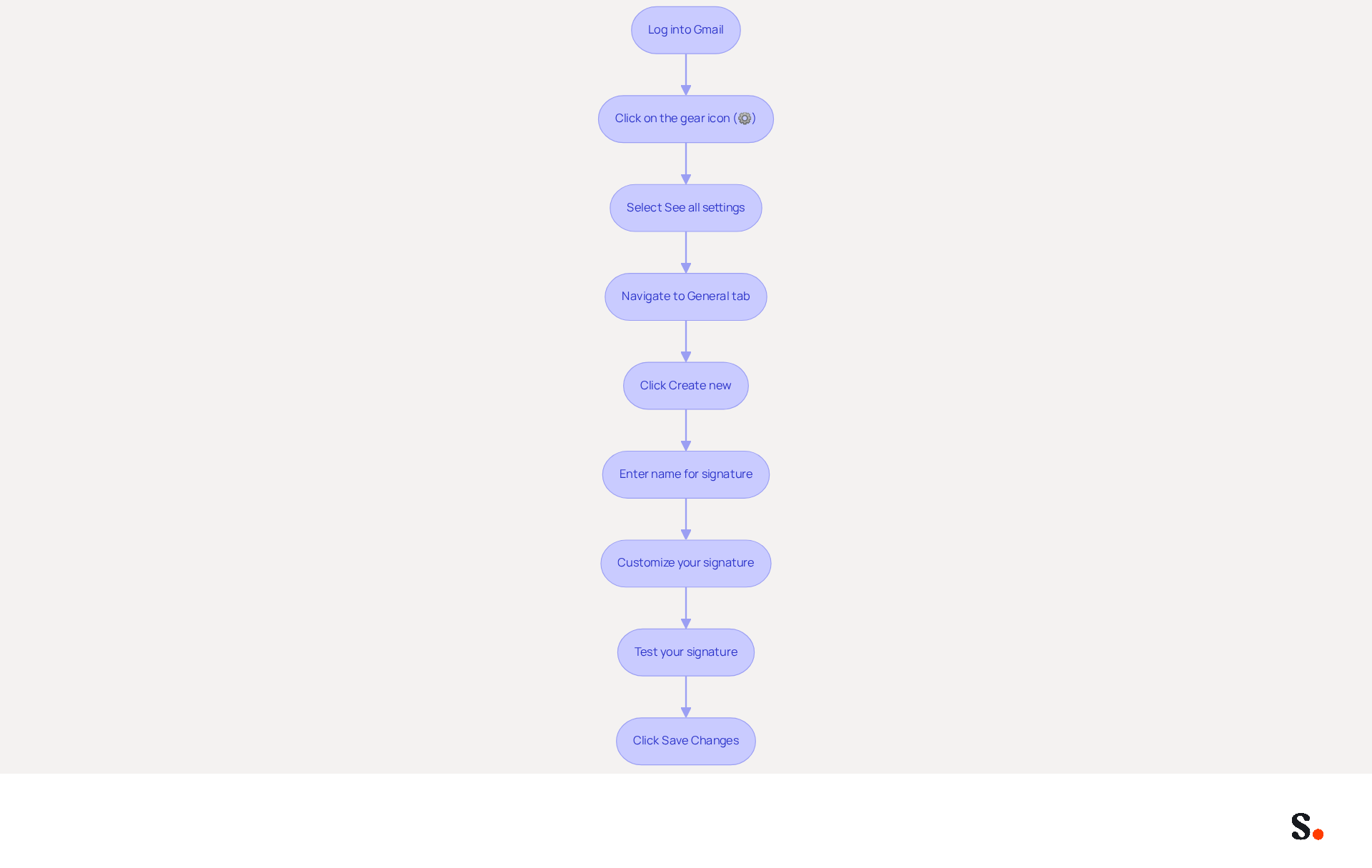
It is essential for effective communication to learn how to automatically add signature in Gmail when creating a professional email signature. To begin, open your web browser and log into your Gmail account. In the top right corner, click on the gear icon (⚙️) to access the Settings menu. From the dropdown, select 'See all settings' to open the full settings page. Navigate to the 'General' tab to learn how to automatically add signature in Gmail, where you will find the 'Signature' section. Click on 'Create new' to start crafting your personal mark. Enter a name for your mark to easily identify it later, especially if you plan to create multiple marks. Click 'Create' to proceed to the editor, where you can further customize your mark. Make sure your signature is clear and professional, reflecting your brand and improving communication. Remember to test your mark by sending a few emails to verify its appearance across different devices. Finally, click 'Save Changes' at the bottom of the page to ensure that your edits are saved.
With Scribe's integration with Google Workspace, your teammates' identification details are automatically synced, saving you time and ensuring brand consistency. Plus, the platform is SOC 2 Type II compliant, meaning your data is handled securely throughout the process. By leveraging Scribe, you ensure that your email signature meets professional standards and demonstrates how to automatically add signature in Gmail, reinforcing your brand identity.
Design Your Signature with Customization Options
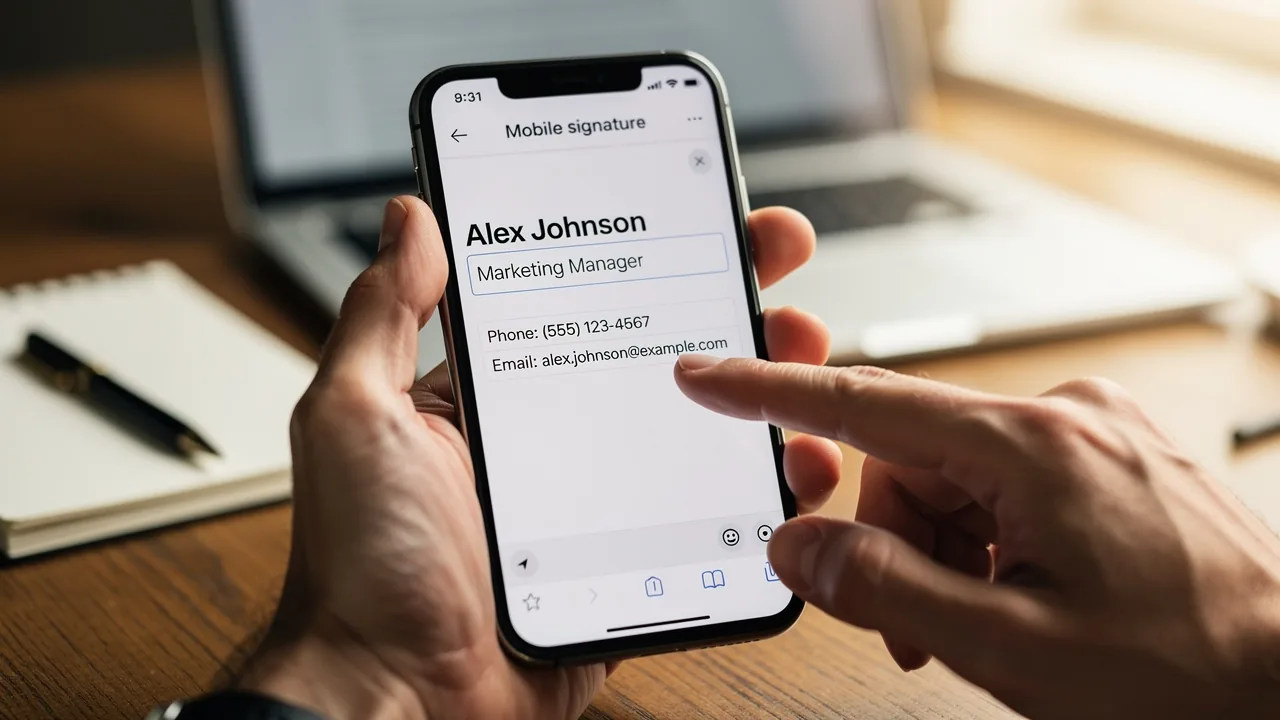
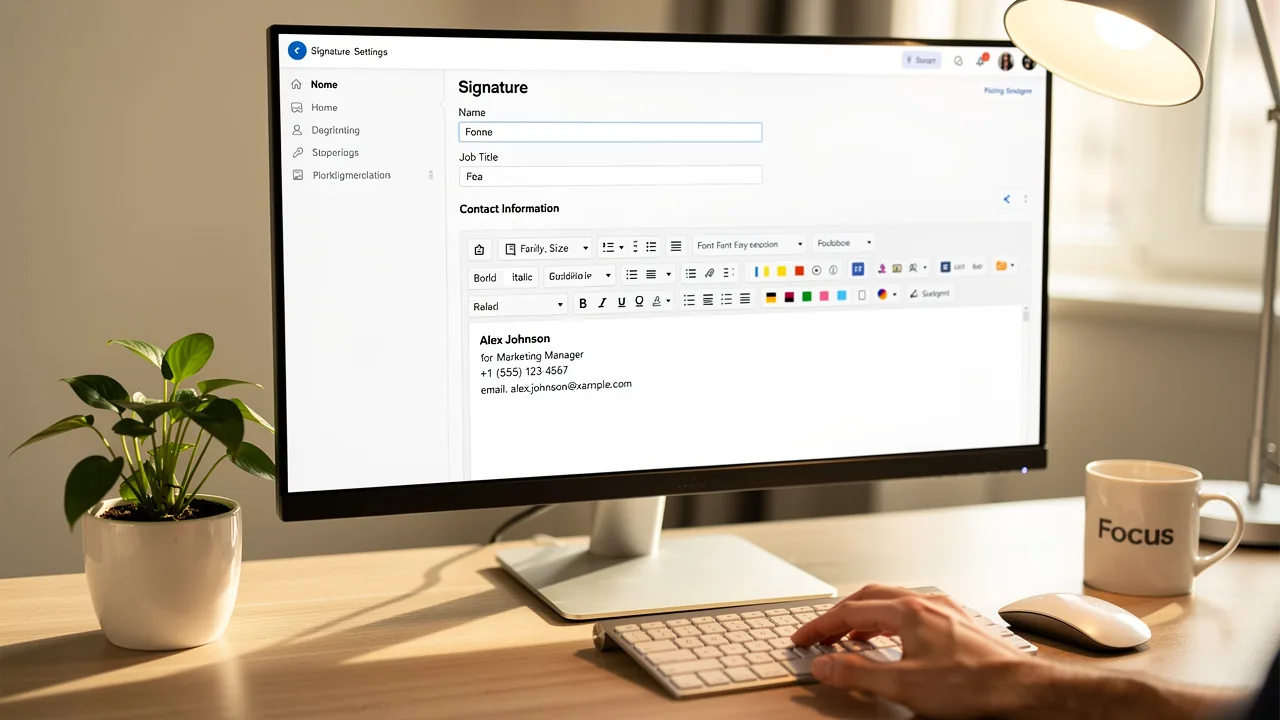
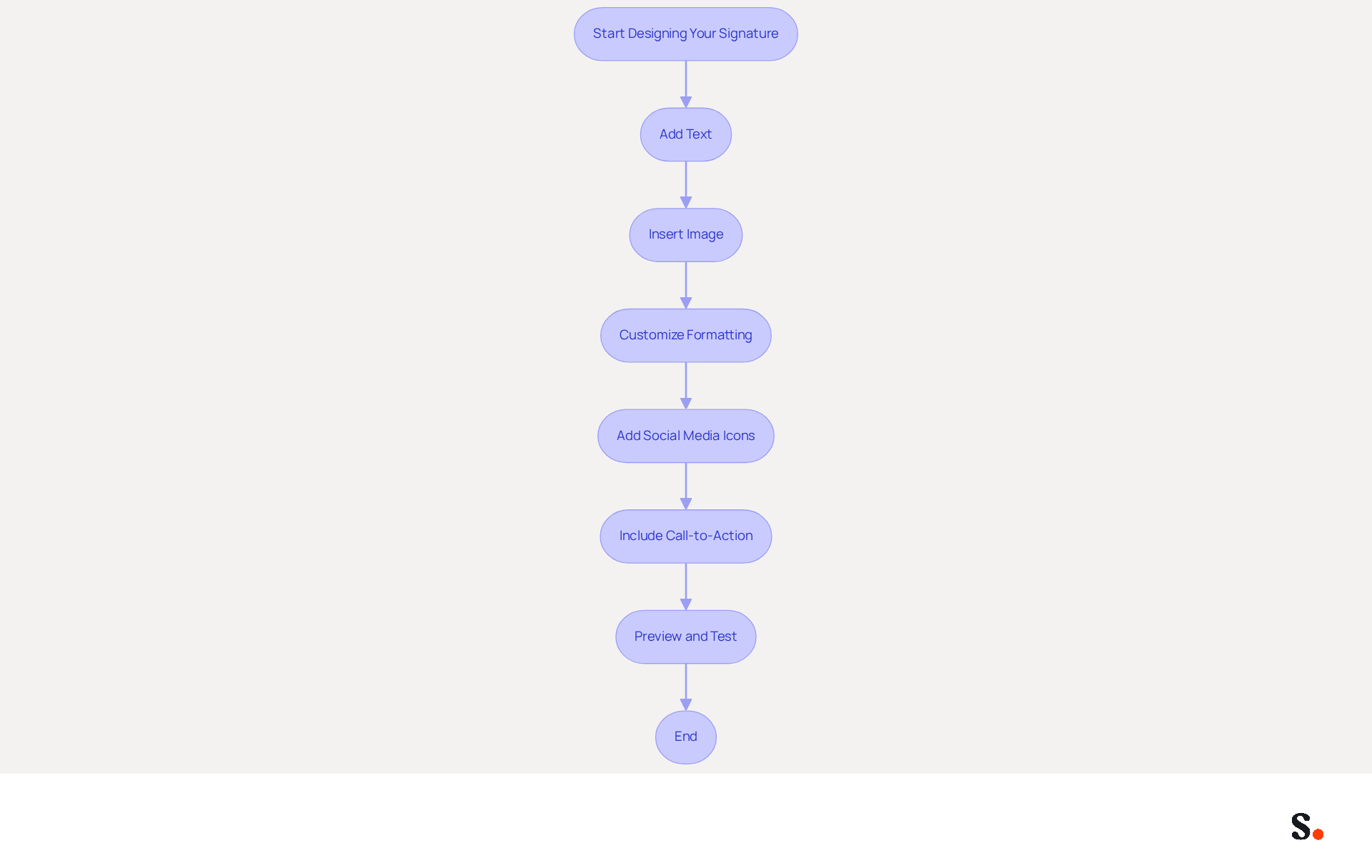
Managing email branding effectively is crucial for maintaining a professional image, yet it often presents challenges for marketing teams. In the editor, you can add text, images, and links to create a comprehensive design that reflects your brand identity. Essential elements to include are your full name, job title, and direct contact method to ensure professionalism. Any changes you make in your Aircall setup will automatically update your configurations, thanks to our data syncing feature. Scribe's unique positioning enables Marketing to manage email branding independently after the initial IT setup, ensuring brand consistency across all communications.
Utilize the formatting options to adjust the font style, size, and color, ensuring consistency with your brand's visual elements. Recommended fonts for readability include Arial or Helvetica at 14-16px.
To add an image, click on the 'Insert Image' icon and upload your logo or any relevant picture from your computer or Google Drive, keeping the total size under 100KB for optimal display. Ensure that your images comply with security standards like SOC 2 Type II, GDPR, and CCPA to maintain credibility.
Think about adding a couple of social media icons linked to your profiles to boost engagement, but keep it simple with just 1-2 relevant links to avoid clutter.
If applicable, add a call-to-action (CTA) button, such as 'Book a Meeting' or 'Visit Our Website,' to encourage interaction. Strategic CTAs can drive up to 40% more engagement compared to generic links, making them a valuable addition.
Preview your mark to ensure it looks professional and visually appealing before saving. Additionally, test it across various messaging clients and devices to confirm compatibility and functionality. Regularly reviewing your email footer not only enhances professionalism but also reinforces your brand's credibility in every communication.
Set Up Automatic Signature Insertion for Efficiency
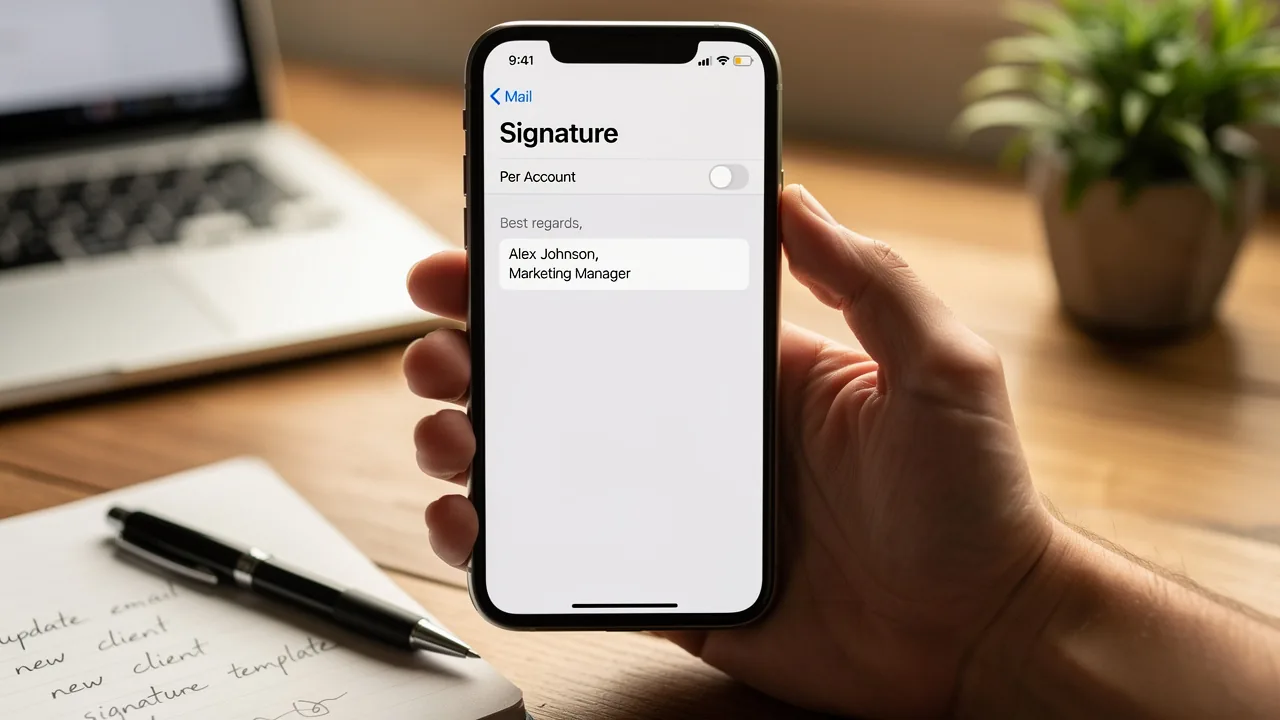
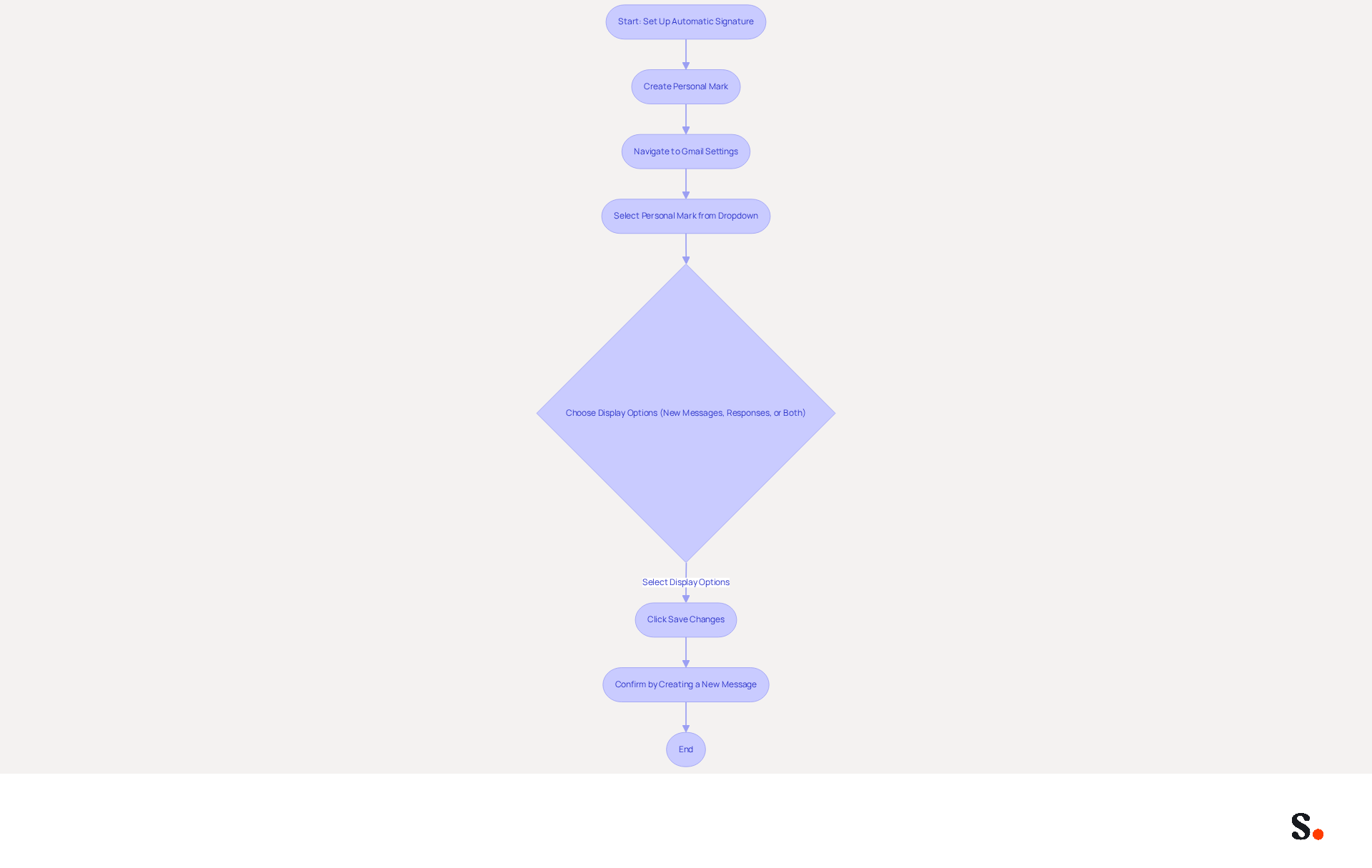
To ensure your branding remains consistent across all communications, learn how to automatically add a signature in Gmail by following these steps. After creating your personal mark, navigate back to the 'Personal Mark' section in your Gmail settings. From the dropdown menu, choose the mark you just created. Decide whether you want the sign-off to show in new messages, responses, or both by selecting the appropriate options. Click 'Save Changes' at the bottom of the settings page to implement your new configuration settings. To confirm, create a new message and see if your sign-off appears automatically at the bottom of the message content.
Automating your branding ensures consistency across communications and saves time on manual updates. This efficiency can lead to a 90% reduction in help desk requests related to authentication issues. This shift allows teams to redirect their focus towards strategic initiatives, ultimately enhancing overall productivity. Moreover, electronic identifiers play an essential role in brand upkeep and lead generation, with research indicating that branded formats can result in a 22% rise in response rates. Considering that 80% of organizations still handle digital identifiers manually, resulting in inconsistencies and compliance challenges, the need for automation becomes even more evident.
To enable one-click synchronization, ensure you grant permission for Scribe to connect with your provider, and remember that you need to be a Super Admin to provide these permissions. By utilizing Scribe's automated management of digital identifiers, you can ensure seamless synchronization of teammate information, enhancing brand consistency while also unlocking a new marketing channel through Scribe's Affiliate Program, where you can earn a 50% commission and provide a $30 credit to new subscribers. You can trust that Scribe prioritizes your data safety with SOC 2 Type II compliance.
Troubleshoot Common Signature Issues in Gmail
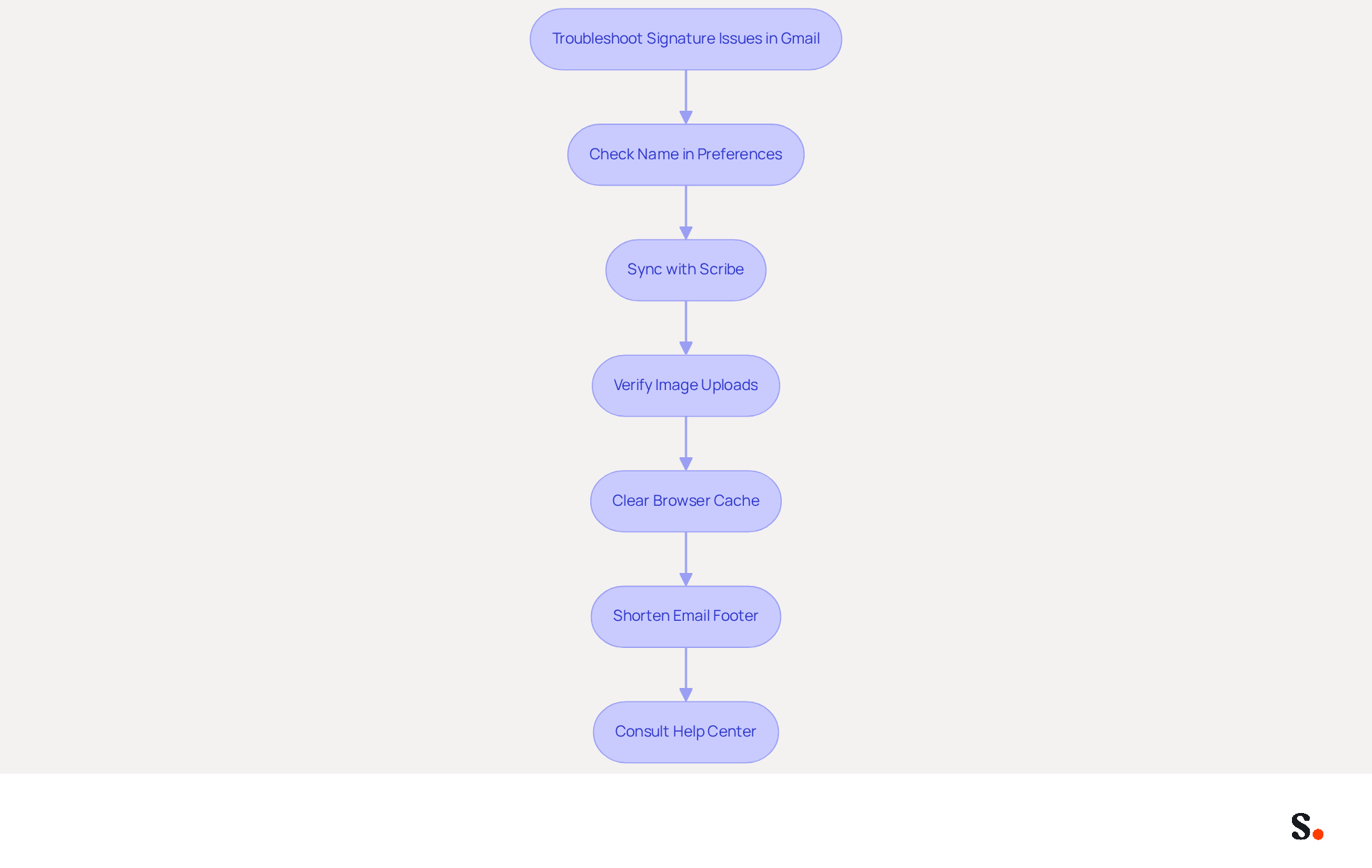
Many users face challenges with how to automatically add signature in Gmail, which impacts their professional image. If your name does not show in emails, ensure it is selected in the preferences. Navigate to Preferences > View all preferences > General and confirm that the correct designation is assigned. By syncing your Google Workspace with Scribe, you can streamline this process, as it automatically updates your teammates' details and allows you to auto-fill their information using our attribute feature, saving you valuable time.
Ensure that the 'No mark' choice is not selected in the signing options, as this will prevent any mark from appearing. With Scribe, any changes in your Google Workspace, such as moving teammates from one group to another or updating their information, will be automatically reflected in Scribe without any input on your part.
For images in your email footer that are not displaying, check that they are uploaded correctly and that the sharing settings allow visibility. Ensure images are hosted on secure servers with public URLs to appear properly, as Gmail does not show images stored locally or on non-HTTPS servers.
Clear your browser cache and cookies to resolve many display issues. If your mark functions in one browser but not another, it may be a browser issue.
If you encounter a 'too long' error, consider shortening your email footer by removing unnecessary elements or using simpler formatting, as Gmail footers must not exceed 10,000 characters.
For persistent issues, consult the Gmail Help Center or community forums for additional support. Engaging with these resources can provide insights from other users who have faced similar challenges. Remember, understanding how to automatically add signature in Gmail not only enhances your professionalism but also fosters trust in client communications.
Conclusion
Mastering the automatic addition of signatures in Gmail is crucial for projecting a professional image in digital communications. Following these steps allows users to create and automate email signatures that reflect their brand identity and enhance communication strategies. The article detailed the necessary steps to access Gmail settings, design a signature that aligns with brand identity, and set up automatic insertion for efficiency. It emphasized the importance of using Scribe to streamline this process, demonstrating compliance with key security standards, including SOC 2 Type II, GDPR, and CCPA. Additionally, the article addressed common troubleshooting issues, providing practical solutions to ensure that signatures display correctly across various platforms.
A well-crafted email signature does more than just look professional; it acts as a valuable marketing asset. By leveraging Scribe's capabilities, organizations can achieve 100% brand consistency and measurable marketing ROI from their email signatures. Implementing these strategies will not only improve communication but also build lasting relationships with clients, paving the way for business growth.
Frequently Asked Questions
How do I access Gmail settings to create my signature?
To access Gmail settings, open your web browser, log into your Gmail account, click on the gear icon (⚙️) in the top right corner, and select 'See all settings' from the dropdown menu.
Where do I find the signature section in Gmail settings?
Navigate to the 'General' tab in the settings page to find the 'Signature' section.
How do I create a new signature in Gmail?
In the 'Signature' section, click on 'Create new', enter a name for your signature to identify it later, and then click 'Create' to proceed to the editor.
What should I consider when crafting my email signature?
Ensure your signature is clear and professional, reflecting your brand and improving communication.
How can I test my email signature?
You can test your signature by sending a few emails to verify its appearance across different devices.
What should I do after creating my signature?
After creating your signature, click 'Save Changes' at the bottom of the page to ensure that your edits are saved.
How does Scribe enhance the email signature process in Gmail?
Scribe integrates with Google Workspace to automatically sync your teammates' identification details, saving time and ensuring brand consistency.
Is my data secure when using Scribe for email signatures?
Yes, Scribe is SOC 2 Type II compliant, meaning your data is handled securely throughout the process.
List of Sources
- Access Gmail Settings to Create Your Signature
- How to Change Your Email Signature in Gmail: 2026 Guide (https://tryellie.com/blog/how-to-change-your-email-signature-in-gmail)
- Email Signature in Gmail: Full Setup Guide for 2026 (https://shopkeyonline.com/create-email-signature-gmail)
- How to Change or Update Your Email Signature in Gmail (2026) | Torii (https://toriihq.com/articles/how-to-update-gmail-signature-for-user-google-workspace)
- How To Make A Signature In Gmail In 2026: The Definitive Professional Guide (https://blog.fbasd.org/gmail-2026-definitive-professional-guide-u7ct.html)
- Create a Gmail signature - Computer - Gmail Help (https://support.google.com/mail/answer/8395?hl=en&co=GENIE.Platform%3DDesktop)
- Design Your Signature with Customization Options
- Email Signature Design Trends in 2026: What Works and What to Drop (https://bulksignature.com/blog/email-signature-design-trends)
- Email Signature Best Practices for 2026 (+ 15 Pro Examples) (https://wavecnct.com/blogs/email-signature-best-practices-2026)
- Top 10+ best practices for email signatures design in 2026 (https://mysignature.io/blog/email-signature-best-practices)
- 20 best email signature design examples for 2026 — Stripo.email (https://stripo.email/blog/10-best-email-signature-design-examples)
- The Complete Email Signature Guide 2026: Best Practices and Policy (https://opensense.com/complete-email-signature-guide)
- Set Up Automatic Signature Insertion for Efficiency
- 40+ Email Signature Statistics for 2026 (Data + Insights) (https://wavecnct.com/blogs/email-signature-statistics)
- Email signature statistics: Why every business should optimize their email signatures — Stripo.email (https://stripo.email/blog/email-signature-statistics-why-every-business-should-optimize-their-email-signatures)
- How to Automate Email Signature Updates | Exclaimer (https://exclaimer.com/email-signature-handbook/automate-email-signature-updates)
- Troubleshoot Common Signature Issues in Gmail
- What To Do When Your Gmail Signature is Not Showing Up (https://appointlet.com/blog/gmail-signature-not-showing-up)
- Troubleshoot issues with Gmail signatures - Gmail Help (https://support.google.com/mail/answer/11468381?hl=en)
- Gmail Signature Troubleshooting | WiseStamp Help Center (https://support.wisestamp.com/en/articles/13366705-gmail-signature-troubleshooting)
- Email Signature Statistics: A Closer Look at Email Signatures in 2026 (https://mysignature.io/blog/email-signature-statistics)
- Solving a Gmail signature problem (https://signitic.com/en/guides/solving-a-gmail-signature-problem)
Get started with Scribe
Create your signature in minutes
Free 14-day trial — no credit card.