4 Steps to Edit Your Email Signature Effectively
Understanding the nuances of email signatures is essential for professionals aiming to enhance their communication and branding. Many professionals fail to
Sophie Grant
Email Signature Specialist, Scribe
Introduction
Understanding the nuances of email signatures is essential for professionals aiming to enhance their communication and branding. Many professionals fail to recognize the potential impact of a well-crafted email signature on their communication and branding. How can you ensure your email signature reflects your professional identity while following design and functionality best practices? This guide outlines four essential steps to edit email signatures effectively, empowering users to navigate settings in popular email clients like Gmail and Outlook while troubleshooting common issues along the way.
Access Email Settings in Gmail and Outlook
To effectively learn how to edit your email signature, it is crucial to access the email preferences in your email client. Here’s how to do it for both Gmail and Outlook:
For Gmail:
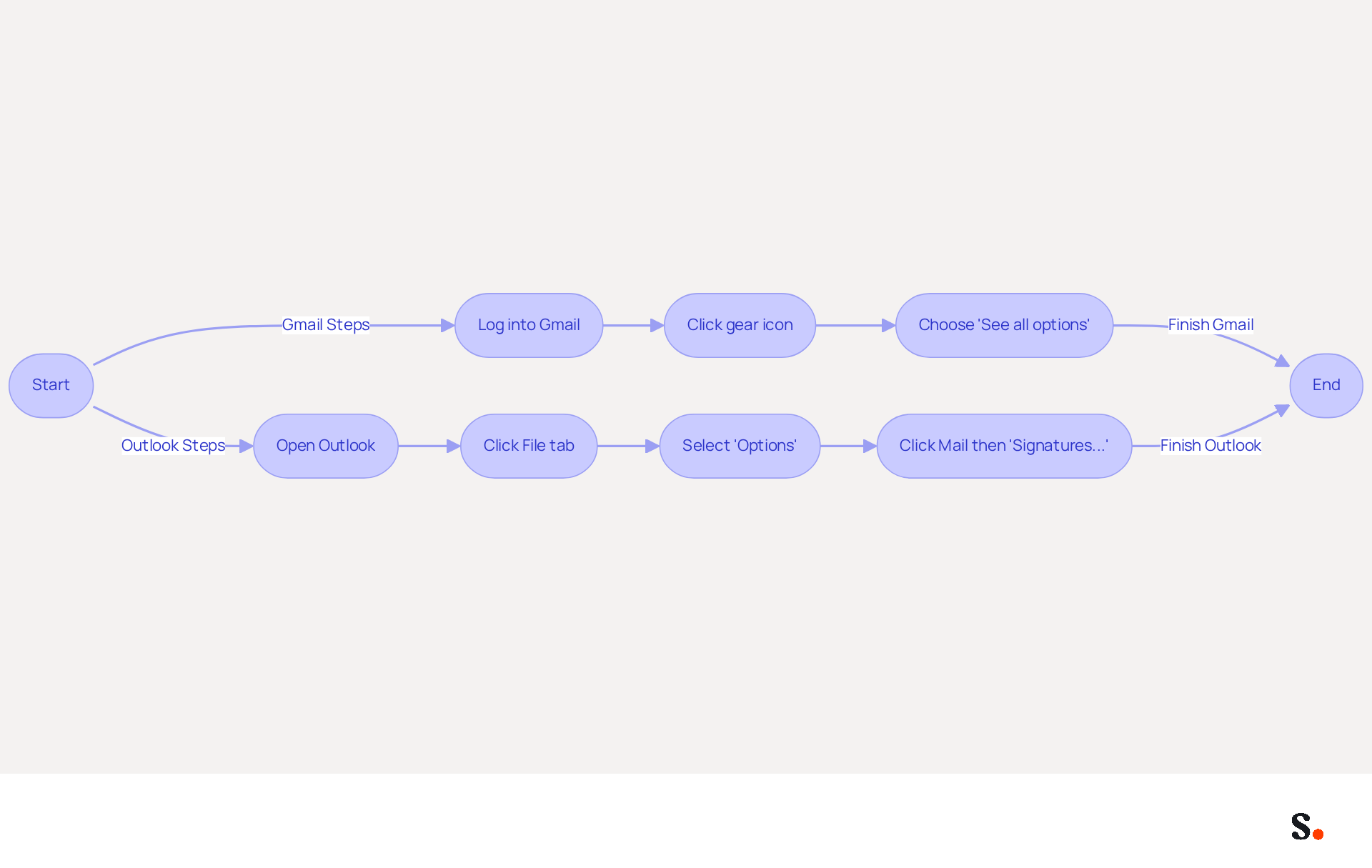
- Log into your Gmail account.
- Click on the gear icon in the top right corner to access the configuration menu.
- Choose 'See all options' from the dropdown.
For Outlook:
- Open Outlook on your computer.
- Click on the File tab in the top left corner.
- Select 'Options' from the menu.
- In the Outlook Options window, click on 'Mail' and then select 'Signatures...' to access the options for your personal marks.
By following these steps, you can learn how to edit your email signature through the necessary settings. Regularly updating your signature is crucial for maintaining your brand's visibility, as research indicates that 31.6% of users refresh their footers only once every few years, potentially missing out on branding opportunities. It is advisable to review your correspondence footer quarterly to ensure it reflects any changes in personal or company branding. Additionally, incorporating a high-quality professional photo can increase response rates by 32%, making it essential to keep your signature fresh and relevant.
To enable one-click synchronization with Scribe, you must grant permission for Scribe to connect with your messaging provider. Ensure you are a Super Admin of your service provider to grant these permissions. Scribe simplifies this process, automatically refreshing all modifications made in your contact directory. This feature not only saves time but also enhances your branding consistency across all communications. Remember, digital identifiers should be a maximum of 600px wide and under 100KB total for optimal display across devices. Scribe's SOC 2 Type II compliance guarantees that your data remains secure throughout this process. Keeping your digital identifiers current enhances your professional image and maximizes audience engagement.
Navigate to Signature Settings
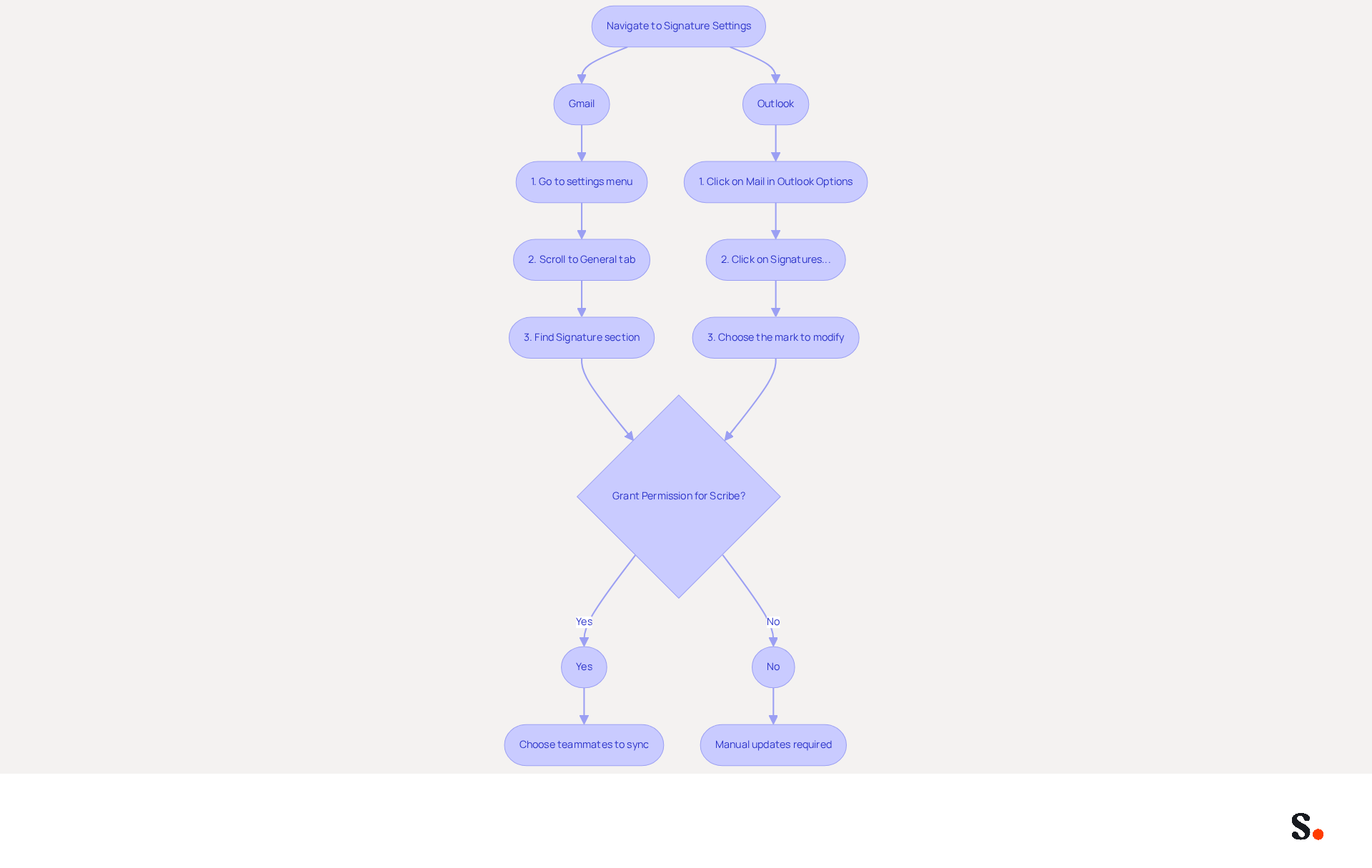
Accessing your email preferences is just the beginning; understanding how to edit your email signature is where the real impact lies. Here’s how to navigate to the personalization options:
For Gmail:
- In the settings menu, scroll down to the 'General' tab.
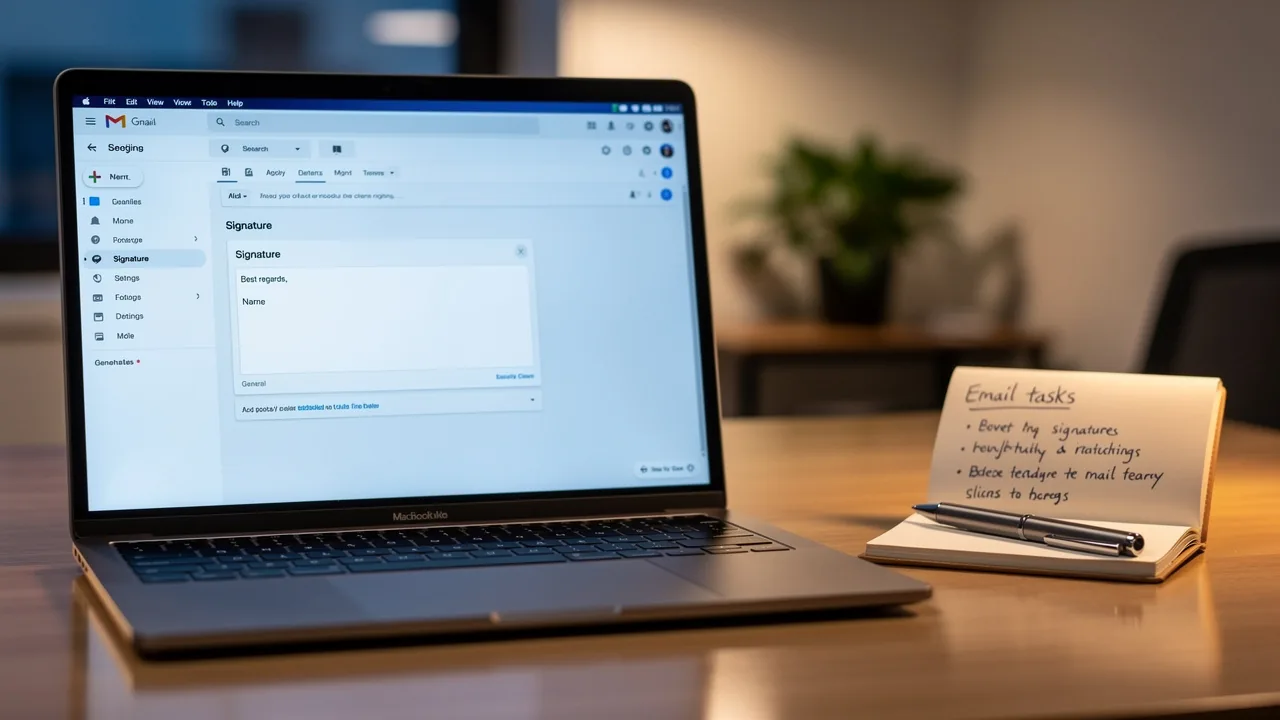
- Look for the 'Signature' section, which is located towards the bottom of the page.
- Here, you will find options to create a new mark or modify an existing one.
For Outlook:
- In the 'Mail' section of the Outlook Options window, click on 'Signatures...'.
- This will open the Signatures and Stationery window, where you can view a list of your current marks.
- Choose the mark you wish to modify from the list.
However, many users find it challenging to locate these settings. Navigating to these settings is essential as it enables you to understand how to edit your email signature effectively. To enable one-click synchronization with Scribe, you must grant permission for Scribe to connect with your messaging provider. This requires you to be a Super Admin of your service provider. Once permissions are granted, you can choose which teammates to sync with Scribe, and all modifications made in your contact directory will be automatically updated in Scribe. This streamlines your workflow and ensures a cohesive brand image throughout your organization. Regular evaluations of digital identifiers ensure consistency in branding and accuracy of information, which is crucial for upholding a professional image. Research shows that a significant portion of users - 25.1% - emphasize the importance of standardized email footers for maintaining a professional image. Furthermore, Scribe's SOC 2 Type II compliance ensures the security of your information, offering reassurance as you handle your digital identifiers. With Scribe, your teammate data syncs automatically every day at your local time, so you can rest assured that your information is always up to date.
Add and Format Your Email Signature
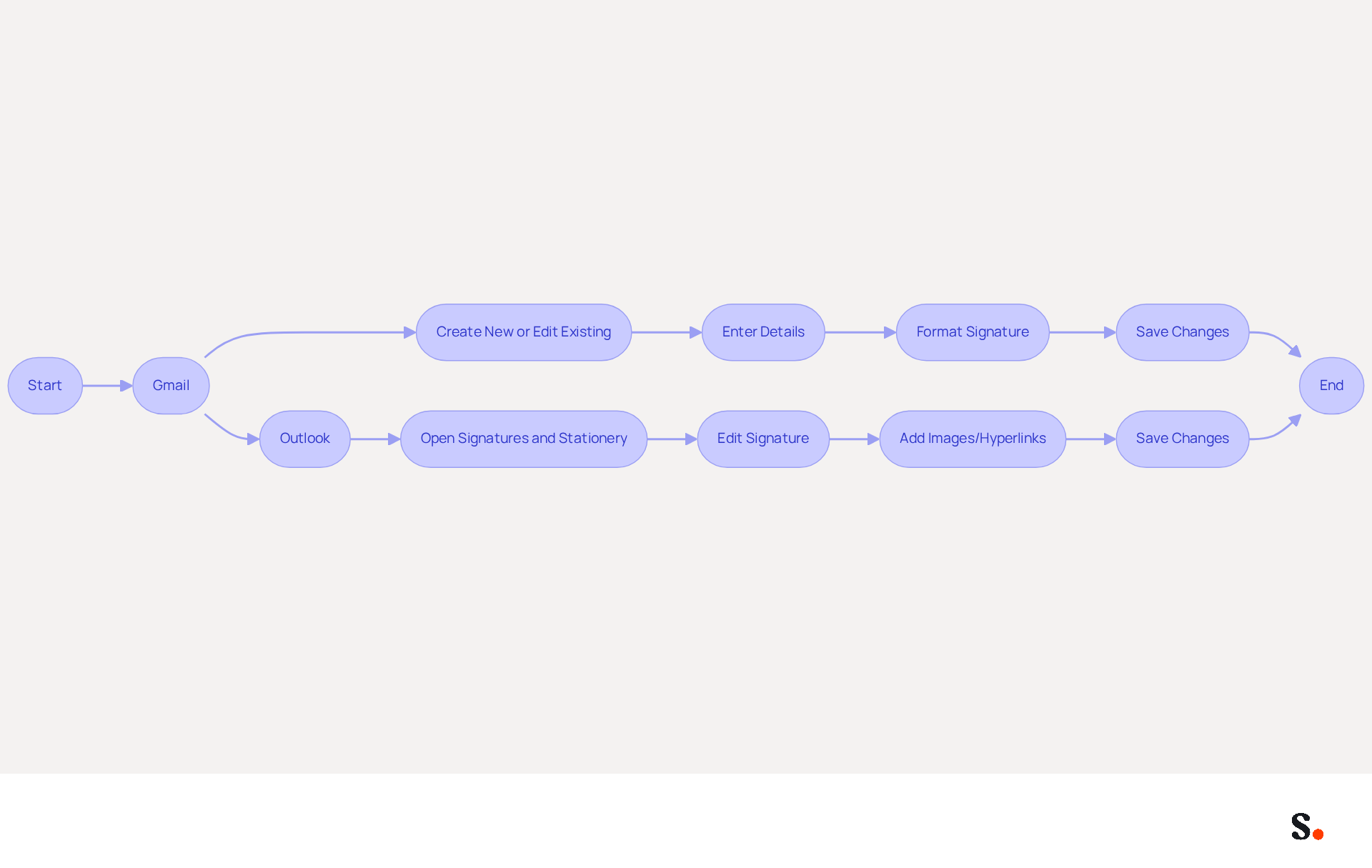
To add or edit your email signature, follow these straightforward steps:
For Gmail:
- In the 'Signature' section, click on 'Create New' to start a new entry or select an existing one to edit.
- Use the text box to enter your name, job title, company name, and one direct contact method. Consider adding links to your LinkedIn profile or a digital business card for easy access.
- Format your signature using the toolbar options. You can adjust the font, size, color, and even incorporate images or hyperlinks to enhance engagement. Professionally branded footers in emails significantly boost recipients' confidence and their likelihood to engage.
- Once satisfied with your signature, scroll down and click 'Save Changes' at the bottom of the settings page.
For Outlook:
- Open the Signatures and Stationery window and select the signature you wish to edit.
- In the editing box, type your identification details, ensuring to format the text using the available options (font, size, color).
- To add images or hyperlinks, utilize the respective buttons in the toolbar. Incorporating a call-to-action (CTA) is proven to enhance the effectiveness of your email communications, as over half of users include CTAs in theirs.
- After making your changes, click 'OK' to save your signature.
Understanding how to edit your email signature is essential for creating a professional email signature that enhances effective communication and branding. With Scribe's automated synchronization features, any modifications made in your Aircall configuration will be automatically reflected in your digital identifiers, ensuring brand consistency and compliance with SOC 2 Type II standards for secure data handling. Additionally, Scribe saves time by auto-filling your teammates' names, allowing for effortless updates and management. With Scribe, you can ensure that your email signatures are not just functional but also a strategic asset for your brand.
Troubleshoot Common Signature Issues
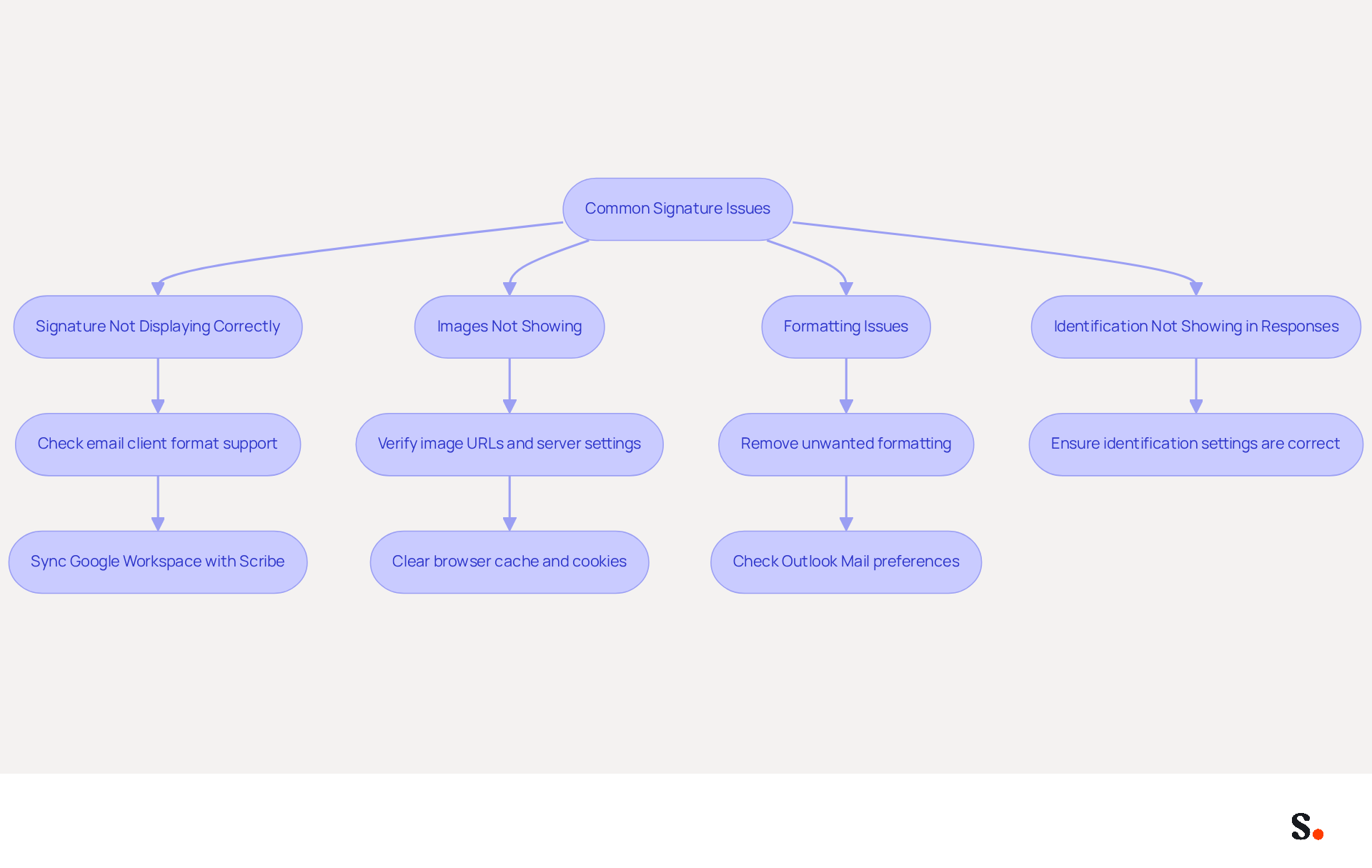
Despite clear guidance, users frequently encounter challenges when trying to understand how to edit your email signature. Here are some prevalent issues and effective troubleshooting strategies:
Common Issues:
- Signature Not Displaying Correctly: Ensure you are using the appropriate format (HTML for images and links) and verify that your email client supports it. Users often struggle with inconsistent display of their signatures across different email platforms, highlighting the importance of consistent formatting.
- Images Not Showing: Confirm that the image URLs are accurate and that the images are hosted on a reliable server. Numerous users have reported that images fail to display due to server settings that block hotlinking. The suggested dimensions for images are 70-100 pixels in height by 300-400 pixels in width to guarantee proper display across various platforms.
- Formatting Issues: If your mark appears different than anticipated, try copying and pasting it into a plain text editor first to remove any unwanted formatting before pasting it back into the mark editor. This approach often resolves common formatting issues. Additionally, if you cannot format your text, ensure that plain text mode is turned off before editing.
- Identification Not Showing in Responses: Ensure that your identification is set up to show in responses and forwards within your communication preferences. Users frequently neglect this option, resulting in confusion when identifiers are absent in message threads.
Troubleshooting Steps:
- For Gmail users, syncing your Google Workspace with Scribe can significantly streamline the management of your email signatures. By doing so, any changes in your Google Workspace, such as moving teammates from one group to another or updating their information, will be automatically reflected in Scribe without any input on your part. This not only saves time but also ensures that your email identifiers are always up-to-date, enhancing brand consistency.
- Clearing your browser cache and cookies can resolve persistent issues. This step is crucial as many users have reported that it helps restore proper functionality.
- For Outlook users, ensure that the default personal mark is configured correctly under the Mail preferences. Problems with names not displaying correctly in Outlook are often associated with misconfigured settings. Furthermore, be mindful that third-party add-ins may modify your message identifiers, so verify for any such conflicts.
By following these troubleshooting tips and utilizing the advantages of syncing with Google Workspace, you can effectively resolve common issues and ensure your communication details appear as intended, enhancing your professional interactions. Ultimately, understanding how to edit your email signature to ensure it is correctly displayed can significantly impact your professional image and communication effectiveness.
Conclusion
A well-crafted email signature is essential for effective professional communication and brand representation. By following these steps, users can create signatures that not only look good but also effectively communicate their current roles and contact information.
Key insights from this guide emphasize the importance of regularly updating email signatures to maintain brand visibility and professionalism. Accessing the settings in both Gmail and Outlook is straightforward, and utilizing Scribe's features can streamline this process significantly. With Scribe, automatic synchronization ensures that any changes made are instantly reflected across all communications, enhancing brand consistency and compliance with security standards like SOC 2 Type II.
In the end, a well-crafted email signature can really boost engagement and help establish a strong professional image. Organizations should prioritize the management of their email signatures, leveraging tools like Scribe to ensure that every communication reinforces their brand identity. By doing so, they can maximize the impact of their email interactions and foster stronger connections with their audience.
Frequently Asked Questions
How do I access email settings in Gmail?
To access email settings in Gmail, log into your Gmail account, click on the gear icon in the top right corner, and choose 'See all options' from the dropdown menu.
How do I access email settings in Outlook?
To access email settings in Outlook, open Outlook on your computer, click on the File tab in the top left corner, select 'Options' from the menu, and then click on 'Mail' followed by 'Signatures...' to access your signature options.
Why is it important to regularly update my email signature?
Regularly updating your email signature is crucial for maintaining your brand's visibility. Research indicates that 31.6% of users refresh their signatures only once every few years, which can lead to missed branding opportunities.
How often should I review my email signature?
It is advisable to review your email signature quarterly to ensure it reflects any changes in personal or company branding.
What impact does a professional photo in my email signature have?
Incorporating a high-quality professional photo in your email signature can increase response rates by 32%, making it essential to keep your signature fresh and relevant.
What is required to enable one-click synchronization with Scribe?
To enable one-click synchronization with Scribe, you must grant permission for Scribe to connect with your messaging provider and ensure you are a Super Admin of your service provider to grant these permissions.
How does Scribe enhance branding consistency?
Scribe simplifies the process of updating your contact directory, automatically refreshing all modifications made, which saves time and enhances branding consistency across all communications.
What are the optimal specifications for digital identifiers in email signatures?
Digital identifiers should be a maximum of 600px wide and under 100KB total for optimal display across devices.
How does Scribe ensure data security?
Scribe's SOC 2 Type II compliance guarantees that your data remains secure throughout the process of managing your email signature and contact information.
List of Sources
- Access Email Settings in Gmail and Outlook
- Email Signature Best Practices for 2026 (+ 15 Pro Examples) (https://wavecnct.com/blogs/email-signature-best-practices-2026)
- How to Update Your Outlook Signature (2026) (https://getinboxzero.com/blog/post/how-to-update-signature-in-outlook)
- Outlook vs Gmail: 13 New Outlook Features Gmail Users Should Know (2026) - Call That Girl (https://callthatgirl.biz/tag/outlook-vs-gmail-13-new-outlook-features-gmail-users-should-know-2026)
- Email signature statistics: Why every business should optimize their email signatures — Stripo.email (https://stripo.email/blog/email-signature-statistics-why-every-business-should-optimize-their-email-signatures)
- 40+ Email Signature Statistics for 2026 (Data + Insights) (https://wavecnct.com/blogs/email-signature-statistics)
- Navigate to Signature Settings
- 40+ Email Signature Statistics for 2026 (Data + Insights) (https://wavecnct.com/blogs/email-signature-statistics)
- Email signature statistics: Why every business should optimize their email signatures — Stripo.email (https://stripo.email/blog/email-signature-statistics-why-every-business-should-optimize-their-email-signatures)
- Email Signature Statistics: A Closer Look at Email Signatures in 2026 (https://mysignature.io/blog/email-signature-statistics)
- Email Signature Trends in Numbers: Infographic [2026] (https://mailtrap.io/blog/email-signature-trends)
- Add and Format Your Email Signature
- 40+ Email Signature Statistics for 2026 (Data + Insights) (https://wavecnct.com/blogs/email-signature-statistics)
- Why Email Signatures Must Be In Your 2026 Marketing Plan | Rocketseed (https://rocketseed.com/blog/what-are-the-biggest-email-trends-for-2026)
- Email signature statistics and trends in 2024 (https://wisestamp.com/blog/email-signature-statistics)
- Make Your Brand Stand Out: Easily Add an HTML Email Signature to Gmail and Outlook.
Here at Legal Growth, we help to make your brand stand out in customer emails. Add a professionally designed flare to each email sent from Gmail and Outlook with HTML email signatures. They can help promote important information such as contact details. Read on to learn how adding an HTML signature to your business emails is easy.
What HTML email signatures are and why they matter
HTML email signatures are necessary because they allow you to include stylised text and images in your email signature. It helps promote your brand or website or add personality to your emails. Additionally, HTML email signatures can include clickable links, making it easy for recipients to contact or visit your website. A good example is when you get an email from one of us here at Legal Growth.
Create an HTML email signature, Simply today.
When it comes to creating an HTML email signature, there are a few simple steps that you need to follow. To get started, you'll need to create a file called signature.html and then save it in your email signature folder. In this file, you can include any text or images you'd like to appear in your signature.
Next, you'll need to add the following code to your email template:
Your HTML content goes here.
Be sure to replace "Your HTML content goes here." with the actual content of your signature. You can also customise the appearance of your signature by adding some CSS styling. For example, you can add the following code to create a border around your signature:
.signature {
border: 1px solid black;
}
How to add an HTML email signature in Outlook and Gmail
Adding an HTML email signature in Outlook and Gmail is a great way to show your brand personality and add some flair to your emails. It can also be a great way to promote your business or website. This post will show you how to add an HTML email signature in Outlook and Gmail.
To add an HTML email signature in Outlook, follow these steps:
1. Open Outlook and click on the File tab.
2. Select Options from the menu.
3. Click on the Mail tab.
4. Select the Signature option and click on the Edit button in the Signature section.
5. In the Edit Signature window, enter your signature text in the text box and click on the OK button.
6. Click the OK button in the Options window to save your changes.
To add an HTML email signature in Gmail, follow these steps:
1. Open Gmail and click on the Settings gear icon.
2. Select Settings from the menu.
3. Click on the General tab.
4. In the Signature section, type your signature text in the text box and click on the Save Changes button.
Of course, if you are struggling to follow any of these tips or tricks, then please email or phone one of our team at Legal Growth, where we can take all the stress of it, smooth the process out and get you a professional-looking Signature that fits your brand the best.
Here are some tips for creating an HTML email signature:
-Keep your signature file size small. Large files can slow down the loading of your email messages.
-Include a link to your website or social media profile. It will help your contacts learn more about you and your business.
-Include a tagline that expresses who you are and what you do.
-Make sure your signature looks good on all devices. Test it on different devices and browsers to ensure that it looks correct.
Following these simple steps will help you create an HTML email signature that is both stylish and professional. If you want to learn more about adding an HTML email signature in Outlook and Gmail, check out our other post.
— Legal Growth (https://legalgrowth.co.uk/news/make-your-brand-stand-out-easily-add-an-html-email-signature-to-gmail-and-outlook)
- Troubleshoot Common Signature Issues
- Troubleshoot issues with Gmail signatures - Gmail Help (https://support.google.com/mail/answer/11468381?hl=en)
- How to solve problems with email signatures in Microsoft 365? (https://mail-signatures.com/articles/problems-email-signatures-office-365)
- 40+ Email Signature Statistics for 2026 (Data + Insights) (https://wavecnct.com/blogs/email-signature-statistics)
Get started with Scribe
See why teams switch to Scribe
Free 14-day trial — no credit card.