4 Steps to Fix Gmail Signature Image Not Showing Issues
When a Gmail signature image fails to display, it can undermine the professionalism of your communication, potentially leaving recipients with a negative
Sophie Grant
Email Signature Specialist, Scribe
Introduction
When a Gmail signature image fails to display, it can undermine the professionalism of your communication, potentially leaving recipients with a negative impression. Let’s explore the common reasons these visibility issues occur and discuss practical steps to troubleshoot and resolve them effectively.
So, how can you make sure your email signatures not only show up correctly but also boost your brand consistency and engagement? By exploring best practices and leveraging tools like Scribe, organizations can maintain a polished image and maximize the marketing potential of every email sent.
Understand Common Reasons for Signature Image Issues
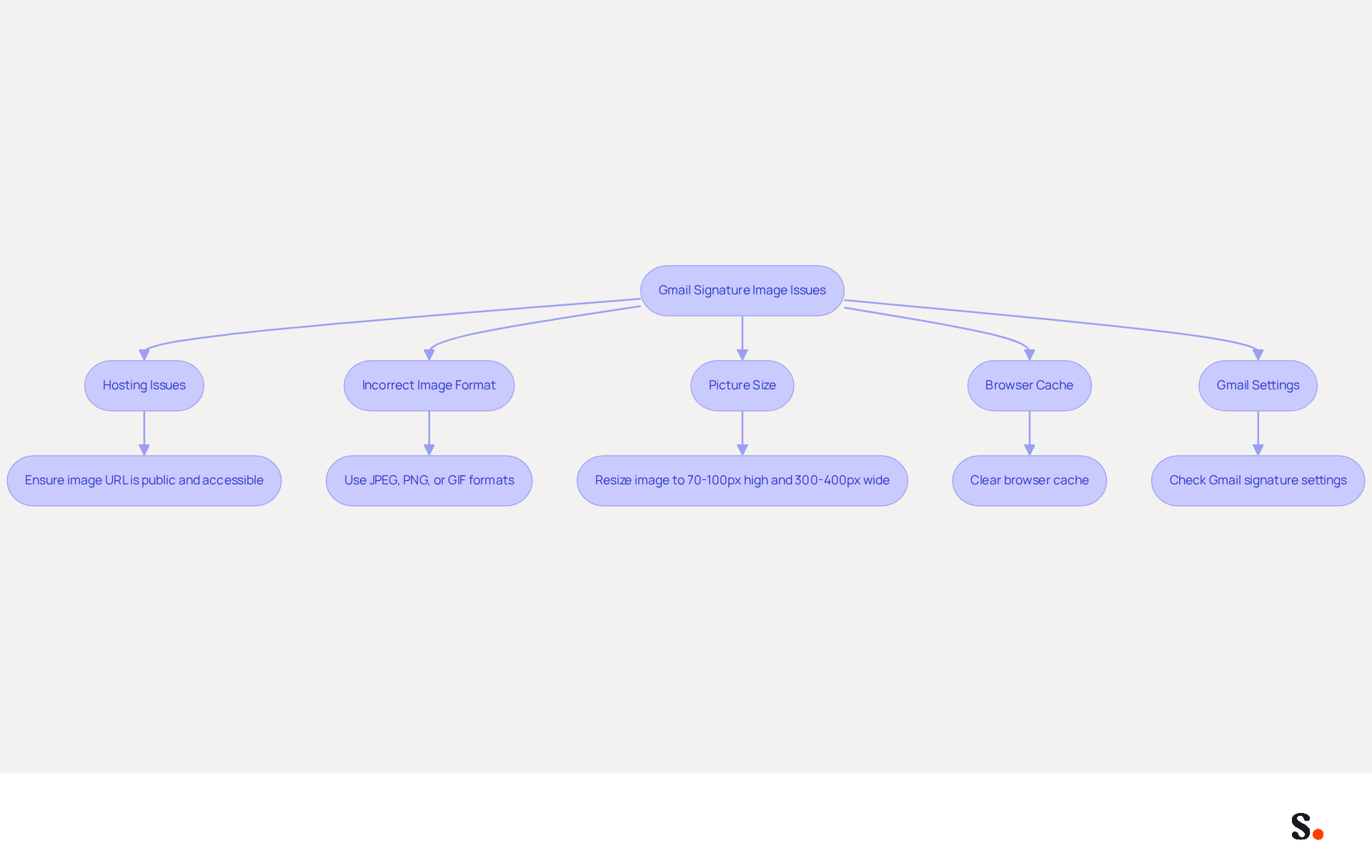
When your gmail signature image not showing, it can undermine your professional communication. Here are some common reasons:
- Hosting Issues: If the visual isn’t stored on a publicly accessible server, Gmail can’t retrieve it. Ensure that the URL for the picture is valid and accessible, ideally hosted on a secure HTTPS server. Syncing your Google Workspace with Scribe guarantees that visuals are hosted correctly, minimizing the risk of display issues.
- Incorrect Image Format: Gmail supports specific formats like JPEG, PNG, and GIF. Using unsupported formats can lead to display issues. Scribe helps ensure compliance with these formats, ensuring your visuals are always compatible.
- Picture Size: Oversized visuals can cause problems. Aim for dimensions around 70-100 pixels high and 300-400 pixels wide, with a file size under 150KB to ensure compatibility. Scribe automatically adjusts visuals for email footers, assisting you in avoiding size-related problems.
- Browser Cache: Cached data can interfere with how images are displayed. Clearing your browser cache may resolve the issue, especially after updates.
- Gmail Settings: Ensure that your settings for personal identification are correctly configured in Gmail. If the mark is set to 'No mark,' it won't display. Additionally, check that the option to insert initials before quoted text is enabled to ensure visibility in replies.
Recognizing these common problems helps you diagnose and resolve issues, including the gmail signature image not showing, with your Gmail visuals more effectively. Significantly, 42% of consumers indicate feeling negatively toward a business when they receive a message lacking a branded identifier, emphasizing the necessity of addressing these matters swiftly. If your image appears corrupt or isn’t displayed, managing images can be challenging, especially when the gmail signature image not showing correctly. Delete the existing image and reinsert it using the HTTPS web address. Furthermore, syncing your Google Workspace with Scribe can simplify your management of correspondence identifiers, ensuring that any updates to your teammates' details are automatically reflected in their identifiers. This not only saves time but also helps maintain brand consistency across all communications. Addressing these issues promptly is essential for maintaining a professional image.
Troubleshoot Signature Image Visibility in Gmail
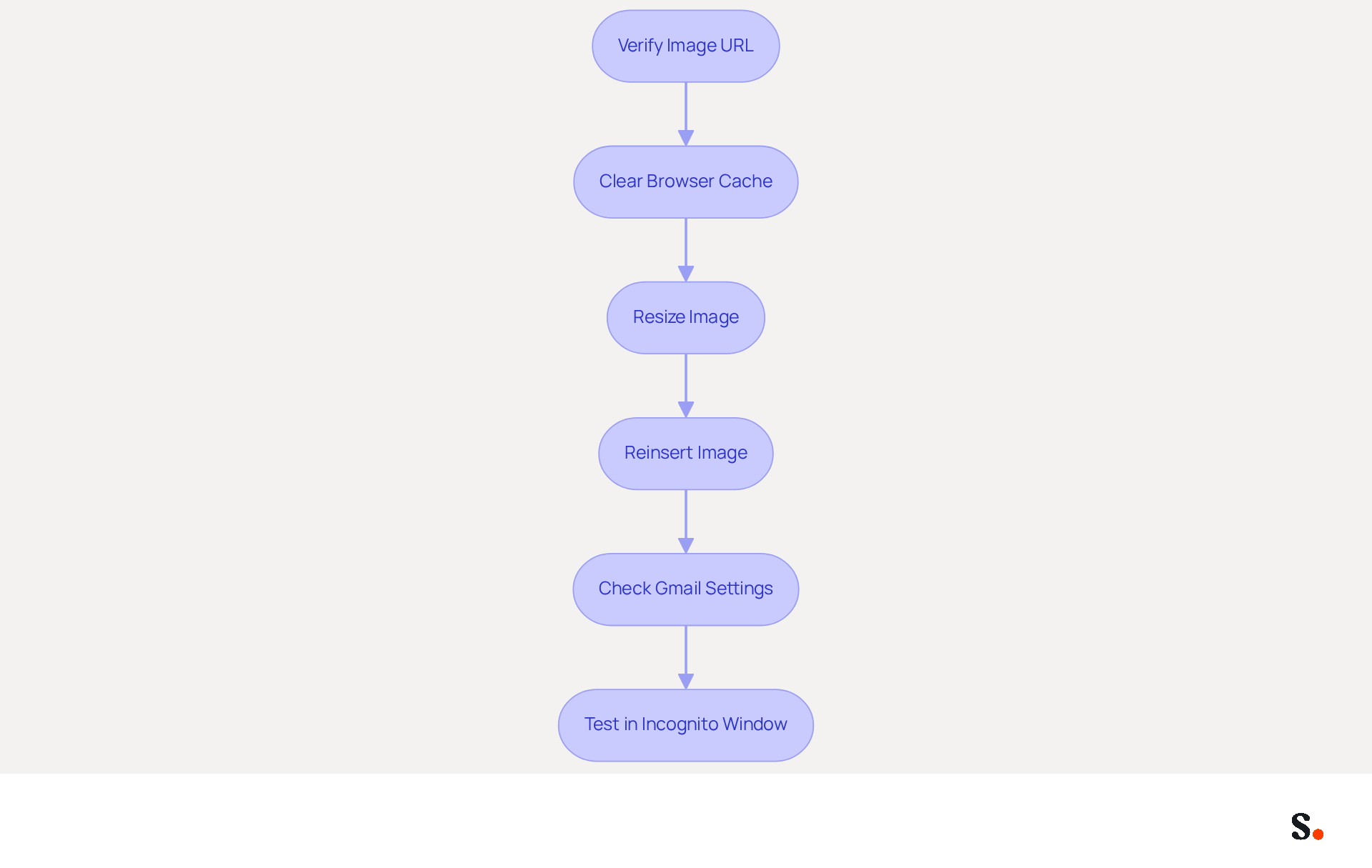
Many users encounter challenges when the Gmail signature image is not showing properly. To troubleshoot visibility issues with your Gmail signature image, follow these steps:
- First, verify that the URL for your image is publicly accessible. Test this by pasting the URL into a new browser tab; if it doesn't load, the visual is not accessible.
- Next, clear your browser's cache to eliminate any outdated data that may be causing issues. Open your browser settings, locate the option to clear cache and cookies, and perform the action.
- If the image appears too large, consider resizing it for optimal display. Aim for dimensions of 70-100 pixels high and 300-400 pixels wide.
- After resizing, remove the current image and reinsert it using the 'Insert Image' option in Gmail. Select the image from a reliable source.
- Ensure that your Gmail settings are correctly configured to display your personal mark. Navigate to Gmail settings, click on 'See all settings,' and verify that it is not set to 'No mark.'
- Finally, test your Gmail in an incognito window to see if the image displays correctly. This can help identify if browser extensions are causing the issue.
By following these troubleshooting steps, you can effectively resolve most visibility issues, including the Gmail signature image not showing. Addressing these visibility issues is vital for maintaining a professional image in email communications.
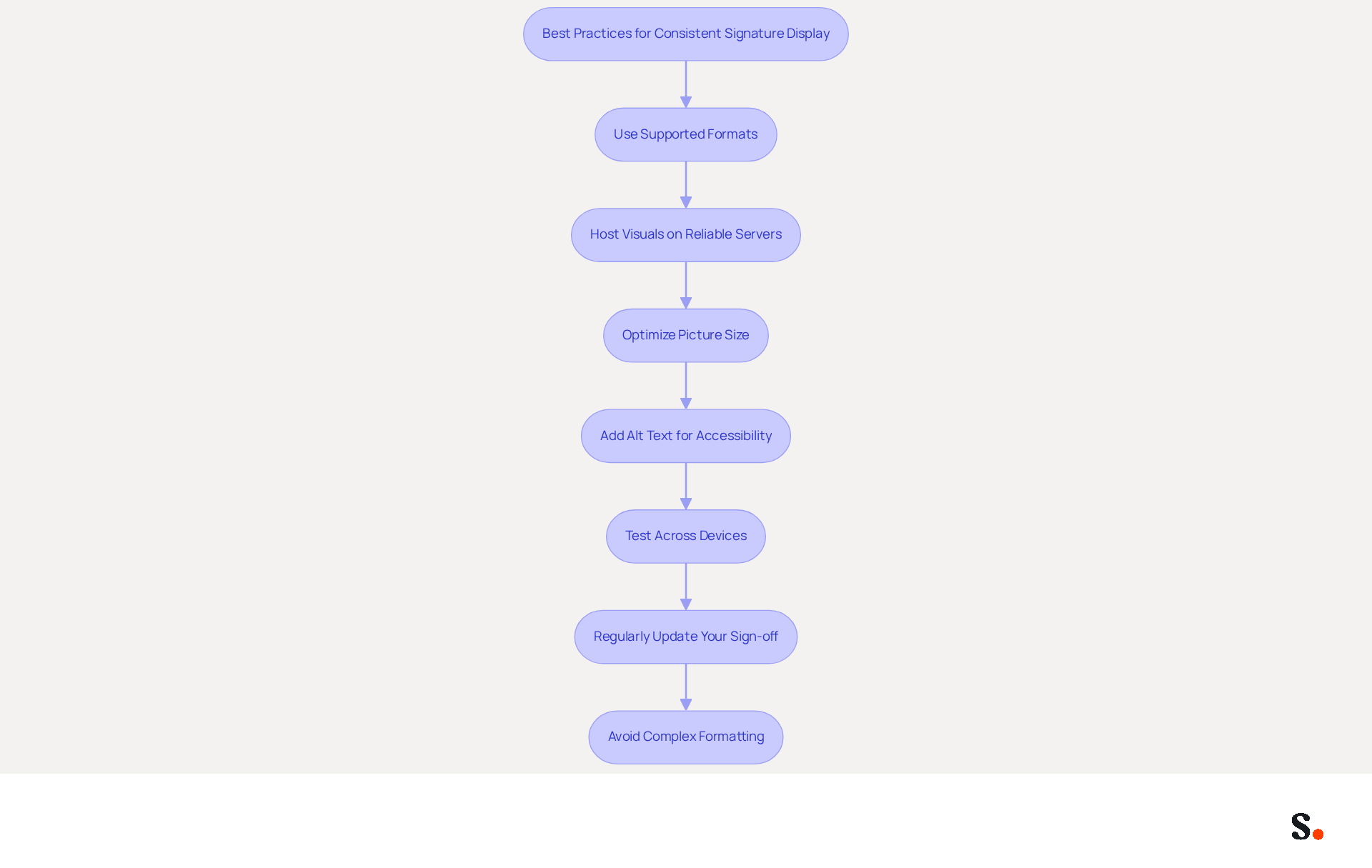
Implement Best Practices for Consistent Signature Display
To achieve a consistent display of your Gmail signature across all devices and email clients, it is essential to adhere to best practices:
- Use Supported Formats: Stick to JPEG, PNG, or GIF formats for your signature visuals. These formats are widely supported and less likely to cause issues.
- Host Visuals on Reliable Servers: Use a reputable hosting service that allows public access. Avoid using visuals stored on personal drives or private servers, as this can lead to broken links.
- Optimize Picture Size: Keep your visuals within the recommended dimensions of 70-100 pixels high and 300-400 pixels wide, with a file size under 100 KB. This ensures your visuals load quickly and display correctly across different email clients.
- Add Alt Text for Accessibility: Include descriptive alt text for all images in your email footer. This is crucial for accessibility, especially for visually impaired recipients who rely on screen readers.
- Test Across Devices: After configuring your personal mark, send test messages to various clients (like Outlook, Apple Mail, etc.) and devices (mobile and desktop) to ensure the mark appears correctly. Ensuring your signature displays correctly on mobile devices is crucial, given that they account for over half of email access.
- Regularly Update Your Sign-off: Periodically review and update your sign-off to reflect any changes in branding or contact information. Regular updates to your sign-off not only reflect your current branding but also reinforce your professional image and guarantee adherence to regulations, including the requirement of an unsubscribe link in marketing communications.
- Avoid Complex Formatting: Keep your sign-off straightforward and steer clear of excessive styling or multiple visuals, which can result in display problems. A clean design enhances readability and professionalism.
By applying these optimal methods, you can develop a professional and consistent electronic communication footer that resolves the Gmail signature image not showing issue, enhances your brand's reputation, and maximizes engagement opportunities. Bybrand emphasizes that a well-designed image in your correspondence aids in immediate recognition of you and your organization.
Utilize Scribe for Automated Email Signature Management
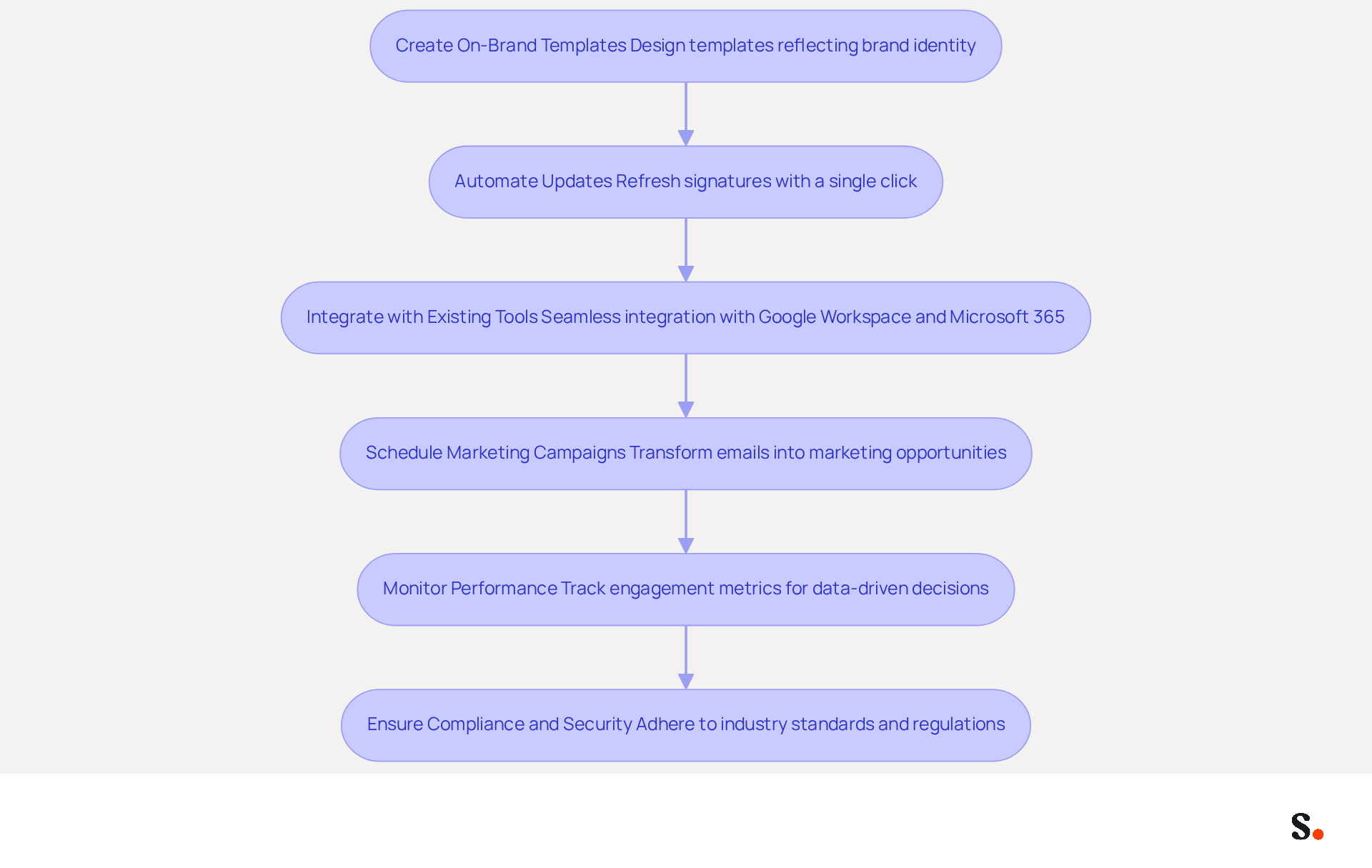
Effective management of digital signatures is crucial for maintaining brand integrity and operational efficiency. Here’s how to leverage Scribe for automated email signature management:
- Create On-Brand Templates: Utilize Scribe to design distinctive templates that reflect your brand's identity, ensuring uniformity across all team members' identifiers. Standardized templates help maintain professionalism and align with marketing goals.
- Automate Updates: Many organizations struggle with the time-consuming task of updating email signatures manually. With Scribe, you can refresh designations across the organization with a single click, removing the necessity for manual updates and greatly decreasing the risk of inconsistencies. By automating this process, organizations can redirect valuable time towards more strategic initiatives. This tool also automatically fills in your teammates' sign-offs using your business phone system as a data source, ensuring that sign-off information is always synced and current without any action needed from your teammates.
- Integrate with Existing Tools: The tool seamlessly integrates with popular platforms like Google Workspace and Microsoft 365, facilitating easy implementation without disrupting your current workflow. This compatibility makes it easier to manage your email signatures without disrupting your workflow.
- Schedule Marketing Campaigns: Utilize Scribe’s features to arrange marketing initiatives directly through your correspondence, transforming every message into a marketing opportunity. According to recent studies, 67% of marketers believe that digital footers can significantly contribute to lead generation, emphasizing their potential as a cost-effective marketing channel.
- Monitor Performance: Utilize Scribe’s analytics tools to track the effectiveness of your digital identifiers. Monitoring engagement metrics allows for data-driven decisions that can enhance interaction rates, as messages with branded elements receive a 22% higher response rate. This tool achieves an average click-through rate of 12% on branded banners, highlighting its effectiveness in marketing performance.
- Ensure Compliance and Security: Scribe is designed with safety in mind, guaranteeing that your digital identifiers adhere to industry standards and regulations, including SOC 2 Type II compliance. This commitment to security is essential for organizations handling sensitive information.
By implementing Scribe, you can streamline your management process for digital signatures, enhance brand consistency, and maximize marketing opportunities with every message sent. In a competitive landscape, neglecting branded elements in email signatures can lead to missed opportunities and diminished brand perception.
Conclusion
Addressing Gmail signature image visibility is crucial for upholding a professional digital presence. Understanding the reasons behind visibility issues helps users ensure their email signatures display correctly across all platforms. Scribe streamlines this process, ensuring brand consistency and improving operational efficiency through automated management.
Key insights from the article highlight the importance of:
- Using supported image formats
- Optimizing image sizes
- Ensuring proper hosting
Additionally, Scribe's automated email signature management features allow organizations to maintain brand integrity effortlessly. With capabilities such as on-brand template creation, automated updates, and performance monitoring, Scribe empowers marketing teams to transform every email into a potential marketing opportunity while ensuring compliance with industry standards.
In a world where first impressions matter, ensuring that email signatures are visually appealing and functional is crucial. When organizations adopt best practices and use Scribe's solutions, they can significantly boost their professional image, improve engagement rates, and ultimately drive better marketing results. By implementing these strategies, organizations can not only resolve visibility challenges but also significantly enhance their brand's impact in every email.
Frequently Asked Questions
What are common reasons for a Gmail signature image not showing?
Common reasons include hosting issues, incorrect image format, oversized images, browser cache problems, and Gmail settings misconfigurations.
How can hosting issues affect my Gmail signature image?
If the image is not stored on a publicly accessible server, Gmail cannot retrieve it. It's important to ensure the image URL is valid and hosted on a secure HTTPS server.
What image formats are supported by Gmail for signatures?
Gmail supports JPEG, PNG, and GIF formats. Using unsupported formats can lead to display issues.
What are the recommended dimensions and file size for images in Gmail signatures?
Aim for dimensions around 70-100 pixels high and 300-400 pixels wide, with a file size under 150KB to ensure compatibility.
How can browser cache affect the display of my signature image?
Cached data can interfere with how images are displayed. Clearing your browser cache may resolve display issues, especially after updates.
What Gmail settings should I check if my signature image is not displaying?
Ensure that your personal identification settings are correctly configured. If the mark is set to 'No mark,' it won't display. Also, check that the option to insert initials before quoted text is enabled.
What should I do if my signature image appears corrupt or isn’t displayed?
Delete the existing image and reinsert it using the HTTPS web address.
How can syncing Google Workspace with Scribe help with signature image issues?
Syncing with Scribe ensures that visuals are hosted correctly and that any updates to teammates' details are automatically reflected in their identifiers, maintaining brand consistency.
Why is it important to address signature image issues promptly?
Addressing these issues is essential for maintaining a professional image, as 42% of consumers feel negatively toward a business when they receive a message lacking a branded identifier.
List of Sources
- Understand Common Reasons for Signature Image Issues
- Fix Your Missing Gmail Signature: 8 Troubleshooting Steps & Best Practices | Newoldstamp - NEWOLDSTAMP (https://newoldstamp.com/blog/gmail-signature-not-showing-up)
- Solving a Gmail signature problem (https://signitic.com/en/guides/solving-a-gmail-signature-problem)
- Email Signature image doesn't show in Gmail - Microsoft Q&A (https://learn.microsoft.com/en-us/answers/questions/4614933/email-signature-image-doesnt-show-in-gmail)
- Troubleshoot issues with Gmail signatures - Gmail Help (https://support.google.com/mail/answer/11468381?hl=en)
- 40+ Email Signature Statistics for 2026 (Data + Insights) (https://wavecnct.com/blogs/email-signature-statistics)
- Troubleshoot Signature Image Visibility in Gmail
- Fix Your Missing Gmail Signature: 8 Troubleshooting Steps & Best Practices | Newoldstamp - NEWOLDSTAMP (https://newoldstamp.com/blog/gmail-signature-not-showing-up)
- Troubleshoot issues with Gmail signatures - Gmail Help (https://support.google.com/mail/answer/11468381?hl=en)
- Solving a Gmail signature problem (https://signitic.com/en/guides/solving-a-gmail-signature-problem)
- Gmail signature image not showing up and getting distorted - Microsoft Q&A (https://learn.microsoft.com/en-us/answers/questions/2372915/gmail-signature-image-not-showing-up-and-getting-d)
- Implement Best Practices for Consistent Signature Display
- Email Signature Best Practices Guide With Examples - MailerLite (https://mailerlite.com/blog/email-signature-best-practices)
- Email Signature Size and Image Best Practices (https://maileditor.net/blog/email-signature-size-and-image-best-practices)
- Email Signature Best Practices - NEWOLDSTAMP (https://newoldstamp.com/blog/email-signature-best-practices)
- Consistent email signatures for the whole team | Guide + tool (https://signitic.com/en/resources/how-to-ensure-consistent-email-signatures-for-your-entire-team-even-when-working-remotely)
- Images in email signatures: A how-to for success (https://bybrand.io/blog/images-in-email-signatures)
- Utilize Scribe for Automated Email Signature Management
- Exclaimer Research: 67% of Marketers Expect Email Signatures to Support With Lead Gen In 2023 (https://businesswire.com/news/home/20230612141095/en/Exclaimer-Research-67-of-Marketers-Expect-Email-Signatures-to-Support-With-Lead-Gen-In-2023)
- 4 Best Practices for Your Work Email Signature Strategy (https://scribe-mail.com/en-US/blog/4-best-practices-for-your-work-email-signature-strategy)
- How to Automate Email Signatures for Effective Marketing Campaigns (https://scribe-mail.com/en-US/blog/how-to-automate-email-signatures-for-effective-marketing-campaigns)
- 40+ Email Signature Statistics for 2026 (Data + Insights) (https://wavecnct.com/blogs/email-signature-statistics)
- Master Corporate Email Signature Management for Brand Consistency (https://scribe-mail.com/en-US/blog/master-corporate-email-signature-management-for-brand-consistency)
Get started with Scribe
Create your signature in minutes
Free 14-day trial — no credit card.