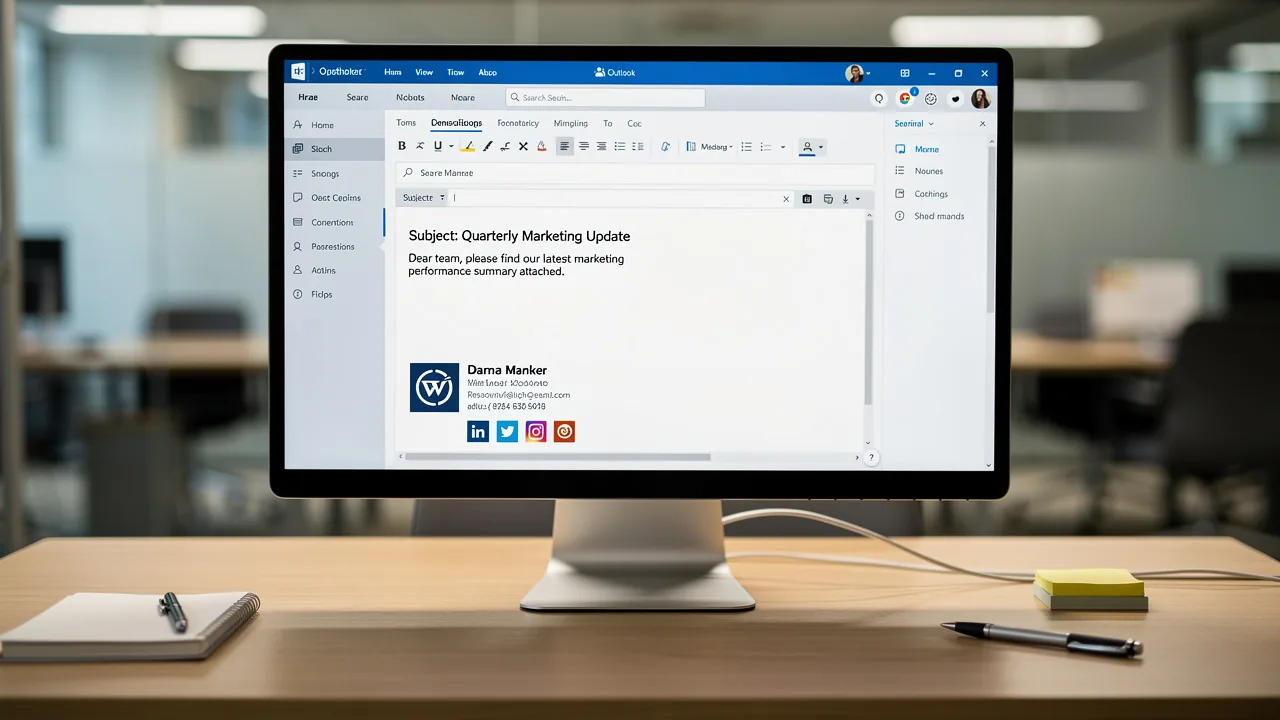
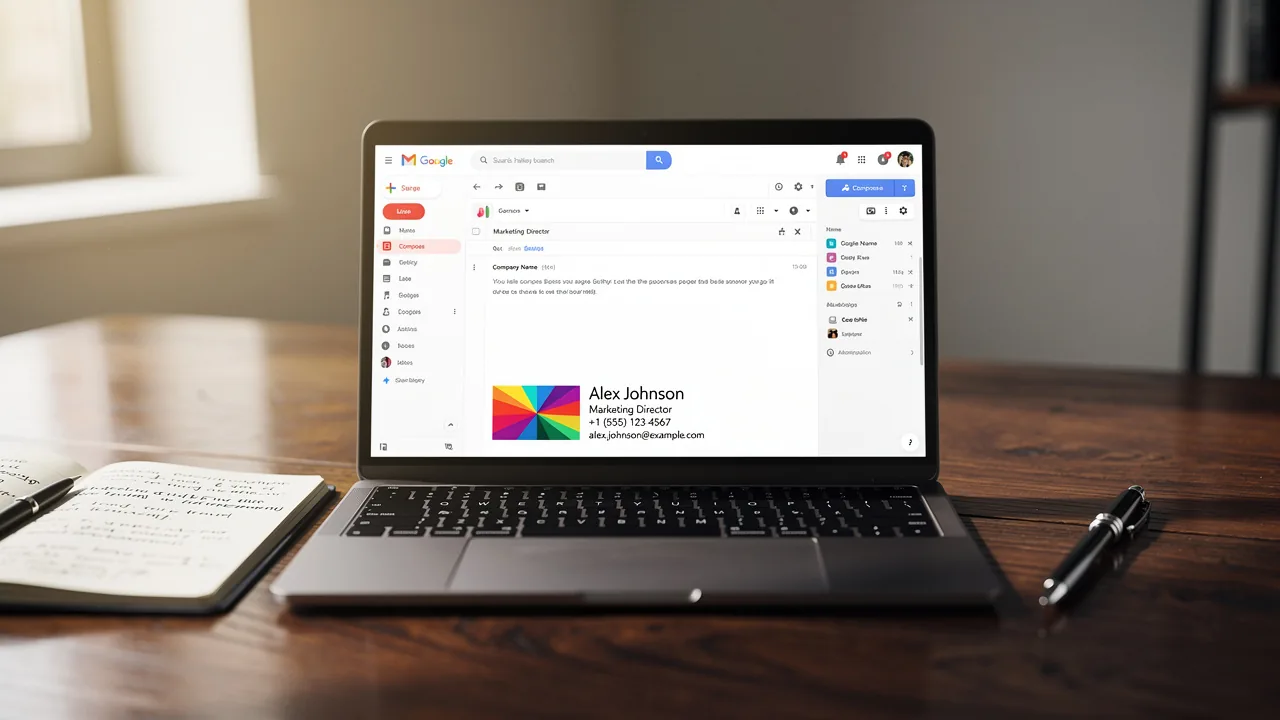
4 Steps to Put Your Email Signature in Gmail Effectively
Many professionals overlook the importance of email signatures, yet they are crucial for enhancing brand visibility and credibility. With Gmail being the
Sophie Grant
Email Signature Specialist, Scribe

Introduction
Many professionals overlook the importance of email signatures, yet they are crucial for enhancing brand visibility and credibility. With Gmail being the preferred platform for over 1.8 billion users, mastering the art of crafting an effective email signature can significantly impact engagement and marketing ROI.
However, how can one ensure that their email signature not only reflects their brand identity but also serves as a powerful marketing tool? In this guide, we’ll break down how to create, format, and manage email signatures in Gmail, helping you improve communication and maintain brand consistency.
Access Gmail Settings to Add Your Signature
Understanding how to put email signature effectively is crucial for maintaining brand consistency and maximizing marketing potential.
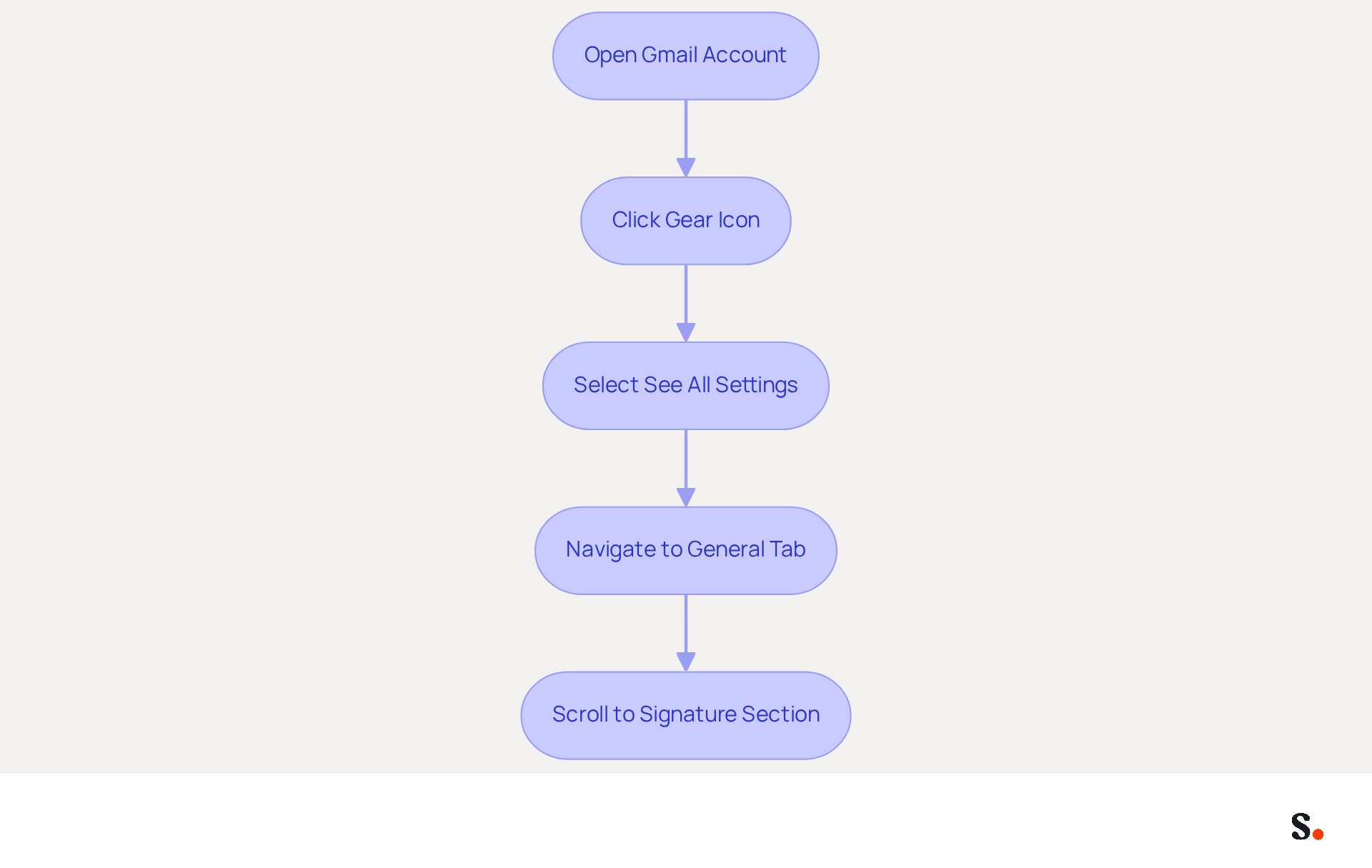
- Open your Gmail account in a web browser.
- Click on the gear icon located in the top right corner of the page to access the settings menu.
- Select 'See all settings' from the dropdown menu.
- In the settings menu, navigate to the 'General' tab.
- Scroll down until you find the 'Signature' section. This is where you will create and manage your message footer.
With over 1.8 billion users, Gmail remains a leading platform for communication, highlighting the importance of managing your message footers effectively. Notably, Gmail is utilized by 94% of Fortune 500 companies as of 2023, underscoring its significance in the corporate landscape. Research shows that customized signatures can boost engagement significantly, yielding 122% higher ROI, 29% more open rates, and 41% increased click-through rates compared to generic options. By following these steps, you will understand how to put email signature that not only reflects your brand but also acts as a powerful marketing tool.
To further enhance your signature management, consider syncing your Google Workspace with the application. To set up this one-click sync, just allow Scribe to connect with your email provider, but remember, you’ll need Super Admin access. You will have the option to select which teammates you want to sync with the application. This enables automatic updates, ensuring that any changes in your Google Workspace, such as moving teammates or updating their information, are reflected in the application without manual input. Scribe's SOC 2 Type II compliance ensures the protection of your data, making it a reliable option for managing digital identifiers. Furthermore, be informed that forthcoming modifications concerning the termination of Gmailify and POP features by the end of 2026 may influence how you handle your email identifiers. As changes to Gmail features loom, adapting your email signature strategy will be vital for continued engagement and brand representation.
Create and Format Your Email Signature in Gmail
Understanding how to put email signature is essential for creating a professional email signature and establishing credibility in your communications.
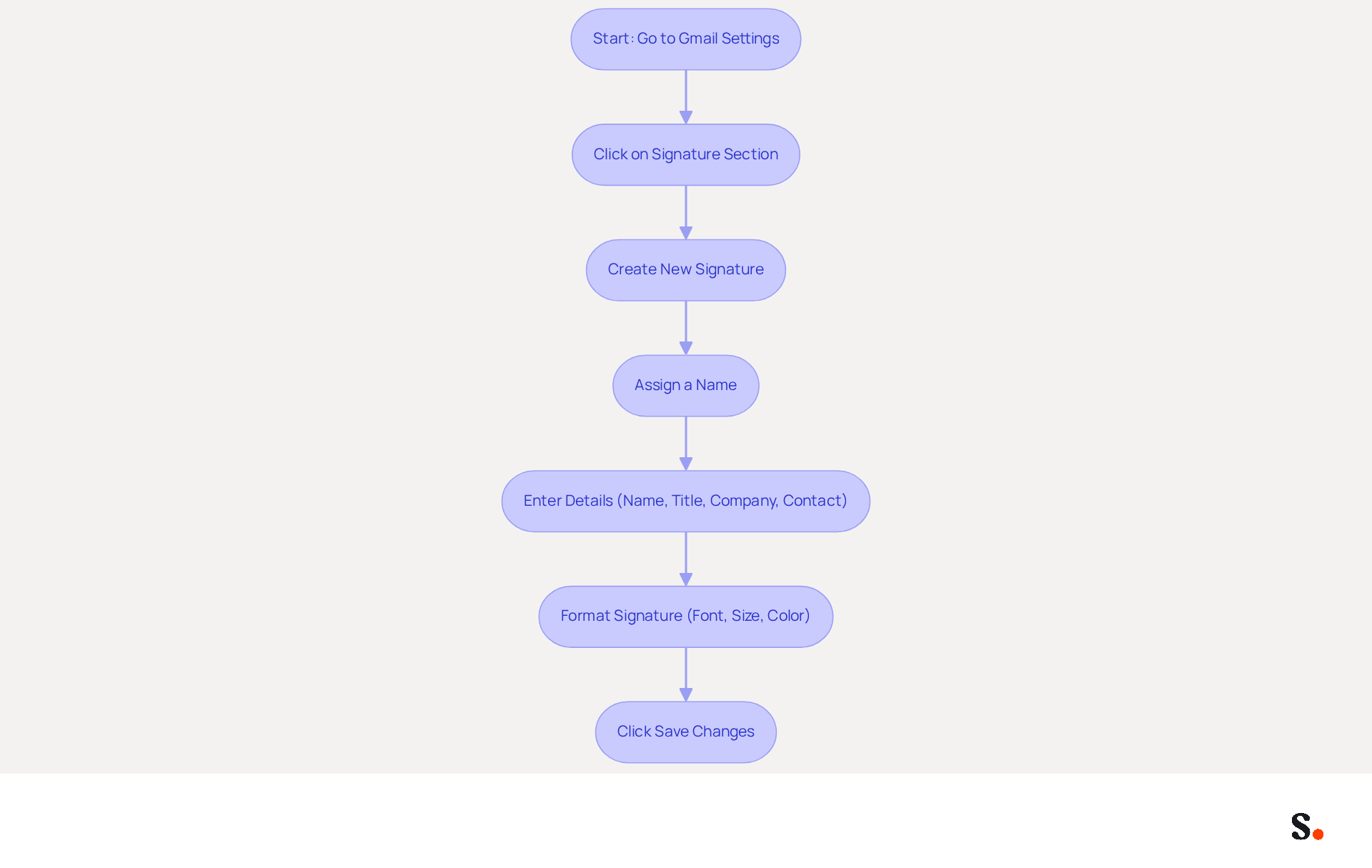
- To learn how to put email signature, go to the 'Signature' section of Gmail settings and click on 'Create new' to start a new sign-off.
- Assign a name to your mark for easy identification in the future.
- Use the text box to enter your details, including your full name, job title, company name, and contact information.
- Utilize the formatting options available, such as font style, size, and color, to personalize your appearance. Ensure that it remains professional and consistent with your brand's identity.
- After finalizing your design, scroll down and click 'Save Changes' at the bottom of the settings page to understand how to put email signature into your settings.
By 2026, a well-crafted email footer is expected to enhance your credibility, as around 70% of users feel that a professional footer increases trustworthiness. To strengthen your brand presence, consider incorporating social media links, as these can help build relationships with prospects, along with a call-to-action to facilitate ongoing engagement with your recipients. Furthermore, keep in mind that Gmail enables you to create multiple identifiers and use the 'Send mail as' feature, offering flexibility in your communications.
Using Scribe makes managing your digital identifiers much simpler. By automatically syncing your identifiers with your Business phone system, any modifications made in your Aircall configuration will be reflected in the application without needing action from your teammates. This guarantees that your email identifiers are consistently current, improving consistency across your organization. Furthermore, Scribe is SOC 2 Type II compliant, ensuring that your data is handled securely, which is crucial for maintaining trust with your clients. An endorsement that reflects your brand's professionalism can create a lasting impression. Investing in a professional email signature management solution can significantly enhance your brand's image and client trust.
Add Links and Images to Enhance Your Signature
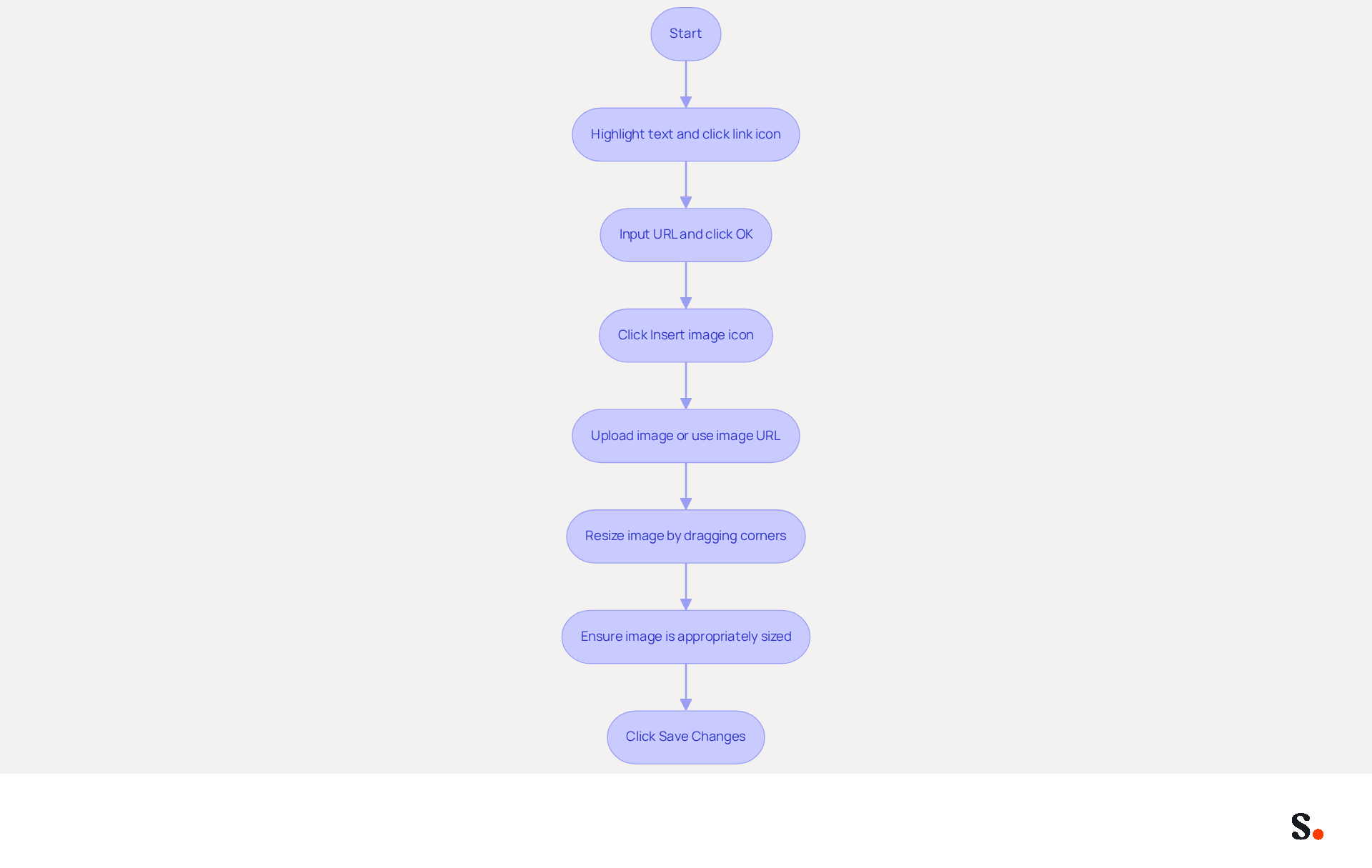
To effectively enhance your content, follow these steps to insert links and images in the editor.
- Begin by highlighting the text you wish to hyperlink, then click the link icon in the formatting toolbar.
- Next, input the desired URL and confirm by clicking 'OK'.
- To add an image, locate and click the 'Insert image' icon in the toolbar.
- You have the option to upload an image from your computer or use an image URL.
- Once the image is inserted, resize it by clicking and dragging the corners.
- Make sure the image is appropriately sized for optimal display in your messages.
- Finally, click 'Save Changes' to ensure your updates are applied.
Manage Multiple Signatures for Different Campaigns
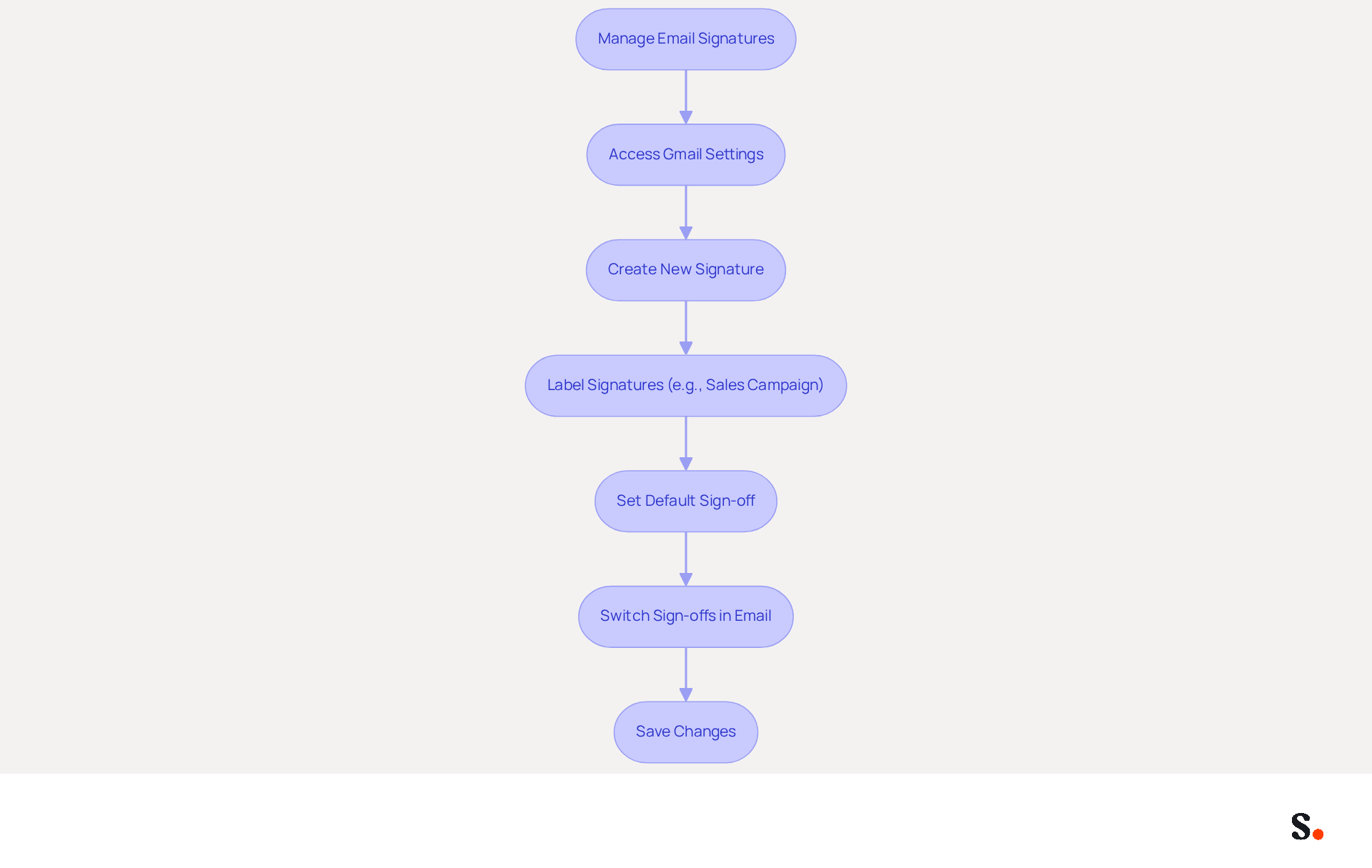
To enhance your email communication strategy, it's essential to understand how to put email signature effectively. In the 'Signature' section of Gmail settings, click 'Create new' to understand how to put email signature customized for specific campaigns or purposes. To enable one-click synchronization with Scribe, you must grant permission by being a Super Admin of your service provider. This ensures that your correspondence identifiers remain current and uniform throughout your organization.
Name each label according to its intended use, such as 'Sales Campaign' or 'Support Team', to ensure clarity and organization. This flexibility allows for centralized management of your communication identifiers, enhancing brand consistency across various interactions.
To understand how to put email signature as a default sign-off for new messages or responses, select your preferred sign-off from the dropdown menus labeled 'For new messages use' and 'On reply/forward use'. This enables smooth transitions between different campaign messages, while the application automatically updates changes made in your provider directory.
When drafting an email, switch between different sign-offs easily by clicking on the pen icon in the signing area and selecting the appropriate option from the list. This flexibility is crucial for maintaining brand consistency across communications, and with Scribe's automated updates, you can ensure that your identifiers reflect the latest branding guidelines.
Be sure to save your changes before you exit to make sure everything is updated properly. Learning how to put email signature effectively can greatly improve your marketing efforts. Statistics indicate that 52% of prospects prefer email as their main communication method, and companies using consistent branded email formats report over a 22% increase in response rates. By managing multiple signatures with Scribe, you can tailor your messaging for different audiences and campaigns, maximizing engagement and brand visibility while ensuring compliance with SOC 2 Type II standards for secure data handling.
Conclusion
Many users find it challenging to create and maintain consistent email signatures across various platforms. Following these steps allows users to craft a signature that effectively represents their brand and enhances marketing efforts. Scribe's integration streamlines the management of email signatures, making it easier for teams to maintain consistency and updates.
Key insights from the article highlight the importance of a well-crafted email signature, which can significantly boost engagement metrics such as open and click-through rates. The ability to manage multiple signatures for different campaigns ensures that communications remain relevant and tailored to specific audiences. Additionally, Scribe's compliance with SOC 2 Type II standards guarantees that user data is handled securely, reinforcing trust in the management of digital identifiers.
A professional email signature does more than just fulfill a requirement; it strategically enhances brand visibility and engagement. Organizations are encouraged to leverage tools like Scribe to maintain consistency and maximize the impact of their email communications. Embracing tools like Scribe can transform email signatures from a simple formality into a strategic asset that drives engagement and builds trust.
Frequently Asked Questions
How do I access Gmail settings to add my signature?
To access Gmail settings, open your Gmail account in a web browser, click on the gear icon in the top right corner, select 'See all settings' from the dropdown menu, navigate to the 'General' tab, and scroll down to the 'Signature' section.
Why is it important to manage email signatures effectively?
Managing email signatures effectively is crucial for maintaining brand consistency and maximizing marketing potential. Customized signatures can significantly boost engagement, yielding 122% higher ROI, 29% more open rates, and 41% increased click-through rates compared to generic options.
What is the significance of Gmail in the corporate landscape?
Gmail is utilized by 94% of Fortune 500 companies as of 2023, highlighting its importance as a leading platform for communication among businesses.
How can I enhance my signature management with Scribe?
You can enhance your signature management by syncing your Google Workspace with Scribe. This requires Super Admin access to allow Scribe to connect with your email provider, enabling automatic updates for any changes in your Google Workspace.
What are the benefits of using Scribe for managing email signatures?
Scribe offers reliable management of digital identifiers with SOC 2 Type II compliance, ensuring the protection of your data. It also allows for automatic updates to email signatures based on changes in your Google Workspace.
Are there any upcoming changes to Gmail features that I should be aware of?
Yes, there are forthcoming modifications concerning the termination of Gmailify and POP features by the end of 2026, which may influence how you handle your email identifiers and signature strategy.
List of Sources
- Access Gmail Settings to Add Your Signature
- Email Client Market Share: Trends & Statistics 2026 (https://litmus.com/email-client-market-share)
- Gmail Statistics (2026): Users, Market Share, Spam Blocked, Security Rules & Key Facts Statistics, User Count and Facts (https://expandedramblings.com/index.php/gmail-statistics)
- Gmail Statistics: What Google Has Actually Published (2026) (https://dragapp.com/blog/gmail-stats)
- Gmail Industry Statistics | Fact-Checked 2026 (https://worldmetrics.org/gmail-industry-statistics)
- Email Statistics 2026: Big Communication Trends (https://sqmagazine.co.uk/email-statistics)
- Create and Format Your Email Signature in Gmail
- Create a Gmail signature - Computer - Gmail Help (https://support.google.com/mail/answer/8395?hl=en&co=GENIE.Platform%3DDesktop)
- Create Gmail signature (templates, signature generator & tips) (https://wisestamp.com/gmail-email-signature)
- Email signature statistics and trends in 2024 (https://wisestamp.com/blog/email-signature-statistics)
- Learn How to Use The New Gmail Email Signatures — Positively Sorted - Simplify - Outsource - Grow (https://positivelysorted.com.au/blog/how-to-use-the-new-gmail-email-signatures)
- Add Links and Images to Enhance Your Signature
- Email signature statistics: Why every business should optimize their email signatures — Stripo.email (https://stripo.email/blog/email-signature-statistics-why-every-business-should-optimize-their-email-signatures)
- Email Signature Statistics: A Closer Look at Email Signatures in 2026 (https://mysignature.io/blog/email-signature-statistics)
- How to create a hyperlink in Gmail signatures and messages (https://copper.com/resources/how-to-hyperlink-in-gmail)
- How to Add a Hyperlink in Gmail Signature | Newoldstamp - NEWOLDSTAMP - NEWOLDSTAMP (https://newoldstamp.com/blog/add-hyperlink-in-gmail-signature)
- Manage Multiple Signatures for Different Campaigns
- Create and use multiple signatures in Gmail (https://torontomu.ca/google/news/2020/04/create-and-use-multiple-signatures-in-Gmail)
- 40+ Email Signature Statistics for 2026 (Data + Insights) (https://wavecnct.com/blogs/email-signature-statistics)
- Email Signature Statistics: A Closer Look at Email Signatures in 2026 (https://mysignature.io/blog/email-signature-statistics)
- Google Workspace Updates: Create and use multiple signatures in Gmail (https://workspaceupdates.googleblog.com/2020/03/multiple-signatures-gmail.html)
- Multiple Email Signatures (https://groups.google.com/g/google-apps-manager/c/LZ4YiCvSZb8)
Get started with Scribe
Create your signature in minutes
Free 14-day trial — no credit card.