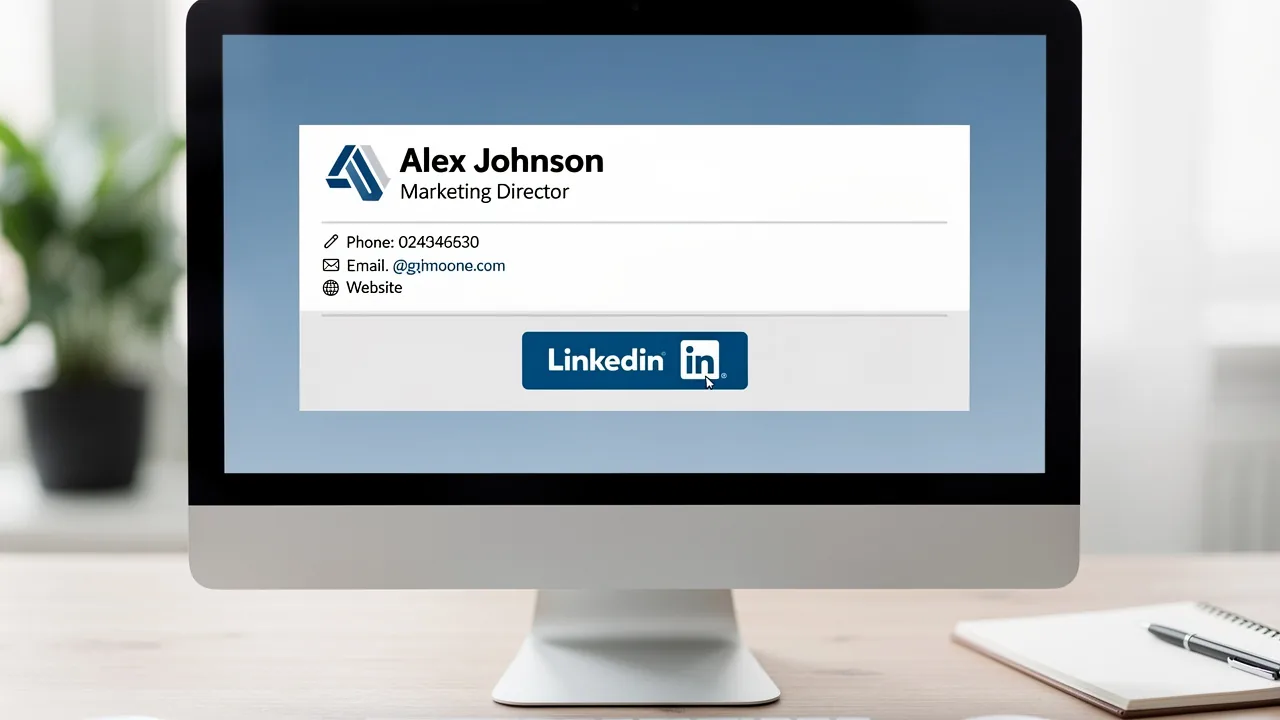
4 Steps to Update Your Gmail Signature Effectively
A professional Gmail signature serves as a crucial element of brand identity and communication strategy, extending beyond mere digital sign-off. Individuals
Sophie Grant
Email Signature Specialist, Scribe
Introduction
A professional Gmail signature serves as a crucial element of brand identity and communication strategy, extending beyond mere digital sign-off. Individuals and organizations can create Gmail signatures that effectively reflect their brand and enhance engagement by implementing straightforward strategies.
Many individuals and organizations struggle to keep their Gmail signatures aligned with evolving branding and communication strategies. Without proper management, this inconsistency can dilute brand image and result in missed engagement opportunities.
Ensuring your Gmail signature evolves with your brand can significantly enhance its impact as a marketing tool.
Create Your Gmail Signature
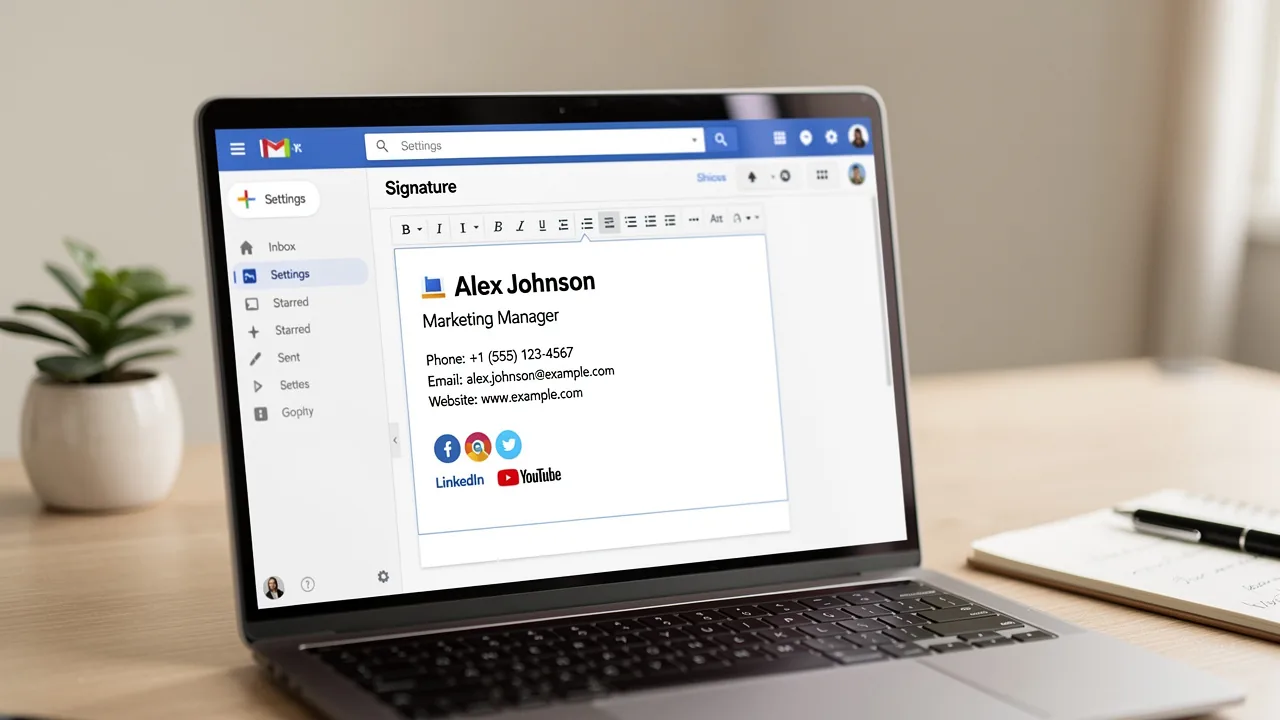
Creating a professional Gmail signature is essential for enhancing your brand identity and ensuring consistent communication. To create a professional Gmail signature that enhances your brand identity, follow these steps:
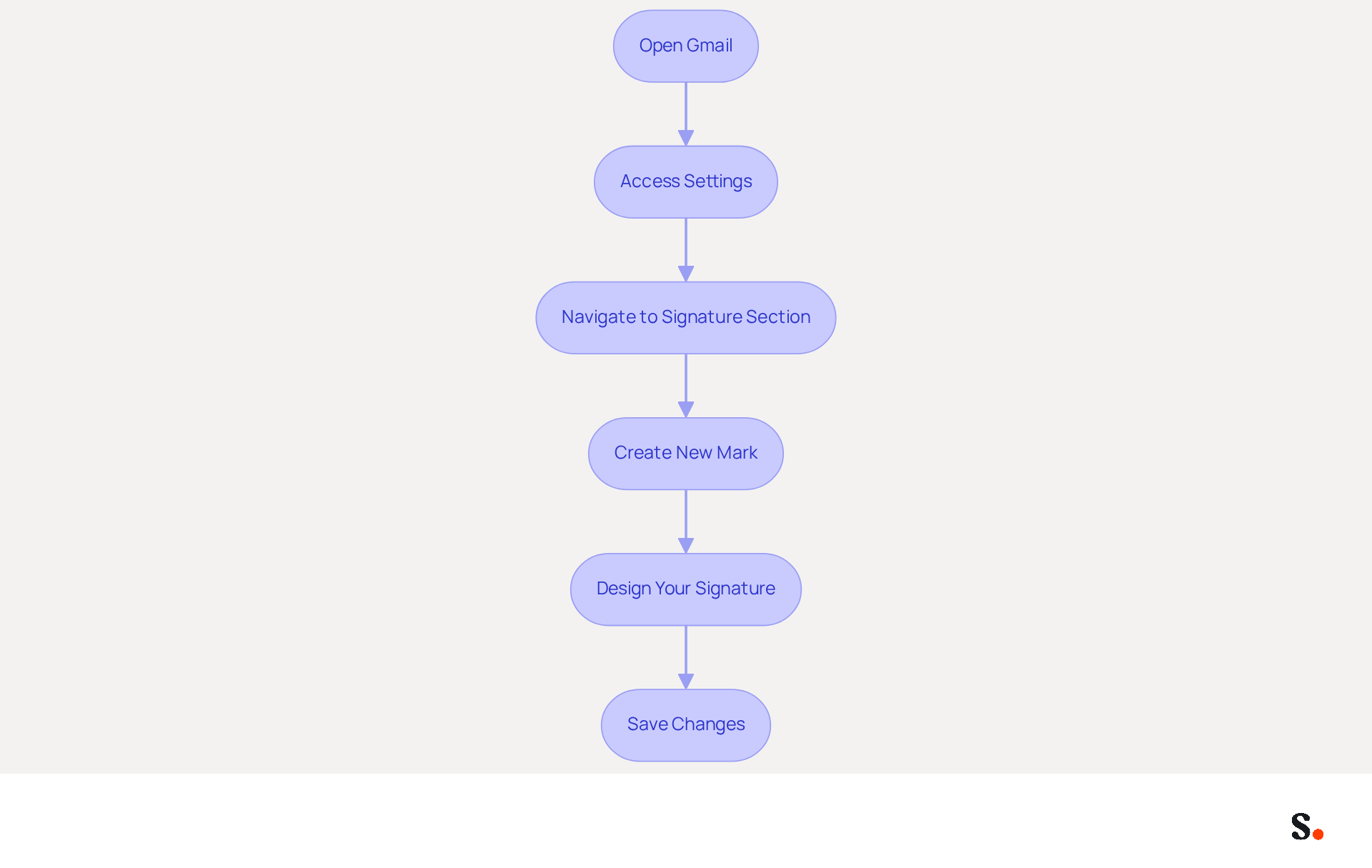
- Open Gmail: Log into your Gmail account on your computer.
- Access Settings: Click on the gear icon in the top right corner and select 'See all settings'.
- Navigate to Signature Section: Under the 'General' tab, scroll down to the 'Signature' section.
- Create New Mark: Click on 'Create new', enter a name for your mark, and click 'Create'.
- Design Your Signature: In the text box, add your desired text, images, and links. Use the formatting options to customize the appearance, including font style, size, and color. Compelling visuals and call-to-action elements significantly enhance engagement. In fact, 32.3% of users include call-to-action buttons and banners in their email footers. Additionally, Gmail permits a personal mark of up to 10,000 characters, providing ample space for creativity. With Scribe, any modifications made in your Aircall setup will automatically be reflected in your correspondence identifiers, ensuring consistency in identity and seamless updates. Scribe ensures compliance with SOC 2 Type II and GDPR/CCPA regulations, which means your data is handled securely, allowing marketing managers to focus on their strategies.
- Save Changes: Scroll to the bottom of the settings page and click 'Save Changes'.
By following these steps on how to update Gmail signature, you will create a professional sign-off that reflects your identity and utilizes the marketing potential of digital identifiers. A well-crafted email signature not only represents your brand but also serves as a strategic tool for engagement and visibility. As Vasyl Holiney, a Product Marketing Manager at MySignature, aptly states, 'Think of your email closing as your virtual handshake.
Update Your Existing Gmail Signature
To maintain a strong brand presence, updating your Gmail signature is essential:
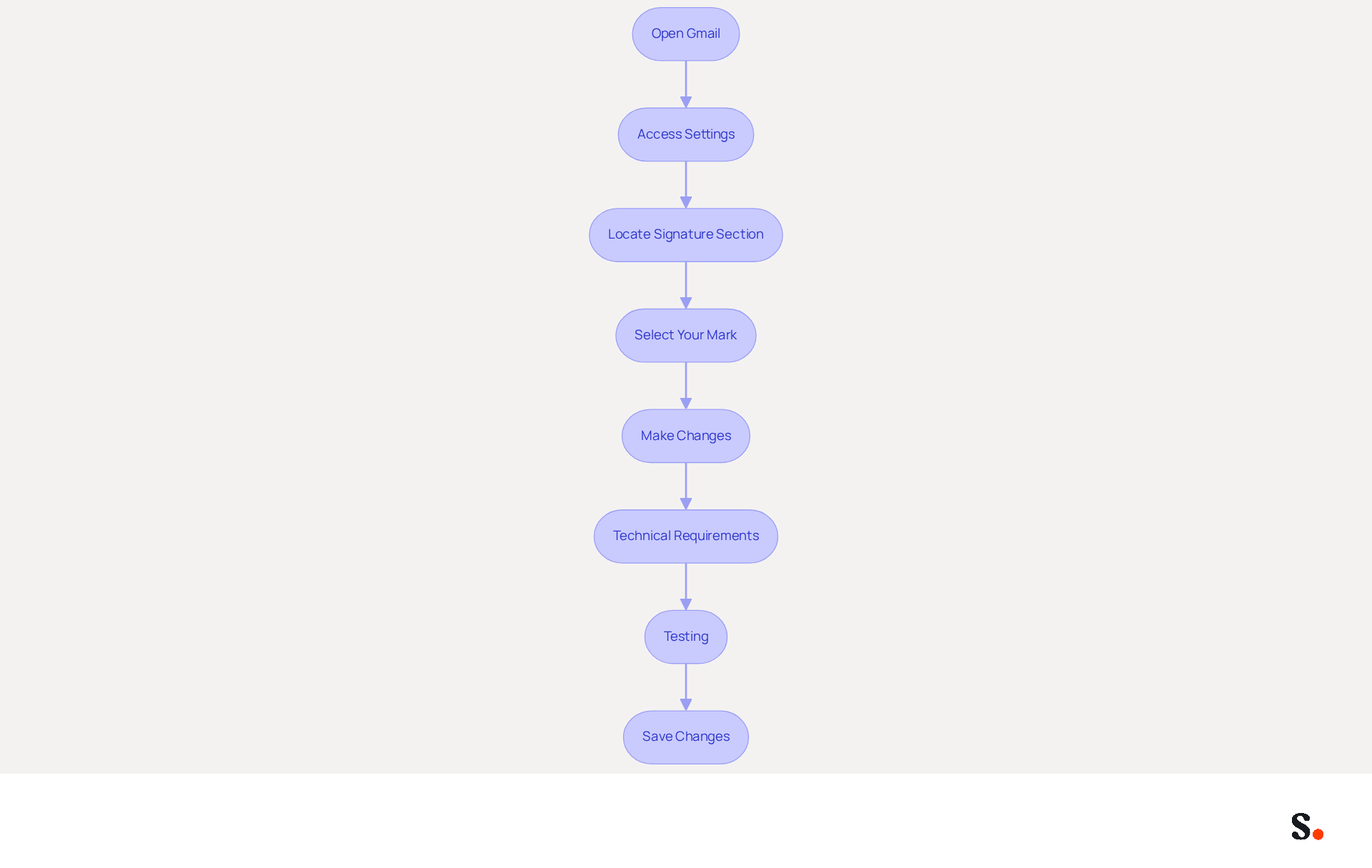
- Open Gmail: Log into your Gmail account.
- Access Settings: Click on the gear icon in the top right corner and select 'See all settings'.
- Locate Signature Section: Under the 'General' tab, scroll down to the 'Signature' section.
- Select Your Mark: Click on the mark you wish to update.
- Make Changes: Edit the text, images, or links as needed. Ensure that you know how to update Gmail signature so that the updated emblem reflects your current branding and marketing goals. Without consistent branding, your recognition may falter, leading to missed opportunities. Utilizing Scribe ensures that any updates to your branding are automatically reflected, simplifying your management efforts. To enable one-click synchronization, ensure you grant Scribe permission to connect with your service provider, requiring Super Admin access.
- Technical Requirements: Remember to use inline CSS for styling and keep the maximum width of your email footer to 600px for mobile-friendliness.
- Testing: Before finalizing, evaluate your mark across various messaging clients like Outlook and Apple Mail to ensure compatibility and effectiveness.
- Save Changes: Scroll to the bottom of the settings page and click 'Save Changes'.
This approach not only streamlines your branding efforts but also positions your business for greater visibility and engagement. With Scribe's SOC 2 Type II compliance, you can be confident that your data is secure while you manage your identifiers efficiently.
Test and Troubleshoot Your Gmail Signature
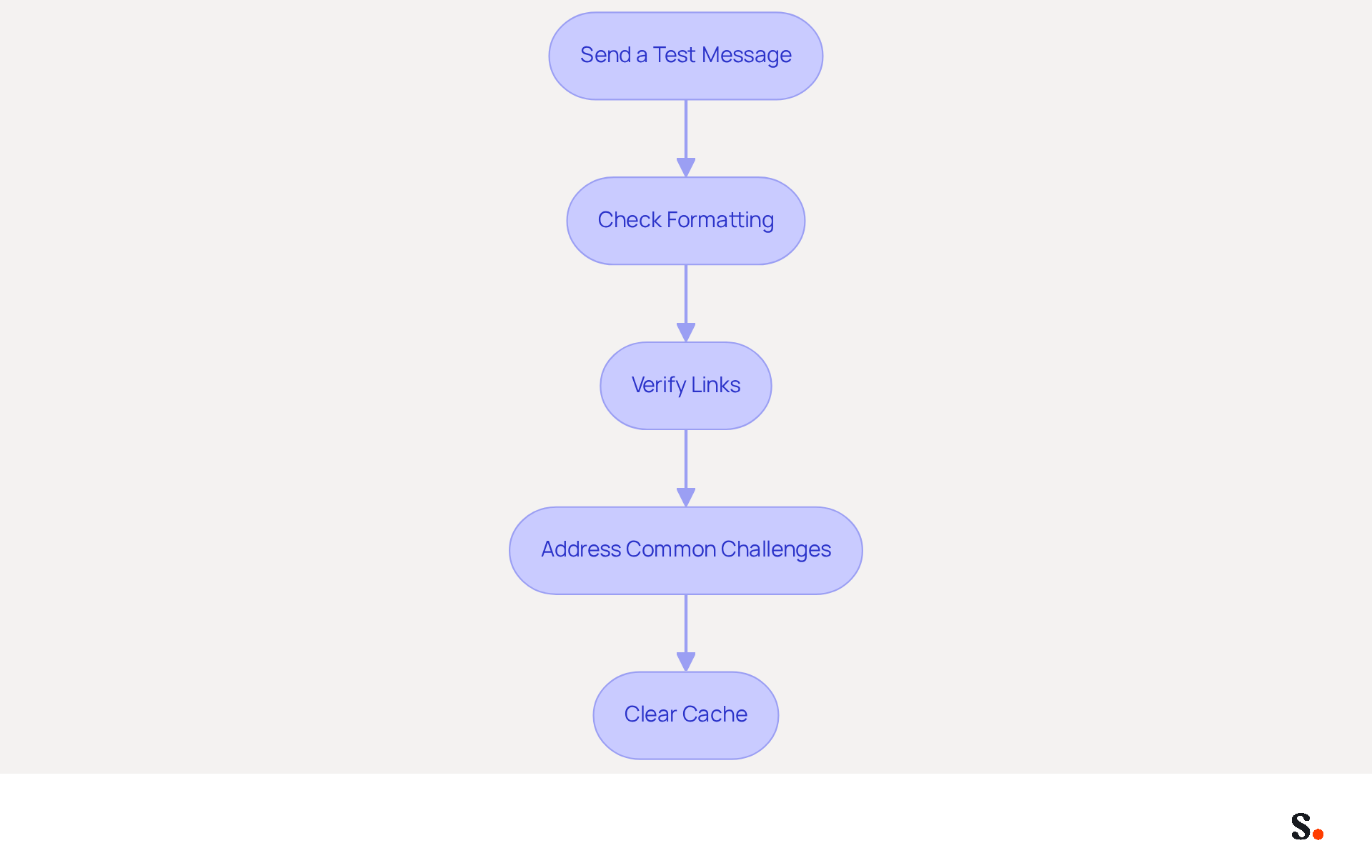
To effectively test and troubleshoot your Gmail signature, follow these essential steps:
- Send a Test Message: Create a new message and send it to yourself to see how the closing appears in your inbox.
- Check Formatting: Ensure that the formatting, such as fonts, colors, and images, displays correctly. Pay attention to discrepancies between different email clients, including mobile and desktop views.
- Verify Links: Click on any hyperlinks in your email footer to confirm they direct to the intended pages.
- Address Common Challenges: Many users encounter issues with images not displaying in their signatures, which can undermine professionalism. If this happens, check the hosting permissions or consider re-uploading the images. If the signatory appears excessively long, simplify the content or remove unnecessary formatting elements.
- Clear Cache: If problems continue, try clearing your browser's cache and cookies before testing again.
By meticulously testing how to update gmail signature, you reinforce your brand's credibility in every email you send.
Leverage Automation for Signature Management
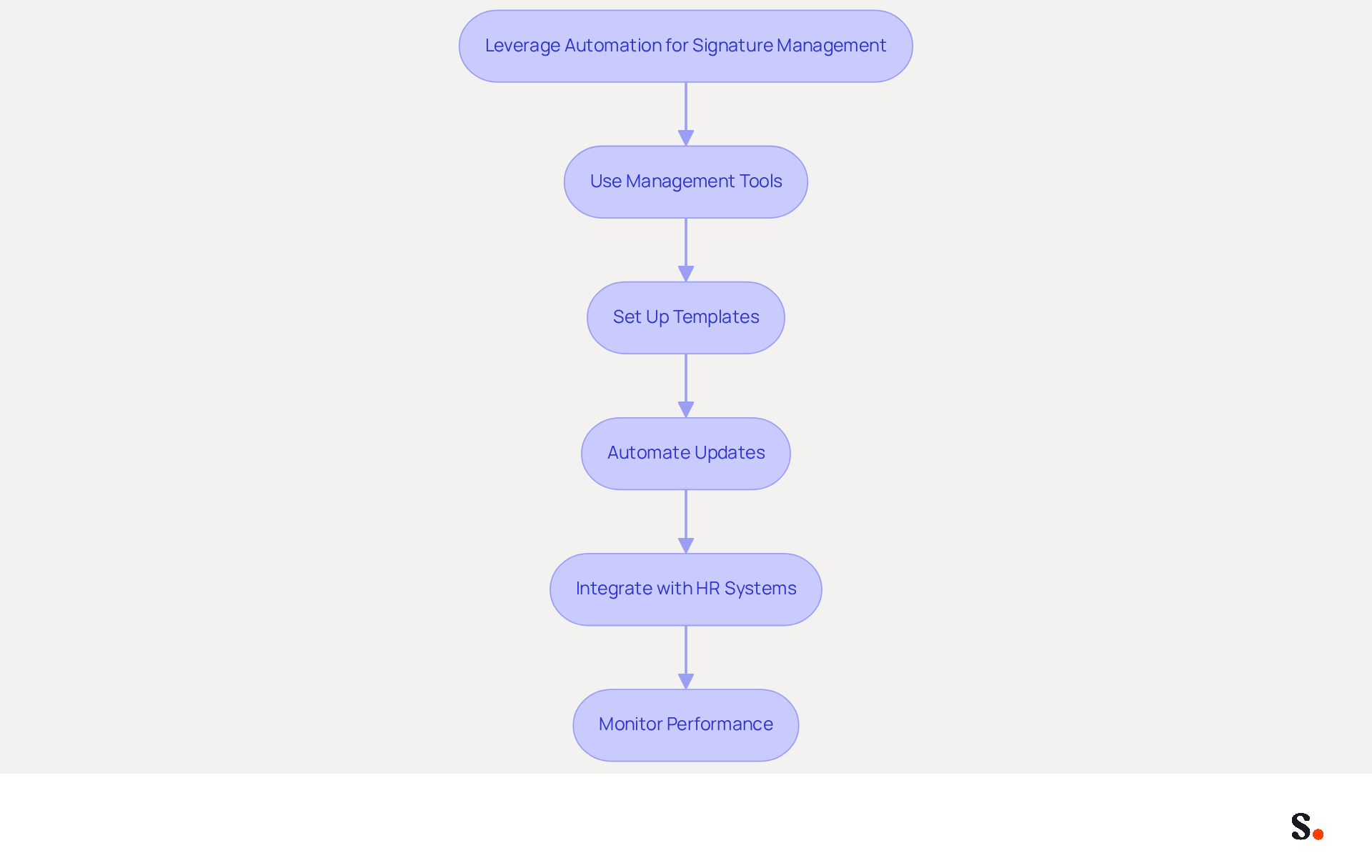
To maximize the effectiveness of your Gmail signatures, implementing automation is crucial:
- Use Management Tools for Email Footers: Scribe automatically syncs your teammates' identification information with your business phone system, eliminating manual updates and allowing Marketing to manage identities independently after the initial IT setup. This ensures consistency and professionalism in every communication.
- Set Up Templates: Create standardized templates that can be uniformly applied to all users. This method not only improves brand consistency but also streamlines the creation process, enabling a cohesive brand image.
- Automate Updates: Schedule regular updates for identifiers to reflect any changes in branding, promotions, or contact information. Scribe's automated synchronization guarantees that any modifications made in your Aircall configuration are automatically reflected in your identifiers, saving IT teams considerable time and minimizing the risk of mistakes. This results in an impressive average click-through rate of 12% on branded banners, which significantly boosts marketing performance.
- Integrate with HR Systems: If applicable, connect your management tool with HR systems to automatically update user identifiers when employee information changes. This integration guarantees that the marks are consistently up to date, improving the professionalism of your communications. Scribe's SOC 2 Type II compliance ensures that your data is handled securely throughout this process.
- Monitor Performance: Utilize analytics provided by the management tool to track engagement and effectiveness of your branding. Regular performance evaluations can pinpoint areas for enhancement, ensuring that your digital identifiers remain effective marketing tools.
Implementing these automation strategies not only saves time but also keeps your correspondence identifiers up-to-date and in line with your marketing efforts. In 2026, organizations that implement automated management of digital signatures reported a 22% rise in response rates, emphasizing the effectiveness of this method in improving engagement and visibility. As Dave Willis, Senior Content Manager, pointed out, 'Automating email identifiers restores control,' highlighting the significance of efficiency in handling email communications. A case study from Scribe shows that companies utilizing automated signature management have successfully improved their brand consistency and engagement rates, further validating the benefits discussed. This strategic approach not only enhances efficiency but also positions your organization as a leader in digital communication.
Conclusion
A professional Gmail signature is not just an accessory; it is essential for establishing brand credibility and effective communication. Following these steps allows users to create or update their signatures, making sure every email reflects their branding and marketing goals. Tools like Scribe streamline this process, ensuring compliance and ease of updates.
Key insights from the article emphasize the importance of crafting a visually appealing signature and testing it to ensure compatibility across various email clients. Automation plays a crucial role in managing signatures efficiently, enabling marketing teams to maintain brand consistency without the burden of manual updates. With Scribe's capabilities, organizations can leverage automated synchronization and analytics to enhance their email signature strategy.
Neglecting to optimize Gmail signatures can result in diminished engagement and visibility. When businesses adopt best practices and use automation tools, they can make sure their email communications are professional and serve as effective marketing assets. Failing to prioritize email signature optimization could mean missing out on valuable engagement opportunities.
Frequently Asked Questions
Why is creating a professional Gmail signature important?
A professional Gmail signature enhances your brand identity and ensures consistent communication.
How do I create a Gmail signature?
To create a Gmail signature, log into your Gmail account, access settings by clicking the gear icon, navigate to the 'Signature' section under the 'General' tab, create a new signature, design it with text, images, and links, and then save your changes.
What should I include in my Gmail signature?
You should include your desired text, images, and links, and customize the appearance using formatting options like font style, size, and color. Including compelling visuals and call-to-action elements can enhance engagement.
What is the character limit for a Gmail signature?
Gmail permits a personal signature of up to 10,000 characters, providing ample space for creativity.
How does Scribe relate to Gmail signatures?
With Scribe, any modifications made in your Aircall setup will automatically be reflected in your correspondence identifiers, ensuring consistency in identity and seamless updates.
What compliance standards does Scribe adhere to?
Scribe ensures compliance with SOC 2 Type II and GDPR/CCPA regulations, meaning your data is handled securely.
What is the strategic value of a well-crafted email signature?
A well-crafted email signature represents your brand and serves as a strategic tool for engagement and visibility.
List of Sources
- Create Your Gmail Signature
- Email signature statistics and trends in 2024 (https://wisestamp.com/blog/email-signature-statistics)
- Create a Gmail signature - Computer - Gmail Help (https://support.google.com/mail/answer/8395?hl=en&co=GENIE.Platform%3DDesktop)
- Email Signature Statistics: A Closer Look at Email Signatures in 2026 (https://mysignature.io/blog/email-signature-statistics)
- 40+ Email Signature Statistics for 2026 (Data + Insights) (https://wavecnct.com/blogs/email-signature-statistics)
- How to Add Signature in Gmail: The Complete Setup Guide for 2026 | Qualtir Blog (https://qualtir.com/blog/gmail-signature-guide)
- Update Your Existing Gmail Signature
- Email Signature Best Practices for 2026 (+ 15 Pro Examples) (https://wavecnct.com/blogs/email-signature-best-practices-2026)
- 8 Email Signature Best Practices for Gmail in 2026 (https://mailtrack.email/blog/email-signature-best-practices)
- How Email Signatures Can Boost Your Marketing Efforts | Crossware365 (https://crossware365.com/blog/how-email-signatures-can-boost-your-marketing-efforts)
- Email signature marketing: everything you need to know (https://templafy.com/email-signature-marketing-everything-you-need-to-know)
- Test and Troubleshoot Your Gmail Signature
- Fix Your Missing Gmail Signature: 8 Troubleshooting Steps & Best Practices | Newoldstamp - NEWOLDSTAMP (https://newoldstamp.com/blog/gmail-signature-not-showing-up)
- Gmail Signature Troubleshooting | WiseStamp Help Center (https://support.wisestamp.com/en/articles/13366705-gmail-signature-troubleshooting)
- Fixing Signature Issues in Gmail (https://teachers.tech/fixing-signature-issues-in-gmail)
- Troubleshoot issues with Gmail signatures - Gmail Help (https://support.google.com/mail/answer/11468381?hl=en)
- Solving a Gmail signature problem (https://signitic.com/en/guides/solving-a-gmail-signature-problem)
- Leverage Automation for Signature Management
- Why Email Signature Management Software is Essential for Marketing Success (https://scribe-mail.com/en-US/blog/why-email-signature-management-software-is-essential-for-marketing-success)
- How Email Signature Management Transforms IT and HR Workflows | SIGNandGO (https://signandgo.io/blog/how-email-signature-management-transforms-it-and-hr-workflows)
- Press Release | Exclaimer Adds UKG Ready Integration (https://exclaimer.com/company/press-releases/exclaimer-adds-ukg-ready-integration)
- Automating Email Signatures: How IT Teams Streamline Processes & Reduce Risk (https://exclaimer.com/blog/streamlining-it-processes-automated-email-signatures)
- Email Signature Trends 2026: Centralized Control & Automation | SIGNandGO posted on the topic | LinkedIn (https://linkedin.com/posts/signngo_email-signature-trends-to-watch-in-2026-activity-7401523471786217473-zAVL)
Get started with Scribe
Create your signature in minutes
Free 14-day trial — no credit card.