7 Reasons Your Outlook Signature Is Missing and How to Fix It
Despite their significance, email signatures frequently present challenges that can compromise a professional image and brand consistency. Users often find
Sophie Grant
Email Signature Specialist, Scribe
On this page
- Introduction
- Outlook Signature Disappears After an Update
- Outlook Signature Not Showing in Emails
- Outlook Signature Doesn't Sync Between Desktop and Web App
- Outlook Signature Cannot Be Edited or Deleted
- Backup Your Email Signatures for Future Security
- Use Scribe for Automated Email Signature Management
- Conclusion
- Frequently Asked Questions
- List of Sources
Introduction
Despite their significance, email signatures frequently present challenges that can compromise a professional image and brand consistency. Users often find themselves frustrated when their email signatures fail to appear or function correctly, particularly after software updates or changes in settings.
Let’s explore the common reasons behind these signature mishaps and discuss practical solutions to restore functionality, ensuring that every email sent reflects the organization's branding effectively. By understanding these challenges and leveraging automated tools like Scribe, organizations can ensure their email signatures consistently reflect their branding and professionalism.
Outlook Signature Disappears After an Update
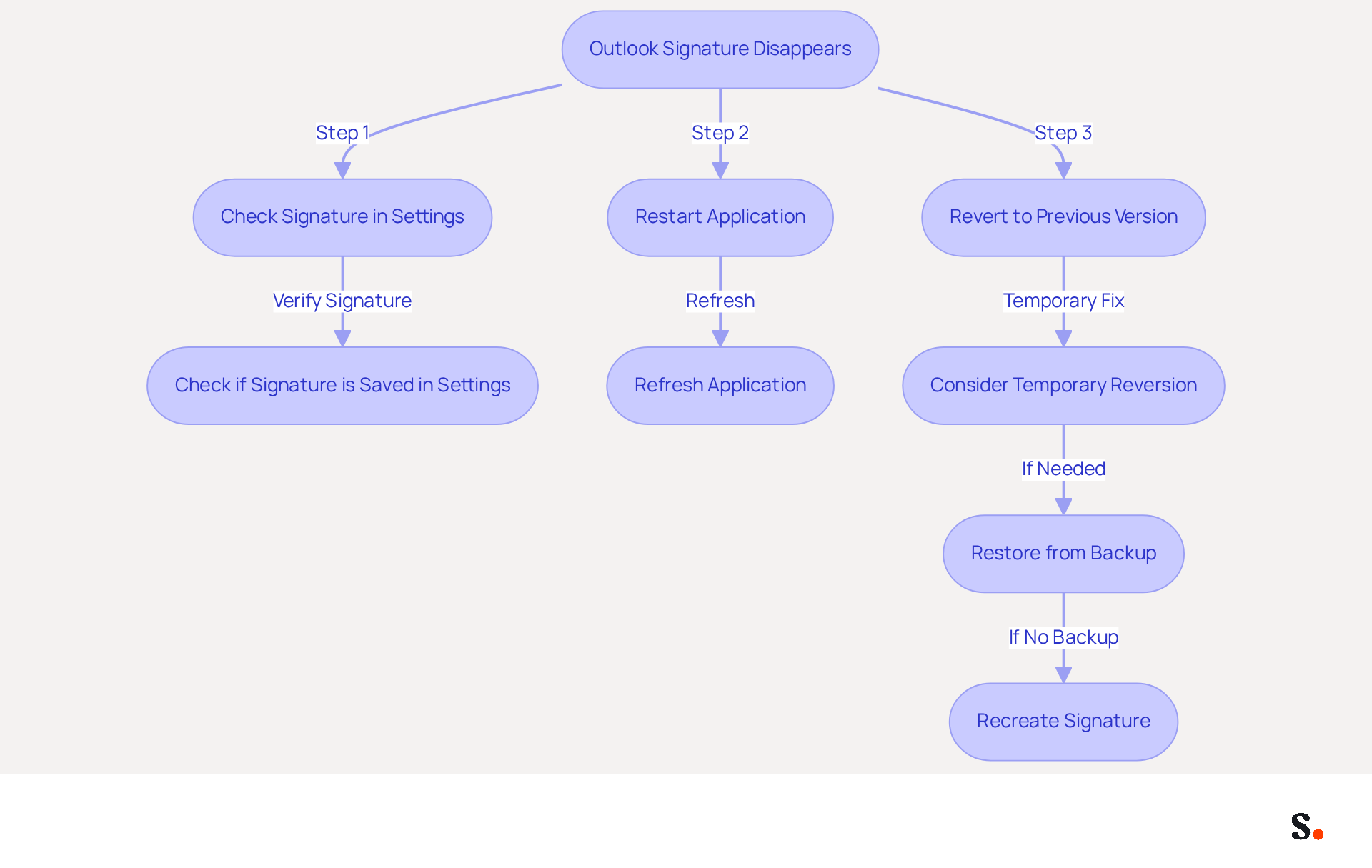
Users often face challenges when personal identifiers vanish after an Outlook update. To troubleshoot this issue effectively, users should follow these steps:
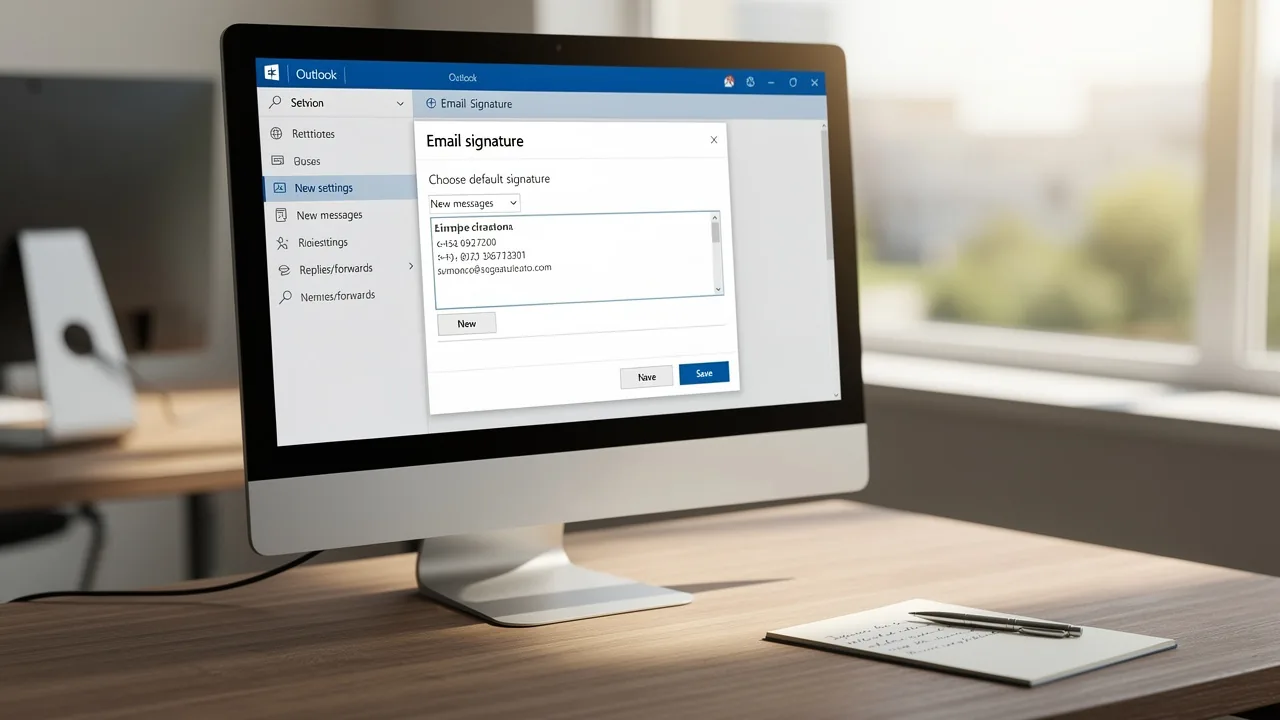
- Check if the signature is still saved in the settings by navigating to File > Options > Mail > Signatures. This guarantees that the mark is present within the application.
- Restart the application to refresh it, as many users have reported that this simple action resolved their disappearance problems after updates.
- If the problem persists, consider reverting to the previous version of Outlook temporarily until a fix is released. This ensures that professional communications remain consistent while waiting for a permanent fix.
About 89.9% of professionals rely on a single digital identifier, making it essential to keep it updated and aligned with current branding. Regular backups and updates of digital identifiers are crucial for upholding a professional image and ensuring current contact information. In situations where the Outlook signature is missing, users can retrieve it by restoring from backups found in the %appdata%\Microsoft\Signatures folder or by recreating it using the editor in Outlook.
Integrating Scribe with Google Workspace allows organizations to automatically sync electronic identifiers, ensuring that any changes made to team members' information are reflected in their identifiers. This not only saves time but also enhances brand consistency across all communications. Furthermore, Scribe's SOC 2 Type II compliance guarantees that data management remains secure, providing peace of mind for marketing managers overseeing digital management. Additionally, Scribe's integration with Aircall further strengthens brand consistency, making it easier for teams to maintain a unified professional image.
Outlook Signature Not Showing in Emails
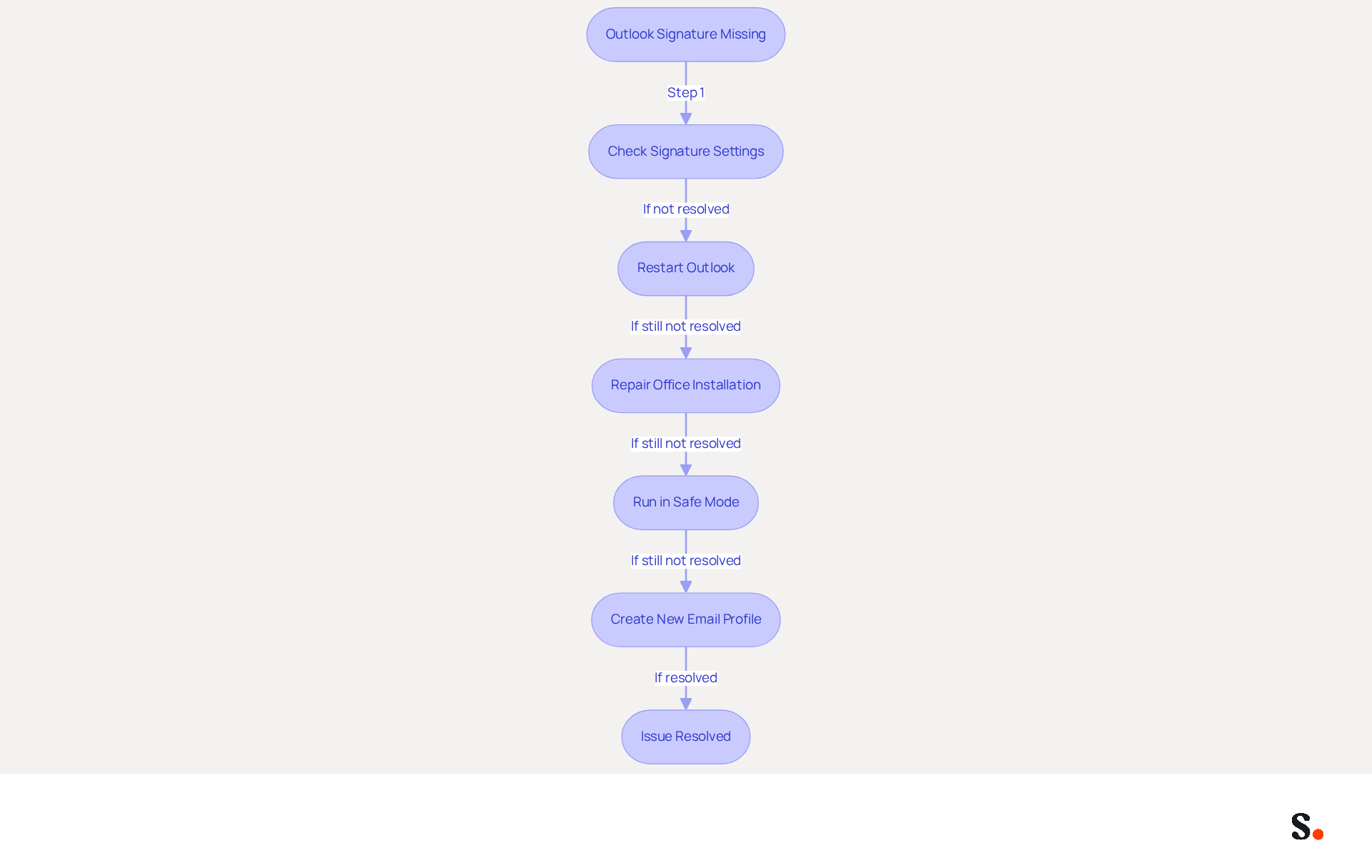
If your messages show an Outlook signature missing, it may stem from configuration errors or message format issues. To resolve this issue, follow these steps:
- Ensure that your signature is set as the default for new messages and replies by checking the signature settings. Navigate to 'File', select 'Options', then 'Mail', and click on 'Signatures…' to confirm. Ensure that the format is configured to HTML, as an Outlook signature missing may happen if you use Plain Text or Rich Text formats. You can check this by going to 'File', selecting 'Options', and ensuring 'Compose messages in this format' is set to HTML.
- Restart Outlook to apply any changes made. This straightforward action can effectively address visibility issues.
Recent updates, particularly the May 12, 2026 updates, have indicated that images may not appear in emails, which can also impact the visibility of email elements. If your mark still does not appear after these adjustments, it may be necessary to fix the Outlook signature missing by repairing your Office installation. To do this, navigate to 'Control Panel', select 'Programs', find your Office installation, click on 'Change', and choose 'Repair'. This can fix issues caused by corrupted program files.
If the issue continues, running the email application in Safe Mode can assist in determining if an add-in is responsible for the problem. If signatures appear correctly in Safe Mode, an add-in may be the culprit, and you can disable it to restore functionality. Furthermore, if problems persist, creating a new email profile may be required. You can do this by going to 'Control Panel', selecting 'Mail', then 'Show Profiles', and clicking 'Add'.
For further assistance, consider visiting the Forum on Answers, where you can connect with other users and experts for additional support.
By ensuring proper configuration, you enhance your professional image and optimize your marketing communications.
Outlook Signature Doesn't Sync Between Desktop and Web App
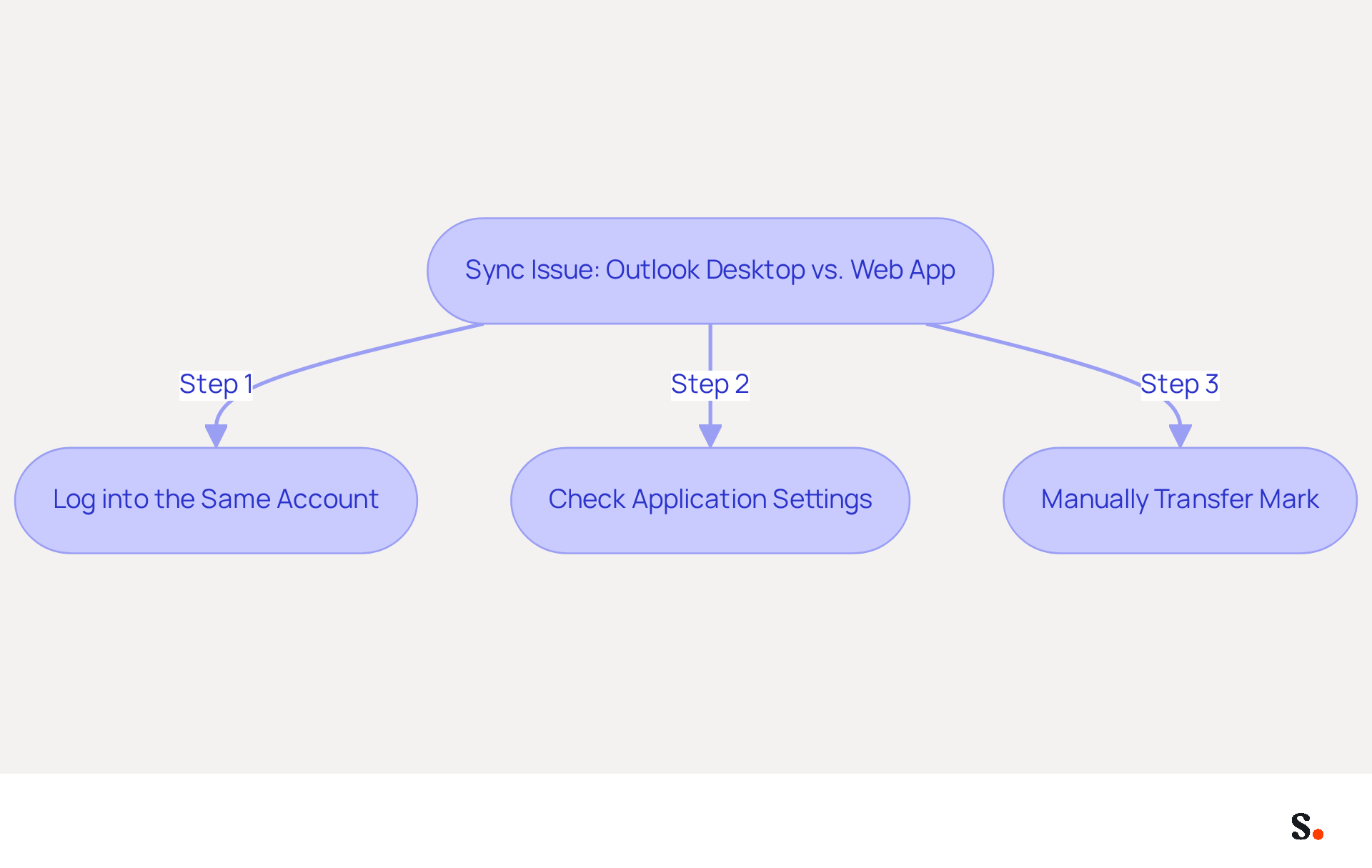
When user identities fail to sync between the Outlook desktop app and the web app, it creates significant challenges for effective communication. To troubleshoot this issue effectively, consider the following steps:
- Ensure that you are logged into the same account on both platforms. This is crucial, as discrepancies in account access can lead to sync failures.
- Check the settings in both applications to confirm that the same mark is selected. Sometimes, different initials may be set as default on each platform, causing confusion.
- If problems persist, consider manually transferring the mark between platforms as a temporary fix until a permanent solution is found. This inconsistency can lead to confusion in email communications.
Reports indicate that many users, particularly those with accounts older than five years, face syncing issues with their identifiers not syncing between the Desktop application and the Web App (OWA). This may be due to account data being incorrectly cached in the registry. The Outlook Team has acknowledged these issues and has released fixes in various builds, including the Beta Channel Version 2411 and Current Channel Preview Version 2411.
Nearly 44.4% of users refresh their contact details two to four times a year, highlighting the need for a reliable synchronization process. As businesses increasingly incorporate digital identifiers into their marketing strategies, ensuring that these are consistently updated across platforms is essential for maintaining brand identity and maximizing engagement.
In 2024, the integration of messaging identifiers with other marketing channels will become more widespread, making it even more essential to address syncing issues. Organizations that employ automated management solutions for electronic signatures like Scribe can remove these troubleshooting issues, guaranteeing flawless and uniform markings for every message sent. Furthermore, by joining the Scribe Affiliate Program, you can earn a 50% commission while promoting brand consistency in digital identifiers, further enhancing your marketing efforts. Resolving these syncing issues is crucial for maintaining brand integrity and ensuring effective user engagement.
Outlook Signature Cannot Be Edited or Deleted
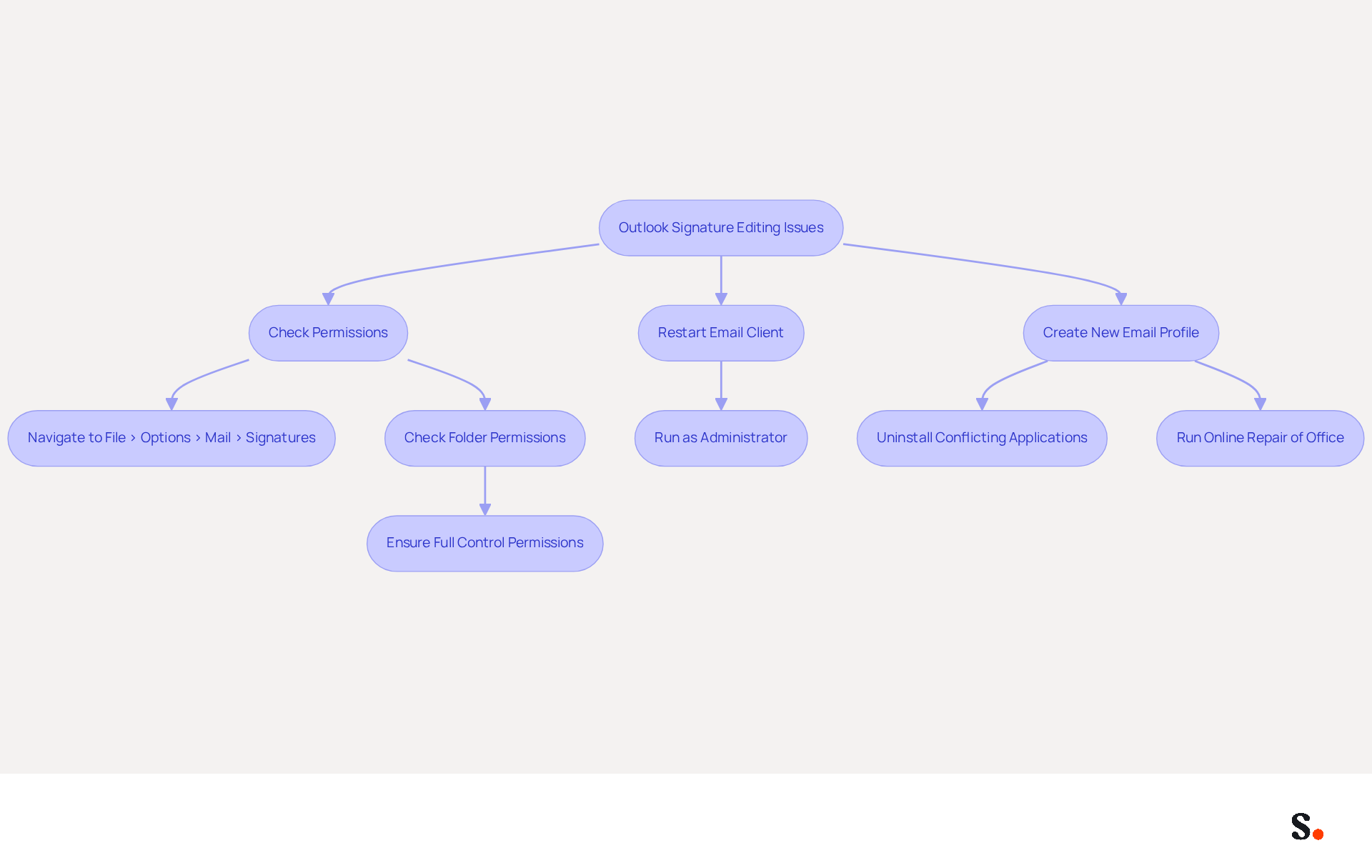
Many users face challenges when modifying their email settings, often due to permissions or software issues. To address this, follow these steps:
- Navigate to File > Options > Mail > Signatures to verify that you have the necessary permissions to make changes. You must be a Super Admin of your email provider to grant Scribe the necessary permissions for synchronization.
- If the signing options are disabled, restart the email client or run it as an administrator to regain access.
- In situations where issues continue, creating a new email profile can help reset your settings and resolve the problem.
Many users report encountering permissions-related problems with Outlook email footers, leading to frustration and inefficiencies. For example, a user indicated needing to re-save their contact details daily for it to show, emphasizing the frequent challenge with managing identifiers. Additionally, case studies reveal that uninstalling conflicting applications or running an online repair of Office can effectively resolve editing issues. By implementing these strategies, you can streamline your communication management and ensure consistent branding across your messages.
To find a more efficient solution, think about using its capabilities. By syncing your Google Workspace with Scribe, you can automate updates to your digital identifiers, saving time and ensuring that any changes in your directory-such as relocating teammates or modifying their information-are automatically reflected in Scribe. This one-click synchronization process not only enhances brand consistency but also ensures compliance with SOC 2 Type II standards, safeguarding your data. Furthermore, Scribe's integration with Aircall enables effortless updates to branding elements, reinforcing brand consistency across all communications. By leveraging Scribe's capabilities, users can overcome these obstacles and maintain effective communication management.
Backup Your Email Signatures for Future Security
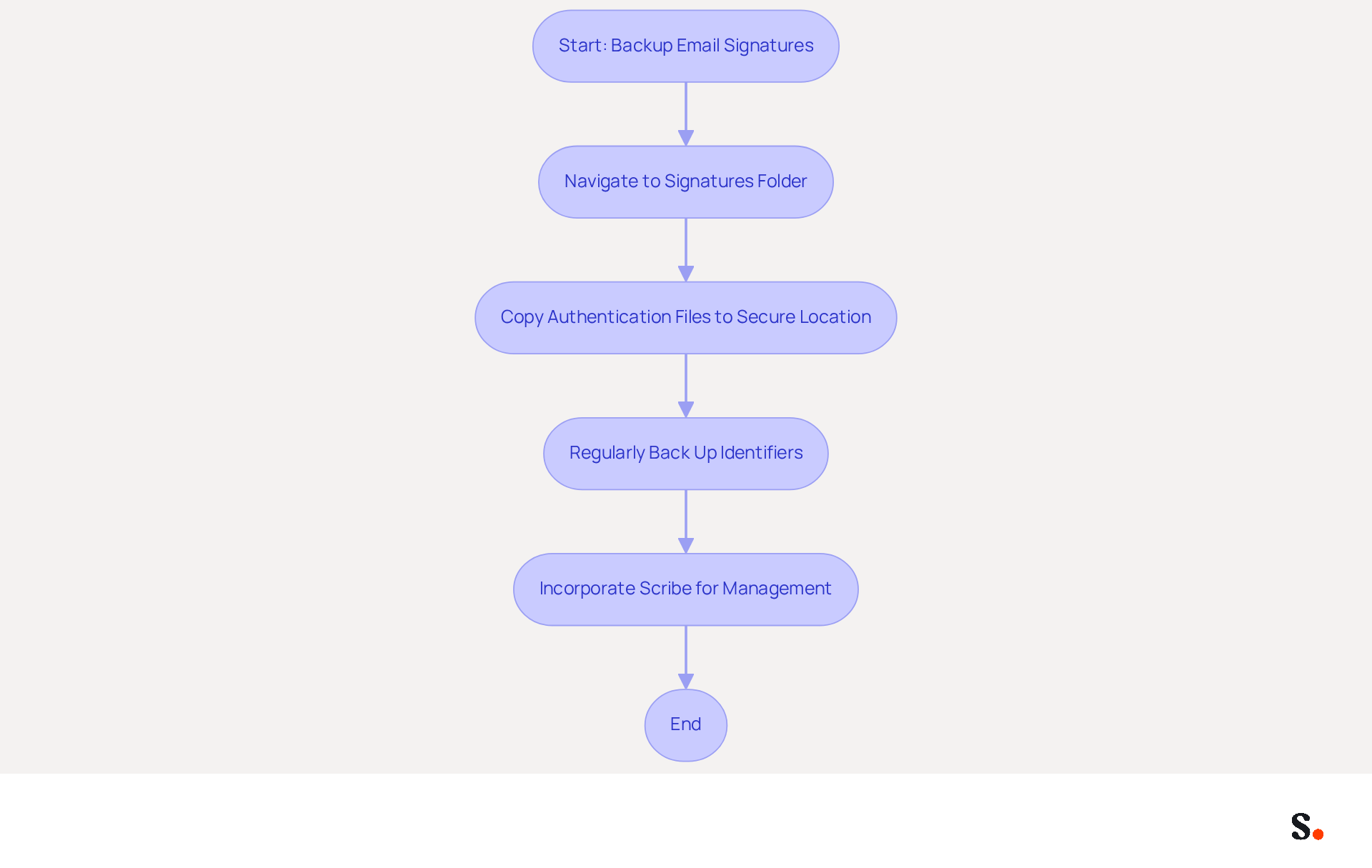
To safeguard your email signatures and maintain brand integrity, follow these essential steps:
- Navigate to the signatures folder on your computer, typically located at
%appdata%\Microsoft\Signatures. - Copy the authentication files to a secure location, such as an external drive or cloud storage, to prevent data loss.
- Regularly back up your identifiers, especially before major updates or migrations, to maintain consistency and branding across communications.
Statistics show that 80% of participants consider a branded electronic communication footer essential for a company's brand identity. This underscores the importance of secure management. Furthermore, 42% of consumers have a negative perception of a business when they receive a message lacking a branded closing, emphasizing the potential impact of losing branding on brand image. By implementing these backup strategies, you can protect your digital identifiers and ensure they remain a powerful marketing tool.
Additionally, to simplify your management of your digital signatures, incorporate Scribe into your workflow. To enable one-click synchronization, grant permission to Scribe to connect with your service provider. This allows your digital identifiers to refresh automatically, ensuring that any modifications in your Google Workspace or HRIS are shown in real-time. This not only saves time but also enhances your branding consistency across all communications. Plus, with Scribe's SOC 2 Type II compliance, you can be confident that your data is managed securely, further safeguarding your brand's reputation.
Use Scribe for Automated Email Signature Management
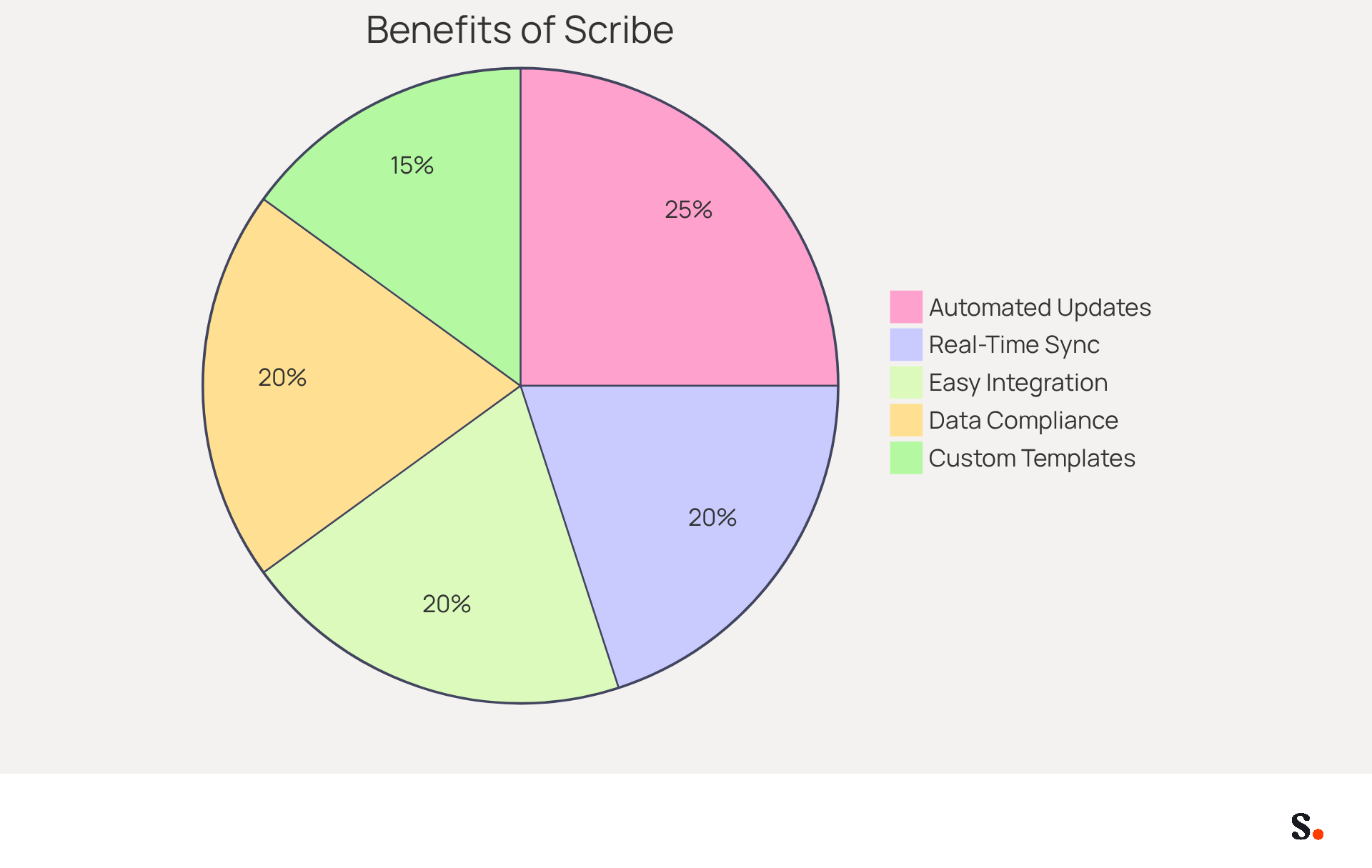
Managing email signatures can often be a cumbersome task for organizations, leading to inconsistencies that undermine brand integrity. The key benefits of using Scribe are as follows:
- Automated updates ensure all signatures are consistent and up-to-date, eliminating the hassle of manual changes.
- Real-time synchronization with your business phone system keeps teammates' contact information current without any action needed from them.
- Easy integration with popular messaging platforms like Outlook allows for seamless management and enhanced brand consistency.
- Scribe is SOC 2 Type II compliant and GDPR compliant, ensuring that your data is secure while you manage your digital identifiers effectively.
- The ability to create on-brand custom templates enhances your marketing efforts, driving engagement with a 12% average click-through rate on banner designs.
By adopting Scribe, organizations can not only enhance their branding but also foster a more cohesive communication strategy that resonates with their audience.
Conclusion
Maintaining a professional image in digital communications hinges on the functionality of your Outlook signature. This article highlights common issues that lead to missing signatures, such as updates, configuration errors, and synchronization problems. By following the outlined troubleshooting steps, users can effectively address these challenges and restore their signatures, ensuring consistency and brand integrity.
Key insights include:
- The importance of regularly backing up signatures
- Verifying settings
- Utilizing tools like Scribe for automated management
Scribe not only simplifies the process of maintaining email signatures but also guarantees compliance with security standards such as SOC 2 Type II, GDPR, and CCPA. With Scribe, organizations can achieve seamless synchronization across platforms, enhancing brand consistency and optimizing marketing efforts.
Taking proactive steps to manage email signatures is essential. Utilizing Scribe allows businesses to streamline the management of email signatures, ensuring consistent branding across all communications. Embracing automated solutions not only saves time but also reinforces a professional image that resonates with clients and partners alike.
Frequently Asked Questions
What should I do if my Outlook signature disappears after an update?
First, check if the signature is still saved in the settings by navigating to File > Options > Mail > Signatures. Restart the application to refresh it, as this has resolved the issue for many users. If the problem persists, consider reverting to the previous version of Outlook temporarily until a fix is released.
How can I retrieve a missing Outlook signature?
You can retrieve a missing signature by restoring it from backups located in the %appdata%\Microsoft\Signatures folder or by recreating it using the editor in Outlook.
What percentage of professionals rely on a single digital identifier?
About 89.9% of professionals rely on a single digital identifier, making it essential to keep it updated and aligned with current branding.
How can Scribe help with managing digital identifiers?
Integrating Scribe with Google Workspace allows organizations to automatically sync electronic identifiers, ensuring that any changes made to team members' information are reflected in their identifiers, enhancing brand consistency across communications.
What should I check if my Outlook signature is not showing in emails?
Ensure that your signature is set as the default for new messages and replies by checking the signature settings. Also, confirm that the format is configured to HTML, as signatures may not appear if using Plain Text or Rich Text formats.
What steps can I take if my Outlook signature is still missing after checking settings?
Restart Outlook to apply any changes made. If the signature still does not appear, consider repairing your Office installation by navigating to Control Panel > Programs, selecting your Office installation, clicking on 'Change', and choosing 'Repair'.
How can I determine if an add-in is causing my Outlook signature issue?
Run Outlook in Safe Mode to see if the signature appears correctly. If it does, an add-in may be responsible for the problem, and you can disable it to restore functionality.
What should I do if problems with my Outlook signature persist?
If issues continue, you may need to create a new email profile by going to Control Panel > Mail > Show Profiles, and clicking 'Add'. For further assistance, consider visiting the Forum on Answers for support from other users and experts.
List of Sources
- Outlook Signature Disappears After an Update
- Fix Outlook Signature Disappears: 4 Steps to Restore Yours (https://scribe-mail.com/en-US/blog/fix-outlook-signature-disappears-4-steps-to-restore-yours)
- Signatures disappeared on new outlook after update. - Microsoft Q&A (https://learn.microsoft.com/en-us/answers/questions/4712974/signatures-disappeared-on-new-outlook-after-update)
- 40+ Email Signature Statistics for 2026 (Data + Insights) (https://wavecnct.com/blogs/email-signature-statistics)
- learn.microsoft.com (https://learn.microsoft.com/en-us/answers/questions/4755397/email-signatures-disappeared)
- Email Signatures vanishing - New Outlook | Microsoft Community Hub (https://techcommunity.microsoft.com/discussions/outlookgeneral/email-signatures-vanishing---new-outlook/4418809)
- Outlook Signature Not Showing in Emails
- Email Signatures vanishing - New Outlook | Microsoft Community Hub (https://techcommunity.microsoft.com/discussions/outlookgeneral/email-signatures-vanishing---new-outlook/4418809)
- Images are not displayed in emails, newsletters, or signatures in classic Outlook | Microsoft Support (https://support.microsoft.com/en-us/support/known-issues/images-are-not-displayed-in-emails-newsletters-or-signatures-in-classic-outlook)
- Read our guide for troubleshooting Outlook signatures issues (https://wisestamp.com/guides/how-to-fix-outlook-signature-not-showing)
- My email signature is not included in my emails. - Microsoft Q&A (https://learn.microsoft.com/en-us/answers/questions/5609418/my-email-signature-is-not-included-in-my-emails)
- Why is my signature not showing up in Outlook | NewOldStamp - NEWOLDSTAMP (https://newoldstamp.com/blog/signature-not-showing-up-in-outlook)
- Outlook Signature Doesn't Sync Between Desktop and Web App
- Email signature statistics and trends in 2024 (https://wisestamp.com/blog/email-signature-statistics)
- Fix: Outlook Signatures Not Syncing Between Desktop & Web App (https://ptg.co/post/outlook-signatures-not-syncing-between-desktop-and-web-app)
- Signatures are not syncing between Outlook Desktop and Outlook Web App | Microsoft Support (https://support.microsoft.com/en-us/support/known-issues/signatures-are-not-syncing-between-outlook-desktop-and-outlook-web-app)
- Outlook Signature Cannot Be Edited or Deleted
- Outlook Signature Disappears? 6 Common Problems + Fixes (https://conbool.com/blog/outlook-signature-disappears-fixes-problems)
- Email signature in Outlook.com web cannot be edited, June 2025 - Microsoft Q&A (https://learn.microsoft.com/en-us/answers/questions/4754614/email-signature-in-outlook-com-web-cannot-be-edite)
- Outlook Signature Not Working in Office 365: Causes & Fixes (https://exclaimer.com/email-signature-handbook/outlook-signature-not-working-in-office-365)
- How to solve problems with email signatures in Microsoft 365? (https://mail-signatures.com/articles/problems-email-signatures-office-365)
- Cannot edit signature on outlook 365 mail | Microsoft Community Hub (https://techcommunity.microsoft.com/discussions/outlookgeneral/cannot-edit-signature-on-outlook-365-mail/4053480)
- Backup Your Email Signatures for Future Security
- 40+ Email Signature Statistics for 2026 (Data + Insights) (https://wavecnct.com/blogs/email-signature-statistics)
- Email Signature Statistics: A Closer Look at Email Signatures in 2026 (https://mysignature.io/blog/email-signature-statistics)
- neowin.net (https://neowin.net/news/microsoft-is-making-it-easier-to-add-signatures-to-outlook-emails)
- Did You Know Your Email Signature Could be a Security Weak Point? - Oklahoma Society of CPAs (https://oscpa.com/news/990e5e16-6ad4-4ff4-91bb-236c7634b1f6:did-you-know-your-email-signature-could-be-a-security-weak-point)
- Email Signature Trends in Numbers: Infographic [2026] (https://mailtrap.io/blog/email-signature-trends)
- Use Scribe for Automated Email Signature Management
- 40+ Email Signature Statistics for 2026 (Data + Insights) (https://wavecnct.com/blogs/email-signature-statistics)
- Maximize Marketing ROI with Effective AI Email Signatures (https://scribe-mail.com/en-US/blog/maximize-marketing-roi-with-effective-ai-email-signatures)
- Scribe vs. Competitors: Best Email Signature Management Tools Compared (https://scribe-mail.com/en-US/blog/scribe-vs-competitors-best-email-signature-management-tools-compared)
- Master Central Email Signature Management for Marketing Success (https://scribe-mail.com/en-US/blog/master-central-email-signature-management-for-marketing-success)
Get started with Scribe
Create your signature in minutes
Free 14-day trial — no credit card.