Add a LinkedIn Icon for Your Gmail Email Signature in 4 Steps
Integrating a LinkedIn icon into an email signature presents both an opportunity and a challenge for professionals aiming to enhance their branding. By
Sophie Grant
Email Signature Specialist, Scribe

Introduction
Integrating a LinkedIn icon into an email signature presents both an opportunity and a challenge for professionals aiming to enhance their branding. By following a few simple steps, users can seamlessly incorporate this essential element into their Gmail signatures, ensuring their communications reflect a polished and connected image.
Many users find it challenging to maintain functionality across different platforms, which raises an important question: how can you ensure this addition works seamlessly?
In this guide, we’ll walk you through the steps to add a LinkedIn icon effectively, sharing best practices and optimization techniques to elevate your email interactions.
Failure to do so may lead to a disjointed professional image and missed networking opportunities. By mastering this integration, professionals can ensure their email communications leave a lasting impression and foster valuable connections.
Prepare Your Email Signature for LinkedIn Icon Integration
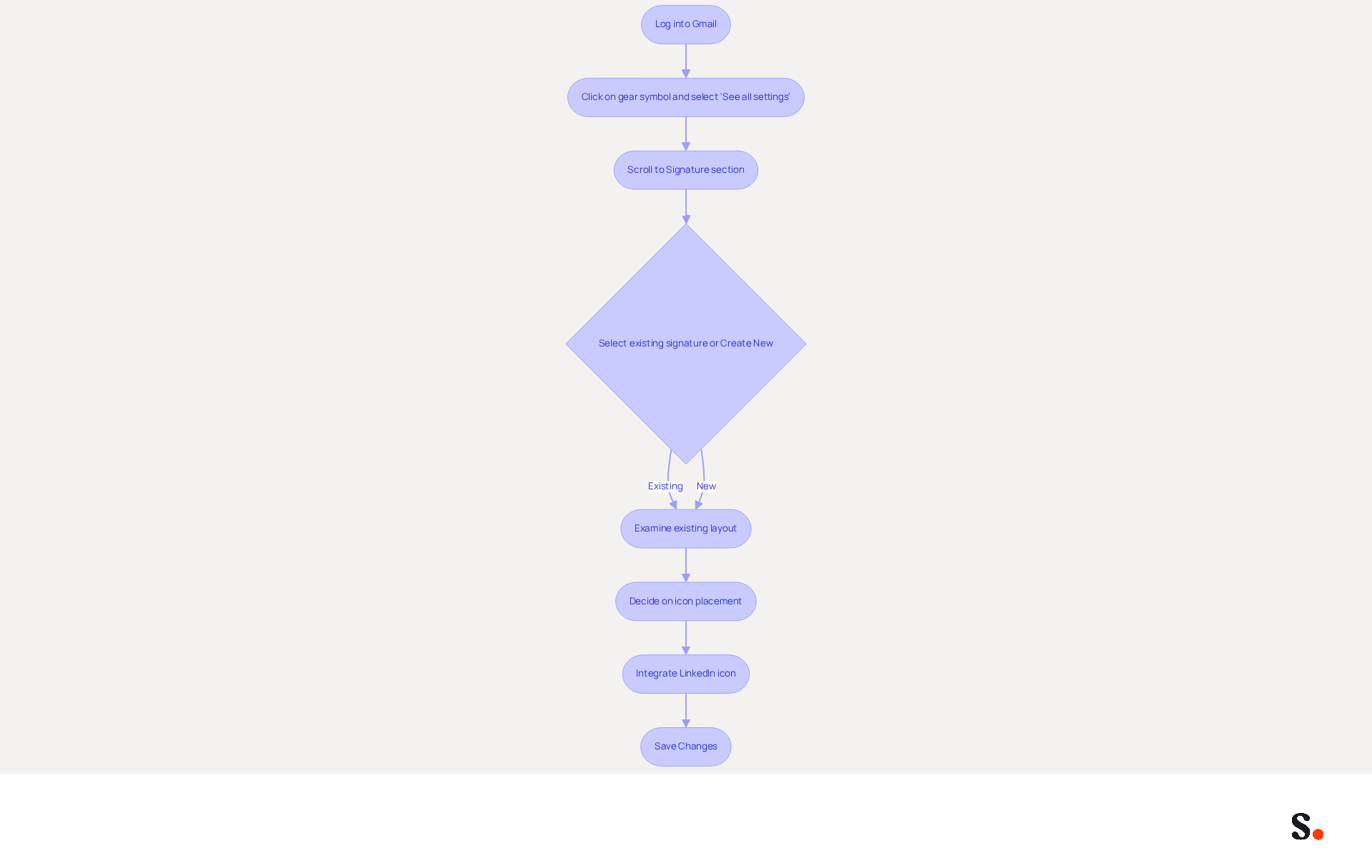
To enhance your email communications, integrating a LinkedIn icon into your signature is essential. Begin by logging into your Gmail account. Click on the gear symbol located in the top right corner and select 'See all settings' to access the configuration options.
Next, scroll down to the 'Signature' section under the 'General' tab. If you already have a signature, select it; if not, create a new one by clicking 'Create New'. This enables you to personalize your signature to include the professional network symbol.
Take a moment to examine your existing layout. Ensure it includes essential elements such as your name, job title, and contact information. Visualizing the integration of the emblem into your email footer can be challenging without a clear plan.
Decide on the optimal placement for the LinkedIn icon. Common placements include next to your name or at the end of your sign-off. Ensure there is adequate space to maintain a tidy and professional look, as a well-organized closing can greatly improve your message's effectiveness.
Integrating a LinkedIn icon for email signature Gmail can significantly boost engagement. With Scribe's messaging software, you can easily manage your communications with one-click synchronization. This ensures compliance with SOC 2 Type II standards for secure data handling while enhancing your branding. Studies show that visually appealing elements in emails grab attention and encourage interaction. By following these steps, you can effectively incorporate a professional symbol into your correspondence footer, enhancing your branding and marketing efforts. Additionally, consider creating multiple signatures for various purposes to further customize your communications.
Select or Design Your LinkedIn Icon
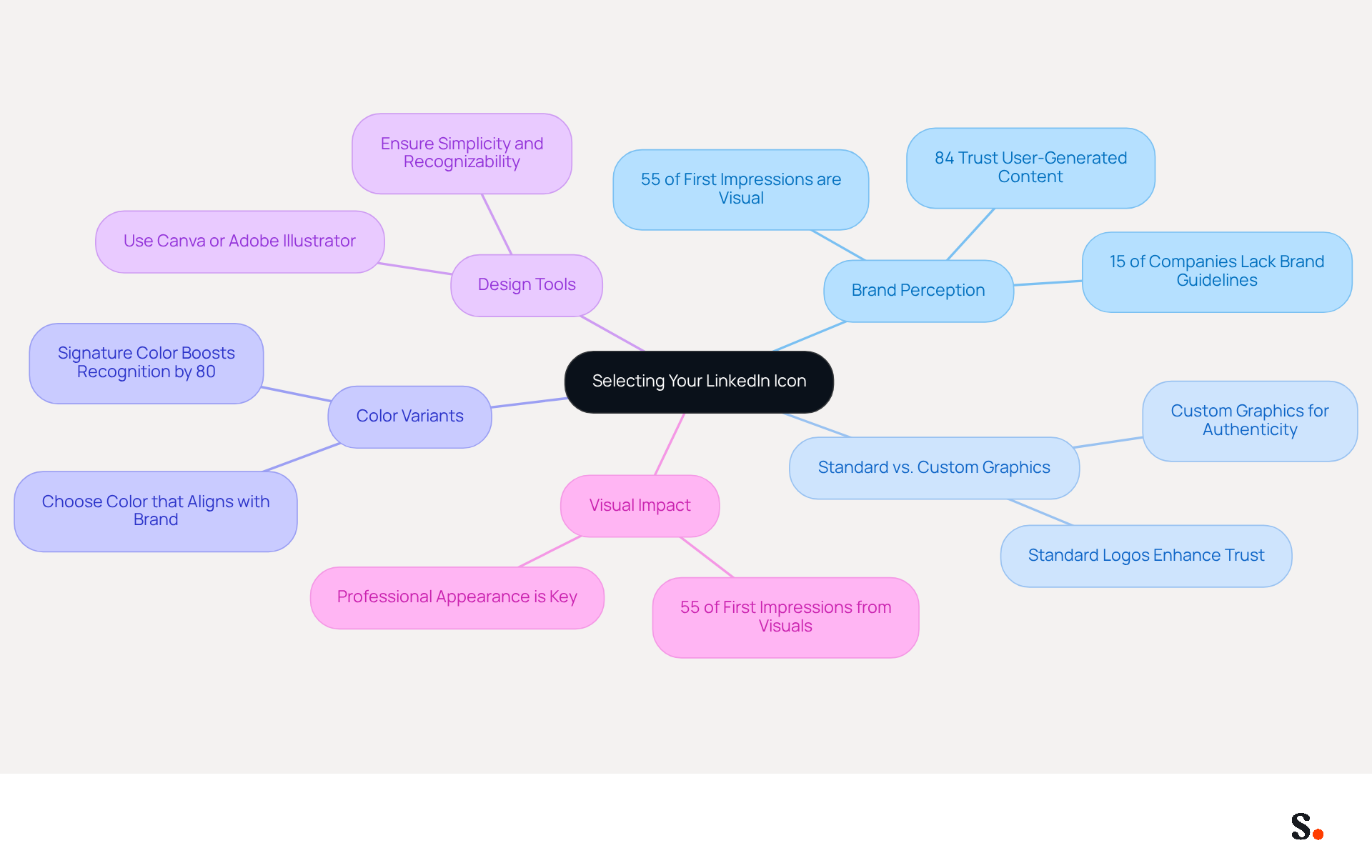
Choosing the right symbol for your brand can significantly impact your email communications and overall brand perception. Consider whether a standard logo or a custom-designed graphic would best reflect your personal brand. Standard symbols are often more recognizable and can enhance trust and professionalism in your email communications. Without brand guidelines, companies risk creating a disjointed customer experience, as 15% of companies do not have them.
To download the official LinkedIn icon for email signature Gmail, visit the LinkedIn Brand Guidelines page. Make sure to choose the color variant (blue, white, or black) that aligns with your brand's color scheme. Consistency in visuals is crucial; a signature color can boost brand recognition by up to 80%.
If you prefer a custom graphic, use design tools like Canva or Adobe Illustrator. Ensure it is simple, recognizable, and adheres to LinkedIn's branding guidelines. This shift underscores the need for brands to create authentic connections with their audience, as 84% of consumers trust user-generated content more than branded content, emphasizing the importance of a well-crafted symbol that resonates with your audience.
The ideal dimensions for signature images are generally around 24x24 pixels. Ensure your symbol is not too large to maintain a professional appearance, as 55% of first impressions stem from a brand's visuals. Ultimately, a well-designed symbol not only enhances your brand's professionalism but also fosters trust and engagement with your audience.
Add the LinkedIn Icon to Your Gmail Signature
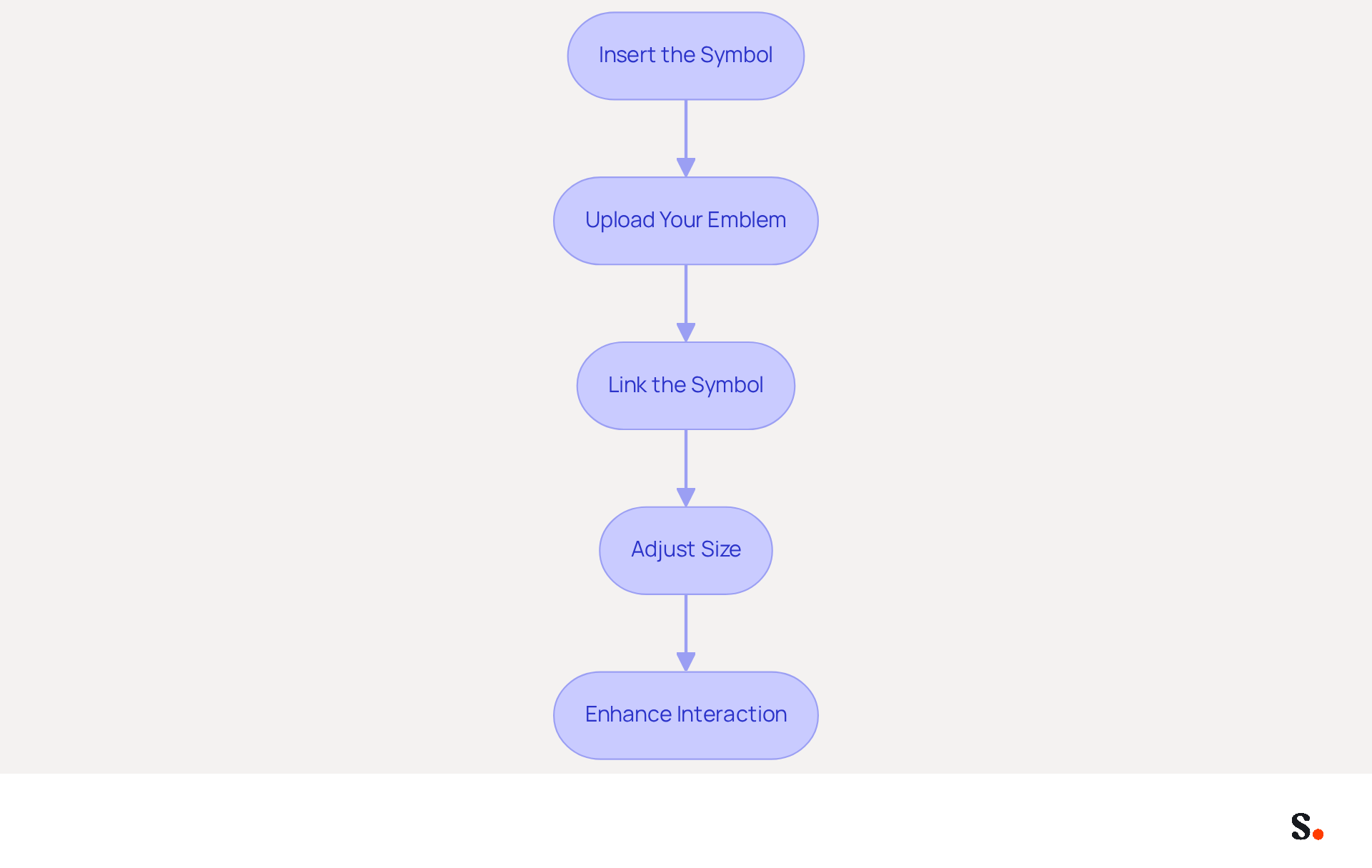
- Insert the Symbol: In the signature editor, position your cursor where you want the social media symbol to appear. Click on the 'Insert Image' button (the picture symbol) in the toolbar to begin.
- Upload Your Emblem: Select the LinkedIn graphic file you have downloaded or designed. Ensure that the file format is supported, such as PNG or JPG, to maintain quality and compatibility. Remember, Email Symbol Generator features over 100 graphics, providing a variety of options for your signature.
- Link the Symbol: After inserting the symbol, highlight it and click on the 'Link' symbol in the toolbar. Paste your professional profile URL (e.g., https://www.linkedin.com/in/yourprofile) into the link field. This action makes the symbol clickable, allowing recipients to easily access your LinkedIn profile.
- Adjust Size: If necessary, click on the graphic to resize it. Aim for an optimal size that fits well within your unique layout, ensuring it complements other elements without overwhelming them. Icons should ideally be optimized to under 50KB for email-safe resolution, and sizes of 16px, 20px, 24px, or 32px are recommended for clarity and visual appeal.
Adding social media symbols to your email signature enhances interaction and builds trust with your audience. By following these steps, you can effectively integrate the linkedin icon for email signature gmail into your correspondence, reinforcing your professional brand. Furthermore, by syncing your Google Workspace with Scribe, you can save time and ensure that any updates to your teammates' information are automatically shown in their correspondence. This feature enables effortless management of digital identifiers throughout your organization, further improving your marketing initiatives. By utilizing Scribe, organizations can ensure their branding remains consistent and up-to-date across all communications. Scribe's SOC 2 Type II certification and adherence to GDPR and CCPA guarantee that your management of identifiers is secure and reliable. As noted by Amotz Harari, utilizing effective tools can streamline the process. This underscores the value of leveraging tools for crafting professional signatures. Furthermore, the case study on 'Adding Social Media Icons to Gmail Signature' illustrates the successful integration of social media icons, such as the linkedin icon for email signature gmail, further emphasizing the importance of this practice.
Test and Optimize Your Email Signature with LinkedIn Icon
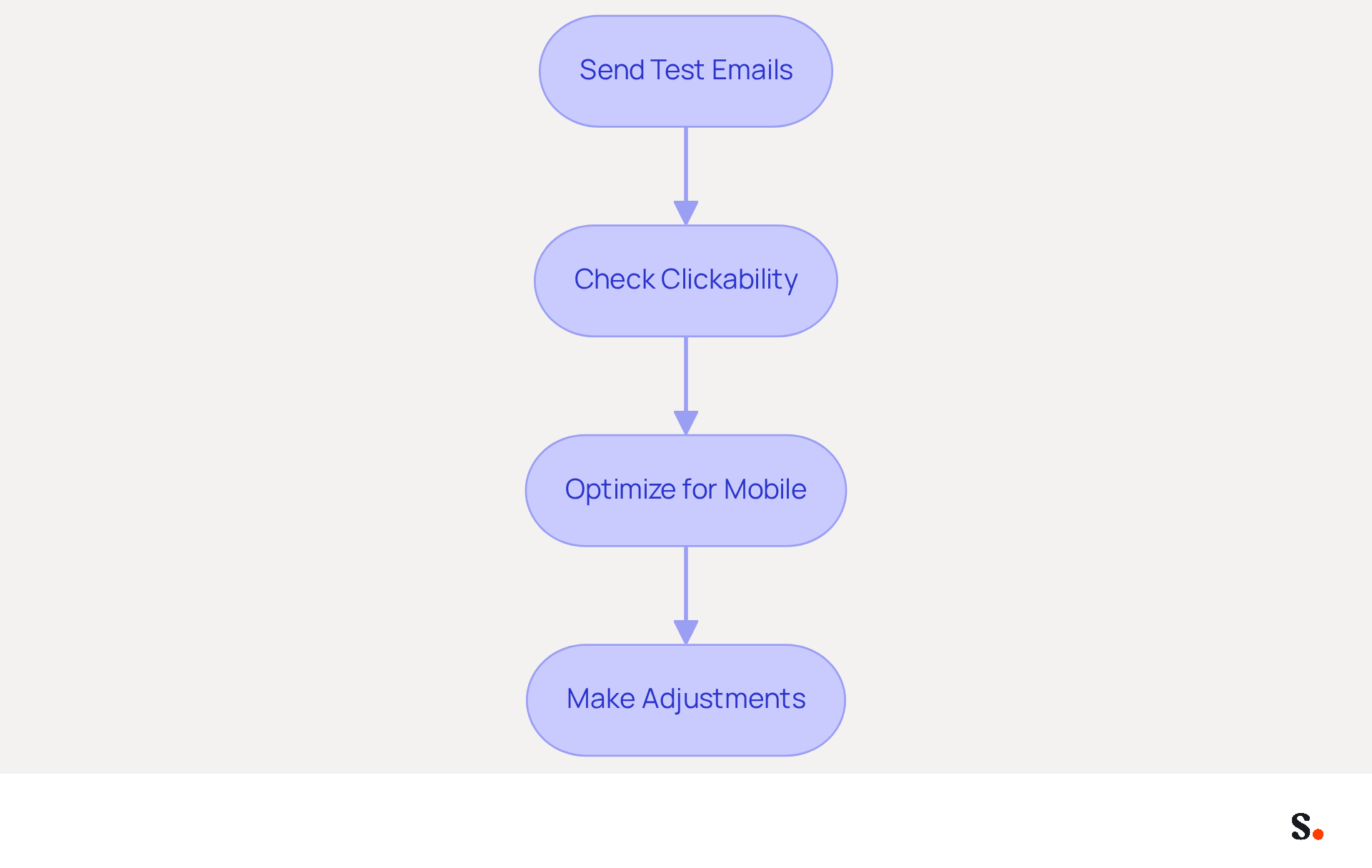
- Send Test Emails: Testing your email signature across various devices is essential for ensuring its effectiveness. Begin by sending test emails to yourself and colleagues on desktops, tablets, and mobile phones. This allows you to evaluate the signature's appearance across devices. Pay close attention to any formatting issues or broken links that may arise.
- Check Clickability: Verify that the LinkedIn graphic is functional and directs recipients to the correct profile. Click on the symbol in the received message to ensure it functions as intended.
- Optimize for Mobile: Many users may overlook your emails if they are not optimized for mobile viewing. Therefore, it’s crucial to review how your email footer displays on mobile devices. Ensure that the linkedin icon for email signature gmail is suitably sized and that the overall design remains visually appealing and easy to read.
- Make Adjustments: Based on your testing results, make necessary modifications to the icon size, placement, or overall layout. This will enhance clarity and professionalism, ensuring that your email signature effectively represents your brand. Neglecting these adjustments could result in missed opportunities for engagement and brand representation.
Conclusion
Integrating a LinkedIn icon into your Gmail email signature presents both challenges and opportunities for enhancing professional branding. Following these steps allows users to add this key visual element, making their email communications both informative and visually appealing. Key insights from this guide emphasize the importance of:
- Selecting the right icon
- Optimizing its placement
- Ensuring functionality across devices
The process involves careful consideration of design elements, adherence to LinkedIn's branding guidelines, and thorough testing to guarantee that the signature performs well in various contexts. Tools such as Scribe simplify this process, ensuring efficient management and compliance with security standards such as SOC 2 Type II.
Adding a LinkedIn icon isn’t just about design; it’s a smart way to boost your visibility and credibility in professional settings. By taking the time to implement these best practices, individuals can significantly improve their email signature's effectiveness, leading to increased engagement and a stronger professional presence. Consider how a well-crafted email signature can transform your professional interactions and open doors to new opportunities.
Frequently Asked Questions
Why should I integrate a LinkedIn icon into my email signature?
Integrating a LinkedIn icon into your email signature enhances your email communications and boosts engagement by making your messages more visually appealing and encouraging interaction.
How do I access the signature settings in Gmail?
To access the signature settings in Gmail, log into your account, click on the gear symbol in the top right corner, and select 'See all settings'. Then, scroll down to the 'Signature' section under the 'General' tab.
What should I include in my email signature?
Your email signature should include essential elements such as your name, job title, and contact information.
Where is the best place to position the LinkedIn icon in my email signature?
Common placements for the LinkedIn icon include next to your name or at the end of your sign-off. Ensure there is adequate space to maintain a tidy and professional look.
How can Scribe help with managing email communications?
Scribe's messaging software allows for easy management of communications with one-click synchronization, ensuring compliance with SOC 2 Type II standards for secure data handling while enhancing your branding.
Can I create multiple signatures for different purposes?
Yes, you can create multiple signatures for various purposes to further customize your communications.
List of Sources
- Prepare Your Email Signature for LinkedIn Icon Integration
- Maximize Brand Impact with a LinkedIn Button for Email Signature (https://scribe-mail.com/en-US/blog/maximize-brand-impact-with-a-linkedin-button-for-email-signature)
- How to create custom Gmail signature (https://foxnews.com/tech/how-to-create-custom-gmail-signature)
- Add a LinkedIn Logo to Your Email Signature | Newoldstamp - NEWOLDSTAMP (https://newoldstamp.com/blog/add-linkedin-logo-email-signature)
- How to Add Social Media Icons to your Gmail Signature (step-by-step w/ screenshots) (https://linkedin.com/pulse/how-add-social-media-icons-your-gmail-signature-w-screenshots-szal)
- Select or Design Your LinkedIn Icon
- Branding statistics you need to know in 2026 (https://dash.app/blog/branding-statistics)
- What is a LinkedIn Logo Email Signature and Why It Matters (https://scribe-mail.com/en-US/blog/what-is-a-linkedin-logo-email-signature-and-why-it-matters)
- Add a LinkedIn Logo to Your Email Signature | Newoldstamp - NEWOLDSTAMP (https://newoldstamp.com/blog/add-linkedin-logo-email-signature)
- How to Add LinkedIn to Your Email Signature (Gmail, Outlook, Mac) (https://exclaimer.com/email-signature-handbook/add-linkedin-to-email-signature)
- Add the LinkedIn Icon to Your Gmail Signature
- How to Add Social Media Icons to Gmail Signature (https://wisestamp.com/guides/how-to-add-social-icons-to-gmail-signature)
- How to Create and Add Social Media Icons to Your Email Signature Like a Pro | Email Signature Rescue Blog (https://emailsignaturerescue.com/blog/how-to-add-social-media-icons-to-your-email-signature)
- How to Add Social Media Icons to your Gmail Signature (step-by-step w/ screenshots) (https://linkedin.com/pulse/how-add-social-media-icons-your-gmail-signature-w-screenshots-szal)
- Test and Optimize Your Email Signature with LinkedIn Icon
- Why Team Email Signatures Matter More Than You Think: The Hidden Impact on Brand Trust and Customer Experience (https://getmailbird.com/why-team-email-signatures-matter-brand-trust)
- 4 Best Practices for an Effective Email Signature Responsive Template (https://scribe-mail.com/en-US/blog/4-best-practices-for-an-effective-email-signature-responsive-template)
- Optimizing Mobile Email Signatures: Best Practices for Seamless Communication | MySignature (https://mysignature.io/blog/optimizing-mobile-email-signatures)
- 5 Reasons Why Every Email You Send Should Be Mobile-Friendly | Built In (https://builtin.com/articles/mobile-email-marketing-strategy)
Get started with Scribe
Create your signature in minutes
Free 14-day trial — no credit card.