Automate Email Signatures in Office 365 with Scribe: A Step-by-Step Guide
Automating email signatures in Office 365 presents both opportunities and challenges for organizations aiming to enhance their brand image. By using Scribe
Sophie Grant
Email Signature Specialist, Scribe
Introduction
Automating email signatures in Office 365 presents both opportunities and challenges for organizations aiming to enhance their brand image. By using Scribe, organizations can make their email communications more efficient, ensuring that every message reflects a consistent professional image while also capitalizing on marketing opportunities through signature banners.
However, many organizations struggle with the complexities of integrating email signature automation into their existing systems. How can teams prepare their Office 365 environment and troubleshoot common issues for a successful implementation?
This guide offers a clear, step-by-step approach to mastering email signature automation with Scribe, helping marketing and IT professionals enhance their email communications with effective strategies.
Get started with Scribe
See why teams switch to Scribe
Free 14-day trial — no credit card.
Understand the Importance of Automating Email Signatures
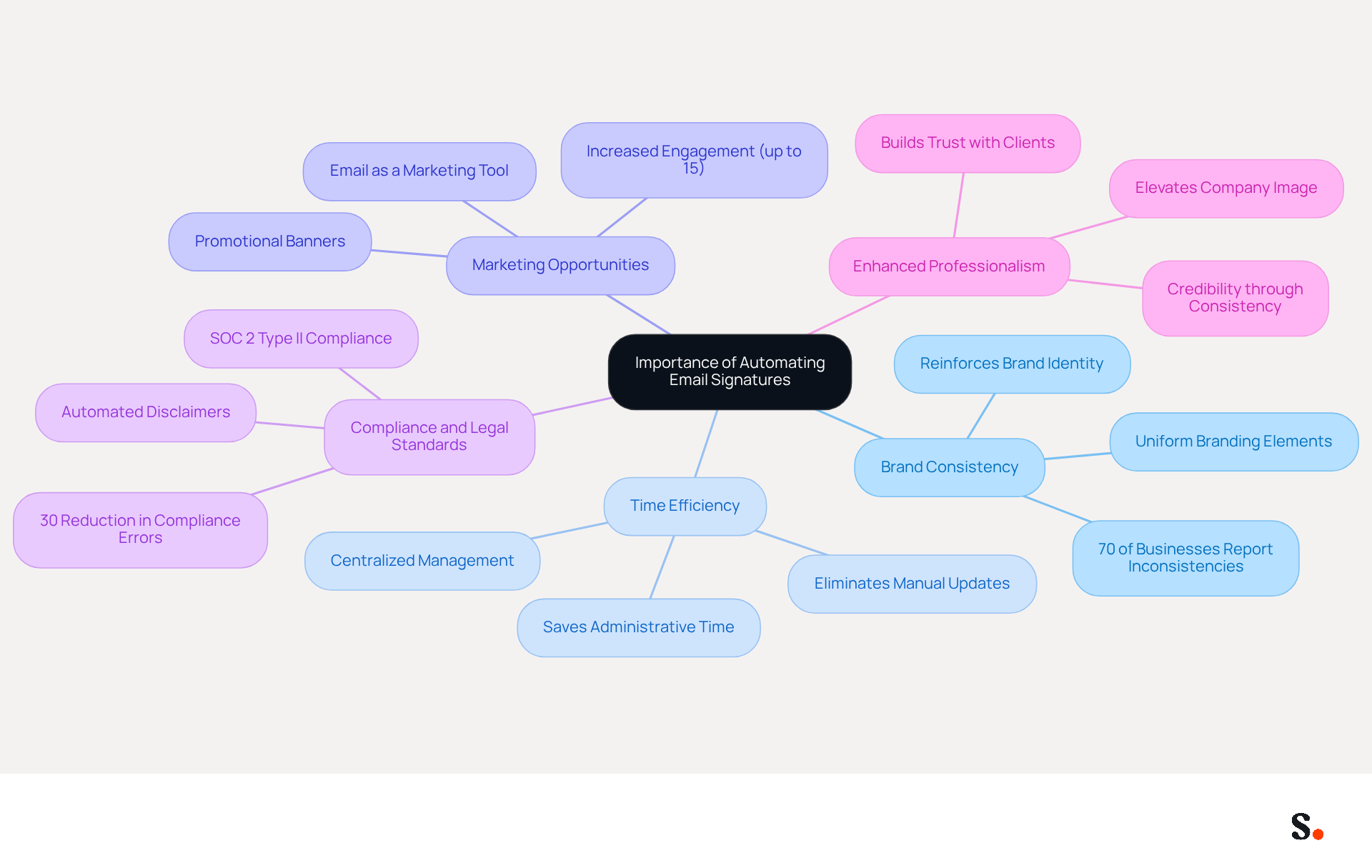
To maintain brand integrity and maximize marketing effectiveness in every email communication, it is essential to automate email signatures in Office 365. Here are key reasons why automation is important:
- Brand Consistency: Automated email footers ensure that every employee uses the same branding elements, including logos, colors, and fonts, reinforcing brand identity across all communications. This consistency is crucial, as 70% of businesses recognize discrepancies in their communication formats, which can weaken brand perception.
- Time Efficiency: Manual updates often lead to wasted time and increased errors. By using tools that automate email signatures in Office 365, automation allows for quick updates across the organization without individual intervention, saving valuable time and reducing administrative burdens. Scribe automatically updates your branding elements in all correspondence, keeping them current and consistent.
- Marketing Opportunities: Each email sent can serve as a marketing tool. Automated sign-offs can include promotional banners or calls to action, turning every correspondence into a potential lead generation opportunity. This platform demonstrates a strong average click-through rate of 12% on custom banners, illustrating the potential for increased engagement.
- Compliance and Legal Standards: Automated approvals help ensure that all outgoing communications meet legal requirements, such as including disclaimers or confidentiality notices. Scribe is SOC 2 Type II compliant, ensuring that your data is handled securely and in compliance with industry standards.
- Enhanced Professionalism: Consistent and professional electronic correspondences elevate the overall image of the organization, fostering a positive impression among clients and partners. A well-crafted mark conveys credibility and trust, essential for building strong business relationships.
Implementing Scribe to automate email signatures in Office 365 not only streamlines your processes but also fortifies your brand's reputation in the marketplace.
Prepare Your Office 365 Environment for Automation
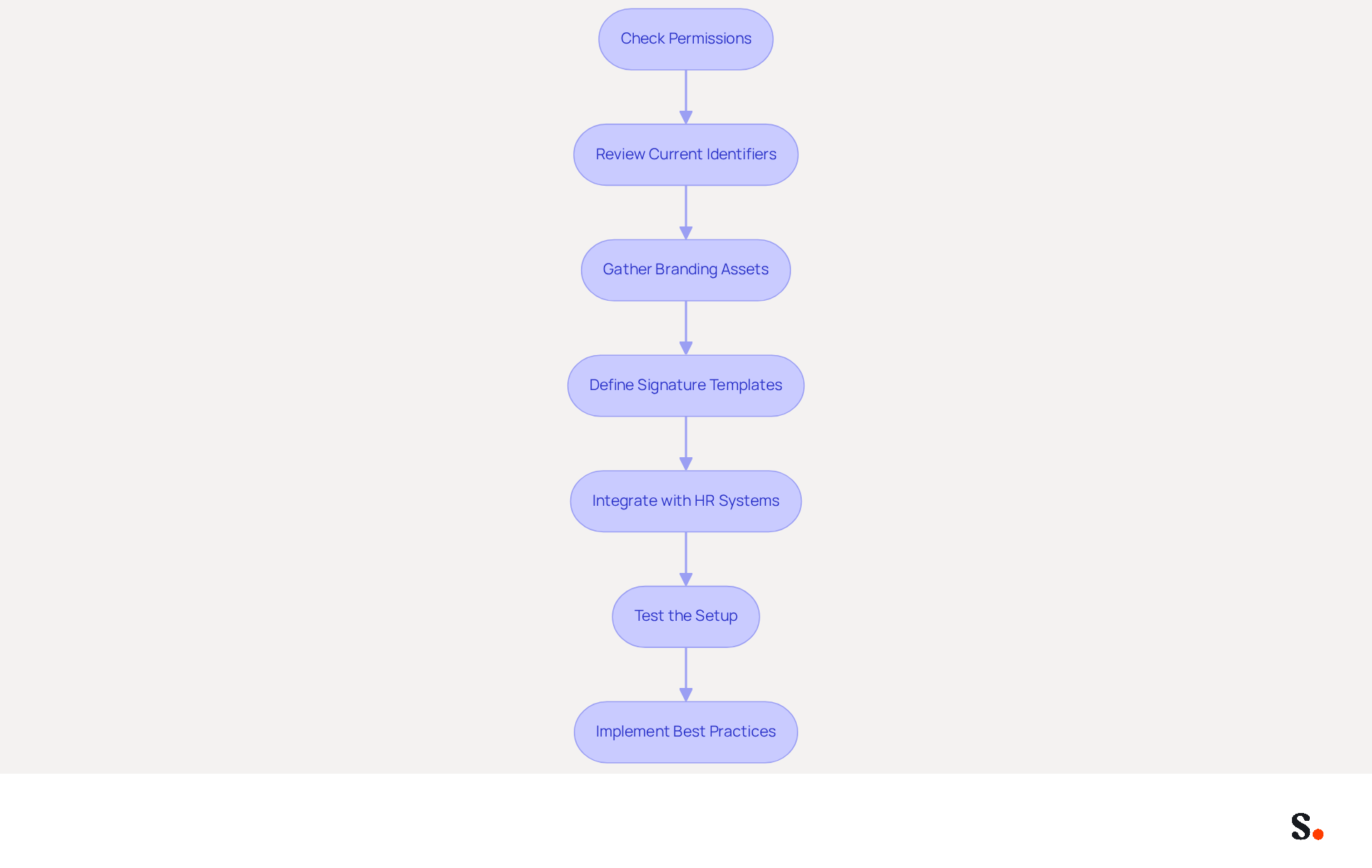
To ensure a seamless implementation of automated identifiers with Scribe, proper preparation of your Office 365 environment is crucial. Follow these steps to facilitate a smooth setup:
- Check Permissions: Confirming the right permissions is essential to avoid potential challenges in managing users and settings effectively within the Office 365 admin center.
- Review Current Identifiers: Evaluate existing communication identifiers across your organization. Identify inconsistencies or outdated information that require updates.
- Gather Branding Assets: Collect all branding elements, including logos, colors, and fonts, ensuring they are in the correct formats for use in Scribe.
- Define Signature Templates: Outline the structure and content of your email identifiers. Include essential elements such as employee names, titles, contact information, and promotional banners to enhance engagement.
- Integrate with HR Systems: If applicable, ensure that your HR or identity management systems are integrated with Office 365. This integration allows for automatic updates of employee information in email footers, which saves time and ensures accuracy when changes occur in your Microsoft Entra ID or Google Workspace.
- Test the Setup: After configuring your identifiers, send internal and external test messages to verify that the formatting and attributes render correctly.
- Implement Best Practices: Enable 'Stop processing more rules' to prevent other mail flow rules from reapplying the disclaimer, ensuring a smooth implementation process.
By properly preparing your environment, you set the stage for a successful implementation of the tool. This preparation leads to a smoother setup process and boosts overall efficiency when you automate email signatures Office 365. Ultimately, this setup simplifies how you manage digital signatures and enhances team collaboration by automatically filling in colleagues' information, helping maintain brand consistency.
Set Up Automated Email Signatures with Scribe in Office 365
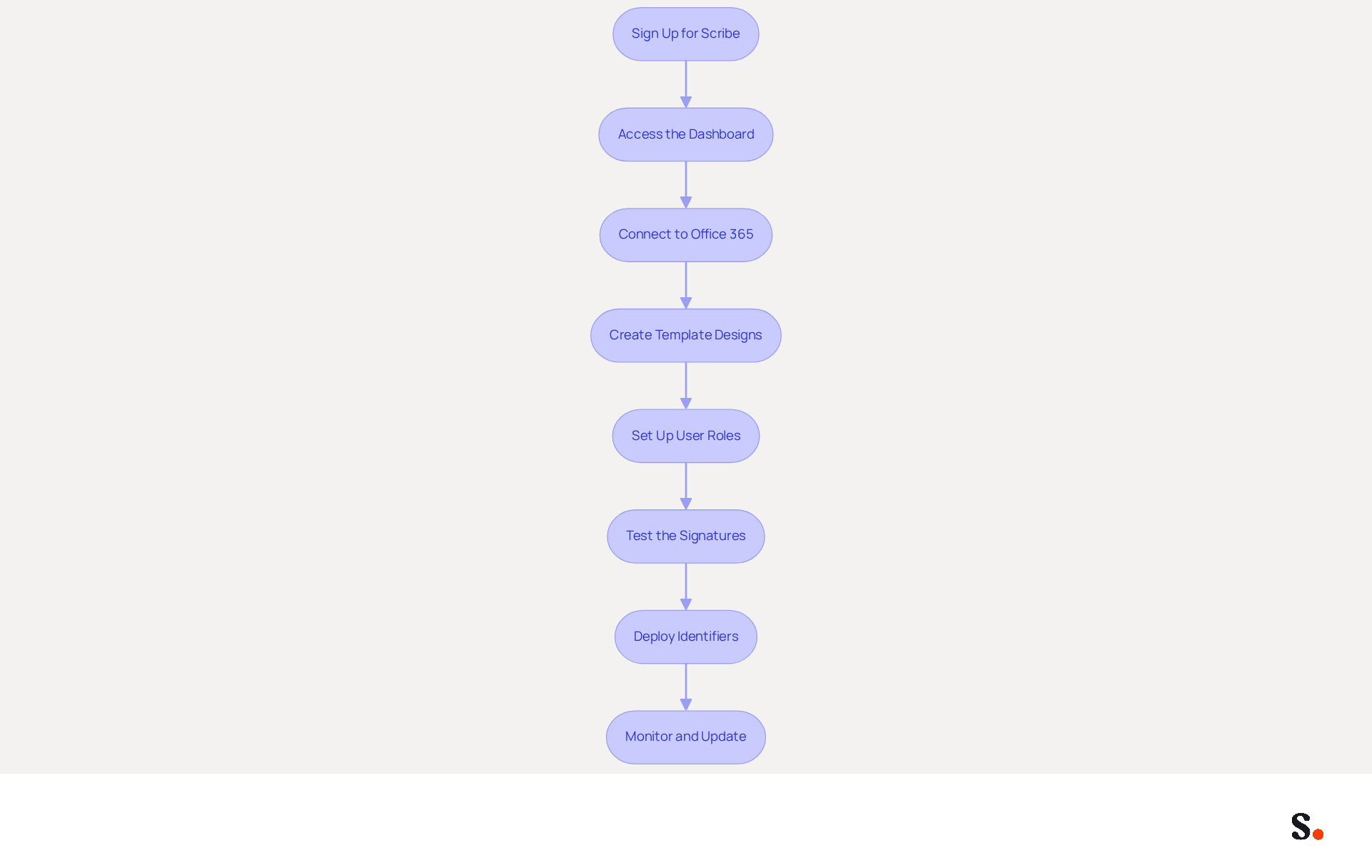
Automating email signatures in Office 365 can be a complex task for organizations aiming for consistent branding. To set up automated email signatures with Scribe in Office 365, follow these steps:
- Sign Up for Scribe: Create an account on the platform by following the registration prompts.
- Access the Dashboard: Log in to your account and navigate to the dashboard to manage your email signature settings.
- Connect to Office 365: In the Scribe dashboard, find the integration settings and choose Microsoft 365. Authorize the application to access your Office 365 account.
- Create Template Designs: Utilize Scribe's template editor to craft your templates, incorporating branding assets and placeholders for employee information.
- Set Up User Roles: Assign roles within Scribe to control who can edit documents and manage settings, ensuring that only authorized individuals can make modifications.
- Test the Signatures: Before organization-wide rollout, send trial messages to verify that the identifiers display correctly and that all links and images operate as intended.
- Deploy Identifiers: After testing, implement the identifiers throughout your organization. Scribe will automate email signatures Office 365 by automatically applying the signatures to all outgoing messages based on the templates you’ve defined.
- Monitor and Update: Regularly check the performance of your messaging and make adjustments as needed. This tool enables straightforward adjustments to templates and user details.
By implementing Scribe, organizations can ensure their email communications reflect their brand's professionalism and consistency.
Troubleshoot Common Issues in Email Signature Automation
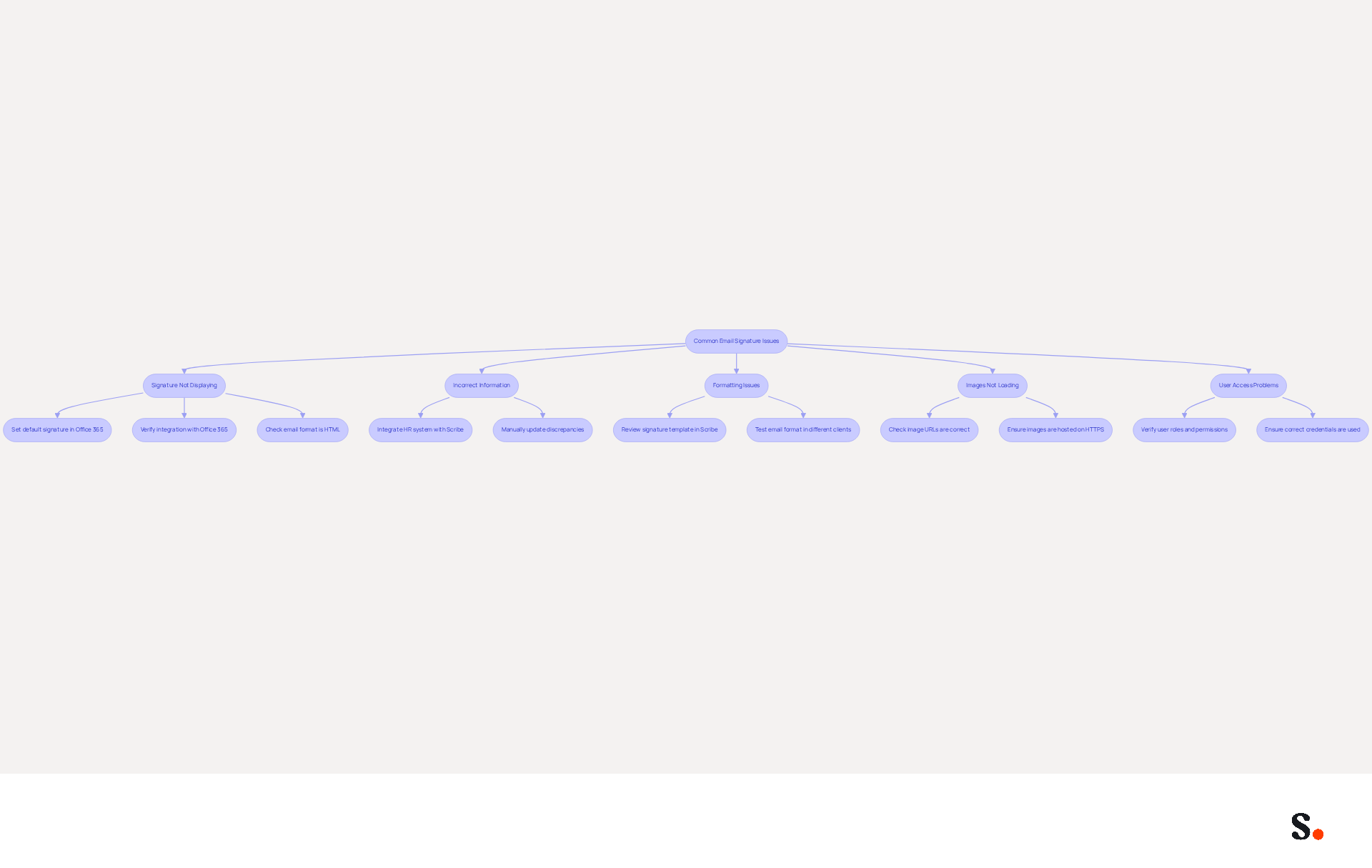
Many users encounter issues with signatures not displaying in emails, which can undermine professionalism. Here are common problems and their solutions:
-
Signature Not Displaying: If signatures are not appearing in emails, check the following:
- Ensure that the default signature is set in the Office 365 settings.
- Verify that the integration is properly connected to your Office 365 account to automate email signatures in Office 365.
- Confirm that the email format is set to HTML, as signatures may not display correctly in plain text.
-
Incorrect Information in Signatures: If employee information is outdated or incorrect:
- Ensure that your HR system is properly integrated with Scribe for automatic updates.
- Manually check and update any discrepancies in the dashboard.
-
Formatting Issues: If signatures appear misaligned or incorrectly formatted:
- Review the signature template in Scribe to ensure that all elements are correctly placed.
- Test the email format in different email clients to identify any compatibility issues.
-
Images Not Loading: If images in signatures are not displaying:
- Check that the image URLs are correct and accessible.
- Ensure that images are hosted on a secure server (HTTPS) to avoid loading issues.
-
User Access Problems: If users cannot access or edit their signatures:
- Verify that user roles and permissions are correctly assigned in Scribe.
- Ensure that users are logging in with the correct credentials associated with their Office 365 accounts to automate email signatures in Office 365.
Addressing these common issues not only improves user experience but also reinforces brand integrity.
Conclusion
Automating email signatures in Office 365 is essential for organizations aiming to enhance brand consistency and operational efficiency. By leveraging Scribe, organizations can ensure that their email communications reflect a unified brand image while saving valuable time on administrative tasks.
Throughout this guide, we have emphasized the importance of preparing your Office 365 environment for automation, along with a step-by-step approach to setting up Scribe for seamless integration. Key insights include:
- The necessity of checking permissions
- Gathering branding assets
- Testing signatures to ensure they display correctly
Additionally, troubleshooting common issues can significantly enhance user experience and maintain professionalism in communications.
In a landscape where every email counts, automating signatures is not merely a technical upgrade; it is a vital component of effective brand management and marketing strategy. Organizations are encouraged to embrace this automation to not only streamline their processes but also unlock the full marketing potential of every email sent. With Scribe, organizations can maintain a consistent brand image across all communications, ultimately improving their marketing effectiveness.
Frequently Asked Questions
Why is it important to automate email signatures in Office 365?
Automating email signatures is essential for maintaining brand integrity, ensuring brand consistency, improving time efficiency, creating marketing opportunities, meeting compliance and legal standards, and enhancing professionalism in communications.
How does automating email signatures ensure brand consistency?
Automated email footers ensure that every employee uses the same branding elements, such as logos, colors, and fonts, which reinforces brand identity across all communications and prevents discrepancies that can weaken brand perception.
What are the time efficiency benefits of automating email signatures?
Automation allows for quick updates across the organization without individual intervention, saving valuable time and reducing administrative burdens associated with manual updates.
How can automated email signatures serve as marketing tools?
Automated sign-offs can include promotional banners or calls to action, turning every email into a potential lead generation opportunity, with a strong average click-through rate of 12% on custom banners.
What compliance and legal standards are met by automating email signatures?
Automated approvals help ensure that all outgoing communications meet legal requirements, such as including disclaimers or confidentiality notices, and Scribe is SOC 2 Type II compliant, ensuring secure data handling.
How does automating email signatures enhance professionalism?
Consistent and professional electronic correspondences elevate the organization's image, fostering a positive impression among clients and partners, and conveying credibility and trust essential for strong business relationships.
What tool is recommended for automating email signatures in Office 365?
Scribe is recommended for automating email signatures in Office 365, as it streamlines processes and fortifies a brand's reputation in the marketplace.
List of Sources
- Understand the Importance of Automating Email Signatures
- Why Email Signatures Must Be In Your 2026 Marketing Plan | Rocketseed (https://rocketseed.com/blog/2026-marketing-plan-email-signatures)
- Why Automated Email Signatures Are a Smart Move for Your Business (https://aabyss.uk/blog/why-automated-email-signatures-are-a-smart-move-for-your-business)
- How Automated Email Signatures in Outlook Can Help Businesses Spread Their Marketing Message (https://linkedin.com/pulse/how-automated-email-signatures-outlook-can-help-businesses-spread-gc5we)
- Master Automatic Email Signatures: Boost Branding and Efficiency (https://scribe-mail.com/en-US/blog/master-automatic-email-signatures-boost-branding-and-efficiency)
- Email Signature Trends 2026: Centralized Control & Automation | SIGNandGO posted on the topic | LinkedIn (https://linkedin.com/posts/signngo_email-signature-trends-to-watch-in-2026-activity-7401523471786217473-zAVL)
- Prepare Your Office 365 Environment for Automation
- How to Create and Enforce Common Signature in Office 365 (https://cloudfuze.com/how-to-create-and-enforce-common-signature-in-office-365)
- Create Organization-wide Email Signatures and Disclaimers - Microsoft 365 admin (https://learn.microsoft.com/en-us/microsoft-365/admin/setup/create-signatures-and-disclaimers?view=o365-worldwide)
- Get Microsoft 365 Mail Traffic Statistics by User (https://admindroid.com/how-to-get-user-email-activity-report-in-microsoft-365)
- How to Automate Email Signature Updates | Exclaimer (https://exclaimer.com/email-signature-handbook/automate-email-signature-updates)
- Microsoft 365 Admin Center Usage Reports Overview - Microsoft 365 admin (https://learn.microsoft.com/en-us/microsoft-365/admin/activity-reports/activity-reports?view=o365-worldwide)
- Set Up Automated Email Signatures with Scribe in Office 365
- 40+ Email Signature Statistics for 2026 (Data + Insights) (https://wavecnct.com/blogs/email-signature-statistics)
- Optimize Your Email Signatures with Office 365 for Brand Consistency (https://scribe-mail.com/en-US/blog/optimize-your-email-signatures-with-office-365-for-brand-consistency)
- Email signature statistics and trends in 2024 (https://wisestamp.com/blog/email-signature-statistics)
- Scribe vs. Competitors: Best Email Signature Software for Office 365 (https://scribe-mail.com/en-US/blog/scribe-vs-competitors-best-email-signature-software-for-office-365)
- Microsoft 365 - Scribe Mail Documentation (https://help.scribe-mail.com/en/integrations/signatures/microsoft-365-client-side)
- Troubleshoot Common Issues in Email Signature Automation
- Outlook Signature Not Working in Office 365: Causes & Fixes (https://exclaimer.com/email-signature-handbook/outlook-signature-not-working-in-office-365)
- Email Signature Troubleshooting - Problems & Solutions - Gimmio (https://blog.gimm.io/email-signature-troubleshooting)
- How to solve problems with email signatures in Microsoft 365? (https://mail-signatures.com/articles/problems-email-signatures-office-365)
- Why Did My Outlook Signature Disappear? Common Causes Explained (https://scribe-mail.com/en-US/blog/why-did-my-outlook-signature-disappear-common-causes-explained)
Get started with Scribe
See why teams switch to Scribe
Free 14-day trial — no credit card.