Set Up Your Automatic Email Signature in Office 365: A Step-by-Step Guide
Automated email signatures present a unique challenge for businesses aiming to enhance their branding and marketing efforts. They serve as more than just a
Sophie Grant
Email Signature Specialist, Scribe
Introduction
Automated email signatures present a unique challenge for businesses aiming to enhance their branding and marketing efforts. They serve as more than just a digital sign-off; they are a powerful branding tool that can significantly elevate a company's professional image. By implementing an automatic email signature in Office 365, organizations can ensure consistent branding, improve communication efficiency, and leverage every email as a marketing opportunity.
Many organizations struggle with the technical aspects of implementation and compliance. Navigating these complexities is crucial for businesses that wish to maximize their email communication's impact.
Understand the Importance of Automatic Email Signatures
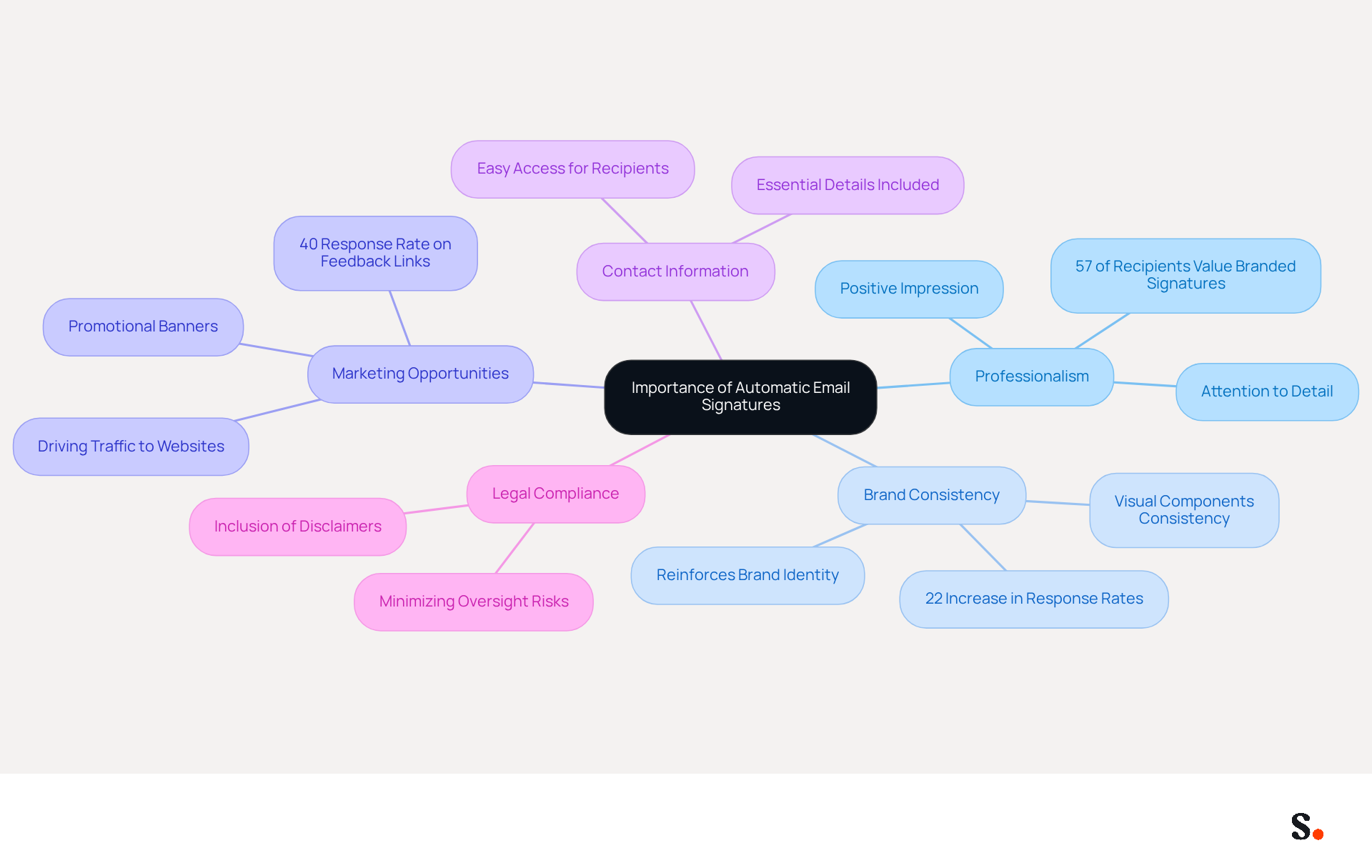
Automated digital identifiers serve as a critical branding tool that enhances your professional image and promotes your business effectively. Here are several compelling reasons to prioritize the setup of automatic email signatures:
- A well-crafted digital identifier reflects professionalism and meticulous attention to detail, leaving a positive impression on recipients. Research indicates that 57% of recipients view branded identifiers as the most impactful aspect of a message, emphasizing the significance of a refined presentation.
- Brand Consistency: Maintaining consistent branding across all communications is crucial for reinforcing your brand identity. Automated features guarantee that every message sent displays your brand's visual components, such as logos and colors, which can result in a 22% rise in response rates from recipients.
- Marketing Opportunities: Each email sent represents a chance to market your business. Incorporating promotional banners or call-to-action buttons in your email footer can drive traffic to your website or social media pages. Studies indicate that dynamic banners can achieve a 40% response rate on feedback links incorporated into email footers, highlighting their effectiveness as marketing tools.
- Contact Information: Automatic identifiers provide recipients with easy access to your contact details, facilitating convenient communication. Including essential information such as your name, job title, and company name helps recipients feel comfortable engaging with your brand.
- Legal Compliance: In certain industries, it is necessary to include disclaimers or legal information in electronic communications for compliance purposes. Automated markings guarantee that this essential information is regularly included, minimizing the chance of oversight.
Recognizing these benefits underscores the necessity of investing in automated email signatures to elevate your branding and marketing efforts.
Prepare Your Office 365 Environment for Setup
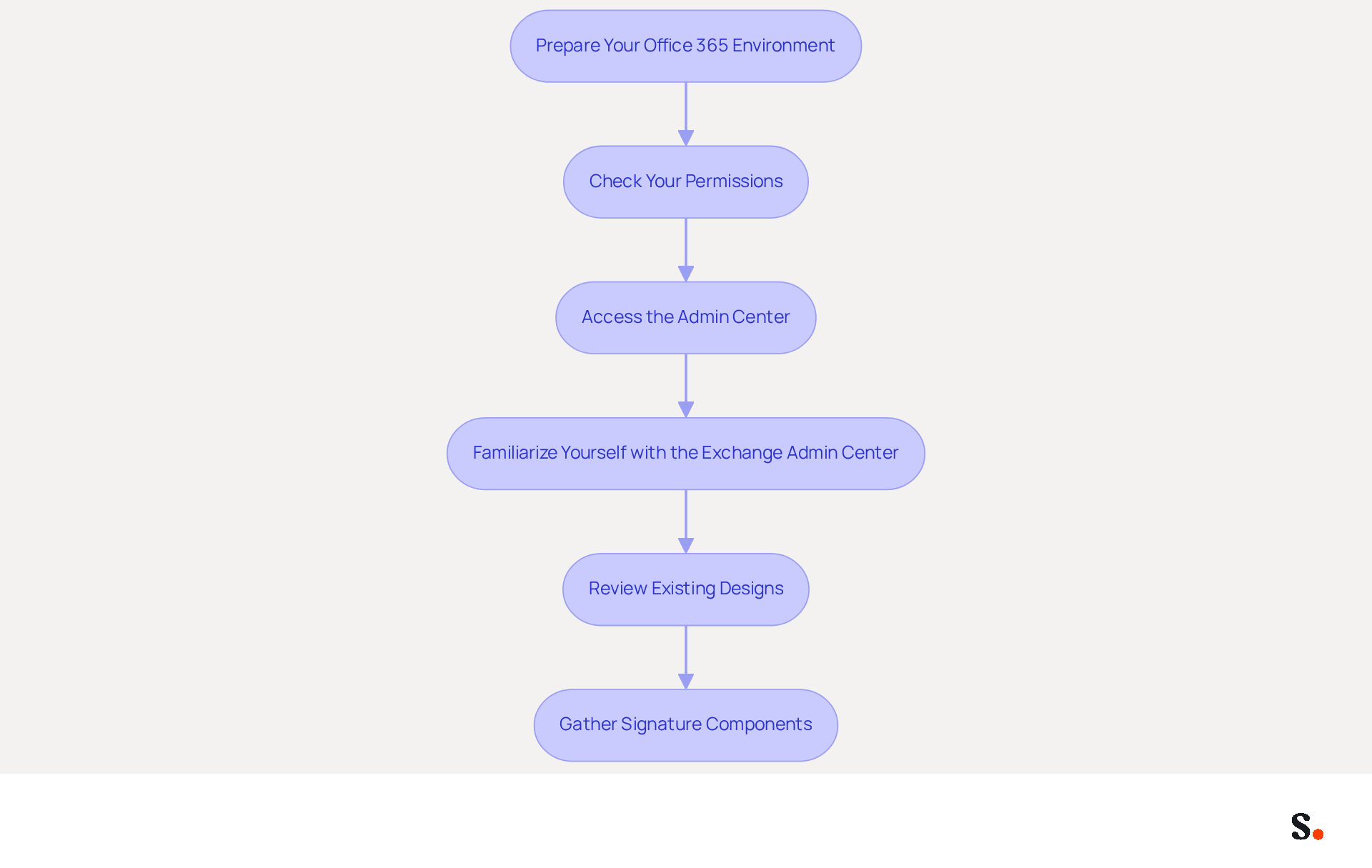
Preparing your Office 365 environment is crucial for an effective automatic email signature Office 365 setup. Follow these steps to streamline the process:
- Check Your Permissions: Confirm that you have the necessary rights to create and manage digital identifiers. Typically, this requires admin access or specific roles assigned within Office 365. Without the right permissions, you may face delays in setting up your automatic message footer. Limiting the Global Administrator role to emergency situations is advisable to enhance security.
- Access the Admin Center: Log in to your Office 365 account and navigate to the Microsoft 365 Admin Center. This central hub is where you will manage correspondence identifiers for your organization.
- Familiarize Yourself with the Exchange Admin Center: From the Admin Center, access the Exchange Admin Center (EAC). This is the platform where you will create and manage electronic identifiers and disclaimers, ensuring compliance with branding and legal standards.
- Review Existing Designs: If your organization already has digital identifiers in place, examine them to ensure they align with your current branding and marketing strategies. This step is essential for maintaining consistency and maximizing marketing opportunities.
- Gather Signature Components: Collect all necessary elements for your sign-off, including logos, social media links, and any legal disclaimers that need to be included. This groundwork will make the setup process more efficient.
By thoroughly preparing your Office 365 environment, including the implementation of an automatic email signature Office 365, you establish the foundation for a successful communication setup, ensuring that your interactions are both professional and effective. Additionally, integrating Microsoft Entra ID with Scribe enhances brand consistency by automatically updating your teammates' information, such as job positions or group assignments, without manual input. This not only saves time but also ensures that your communications reflect the most current branding. Scribe's commitment to SOC 2 Type II compliance guarantees secure data handling throughout this process. Ultimately, a well-prepared environment ensures that your communications are not only effective but also reflect your organization's professionalism.
Create and Implement Your Automatic Email Signature
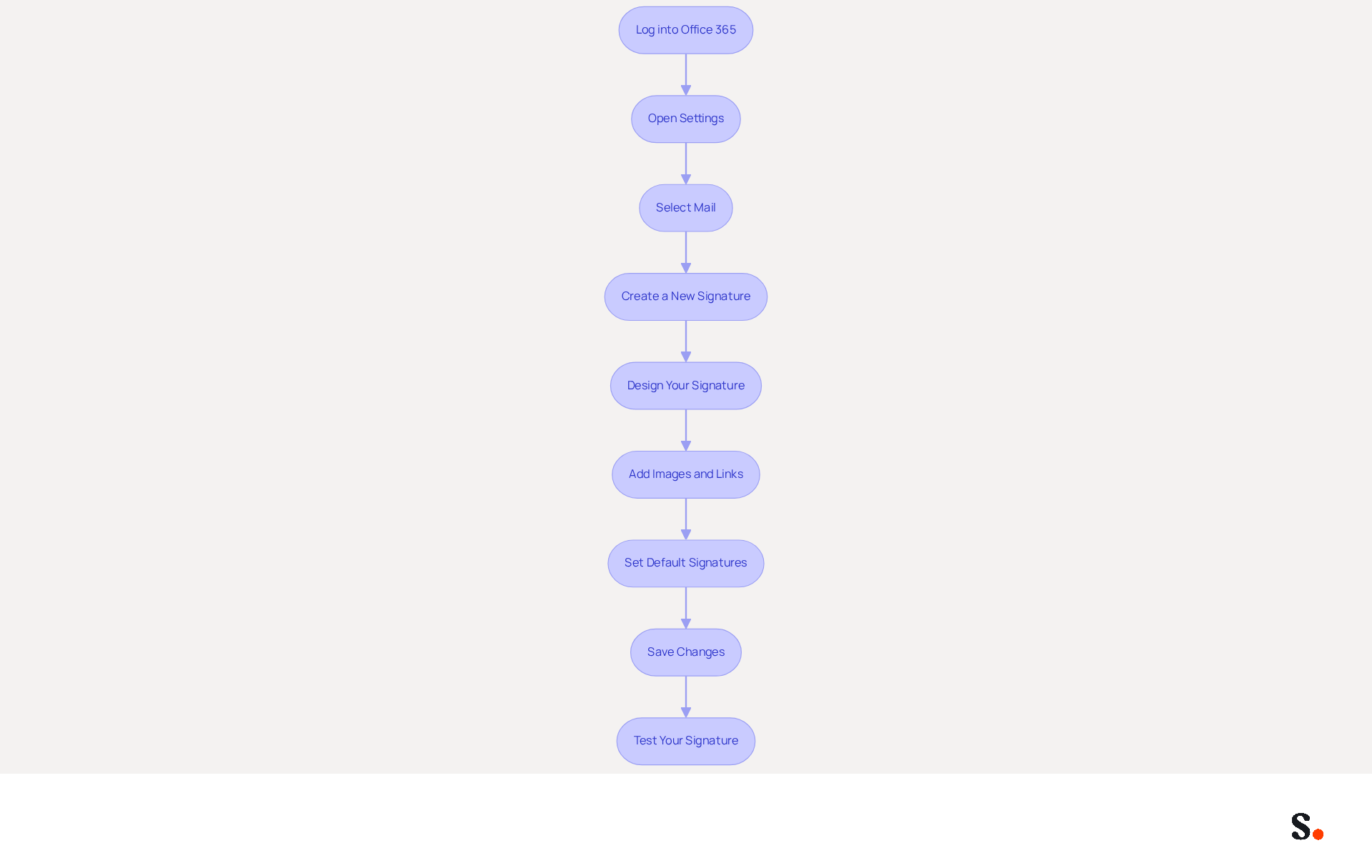
Creating an automatic email signature Office 365 can streamline your communication and enhance your professional image. Follow these expert steps:
- Log into Office 365: Access your Office 365 account and navigate to Outlook.
- Open Settings: Click on the gear icon in the top right corner to open the settings menu.
- Select Mail: In the settings menu, select 'Mail' and then navigate to 'Compose and reply'.
- Create a New Signature: Click on '+ New Signature'. Enter a name for your signature (e.g., 'Business Signature').
- Design Your Signature: In the text box, type your desired content for your signature. Include your name, title, company name, contact information, and any other relevant details. Use the formatting options to style your signature (font, color, size).
- Add Images and Links: If you want to add a logo or social media icons, just click the image icon to upload your files. For links, highlight the text you want to hyperlink and click the link icon to add URLs.
- Set Default Signatures: Choose your new signature as the default for new messages and replies/forwards if desired.
- Save Changes: Once satisfied with your signature, click 'Save' to apply the changes.
- Test Your Signature: Send a test message to yourself or a colleague to verify that the signature appears correctly and all links function.
Before you start, ensure that you allow Scribe permission to connect with your provider. You must be a Super Admin of your service provider to grant these permissions. Following these steps will help you create and implement your automatic email signature Office 365, boosting your brand's visibility and professionalism in every message. Remember, research shows that consistent branding in digital communications can significantly improve engagement rates, making this a valuable marketing tool. Furthermore, using Scribe's attribute feature enables auto-filling of information related to signatories, enhancing the efficiency of the process. With Scribe, you can also benefit from one-click synchronization with your provider, ensuring that any updates to your team’s information are automatically reflected in your signatures, all while maintaining SOC 2 Type II compliance for your data security.
Troubleshoot Common Setup Issues
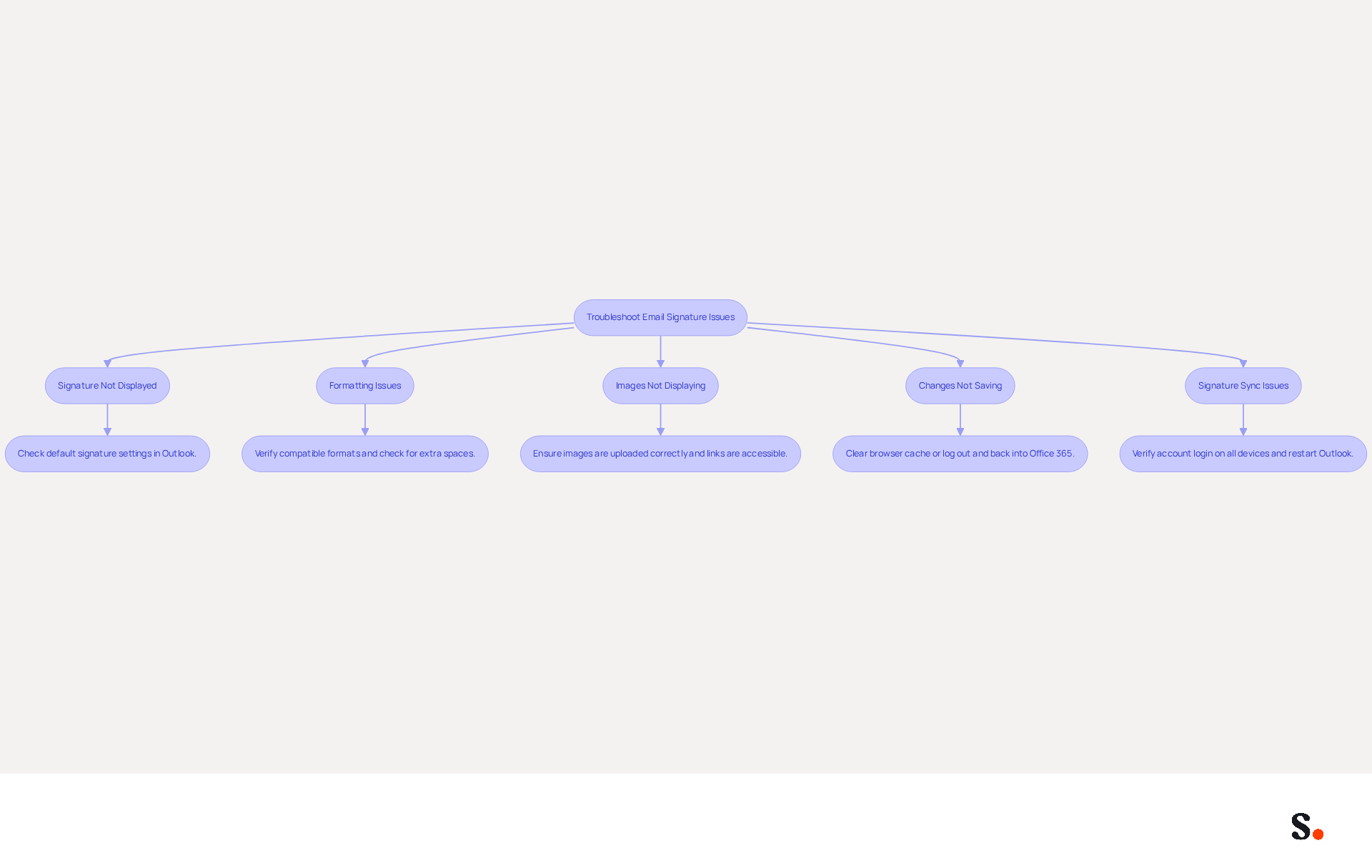
Setting up an automatic email signature Office 365 can present challenges that, if not addressed, may hinder effective communication. Here are some common problems and their solutions:
- Signature Not Displayed: If your mark does not show in outgoing messages, many users struggle with their signatures not appearing, leading to confusion and miscommunication. Check your default mark settings in Outlook to ensure that the correct automatic email signature office 365 is selected for new messages and replies or forwards. Studies indicate that 42% of organizations fail to monitor communication performance, leading to significant visibility gaps.
- Formatting Issues: If your mark appears different than anticipated, verify you are using compatible formats (HTML is recommended). Check for any extra spaces or line breaks that may have been added during the setup. Email footer issues typically stem from various symptoms, making troubleshooting essential.
- Images Not Displaying: If images in your email footer are not showing up, ensure they are uploaded correctly and that the links are accessible. Consider using hosted images rather than local files, as images must be sent as attachments in Microsoft 365 to avoid display issues in the automatic email signature office 365.
- Automatic email signature Office 365: If changes to your automatic email signature are not saving, try clearing your browser cache or logging out and back into your Office 365 account. Many users find they have to re-save their email format each day to ensure it displays correctly in new messages and replies.
- Signature Sync Issues: If your sign-off is not syncing across devices, verify that you are logged into the same Office 365 account on all devices. Sometimes, a restart of the Outlook application can resolve sync issues. Outlook mobile applications handle sign-offs separately from desktop and web versions, which can result in discrepancies.
By proactively addressing these common issues, you can enhance the professionalism of your email communications and avoid potential pitfalls.
Conclusion
Setting up an automatic email signature in Office 365 is a strategic necessity for organizations aiming to enhance their professional image. Automating this process helps organizations maintain consistent branding, which can improve engagement and response rates.
Throughout this guide, key steps have been outlined to facilitate a smooth setup, from preparing the Office 365 environment to troubleshooting common issues. The importance of permissions, the use of the Exchange Admin Center, and the integration of Scribe for seamless updates have been emphasized. Additionally, the benefits of maintaining brand consistency and leveraging email signatures as marketing tools have been highlighted, demonstrating the effectiveness of a well-crafted signature in enhancing digital communication.
In conclusion, investing time in setting up an automatic email signature is essential for any organization looking to enhance its professional image and marketing efforts. Organizations that prioritize their email signature strategy will not only strengthen their brand but also foster greater trust and engagement with their audience.
Frequently Asked Questions
What is the importance of automatic email signatures?
Automatic email signatures serve as a critical branding tool that enhances your professional image and promotes your business effectively.
How do automatic email signatures reflect professionalism?
A well-crafted digital identifier reflects professionalism and meticulous attention to detail, leaving a positive impression on recipients.
What percentage of recipients view branded identifiers as impactful?
Research indicates that 57% of recipients view branded identifiers as the most impactful aspect of a message.
Why is brand consistency important in email communications?
Maintaining consistent branding across all communications is crucial for reinforcing your brand identity, and automated features ensure that every message displays your brand's visual components.
How can automatic email signatures improve response rates?
Consistent branding in emails can result in a 22% rise in response rates from recipients.
What marketing opportunities do automatic email signatures provide?
Each email sent represents a chance to market your business, and incorporating promotional banners or call-to-action buttons can drive traffic to your website or social media pages.
What is the response rate for dynamic banners in email footers?
Studies indicate that dynamic banners can achieve a 40% response rate on feedback links incorporated into email footers.
How do automatic email signatures facilitate communication?
Automatic identifiers provide recipients with easy access to your contact details, such as your name, job title, and company name, making it convenient for them to engage with your brand.
Why is legal compliance important in email signatures?
In certain industries, it is necessary to include disclaimers or legal information in electronic communications for compliance purposes, and automated markings ensure this information is regularly included.
What should businesses consider regarding automated email signatures?
Recognizing the benefits of automated email signatures underscores the necessity of investing in them to elevate branding and marketing efforts.
List of Sources
- Understand the Importance of Automatic Email Signatures
- The impact of email signatures on your branding (https://signitic.com/en/resources/the-impact-of-email-signatures-on-your-branding)
- Why Are Email Signatures Key to Brand Awareness? | QuickMail (https://quickmail.com/role-of-email-signatures-in-brand-awareness)
- 40+ Email Signature Statistics for 2026 (Data + Insights) (https://wavecnct.com/blogs/email-signature-statistics)
- Master Automatic Email Signatures: Boost Branding and Efficiency (https://scribe-mail.com/en-US/blog/master-automatic-email-signatures-boost-branding-and-efficiency)
- Why is email signature marketing important? | Rocketseed (https://rocketseed.com/blog/why-is-email-signature-marketing-important-for-companies)
- Prepare Your Office 365 Environment for Setup
- Microsoft 365 Admin Center Usage Reports Overview - Microsoft 365 admin (https://learn.microsoft.com/en-us/microsoft-365/admin/activity-reports/activity-reports?view=o365-worldwide)
- Signature 365 required permissions - Signature 365 (https://support.symprex.com/signature-365/get-started/signature-365-required-permissions)
- Office 365 Email Signature Permissions: Graph Scopes and Roles | WiseStamp Help Center (https://support.wisestamp.com/en/articles/17212863-office-365-email-signature-permissions-graph-scopes-and-roles)
- Microsoft 365 Admin Roles: Best Practices for Least Privilege (https://coreview.com/blog/microsoft-365-admin-roles-limitations)
- Create Organization-wide Email Signatures and Disclaimers - Microsoft 365 admin (https://learn.microsoft.com/en-us/microsoft-365/admin/setup/create-signatures-and-disclaimers?view=o365-worldwide)
- Create and Implement Your Automatic Email Signature
- Master Managing Email Signatures in Office 365: A Step-by-Step Guide (https://scribe-mail.com/en-US/blog/master-managing-email-signatures-in-office-365-a-step-by-step-guide)
- How to Deploy Email Signatures Across Your Entire Organization (2026 Guide) (https://bulksignature.com/blog/deploy-email-signatures-organization)
- How Automated Email Signatures in Outlook Can Help Businesses Spread Their Marketing Message (https://linkedin.com/pulse/how-automated-email-signatures-outlook-can-help-businesses-spread-gc5we)
- 40+ Email Signature Statistics for 2026 (Data + Insights) (https://wavecnct.com/blogs/email-signature-statistics)
- Create Organization-wide Email Signatures and Disclaimers - Microsoft 365 admin (https://learn.microsoft.com/en-us/microsoft-365/admin/setup/create-signatures-and-disclaimers?view=o365-worldwide)
- Troubleshoot Common Setup Issues
- 40+ Email Signature Statistics for 2026 (Data + Insights) (https://wavecnct.com/blogs/email-signature-statistics)
- How to solve problems with email signatures in Microsoft 365? (https://mail-signatures.com/articles/problems-email-signatures-office-365)
- Set Up a Company-Wide Email Signature in Office 365: A Step-by-Step Guide (https://scribe-mail.com/en-US/blog/set-up-a-company-wide-email-signature-in-office-365-a-step-by-step-guide)
- Outlook Signature Not Working in Office 365: Causes & Fixes (https://exclaimer.com/email-signature-handbook/outlook-signature-not-working-in-office-365)
- Email signature statistics and trends in 2024 (https://wisestamp.com/blog/email-signature-statistics)
Get started with Scribe
See why teams switch to Scribe
Free 14-day trial — no credit card.