Best Practices for Crafting Effective iOS Mail Signatures
Creating an effective email signature for iOS Mail is crucial for establishing a professional image and enhancing communication. By adhering to best practices
Sophie Grant
Email Signature Specialist, Scribe
Introduction
Creating an effective email signature for iOS Mail is crucial for establishing a professional image and enhancing communication. By adhering to best practices, individuals can significantly improve their brand visibility and foster stronger connections with recipients. Yet, many professionals find it challenging to navigate the complexities of design, formatting, and compliance, leading to the question: how can one craft a signature that is both professional and engaging? This article presents key strategies for creating impactful iOS Mail signatures that resonate with audiences and reinforce brand integrity.
Establish Essential Requirements for iOS Mail Signatures
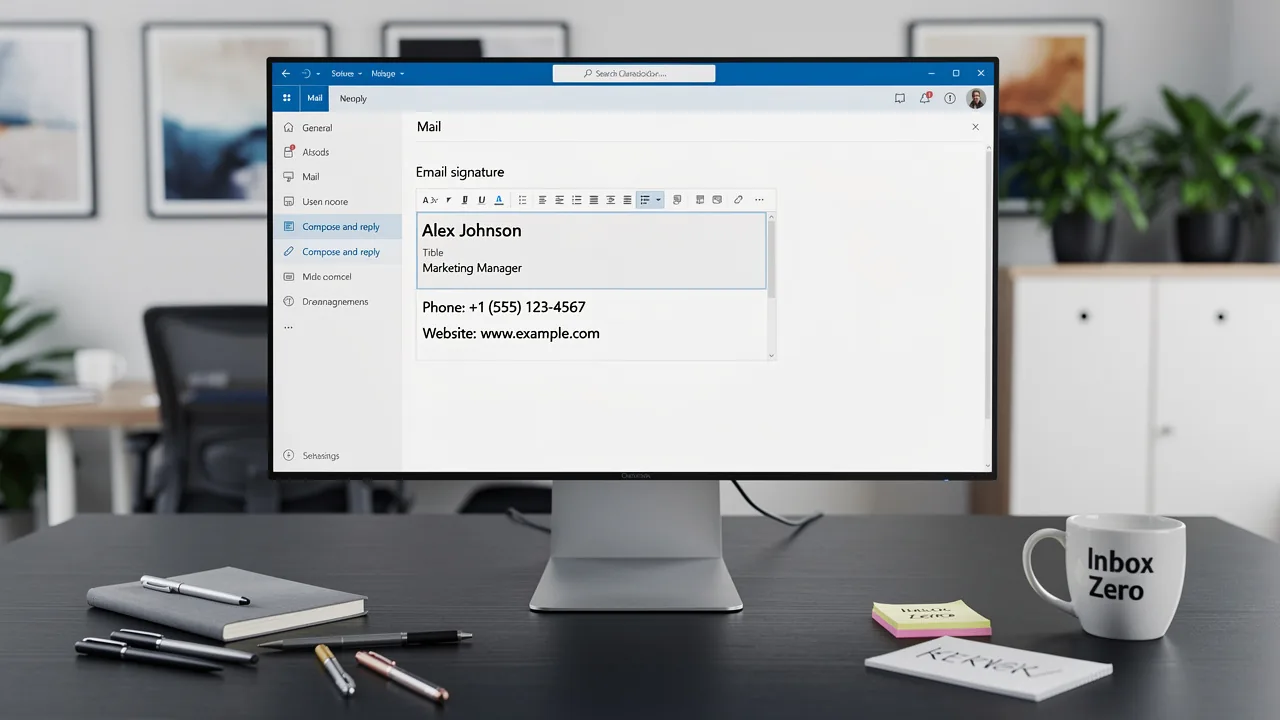
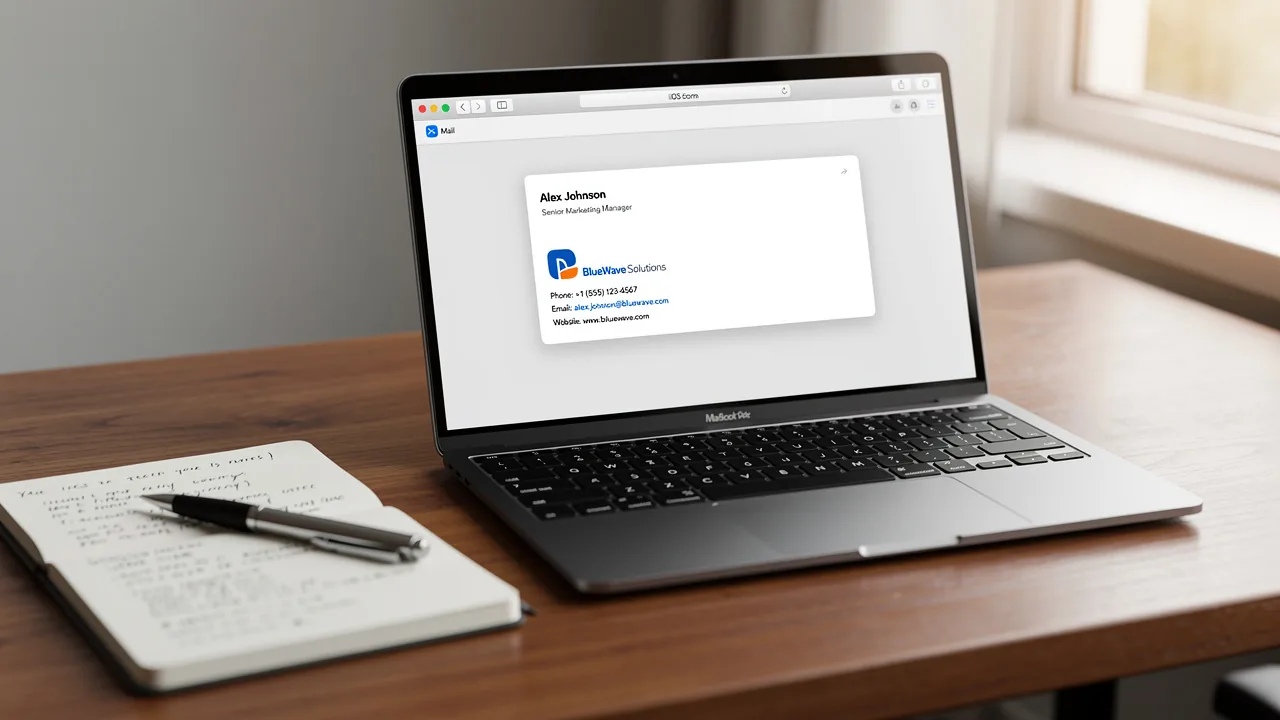
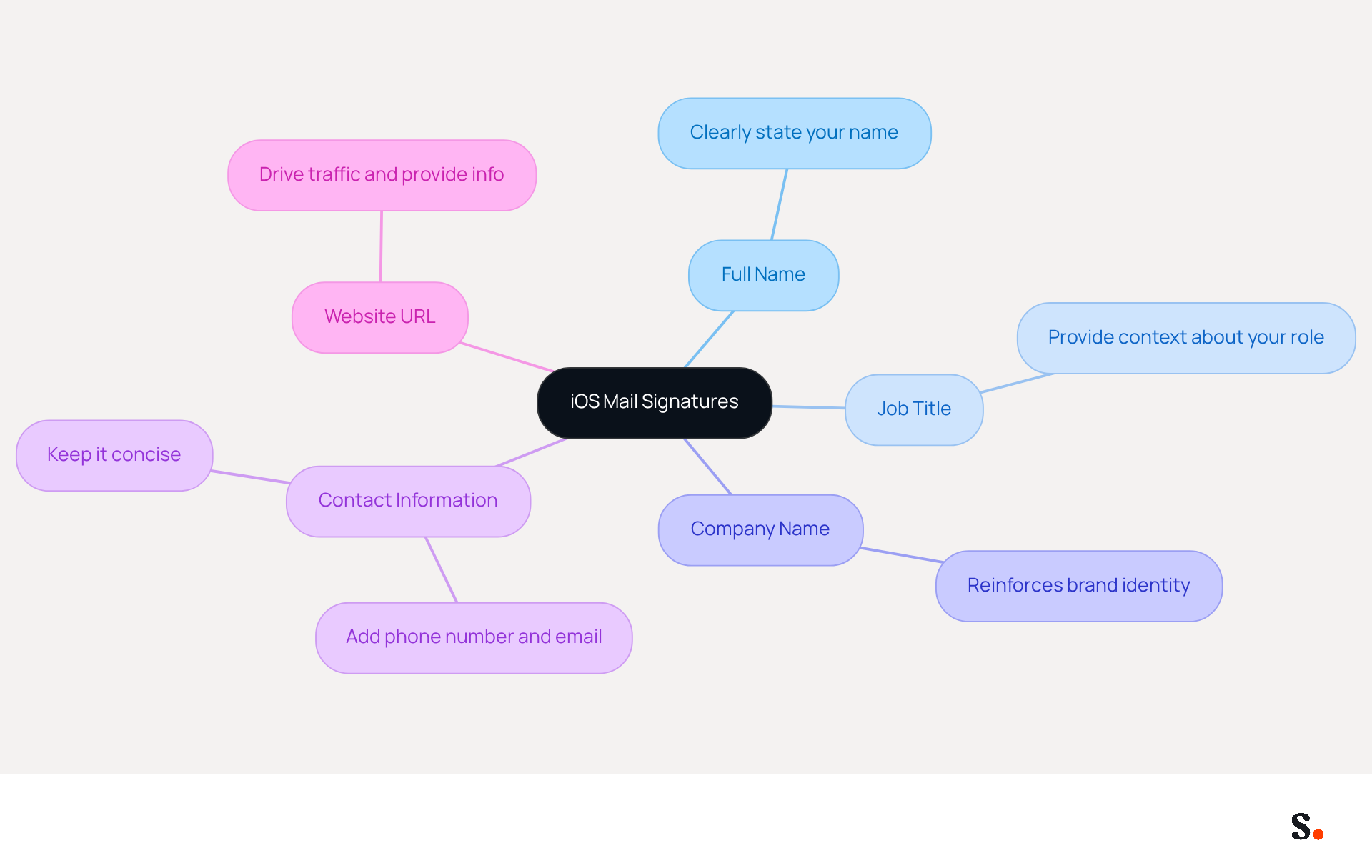
A professional email signature is not just a formality; it’s a crucial element of effective communication. To create an effective iOS Mail signature, include the following essential elements:
- Full Name: Clearly state your name to ensure recipients know who the email is from.
- Job Title: Include your position to provide context about your role within the organization.
- Company Name: This reinforces brand identity and helps recipients recognize your organization.
- Contact Information: Add your phone number and email address for easy communication.
- Website URL: Including a link to your company’s website can drive traffic and provide additional information.
As you format your signature, keep it clean and concise for the best impact. Aim for a maximum of 5-6 lines of text to enhance readability and professionalism. A well-structured email signature conveys essential information and reinforces your professional image, as organizations utilizing well-crafted digital markers can achieve a 12% average click-through rate on banner links. Furthermore, incorporating a company logo can lead to a 22% increase in recognition and trust. By implementing these strategies, you can significantly enhance your professional image and foster stronger connections with your audience.
Incorporate Branding and Visual Elements Effectively
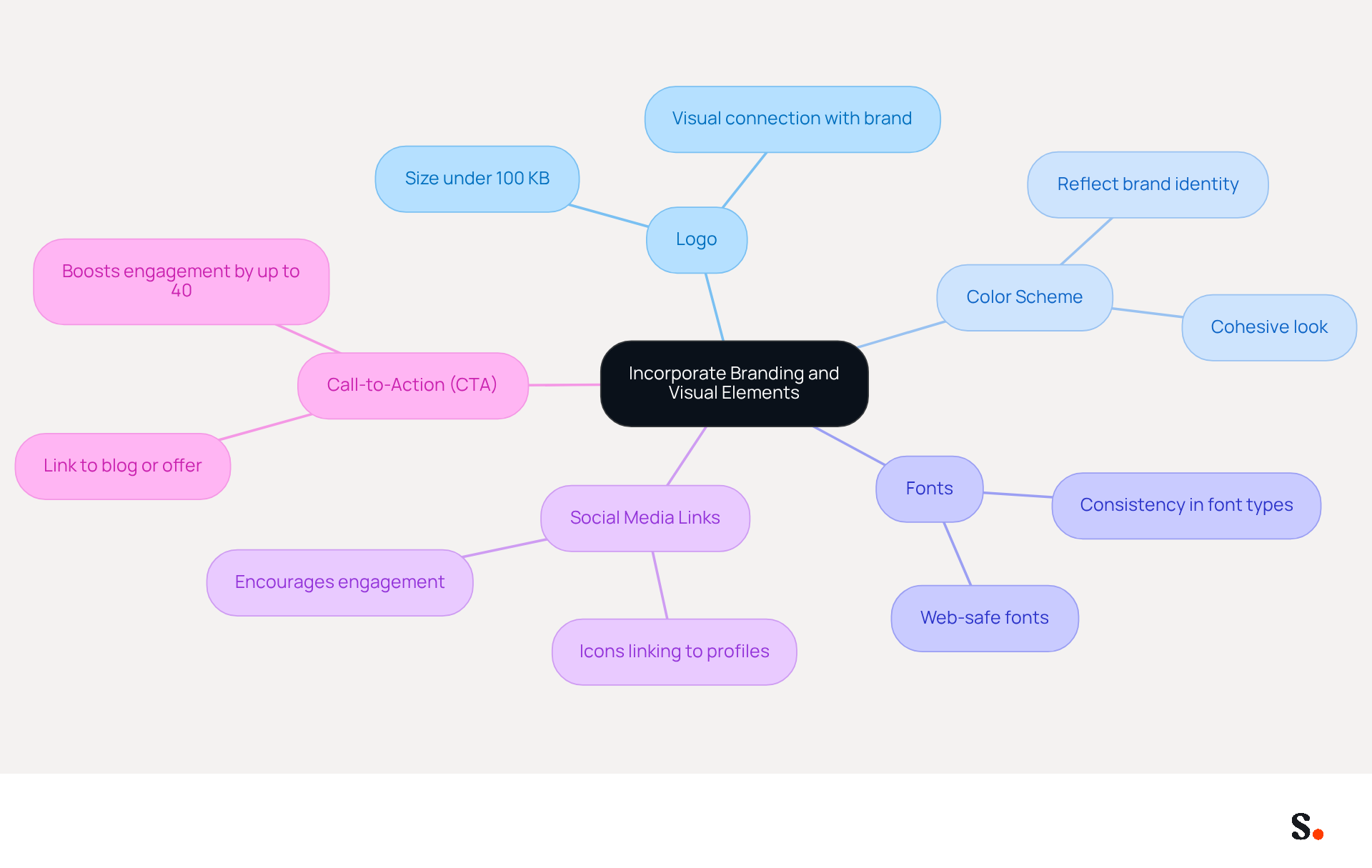
To effectively enhance your iOS Mail signature, integrating branding and visual elements is crucial for establishing a professional presence:
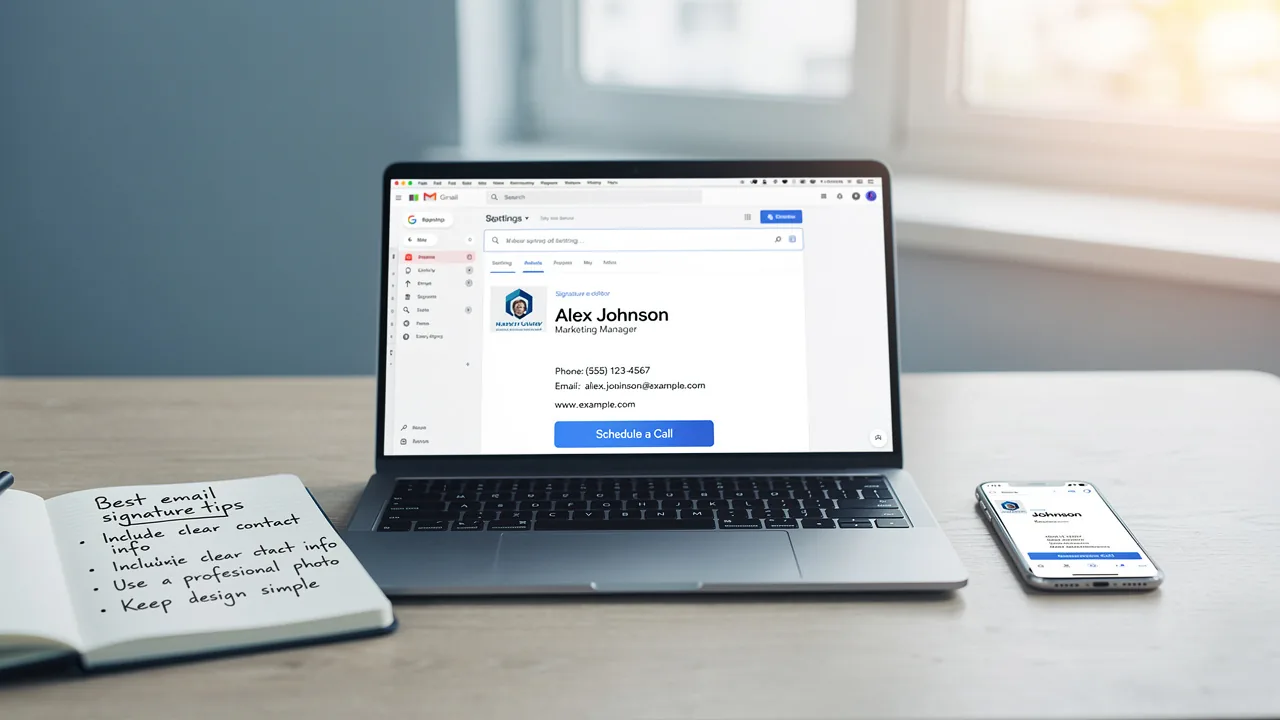
- Logo: Incorporate your company logo to establish a visual connection with your brand. Ensure the logo is appropriately sized, ideally under 100 KB, to prevent loading issues and maintain professionalism.
- Color Scheme: Utilize colors that reflect your identity. This can be applied to text or background elements, creating a cohesive and recognizable look that resonates with recipients.
- Fonts: Select web-safe fonts that are easy to read and maintain consistency. Avoid using multiple font types, as this can lead to a chaotic appearance and detract from the professionalism of the document.
- Social Media Links: Include icons linking to your company’s social media profiles, if applicable. This encourages engagement and provides additional channels for communication, enhancing your brand's visibility.
- Call-to-Action (CTA): Integrate a simple CTA, such as a link to your latest blog post or a promotional offer. This encourages interaction and can significantly boost engagement rates, as optimized sign-offs can lead to up to 40% higher engagement compared to generic endings.
By integrating these elements effectively, your correspondence conveys essential information while also acting as a strong branding tool, enhancing customer engagement and trust. Maintaining brand consistency can be challenging without regular updates to branding elements. This consistency can significantly impact engagement, leading to a 22% increase in response rates. Furthermore, keep in mind that every modification made in your Aircall configuration will automatically be reflected in your Scribe profiles, ensuring seamless synchronization and brand consistency.
Implement HTML Signatures in iOS Mail
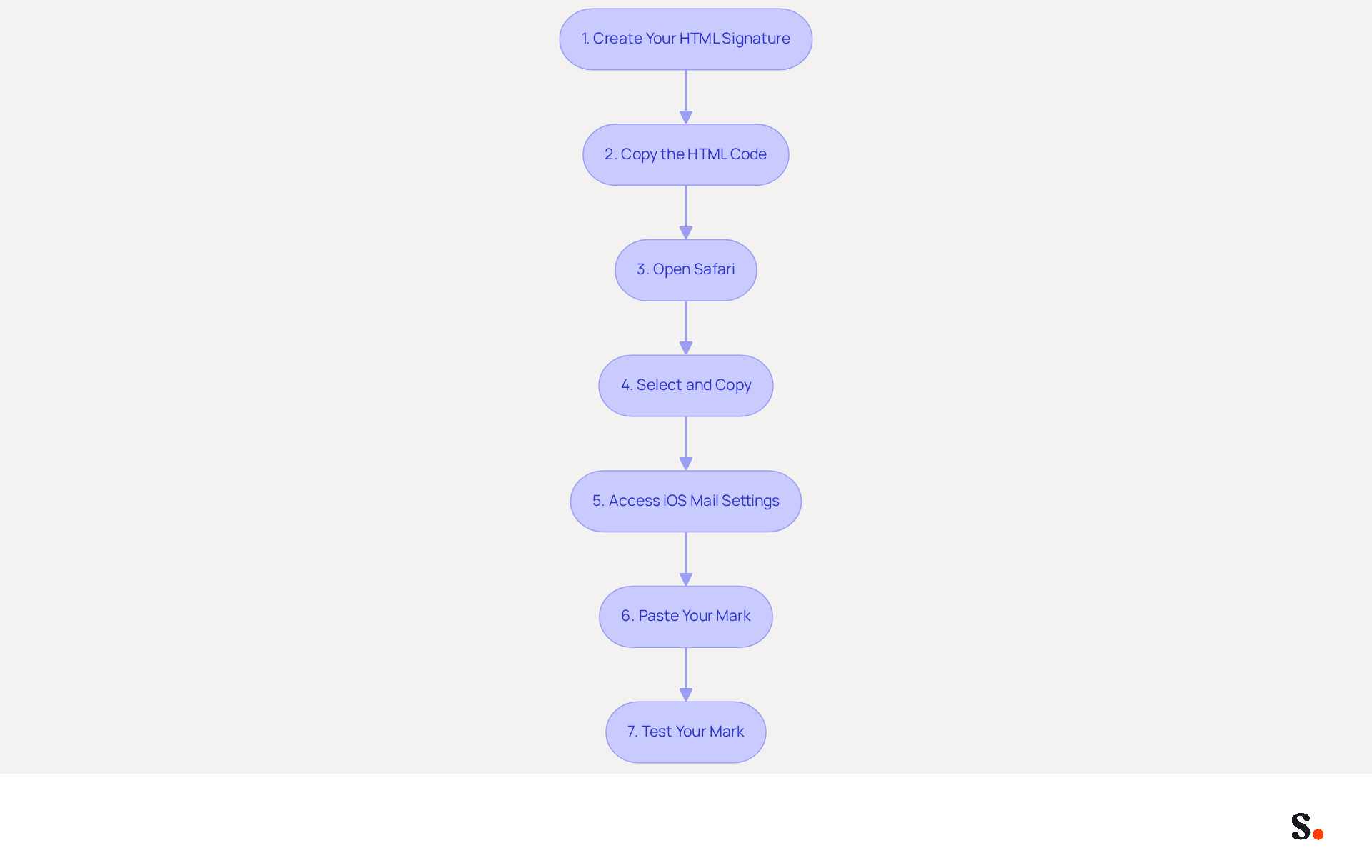
Creating a professional iOS Mail signature in HTML can significantly enhance your email communications. To implement an HTML signature in iOS Mail, follow these steps:
- Create Your HTML Signature: Utilize an HTML editor or a generator to design your personal mark. Ensure it includes essential elements such as your name, title, company branding, and contact information.
- Copy the HTML Code: Once your design is finalized, copy the entire HTML code.
- Open Safari: Paste the HTML code into a new message in Safari. This action will display the signatory as it would appear in an email.
- Select and Copy: Tap and hold to choose the entire rendered mark, then copy it.
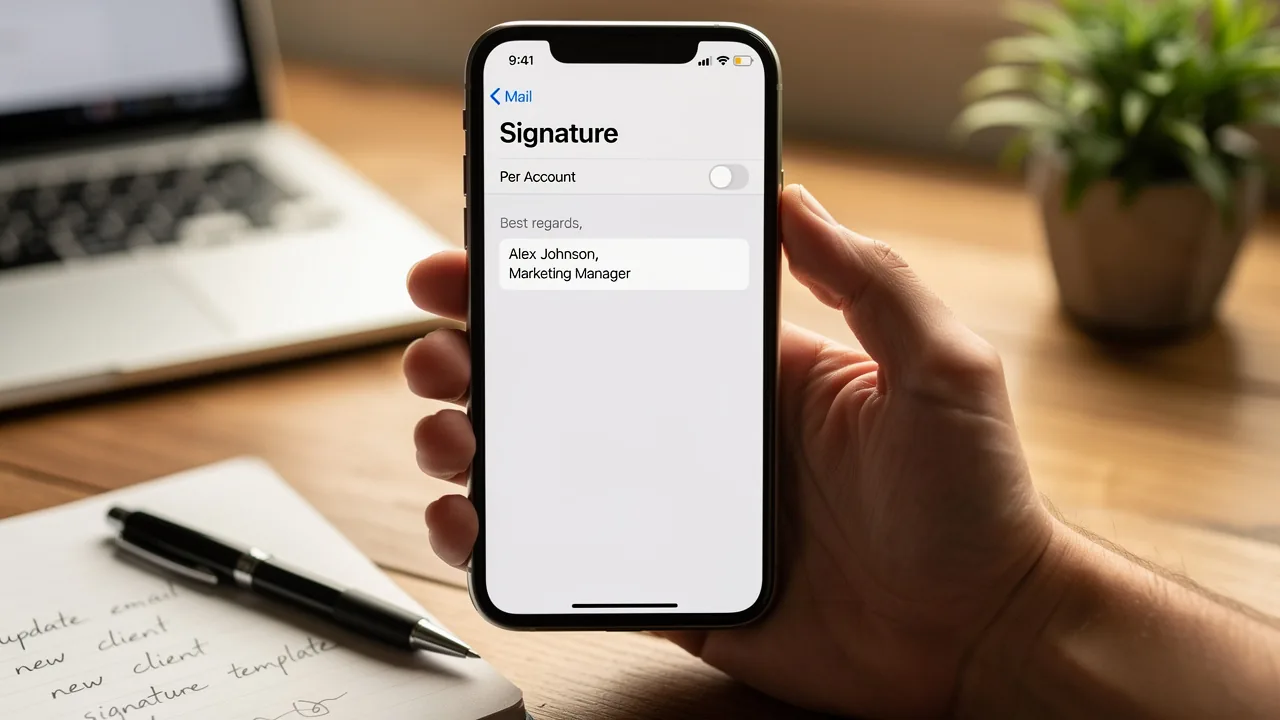
- Access iOS Mail Settings: Navigate to the Settings app on your iPhone, tap on Mail, and then select Signature.
- Paste Your Mark: In the Mark field, paste the copied mark. Be sure to uncheck the option for 'Always match my default message font' to maintain your formatting.
- Test Your Mark: Send a test message to yourself to ensure that the mark displays correctly across different devices.
Following these steps will help you create an iOS Mail signature that truly elevates your email communications. Research shows that 52% of users believe a strong electronic identifier is crucial for effective client interactions, underscoring the importance of a well-crafted signature. Moreover, incorporating call-to-action buttons, which 32.3% of users include in their emails, can significantly enhance engagement.
Additionally, by syncing your Google Workspace with the application, you can streamline your email signature management. This integration saves time by automatically updating your teammates' information in the application, ensuring that any changes in Google Workspace-such as job position updates-are reflected without manual input. Scribe's features facilitate this process, allowing for seamless synchronization and ensuring consistency across all communications. A well-designed email signature can foster stronger client relationships and boost engagement.
Troubleshoot Common Email Signature Issues
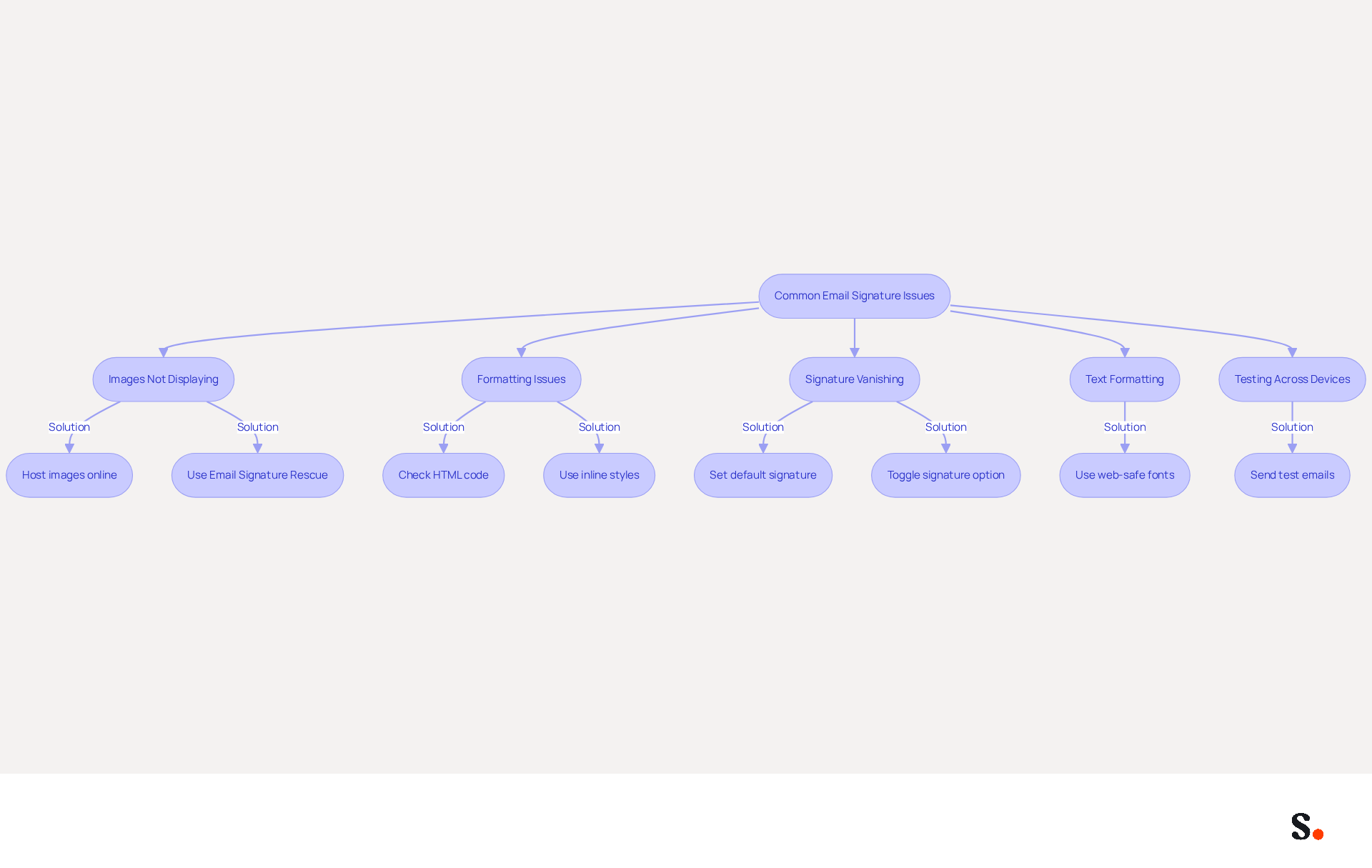
Many users encounter challenges with their iOS Mail signature, particularly when using the application. Here are some expert troubleshooting tips:
- Images Not Displaying: Ensure that images in your signature are hosted online and accessible. Avoid using images directly from your device, as they may not render correctly. This issue affects many users; 3,610 have reported problems with their iPhone message logos not appearing. To resolve this, utilize tools such as Email Signature Rescue to maintain and sync your email identifiers reliably. Scribe can assist by automatically syncing your teammates' image files from your HRIS, ensuring they are always displayed correctly.
- Formatting Issues: If your mark appears differently on various devices, check the HTML code for compatibility. Use inline styles for better consistency across email clients. Formatting issues often arise when signatures are pasted from certain generators, leading to discrepancies in appearance. Scribe's auto-fill feature ensures that sign-offs are formatted consistently across all devices, reducing the likelihood of these issues.
- Signature Vanishing: Many users find that their signatures disappear after sending an email, often due to not saving them correctly in Mail settings. Toggling the option off and on can sometimes resolve this issue. Users have reported that marks may disappear due to syncing issues or preferences conflicts. To prevent this, set a default iOS Mail signature for each account in Mail > Preferences > Signatures. With Scribe, any modifications made in Google Workspace are automatically updated, reducing the risk of disappearing marks.
- Text Formatting: If the text in your email footer is not displaying as intended, use web-safe fonts and avoid excessive formatting. Stick to a simple layout to enhance readability. This method assists in avoiding problems where identifiers are shown in plain text due to format conversions. Scribe's integration with Google Workspace ensures that text formatting remains consistent and professional.
- Testing Across Devices: Always send test emails to various devices and email clients to observe how your email footer appears. This practice helps identify any discrepancies that need to be addressed. Regular testing can prevent issues related to visibility and formatting, ensuring a professional presentation. Automated updates from the platform ensure that once your mark is established, you can rely on it to stay uniform across all platforms.
By proactively addressing these common problems and utilizing Scribe's features, you can maintain a professional and effective electronic correspondence that enhances your brand's image. Furthermore, integrating Scribe with Google Workspace can simplify your management of digital signatures by automatically syncing your teammates' details, conserving time and ensuring that any modifications are reflected without manual input. Scribe's SOC 2 Type II compliance also ensures that your data is managed securely, offering peace of mind as you handle your messages. It's worth noting that 2,391 users reported issues with their iOS Mail signature logos not showing after updating to iOS 13, highlighting the prevalence of this problem. By leveraging Scribe's capabilities, you can ensure your email signatures not only look professional but also function seamlessly across all platforms.
Conclusion
Crafting an effective iOS Mail signature is not merely a design choice; it is a critical component of professional communication. By incorporating key elements such as your name, job title, company branding, and contact information, the signature serves not only as a digital business card but also as a powerful marketing tool. Incorporating visual elements and branding strategies strengthens your identity and ensures your correspondence makes a lasting impression.
Throughout the article, best practices for creating iOS Mail signatures have been highlighted, including:
- The importance of using HTML for enhanced design
- Troubleshooting common issues
- Maintaining brand consistency
A well-structured signature can really boost engagement rates, as we've seen throughout this article, with statistics indicating that optimized signatures can lead to a 12% average click-through rate on banner links. Additionally, leveraging tools like Scribe can streamline the management of these signatures, ensuring that updates are reflected seamlessly across all communications.
In conclusion, investing time and effort into crafting a professional iOS Mail signature is not just about aesthetics; it is a strategic move that can enhance brand visibility and foster stronger connections with clients. Organizations that neglect these practices risk losing brand identity and marketing effectiveness. Embrace the opportunity to elevate your email communications and make a lasting impact with every message sent.
Frequently Asked Questions
What is the purpose of an iOS Mail signature?
An iOS Mail signature is a crucial element of effective communication that conveys essential information and reinforces your professional image.
What essential elements should be included in an iOS Mail signature?
An effective iOS Mail signature should include your full name, job title, company name, contact information (phone number and email address), and a website URL.
How should an iOS Mail signature be formatted?
The signature should be clean and concise, ideally limited to a maximum of 5-6 lines of text to enhance readability and professionalism.
What impact can a well-structured email signature have?
A well-structured email signature can convey essential information and enhance your professional image, potentially achieving a 12% average click-through rate on banner links.
How does incorporating a company logo in an email signature affect recognition?
Including a company logo in your email signature can lead to a 22% increase in recognition and trust among recipients.
List of Sources
- Establish Essential Requirements for iOS Mail Signatures
- Email Signature Best Practices - NEWOLDSTAMP (https://newoldstamp.com/blog/email-signature-best-practices)
- All the Best Email Signature Practices for Marketing Success (https://scribe-mail.com/en-US/blog/all-the-best-email-signature-practices-for-marketing-success)
- The effectiveness of the email signature as a “point of contact” (https://signitic.com/en/resources/the-effectiveness-of-the-email-signature-as-a--point-of-contact)
- Top 10+ best practices for email signatures design in 2026 (https://mysignature.io/blog/email-signature-best-practices)
- Incorporate Branding and Visual Elements Effectively
- The impact of email signatures on your branding (https://signitic.com/en/resources/the-impact-of-email-signatures-on-your-branding)
- Master Best Email Signature Design for Maximum Engagement (https://scribe-mail.com/en-US/blog/master-best-email-signature-design-for-maximum-engagement)
- Email Signature Design Trends in 2026: What Works and What to Drop (https://bulksignature.com/blog/email-signature-design-trends)
- 40+ Email Signature Statistics for 2026 (Data + Insights) (https://wavecnct.com/blogs/email-signature-statistics)
- 10 Do's & Don'ts for Email Signature Branding | Constant Contact (https://constantcontact.com/blog/email-signature-branding)
- Implement HTML Signatures in iOS Mail
- 40+ Email Signature Statistics for 2026 (Data + Insights) (https://wavecnct.com/blogs/email-signature-statistics)
- Email Signature Trends in Numbers: Infographic [2026] (https://mailtrap.io/blog/email-signature-trends)
- Email Signature Statistics: A Closer Look at Email Signatures in 2026 (https://mysignature.io/blog/email-signature-statistics)
- Email signature statistics: Why every business should optimize their email signatures — Stripo.email (https://stripo.email/blog/email-signature-statistics-why-every-business-should-optimize-their-email-signatures)
- Troubleshoot Common Email Signature Issues
- Apple Mail Removes Signature Images? Fix Explained (https://support.xink.io/support/solutions/articles/1000264530-apple-mail-removes-signature-images-fix-explained)
- Why does my Apple Mail signature sometimes disappear? | Email Signature Rescue Blog (https://emailsignaturerescue.com/blog/why-does-my-apple-mail-signature-sometimes-disappear)
- Email Signature Troubleshooting - Problems & Solutions - Gimmio (https://blog.gimm.io/email-signature-troubleshooting)
- Security Verification (https://discussions.apple.com/thread/250700810)
- How to prevent Apple Mail from removing images on replying (https://codetwo.com/kb/images-disappear-in-apple-mail)
Get started with Scribe
Create your signature in minutes
Free 14-day trial — no credit card.