Best Practices for Sending Email from Google Group Effectively
Effective communication is essential for organizational success, and Google Groups serves as a robust platform to enhance this communication. By leveraging
Sophie Grant
Email Signature Specialist, Scribe

On this page
Introduction
Effective communication is essential for organizational success, and Google Groups serves as a robust platform to enhance this communication. By leveraging best practices for sending emails through Google Groups, teams can improve collaboration, streamline information sharing, and maintain brand consistency. Many organizations find their email strategies lacking, which can hinder effective communication and lead to missed engagement opportunities. Identifying key steps to ensure emails from Google Groups reach their audience while reflecting brand professionalism is essential.
Establish Your Google Group for Effective Email Communication
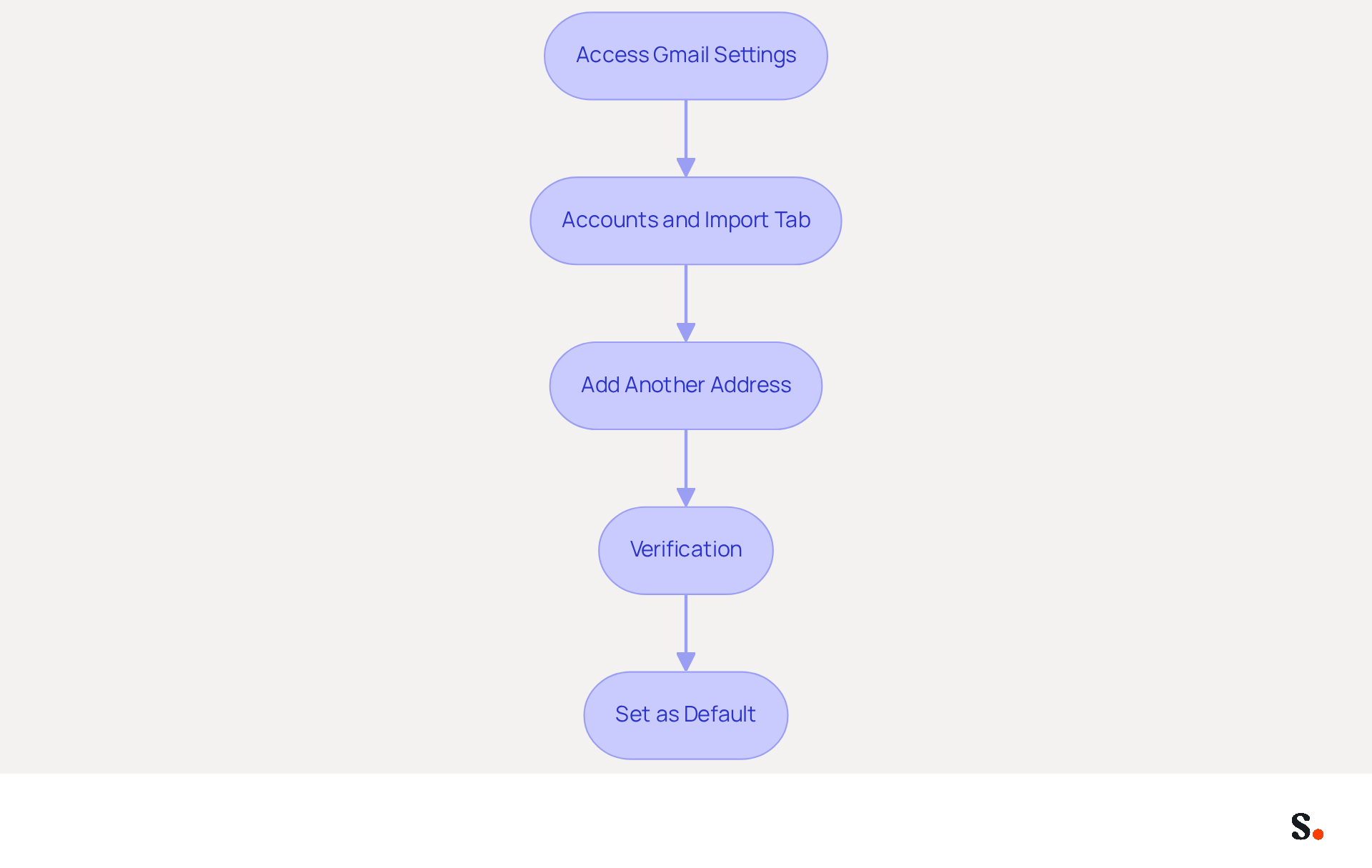
To establish a Google Group for effective communication, follow these steps:
- Sign in to Google Groups: Navigate to Google Groups.
- Create a New Group: Click on the 'Create Group' button. Enter a name for the collection, email address, and description that clearly defines its purpose.
- Set Permissions: Choose who can join the community, post messages, and view topics. For effective interaction, consider setting the group to 'Public' or 'Anyone on the web' for visibility.
- Add Members: Invite individuals by entering their contact addresses. You can also allow users to join via a link.
- Configure Settings: Adjust settings for email delivery, message moderation, and member permissions to suit your style of interaction.
Following these steps will help you create a group that fosters effective interaction and collaboration among team members, especially when sending email from Google Group.
Case Studies on Effective Google Group Setup: Organizations like XYZ Corporation have successfully implemented Google Groups to improve internal interactions. By forming specialized teams for project initiatives and company-wide announcements, they enhanced collaboration and decision-making. This structured approach not only streamlined communication, including sending email from Google Group, but also fostered a culture of continuous learning and collaboration among employees, leading to measurable improvements in project outcomes and team engagement.
Best Practices for Creating Google Collections: To make your Google Collection more effective, have at least two owners for each collection to manage access. Conduct quarterly audits of group memberships to maintain security and relevance, ensuring that former employees and external collaborators are removed. Furthermore, utilizing specific subject lines for emails improves searchability and clarity, minimizing confusion in interactions. Be mindful of potential pitfalls, such as poor configuration leading to overwhelming inboxes, which can hinder effective interaction.
Group Statistics: Enabling conversation history for projects creates a searchable record of institutional knowledge, while all communications within Groups are archived and searchable for easy reference. This feature significantly aids in maintaining transparency and accountability within teams, ensuring that important discussions and decisions are easily retrievable.
Ultimately, a well-structured Google Group can transform how teams collaborate and share information.
Configure Gmail Settings for Sending as a Google Group
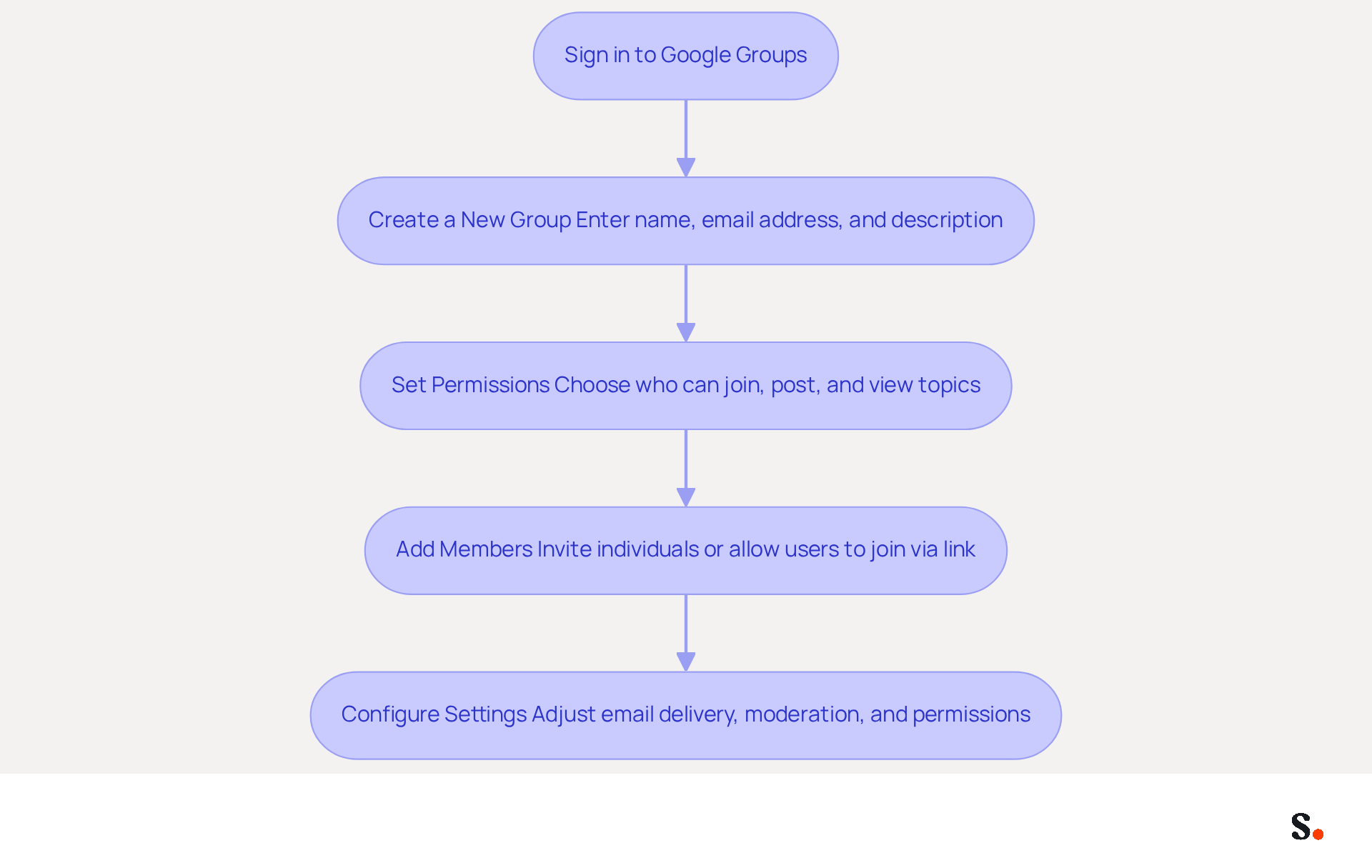
Configuring Gmail settings for sending email from Google Group is essential for maintaining a professional image in communications.
- Access Gmail Settings: Open Gmail and click on the gear icon in the upper right corner, then select 'See all settings'.
- Accounts and Import Tab: Navigate to the 'Accounts and Import' tab.
- Add Another Address: Under 'Send mail as', click 'Add another address'. Enter the Google Group contact address you created.
- Verification: Gmail will send a confirmation message to the team. Ensure that the settings for the team permit this. Click the verification link to confirm.
- Set as Default: If desired, designate this group address as your default sending option to simplify your interactions.
Adjusting these settings ensures that sending email from the Google Group results in messages that appear professional and are easily recognizable to recipients. Given that Gmail represents about 24.11% of global email client opens, configuring these settings is crucial for effective professional communication. Furthermore, syncing your Workspace with Scribe saves time by automatically updating your teammates' data. This means any modifications in your Workspace, such as relocating teammates from one group to another or updating their details, will be reflected in Scribe without any manual input. Scribe's compliance with SOC 2 Type II, GDPR, and CCPA further enhances security and trust. This integration not only streamlines your email signature management but also ensures your communications reflect the professionalism your organization stands for.
Leverage Google Groups for Targeted Email Marketing Campaigns
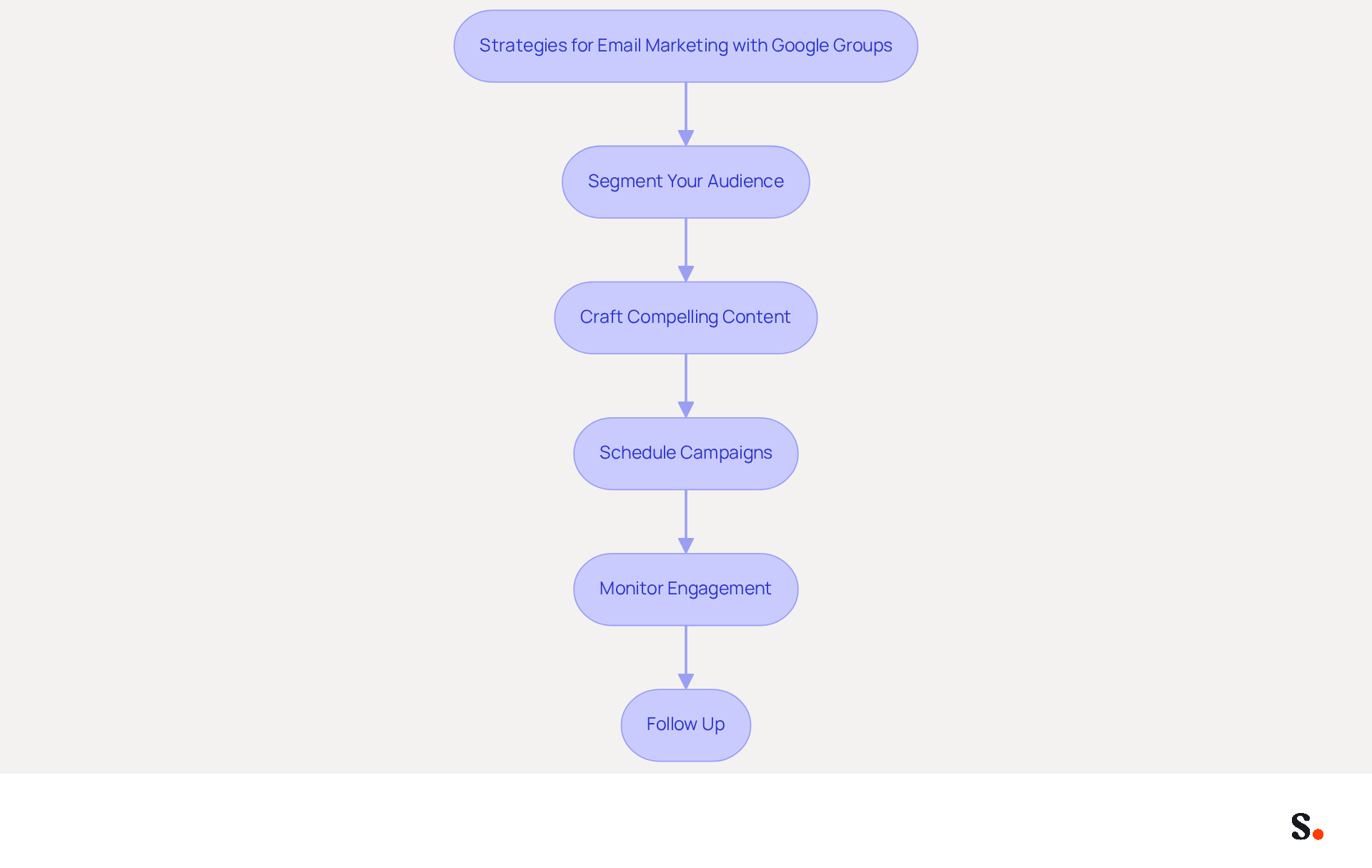
To maximize the effectiveness of email marketing campaigns, sending email from Google Group strategically is essential. Consider implementing the following strategies:
- You can segment your audience by sending email from Google Groups to create audience segments based on interests, demographics, or engagement levels. This targeted approach allows for tailored messaging that resonates with each group, significantly improving engagement rates. Research indicates that businesses utilizing targeted messaging strategies can see revenue increases of up to 40%.
- Craft Compelling Content: Develop engaging content that directly addresses the needs and interests of your audience. Clear subject lines and personalized greetings can improve open rates, as tailored messages generally achieve higher conversion rates than standard communications, generating an average of $42 for every $1 invested in marketing. For instance, BrewDog achieved a 15.6% higher click rate for personalized messages compared to generic ones, demonstrating how tailored content can significantly enhance engagement.
- Schedule Campaigns: Utilize Groups for sending email from Google Group to effectively plan email campaigns at optimal times for your audience. Integrating tools that work seamlessly with Google Groups can provide advanced scheduling features for sending email from Google Group, ensuring your messages reach recipients when they are most likely to engage.
- Monitor Engagement: Track the performance of your campaigns by analyzing key metrics such as open rates, click-through rates, and conversion rates. This data is crucial for refining future campaigns and improving overall engagement. Key metrics to monitor include open rates, click-through rates, and responses, as these insights can guide your strategy moving forward.
- Follow Up: After sending your campaign, engage with group members to gather feedback and encourage interaction. Engaging with your audience post-campaign can cultivate a sense of community, which in turn boosts loyalty and conversion rates. As Amelia Woolard observes, 'Behavioral trigger campaigns represent the pinnacle of targeted marketing, automatically responding to specific customer actions with highly relevant, timely messages.'
By adopting these strategies, you position your brand for sustained growth and enhanced customer relationships.
Ensure Brand Consistency and Compliance in Group Emails
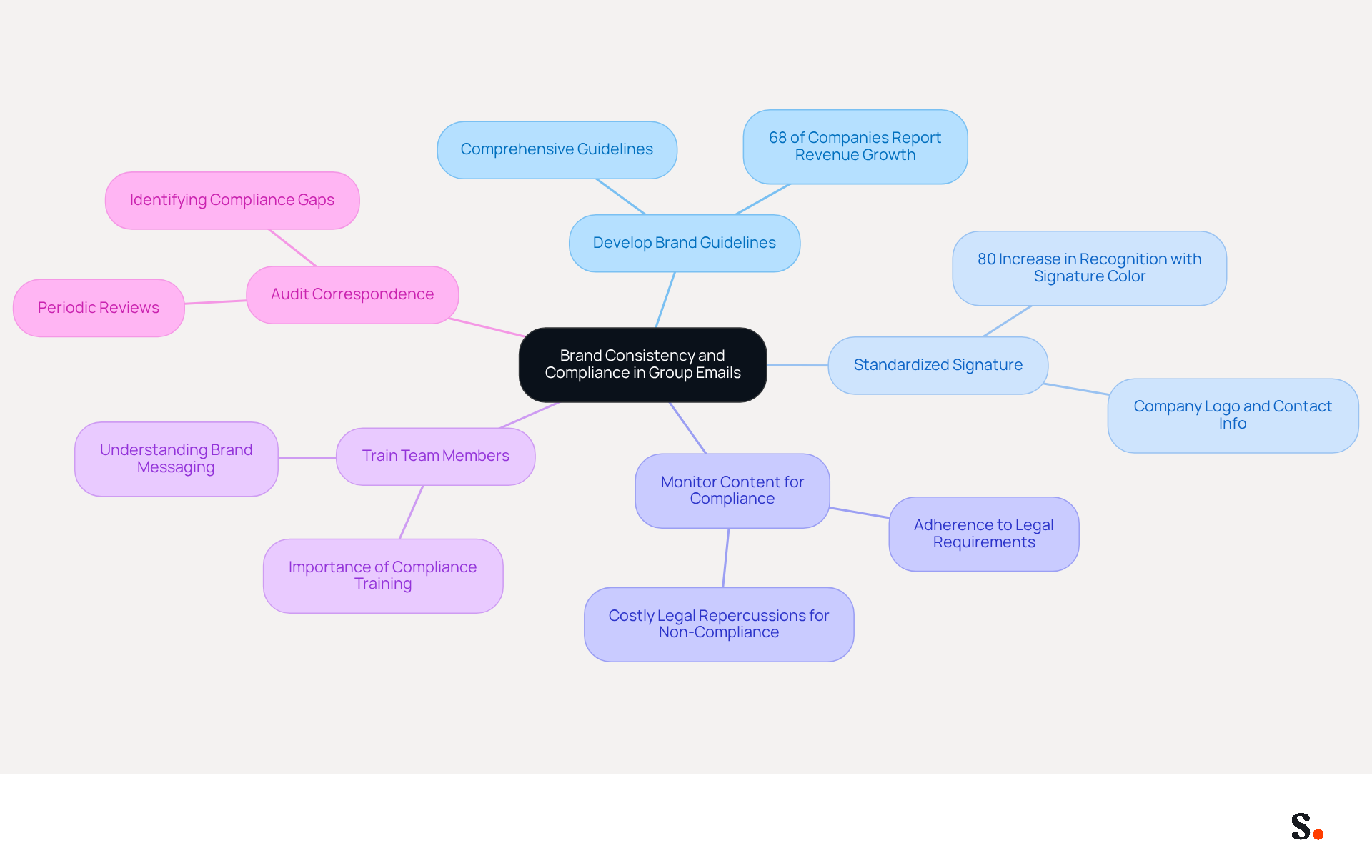
To ensure brand consistency and compliance in group emails, organizations must implement strategic best practices:
- Develop Brand Guidelines: Establish a comprehensive set of brand guidelines detailing the tone, style, and visual elements for all interactions. Ensure all team members are well-acquainted with these guidelines, as 68% of companies report that brand consistency contributes to a 10-20% increase in revenue growth.
- Implement a standardized signature across all group interactions. This should feature the company logo, contact information, and any necessary legal disclaimers. Consistent visuals greatly enhance brand recognition; studies show that using a signature color can increase recognition by as much as 80%.
- Monitor Content for Compliance: Regularly review email content to ensure adherence to legal requirements such as GDPR and the CAN-SPAM Act. This includes providing clear opt-out options and respecting privacy rights. Ignoring compliance can result in costly legal repercussions, highlighting the critical need for compliance in all communications.
- Train Team Members: Provide training for all team members on brand messaging and compliance standards. Training helps everyone grasp why brand integrity and compliance matter, especially in light of the legal obligations surrounding email marketing.
- Audit Correspondence: Periodically review group interactions to assess adherence to brand guidelines and compliance standards. Utilize insights from these audits to make necessary adjustments and enhance future interactions. Regular audits assist in identifying compliance gaps and improving overall communication management strategies.
By following these practices, organizations can maintain a strong brand presence and ensure compliance in all communications, especially when sending email from Google Group, ultimately safeguarding not only brand integrity but also the organization’s financial health.
Conclusion
Establishing and effectively utilizing Google Groups for email communication can significantly enhance collaboration and streamline interactions within organizations. Without proper setup and configuration, teams risk inefficient and unprofessional communications. By focusing on best practices for setup, teams can ensure that their communications are efficient, professional, and compliant with necessary regulations.
Key strategies discussed include:
- The importance of segmenting audiences for targeted email marketing
- Crafting compelling content
- Monitoring engagement metrics to refine future campaigns
Additionally, maintaining brand consistency through standardized signatures and adherence to compliance standards is crucial for protecting the organization’s reputation and financial health. Implementing these practices leads to measurable improvements in engagement and brand reputation.
Effective communication is essential for organizational success, and Google Groups offers a powerful solution for enhancing collaboration. By prioritizing best practices in email communication, organizations can foster a culture of transparency and accountability, ultimately driving growth and enhancing customer relationships. Ultimately, the commitment to professional communication practices can redefine organizational success and customer engagement.
Frequently Asked Questions
How do I establish a Google Group for effective email communication?
To establish a Google Group, sign in to Google Groups, click on the 'Create Group' button, enter a name, email address, and description for the group, set permissions for who can join and post messages, add members by entering their contact addresses or allowing users to join via a link, and configure settings for email delivery and message moderation.
What are the recommended permissions for a Google Group?
For effective interaction, it is recommended to set the group to 'Public' or 'Anyone on the web' for visibility, allowing broader access and participation.
How can I improve collaboration within my Google Group?
To improve collaboration, consider having at least two owners for each collection to manage access, conduct quarterly audits of group memberships, and utilize specific subject lines for emails to enhance searchability and clarity.
What are some case studies that demonstrate the effectiveness of Google Groups?
Organizations like XYZ Corporation have successfully implemented Google Groups to improve internal interactions by forming specialized teams for project initiatives and company-wide announcements, which enhanced collaboration and decision-making.
What are the best practices for maintaining a Google Group?
Best practices include having multiple owners for each collection, conducting quarterly audits of memberships, using specific subject lines for emails, and being mindful of configuration to avoid overwhelming inboxes.
How does enabling conversation history benefit a Google Group?
Enabling conversation history creates a searchable record of institutional knowledge, allowing all communications within the group to be archived and easily retrievable, which aids in maintaining transparency and accountability.
What potential pitfalls should I be aware of when setting up a Google Group?
Potential pitfalls include poor configuration that can lead to overwhelming inboxes, which may hinder effective interaction and communication within the group.
List of Sources
- Establish Your Google Group for Effective Email Communication
- Google Groups Statistics (https://groups.google.com/g/google-apps-manager/c/RwzCTA55C8o)
- Google Sites - Internal Distribution Lists and Forums (https://sites.google.com/site/horstwebdesign/workspace/google-groups-for-business/google-groups-for-company-intranet)
- Google Groups: The Ultimate 2026 Guide (https://dragapp.com/blog/google-groups-guide)
- 5 Reasons to Set Up Google Groups (And When It Makes Sense) | Email Management | Gmelius (https://gmelius.com/blog/5-reasons-to-set-up-google-groups)
- Google Groups Do’s and Don’ts: Best Practices Without Chaos | Email Management | Gmelius (https://gmelius.com/blog/google-groups-dos-and-donts)
- Configure Gmail Settings for Sending as a Google Group
- Gmail Statistics for 2026: Insights on Users and Trends (https://clean.email/blog/email-providers/gmail-statistics)
- Gmail Statistics: What Google Has Actually Published (2026) (https://dragapp.com/blog/gmail-stats)
- Sending from a Google Group address in Gmail - Technology Help (https://help.lafayette.edu/sending-from-a-google-group-address-in-gmail)
- Retrieve email statistics | Gmail | Google for Developers (https://developers.google.com/workspace/gmail/postmaster/guides/retrieve-metrics)
- How to send mail as Group (or alias) - Google Workspace Admin Community (https://support.google.com/a/thread/105338196/how-to-send-mail-as-group-or-alias?hl=en)
- Leverage Google Groups for Targeted Email Marketing Campaigns
- Run Targeted Email Campaigns That Get Results (https://merge.email/blog/targeted-email-campaigns)
- 8 Targeted Email Marketing Strategies That Convert in 2026 (https://bloomreach.com/en/blog/targeted-email-marketing-guide)
- Targeted email campaigns: How to drive revenue with smarter segmentation (https://monday.com/blog/monday-campaigns/targeted-email-campaigns)
- Email Marketing Benchmarks & Industry Statistics | Mailchimp (https://mailchimp.com/resources/email-marketing-benchmarks)
- How To Run A Winning Group Email Marketing Campaign (https://simplelists.com/blog/enhance/how-to-run-a-winning-group-email-marketing-campaign)
- Ensure Brand Consistency and Compliance in Group Emails
- The Essentials of Email Compliance (https://cloudficient.com/blog/the-essentials-of-email-compliance)
- How to Ensure Email Compliance: A Guide for Your Business (https://zerobounce.net/blog/email-resources/email-marketing/how-to-ensure-email-compliance)
- 12 Group email compliance regulations you need to follow (https://simplelists.com/blog/enhance/group-email-compliance-regulations-you-need-to-follow)
- CAN-SPAM Act: A Compliance Guide for Business (https://ftc.gov/business-guidance/resources/can-spam-act-compliance-guide-business)
- Branding statistics you need to know in 2026 (https://dash.app/blog/branding-statistics)
Get started with Scribe
Manage signatures across your whole team
Free 14-day trial — no credit card.