Can You Unsend an Email? Step-by-Step Guide for Gmail and Outlook
Navigating the complexities of email management can be challenging, particularly when it comes to retracting sent messages. With features like Gmail's 'Undo
Sophie Grant
Email Signature Specialist, Scribe
Introduction
Navigating the complexities of email management can be challenging, particularly when it comes to retracting sent messages. With features like Gmail's 'Undo Send' and Outlook's 'Recall', users often face uncertainty regarding how to effectively manage these tools. However, these functionalities have notable limitations, prompting a critical examination of their reliability in preventing potential mishaps.
In this guide, we will explore how to unsend emails on both platforms and share best practices to improve email communication and reduce errors.
Understand Email Unsend Features Across Platforms
Understanding the email management features of Gmail and Outlook is crucial for effective communication.
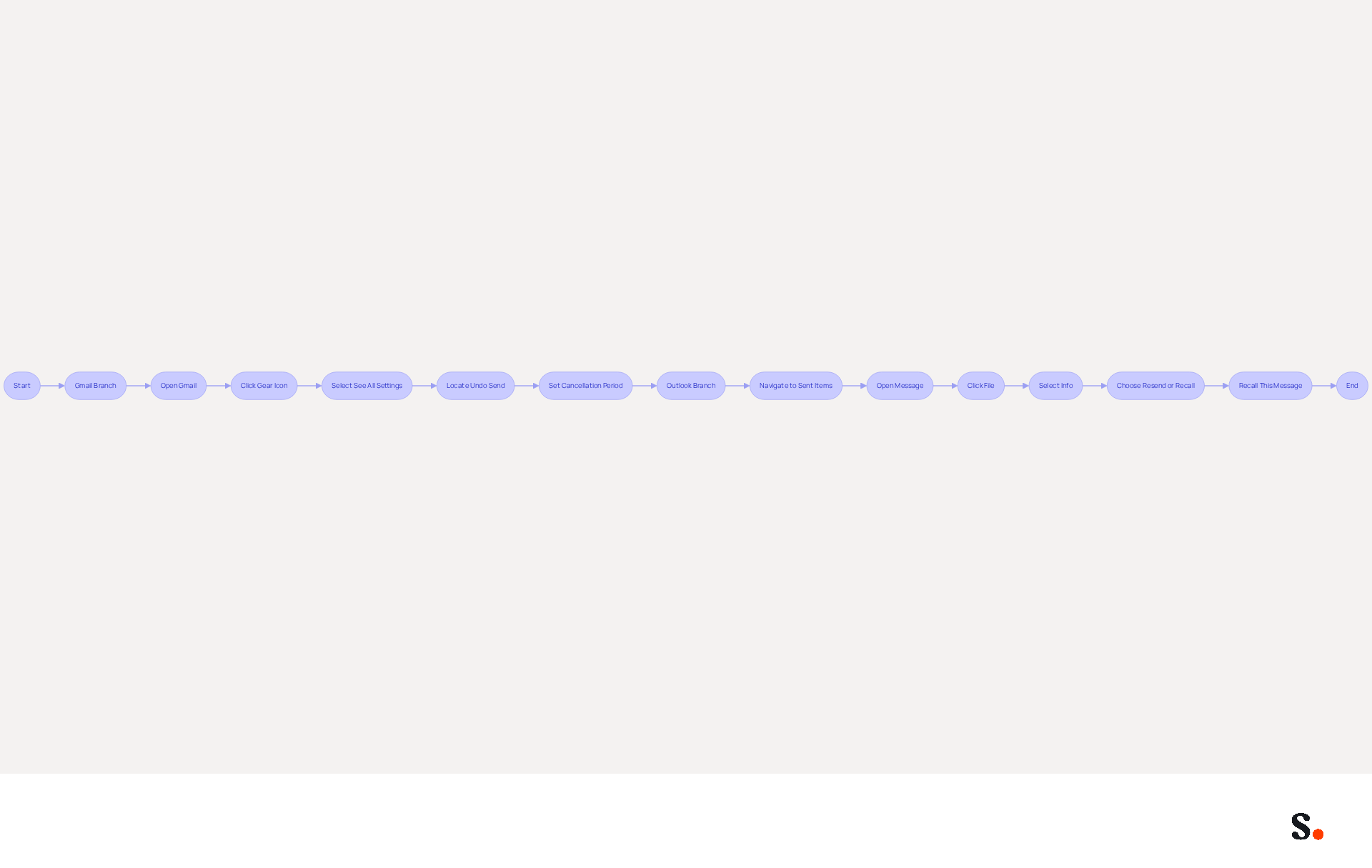
Gmail's 'Undo Send' feature prompts the question, can you unsend an email after it has been sent? By default, this time frame is set to 5 seconds, but users can extend it to a maximum of 30 seconds. Here’s how to enable this feature:
- Open Gmail and click on the gear icon in the upper right corner.
- Select 'See all settings'.
- Under the 'General' tab, locate 'Undo Send' and set your preferred cancellation period.
Outlook offers a 'Recall' feature, but its effectiveness is limited. This feature works only when both the sender and recipient are using Microsoft Exchange or Office 365. Despite improvements, recalling emails in Outlook can still be challenging. To recall an email in Outlook:
- Navigate to your 'Sent Items' folder.
- Open the message you wish to recall.
- Click on 'File', then 'Info', and select 'Resend or Recall'.
- Choose 'Recall This Message'.
Grasping these features is essential for effectively managing communications, especially when considering if you can unsend an email to reduce potential mishaps. Furthermore, by syncing your Google Workspace with Scribe, you can simplify signature management. This integration not only streamlines processes but also ensures that your communications remain professional and consistent.
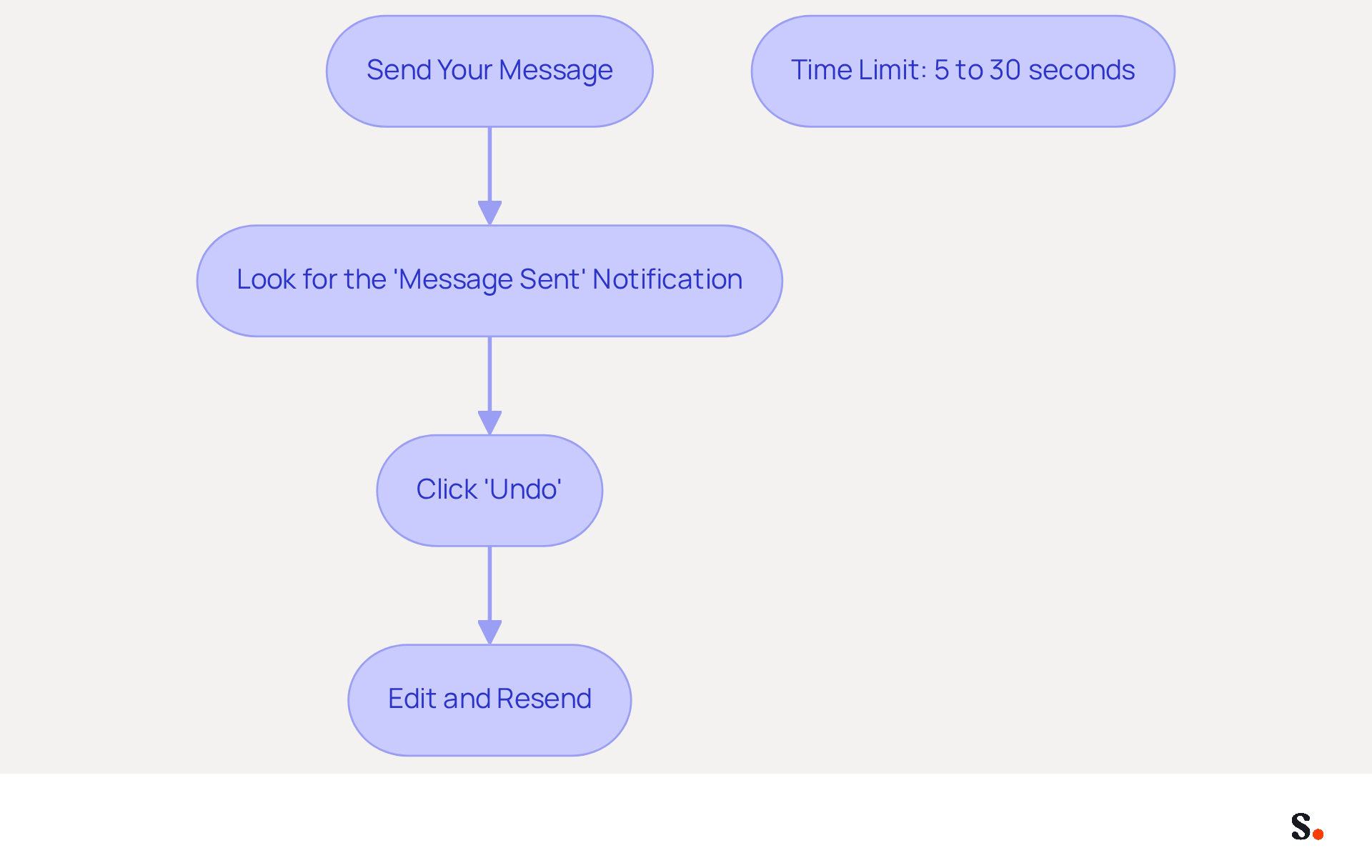
Unsend an Email in Gmail: Step-by-Step Instructions
If you need to retract an email sent in Gmail, follow these straightforward steps to ensure your message is corrected before it reaches the recipient:
- Send Your Message: After composing your message, click 'Send'.
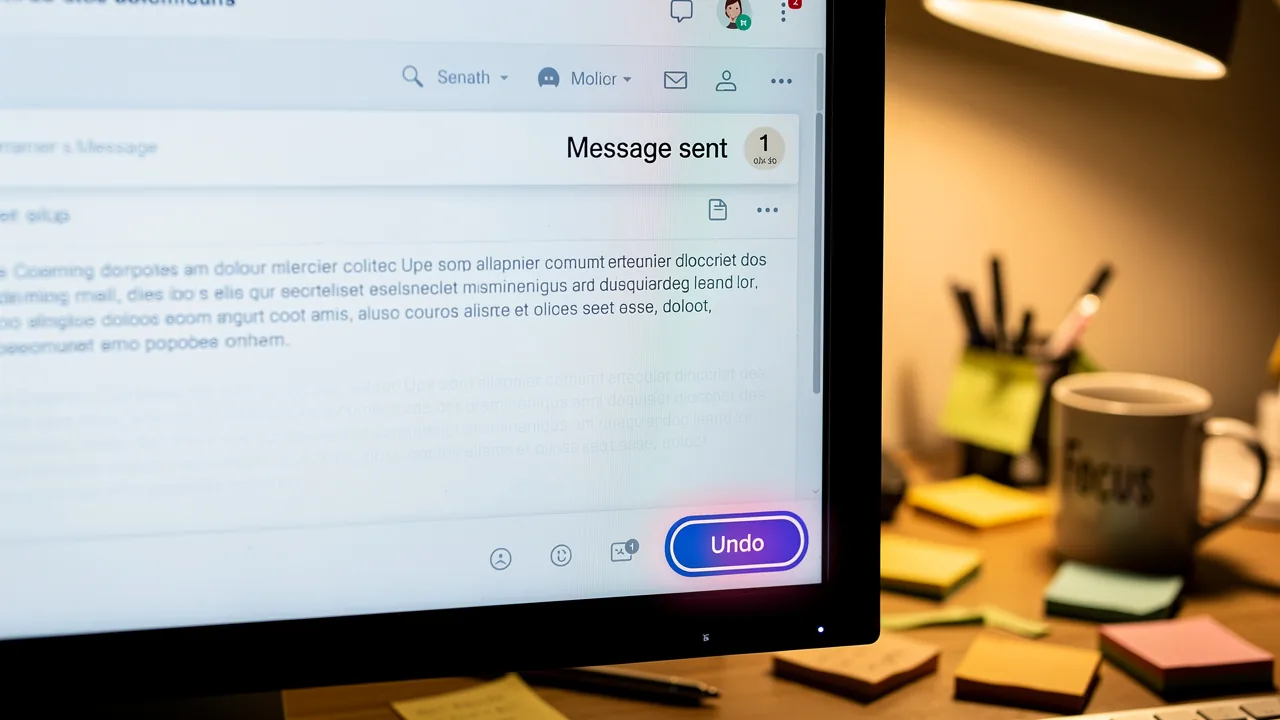
- Look for the 'Message Sent' Notification: Immediately after sending, a notification will appear at the bottom left of your screen that says 'Message sent'.
- Click 'Undo': Within the notification, click the 'Undo' link. This action will prevent the message from being sent and reopen it as a draft.
- Edit and Resend: Make any necessary changes to your message and click 'Send' again if you wish to send it after editing.
You have a limited time to click 'Undo' - the default window is five seconds. However, you can extend this to 5, 10, 20, or even 30 seconds in your settings. This feature is widely regarded as crucial for correcting mistakes in emails, as it allows users to quickly address errors before they wonder, can you unsend an email. However, some experts caution that relying too much on the 'Undo Send' feature might lead to a false sense of security, making users less careful with their messages. To adjust the cancellation period, go to your Gmail settings, find 'Undo Send', and select your preferred time limit. Ultimately, while the 'Undo Send' feature is a helpful tool, it is crucial to remain vigilant in your messaging practices to avoid unnecessary errors.
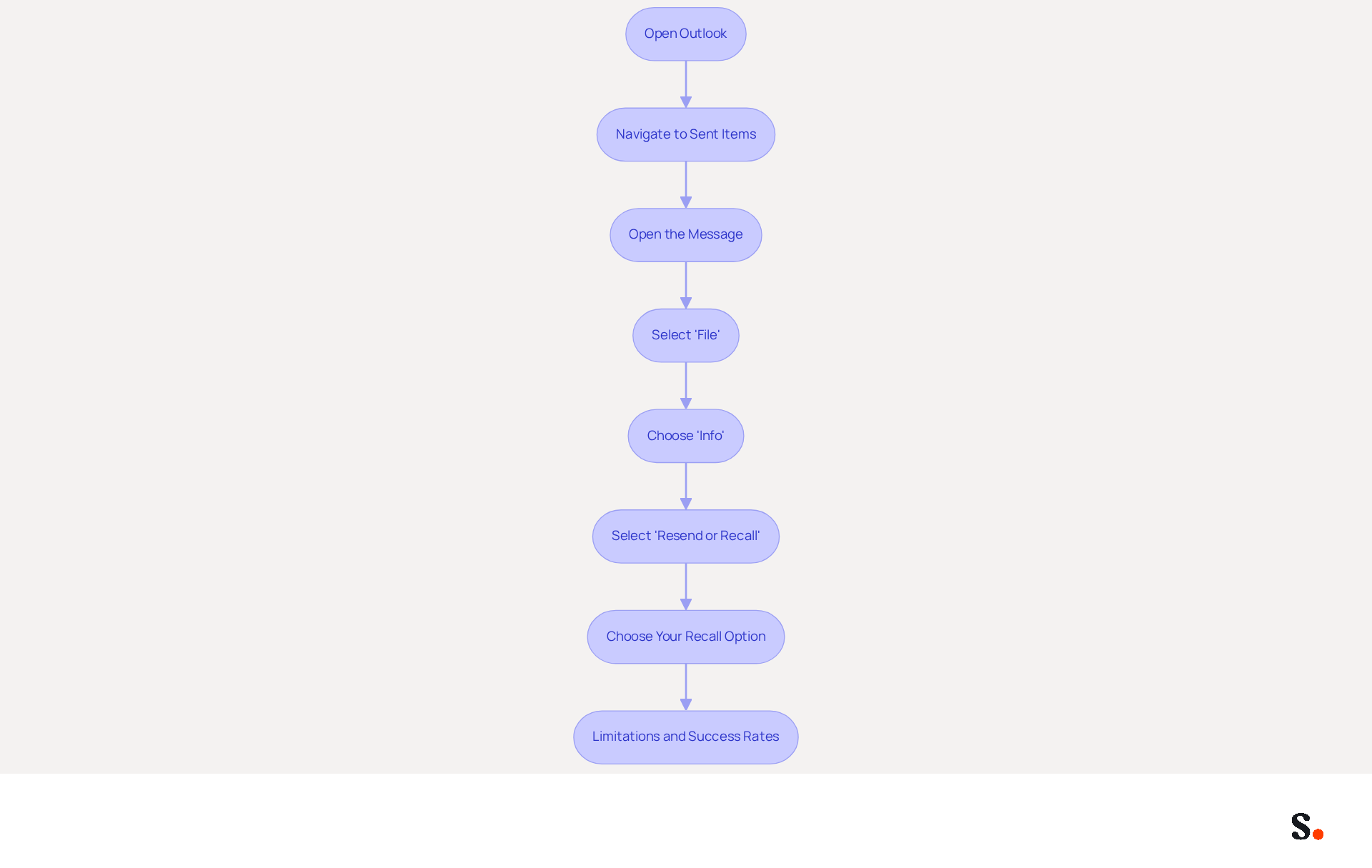
Unsend an Email in Outlook: Step-by-Step Instructions
Recalling an email in Outlook can be a straightforward process, but it comes with specific limitations that users must understand.
To recall an email in Outlook, follow these steps:
- Open Outlook: Launch the Microsoft Outlook application on your device.
- Navigate to Sent Items: Go to your 'Sent Items' folder to find the message you want to recall.
- Open the Message: Double-click on the message to view it in a new window.
- Select 'File': In the message window, click on 'File' in the top menu.
- Choose 'Info': Click on 'Info' from the sidebar.
- Select 'Resend or Recall': Click on 'Resend or Recall', then choose 'Recall This Message'.
- Choose Your Recall Option: You can either delete unread copies of the message or replace it with a new message. Select your preferred option and click 'OK'.
It's important to note that the effectiveness of the recall feature hinges on two critical factors: the recipient must not have opened the email, and both parties must be using Microsoft Exchange or Office 365. If the email was sent to an external address, the retrieval will not function.
IT professionals estimate that the success rate for retrieving messages is around 40%, highlighting the challenges users may face. Additionally, retrieving the status for tens of thousands of recipients can take up to thirty minutes, which is important to consider when managing expectations.
Organizations utilizing Outlook must grasp these limitations to set realistic expectations for email recall attempts. After submitting a recall request, users will receive a Message Recall Report in their inbox within less than 30 seconds, indicating whether the recall has succeeded, is pending, or failed. Recognizing these constraints can significantly enhance how organizations manage their email communications.
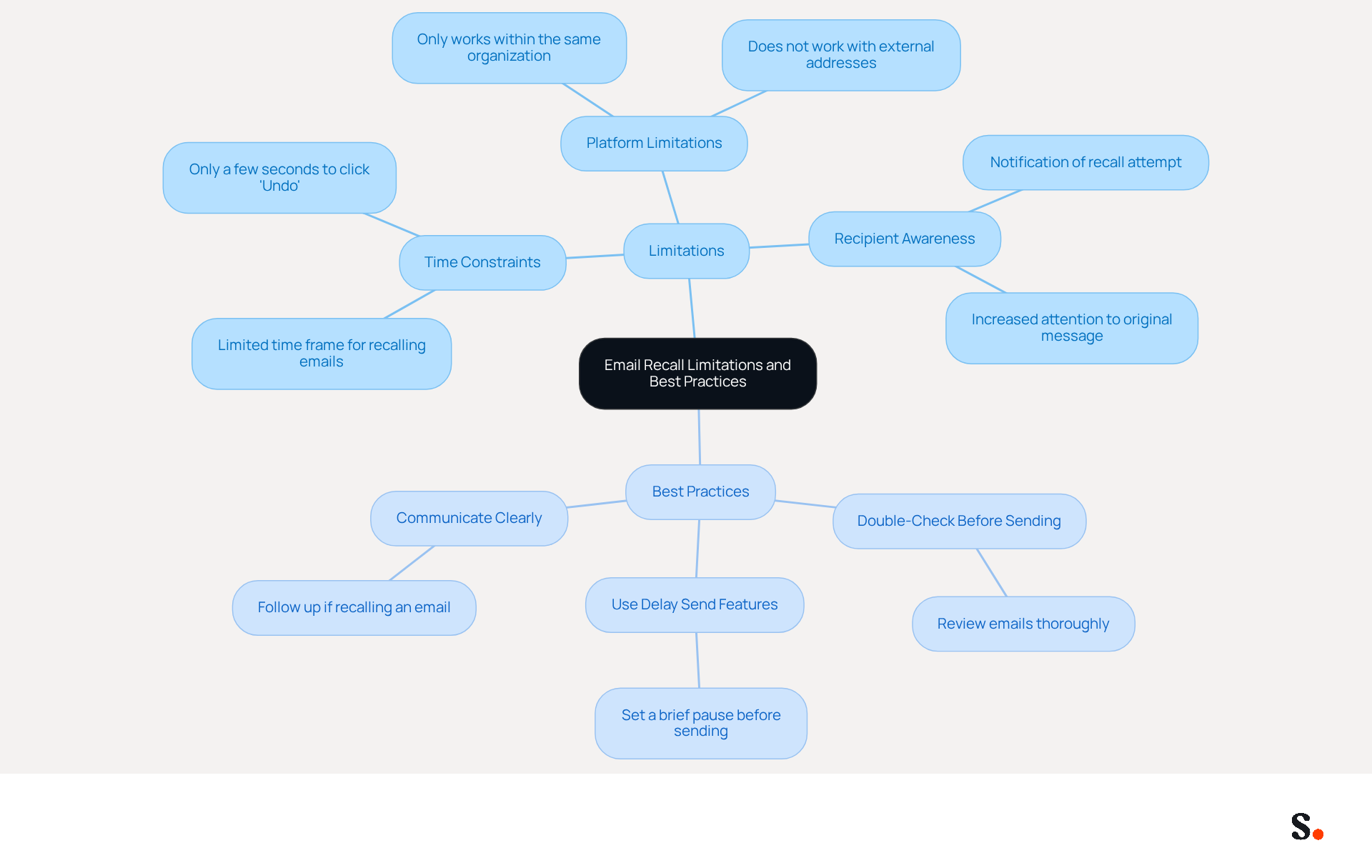
Recognize Limitations and Best Practices for Email Recall
While the ability to unsend an email offers a potential safety net, it is essential to recognize its inherent limitations:
- Time Constraints: The limited time frame for recalling emails can lead to missed opportunities for correction. In Gmail, users have only a few seconds to click 'Undo' after sending a message. The retrieval capability of the application is only useful if the recipient has not accessed the email. This unpredictability underscores the importance of exercising caution when sending emails.
- Platform Limitations: The retrieval feature in Outlook operates exclusively within the same organization utilizing Microsoft Exchange. Emails sent to external addresses cannot be recalled, emphasizing the need for careful communication outside your organization.
- Recipient Awareness: If an attempt to withdraw fails, the recipient may receive a notification indicating that you tried to retract the message. This can inadvertently draw more attention to the original message, potentially complicating the situation. As mentioned, 'Most instances fail because users assume it works like can you unsend an email.
Best Practices
- Double-Check Before Sending: Always review your emails thoroughly before hitting 'Send' to minimize the need for recalls. This practice can significantly reduce errors and enhance communication effectiveness.
- Use Delay Send Features: Many messaging clients offer delay send features that allow you to set a brief pause before a message is sent. This buffer period can provide you with a moment to reconsider your message, especially for high-risk communications.
- Communicate Clearly: If you need to recall an email, follow up with a clear communication to the recipient explaining the situation, especially if the email contained sensitive or incorrect information. This transparency can help maintain trust and clarity in your communications.
Conclusion
Mastering the ability to unsend an email is essential for effective digital communication. Both Gmail and Outlook offer features that allow users to retract messages, but these functionalities come with specific limitations and conditions. Miscommunications can lead to significant misunderstandings in professional settings, making it crucial to utilize these tools effectively.
The article outlined the step-by-step processes for utilizing the 'Undo Send' feature in Gmail and the 'Recall' function in Outlook. Key points included:
- The time constraints associated with Gmail's feature
- The organizational limitations of Outlook's recall capability
Additionally, best practices such as double-checking emails before sending and utilizing delay send features were emphasized to help users avoid the need for recalls altogether.
While the option to unsend an email offers a safety net, it’s important to communicate thoughtfully and carefully. Implementing these strategies can enhance email practices, leading to clearer communication and fewer errors. Adopting these strategies not only safeguards your communication but also enhances your professional reputation.
Frequently Asked Questions
What is the 'Undo Send' feature in Gmail?
The 'Undo Send' feature in Gmail allows users to cancel the sending of an email within a specified time frame, which can be set between 5 to 30 seconds.
How can I enable the 'Undo Send' feature in Gmail?
To enable the 'Undo Send' feature in Gmail, open Gmail, click on the gear icon in the upper right corner, select 'See all settings', go to the 'General' tab, locate 'Undo Send', and set your preferred cancellation period.
What is the 'Recall' feature in Outlook?
The 'Recall' feature in Outlook allows users to attempt to retract an email that has already been sent, but it only works if both the sender and recipient are using Microsoft Exchange or Office 365.
How effective is the 'Recall' feature in Outlook?
The effectiveness of the 'Recall' feature in Outlook is limited and can be challenging, even with improvements.
How do I recall an email in Outlook?
To recall an email in Outlook, navigate to your 'Sent Items' folder, open the message you wish to recall, click on 'File', then 'Info', select 'Resend or Recall', and choose 'Recall This Message'.
Why is understanding email unsend features important?
Understanding email unsend features is essential for effectively managing communications and reducing potential mishaps when sending emails.
How can syncing Google Workspace with Scribe help with email management?
Syncing Google Workspace with Scribe simplifies signature management, streamlining processes and ensuring that communications remain professional and consistent.
List of Sources
- Understand Email Unsend Features Across Platforms
- How to undo send in Gmail for up to 30 seconds (https://blog.google/products-and-platforms/products/gmail/how-to-unsend-email-gmail)
- How does the new message recall work in Microsoft 365 (https://codetwo.com/admins-blog/cloud-based-message-recall)
- Why Emails Cannot Be Recalled: Understanding the Limitations | ProFundCom (https://profundcom.net/why-emails-cannot-be-recalled-understanding-the-limitations)
- Why the Gmail ‘Undo Send’ feature spent six years in beta hell (https://computerworld.com/article/1635536/why-the-gmail-undo-send-feature-spent-six-years-in-beta-hell.html)
- Unsend an Email in Gmail: Step-by-Step Instructions
- How to undo send in Gmail for up to 30 seconds (https://blog.google/products-and-platforms/products/gmail/how-to-unsend-email-gmail)
- Feature Friday: Undo Send in Gmail - AVC (https://avc.com/2015/02/feature-friday-undo-send-in-gmail)
- The 20 Best Gmail Tips and Tricks You Should Know Today (https://gmass.co/blog/gmail-tips-tricks)
- Google adds undo send feature to Gmail (https://wivb.com/news/local-news/google-adds-undo-send-feature-to-gmail)
- This Gmail Recall Stops Sent Messages From Being Delivered (https://forbes.com/sites/daveywinder/2025/10/18/how-to-destroy-your-sent-gmail-email---you-have-30-seconds-to-act)
- Unsend an Email in Outlook: Step-by-Step Instructions
- TECH SOLUTIONS MOVING YOUR LIFE FORWARD - TECH-ARROW (https://tech-arrow.com/?p=10837)
- How to recall an email in Outlook: Requirements, Limitations & Steps | Microsoft Support (https://support.microsoft.com/en-us/outlook/mail/how-to-recall-an-email-in-outlook-requirements-limitations-steps)
- Microsoft Enhances Message Recall for Exchange Online (https://practical365.com/message-recall-enhancements)
- How to recall an email in Outlook (https://techradar.com/how-to/how-to-recall-an-email-in-outlook)
- Recall a sent email in Outlook (https://cu.edu/blog/tech-tips/recall-sent-email-outlook)
- Recognize Limitations and Best Practices for Email Recall
- How does the new message recall work in Microsoft 365 (https://codetwo.com/admins-blog/cloud-based-message-recall)
- How does Email Recall work in Outlook (https://actordo.com/how-does-email-recall-work-in-outlook)
- Why Emails Cannot Be Recalled: Understanding the Limitations | ProFundCom (https://profundcom.net/why-emails-cannot-be-recalled-understanding-the-limitations)
- Exchange Online Gets New Message Recall Capabilities (https://petri.com/exchange-online-message-recall-updates)
- 100 Compelling Email Statistics for 2026 | PGM Solutions (https://porchgroupmedia.com/blog/100-compelling-email-statistics-to-inform-your-strategy-in-2023)
- Email Overload Statistics 2026 (40+ Sourced Stats) (https://readless.app/blog/email-overload-statistics)
Get started with Scribe
Create your signature in minutes
Free 14-day trial — no credit card.