Change Your Email Signature in Gmail: A Step-by-Step Guide
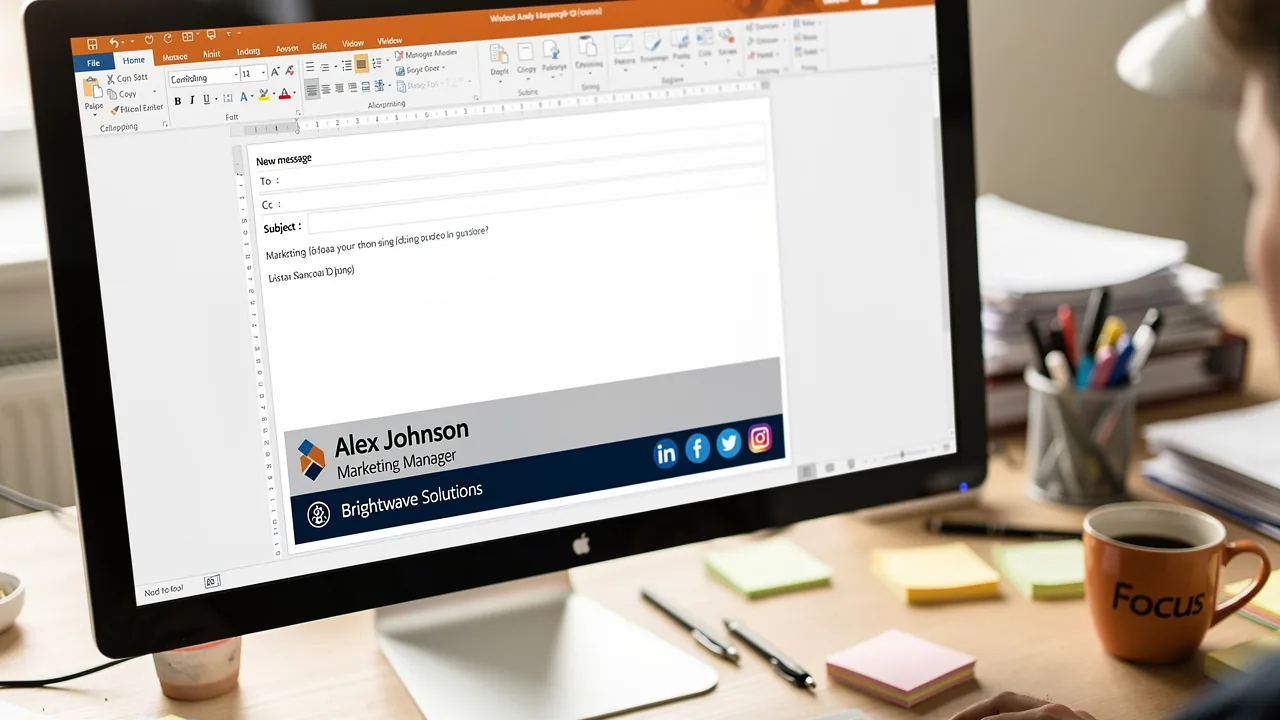
Updating an email signature in Gmail presents a unique opportunity to strengthen brand identity and improve communication effectiveness. With over 62.2% of
Sophie Grant
Email Signature Specialist, Scribe

Introduction
Updating an email signature in Gmail presents a unique opportunity to strengthen brand identity and improve communication effectiveness. With over 62.2% of users relying on Gmail, a well-crafted signature can serve as a powerful marketing tool, driving engagement and trust among recipients. Many professionals find it challenging to navigate the settings and optimize their signatures effectively. Organizations must address how to create email signatures that reflect their brand, comply with security standards, and remain easy to manage.
Access Gmail Settings to Change Your Signature
Effective management is crucial for businesses changing email signature in Gmail, the leading messaging client in 2026. With 62.2% of users relying on this platform, ensuring proper message formatting is essential. A well-designed email footer strengthens brand identity and serves as an effective marketing tool, as 18.8% of users leverage it for lead generation.
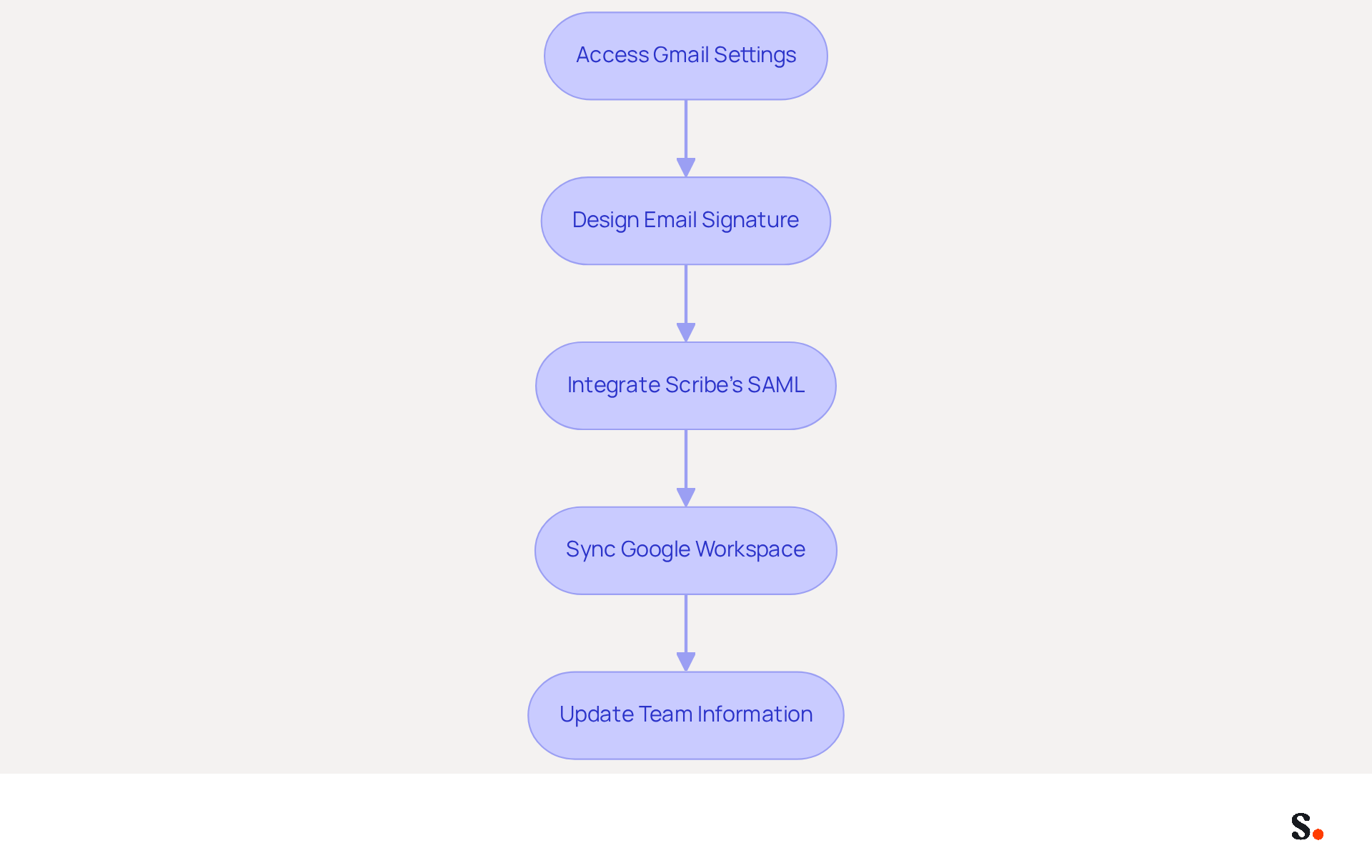
Industry experts agree that standardized email signatures improve professionalism and ensure consistent communication across all channels. By integrating Scribe's SAML single sign-on, your team can securely access the platform through your identity provider, ensuring compliance with GDPR and SOC 2 Type II standards. It boosts security and makes managing digital identifiers much easier.
With this tool, syncing your Google Workspace enables effortless updates, meaning any changes in your team’s information will automatically reflect in the application without manual input, saving you valuable time. Furthermore, Scribe's average click-through rate on banners is 12%, demonstrating the measurable effect of effective management of digital signatures.
Without a streamlined approach to changing email signature in Gmail, businesses risk losing valuable branding opportunities and compromising their communication effectiveness.
Locate Signature Settings in Gmail
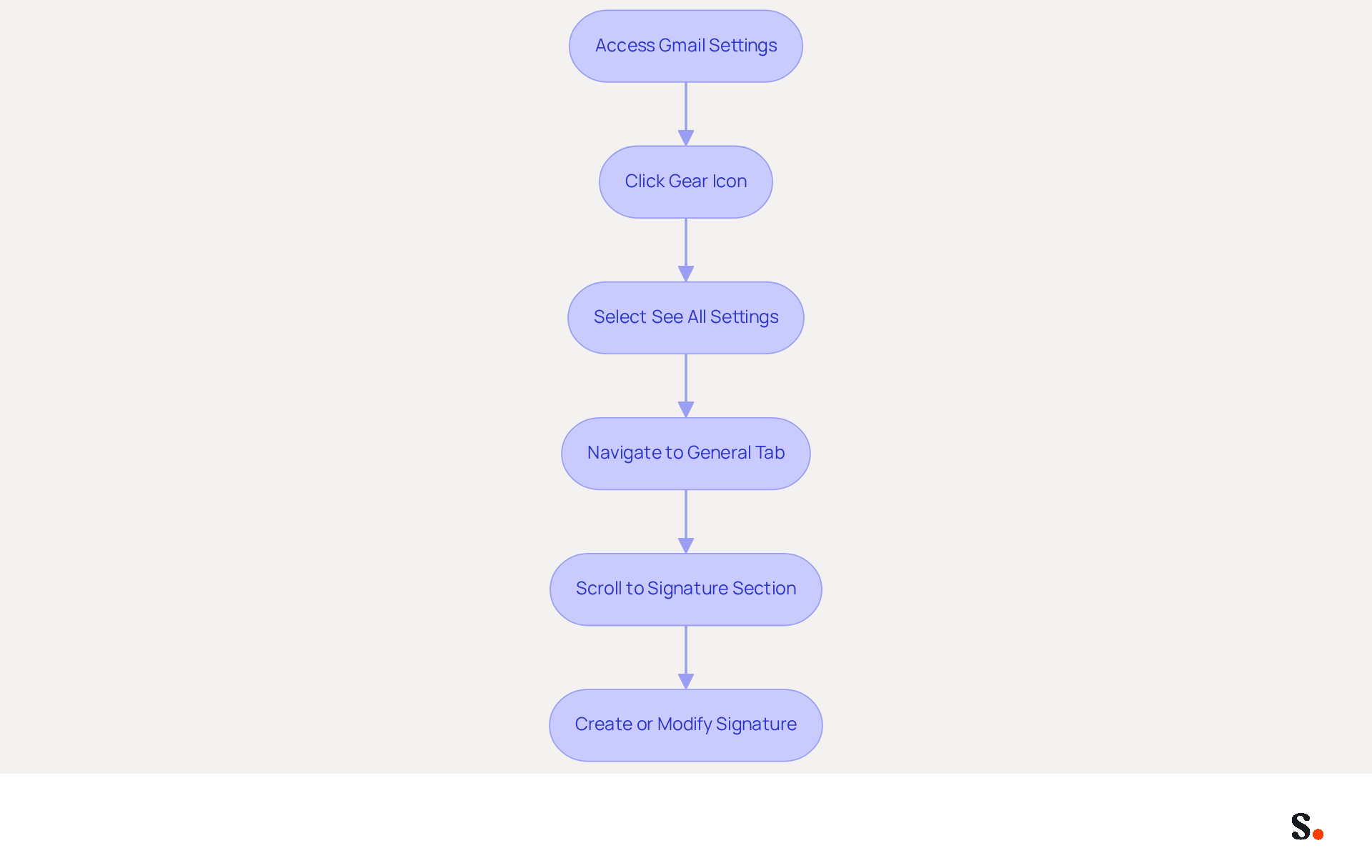
The first step in changing the email signature in Gmail is accessing the Gmail settings page to optimize your email signature for professional communication. Begin by clicking on the gear icon in the upper right corner of your Gmail interface and selecting 'See all settings.' Once in the settings page, navigate to the 'General' tab, which is typically the first tab on the left. Scroll down until you find the 'Signature' section, which is usually located towards the middle of the page when changing email signature in Gmail. Here, you will find options to create a new mark or modify an existing one.
A well-designed digital identifier not only enhances professionalism but also serves as a powerful marketing tool. In fact, 76% of recipients report increased trust in the sender due to branded communication identifiers, while 42% of consumers feel negatively toward a business when receiving a message without a branded identifier. Given that over 62.2% of users rely on Gmail and 67% of emails are accessed on mobile devices, it's crucial to optimize your email footer for effective communication.
For best practices, keep your sign-off concise, ideally between 3 to 4 lines, and include essential contact information such as your full name, job title, and company name. Additionally, consider incorporating a call-to-action to drive engagement, such as a link to schedule a meeting or access resources. Remember to keep images under 1MB to avoid loading issues and ensure you save changes after changing your email signature in Gmail.
With Scribe, you can automate the synchronization of your communication identifiers with your business phone system, ensuring that any modifications made in your Aircall configuration are automatically reflected in your Gmail identifiers. This seamless integration, along with the incorporation of Calendly for automatic updates to the contact information, not only saves time but also ensures brand consistency across all communications. Furthermore, Scribe is compliant with SOC 2 Type II, ensuring that your data remains secure while handling employee sign-offs effectively. With Scribe, Marketing teams can take charge of their digital identifiers after the initial IT setup, giving them more control. Case studies indicate that users who adhere to these guidelines can create effective identifiers that maintain consistency across devices, ensuring a professional appearance in all email communications. By implementing these strategies, you can significantly enhance your email communication's effectiveness and professionalism.
Create or Edit Your Email Signature
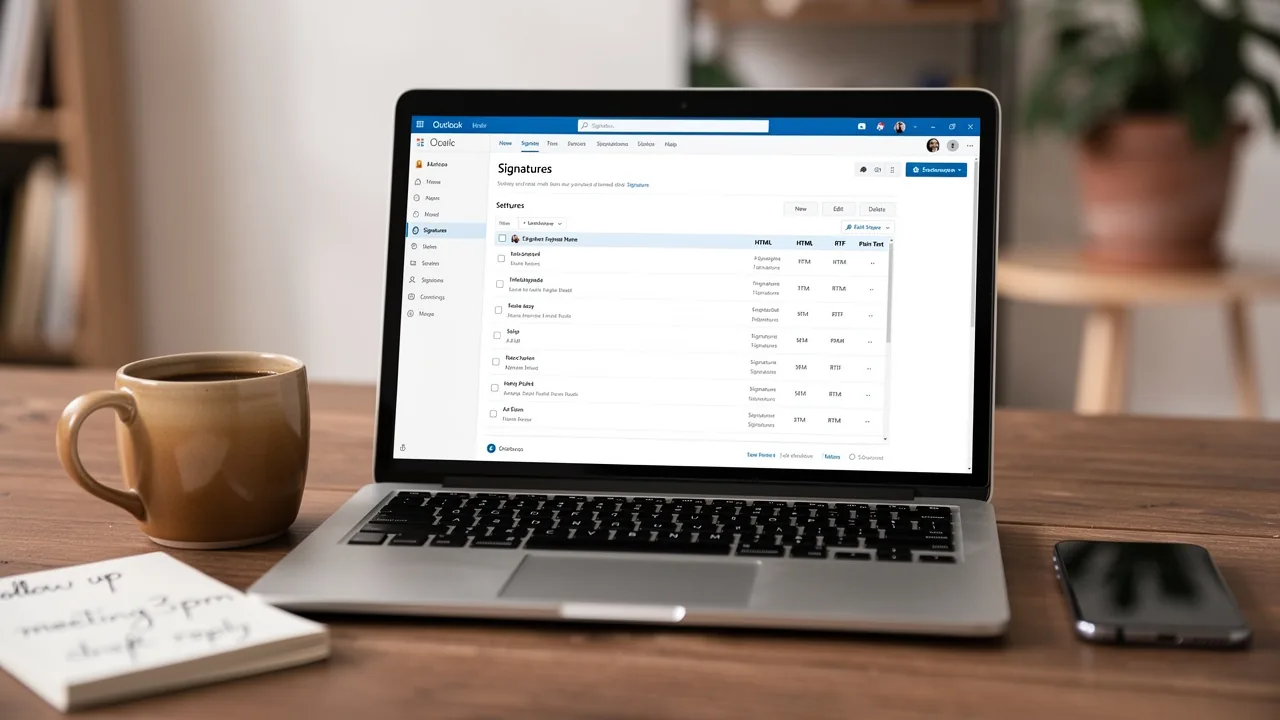
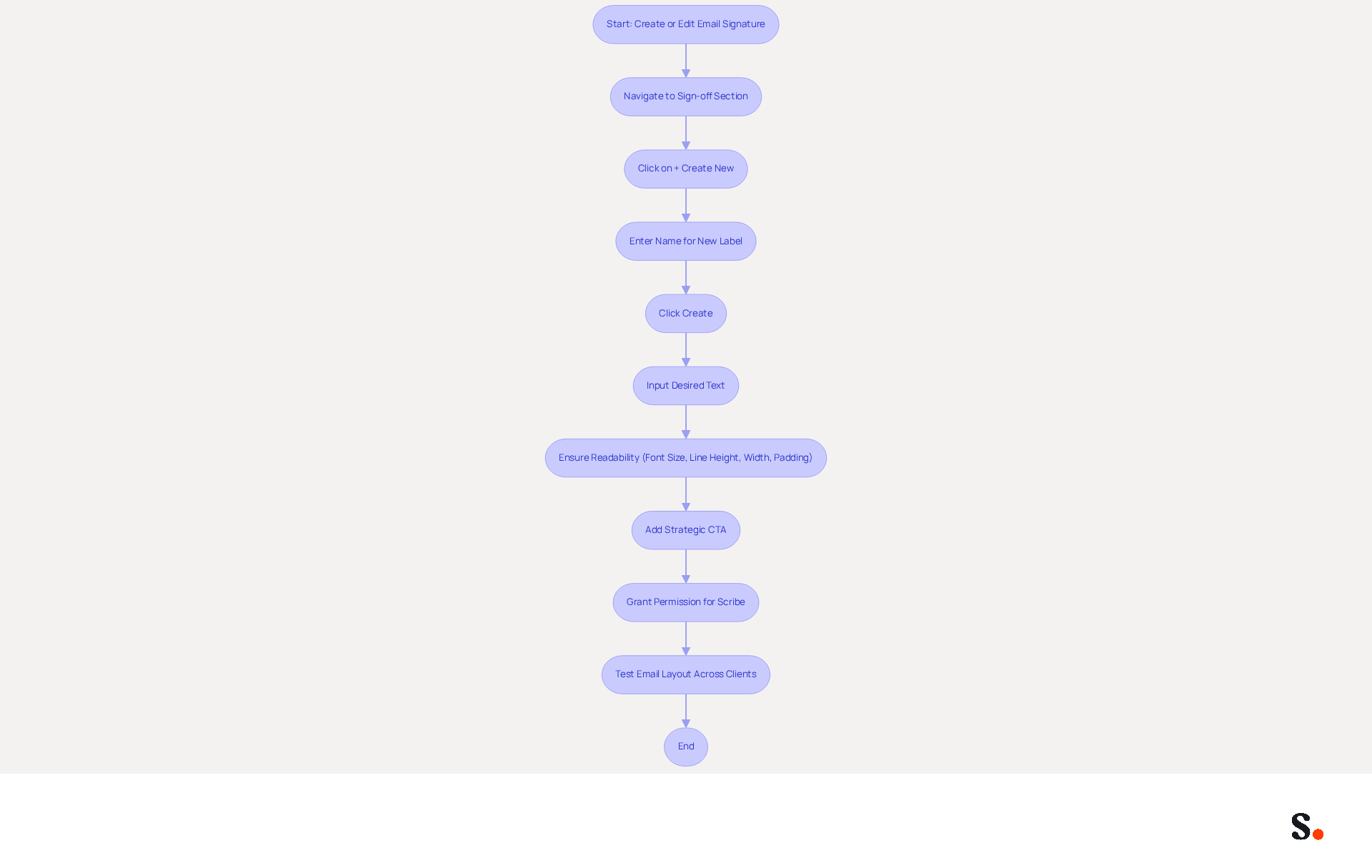
Creating a new sign-off is a straightforward process that enhances your email communication. To begin, navigate to the 'Sign-off' section and click on the '+ Create new' button. In the pop-up window, enter a name for your new label and click 'Create'. In the editor for your sign-off, input your desired text, including essential elements such as your full name, job title, company name, and direct contact information. To ensure optimal readability, use a font size of 14-16px and a line height of 1.5. Additionally, keep the width under 600px for mobile-friendliness. Include 10-15px padding between elements for better visual spacing.
Adding a strategic call-to-action (CTA) at the end of your email can boost engagement rates significantly. Research shows that strategic CTAs convert 40% more effectively than generic 'contact me' links, making them an essential element of your signature design.
To enable one-click synchronization, you must grant permission for Scribe to connect with your mail provider. You need to be a Super Admin of your service provider to grant these permissions. Scribe simplifies identifier management with one-click synchronization. This ensures all updates are automatically applied.
Remember to test your email layout across different clients to ensure that your branding remains consistent and effective, ultimately enhancing your communication strategy. Rest assured, Scribe is SOC 2 Type II compliant, ensuring the safety of your data.
Enhance Your Signature with Images and Links
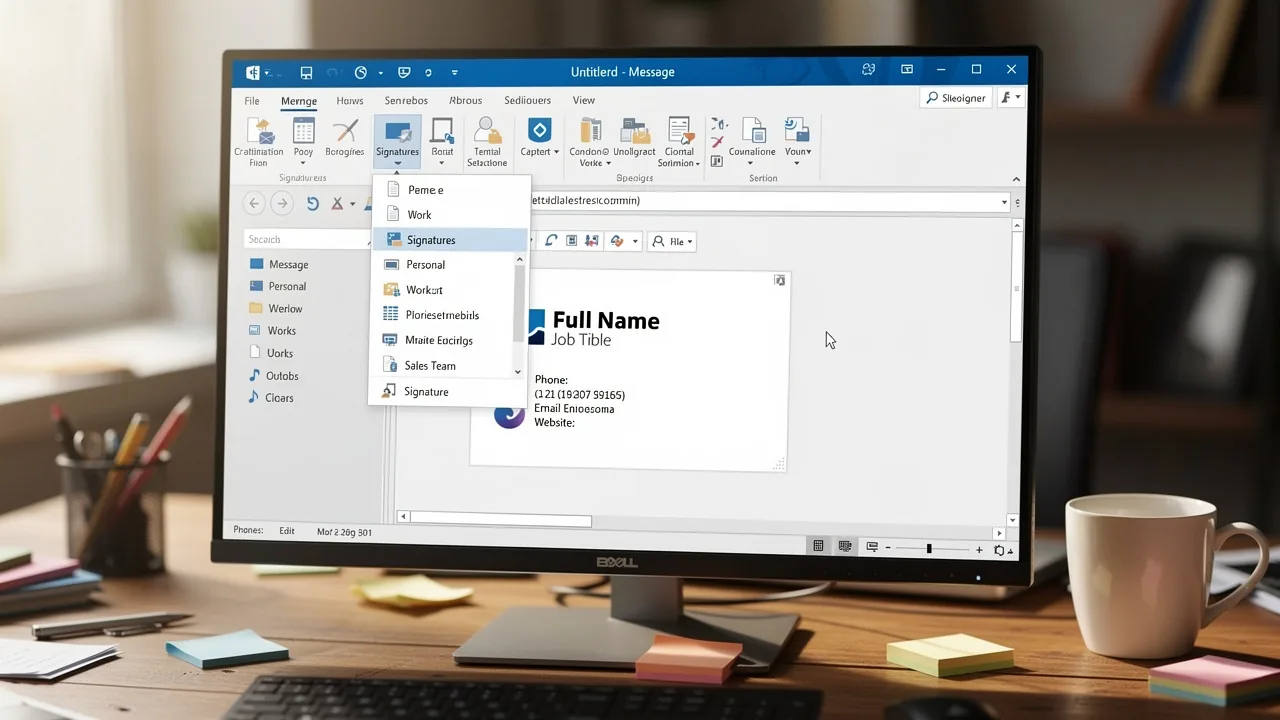
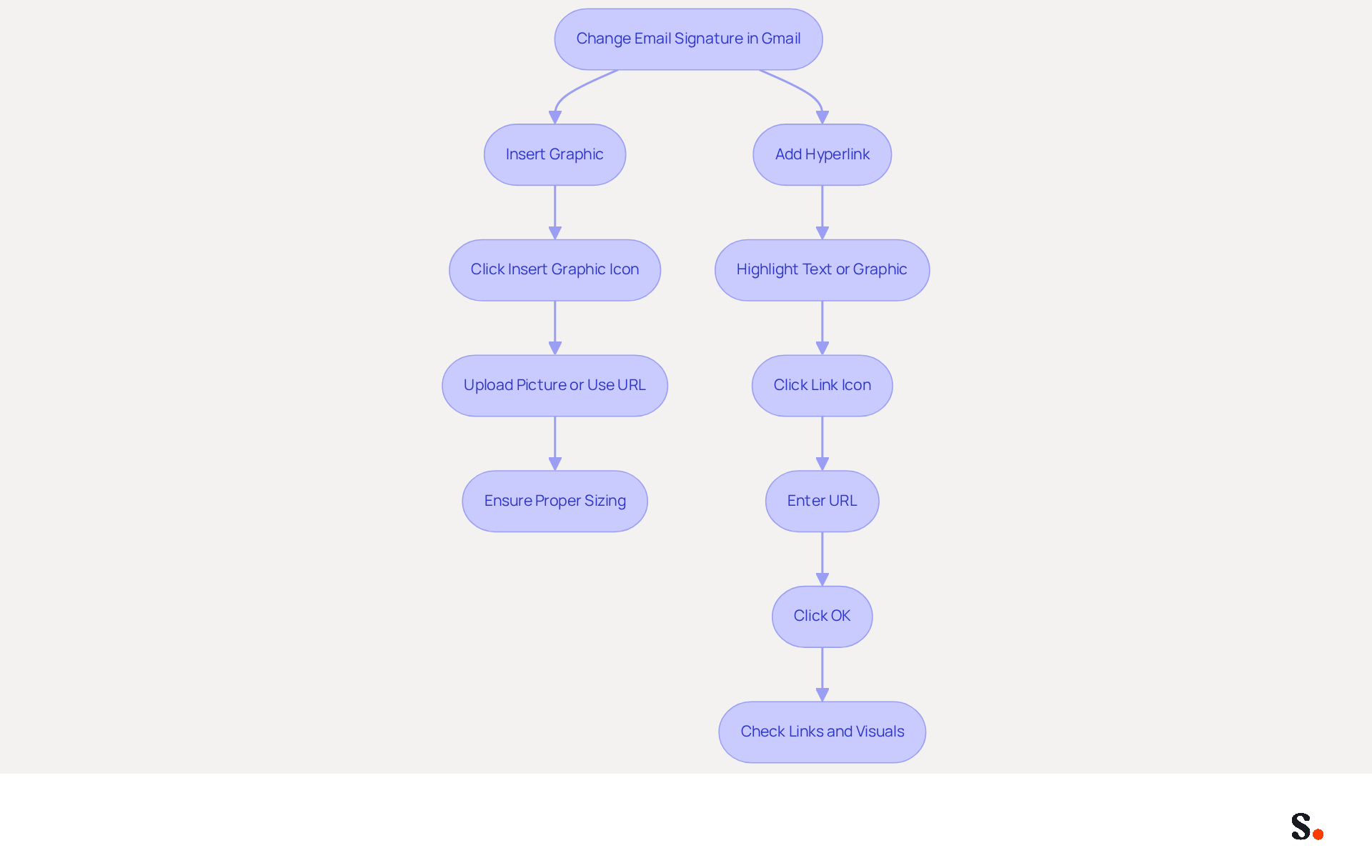
Changing email signature in Gmail by enhancing it with graphics and links is essential for maximizing engagement. To enhance your Gmail signature, you can start by changing email signature in Gmail and clicking the 'Insert graphic' icon in the signature editor to add a graphic. You can upload a picture from your computer or use a URL to link to an online photo. Ensure that the visual is appropriately sized to maintain a professional appearance.
To add a hyperlink, highlight the text or graphic you wish to link. Click on the 'Link' icon (🔗) in the editor toolbar and enter the desired URL. Click 'OK' to apply the link.
Without images and links, your emails may not capture the attention they deserve. In fact, messages with branded identifiers experience a 22% higher response rate, making it essential to utilize these features effectively. With Scribe's automated email closing management, any modifications made to your teammates' identifiers are automatically synchronized with your business phone system, saving time and requiring no action from them. Additionally, Scribe's SOC 2 Type II compliance ensures that your data is secure, meeting stringent security standards.
When changing email signature in Gmail, consistently examine your email footer to ensure that all links are operational and that visuals are presented correctly. Updating your email footer not only boosts your professional image but also keeps you in line with marketing trends, where visual elements play a crucial role in capturing attention and driving action.
Finalize and Test Your New Signature
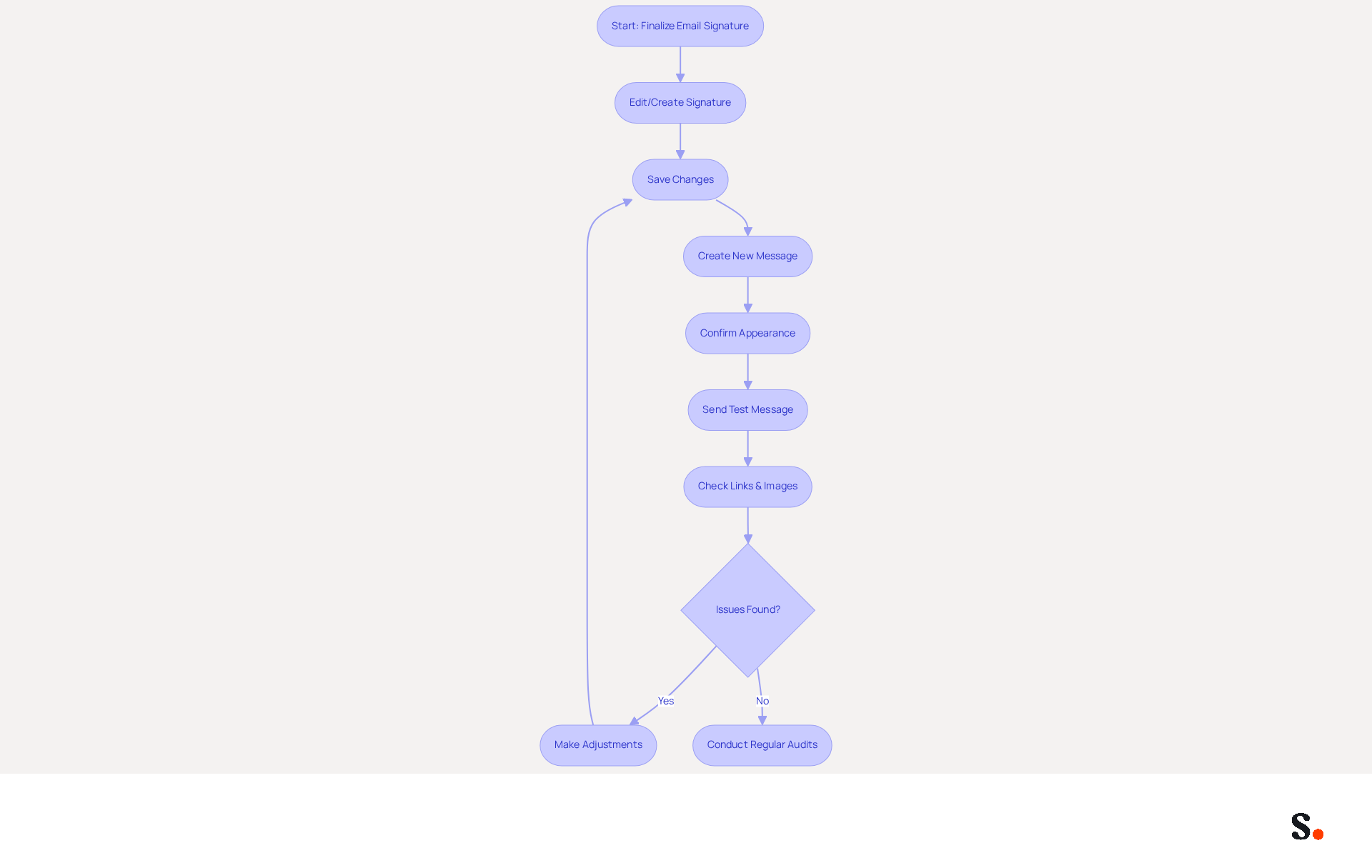
To effectively manage your email signature, changing email signature in Gmail requires following these essential steps to ensure brand consistency and engagement. After creating or editing your mark, scroll to the bottom of the settings page and click 'Save Changes' to apply your new mark. Scribe automatically syncs any changes to your communication identifier, ensuring brand consistency across all interactions, including data from Aircall.
To ensure your mark is effective, create a new message and confirm that the mark appears as intended. This confirmation is crucial for ensuring that your branding is effective. Thanks to Scribe's integration with Google Workspace, your team's data syncs effortlessly, making updates and information filling a breeze.
Send a test message to yourself or a colleague to confirm that all links function correctly and images display as expected. This confirmation is crucial for ensuring that your branding is effective, as messages with branded identifiers can experience a 22% higher response rate, highlighting the significance of a well-tested identifier.
If issues arise, adjustments may be needed to ensure optimal performance. Regular audits of email branding are essential for maintaining consistent identity and ensuring that all elements, such as changing email signature in Gmail, are up-to-date, as 44.4% of professionals update their details only 2-4 times a year. Failing to conduct regular audits risks outdated branding, which can diminish engagement. Scribe streamlines this process through automated synchronization and adheres to SOC 2 Type II certification while complying with GDPR and CCPA, ensuring secure data handling.
In 2026, with the introduction of dynamic digital identifiers that utilize CRM platforms to automatically inject personalized data, testing is already essential to ensure that this data is accurately reflected. By implementing these practices, you not only enhance your email communications but also position your brand for greater impact in the digital landscape.
Conclusion
Many professionals underestimate the impact of their email signature, potentially losing valuable branding opportunities. Following these steps allows users to create and optimize email signatures that enhance brand consistency and engagement.
A well-structured email signature is crucial for effective communication and branding. From accessing Gmail settings to incorporating images and links, each step plays a vital role in crafting a signature that not only looks professional but also serves as a powerful marketing tool. Utilizing Scribe's capabilities, such as automated synchronization and compliance with SOC 2 Type II standards, further enhances the security and efficiency of managing digital identifiers.
Ultimately, a well-designed email signature can significantly impact engagement rates and brand perception. Regular audits and updates are essential to maintain relevance and effectiveness in communication. By prioritizing your email signature, you can elevate your brand's presence and drive meaningful engagement with every message you send.
Frequently Asked Questions
Why is managing email signatures in Gmail important for businesses?
Effective management of email signatures in Gmail is crucial as it strengthens brand identity, serves as a marketing tool, and ensures consistent communication across all channels. A well-designed email footer can enhance professionalism and help in lead generation.
How can Scribe enhance the management of email signatures?
Scribe integrates SAML single sign-on for secure access through identity providers, ensuring compliance with GDPR and SOC 2 Type II standards. It also allows for syncing Google Workspace, enabling automatic updates of team information without manual input.
What are the steps to locate the signature settings in Gmail?
To locate the signature settings in Gmail, click on the gear icon in the upper right corner, select 'See all settings,' navigate to the 'General' tab, and scroll down to the 'Signature' section to create or modify your email signature.
What are best practices for creating an email signature in Gmail?
Best practices include keeping the signature concise (3 to 4 lines), including essential contact information (full name, job title, company name), and incorporating a call-to-action. Additionally, images should be kept under 1MB to avoid loading issues.
How does Scribe help in maintaining brand consistency in email signatures?
Scribe automates the synchronization of communication identifiers with business phone systems and integrates with tools like Calendly for automatic updates, ensuring brand consistency across all communications.
What impact does a well-designed email signature have on recipients?
A well-designed email signature increases trust in the sender, with 76% of recipients reporting enhanced trust due to branded communication identifiers. Conversely, 42% of consumers feel negatively toward businesses that do not use branded identifiers.
What are the risks of not having a streamlined approach to email signatures?
Without a streamlined approach, businesses risk losing valuable branding opportunities and compromising the effectiveness of their communication.
List of Sources
- Access Gmail Settings to Change Your Signature
- Email Signature Statistics: A Closer Look at Email Signatures in 2026 (https://mysignature.io/blog/email-signature-statistics)
- Email Signature Trends in Numbers: Infographic [2026] (https://mailtrap.io/blog/email-signature-trends)
- 40+ Email Signature Statistics for 2026 (Data + Insights) (https://wavecnct.com/blogs/email-signature-statistics)
- Email signature statistics: Why every business should optimize their email signatures — Stripo.email (https://stripo.email/blog/email-signature-statistics-why-every-business-should-optimize-their-email-signatures)
- Best Email Signature Quotes (2026) - HubSpot (https://hubspot.com/email-signature-generator/best-signature-quotes)
- Locate Signature Settings in Gmail
- How To Add A Signature In Gmail (2026) (https://hubspot.com/email-signature-generator/add-signature-gmail)
- How to Add Signature in Gmail: Step by Step Guide (2026) (https://wpmanageninja.com/how-to-add-signature-in-gmail)
- 40+ Email Signature Statistics for 2026 (Data + Insights) (https://wavecnct.com/blogs/email-signature-statistics)
- Create a Gmail signature - Computer - Gmail Help (https://support.google.com/mail/answer/8395?hl=en&co=GENIE.Platform%3DDesktop)
- How to Add Signature on Gmail: A Step-by-Step Guide (https://scribe-mail.com/en-US/blog/how-to-add-signature-on-gmail-a-step-by-step-guide)
- Create or Edit Your Email Signature
- Email Signature Trends 2026: What Designers Are Actually Using (https://markaplugin.com/blog/email-signature-trends-2026)
- Email Signature Best Practices for 2026 (+ 15 Pro Examples) (https://wavecnct.com/blogs/email-signature-best-practices-2026)
- How to Add Signature on Gmail: A Step-by-Step Guide (https://scribe-mail.com/en-US/blog/how-to-add-signature-on-gmail-a-step-by-step-guide)
- Email signature statistics: Why every business should optimize their email signatures — Stripo.email (https://stripo.email/blog/email-signature-statistics-why-every-business-should-optimize-their-email-signatures)
- Enhance Your Signature with Images and Links
- Email signature statistics: Why every business should optimize their email signatures — Stripo.email (https://stripo.email/blog/email-signature-statistics-why-every-business-should-optimize-their-email-signatures)
- 40+ Email Signature Statistics for 2026 (Data + Insights) (https://wavecnct.com/blogs/email-signature-statistics)
- 101+ Best Email Marketing Statistics and Insights for 2026 (https://snov.io/blog/email-marketing-statistics)
- Finalize and Test Your New Signature
- Email Signature Trends 2026: What Designers Are Actually Using (https://markaplugin.com/blog/email-signature-trends-2026)
- Email signature statistics: Why every business should optimize their email signatures — Stripo.email (https://stripo.email/blog/email-signature-statistics-why-every-business-should-optimize-their-email-signatures)
- New Gmail protections for a safer, less spammy inbox (https://blog.google/products-and-platforms/products/gmail/gmail-security-authentication-spam-protection)
- 40+ Email Signature Statistics for 2026 (Data + Insights) (https://wavecnct.com/blogs/email-signature-statistics)
Get started with Scribe
Create your signature in minutes
Free 14-day trial — no credit card.