Create a Canva Animated Email Signature in 4 Simple Steps
In a digital landscape where attention is scarce, animated email signatures are emerging as a crucial tool for effective communication. Using tools like Canva
Sophie Grant
Email Signature Specialist, Scribe
Introduction
In a digital landscape where attention is scarce, animated email signatures are emerging as a crucial tool for effective communication. Using tools like Canva, you can create visually striking signatures that not only enhance brand identity but also significantly boost engagement rates. However, designing an animated email signature that is both visually appealing and functional across different platforms can be challenging.
How can one navigate the intricacies of creating an animated email signature that stands out while maintaining professionalism? Addressing these design intricacies is essential for maximizing engagement and maintaining a professional image.
Get started with Scribe
See why teams switch to Scribe
Free 14-day trial — no credit card.
Understand the Basics of Animated Email Signatures
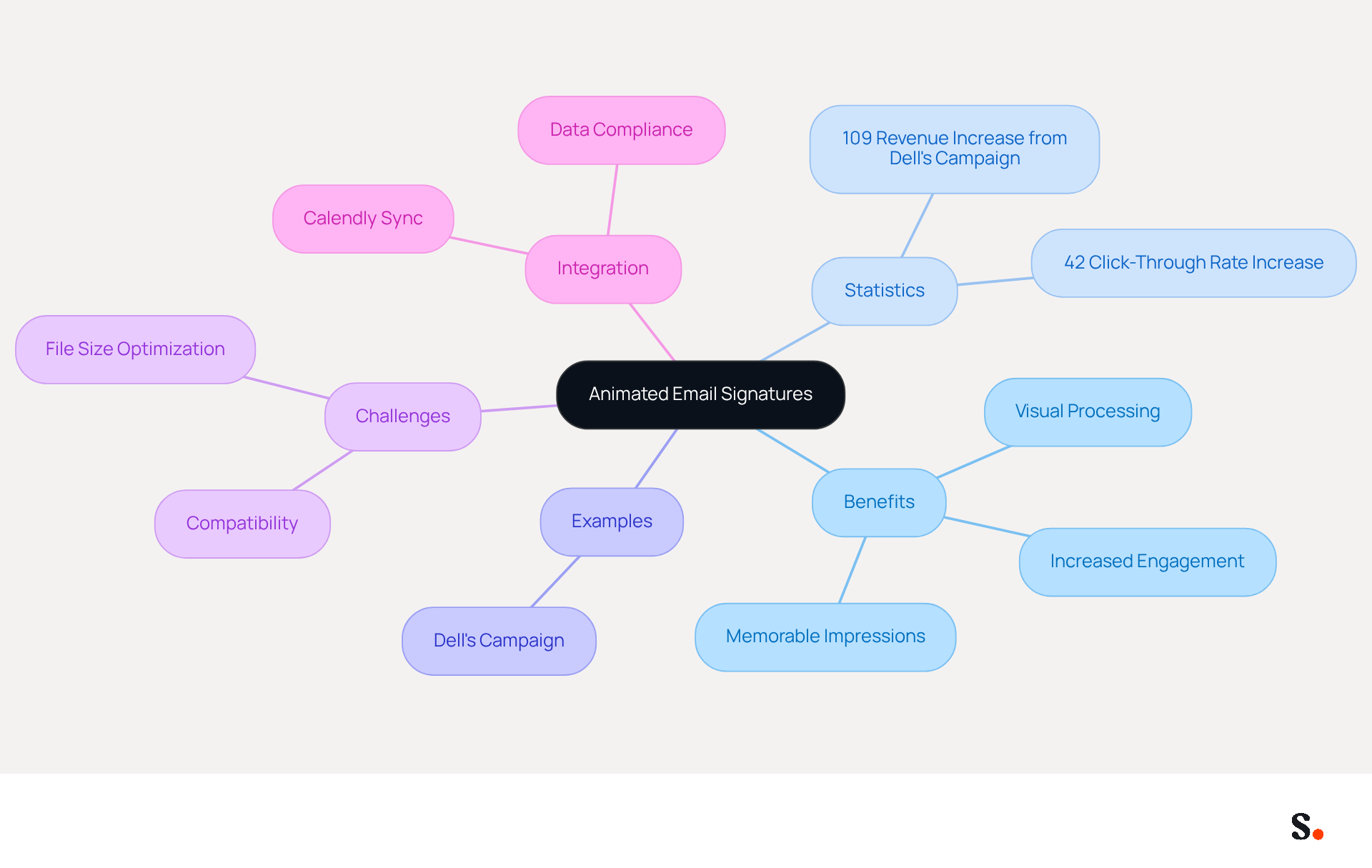
Animated digital elements serve as powerful tools for capturing attention in email communications. These elements can include logos, promotional banners, or simple animations that capture attention and enhance the visual appeal of emails. The advantages of utilizing a Canva animated email signature are substantial. Studies indicate that campaigns featuring moving images can achieve a click-through rate increase of up to 42% compared to those with static visuals. For example, Dell's focus on motion graphics in their campaign led to an impressive 109% increase in revenue, showing how this content can drive significant sales growth.
In 2026, the benefits of dynamic signatures continue to grow. They not only assist emails in standing out in crowded inboxes but also strengthen identity, creating a memorable impression on recipients. By incorporating lively elements, Scribe can enhance its visibility and engagement through a Canva animated email signature, making a lasting impact on its audience. Moreover, with 90% of information processed by the brain being visual, dynamic visuals can convey messages effectively and evoke emotions, which helps build customer loyalty.
To enhance the effectiveness of moving message footers, ensuring compatibility across various clients and optimizing file sizes can be challenging but is crucial for effectiveness. Additionally, with Scribe's seamless integration with Calendly, any modifications made to your Calendly settings automatically sync with your Scribe documents, ensuring brand consistency and effortless updates. Scribe also adheres to SOC 2 Type II compliance and GDPR/CCPA regulations, ensuring secure data handling. By leveraging dynamic visuals, businesses can not only enhance their marketing strategies but also foster deeper connections with their audience.
Create Your Design in Canva
Creating a Canva animated email signature is a straightforward process that can significantly enhance your professional communication.
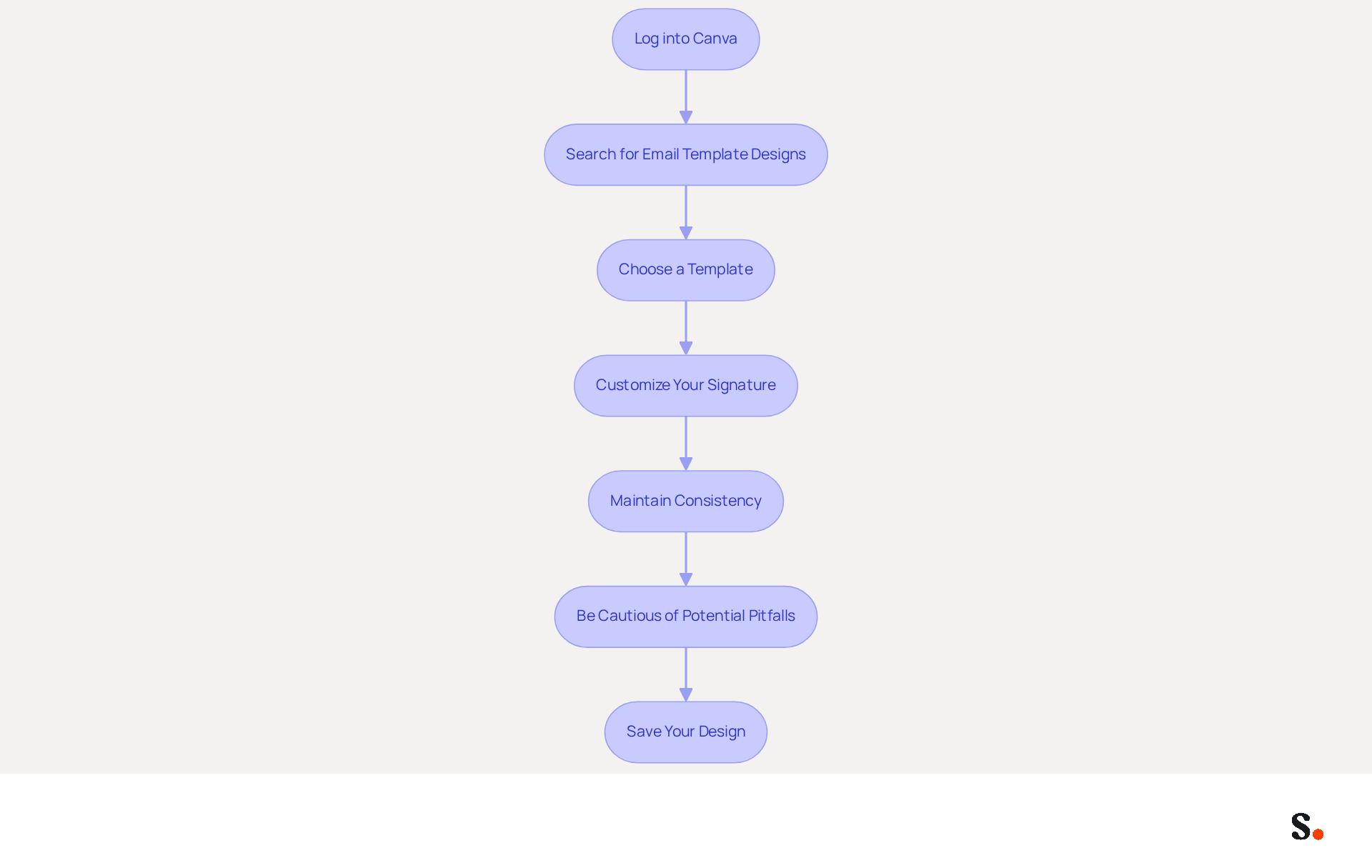
- Log into Canva: If you don’t have an account, sign up for free.
- Search for Email Template Designs: In the search bar, type 'email template' to find a variety of designs that suit your needs.
- Choose a Template: Select a template that aligns with your company's aesthetic. This choice sets the foundation for your unique signature.
- Customize Your Signature: Click on the elements to edit text, colors, and images. Ensure to include your name, job title, and contact information, as these are essential for professional communication.
- Maintain Consistency: Use your colors and fonts to ensure the emblem reflects Scribe’s identity. Consistency in branding can increase trust and credibility, with 76% of consumers indicating that branded elements enhance their perception of the sender. With Scribe, every modification made in your Aircall configuration will automatically be reflected in your communication identifiers, ensuring seamless brand consistency.
- Be Cautious of Potential Pitfalls: However, using animated elements may lead to complications, such as triggering spam filters if designs are overly complex.
- Save Your Design: Once you are satisfied, ensure to save your design in a high-resolution format that is suitable for sending. This guarantees that your mark appears professional on all devices, particularly since 42% of messages are accessed on mobile devices.
By following these steps, you can create an engaging moving message footer that not only represents Scribe effectively but also enhances your communication strategy. Ultimately, a well-crafted Canva animated email signature can elevate your brand's presence and strengthen connections with your audience.
Add Animated Elements to Your Signature
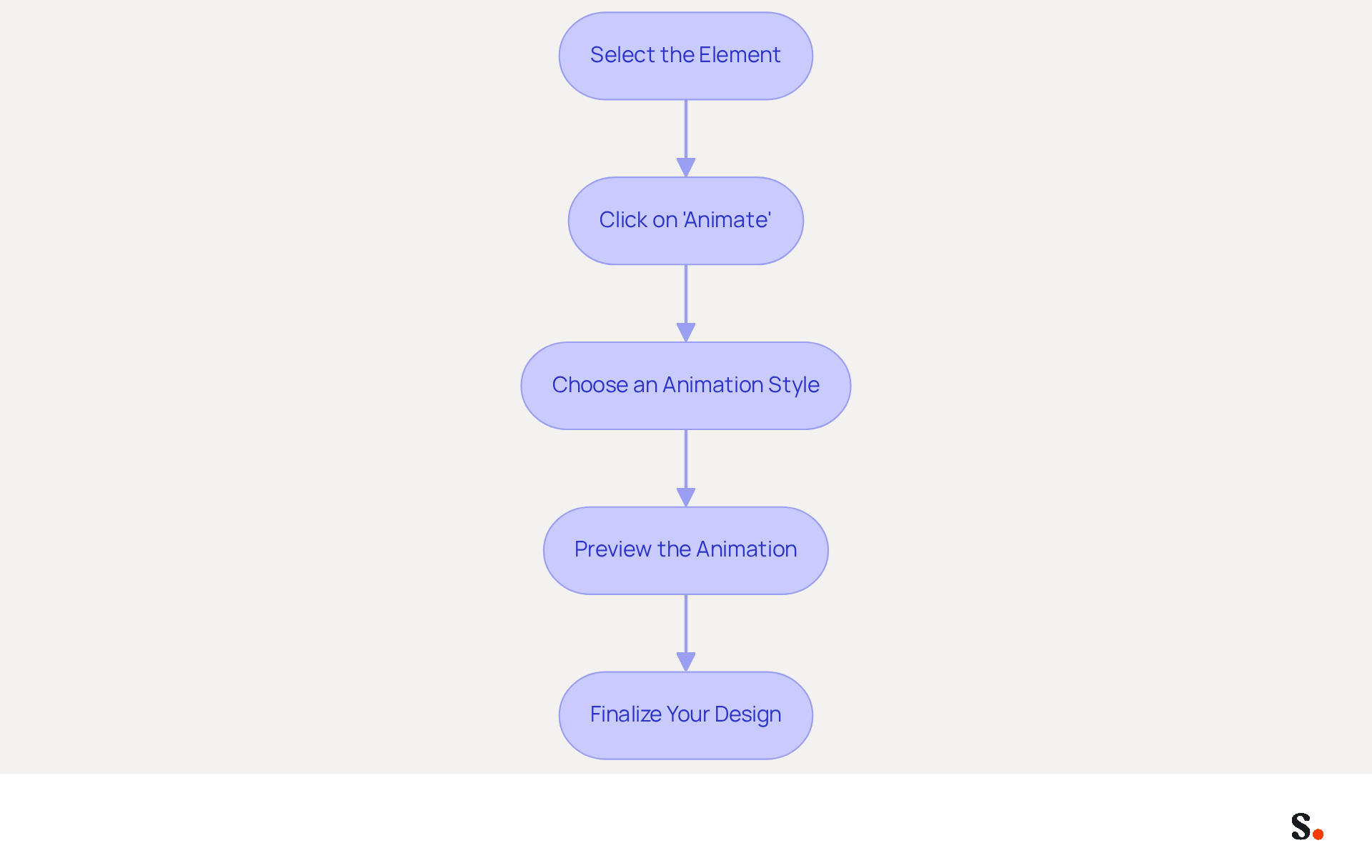
To effectively enhance your email signature with animated elements, follow these structured steps:
- Select the Element: Choose the graphic or text you want to animate, such as your logo or a promotional banner.
- Click on 'Animate': With the element selected, click on the 'Animate' button in the top menu.
- Choose an Animation Style: Canva offers various animation styles like 'Fade', 'Pan', or 'Rise'. Select one that aligns with your brand's tone and messaging.
- Preview the Animation: Click on the 'Play' button to see how the animation looks. Make adjustments as necessary to ensure it enhances rather than distracts from your personal mark.
- Finalize Your Design: Keep animations to 3-4 frames to maintain elegance and avoid overwhelming your recipients. Save your design after adding animations.
When adding a Canva animated email signature to your message footer, managing file sizes can be challenging, but it is crucial to keep GIFs under 200 KB for fast delivery and to avoid spam filters. Additionally, consider motion sensitivity and accessibility for users, as some may be distracted by constant movement. Providing a fallback image for cases where the animation does not render is essential for accessibility. Tools like Gifmock can assist you in testing your animations across various messaging clients to ensure compatibility. By adhering to these guidelines, you ensure your branding remains impactful and user-friendly.
Upload and Finalize Your Email Signature
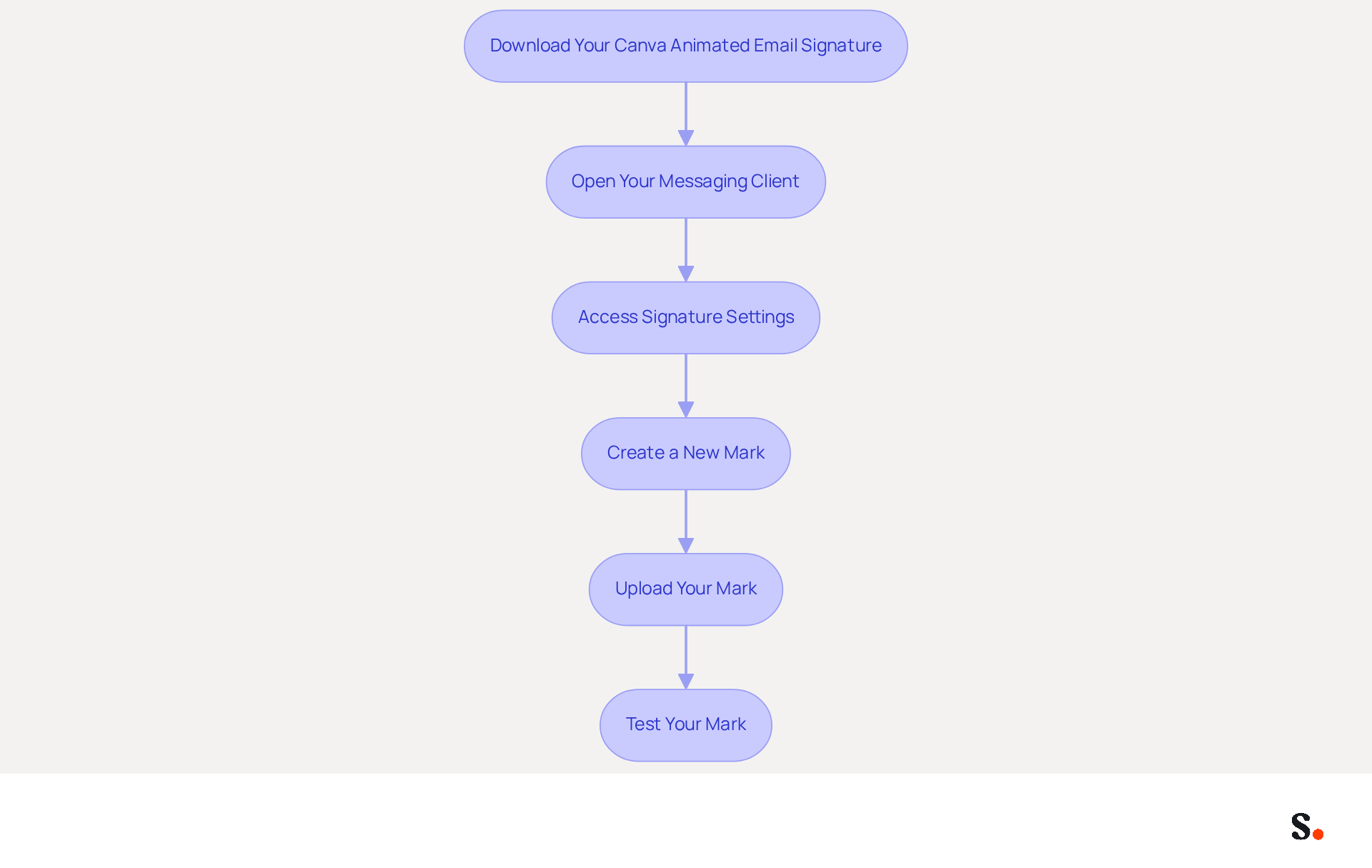
To effectively enhance your email communication, follow these steps to upload and finalize your animated email signature:
- Download Your Canva Animated Email Signature: In Canva, click on the 'Download' button and select the GIF format for your animated email signature to ensure optimal performance.
- Open Your Messaging Client: Log into your account (e.g., Gmail or Outlook).
- Access Signature Settings: Navigate to the settings section of your email client. For Gmail, click on the gear icon and select 'See all settings'. For Outlook, go to 'Mail' > 'Signatures'.
- Create a New Mark: Click on 'Create new' or 'Add mark' to start.
- Upload Your Mark: Click on the image icon to upload your downloaded moving mark. Ensure it displays correctly and is under 200 KB for Gmail or 1MB for other clients to avoid loading issues. However, many users encounter difficulties ensuring their animated signatures meet size requirements.
- Test Your Mark: Send a test message to yourself to confirm that the animation functions and the mark appears as intended. Failing to test may result in a signature that does not display correctly, undermining your professional image.
Research indicates that using animated visuals can boost engagement, increasing click-through rates by up to 42% in marketing communications (Sophie Grant, Email Signature Specialist). Consistent testing and updates to your branding can significantly enhance its effectiveness and alignment with your marketing strategy. Additionally, consider accessibility by adding meaningful Alt Text and limiting flashes to ensure a positive experience for all recipients.
Syncing your Google Workspace with Scribe makes managing your communications easier. This integration allows for automatic updates, saving you time as any changes in your Google Workspace-such as moving teammates or updating their information-will be reflected in Scribe without any manual input. This ensures brand consistency and enhances your marketing efforts. Furthermore, Scribe's SOC 2 Type II certification and compliance with GDPR and CCPA ensure that your data is handled securely, building trust with your audience. By ensuring your Canva animated email signature is properly integrated and tested, you reinforce your brand's professionalism and reliability.
Explore Best Practices for Effective Email Signatures
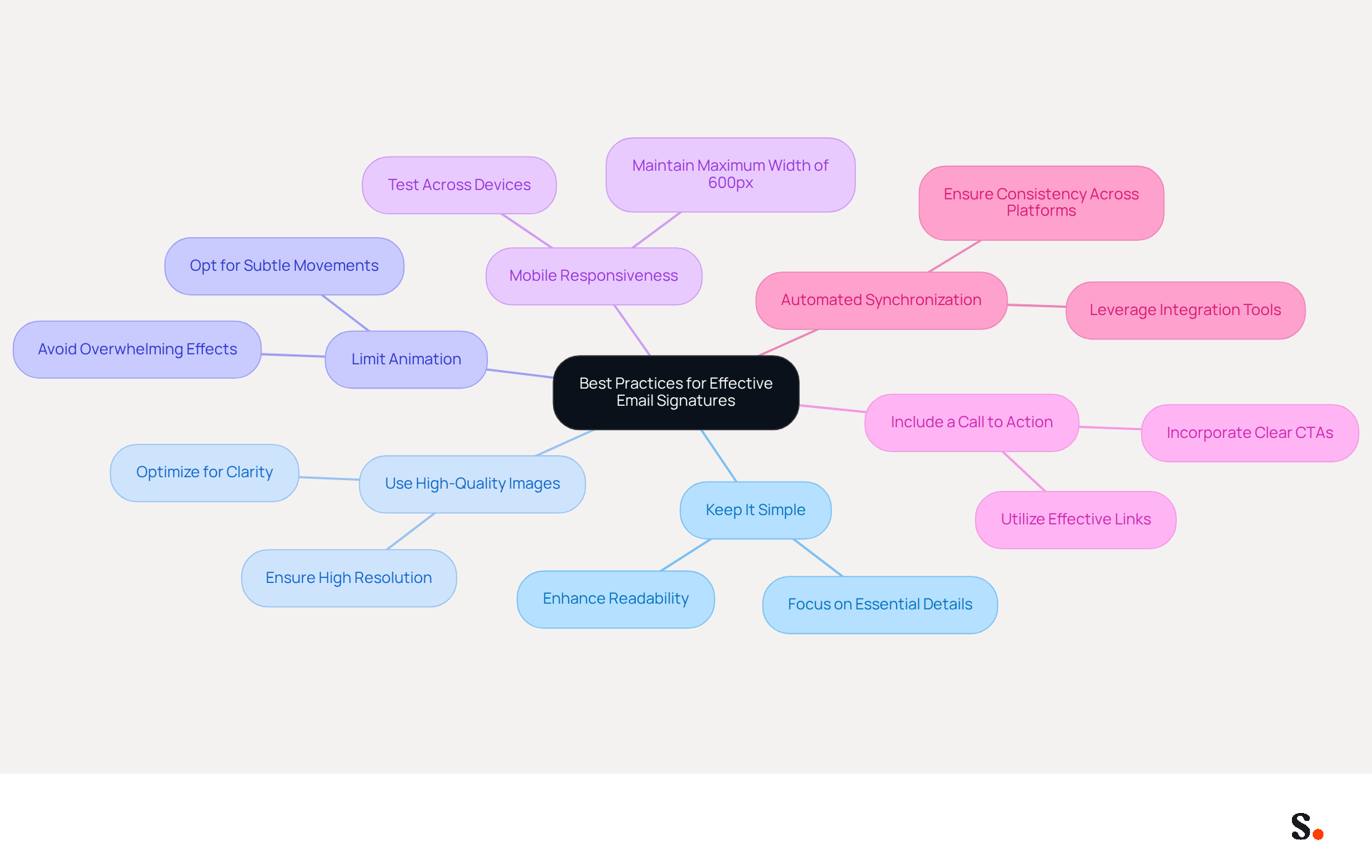
To maximize the effectiveness of your animated email signature, it is essential to adhere to best practices that enhance both engagement and professionalism:
- Keep It Simple: Avoid cluttering your sign-off with excessive information. Focus on essential details such as your full name, job title, company name, direct phone number, and website link. This minimalist approach enhances readability and professionalism.
- Use High-Quality Images: Ensure that any images or logos used are high-resolution. This not only upholds professionalism but also guarantees that your mark appears crisp across various devices and messaging platforms.
- Limit Animation: While animations can enhance engagement, excessive movement can be distracting. Opt for subtle animations in your canva animated email signature that complement your message without overwhelming the recipient. Studies show that using dynamic elements wisely can boost click rates by as much as 22%.
- Mobile Responsiveness: Ensuring your email footer displays correctly across devices can be challenging, especially with the prevalence of mobile email usage. It’s crucial to test your email footer on various platforms to ensure it displays correctly. A well-optimized email footer should maintain a maximum width of 600 pixels and utilize single-column layouts for better mobile compatibility.
- Include a Call to Action: If applicable, incorporate a clear call to action (CTA) in your closing, such as a link to your website or a promotional offer. Effective CTAs, such as calendar booking links, can lead to click-through rates of 26%, according to recent studies, driving engagement and potential conversions.
- Automated Synchronization: Leverage Scribe's integration with Aircall to ensure that any changes made in your Aircall configuration are automatically reflected in your email identifiers. This seamless synchronization helps maintain consistency across all communications, reinforcing your professional image. Additionally, the integration with Calendly allows for automatic updates to your email footer, ensuring that your availability is always accurately represented.
Implementing these strategies not only elevates your brand's image but also fosters greater trust and interaction with your audience. Furthermore, Scribe's average click-through rate on signature banners is 12%, demonstrating its effectiveness in driving engagement.
Conclusion
Creating an animated email signature using Canva can transform how businesses communicate and connect with their audience. By incorporating dynamic elements, businesses may struggle to capture attention and connect with their audience. The process is simple, enabling users to design and animate their signatures so they stand out in crowded inboxes.
Throughout the article, key steps were outlined, including:
- Selecting a template
- Customizing the design
- Adding animations
- Finalizing the signature for use in email clients
It's important to keep things simple, make sure your signatures look good on mobile, and use tools like Scribe for easy updates. The statistics presented highlight that without animated signatures, organizations risk missing out on significant engagement opportunities, with animated signatures driving click-through rates by up to 42%.
Ultimately, adopting an animated email signature not only elevates brand presence but also reinforces professionalism in communications. By following the outlined steps and best practices, organizations can create impactful signatures that resonate with recipients, driving engagement and fostering loyalty. By neglecting to adopt animated signatures, organizations risk losing valuable engagement opportunities that could enhance their brand visibility.
Frequently Asked Questions
What are animated email signatures and why are they beneficial?
Animated email signatures are digital elements that include logos, promotional banners, or simple animations designed to capture attention in email communications. They can significantly enhance visual appeal and have been shown to increase click-through rates by up to 42% compared to static visuals.
How can animated email signatures impact business revenue?
Campaigns featuring animated elements, such as those used by Dell, have demonstrated substantial revenue increases, with Dell experiencing a 109% increase in revenue due to their focus on motion graphics.
What advantages do animated email signatures provide in 2026?
Animated email signatures help emails stand out in crowded inboxes, strengthen brand identity, and create memorable impressions on recipients. They also enhance visibility and engagement, fostering deeper connections with the audience.
How does visual information processing relate to animated email signatures?
Since 90% of information processed by the brain is visual, dynamic visuals in email signatures can effectively convey messages and evoke emotions, which helps build customer loyalty.
What are some considerations when creating animated email signatures?
It's important to ensure compatibility across various email clients and optimize file sizes to avoid complications, such as triggering spam filters with overly complex designs.
How can Scribe users create an animated email signature in Canva?
Users can create an animated email signature in Canva by logging in, searching for email template designs, choosing a suitable template, customizing it with their information, maintaining brand consistency, and saving the design in a high-resolution format.
What elements should be included in a professional email signature?
A professional email signature should include the user's name, job title, and contact information, ensuring clear communication.
How does Scribe ensure brand consistency in email signatures?
Scribe ensures brand consistency by automatically reflecting any modifications made in Aircall configurations in communication identifiers, maintaining a cohesive brand image.
What precautions should be taken when using animated elements in email signatures?
Users should be cautious of potential pitfalls, such as overly complex designs that may trigger spam filters, and ensure that the animated elements are optimized for performance.
Why is it important to save the animated email signature in a high-resolution format?
Saving the animated email signature in a high-resolution format ensures that it appears professional on all devices, which is crucial since 42% of messages are accessed on mobile devices.
List of Sources
- Understand the Basics of Animated Email Signatures
- Animated email signature: how to implement it? (https://letsignit.com/blog/animated-email-signature)
- Animated Email Signatures: Should You Do It? | Crossware365 (https://crossware365.com/blog/animated-email-signatures-should-you-do-it)
- Benefits of animated email signatures in marketing — salamandra.uk (https://salamandra.uk/news/success-with-animated-email-signatures)
- Best Practices for Animated GIF Email Signatures to Boost Engagement (https://scribe-mail.com/en-US/blog/best-practices-for-animated-gif-email-signatures-to-boost-engagement)
- Create Your Design in Canva
- How to Create Animated Email Signatures (https://makeuseof.com/how-to-create-animated-email-signatures)
- 40+ Email Signature Statistics for 2026 (Data + Insights) (https://wavecnct.com/blogs/email-signature-statistics)
- Email signature statistics and trends in 2024 (https://wisestamp.com/blog/email-signature-statistics)
- 45+ Clever and Professional Email Signature Quotes (https://bulksignature.com/blog/45-clever-and-professional-email-signature-quotes)
- Best Email Signature Quotes (2026) - HubSpot (https://hubspot.com/email-signature-generator/best-signature-quotes)
- Add Animated Elements to Your Signature
- The impact of animated graphics on email success (https://scalero.io/company/blog/motion-that-matters-how-animated-graphics-improve-email-performance)
- Animated email signature: how to implement it? (https://letsignit.com/blog/animated-email-signature)
- How to Create Animated Email Signatures (https://makeuseof.com/how-to-create-animated-email-signatures)
- Things are bouncing off the walls here at Canva! (https://canva.com/newsroom/news/canva-animations-announcement)
- How to Use Animation in Email Marketing to Increase Engagement (https://hustlermarketing.com/blog/how-to-use-animation-in-email-marketing-to-increase-engagement)
- Upload and Finalize Your Email Signature
- Adding GIFs to Email Signatures: The Ultimate Step-by-Step Guide (https://mysignature.io/blog/adding-gif-to-email-signature)
- Utilizing dynamic email sign-offs (https://mailslurp.com/blog/animated-email-signature)
- Maximize Email Impact with an Animated GIF Signature Maker (https://scribe-mail.com/en-US/blog/maximize-email-impact-with-an-animated-gif-signature-maker)
- Can I add an animated GIF to my Gmail signature, and will it work across all email clients? | Email Signature Rescue Blog (https://emailsignaturerescue.com/blog/can-i-add-an-animated-gif-to-my-gmail-signature-and-will-it-work-across-all-email-clients)
- Email signature statistics: Why every business should optimize their email signatures — Stripo.email (https://stripo.email/blog/email-signature-statistics-why-every-business-should-optimize-their-email-signatures)
- Explore Best Practices for Effective Email Signatures
- Email Signature Best Practices for 2026 (+ 15 Pro Examples) (https://wavecnct.com/blogs/email-signature-best-practices-2026)
- The impact of email signatures on your branding (https://signitic.com/en/resources/the-impact-of-email-signatures-on-your-branding)
- Email Signature Trends 2026: What Designers Are Actually Using (https://markaplugin.com/blog/email-signature-trends-2026)
- Email Signature Design Trends in 2026: What Works and What to Drop (https://bulksignature.com/blog/email-signature-design-trends)
Get started with Scribe
See why teams switch to Scribe
Free 14-day trial — no credit card.