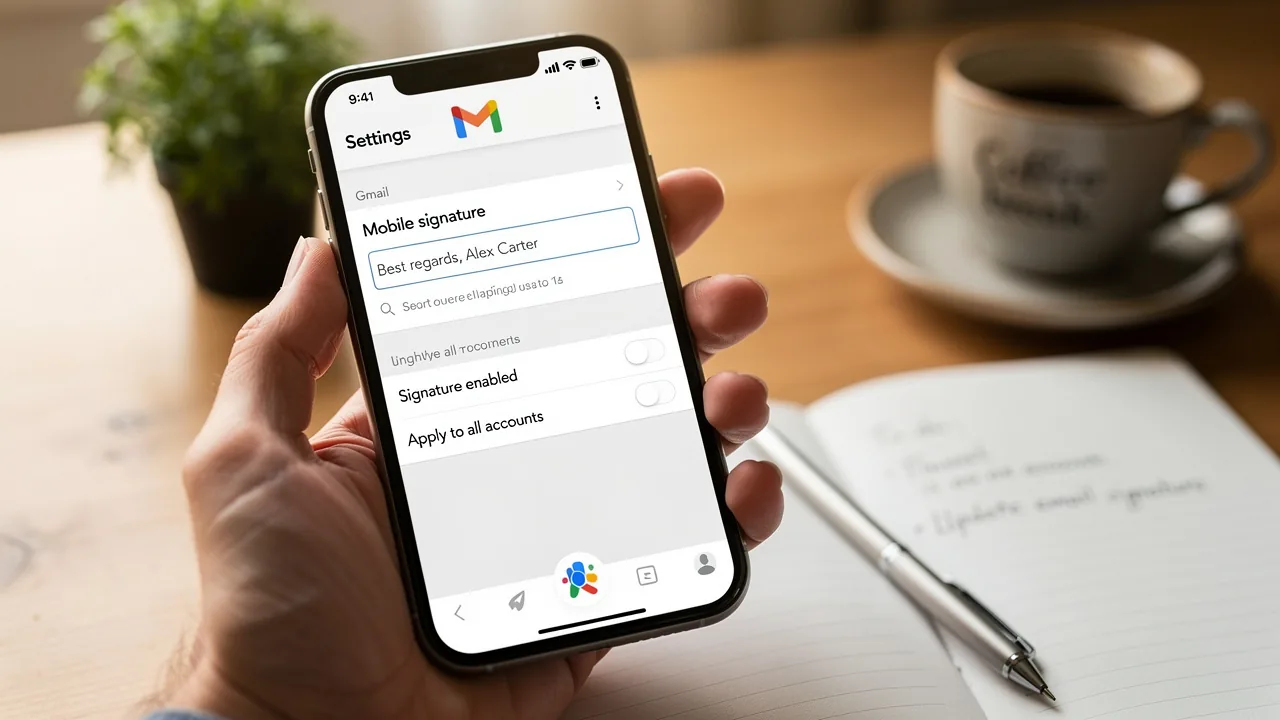
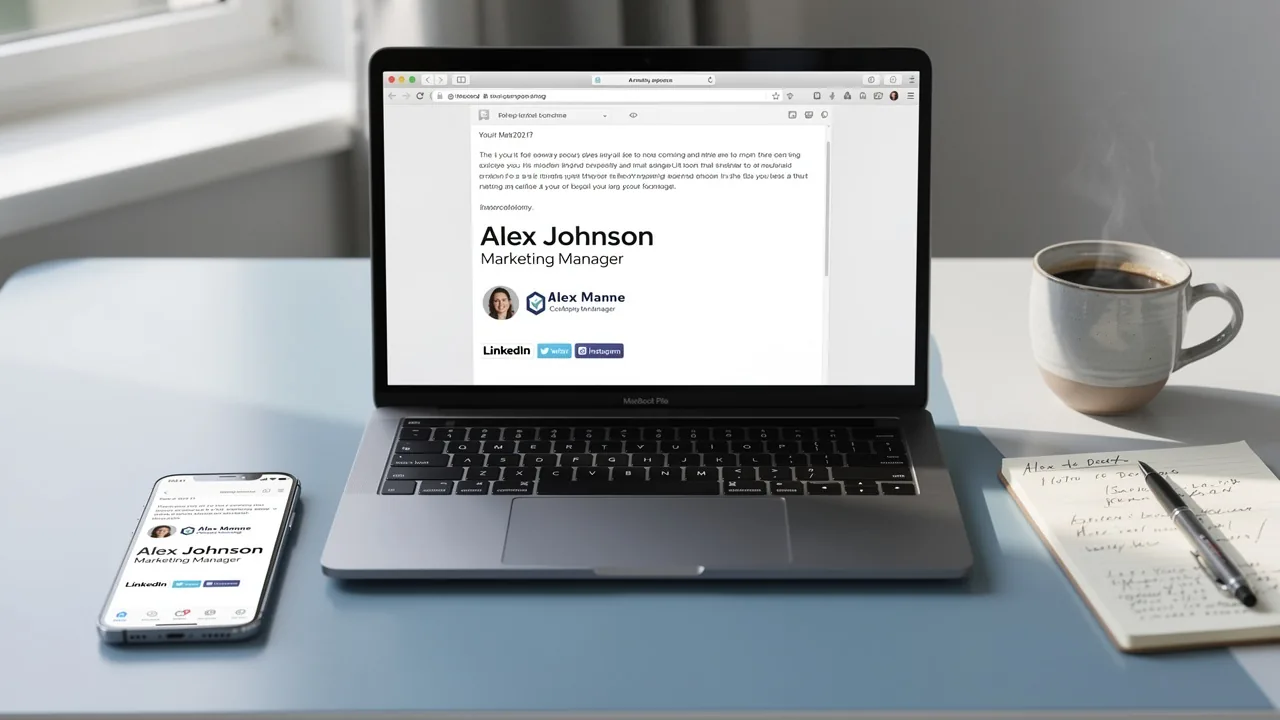
Create a Signature in Office 365: A Step-by-Step Guide for Marketing Managers
While email signatures in Office 365 serve as digital sign-offs, they also present a significant challenge for marketing managers aiming to enhance brand
Sophie Grant
Email Signature Specialist, Scribe
On this page
Introduction
While email signatures in Office 365 serve as digital sign-offs, they also present a significant challenge for marketing managers aiming to enhance brand visibility. Email signatures are powerful branding tools that can significantly impact a company's image and marketing effectiveness. By mastering the art of creating a professional email signature, marketing managers can ensure brand consistency and enhance engagement with every message sent.
Many marketing professionals struggle to balance aesthetics with functionality in their email signatures. Navigating these complexities is crucial for marketing professionals who wish to ensure their email signatures effectively represent their brand and drive meaningful engagement.
Understand the Basics of Email Signatures in Office 365
Email identifiers in Office 365 are not merely digital sign-offs; they are essential branding tools that significantly enhance your company's image and marketing efforts. A well-crafted digital identifier includes your name, title, company name, and contact information. It can also feature logos, social media links, and promotional banners to enhance engagement.
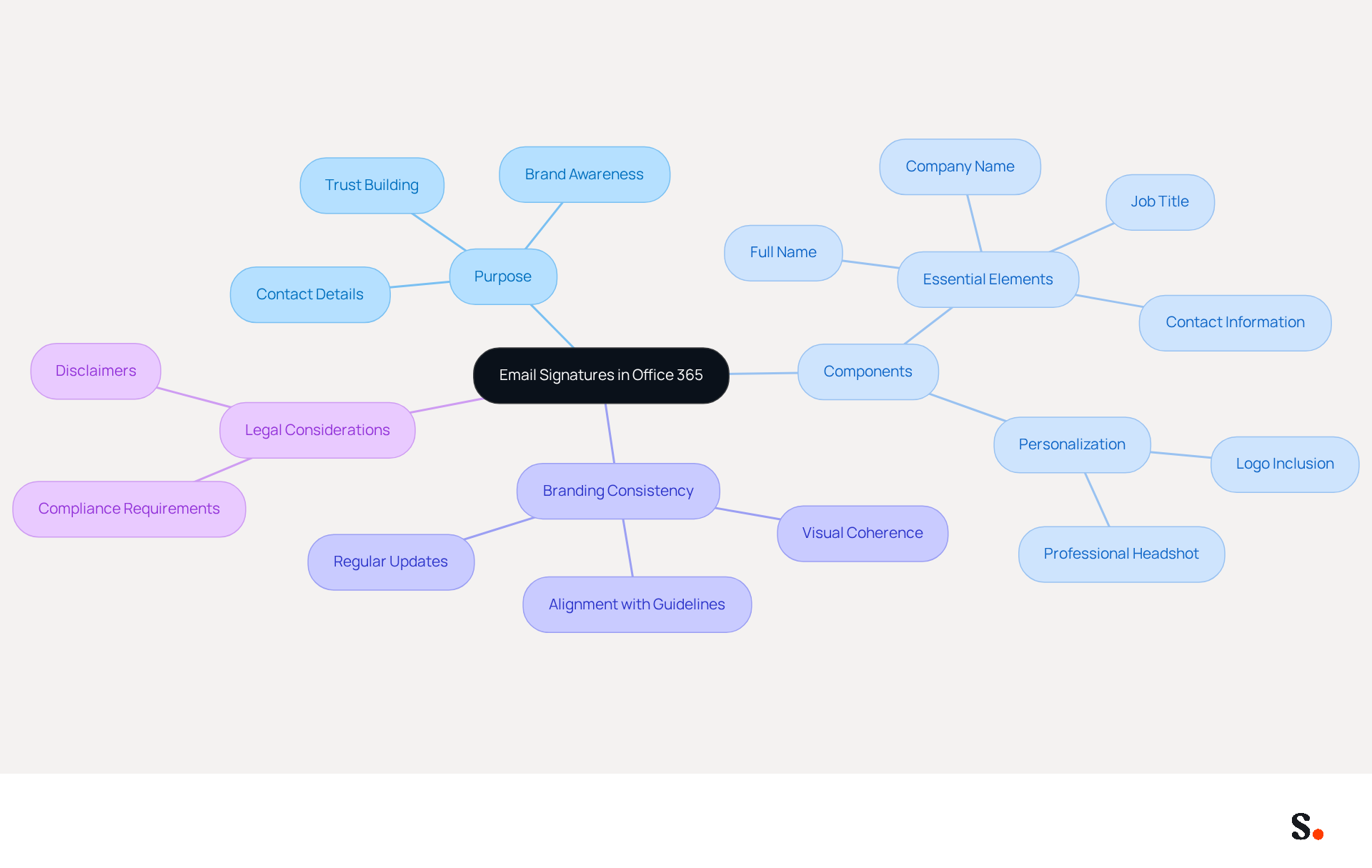
- Purpose of Email Signatures: Email footers provide recipients with essential contact details while reinforcing corporate identity. A well-crafted identifier can enhance brand awareness and build trust, with research showing that 76% of participants believe branded digital identifiers enhance sender confidence.
- Components of a Signature: Essential elements include your full name, job title, company name, phone number, and email address. Incorporating a logo or a professional headshot can further personalize the closing, making it more relatable and engaging.
- Branding Consistency: It is crucial to ensure that your mark aligns with Scribe's branding guidelines, including colors, fonts, and logos. Consistency in presentation not only upholds a professional image across all communications but also enhances recognition, as 80% of businesses consider branded digital identifiers essential for trust.
- Legal Considerations: Navigating legal requirements can be complex and varies by industry, making it essential to include necessary disclaimers. Being aware of these requirements ensures compliance and protects your organization from potential legal issues.
By mastering these elements, managers can transform email signatures into powerful branding assets that foster trust and engagement.
Create Your Email Signature: Step-by-Step Instructions
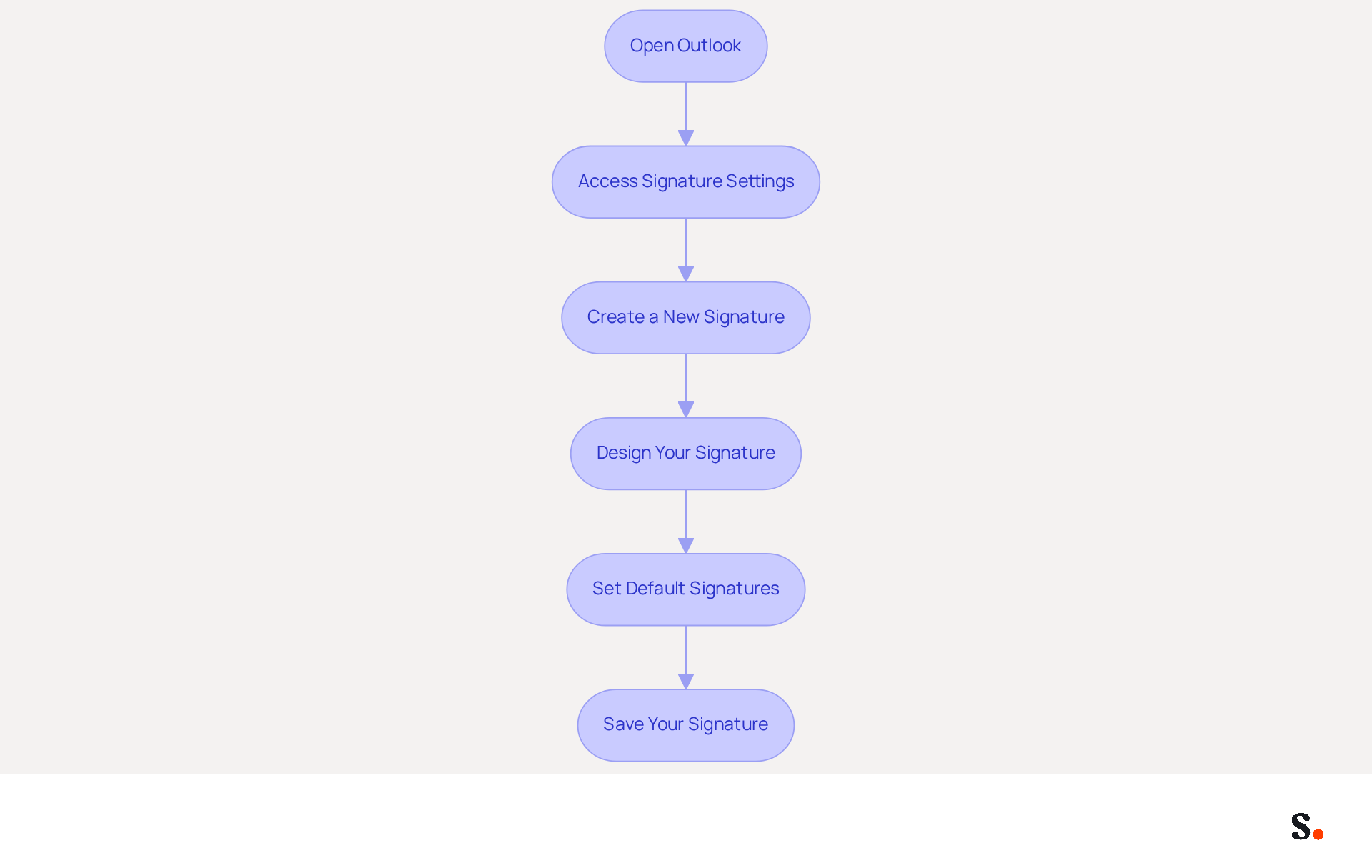
To project a professional image, it is essential to create a signature in Office 365. Follow these steps to ensure your signature is both effective and aligned with your marketing strategy:
- Open Outlook: Launch the Outlook application or access Outlook on the web.
- Access Signature Settings:
- For Outlook Desktop: Navigate to
File>Options>Mail>Signatures.... - For Outlook Web: Click on the gear icon (Settings) in the top right corner, then select
View all Outlook settings>Mail>Compose and reply.
- For Outlook Desktop: Navigate to
- Create a New Signature: Click on
Newto create a new signature. Assign a recognizable name for easy identification. - Design Your Signature: In the editing box, input your desired information. Utilize formatting options to adjust font size, color, and style. You can also insert images or links using the respective icons in the toolbar.
- Set Default Signatures: Determine if this signature will be utilized for new messages, responses, or both. This ensures consistency across your communications.
- Save Your Signature: Click
OKto preserve your signature settings. Test it by sending a test message to yourself to verify its appearance.
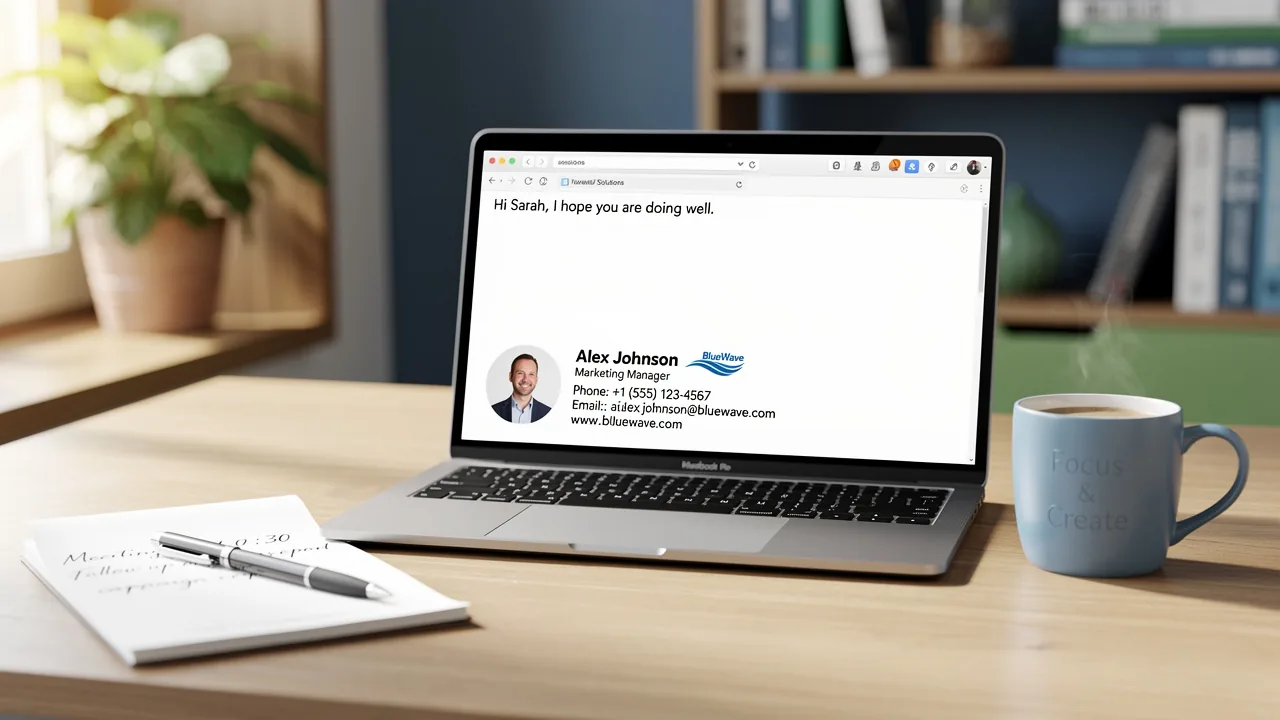
Statistics show that a consistent visual identity can enhance customer purchase probability by 2.4 times, making a well-designed digital representation a crucial promotional tool. Furthermore, case studies indicate that users who automate their email signatures save time and uphold a professional appearance in all communications. By following these steps, you can create a signature in Office 365 that enhances your professional image and aligns with your overall promotional strategy.
Leverage Email Signatures for Brand Consistency and Marketing Impact
Email footers represent an often-overlooked opportunity for strategic marketing enhancement. Here’s how to leverage them effectively:
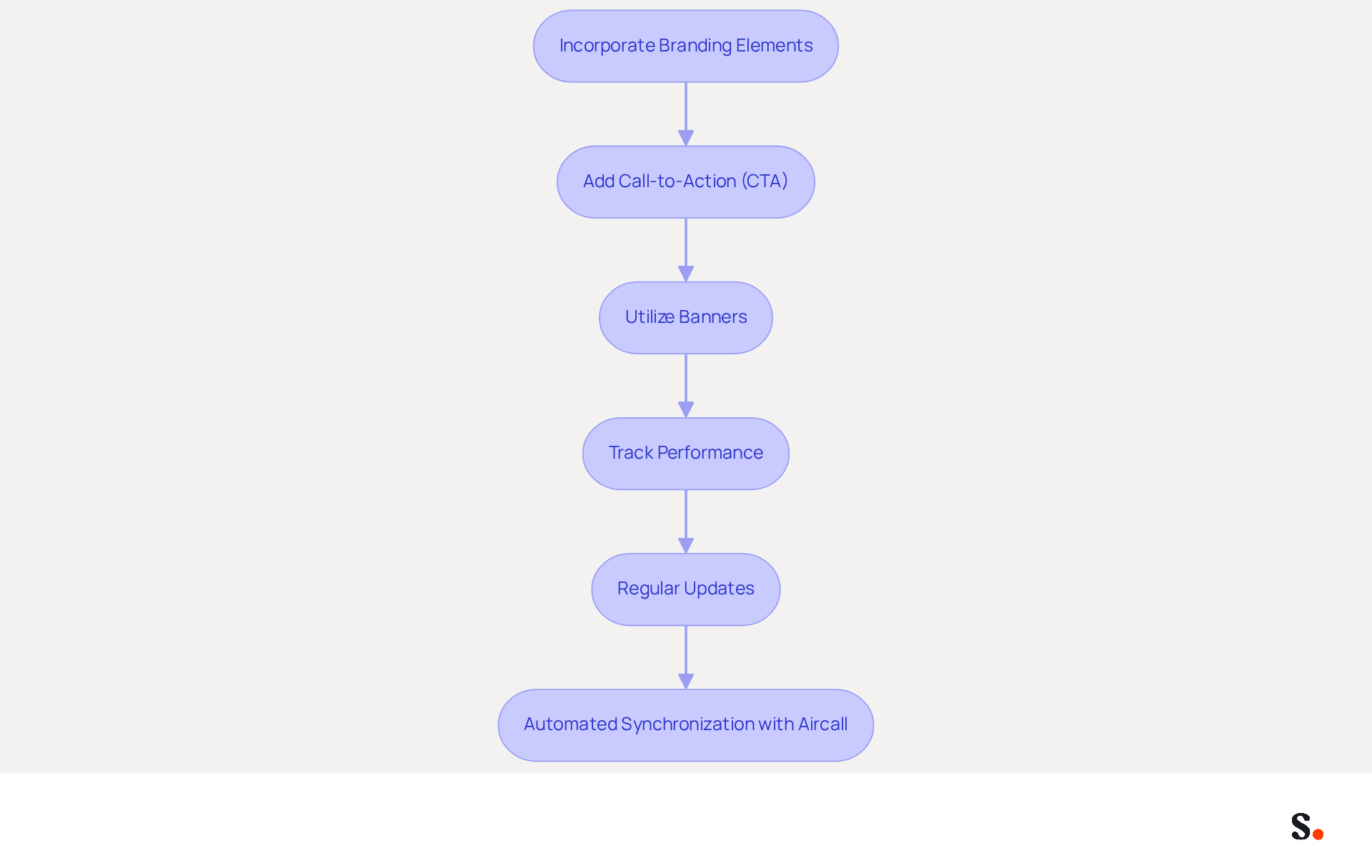
- Incorporate Branding Elements: Use Scribe’s logo, colors, and fonts to create a representation that reflects your identity. Consistent marketing can lead to a 15% increase in click-through rates to your website and enhances recognition, as 76% of recipients report heightened trust in the sender when receiving branded communications.
- Add Call-to-Action (CTA): Include a CTA in your email footer, such as a link to your latest blog post, a promotional offer, or an upcoming event. This encourages recipients to engage further with your brand. Significantly, messages with CTAs can drive a 22% increase in response rates, making them a crucial element of your branding.
- Utilize Banners: Consider adding a promotional banner to your email footer. This approach highlights special deals and new items, transforming each message into a promotional opportunity. Dynamic banners increase click rates by 22%, enhancing engagement.
- Track Performance: Use tracking links in your CTAs to measure engagement. This data can assist you in understanding how effective your email footers are in driving traffic and conversions. Without regular analysis, marketing strategies may stagnate, missing opportunities for improvement.
- Regular Updates: Keep your key content fresh by updating it regularly to reflect new campaigns, seasonal promotions, or changes in contact information. This ensures that your mark remains relevant and effective. With 31.6% of users updating their identifiers only once every few years, regular updates can distinguish Scribe and sustain engagement.
- Automated Synchronization with Aircall: Each change made in your Aircall configuration will automatically be reflected in your Scribe profiles, as we are syncing the data from there. As a result, managers can focus on strategic initiatives rather than getting bogged down in manual updates.
By optimizing email footers, brands can significantly enhance their marketing effectiveness and audience engagement.
Troubleshoot Common Issues When Creating Signatures
Despite clear guidance, many users encounter obstacles when they attempt to create a signature in Office 365 or utilize their email signatures. Here are some common problems and their solutions:
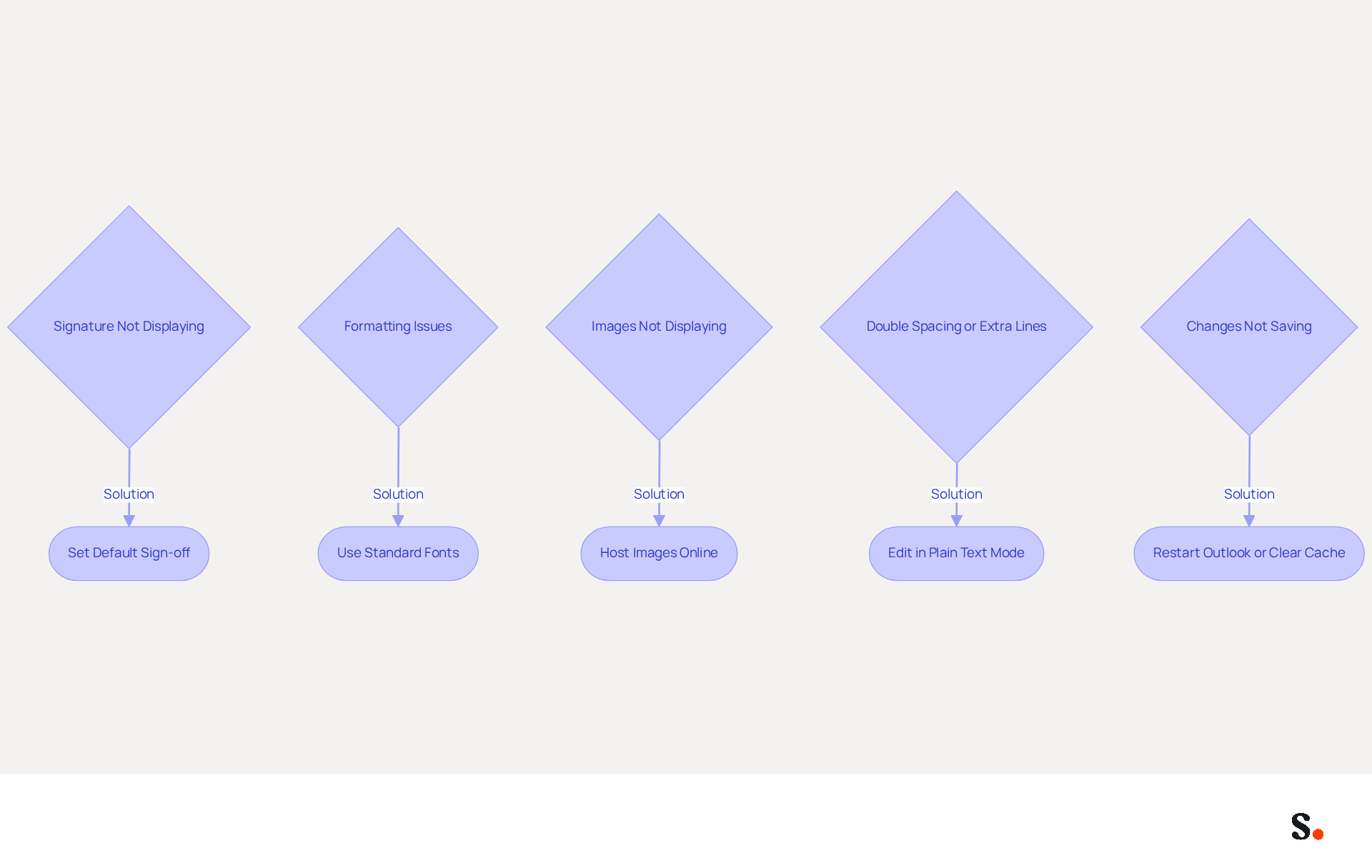
- Signature Not Displaying: Many users struggle to see their signatures in messages, often due to incorrect settings. Ensure that your sign-off is set as the default for new communications and replies in your settings. Additionally, check if the settings for the sign-off are grayed out due to organizational policies or mailbox configurations.
- Formatting Issues: If your sign-off appears different when sent, check for compatibility with messaging clients. Use standard fonts and avoid complex formatting to ensure consistency. Creating sign-offs in Word can lead to formatting issues; using a plain text editor or an email sign-off generator is recommended to avoid these problems.
- Images Not Displaying: If images in your email footer are not appearing, ensure they are hosted online and use absolute URLs. Alternatively, embed images directly into the email footer. Remember that Outlook disables automatic image downloads by default, which can affect visibility.
- Double Spacing or Extra Lines: This can occur due to formatting issues. Edit your name in plain text mode to remove any unwanted spacing, then reformat as needed. Utilizing Shift Enter can assist in resolving double spacing problems in email footers.
- Changes to Your Signature Not Saving: If modifications to your sign-off aren’t saving, try restarting Outlook or clearing your browser cache if using the web version. Ensure you have the necessary permissions to make changes, and check registry settings if validations are not functioning properly.
Understanding these common issues and their solutions helps managers handle correspondence effectively and maintain professionalism. Plus, integrating Scribe with Google Workspace can save time and automate updates, ensuring that any changes made to your team’s information are reflected in their email footers without manual input. This integration enhances brand consistency and streamlines management, making it easier for teams to maintain a cohesive brand image. Furthermore, Scribe's SOC 2 Type II certification and compliance with GDPR and CCPA ensure that your data is handled securely, while the unique positioning of Scribe empowers marketing teams to manage email signatures independently after the initial IT setup. Ultimately, addressing these challenges can significantly elevate the professionalism of your communications.
Conclusion
Many organizations fail to recognize the strategic value of email signatures, often treating them as mere formalities. By recognizing the strategic importance of email signatures and implementing the outlined steps, marketing managers can ensure that their communications reflect a professional image while reinforcing their brand identity.
This article has detailed the essential components of an email signature, the step-by-step process for creating one in Office 365, and strategies for leveraging signatures as powerful marketing tools. Key insights include:
- The necessity of branding consistency
- The impact of call-to-action elements
- The importance of regular updates to maintain relevance
Additionally, troubleshooting common issues ensures that signatures function correctly, further enhancing professionalism in communications.
When you incorporate these practices, email signatures can become valuable assets that truly engage your audience and build trust. As organizations strive for brand consistency and measurable marketing ROI, utilizing tools like Scribe can streamline the management of email signatures, allowing marketing teams to maintain control and adapt quickly. Utilizing Scribe not only simplifies email signature management but also empowers marketing teams to enhance brand visibility and engagement.
Frequently Asked Questions
What is the purpose of email signatures in Office 365?
Email signatures serve as essential branding tools that provide recipients with important contact details while reinforcing corporate identity. They enhance brand awareness and build trust, with research indicating that 76% of participants believe branded digital identifiers increase sender confidence.
What are the essential components of an email signature?
Essential components of an email signature include your full name, job title, company name, phone number, and email address. Additionally, incorporating a logo or a professional headshot can personalize the signature and make it more engaging.
How does branding consistency affect email signatures?
Branding consistency is crucial as it ensures that the email signature aligns with Scribe's branding guidelines, including colors, fonts, and logos. Consistent presentation upholds a professional image and enhances recognition, with 80% of businesses considering branded digital identifiers essential for trust.
Are there legal considerations to keep in mind when creating email signatures?
Yes, navigating legal requirements can be complex and varies by industry. It is essential to include necessary disclaimers to ensure compliance and protect your organization from potential legal issues.
How can managers utilize email signatures as branding assets?
By mastering the elements of email signatures, managers can transform them into powerful branding assets that foster trust and engagement with recipients.
List of Sources
- Understand the Basics of Email Signatures in Office 365
- Research Recap: Branded Email Signatures Increase Company Recognition, Trust - Demand Gen Report (https://demandgenreport.com/industry-news/research-recap-branded-email-signatures-increase-company-recognition-trust/47252)
- Using Email Signatures for Marketing | CloudM (https://cloudm.io/resources/blog/using-email-signatures-for-marketing-how-every-email-can-boost-your-brand)
- Why Email Signatures Must Be In Your 2026 Marketing Plan | Rocketseed (https://rocketseed.com/blog/2026-marketing-plan-email-signatures)
- The impact of email signatures on your branding (https://signitic.com/en/resources/the-impact-of-email-signatures-on-your-branding)
- Best practices for business email signatures in 2026 (https://bybrand.io/blog/best-practices)
- Create Your Email Signature: Step-by-Step Instructions
- How to add and change an email signature in Outlook | Microsoft Support (https://support.microsoft.com/en-us/outlook/mail/how-to-add-and-change-an-email-signature-in-outlook)
- How to add a signature in Outlook 365? (https://syskit.com/blog/create-office-365-outlook-signature?hs_amp=true)
- Create and Manage Your Signature on Outlook 365 Easily | Letsignit (https://letsignit.com/blog/outlook-365-email-signature)
- Create an Email Signature in Microsoft 365 | Help - Illinois State (https://help.illinoisstate.edu/display/Technology/Create+an+Email+Signature+in+Microsoft+365)
- Create an email signature in Outlook - Microsoft Support (https://support.microsoft.com/en-us/topic/create-an-email-signature-in-outlook-0f6ec33a-94dc-c87b-ad05-3bd04e89f51c)
- Leverage Email Signatures for Brand Consistency and Marketing Impact
- Why Email Signatures Must Be In Your 2026 Marketing Plan | Rocketseed (https://rocketseed.com/blog/what-are-the-biggest-email-trends-for-2026)
- The impact of email signatures on your branding (https://signitic.com/en/resources/the-impact-of-email-signatures-on-your-branding)
- Using Email Signatures for Marketing | CloudM (https://cloudm.io/resources/blog/using-email-signatures-for-marketing-how-every-email-can-boost-your-brand)
- 40+ Email Signature Statistics for 2026 (Data + Insights) (https://wavecnct.com/blogs/email-signature-statistics)
- Troubleshoot Common Issues When Creating Signatures
- Email Signatures vanishing - New Outlook | Microsoft Community Hub (https://techcommunity.microsoft.com/discussions/outlookgeneral/email-signatures-vanishing---new-outlook/4418809)
- Email Signature Troubleshooting - Problems & Solutions - Gimmio (https://blog.gimm.io/email-signature-troubleshooting)
- How to solve problems with email signatures in Microsoft 365? (https://mail-signatures.com/articles/problems-email-signatures-office-365)
Get started with Scribe
Signatures for every role on your team
Free 14-day trial — no credit card.