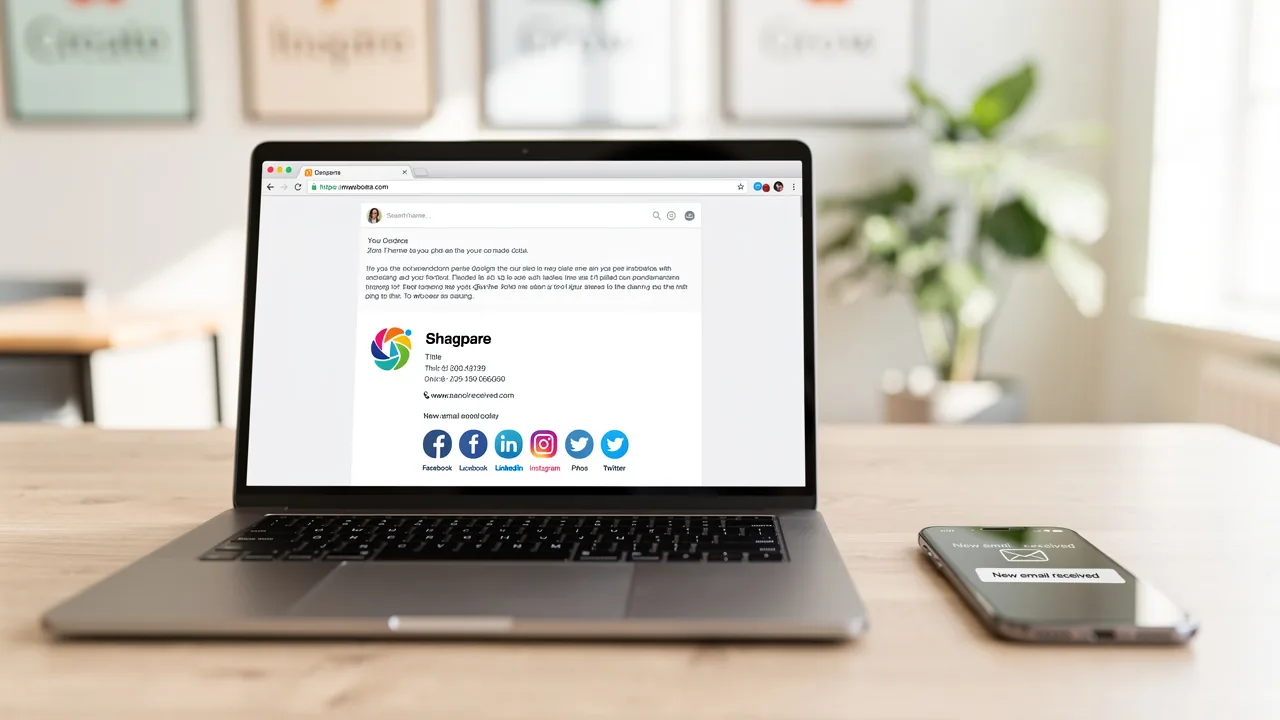
Master Gmail Signature Settings on Mobile for Marketing Success
While mastering Gmail signature settings on mobile devices is crucial, many marketing professionals overlook its potential impact on brand visibility and
Sophie Grant
Email Signature Specialist, Scribe
On this page
- Introduction
- Set Up Your Gmail Signature on Mobile Devices
- Streamlined Management with Scribe
- Statistics and Best Practices
- Case Studies
- Expert Opinion
- Optimize Your Signature for Mobile Engagement
- Leverage Signatures as Marketing Tools
- Troubleshoot Common Gmail Signature Issues on Mobile
- Conclusion
- Frequently Asked Questions
- List of Sources
Introduction
While mastering Gmail signature settings on mobile devices is crucial, many marketing professionals overlook its potential impact on brand visibility and engagement. With mobile devices accounting for a significant portion of email interactions, optimizing email signatures can transform a simple sign-off into a powerful marketing tool. Despite the potential benefits, many organizations face challenges in implementing effective mobile signatures. By addressing these challenges, businesses can leverage mobile signatures to significantly enhance their engagement and conversion rates.
Set Up Your Gmail Signature on Mobile Devices
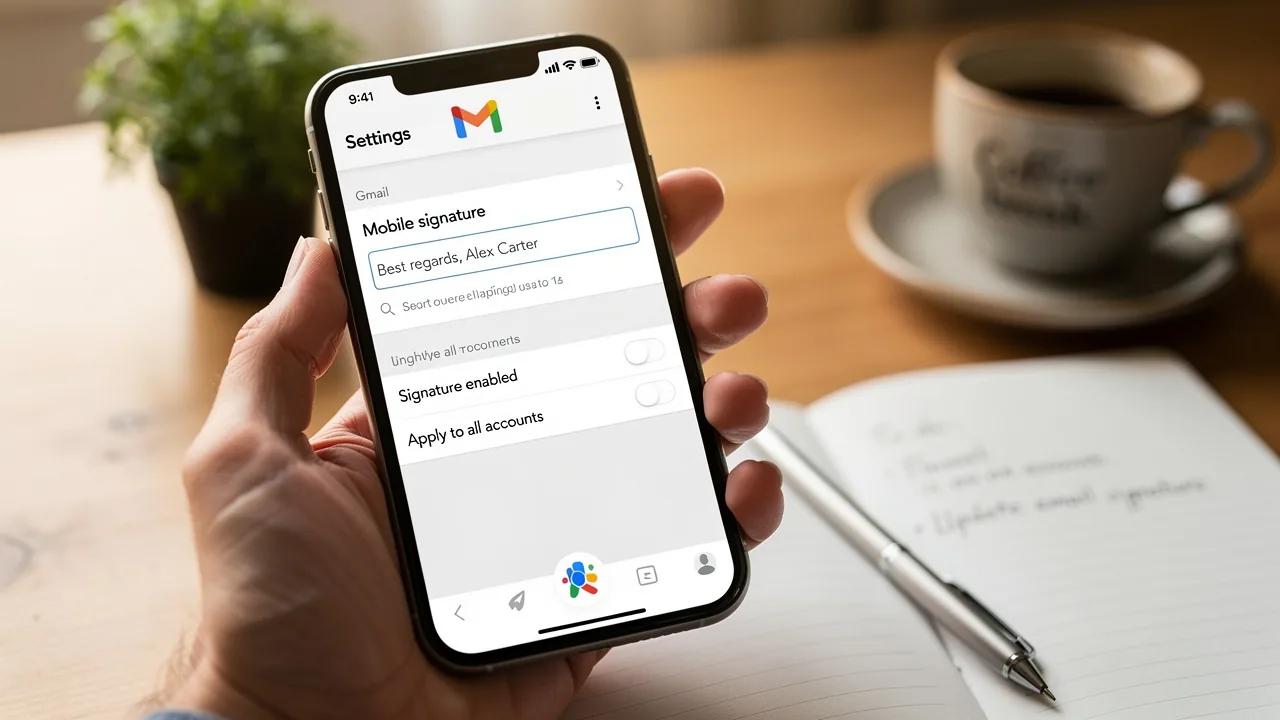
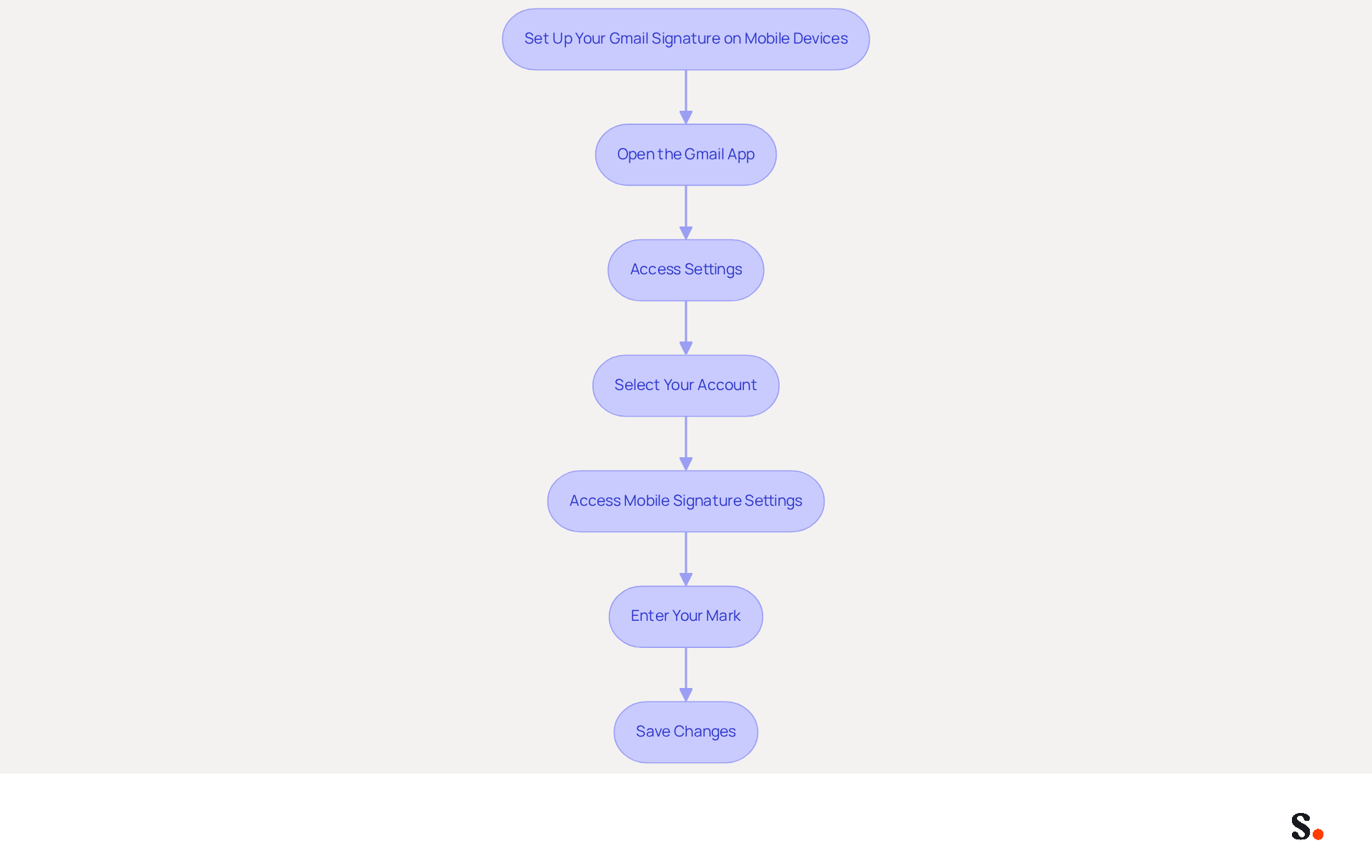
To set up your Gmail signature on mobile devices in 2026, follow these straightforward steps:
- Open the Gmail App: Launch the Gmail app on your mobile device.
- Access Settings: Tap the menu icon (three horizontal lines) in the top-left corner.
- Select Your Account: Scroll down and tap on 'Settings.' Select the Google account for which you wish to add a sign-off.
- To access your email on the go, you can adjust the Gmail signature settings mobile. In the Gmail signature settings mobile, you should look for the 'Mobile Signature' option and tap on it.
- Enter Your Mark: Type in your desired text for the mark, which may include your name, title, company name, and contact information.
- Save Changes: After entering your mark, make sure to save your changes.
By following these steps, you can ensure that every message sent from your mobile device reflects your professional identity and brand.
Streamlined Management with Scribe
Integrating Google Workspace with Scribe streamlines email signature management, saving valuable time. To enable one-click synchronization, you must grant Scribe permission to connect with your service provider, which requires Super Admin access. Scribe enables one-click synchronization, ensuring that any updates made in your Google Workspace-such as changes in job positions or team member details-are automatically reflected in your contact details. You also have the option to select which teammates you want to sync with Scribe. This automation simplifies management and adheres to strict data security standards, as evidenced by Scribe's SOC 2 Type II compliance.
Statistics and Best Practices
Did you know that in 2026, mobile devices are responsible for 1.6% of email opens? This highlights the importance of optimizing your email signature for mobile viewing. Emails that include images achieve a higher open rate of 30.27%, making it advantageous to incorporate visual elements in your email footer. Moreover, customized messages are six times more likely to drive conversions, so consider adjusting your closing to reflect your brand's voice and values.
Case Studies
For instance, companies that have implemented mobile-optimized email signatures have reported increased engagement rates. A significant instance is Thrasher Foundation Repair, which achieved an impressive 22:1 return on investment by concentrating on data-driven marketing tactics, including efficient management of digital identifiers.
Expert Opinion
Experts recommend that businesses regularly review and update their email signatures to ensure they remain relevant and effective. This practice not only enhances brand consistency but also maximizes marketing opportunities in every email sent. By leveraging tools like Scribe, organizations can automate this process, ensuring that all team members maintain a cohesive brand image across their communications.
Optimize Your Signature for Mobile Engagement
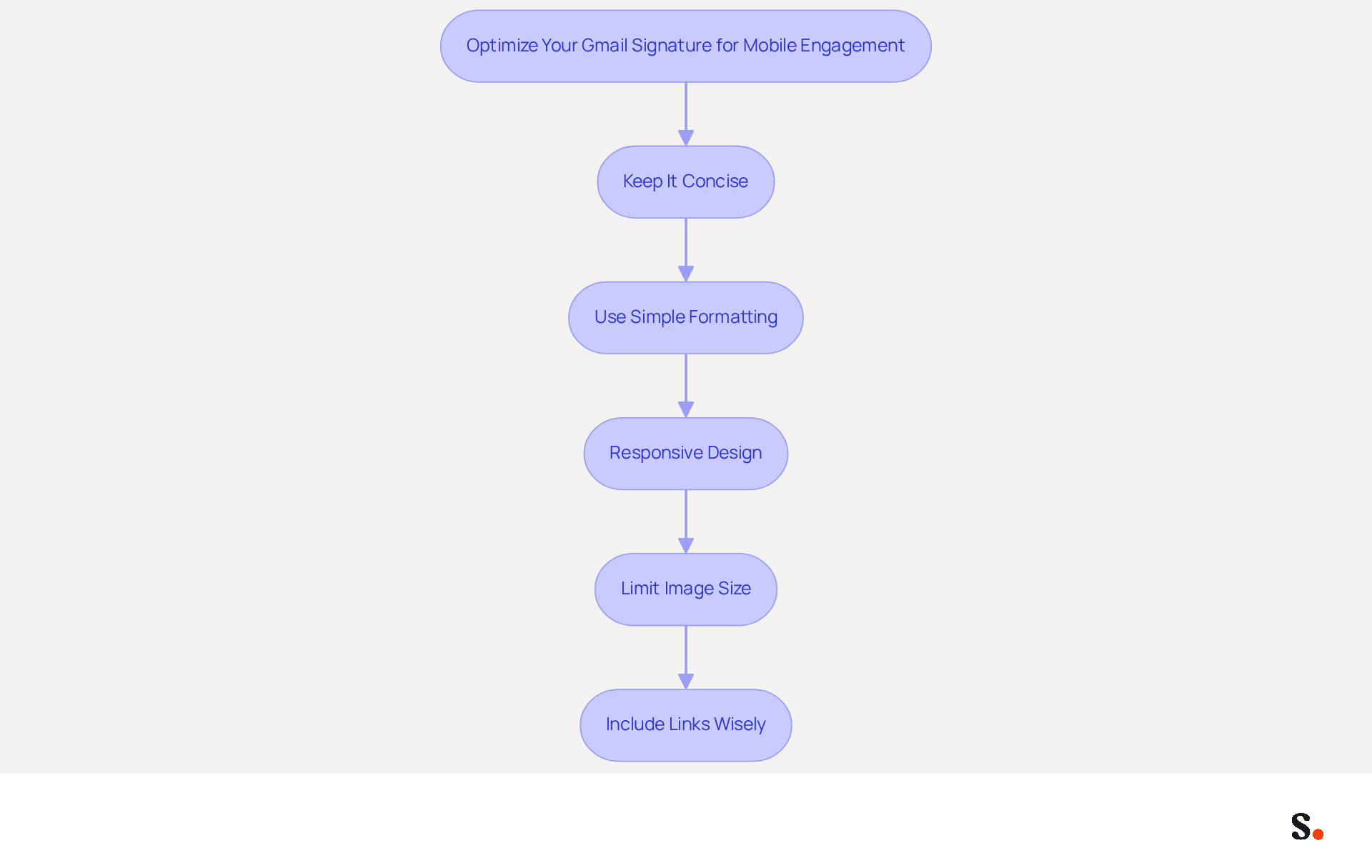
To enhance mobile engagement through your Gmail signature, implementing best practices is essential:
- Keep It Concise: Limit your sign-off to essential information, including your name, title, and one or two key contact details. Keep your sign-off between 3-6 lines to prevent it from being flagged by spam filters.
- Use Simple Formatting: Avoid complex layouts and excessive images. A clean, straightforward design is more effective on portable platforms, ensuring that key information is easily accessible.
- Responsive Design: Ensure that your email is responsive. Testing it on different platforms is vital, as over half of all messages are accessed on portable gadgets, making compatibility crucial for effective communication. According to Maria Dahlqvist Canton, adjusting your Gmail signature settings mobile is essential for maintaining consistency across all users' emails.
- Limit Image Size: If you include images, such as logos, ensure they are small and optimized for viewing on devices. Large images can slow down loading times, leading to a poor user experience. Company logos should be under 10KB in size to prevent slow loading times.
- Include Links Wisely: If you add links, ensure they are easy to click on smartphones. Use short URLs or link text that clearly indicates where the link leads, enhancing engagement without overwhelming the recipient. Additionally, consider using social media icons instead of text links for better visual appeal and recognition.
Following these guidelines helps you create a professional signature that engages recipients and reinforces your brand identity with each email. Ultimately, a well-optimized signature can significantly impact how your brand is perceived in every email.
Leverage Signatures as Marketing Tools
To maximize the marketing potential of your Gmail signature, implementing targeted strategies is crucial:
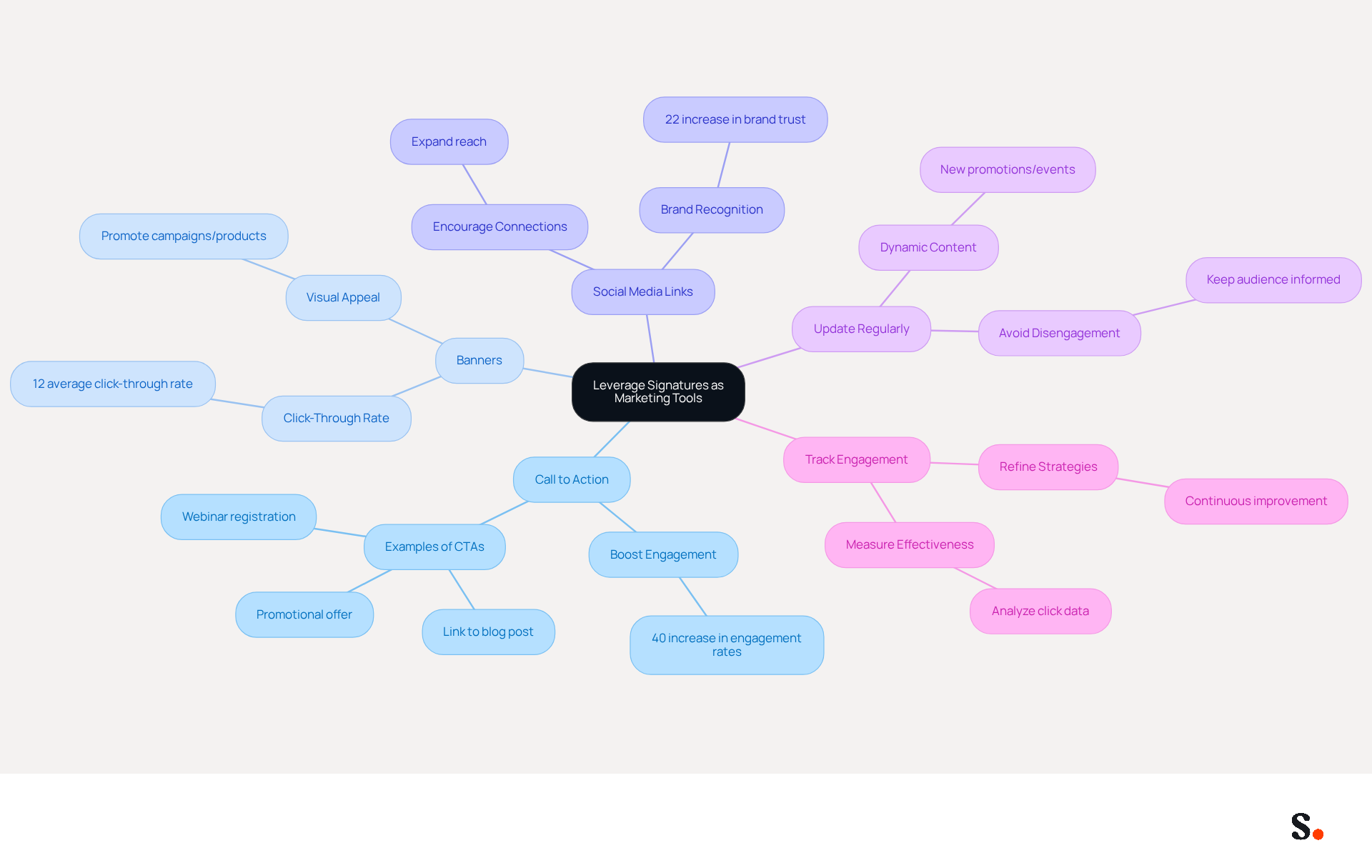
- Include a Call to Action (CTA): A clear and compelling CTA is essential. This could be a link to your latest blog post, a promotional offer, or a registration link for an upcoming webinar, guiding recipients towards specific actions. Studies indicate that strategically placed CTAs can enhance engagement rates by as much as 40%.
- Use Banners: Incorporate a visually appealing banner image that promotes current campaigns or products. Ensure it fits seamlessly within the established layout to maintain professionalism. Organizations that utilize well-designed digital identifiers can achieve a 12% average click-through rate on banner links.
- Highlight Social Media Links: Adding icons that link to your social media profiles encourages recipients to connect with you on various platforms, thereby expanding your reach and enhancing brand visibility. Including a company logo can contribute to a 22% increase in brand recognition and trust.
- Update Regularly: Keep your identifier dynamic by frequently refreshing it with new promotions, events, or changes in contact information. Without regular updates, your audience may become disengaged and uninformed about your latest offerings.
- Track Engagement: Utilize tracking links to measure the effectiveness of your distinctive marketing efforts. Analyzing this data can provide insights that help refine your approach over time. This continuous analysis enables you to refine your marketing strategies effectively.
By utilizing the Gmail signature settings mobile, you can transform your email footer into a powerful marketing tool that not only enhances your brand's visibility but also fosters deeper connections with your audience. Additionally, ensure compliance with security standards to protect your brand and maintain trust.
Troubleshoot Common Gmail Signature Issues on Mobile
Common issues with Gmail signature settings mobile can hinder professional communication. Consider the following common problems and their solutions:
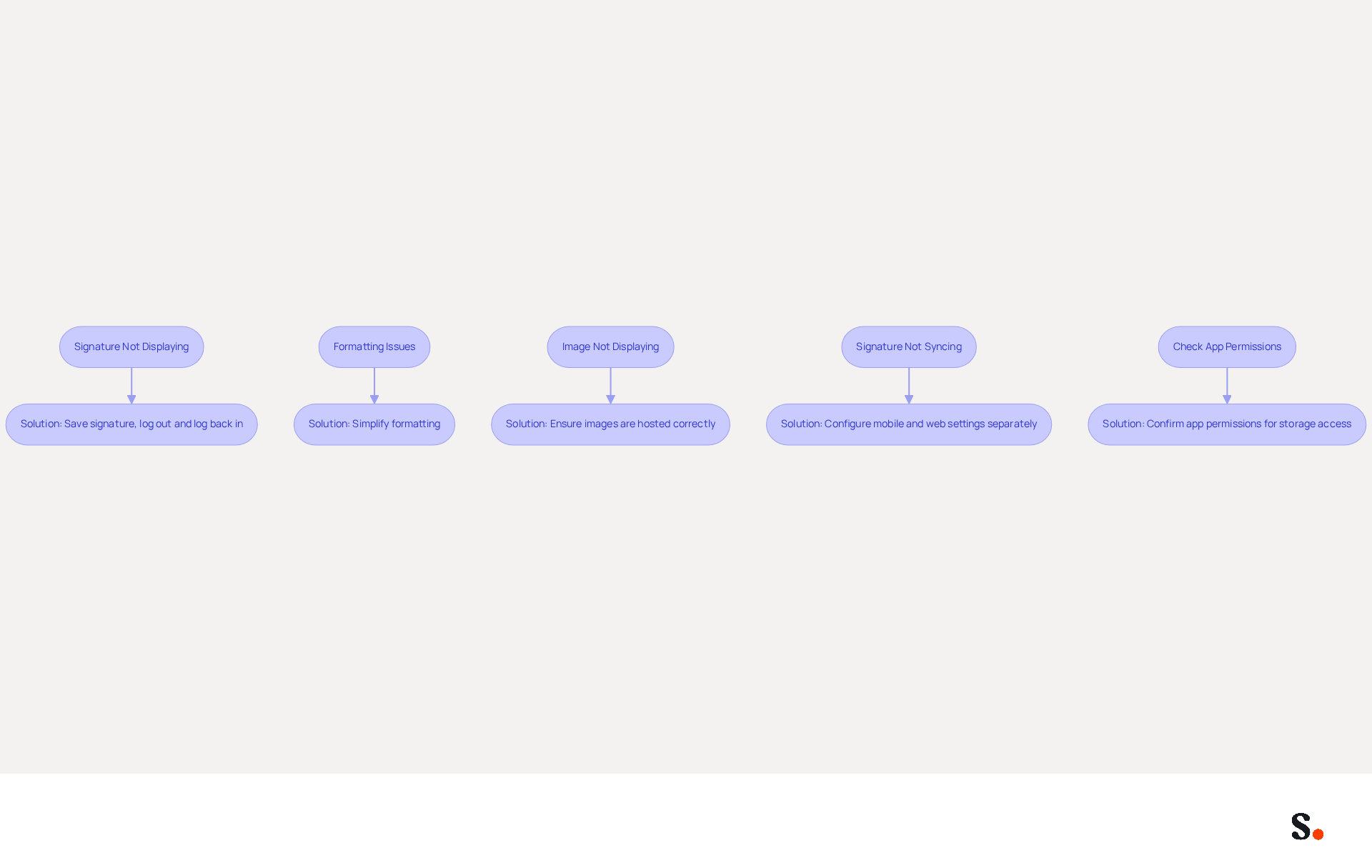
- Signature Not Displaying: Confirm that your signature is saved in the Gmail app settings. If the signature remains absent, log out and log back into your account to refresh the settings.
- Formatting Issues: If your signature appears differently than intended, it may be due to unsupported formatting. Gmail frequently removes certain styles or images, so simplifying your email footer can help prevent these problems.
- Image Not Displaying: Ensure that images in your email footer are hosted on a reliable server and that the links are correct. Using smaller images can also enhance loading times and improve visibility.
- Signature Not Syncing: Ensure that mobile and web configurations are established separately to maintain consistency.
- Check App Permissions: Confirm that the Gmail app has the required permissions to access your system's storage, particularly if you are using images in your email footer.
By implementing these troubleshooting tips, you can effectively resolve common issues and maintain a professional and impactful Gmail signature settings mobile. Addressing these issues not only enhances your email signature but also reinforces your professional image.
Conclusion
Optimizing Gmail signature settings on mobile devices is crucial for achieving marketing success. By optimizing email signatures, organizations can enhance their professional image and leverage every email as a marketing opportunity. A well-crafted signature reflects brand identity and engages recipients, which drives conversions and fosters connections.
This article has outlined key strategies for managing Gmail signatures effectively on mobile devices. From setting up signatures to troubleshooting common issues, the importance of concise, visually appealing, and responsive designs has been emphasized. Additionally, integrating tools like Scribe streamlines the process, allowing marketing teams to maintain brand consistency while adhering to security standards such as SOC 2 Type II compliance.
Ultimately, email signatures serve as powerful marketing tools that can significantly impact engagement. By implementing best practices and regularly updating signatures, organizations can maximize engagement and visibility. By prioritizing effective email signature management, organizations can transform every email into a strategic marketing asset.
Frequently Asked Questions
How do I set up my Gmail signature on mobile devices?
To set up your Gmail signature on mobile devices, open the Gmail app, tap the menu icon in the top-left corner, select 'Settings,' choose your Google account, find the 'Mobile Signature' option, enter your desired text, and save your changes.
What information should I include in my Gmail signature?
Your Gmail signature may include your name, title, company name, and contact information.
How does Scribe help with email signature management?
Scribe streamlines email signature management by enabling one-click synchronization with Google Workspace, automatically reflecting updates such as job position changes or team member details, while adhering to strict data security standards.
What permissions are needed to use Scribe for email signature synchronization?
To enable one-click synchronization with Scribe, you must grant it permission to connect with your service provider, which requires Super Admin access.
Why is it important to optimize email signatures for mobile devices?
In 2026, mobile devices account for 1.6% of email opens, making it crucial to optimize email signatures for mobile viewing to enhance engagement.
What are the benefits of including images in email signatures?
Emails that include images achieve a higher open rate of 30.27%, making it advantageous to incorporate visual elements in your email footer.
How can customized messages in email signatures impact conversions?
Customized messages are six times more likely to drive conversions, so adjusting your closing to reflect your brand's voice and values can be beneficial.
Can you provide an example of a company that benefited from mobile-optimized email signatures?
Thrasher Foundation Repair reported a 22:1 return on investment by focusing on data-driven marketing tactics, including efficient management of digital identifiers through mobile-optimized email signatures.
What do experts recommend regarding email signature management?
Experts recommend that businesses regularly review and update their email signatures to ensure they remain relevant and effective, enhancing brand consistency and maximizing marketing opportunities.
List of Sources
- Set Up Your Gmail Signature on Mobile Devices
- Email Signature Experience in Gmail Android (2025 Update) (https://patronum.io/google-improves-the-email-signature-experience-for-the-gmail-app-on-android-devices)
- The ultimate mobile email statistics overview: All mobile email stats (https://emailmonday.com/mobile-email-usage-statistics)
- Email Users Statistics and Facts (https://market.us/statistics/internet/email-users)
- 100 Compelling Email Statistics for 2026 | PGM Solutions (https://porchgroupmedia.com/blog/100-compelling-email-statistics-to-inform-your-strategy-in-2023)
- Email Client Market Share: Trends & Statistics 2026 (https://litmus.com/email-client-market-share)
- Optimize Your Signature for Mobile Engagement
- Email Signature Best Practices Guide With Examples - MailerLite (https://mailerlite.com/blog/email-signature-best-practices)
- 20 best email signature design examples for 2026 — Stripo.email (https://stripo.email/blog/10-best-email-signature-design-examples)
- Email Signature Best Practices for 2026 (+ 15 Pro Examples) (https://wavecnct.com/blogs/email-signature-best-practices-2026)
- Best Mobile Email Signatures: Key Practices for Marketing Managers (https://scribe-mail.com/en-US/blog/best-mobile-email-signatures-key-practices-for-marketing-managers)
- Optimise Your Email Signature for Mobile Devices (https://globalbankingandfinance.com/why-optimising-brand-email-signatures-for-mobile-devices-is-essential-for-hybrid-working)
- Leverage Signatures as Marketing Tools
- Why Email Signatures Must Be In Your 2026 Marketing Plan | Rocketseed (https://rocketseed.com/blog/what-are-the-biggest-email-trends-for-2026)
- Email Signature Marketing: A Guide to Drive Sales (https://smartrmail.com/blog/email-signature-marketing)
- How to Run a Successful Email Signature Marketing Campaign - NEWOLDSTAMP - NEWOLDSTAMP (https://newoldstamp.com/blog/email-signature-marketing-guide)
- All the Best Email Signature Practices for Marketing Success (https://scribe-mail.com/en-US/blog/all-the-best-email-signature-practices-for-marketing-success)
- 2026 Marketing Trends: Email Signatures as a Marketing Tool (https://bluechiptt.com/blog/5-marketing-trends-for-2026-and-how-your-email-signature-fits-in)
- Troubleshoot Common Gmail Signature Issues on Mobile
- 40+ Email Signature Statistics for 2026 (Data + Insights) (https://wavecnct.com/blogs/email-signature-statistics)
- Fix Your Missing Gmail Signature: 8 Troubleshooting Steps & Best Practices | Newoldstamp - NEWOLDSTAMP (https://newoldstamp.com/blog/gmail-signature-not-showing-up)
- 170+ Professional email signature quotes for work (https://wobaka.com/tools/email-quotes)
- Troubleshoot issues with Gmail signatures - Gmail Help (https://support.google.com/mail/answer/11468381?hl=en-GB)
Get started with Scribe
Signatures for every role on your team
Free 14-day trial — no credit card.