Create an Effective Email Signature for Outlook in 5 Steps
Creating an effective email signature can be a complex task, yet it is crucial for establishing credibility and brand identity in professional communication
Sophie Grant
Email Signature Specialist, Scribe
Introduction
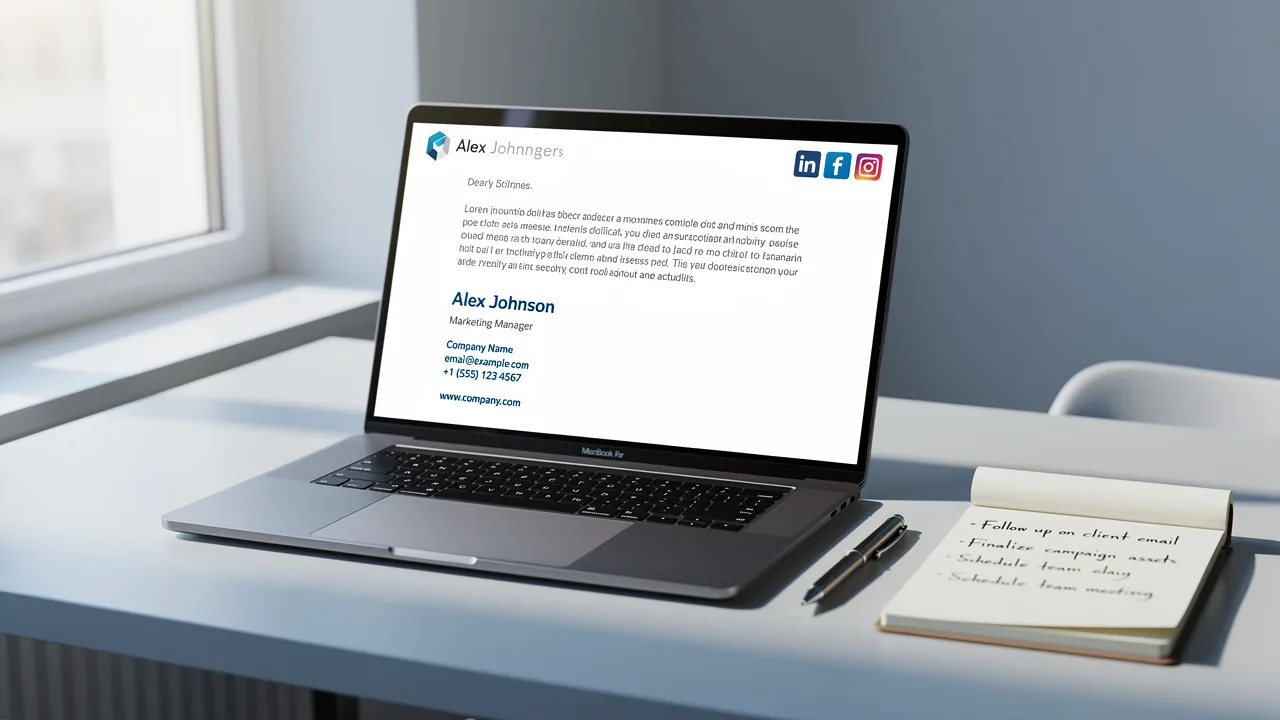
Creating an effective email signature can be a complex task, yet it is crucial for establishing credibility and brand identity in professional communication. By following a structured approach, professionals can leverage their email signatures to convey essential contact information while reinforcing their brand's presence in every correspondence.
Navigating the complexities of email signature design can be daunting for many professionals, but a well-crafted signature can significantly enhance your communication.
In this guide, we'll break down the key steps to crafting an impactful email signature for Outlook, ensuring it aligns with best practices and maximizes engagement.
Understand the Purpose of an Email Signature
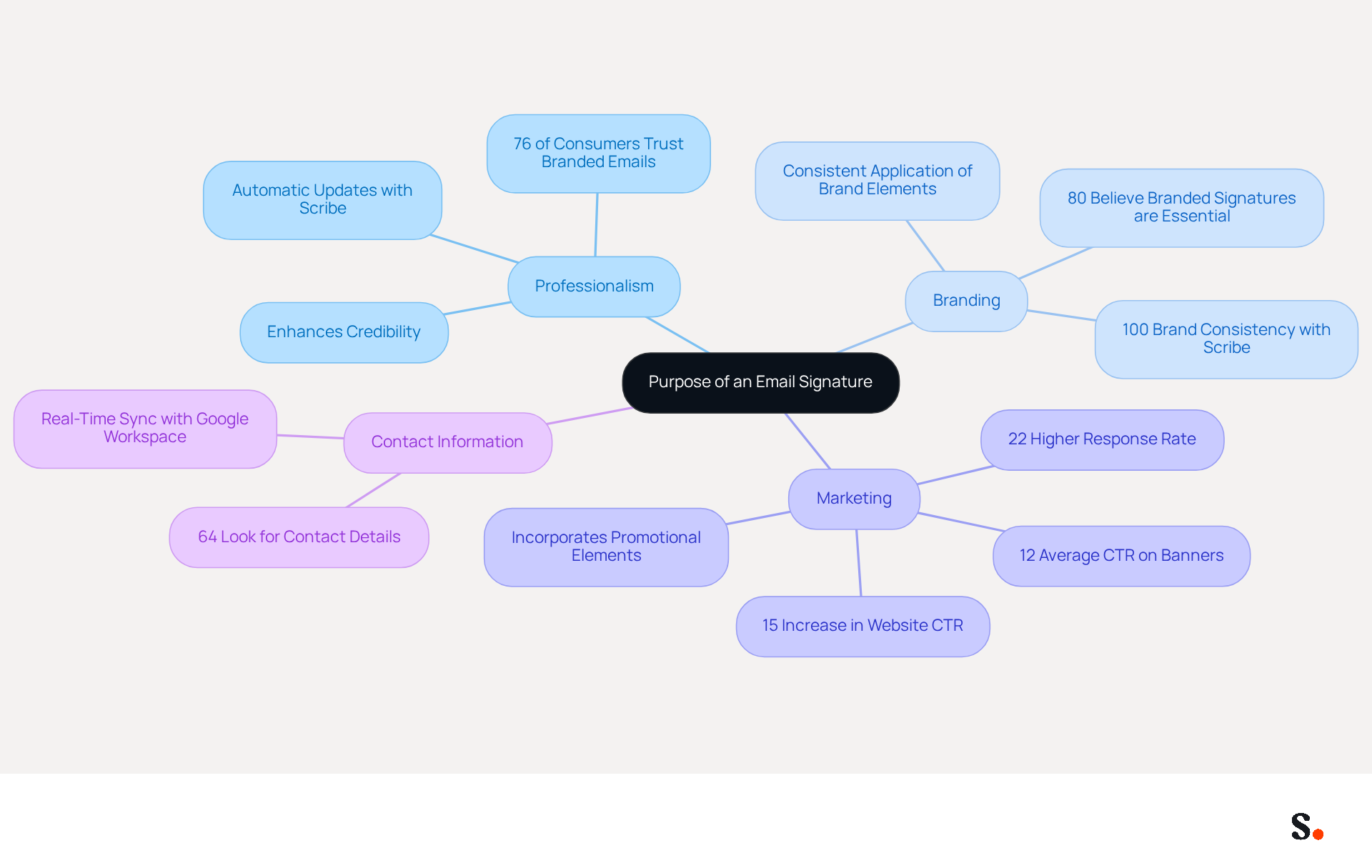
An effective digital sign-off is not merely a formality; it is a crucial element that conveys essential contact information and reinforces your brand identity. Here are the key purposes of an effective email signature, along with how Scribe enhances each aspect:
- Professionalism: A well-crafted signature enhances your credibility, making you appear more professional to clients and colleagues. Research indicates that 76% of consumers express heightened trust when messages include branded identifiers. Without a professional email signature, you risk losing consumer trust. With Scribe, your autographs are automatically updated to reflect the latest branding, ensuring consistent professionalism in every communication.
- Branding: Consistent application of logos, colors, and fonts in your correspondence enhances your image with every message sent. Indeed, 80% of participants think that branded digital identifiers are essential for a company's identity. Inconsistent branding can confuse your audience and weaken your brand identity. Scribe guarantees 100% brand consistency across all representations, reinforcing your brand with every communication.
- Marketing: Email footers can incorporate promotional elements like banners or calls to action, transforming each message into a marketing opportunity. Businesses employing branded identifiers experience a 15% rise in website click-through rates, and messages with branded identifiers achieve a 22% greater response rate compared to those lacking them. Scribe's average click-through rate on banners is 12%, providing measurable marketing ROI.
- Contact Information: Did you know that 64% of consumers look for contact details in email footers? This makes having a clear signature crucial for effective engagement. This tool simplifies this process by automatically syncing your teammates' signing details with your business phone system and Google Workspace, ensuring that any updates are reflected in real-time without manual input.
By leveraging Scribe's automated management features, you can create a representation that not only reflects you but also aligns with strategic business goals, enhancing both communication and marketing efforts while ensuring compliance with SOC 2 Type II standards, which safeguards your data security.
Choose and Customize Your Email Signature Template
Creating a powerful email signature for Outlook is essential for effective brand representation. Follow these steps to create a signature that effectively represents your brand:
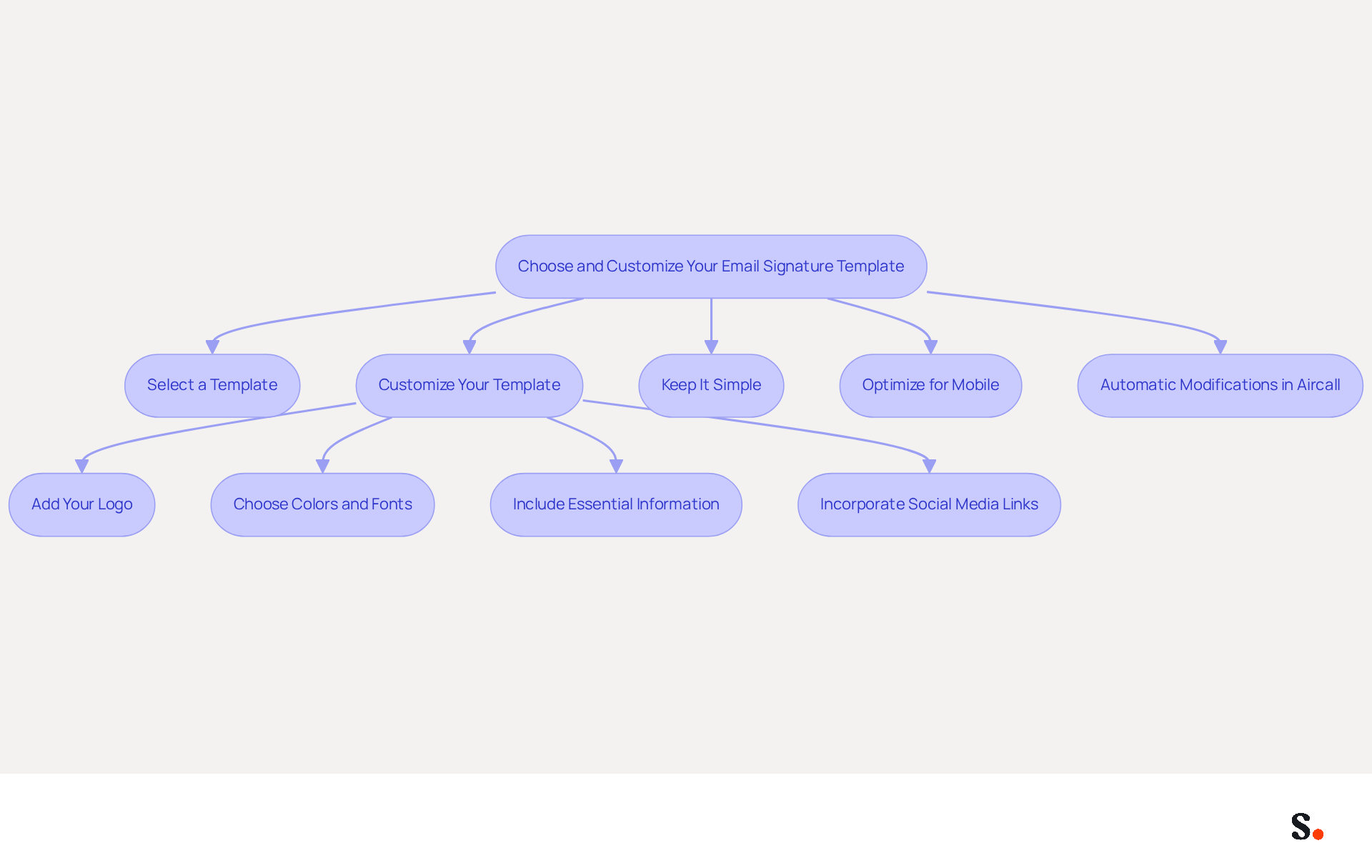
- Select a Template: Utilize platforms like Scribe to discover professional email signature templates that match your aesthetic.
- Customize Your Template:
- Add Your Logo: Ensure your company logo is prominently featured to enhance brand recognition.
- Choose Colors and Fonts: Stick to your organization's color palette and font styles to maintain consistency across communications.
- Include Essential Information: Incorporate your name, job title, company name, phone number, and website to provide recipients with key contact details.
- Incorporate Social Media Links: If relevant, add icons linking to your professional social media profiles to encourage further engagement.
- Keep It Simple: Avoid clutter in your design. A clean layout enhances readability and projects professionalism.
- Optimize for Mobile: Ensure your identifier is mobile-friendly, as many users struggle to read emails on their smartphones due to poorly designed signatures.
Furthermore, any modifications made in your Aircall configuration will automatically be reflected in your email identifiers, ensuring that your communications are always professional and cohesive. Scribe ensures your security and privacy are prioritized, as reflected in its email signature for Outlook, which complies with SOC 2 Type II, GDPR, and CCPA. Implementing these strategies can significantly enhance your brand's visibility and engagement.
Add Your Signature to Outlook
To ensure your email communications reflect your brand accurately, adding a new email signature in Outlook is essential:
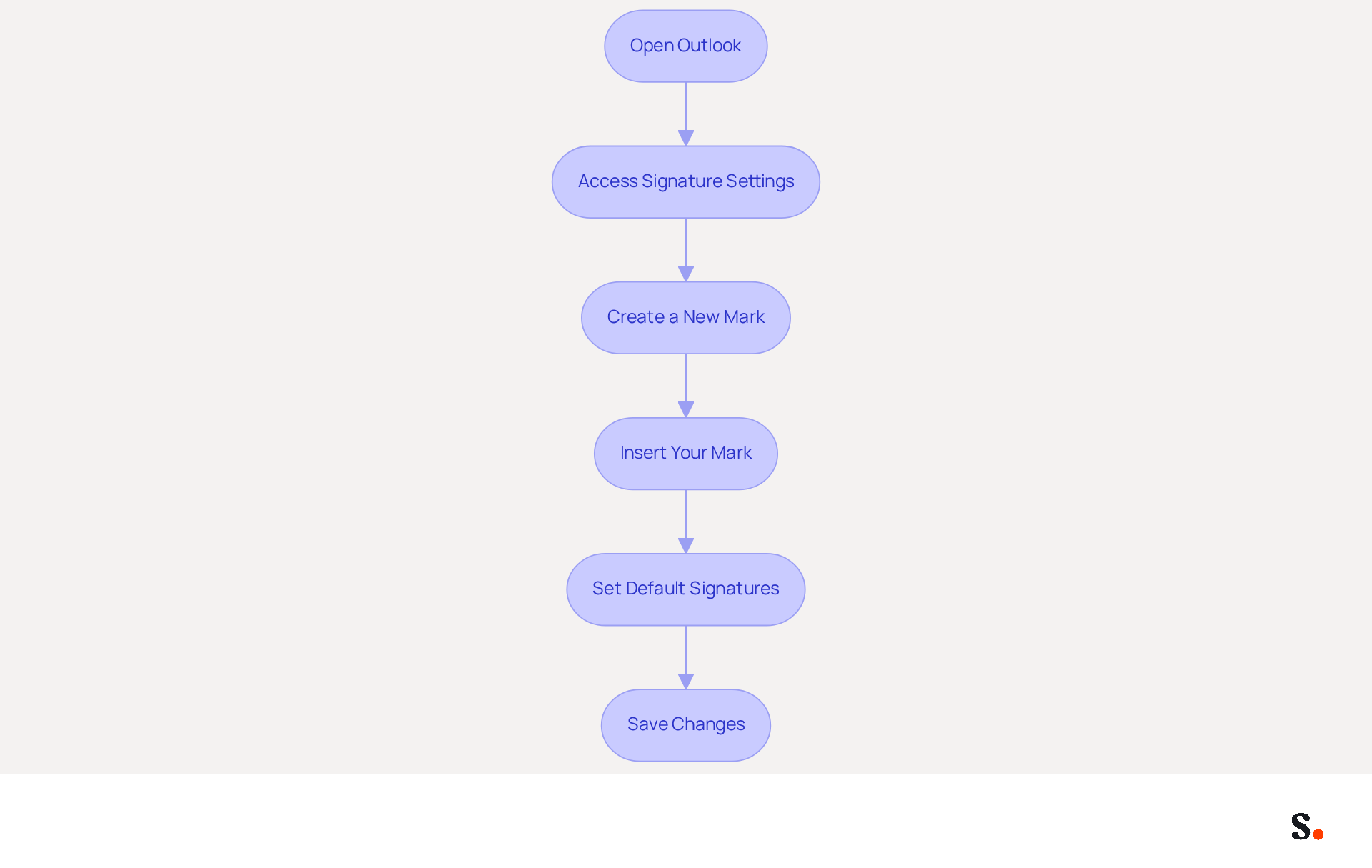
- Open Outlook: Launch the Outlook application on your computer.
- Access Signature Settings:
- For the desktop version, go to
File>Options>Mail>Signatures. - For Outlook on the web, click on the gear icon (⚙️) in the top right corner, then select
View all Outlook settings>Mail>Compose and reply>Email footer.
- For the desktop version, go to
- Create a New Mark: Click on
Newto create a new mark. Name your unique identifier for easy recognition. - Insert Your Mark: Copy your customized mark from the template and insert it into the mark editor. With Scribe, your signature updates automatically whenever changes are made in your Google Workspace or Aircall setup, keeping your branding consistent effortlessly.
- Set Default Signatures: Choose whether you want this mark to be the default for new messages and replies/forwards.
- Save Changes: Click
OKorSaveto apply your changes.
By following these steps, your sign-off will be automatically included in your outgoing messages, enhancing your professional communication. Many marketing and IT teams trust Scribe for efficient communication management, ensuring their email signature for Outlook is always up-to-date. With Scribe, you ensure secure data handling, being SOC 2 Type II certified and compliant with GDPR and CCPA.
Test Your Email Signature for Compatibility
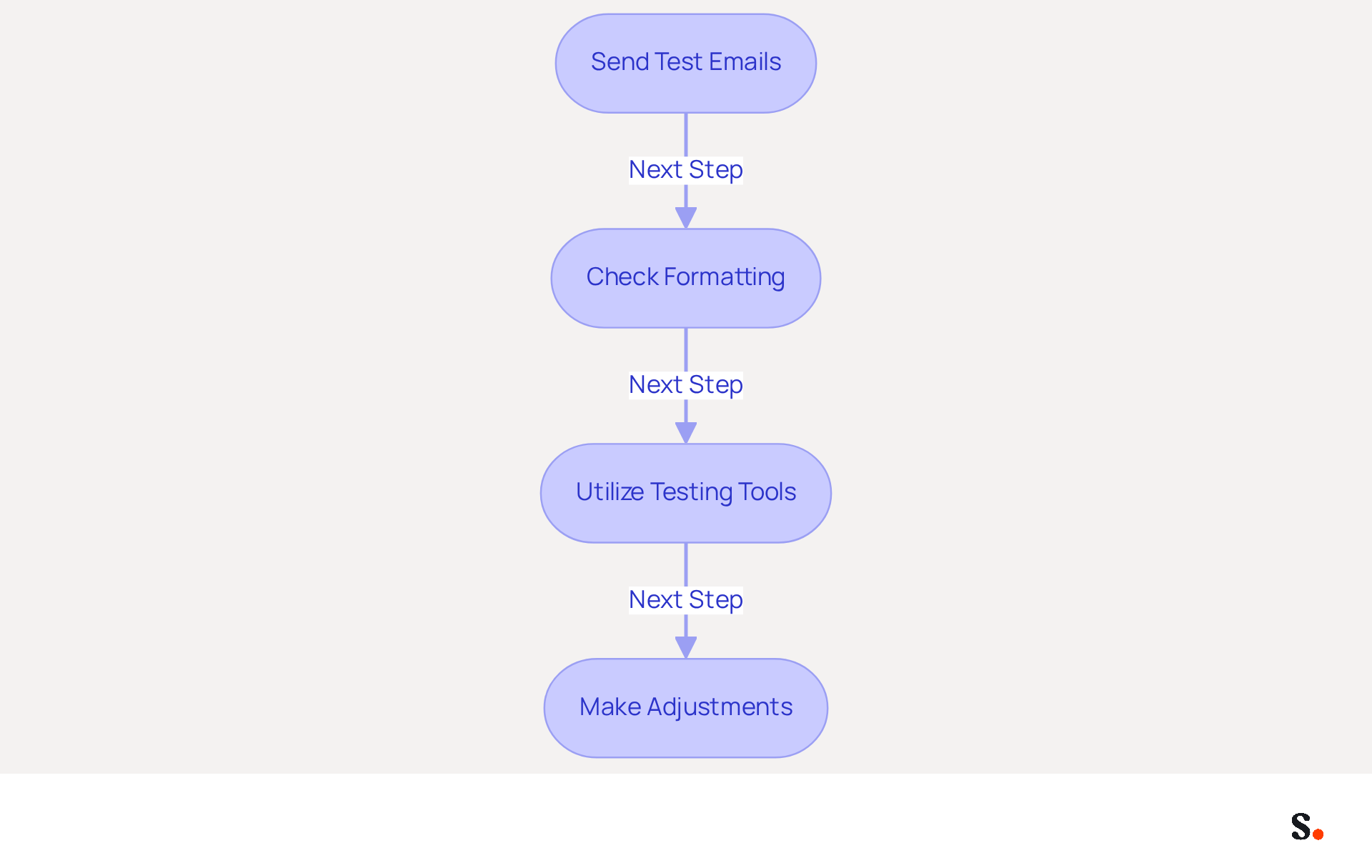
To ensure your email signature for Outlook maintains a professional appearance across various messaging clients, thorough testing is crucial. Follow these steps to confirm your signature looks polished everywhere:
- Send Test Emails: Dispatch test emails to yourself and colleagues using various email clients (e.g., Gmail, Yahoo, Apple Mail) to observe how the closing element renders.
- Check Formatting: Verify that the formatting, images, and links display correctly. Look for any misalignments or broken links that could detract from your brand image. Be mindful of common issues, like font sizes smaller than 8-9 px and fixed-width tables exceeding 400 px, as these can lead to display problems on mobile devices.
- Utilize Testing Tools: Leverage online tools to preview your mark across multiple platforms and devices. These tools can help identify compatibility issues that may not be visible in a single client. Free tools are available that allow you to see how your autograph appears in both mobile and desktop formats.
- Make Adjustments: If you encounter any issues, return to your account settings to make necessary modifications. Pay close attention to image sizes and formatting to ensure consistency across all platforms.
Thoroughly testing your email signature for Outlook ensures it looks professional on any messaging platform, boosting your brand's credibility. Remember, branded communication footers receive double the total fixations compared to unbranded ones, making this step essential for effective marketing.
Manage and Update Your Email Signature Efficiently
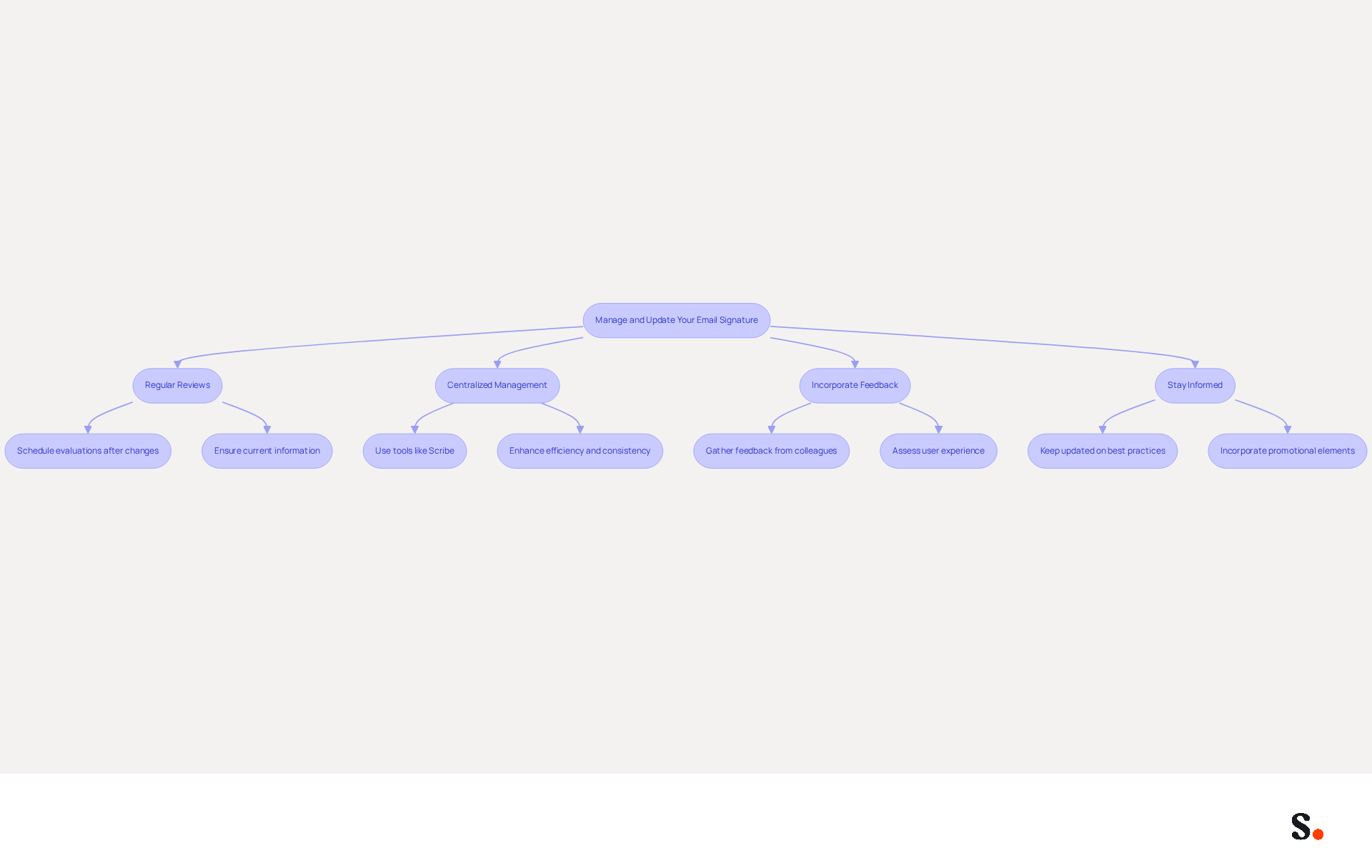
To maintain the effectiveness of your email signature, it is crucial to adopt strategic management practices:
- Regular Reviews: Schedule regular evaluations of your email signature for Outlook to confirm that all information is current, particularly after changes in job title, contact details, or branding. This statistic reveals a significant gap in managing the email signature for Outlook, underscoring the importance of regular updates.
- Centralized Management: For larger organizations, utilizing a centralized email management tool like Scribe can streamline updates across all team members. This approach not only enhances efficiency but also ensures brand consistency across communications, minimizing the risk of outdated or inconsistent marks.
- Incorporate Feedback: Consider gathering feedback from colleagues and clients to assess how well your email signature resonates with them. Grasping user experience can lead to improvements that connect more effectively with your audience, as validated by organizations that improved their communications through direct feedback from recipients.
To create a professional appearance, it's important to include an email signature for Outlook. Stay informed: Keep updated on best practices and trends regarding digital sign-offs to ensure your email signature for Outlook remains modern and effective. Regularly updating templates and incorporating elements like promotional banners can significantly enhance engagement, with studies showing that dynamic banners can increase click rates by 12%.
By prioritizing these strategies, you position your brand for greater recognition and engagement in your communications.
Conclusion
An effective email signature is more than just a visual element; it is a strategic asset that can significantly impact professional communication. By following the outlined steps, organizations can ensure their email signatures are not only visually appealing but also functional and compliant with industry standards, such as SOC 2 Type II, GDPR, and CCPA.
Key insights from this guide emphasize the importance of a well-structured email signature. From understanding its purpose - such as conveying professionalism and providing essential contact information - to selecting and customizing templates that align with brand guidelines, each step plays a crucial role in crafting a signature that resonates with recipients. Additionally, testing for compatibility across platforms and ensuring regular updates are essential practices that enhance the effectiveness of email signatures.
When organizations invest in a well-crafted email signature, they can transform every email into a powerful branding opportunity. Organizations are encouraged to leverage tools like Scribe, which streamline the process and empower marketing teams to maintain control over their email signatures. By focusing on these strategies, businesses can improve communication, build client trust, and unlock the marketing potential of every email.
Frequently Asked Questions
What is the purpose of an email signature?
An email signature conveys essential contact information, enhances professionalism, reinforces brand identity, and can serve marketing purposes.
How does a professional email signature enhance credibility?
A well-crafted signature makes you appear more professional, increasing trust among clients and colleagues. Research shows that 76% of consumers feel more trust when messages include branded identifiers.
Why is branding important in email signatures?
Consistent use of logos, colors, and fonts in email signatures strengthens your brand identity. 80% of participants believe that branded digital identifiers are essential for a company's identity.
How can email signatures be used for marketing?
Email footers can include promotional elements like banners or calls to action, turning each message into a marketing opportunity. Businesses with branded identifiers see a 15% increase in website click-through rates.
What contact information should be included in an email signature?
An effective email signature should include your name, job title, company name, phone number, and website to provide recipients with key contact details.
How does Scribe enhance email signature management?
Scribe automatically updates signatures to reflect the latest branding, ensures 100% brand consistency, and syncs signing details with your business phone system and Google Workspace in real-time.
What steps should be taken to customize an email signature template?
To customize an email signature, select a professional template, add your logo, choose colors and fonts consistent with your brand, include essential information, and incorporate social media links.
Why is it important to optimize email signatures for mobile?
Many users read emails on smartphones, so a mobile-friendly design ensures readability and professionalism.
What compliance standards does Scribe adhere to for email signatures?
Scribe complies with SOC 2 Type II, GDPR, and CCPA, ensuring security and privacy in email signature management.
List of Sources
- Understand the Purpose of an Email Signature
- 40+ Email Signature Statistics for 2026 (Data + Insights) (https://wavecnct.com/blogs/email-signature-statistics)
- Email signature statistics: Why every business should optimize their email signatures — Stripo.email (https://stripo.email/blog/email-signature-statistics-why-every-business-should-optimize-their-email-signatures)
- Exclaimer Research: 67% of Marketers Expect Email Signatures to Support With Lead Gen In 2023 (https://businesswire.com/news/home/20230612141095/en/Exclaimer-Research-67-of-Marketers-Expect-Email-Signatures-to-Support-With-Lead-Gen-In-2023)
- Research Recap: Branded Email Signatures Increase Company Recognition, Trust - B2BMX INSIGHTS (https://demandgenreport.com/industry-news/research-recap-branded-email-signatures-increase-company-recognition-trust/47252)
- Choose and Customize Your Email Signature Template
- Email signature statistics: Why every business should optimize their email signatures — Stripo.email (https://stripo.email/blog/email-signature-statistics-why-every-business-should-optimize-their-email-signatures)
- Email Signature Marketing Guide: A Simple Way to Promote A Brand (https://designmodo.com/email-signature-marketing)
- Email signature marketing: everything you need to know (https://templafy.com/email-signature-marketing-everything-you-need-to-know)
- Email Signature Best Practices: Must Know Tips for Success (https://publicate.it/blog/email-signature-best-practices)
- 20 best email signature design examples for 2026 — Stripo.email (https://stripo.email/blog/10-best-email-signature-design-examples)
- Test Your Email Signature for Compatibility
- Email Signature Tester — Preview on Mobile & Desktop Free Tool (https://signatureforemail.com/free-tool/mobile-email-signature-tester)
- How to Standardize Email Signatures Across Different Email Clients and Devices | Email Signature Rescue Blog (https://emailsignaturerescue.com/blog/how-to-standardize-email-signatures-across-different-email-clients-and-devices)
- Email Signature A/B Testing: Methodology, UTM and GA4 Guide (https://signitic.com/en/resources/a-b-testing-your-email-signature-methodology-and-kpis)
- WiseStamp Sets a New Standard for Email Signature Creation (https://prnewswire.com/news-releases/wisestamp-sets-a-new-standard-for-email-signature-creation-302689811.html)
- Your email signature with a professional look (https://bybrand.io/manager/signature-test)
- Manage and Update Your Email Signature Efficiently
- Best Practices for Company Wide Email Signature Management (https://scribe-mail.com/en-US/blog/best-practices-for-company-wide-email-signature-management)
- 4 Best Practices for Effective Exchange Server Email Signature Management (https://scribe-mail.com/en-US/blog/4-best-practices-for-effective-exchange-server-email-signature-management)
- One moment, please... (https://paayatech.com/blog/5-effective-ways-to-manage-email-signatures)
- Company-Wide Email Signature Management | CloudM (https://cloudm.io/blog/optimize-your-process-with-company-wide-email-signature-management)
- Email Signature Management: The Complete Guide (https://exclaimer.com/email-signature-handbook/simplifying-email-signature-management)
Get started with Scribe
Create your signature in minutes
Free 14-day trial — no credit card.