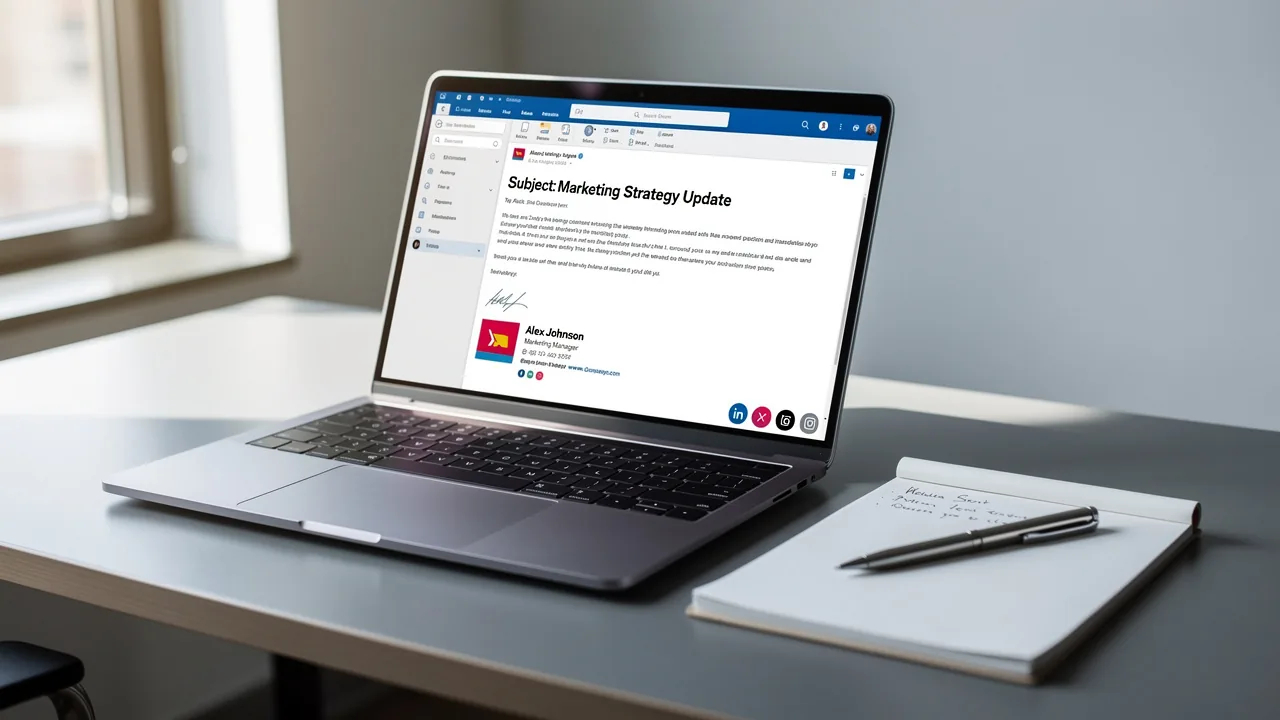
Find Your Outlook 365 Signature Location in 4 Simple Steps
In professional communication, the management of email signatures in Outlook 365 is crucial for establishing a strong brand identity. As organizations
Sophie Grant
Email Signature Specialist, Scribe
Introduction
In professional communication, the management of email signatures in Outlook 365 is crucial for establishing a strong brand identity. As organizations increasingly recognize the importance of these digital footers, understanding how to effectively manage and optimize them becomes essential. Many users find it challenging to locate and customize their Outlook 365 signatures, raising the question: how can they enhance their professional image? This guide provides clear steps and practical tips for effectively managing your email signatures, ensuring that every message sent reflects a cohesive and polished brand presence.
Understand Outlook 365 Signature Basics
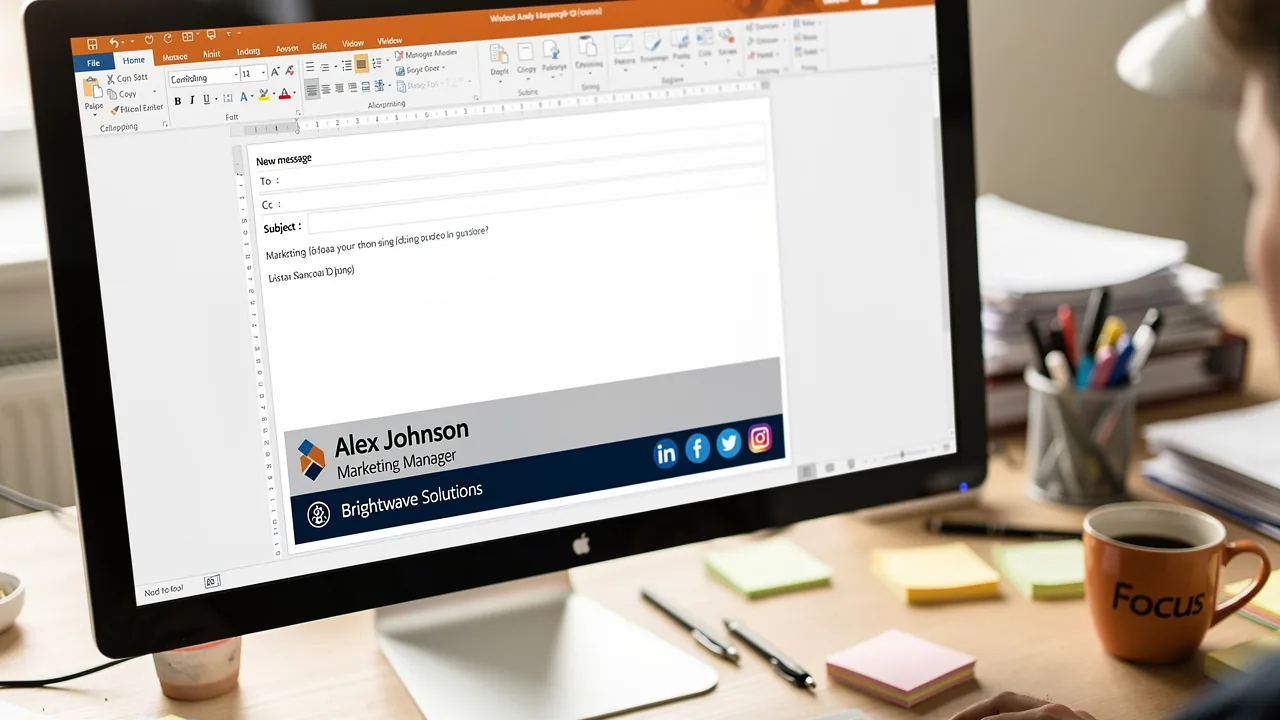
In a digital landscape where first impressions matter, email footers in Outlook 365 serve as crucial tools for establishing professional identity. They can include your name, title, company name, and even links to your social media profiles or website. Understanding how to tailor and automatically add personalized marks to outgoing messages is key to their effective use.
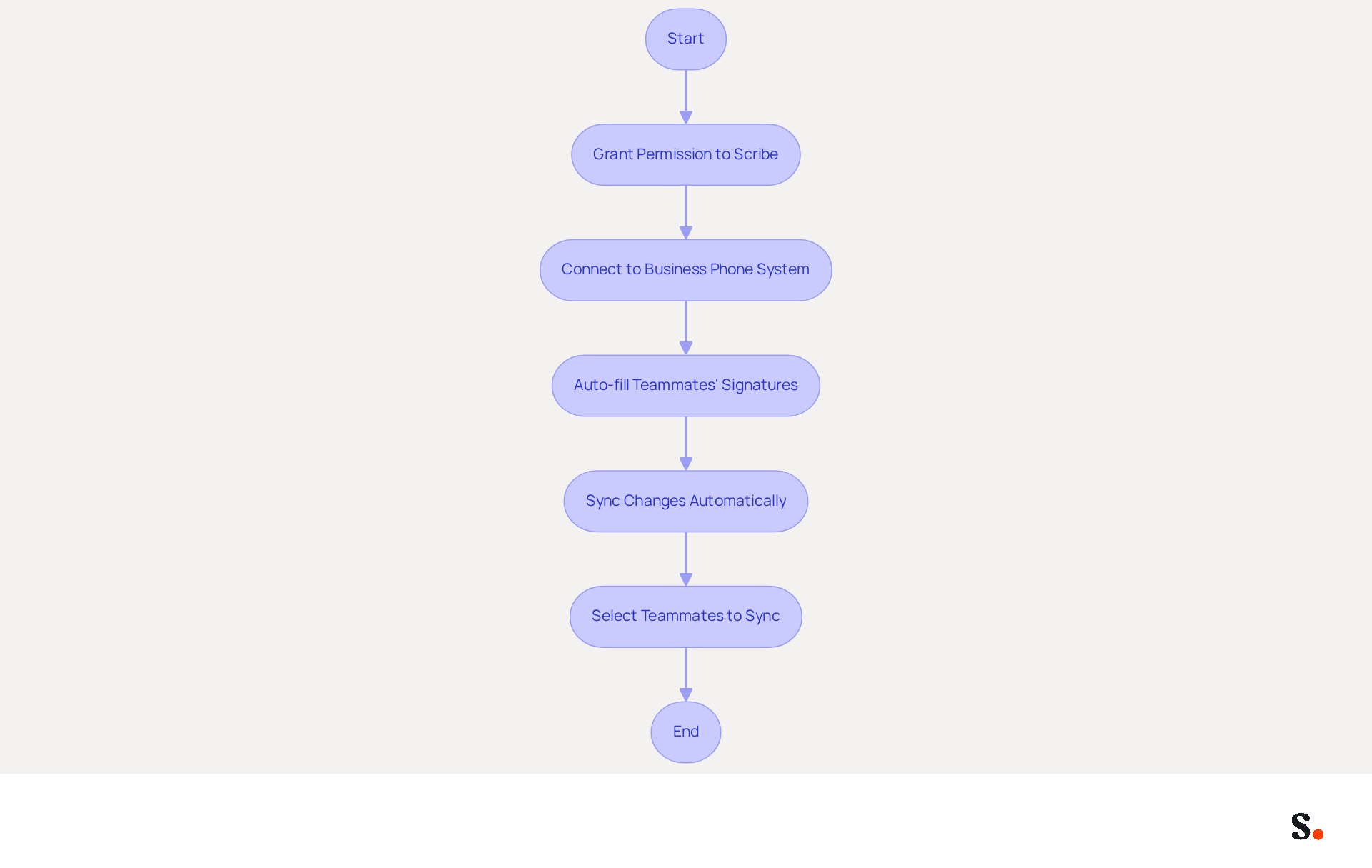
With Scribe, you can save time by auto-filling your teammates' signatures using your business phone system as a data source, ensuring that the information is always synced without any action needed from your teammates. To achieve one-click synchronization, granting Scribe permission to connect with your provider is necessary, which can sometimes be a cumbersome process.
This streamlined approach not only saves time but also elevates your brand's presence in every email. Additionally, Scribe's SOC 2 Type II compliance means you can trust that your data is secure, making it a dependable choice for managing your email identities. Changes in your connected source will be automatically updated in Scribe, and you have the option to select which teammates you want to sync.
By leveraging Scribe, organizations can ensure that their email communications reflect a cohesive and professional image, ultimately enhancing their brand reputation.
Access Signature Settings in Outlook 365
To access the signature settings in Outlook 365, follow these steps:
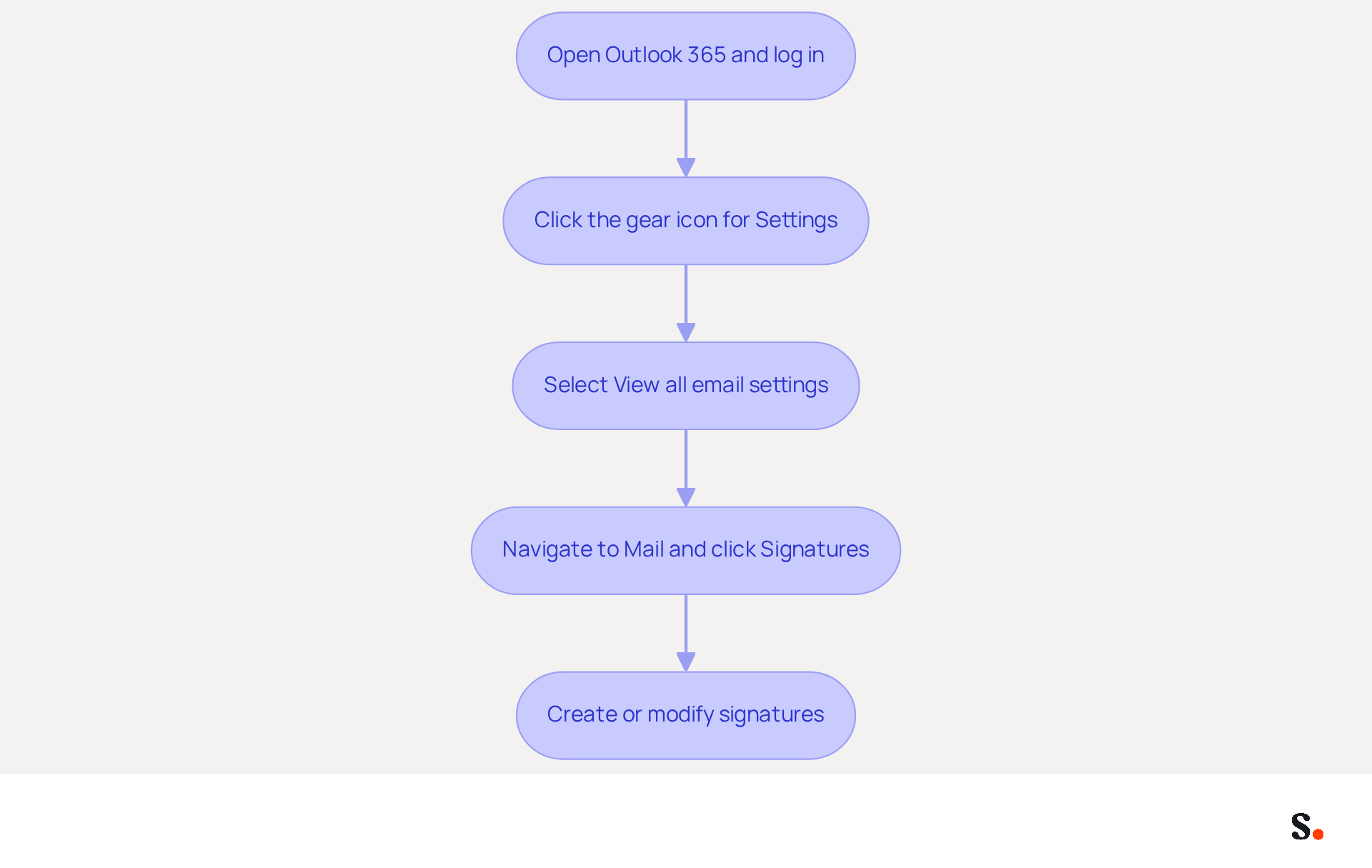
- Open the 365 application and log in to your account.
- Click on the gear icon (⚙️) located in the upper right corner to open the Settings menu.
- In the Settings pane, scroll down and select 'View all email settings'.
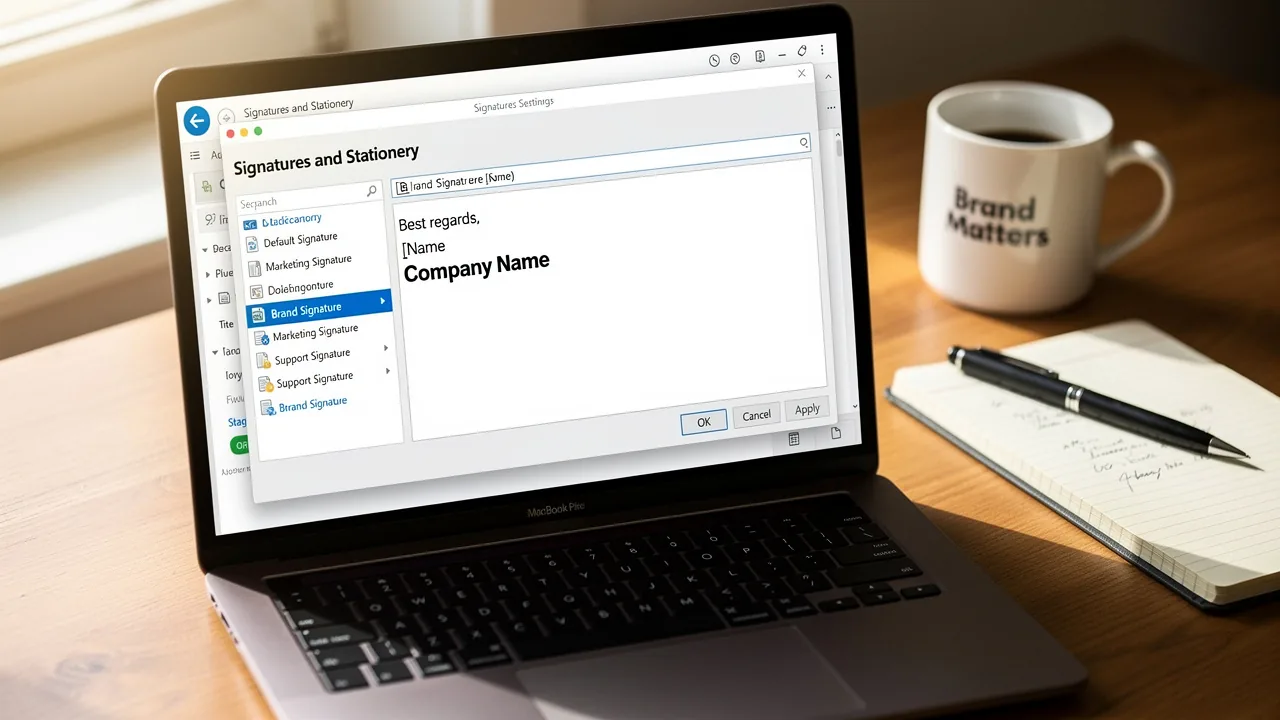
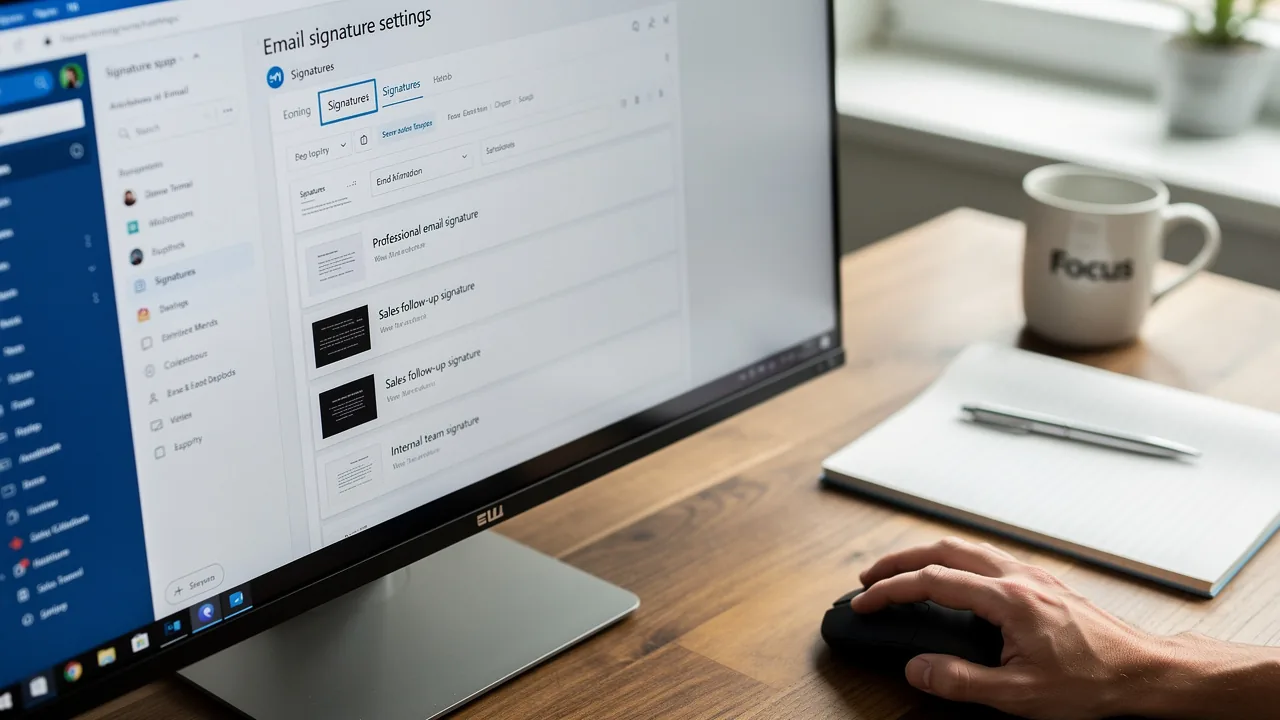
- Navigate to the 'Mail' section and click on 'Signatures'. Here, you can create a new sign or modify existing ones.
Accessing the Outlook 365 signature location is essential for effective email management. Organizations struggle to maintain effective message identifiers amidst the transition to the new platform. Centralized management of electronic identifiers is increasingly recognized as a solution, with 35% of organizations identifying it as one of their top two most time-consuming IT tasks. By consolidating the management of the Outlook 365 signature location, businesses can ensure brand consistency and compliance across all users and devices, which complicates the management of email signatures and identifiers.
To enable one-click synchronization, you must grant permission for Scribe to connect with your provider. This requires Super Admin access to your email provider. Once permissions are granted, any changes in your Google Workspace, such as moving teammates from one group to another or updating their information, will be automatically reflected in Scribe without any manual input. Organizations that have adopted centralized management have reported smoother transitions during migrations, avoiding the pitfalls associated with local files that are no longer transferable. This approach simplifies management and ensures that email communications are professional. Furthermore, Scribe's SOC 2 Type II compliance ensures that your data remains secure throughout this process.
Locate and Manage Existing Signatures
Managing your email signatures in Outlook 365 is crucial for maintaining a professional image and ensuring brand consistency:
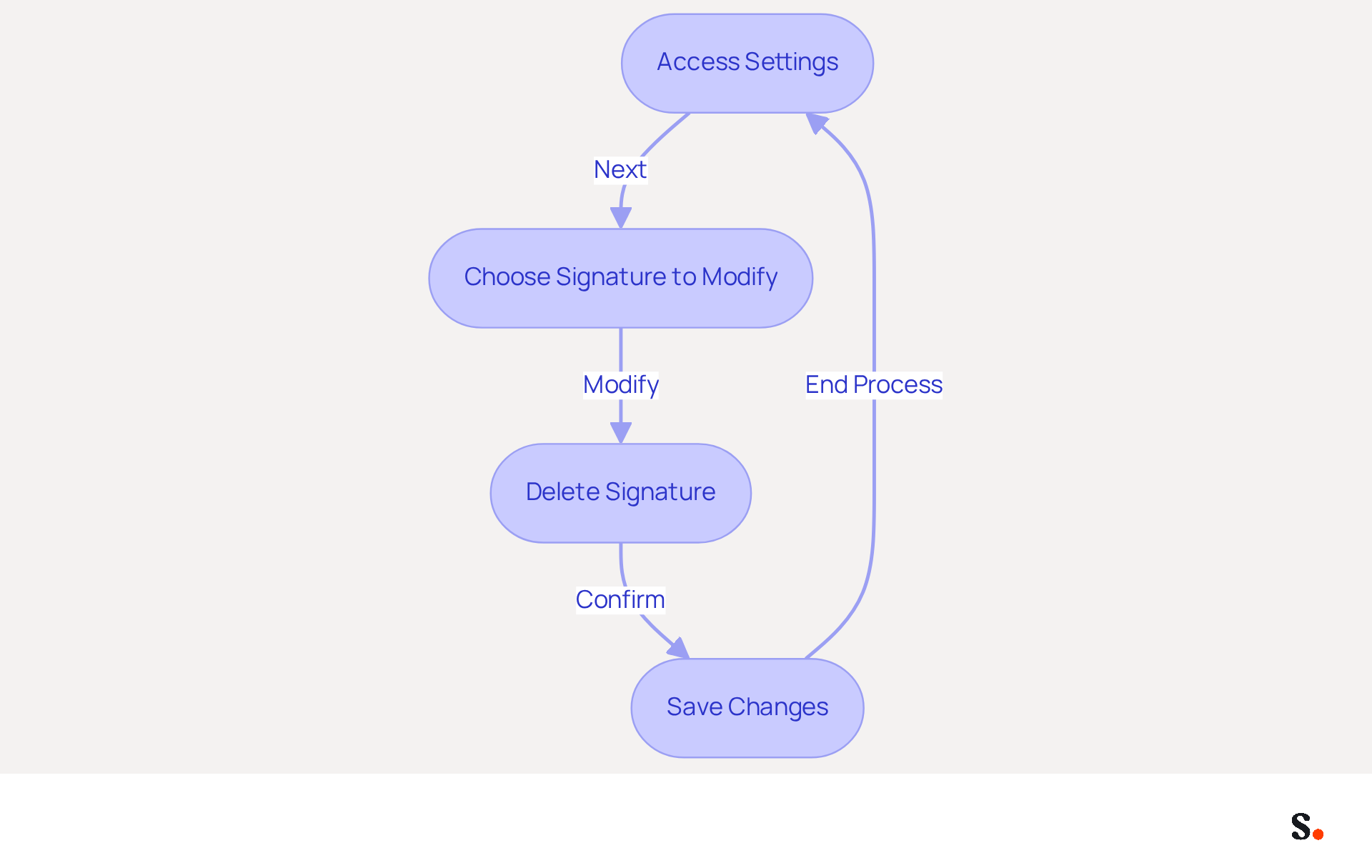
- Access the settings to view the Outlook 365 signature location where your current signatures are listed.
- Choose the signature you wish to modify. You can change the text, add images, or adjust the formatting as needed.
- If you need to remove a signature, just select it and hit the 'Delete' button, then confirm when prompted.
- Ensure you save any changes before exiting the settings.
Statistics show that 89.9% of users keep a single digital identifier, emphasizing the significance of effective management. Regular updates are essential, as 44.4% of users refresh their credentials 2-4 times a year to keep them relevant and professional. Effective management of your digital identifiers can significantly enhance your professional communications and brand perception.
Optimize Your Email Signature for Impact
To maximize the effectiveness of your email signature, particularly with Scribe's integration with Aircall, consider these essential strategies:
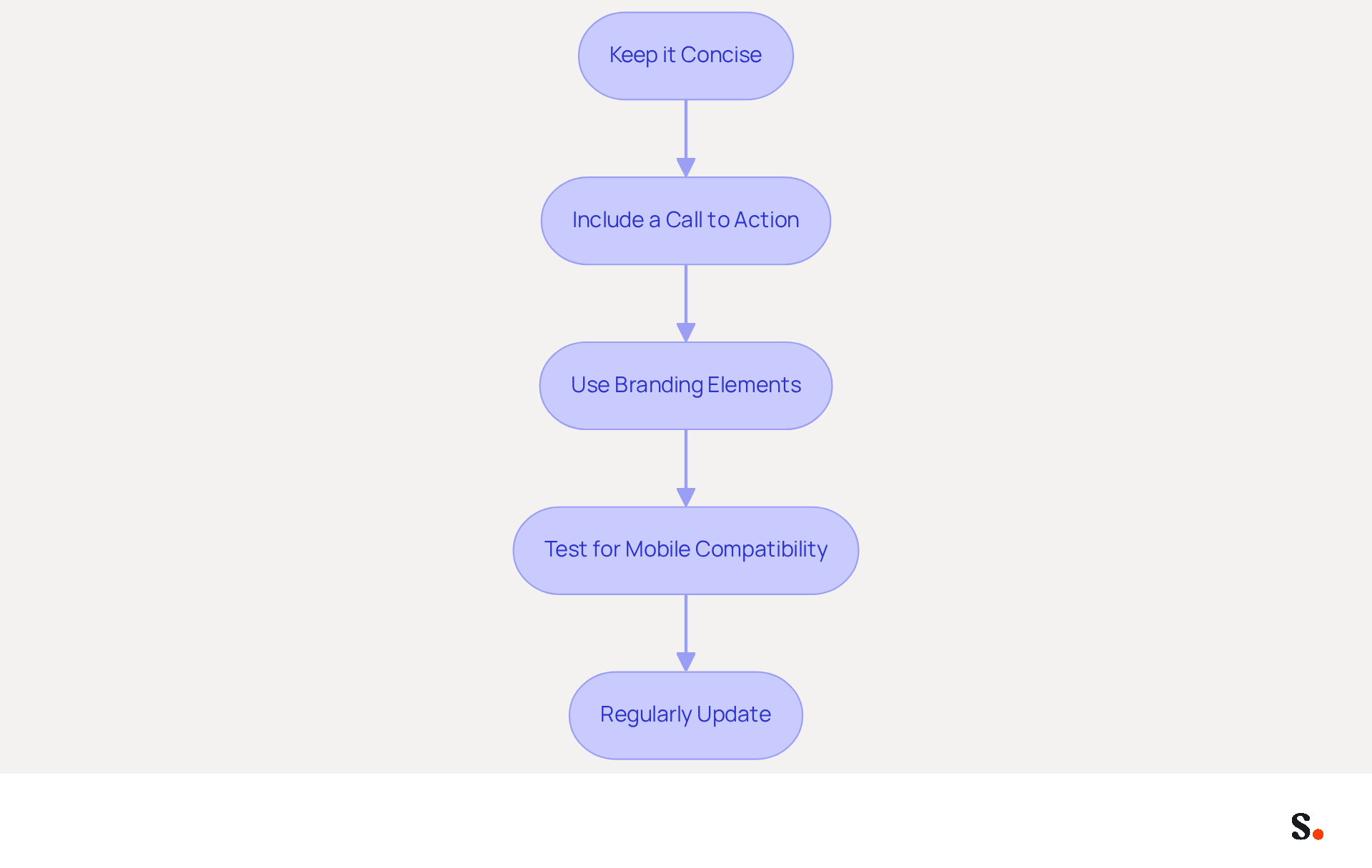
- Keep it concise: Limit your sign-off to essential information, ideally five to seven elements, to avoid overwhelming recipients. This minimalist approach enhances readability and engagement.
- Include a call to action: Encourage recipients to visit your website or follow you on social media by incorporating clear, benefit-driven links. Signatures with strategic CTAs can significantly increase meeting bookings.
- Use branding elements: Incorporate your company logo and utilize brand colors to maintain consistency. This not only reinforces brand identity but also builds trust, as recipients are more likely to engage with familiar branding.
- Test for mobile compatibility: Ensure your email display is optimized on both desktop and mobile devices, as over 60% of business emails are accessed on mobile. Keeping the width under 600 pixels and using a single-column layout can significantly improve mobile readability.
- Regularly update: Failing to update your signature can lead to miscommunication and lost opportunities. Regular reviews can prevent critical errors that may affect engagement, ensuring professionalism and accuracy in your communications.
When you use Scribe's sync with Aircall, any updates you make in Aircall will automatically update in your Scribe signatures, helping you maintain brand consistency and save time. Neglecting these strategies could undermine your professional communications and limit your engagement potential.
Conclusion
Effective management of email signatures in Outlook 365 is crucial for projecting a professional image and ensuring brand consistency. Organizations can significantly enhance their email communications by mastering the basics of signatures, accessing the settings, and managing existing signatures effectively. Utilizing tools like Scribe simplifies this process and ensures that signatures are always up-to-date and reflective of the brand's identity.
Key insights from this guide highlight the importance of:
- Concise and impactful signatures
- The necessity of regular updates
- The benefits of integrating with platforms like Aircall for seamless synchronization
With Scribe's SOC 2 Type II compliance, users can trust that their data remains secure while they focus on optimizing their email signatures for maximum engagement.
By prioritizing email signature management, organizations can significantly enhance their professional communications and strengthen their brand identity. Organizations are encouraged to leverage Scribe's capabilities to achieve 100% brand consistency and measurable marketing ROI from their email signatures, ensuring that every email sent is a step towards reinforcing their professional identity.
Frequently Asked Questions
What is the purpose of email signatures in Outlook 365?
Email signatures in Outlook 365 serve as crucial tools for establishing professional identity, including elements like your name, title, company name, and links to social media profiles or websites.
How can Scribe help with managing email signatures?
Scribe can save time by auto-filling teammates' signatures using your business phone system as a data source, ensuring that the information is always synced without any action needed from your teammates.
What is required for one-click synchronization of signatures with Scribe?
To achieve one-click synchronization, you need to grant Scribe permission to connect with your provider, which can sometimes be a cumbersome process.
What are the benefits of using Scribe for email signatures?
Using Scribe streamlines the process of managing email signatures, saves time, elevates your brand's presence in emails, and ensures that email communications reflect a cohesive and professional image.
Is Scribe compliant with data security standards?
Yes, Scribe is SOC 2 Type II compliant, meaning you can trust that your data is secure when managing your email identities.
How does Scribe handle updates to connected data sources?
Changes in your connected source will be automatically updated in Scribe, and you have the option to select which teammates you want to sync.
List of Sources
- Understand Outlook 365 Signature Basics
- Research Recap: Branded Email Signatures Increase Company Recognition, Trust - Demand Gen Report (https://demandgenreport.com/industry-news/research-recap-branded-email-signatures-increase-company-recognition-trust/47252)
- What’s New With Email Signature in 2026? | Crossware365 (https://crossware365.com/blog/whats-new-with-email-signature-in-2026)
- Why Email Signatures Must Be In Your 2026 Marketing Plan | Rocketseed (https://rocketseed.com/blog/2026-marketing-plan-email-signatures)
- 40+ Email Signature Statistics for 2026 (Data + Insights) (https://wavecnct.com/blogs/email-signature-statistics)
- The impact of email signatures on your branding (https://signitic.com/en/resources/the-impact-of-email-signatures-on-your-branding)
- Access Signature Settings in Outlook 365
- How to add and change an email signature in Outlook | Microsoft Support (https://support.microsoft.com/en-us/outlook/mail/how-to-add-and-change-an-email-signature-in-outlook)
- Create a signature and automatic reply | Microsoft Support (https://support.microsoft.com/en-us/outlook/officeweb/create-a-signature-and-automatic-reply)
- The New Outlook for Windows: An IT Guide to Email Signatures (https://exclaimer.com/email-signature-handbook/new-outlook-windows-email-signatures)
- New Outlook vs Classic Outlook: Email Signatures Explained (2026) (https://tryfirma.com/blog/new-outlook-vs-classic-outlook-signatures)
- Locate and Manage Existing Signatures
- 100 Compelling Email Statistics for 2026 | PGM Solutions (https://porchgroupmedia.com/blog/100-compelling-email-statistics-to-inform-your-strategy-in-2023)
- Email Signature Trends in Numbers: Infographic [2026] (https://mailtrap.io/blog/email-signature-trends)
- Email signature statistics: Why every business should optimize their email signatures — Stripo.email (https://stripo.email/blog/email-signature-statistics-why-every-business-should-optimize-their-email-signatures)
- 40+ Email Signature Statistics for 2026 (Data + Insights) (https://wavecnct.com/blogs/email-signature-statistics)
- The 5 key metrics to analyze your email signatures (https://signitic.com/en/resources/the-5-key-metrics-to-analyze-your-email-signatures)
- Optimize Your Email Signature for Impact
- Email Signature Trends for 2026: What Works Now — SignatureFox (https://signaturefox.com/guides/email-signature-trends-2026)
- Email Signature Design Trends in 2026: What Works and What to Drop (https://bulksignature.com/blog/email-signature-design-trends)
- Email Signature Marketing: The Ultimate Guide to Lead Generation (2026) (https://inboxsign.com/guides/email-signature-marketing-strategies)
- Email Signature Best Practices Guide With Examples - MailerLite (https://mailerlite.com/blog/email-signature-best-practices)
- Email Signature Best Practices for 2026 (+ 15 Pro Examples) (https://wavecnct.com/blogs/email-signature-best-practices-2026)
Get started with Scribe
Create your signature in minutes
Free 14-day trial — no credit card.