Fix Outlook Signature Disappears: 4 Steps to Restore Yours
Managing email signatures is crucial for projecting a professional image, yet users frequently face challenges when their Outlook signatures vanish
Sophie Grant
Email Signature Specialist, Scribe
Introduction
Managing email signatures is crucial for projecting a professional image, yet users frequently face challenges when their Outlook signatures vanish unexpectedly. This guide provides clear steps to restore lost signatures, helping maintain consistent and professional communication. Identifying the causes of these disappearances and implementing effective safeguards is essential for users. Exploring these questions will empower users to take control of their email identity and enhance their professional correspondence.
Check for Existing Signature Files
Managing your email signatures is crucial for maintaining professional communication. Begin by launching File Explorer on your computer. In the address bar, type %appdata%\Microsoft\Signatures and press Enter. This will lead you to the directory where Outlook keeps its personal markings. Search for items with extensions such as .htm, .rtf, or .txt. These documents pertain to your online identifiers. If you locate them, you can proceed to restore them in Outlook. If you find your signed documents, create a copy of the entire Signatures folder and save it in a secure location, such as OneDrive or an external disk, to protect against future loss.
Recent statistics show that 44.4% of users update their email details just 2-4 times a year, risking outdated information in their communications. This highlights the need for consistent management and backup of your email signatures. Expert opinions indicate that ensuring your Outlook is updated to the latest version and verifying settings can significantly reduce issues related to when an Outlook signature disappears. Furthermore, be mindful that certain endpoint security tools may isolate HTML files, which could impact your identification files.
Using Scribe can simplify how you manage your email signatures. To enable one-click synchronization, you must grant permission to Scribe to connect with your mail provider. You need to be a Super Admin of your service provider to grant these permissions. After granting access, you can choose which teammates you wish to sync with the application. This guarantees that all modifications made in your contact directory are automatically shown in your identifiers. This not only enhances brand consistency but also ensures compliance with data security standards, as Scribe is SOC 2 Type II compliant. Neglecting this task risks undermining your professional image and brand integrity.

Identify Common Causes of Signature Disappearance
- Software Updates: Recent updates to Outlook or Windows can inadvertently reset settings, including email identifiers. It's crucial to verify any recent installations that may have influenced your settings.
- A corrupted Outlook profile is a common culprit behind the situation where the Outlook signature disappears. Users often face challenges with their current Outlook profiles, leading to signature issues. If you continue to experience problems, consider creating a new profile to restore functionality.
- The new Outlook's roaming feature can sometimes result in the situation where the Outlook signature disappears. You might find that turning off this feature helps bring back your personalized marks.
- Add-ins and Extensions: Certain add-ons or browser extensions can interfere with settings related to email signatures. Temporarily disabling these can help identify if they are the source of the problem.
Understanding the common causes of email signature issues is vital for maintaining professional communication. Comprehending these typical reasons is essential, as 44.4% of users refresh their contact details only 2-4 times a year, which may result in discrepancies if problems occur. Furthermore, a notable 42% of consumers have a negative perception of businesses that do not utilize a branded email footer, emphasizing the significance of upholding a professional image in email communications. Addressing these issues promptly can significantly enhance your brand's credibility and customer trust.

Recover or Recreate Your Email Signatures
- Recover from Backup: If you have previously backed up your files, restore them by copying them back to the
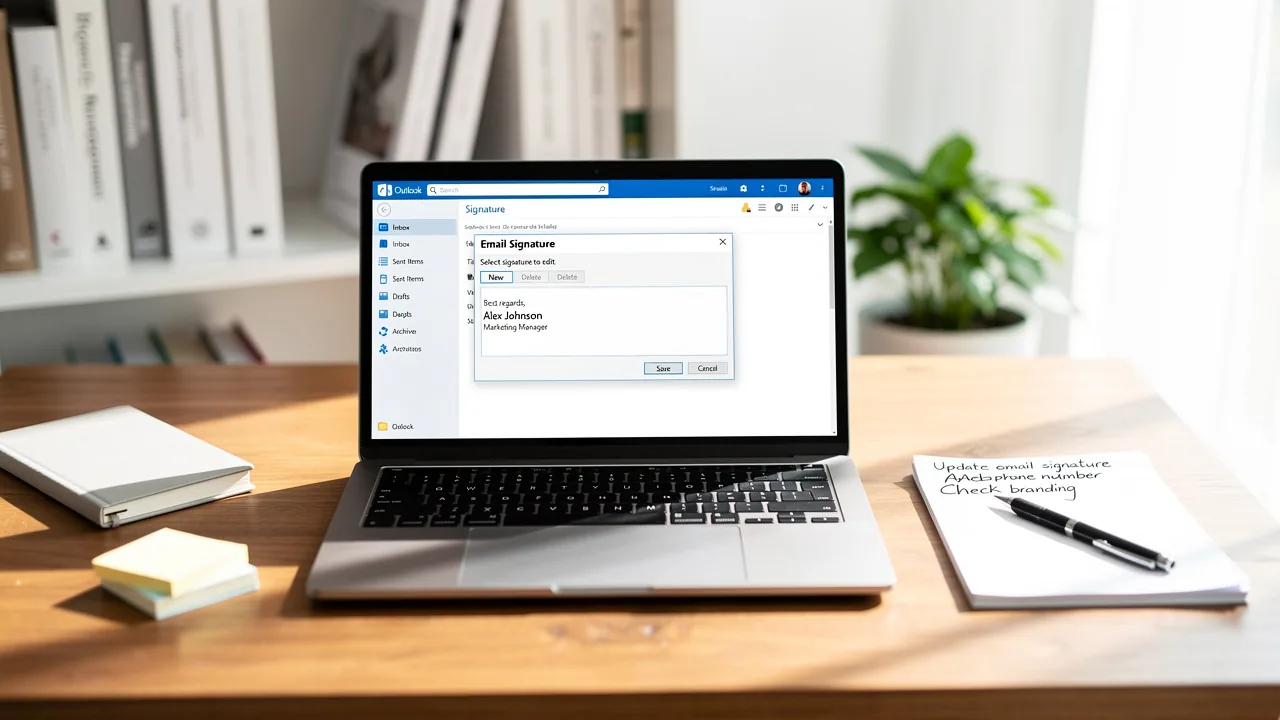
%appdata%\Microsoft\Signaturesfolder. Restoring from a backup is often the most effective way to recover lost data, significantly improving success rates. - Recreate Signatures: In the absence of a backup, you can recreate your signatures. Open Outlook and navigate to File > Options > Mail > Signatures. Click 'New' to begin the process of creating a new signature. A significant majority of professionals, approximately 89.9%, rely on a single signature, making it essential to ensure it is up-to-date and reflective of your brand. With Scribe, you can also auto-fill your teammates' signatures using data from your Business phone system, making this process even easier.
- Design Your Signature: Utilize the editor to format your signature, incorporating text, images, and links as necessary. Ensure that your design aligns with your brand's style, as branded digital identifiers can enhance trust by 76% and increase response rates by 22%. This is especially crucial in industries where building relationships hinges on first impressions. Remember, Scribe's automated updates mean that any changes in your connected source will be automatically reflected in your branding, maintaining brand consistency effortlessly.
- Set Default Signatures: After creating your signature, set it as the default for new messages and replies/forwards. This guarantees that your signature appears automatically, strengthening your brand identity with each message sent. Given that emails with branded identifiers can lead to a 15% increase in click-through rates to company websites, this step is essential for maximizing your marketing efforts. With Scribe's SOC 2 Type II compliance, you can be assured that your data is handled securely throughout this process.

Backup Your Email Signatures for Future Security
- Locate Signature Documents: To effectively manage your email signatures, start by navigating to
%appdata%\Microsoft\Signaturesto access your documents. This folder holds all the sign-offs you have created in Outlook. - Copy Files: Select all files and copy them to a secure location, such as an external hard drive or cloud storage. This ensures your signatures are safe from accidental loss or damage.
- Create a Backup Schedule: Establish a routine for backing up your documents after any changes or updates. Regular backups are crucial for ensuring consistency and security, particularly since a significant number of users update their email details frequently. With Scribe, each modification made in your Aircall configuration will automatically be reflected in your branding, ensuring brand consistency across all communications while adhering to SOC 2 Type II compliance standards.
- Document Signing Settings: Keep a detailed record of your signing configurations and preferences in a separate document. Keep this document handy for quick reference if you run into any issues later, helping to streamline the restoration process.
By following these steps, you can protect your digital identifiers, ensuring they remain intact and effective as part of your branding strategy. Scribe's automated synchronization with Aircall allows you to effortlessly manage your email signatures while ensuring compliance with SOC 2 Type II standards for secure data handling.

Conclusion
Effective management of email signatures is vital for upholding a professional image in all communications. Users can effectively troubleshoot disappearing signatures, recover lost files, and implement best practices for future security by following these steps. Consistent management is crucial as it directly impacts brand integrity and customer perception.
Key insights from the article highlight the common causes of signature disappearance, such as:
- Software updates
- Corrupted profiles
- Add-ins
Understanding these factors allows users to take proactive measures to prevent issues. Additionally, utilizing tools like Scribe can streamline the management process, ensuring that email signatures remain consistent and compliant with security standards.
Safeguarding email signatures goes beyond mere functionality; it plays a vital role in branding and communication strategy. Regular backups and updates, along with leveraging solutions like Scribe, empower organizations to maintain their professional image and enhance marketing effectiveness. Ensuring that email signatures are consistently managed not only protects brand integrity but also enhances overall communication effectiveness.
Frequently Asked Questions
Why is managing email signatures important?
Managing email signatures is crucial for maintaining professional communication and ensuring that contact information is up-to-date.
How can I check for existing signature files in Outlook?
To check for existing signature files, launch File Explorer, type %appdata%\Microsoft\Signatures in the address bar, and press Enter. This will take you to the directory where Outlook stores its signature files.
What file extensions should I look for when searching for signature files?
You should look for files with extensions such as .htm, .rtf, or .txt, as these pertain to your email signatures.
What should I do if I find my signature files?
If you locate your signature files, create a copy of the entire Signatures folder and save it in a secure location, such as OneDrive or an external disk, to protect against future loss.
How often do users typically update their email signatures?
Recent statistics show that 44.4% of users update their email details just 2-4 times a year, which can lead to outdated information in their communications.
What can help reduce issues related to disappearing Outlook signatures?
Ensuring that your Outlook is updated to the latest version and verifying settings can significantly reduce issues related to disappearing signatures.
How can Scribe assist in managing email signatures?
Scribe can simplify email signature management by enabling one-click synchronization with your mail provider, ensuring that all modifications in your contact directory are automatically reflected in your signatures.
What permissions do I need to grant Scribe for synchronization?
You need to be a Super Admin of your service provider to grant Scribe permission to connect with your mail provider for synchronization.
What are the benefits of using Scribe for email signatures?
Using Scribe enhances brand consistency and ensures compliance with data security standards, as it is SOC 2 Type II compliant.
What risks are associated with neglecting email signature management?
Neglecting email signature management can undermine your professional image and brand integrity.
List of Sources
- Check for Existing Signature Files
- NeatStamp — Free Email Signature Generator (https://neatstamp.com/blog/outlook-signature-disappeared)
- Outlook Signature Disappears? 6 Common Problems + Fixes (https://conbool.com/blog/outlook-signature-disappears-fixes-problems)
- 40+ Email Signature Statistics for 2026 (Data + Insights) (https://wavecnct.com/blogs/email-signature-statistics)
- learn.microsoft.com (https://learn.microsoft.com/en-us/answers/questions/4755397/email-signatures-disappeared)
- Read our guide for troubleshooting Outlook signatures issues (https://wisestamp.com/guides/how-to-fix-outlook-signature-not-showing)
- Identify Common Causes of Signature Disappearance
- 40+ Email Signature Statistics for 2026 (Data + Insights) (https://wavecnct.com/blogs/email-signature-statistics)
- Email Signature Statistics: A Closer Look at Email Signatures in 2026 (https://mysignature.io/blog/email-signature-statistics)
- Email Signature Essentials: Key Statistics to Know for 2023 (https://blog.hubspot.com/marketing/email-signature-statistics)
- Why Did My Signature Disappear in Outlook? The Common Causes and How to Fix It (https://distractify.com/p/why-did-my-signature-disappear-in-outlook)
- Email signature statistics and trends in 2024 (https://wisestamp.com/blog/email-signature-statistics)
- Recover or Recreate Your Email Signatures
- Email Signature Statistics: A Closer Look at Email Signatures in 2026 (https://mysignature.io/blog/email-signature-statistics)
- 40+ Email Signature Statistics for 2026 (Data + Insights) (https://wavecnct.com/blogs/email-signature-statistics)
- 4 Best Practices for Your Outlook Signature Line in Marketing (https://scribe-mail.com/en-US/blog/4-best-practices-for-your-outlook-signature-line-in-marketing)
- Email signature statistics: Why every business should optimize their email signatures — Stripo.email (https://stripo.email/blog/email-signature-statistics-why-every-business-should-optimize-their-email-signatures)
- Creating and Setting Signatures in Outlook (https://canr.msu.edu/news/creating-and-setting-signatures-in-outlook)
- Backup Your Email Signatures for Future Security
- Email Signature Statistics: A Closer Look at Email Signatures in 2026 (https://mysignature.io/blog/email-signature-statistics)
- Email signature statistics and trends in 2024 (https://wisestamp.com/blog/email-signature-statistics)
- 40+ Email Signature Statistics for 2026 (Data + Insights) (https://wavecnct.com/blogs/email-signature-statistics)
- How to Backup and Restore Email Signatures in Microsoft Outlook | Alexander's Blog (https://zubairalexander.com/blog/how-to-backup-and-restore-email-signatures-in-microsoft-outlook)
- Best Practices for Email Backup and Recovery - InboxDone.com (https://inboxdone.com/best-practices-for-email-backup-and-recovery)
Get started with Scribe
Create your signature in minutes
Free 14-day trial — no credit card.