Fix Outlook Signature Image Not Showing in 4 Simple Steps
Many professionals struggle with email signatures that fail to display correctly in Outlook, jeopardizing their professional image and communication
Sophie Grant
Email Signature Specialist, Scribe
Introduction
Many professionals struggle with email signatures that fail to display correctly in Outlook, jeopardizing their professional image and communication effectiveness. Many users find that their email signatures do not display correctly, leading to confusion and a lack of professionalism.
In this guide, we’ll walk you through a simple four-step process to troubleshoot and resolve these common issues, helping you enhance your email signatures and boost engagement. Addressing these common issues can significantly enhance how recipients perceive your emails, ultimately fostering better engagement and communication.
Verify Your Outlook Signature Setup
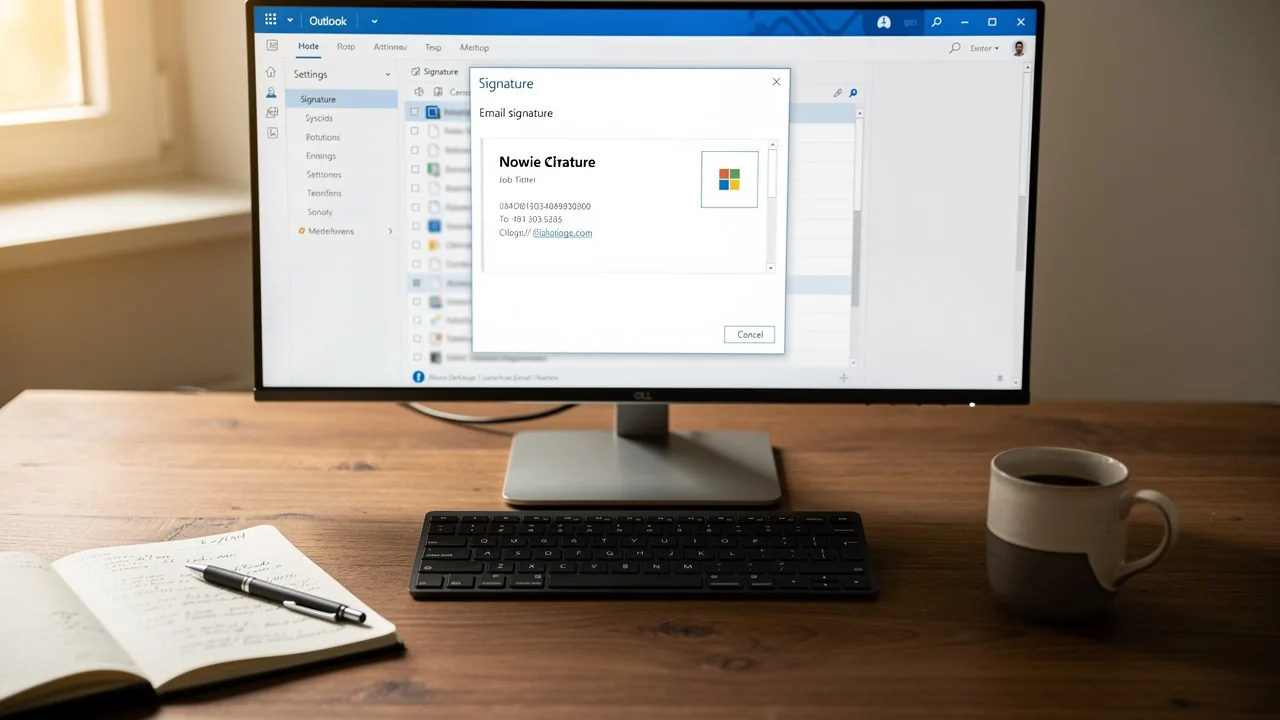
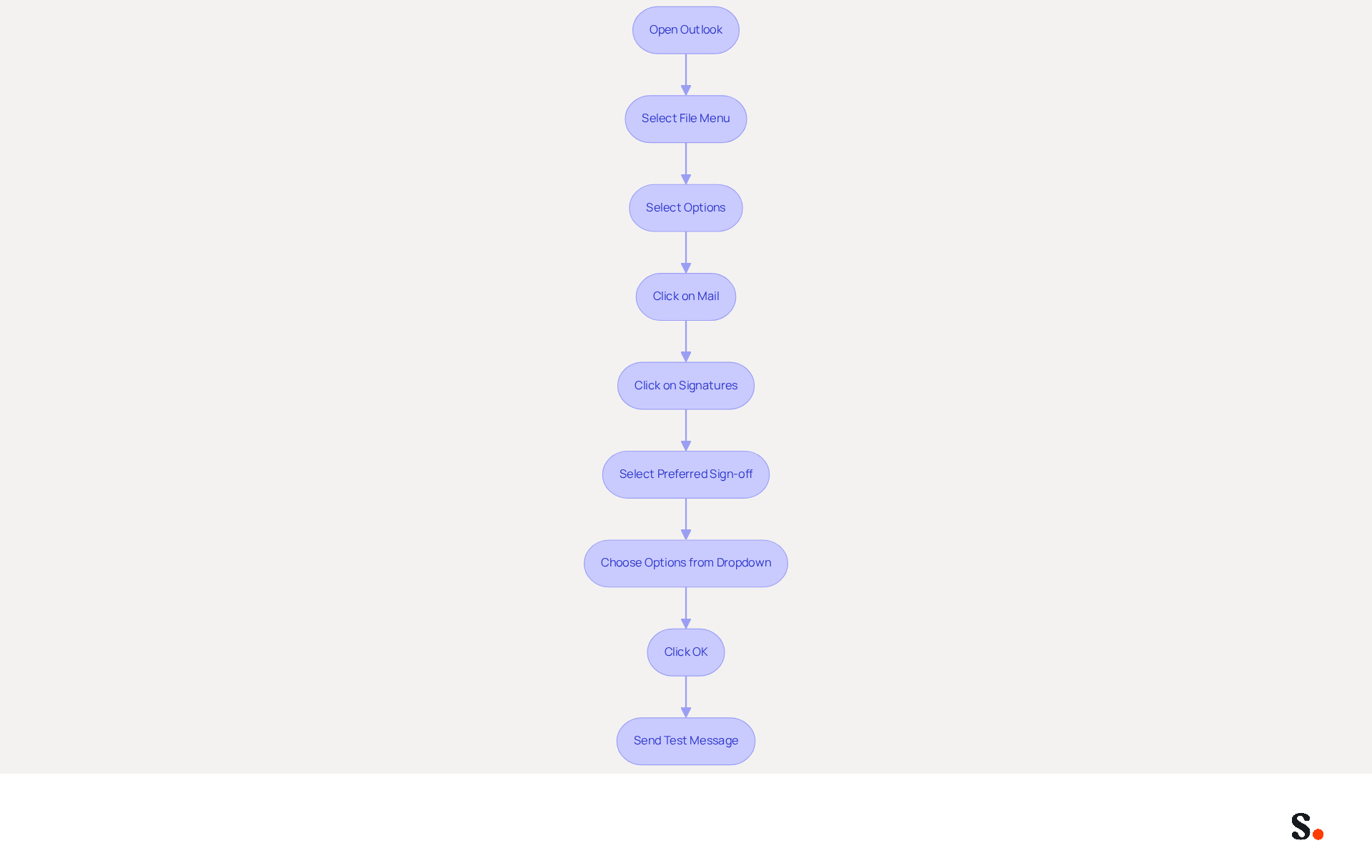
To begin, open Outlook and head to the File menu. Next, select Options and click on Mail. Then, click on the Signatures button to open the Signatures and Stationery window. Ensure that your preferred sign-off is selected for both New messages and Replies/forwards. Select the appropriate option from the dropdown menus to ensure your preferred sign-off is applied. Click OK to save your changes and exit the settings. Finally, send yourself a test message to check if the outlook signature image not showing appears correctly, complete with the image.
Many users find it challenging to evaluate their marketing efforts effectively, highlighting the need for precise configuration of electronic identifiers. Consistently checking your setup can help maintain brand consistency and boost engagement, as 42.2% of users view digital marketing as one of the top three most effective promotional channels. Additionally, incorporating images in your signatures can significantly improve response rates, with branded signatures driving a 22% lift in responses. To utilize Scribe's streamlined one-click synchronization, ensure you grant the necessary permissions as a Super Admin of your service provider. This will enable automatic updates and real-time synchronization of teammate data, ensuring your communications are both professional and effective while maintaining compliance with SOC 2 Type II standards. Ensuring your email signatures are correctly set up not only enhances professionalism but also maximizes engagement potential.
Confirm Email Format is Set to HTML
Managing digital signatures can often lead to outdated information and inconsistencies, but Scribe offers a solution.
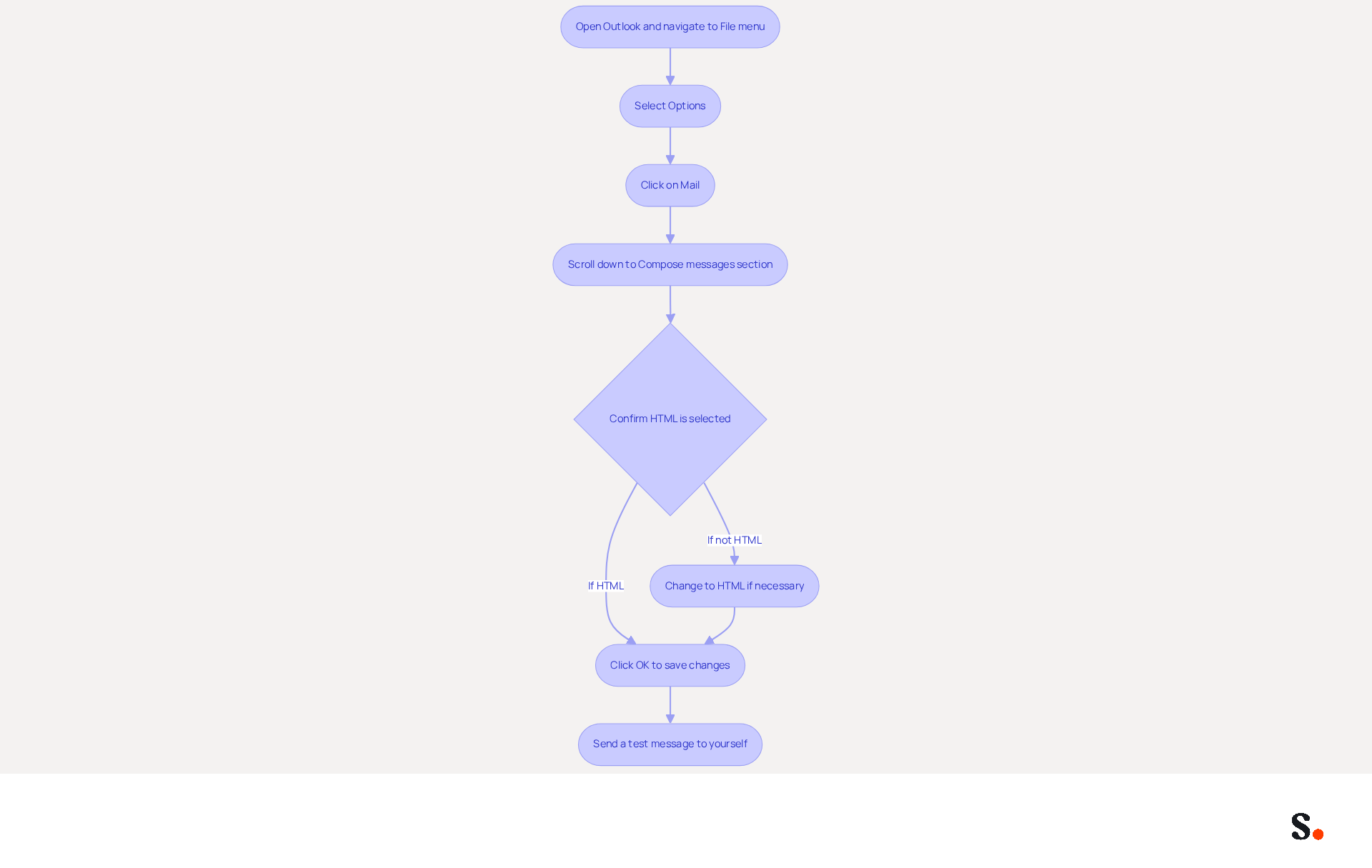
- Open Outlook and navigate to the File menu, then select Options.
- Click on Mail and scroll down to the Compose messages section.
- In the Compose messages in this format dropdown, confirm that HTML is selected. If it is currently set to Plain Text or Rich Text, change it to HTML.
- Click OK to save your changes.
- To confirm that the image displays correctly, send a test message to yourself.
With Scribe's automated management of digital signatures, your teammates' identifiers will always be current, as they sync in real-time with your business phone system. This ensures that any changes made are automatically reflected without requiring action from your team. Furthermore, Scribe's SOC 2 Type II compliance ensures that your data is protected, fulfilling the essential employee data management criteria for efficient automation of your branding. With Scribe, you can ensure your branding remains consistent and secure, allowing your team to focus on what truly matters.
Troubleshoot Common Image Display Issues
Ensuring the visual integrity of your email signatures is vital for effective communication, particularly when the outlook signature image is not showing.
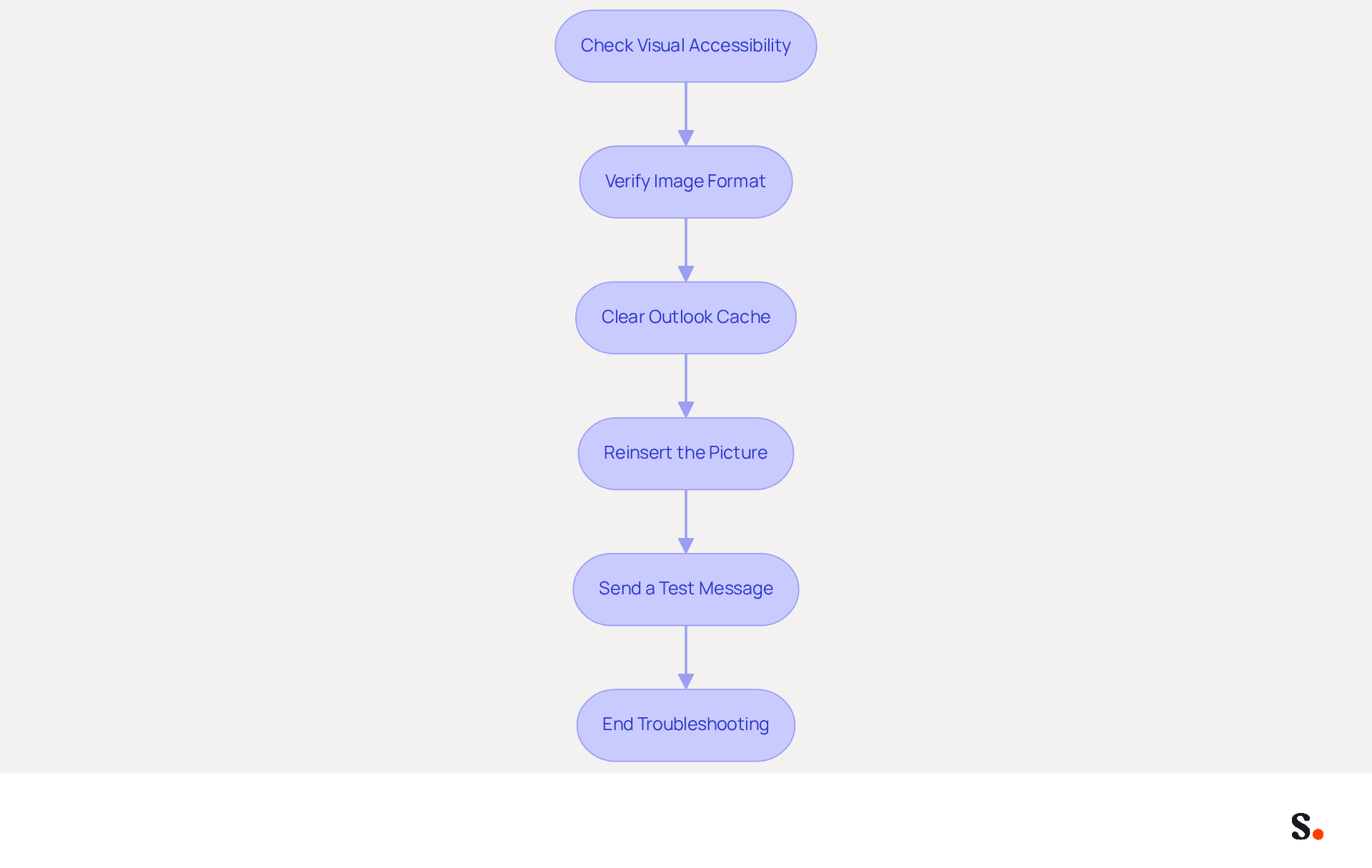
- Check Visual Accessibility: Ensure that the graphic is hosted on a dependable server or embedded properly in the footer. Images that are not accessible can lead to display issues, which can be mitigated by syncing your Google Workspace with Scribe for automatic updates.
- Verify Image Format: Use widely supported formats such as JPEG, PNG, or GIF. These formats are more likely to display correctly across various email clients, ensuring that your email identifiers remain professional and functional.
- Clearing the Outlook cache is essential, as cached data can result in the outlook signature image not showing, which may lead to potential miscommunication. To clear the cache, close Outlook, open the Run dialog (Windows + R), type
%localappdata%\Microsoft\Outlook, and delete the contents of the folder. Regular syncing with Scribe can help keep your identifiers updated and reduce the need for manual cache clearing. - Reinsert the Picture: If the visual still does not appear, return to the settings, remove the current picture, and reinsert it using the Insert Picture option to fix the outlook signature image not showing issue. Scribe's syncing capabilities simplify this process, automatically reflecting any changes made.
- Send a Test Message: After making changes, send a test message to verify that the image appears correctly. This step is essential to ensure that your message footer appears professional and operates as intended.
Research indicates that 44.4% of users update their contact details two to four times annually, highlighting the need for accurate and functional information. Moreover, consistent branded digital identifiers can result in over a 22% rise in response rates. This underscores the importance of regularly updating your email signatures to ensure effective communication. By prioritizing these steps, you enhance your professional image and ensure your communications are effective.
Repair or Reinstall Outlook if Necessary
To resolve issues with Outlook, follow these systematic steps to ensure proper functionality:
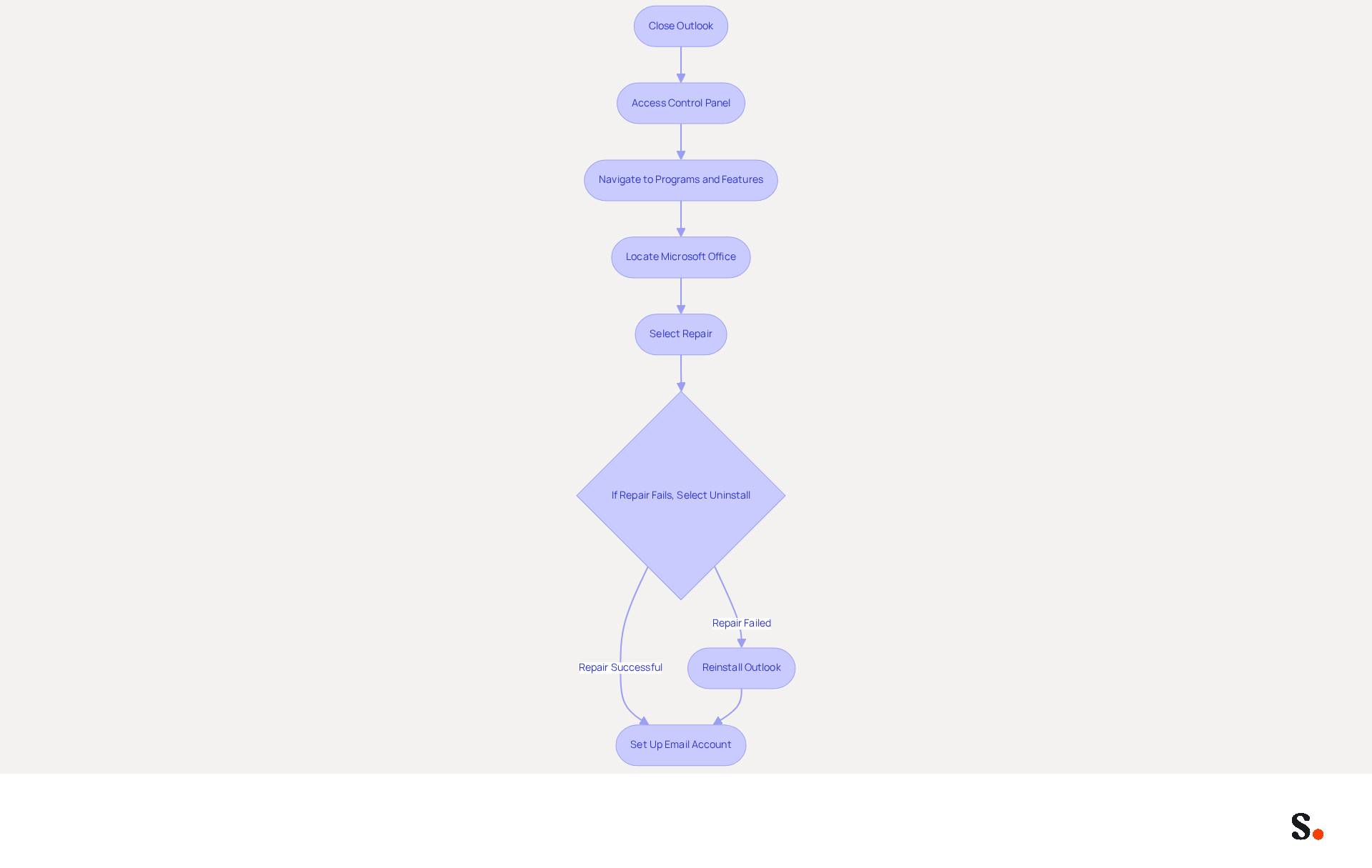
- Begin by closing Outlook completely to ensure no processes are running in the background.
- Next, access the Control Panel and navigate to Programs and Features to manage your applications.
- Locate Microsoft Office in the list of installed programs, select it, and proceed by clicking on Change.
- Select the Repair option and follow the on-screen prompts to complete the repair process, which may take several minutes.
- Should the repair not resolve the issue, you may need to consider uninstalling Outlook entirely.
- To proceed, select Uninstall from the same menu, then reinstall Outlook by downloading the latest version from the Microsoft website.
- Once reinstallation is complete, set up your email account and signature again, and test to ensure that the Outlook signature image not showing problem is fixed.
Failure to follow these steps may result in persistent issues that hinder your email management capabilities.
Conclusion
Ensuring that your Outlook signature images display correctly is essential for projecting professionalism in your communications. Users can troubleshoot and resolve signature image display issues by following these steps. This approach not only enhances email visual appeal but also strengthens brand consistency in a competitive market. Key strategies include:
- Verifying your signature setup
- Ensuring the email format is set to HTML
- Troubleshooting common image display issues
- Knowing when to repair or reinstall Outlook
Each of these steps plays a vital role in ensuring that your email signatures function as intended, ultimately leading to improved engagement and response rates. Scribe offers real-time synchronization and SOC 2 Type II compliance, simplifying email signature management for marketing teams. By focusing on the effective management of email signatures, organizations can transform a simple communication tool into a strategic asset for brand engagement. Embrace these best practices to ensure your email signatures are not just functional, but also a powerful tool for brand representation.
Frequently Asked Questions
How do I verify my Outlook signature setup?
To verify your Outlook signature setup, open Outlook, go to the File menu, select Options, then click on Mail. Next, click on the Signatures button to open the Signatures and Stationery window. Ensure your preferred sign-off is selected for both New messages and Replies/forwards, then click OK to save your changes. Finally, send yourself a test message to check if the signature appears correctly.
Why is it important to check my email signature setup?
Checking your email signature setup is important for maintaining brand consistency and boosting engagement. Proper configuration helps ensure that your communications are professional and effective.
What impact do images in email signatures have?
Incorporating images in your email signatures can significantly improve response rates, with branded signatures driving a 22% lift in responses.
How can Scribe help with email signature management?
Scribe offers streamlined one-click synchronization for email signatures. By granting the necessary permissions as a Super Admin of your service provider, you can enable automatic updates and real-time synchronization of teammate data.
What standards should be maintained when setting up email signatures?
When setting up email signatures, it is important to maintain compliance with SOC 2 Type II standards to ensure professionalism and effectiveness in communications.
List of Sources
- Verify Your Outlook Signature Setup
- Email Signature Statistics: A Closer Look at Email Signatures in 2026 (https://mysignature.io/blog/email-signature-statistics)
- 40+ Email Signature Statistics for 2026 (Data + Insights) (https://wavecnct.com/blogs/email-signature-statistics)
- 45+ Clever and Professional Email Signature Quotes (https://bulksignature.com/blog/45-clever-and-professional-email-signature-quotes)
- Confirm Email Format is Set to HTML
- 49 Top Email Marketing Statistics (https://forbes.com/advisor/business/software/email-marketing-statistics)
- Email Marketing Statistics | Ultimate List | CodeCrew (https://codecrew.us/blog/email-marketing-stats-you-need-to-know-the-ultimate-list)
- Why Outlook Breaks HTML Emails And How to Fix It - GlockApps (https://glockapps.com/blog/why-outlook-breaks-html-emails)
- 100 Compelling Email Statistics for 2026 | PGM Solutions (https://porchgroupmedia.com/blog/100-compelling-email-statistics-to-inform-your-strategy-in-2023)
- Microsoft fixes Outlook email issues (https://cnbc.com/2026/01/22/microsoft-outlook-outage-email-issues.html)
- Troubleshoot Common Image Display Issues
- 40+ Email Signature Statistics for 2026 (Data + Insights) (https://wavecnct.com/blogs/email-signature-statistics)
- Outlook has an image problem (https://theregister.com/on-prem/2026/05/22/outlook-has-an-image-problem/5244844)
- Images are not displayed in emails, newsletters, or signatures in classic Outlook | Microsoft Support (https://support.microsoft.com/en-us/support/known-issues/images-are-not-displayed-in-emails-newsletters-or-signatures-in-classic-outlook)
- Microsoft Outlook Classic Email Signatures Picture Display Issues - Microsoft Q&A (https://learn.microsoft.com/en-us/answers/a/12924618)
- Repair or Reinstall Outlook if Necessary
- Microsoft fixes Outlook email issues (https://cnbc.com/2026/01/22/microsoft-outlook-outage-email-issues.html)
- Thousands reporting problems with Microsoft Outlook (https://thehill.com/policy/technology/5394617-microsoft-outlok-outage-problems)
- Microsoft 365 and Outlook were down for many – here's what went wrong (https://techradar.com/news/live/microsoft-outlook-365-outage-january-22-2026)
- Outlook Statistics 2026: Users, Market Share, Security & M365 Seats (https://sqmagazine.co.uk/outlook-statistics)
- Microsoft releases emergency OOB update to fix Outlook freezes (https://bleepingcomputer.com/news/microsoft/microsoft-releases-emergency-oob-update-to-fix-outlook-freezes)
Get started with Scribe
Create your signature in minutes
Free 14-day trial — no credit card.