Fix Your Outlook Signature Disappeared Issue: Step-by-Step Guide
The challenge of a disappearing Outlook signature can significantly impact professional communication and brand consistency. Understanding the common causes
Sophie Grant
Email Signature Specialist, Scribe
Introduction
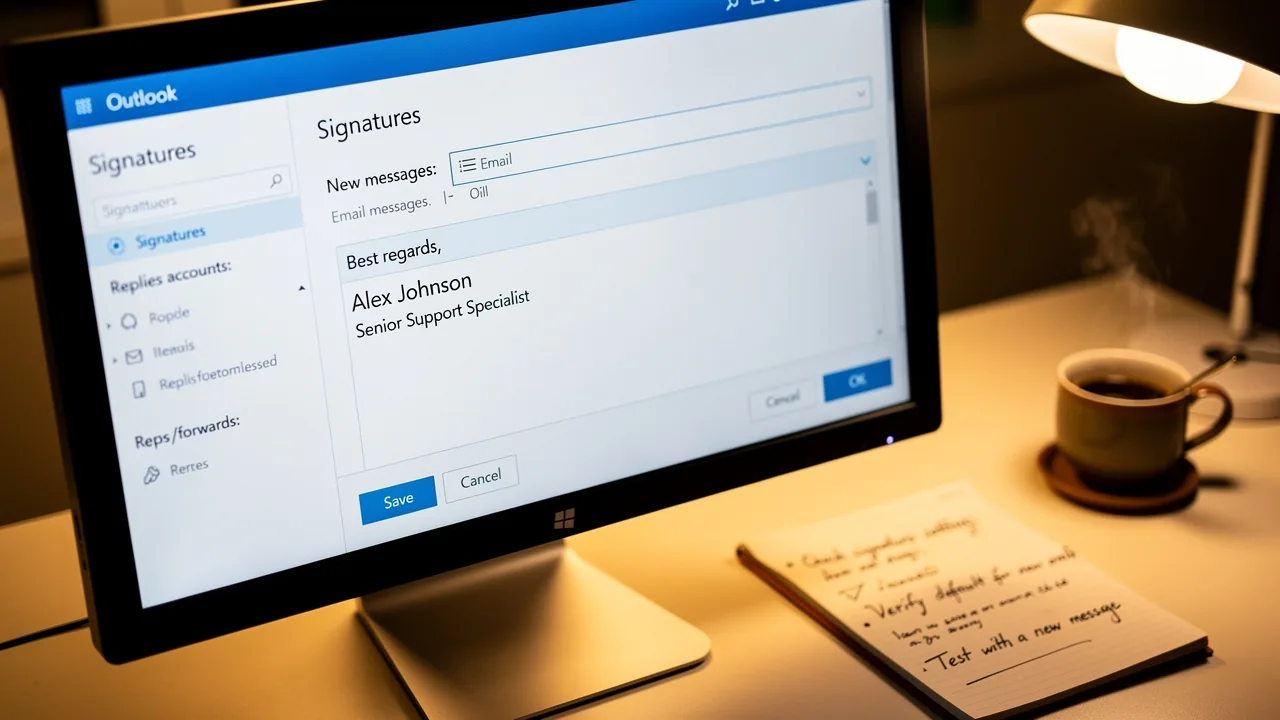
The challenge of a disappearing Outlook signature can significantly impact professional communication and brand consistency. Understanding the common causes behind this issue is crucial for users seeking to restore their email identity effectively. This guide presents a clear, step-by-step approach to effectively troubleshoot and resolve these signature dilemmas.
It outlines typical pitfalls and introduces automated solutions that ensure seamless email signature management. This approach keeps branding intact and communication professional.
Identify Common Causes of Disappearing Outlook Signatures
To effectively tackle the issue of disappearing email identifiers, it is crucial to pinpoint the underlying causes. Here are some frequent reasons:
- Software Updates: Recent updates to the email application or Windows can reset settings, including email templates. It's essential to verify if any updates were installed recently, as this is a common cause for authentication problems.
- Profile Corruption: A damaged email profile can result in various issues, including absent identifiers. Profile corruption can lead to persistent issues that disrupt your email experience. If you suspect this, creating a new profile may resolve the issue.
- The new Outlook's roaming feature can cause the Outlook signature to have disappeared. Disabling this feature is often a recommended solution to restore visibility.
- Add-ins and Extensions: Certain add-ons or browser extensions may interfere with settings related to email signatures. Temporarily disabling them can help identify if they are the cause of the problem.
- Default Configuration Settings: Ensure that your default configuration settings are correctly set up. Signatures may not show if they are not set as the default for new messages or replies, which is a frequent oversight. In fact, neglecting to set default configurations often leads to frustrating visibility issues.
- Message Format: If your message format is set to plain text instead of HTML, your identifier may not display correctly. Verifying your format settings is essential for proper visibility of your sign-off.
Recognizing these common causes is essential for troubleshooting and effectively restoring your email branding. Addressing these common causes is vital for ensuring that the issue of the Outlook signature disappearing does not disrupt consistent email branding and communication.

Follow Step-by-Step Troubleshooting Procedures
To effectively resolve the issue of disappearing Outlook signatures, it is essential to follow a structured troubleshooting approach:
-
Check Signature Settings:
- Open Outlook and navigate to File > Options > Mail > Signatures.
- Confirm that your desired signature is selected for both new messages and replies/forwards.
-
Disable Roaming Signatures:
- If using the new Outlook, access the registry editor to disable the roaming signature feature. Look for specific instructions online to guide you through this process. This is crucial, as roaming configurations can override local settings, leading to inconsistencies.
-
Create a New Profile:
- Go to Control Panel > Mail > Show Profiles.
- Click Add to create a new profile and set it as the default. This helps tackle issues that often stem from corrupted profiles, a common cause of signature problems.
-
Check Email Format:
- Ensure your email format is set to HTML. Navigate to File > Options > Mail > Compose messages and select HTML. Using HTML format aids in preserving consistency across devices, as many users have reported issues with their signatures not appearing correctly in various email clients.
-
Disable Add-ins:
- Go to File > Options > Add-ins.
- Disable any suspicious add-ins and restart the application to check if the issue persists. Add-ins can interfere with functionality related to authentication, leading to unexpected behavior.
-
Repair Outlook:
- If problems continue, consider repairing your Outlook installation. Access Control Panel > Programs > Programs and Features, select Microsoft Office, and click Change to initiate a repair.
By following these steps systematically, you can [troubleshoot and resolve the issue of the Outlook signature disappearing](https://90% of the time, the issue of signatures not showing is due to them not being assigned as the default signature.). Common issues include saved signatures not being stored correctly or being overridden by roaming settings, which can be resolved through these procedures. Additionally, many users report that using HTML format for signatures significantly improves consistency across devices, as evidenced by user feedback. Statistics indicate that Outlook signatures frequently encounter issues in Office 365 due to variations in handling across desktop, web, and mobile applications, making these troubleshooting steps crucial for ensuring dependable management of correspondence signatures.

Utilize Automated Solutions for Consistent Email Signature Management
To prevent issues with outdated identifiers, implementing automated solutions for digital signature management is essential. Here’s how:
-
Choose an Email Signature Management Tool:
- Scribe allows you to automatically fill in your teammates' identifiers using your business phone system, keeping information synced and up-to-date without requiring any action from them.
-
Centralized Control:
- With automated tools like Scribe, you can manage signatures from a central dashboard, ensuring that all team members have consistent branding in their emails. This consistency is vital, as 76% of recipients indicate increased trust in the sender due to branded communications.
-
Scheduled Updates:
- Schedule regular updates for your email signatures to reflect any changes in branding, promotions, or compliance requirements without manual intervention. This infrequent updating can lead to miscommunication and a lack of professionalism. By automating updates, organizations can ensure their communications remain professional and accurate.
-
Integration with Existing Tools:
- Look for solutions that integrate seamlessly with your existing email platforms, such as Microsoft 365 or Google Workspace, to streamline the process. Scribe's integration capabilities ensure that your correspondence identifiers are always aligned with your business communications.
-
Analytics and Tracking:
- Utilize tools that provide analytics on email signature performance, helping you understand how effective your signatures are in driving engagement and leads. Despite the potential, 42% of organizations do not monitor message footer performance, creating a significant blind spot in their marketing strategies.
-
User-Friendly Setup:
- Look for a solution that’s easy to set up and manage, so your team can adopt it without hassle. Scribe is designed for rapid deployment, typically enabling company-wide installation in under one day.
By leveraging automated solutions like Scribe, which is SOC 2 Type II compliant, you can maintain brand consistency, enhance marketing opportunities, and eliminate the hassle of manual email signature management. Embracing automation not only streamlines processes but also safeguards your brand's reputation in every email.

Conclusion
Addressing disappearing Outlook signatures is essential for maintaining professional communication and brand integrity. By understanding the common causes and following a structured troubleshooting approach, users can restore their email signatures effectively and keep them visible. This enhances email professionalism and highlights the need for consistent branding in digital communications.
The article outlined several key steps to troubleshoot disappearing signatures, including:
- Checking signature settings
- Disabling roaming features
- Creating new profiles
- Ensuring the correct email format
Additionally, it emphasized the value of automated solutions like Scribe, which streamline email signature management and ensure that branding remains consistent across all communications. By integrating such tools, organizations can avoid the pitfalls of manual updates and maintain a polished image in every email sent.
Ultimately, adopting automated email signature management solutions safeguards your brand's reputation and maximizes marketing opportunities. With tools like Scribe, organizations can ensure that their email signatures are always up-to-date, compliant, and reflective of their brand identity, leading to increased trust and engagement from recipients. Taking proactive steps to manage email signatures effectively can transform a simple communication tool into a powerful branding asset.
Frequently Asked Questions
What are the common causes of disappearing Outlook signatures?
Common causes include software updates, profile corruption, the new Outlook's roaming feature, add-ins and extensions, default configuration settings, and message format issues.
How can software updates affect Outlook signatures?
Recent updates to the email application or Windows can reset settings, including email templates, which may lead to disappearing signatures.
What should I do if I suspect my Outlook profile is corrupted?
If you suspect profile corruption, creating a new email profile may resolve the issue and restore your signatures.
How does the new Outlook's roaming feature impact signatures?
The new Outlook's roaming feature can cause signatures to disappear, and disabling this feature is often recommended to restore visibility.
Can add-ins or extensions interfere with Outlook signatures?
Yes, certain add-ons or browser extensions may interfere with settings related to email signatures. Temporarily disabling them can help identify if they are the cause of the problem.
What should I check regarding default configuration settings for signatures?
Ensure that your default configuration settings are correctly set up, as signatures may not show if they are not set as the default for new messages or replies.
How does the message format affect the visibility of my signature?
If your message format is set to plain text instead of HTML, your signature may not display correctly. Verifying your format settings is essential for proper visibility.
List of Sources
- Identify Common Causes of Disappearing Outlook Signatures
- Email Signature Trends in Numbers: Infographic [2026] (https://mailtrap.io/blog/email-signature-trends/amp)
- 100 Professional Email Signature Quotes: Best Ideas - NEWOLDSTAMP (https://newoldstamp.com/blog/email-signature-quotes)
- Email signature statistics: Why every business should optimize their email signatures — Stripo.email (https://stripo.email/blog/email-signature-statistics-why-every-business-should-optimize-their-email-signatures)
- Outlook Signature Disappears? 6 Common Problems + Fixes (https://conbool.com/blog/outlook-signature-disappears-fixes-problems)
- 40+ Email Signature Statistics for 2026 (Data + Insights) (https://wavecnct.com/blogs/email-signature-statistics)
- Follow Step-by-Step Troubleshooting Procedures
- Outlook Signature Not Working in Office 365: Causes & Fixes (https://exclaimer.com/email-signature-handbook/outlook-signature-not-working-in-office-365)
- Outlook Signature Disappears? 6 Common Problems + Fixes (https://conbool.com/blog/outlook-signature-disappears-fixes-problems)
- How to solve problems with email signatures in Microsoft 365? (https://mail-signatures.com/articles/problems-email-signatures-office-365)
- learn.microsoft.com (https://learn.microsoft.com/en-us/answers/questions/4755397/email-signatures-disappeared)
- Email Signatures vanishing - New Outlook | Microsoft Community Hub (https://techcommunity.microsoft.com/discussions/outlookgeneral/email-signatures-vanishing---new-outlook/4418809)
- Utilize Automated Solutions for Consistent Email Signature Management
- 40+ Email Signature Statistics for 2026 (Data + Insights) (https://wavecnct.com/blogs/email-signature-statistics)
- Company Email Signature Management (2026) (https://hubspot.com/email-signature-generator/email-signature-management)
- Why Email Signature Management Software is Essential for Marketing Success (https://scribe-mail.com/en-US/blog/why-email-signature-management-software-is-essential-for-marketing-success)
- Email signature statistics: Why every business should optimize their email signatures — Stripo.email (https://stripo.email/blog/email-signature-statistics-why-every-business-should-optimize-their-email-signatures)
Get started with Scribe
Create your signature in minutes
Free 14-day trial — no credit card.