How Can I Change My Signature on Outlook? A Step-by-Step Guide
Email signatures serve as a critical component of professional communication, influencing brand perception and identity. As organizations increasingly
Sophie Grant
Email Signature Specialist, Scribe
Introduction
Email signatures serve as a critical component of professional communication, influencing brand perception and identity. As organizations increasingly recognize the importance of consistent branding, understanding how to effectively manage and update email signatures in Outlook becomes essential. Yet, many professionals find the complexity of signature settings can hinder effective branding.
How can one navigate these challenges to ensure their email signature not only reflects their current role but also serves as a strategic marketing asset?
Understand the Importance of Email Signatures in Outlook
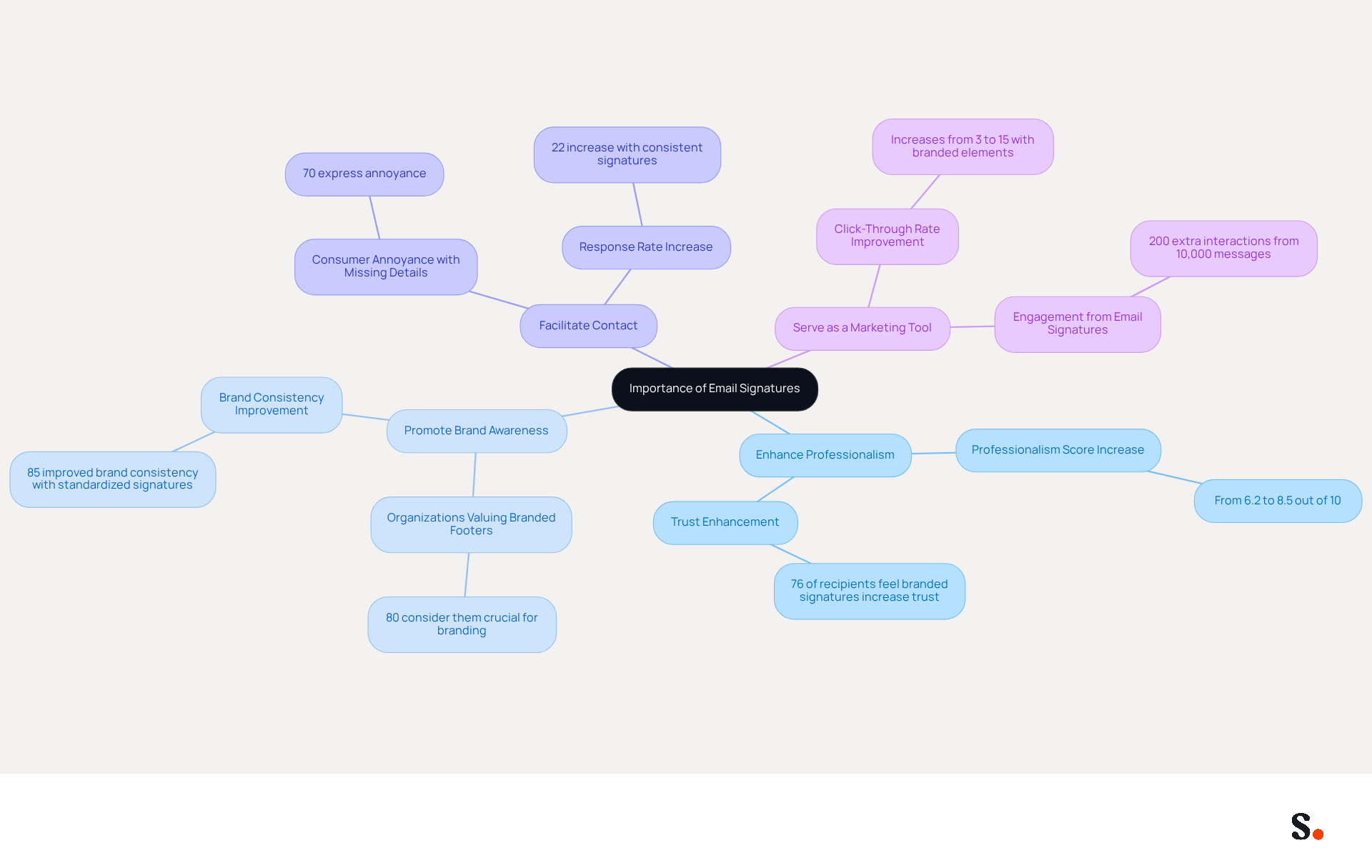
Email footers play a vital role in business communication, serving functions that extend beyond mere sign-offs. A well-crafted email signature serves multiple essential functions:
- Enhance Professionalism: A consistent and polished email signature creates a strong first impression, reinforcing your professional identity. Research shows that brands with effective branding see their professionalism scores rise from 6.2 to 8.5 out of 10.
- Promote Brand Awareness: Incorporating your company logo and branding elements in your correspondence helps reinforce brand identity with every message sent. In fact, 80% of organizations consider branded footers crucial for branding, with 76% of recipients stating that such footers enhance their trust in the sender.
- Facilitate Contact: A digital identifier provides essential contact details, making it easy for recipients to reach you. Without clear contact details, businesses risk frustrating potential clients, as 70% of consumers express annoyance when such information is missing. Organizations utilizing consistent branded digital communication identifiers report over a 22% increase in response rates.
- Serve as a Marketing Tool: By integrating promotional banners or calls to action, email footers can transform each email into a marketing opportunity. Statistics indicate that click rates to websites rise from 3% to 15% when branded elements are utilized, showcasing their ability to enhance traffic and engagement. Notably, users of Scribe experience an average click-through rate of 12% on branded banners, showcasing their effectiveness as a marketing tool.
Using Scribe allows you to automate the management of digital signatures, ensuring your team's identifiers are always up-to-date and compliant with SOC 2 Type II standards. By syncing with Google Workspace, any changes made to your teammates' information are automatically reflected in Scribe, saving you time and ensuring brand consistency. By leveraging these insights, you can transform your email signatures into powerful tools that enhance your professional image and build lasting connections.
Access Email Signature Settings in Outlook
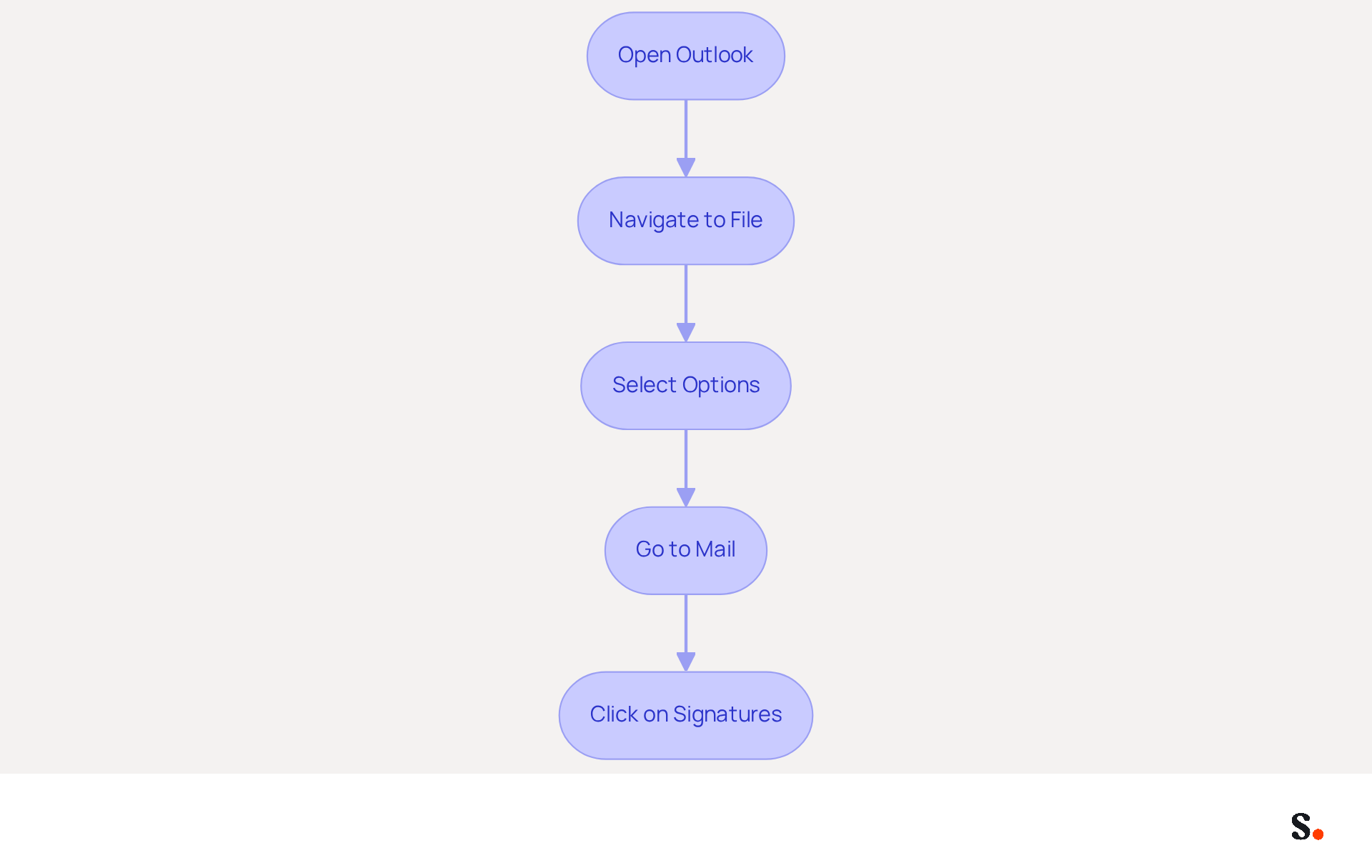
Updating your email signature in Outlook is crucial for maintaining a professional image and ensuring effective communication. To change your email signature in Outlook, follow these steps:
- Open Outlook: Launch the Outlook application on your computer.
- Navigate to File: Click on the 'File' tab located in the top-left corner of the window.
- Select Options: From the menu, choose 'Options' to open the Outlook Options dialog box.
- Go to Mail: In the left sidebar, click on 'Mail'.
- Click on Signatures: In the Mail settings, find and click on the 'Signatures...' button. This will open the Signatures and Stationery dialog box where you can manage your correspondence identifiers.
Accessing these settings is essential, as 89.9% of professionals utilize a single digital identifier, often overlooking updates that could improve branding and engagement. Regular updates to your signature can greatly impact how recipients perceive your messages; 76-80% of marketers believe that branded signatures build trust with the sender. By integrating the application with your Google Workspace, you can streamline this process. To enable one-click synchronization, you must grant permission to connect with your provider and select which teammates you want to sync. This tool automatically syncs your teammates' data, making it easier to keep everyone’s information up to date. This not only saves you time, but it also helps keep your brand consistent in all your communications. Additionally, Scribe is SOC 2 Type II compliant, ensuring the safety of your data. By following these steps, you can learn how to change your signature on Outlook to ensure your correspondence footer reflects your current role and company branding effectively, supporting your marketing goals. By neglecting to update your email signature, you risk losing credibility and engagement with your audience.
Create or Modify Your Email Signature
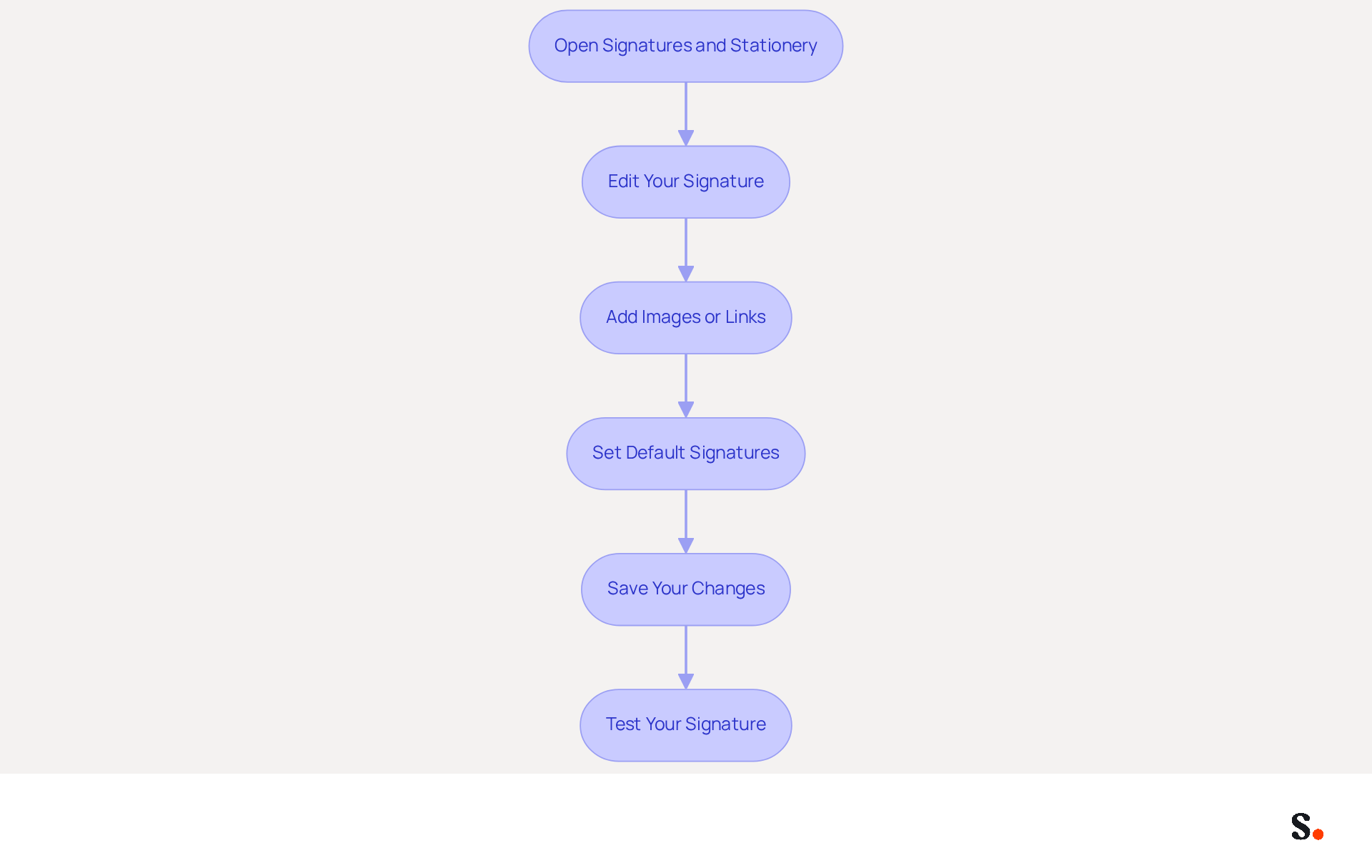
Creating a professional email signature in Outlook is essential for effective communication and brand representation. To create or modify your email signature, follow these steps:
- Create a New Mark: Open the Signatures and Stationery dialog box and click 'New' to initiate a new mark. Assign a name to your mark and click 'OK'.
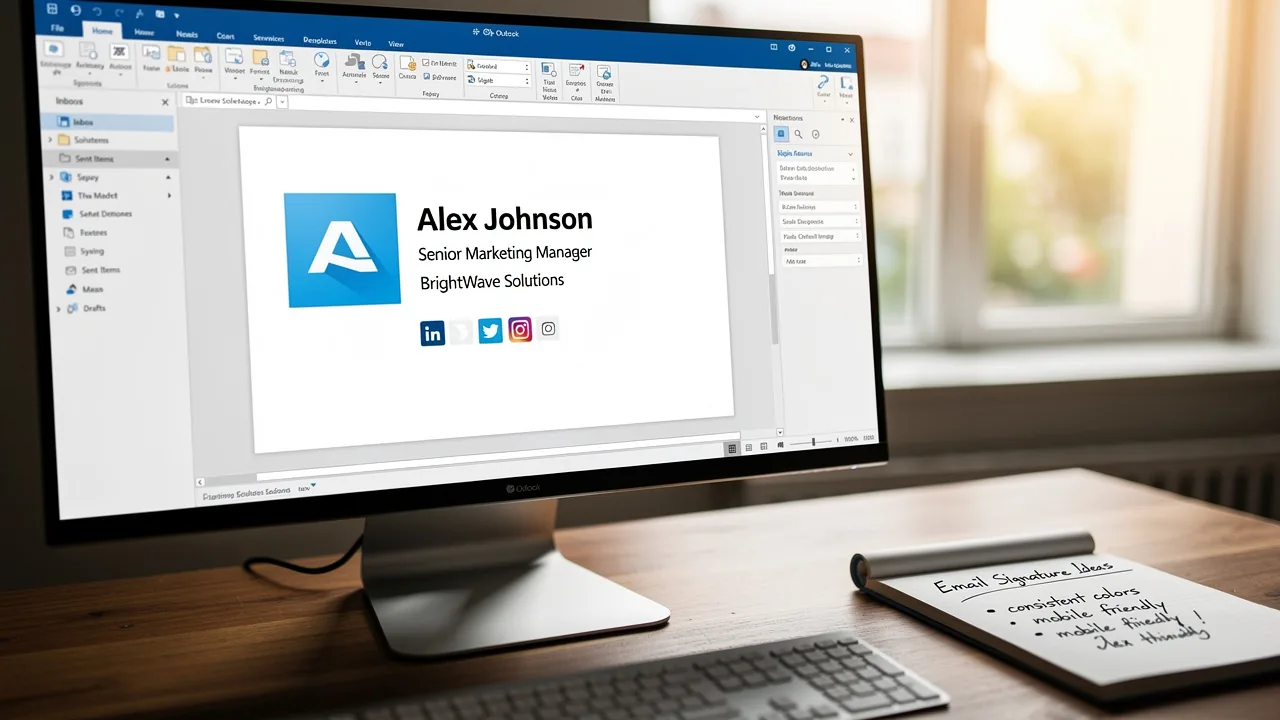
- Edit Your Signature: In the editing box, input your desired details for your name, title, company name, and phone number. Utilize formatting options to adjust the font, size, and color to align with your brand identity. It is advisable to maintain a concise sign-off, ideally limited to seven lines, to ensure clarity and professionalism.
- Add Images or Links: To enhance your email footer, click on the image icon to upload your company logo or use the hyperlink option to incorporate clickable links to your social media profiles. Ensure that all links are up-to-date and relevant to drive traffic effectively.
- Set Default Signatures: If you wish to designate this mark as your default for new messages or replies, select it from the dropdown menus under 'Choose default mark'. This ensures consistency in your communications.
- Save Your Changes: After finalizing your mark, click 'OK' to save your changes and exit the dialog box.
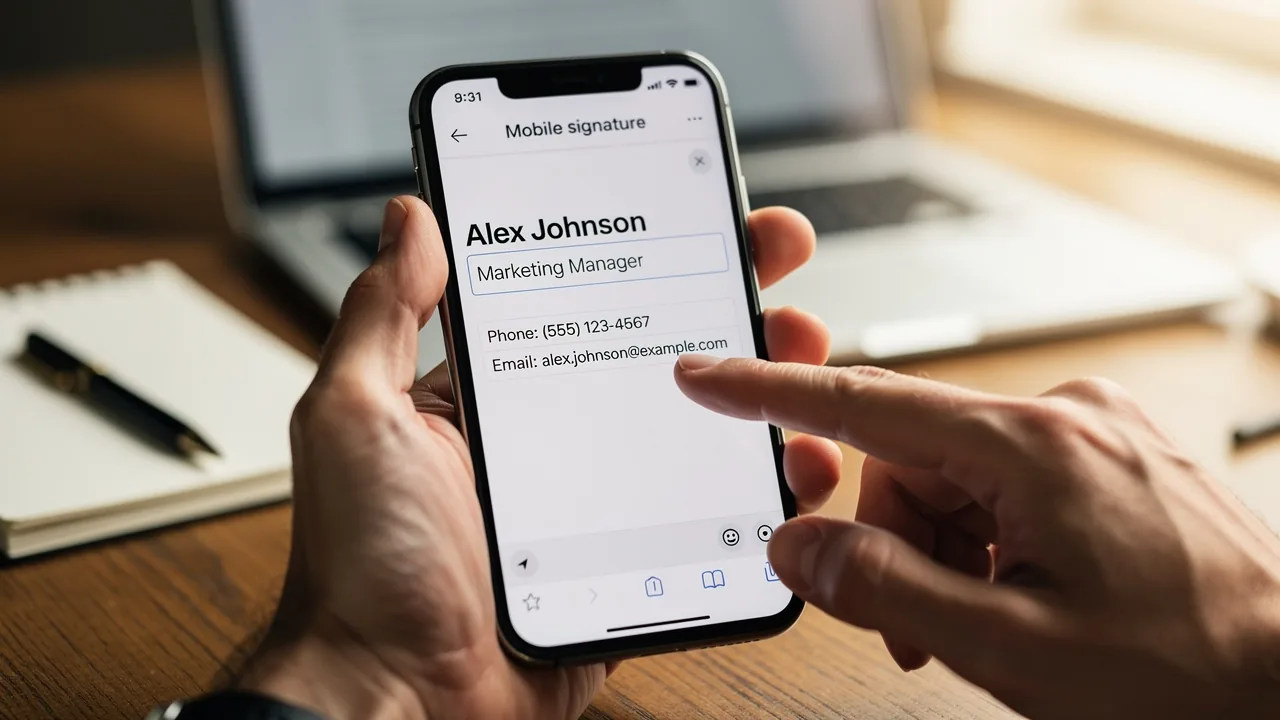
By following these steps, you can learn how can I change my signature on Outlook to establish a polished communication footer that enhances interactions and reinforces your brand's professional image. Research indicates that a professionally designed sign-off can significantly enhance engagement rates, with studies showing that 75.9% of professionals believe their sign-off played a role in closing a sale. Furthermore, with Scribe, your email identifiers can be automatically synchronized with your business phone system, ensuring that any updates made in your Aircall configuration are reflected in your identifiers without needing action from your teammates. This automated management not only saves time but also ensures compliance with security standards, as Scribe is SOC 2 Type II compliant, safeguarding your data. Regularly updating your email footer for new campaigns or branding changes is crucial for maintaining relevance and compliance with legal requirements, such as including a confidentiality clause. Testing your mark on various devices is also recommended to ensure it appears professional across all platforms. By ensuring your email signature is consistently updated and professionally crafted, you position your brand for greater success in every interaction.
Apply Your Signature to Outgoing Emails
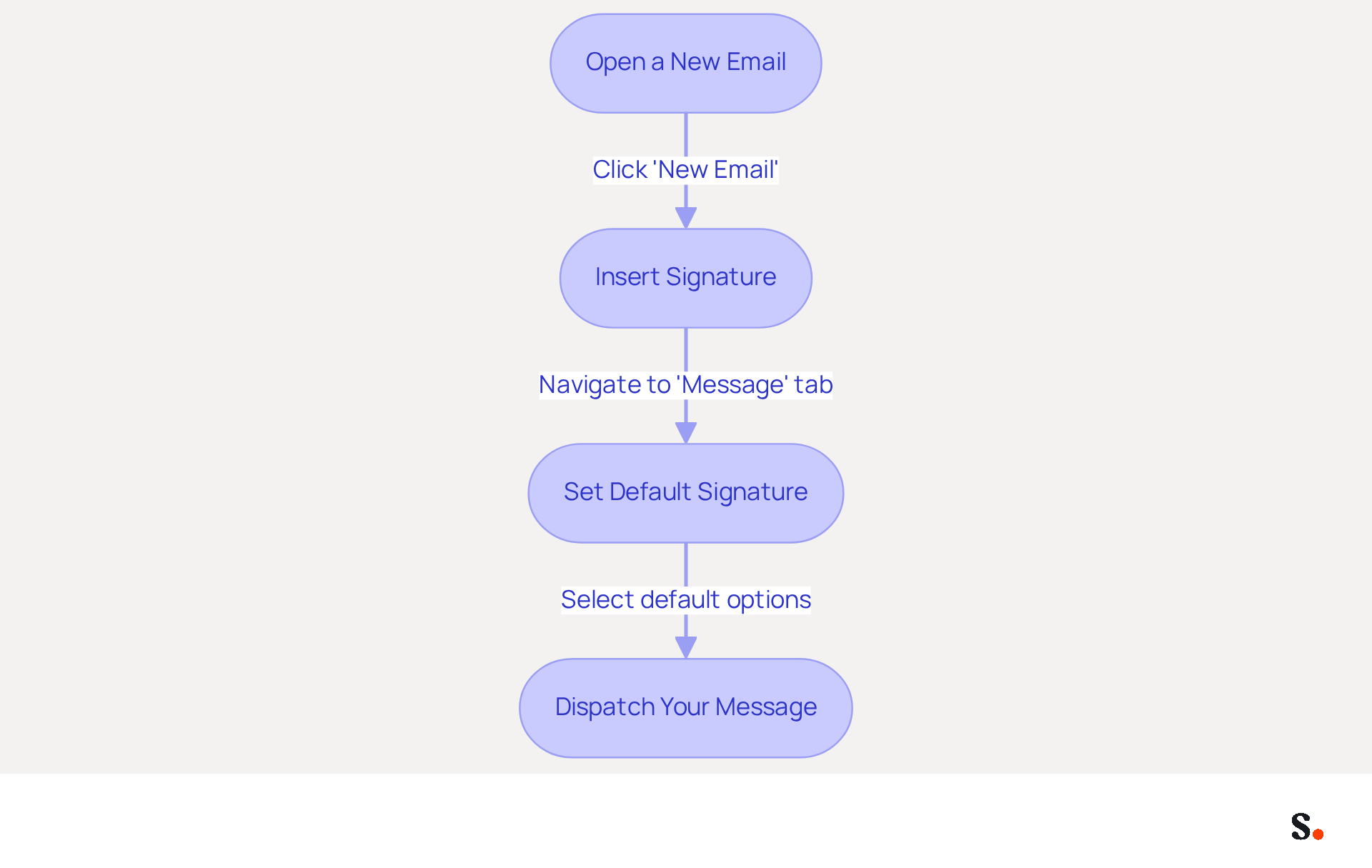
To apply your email signature effectively in Outlook, follow these essential steps:
- Open a New Email: Start by clicking on 'New Email' to compose your message.
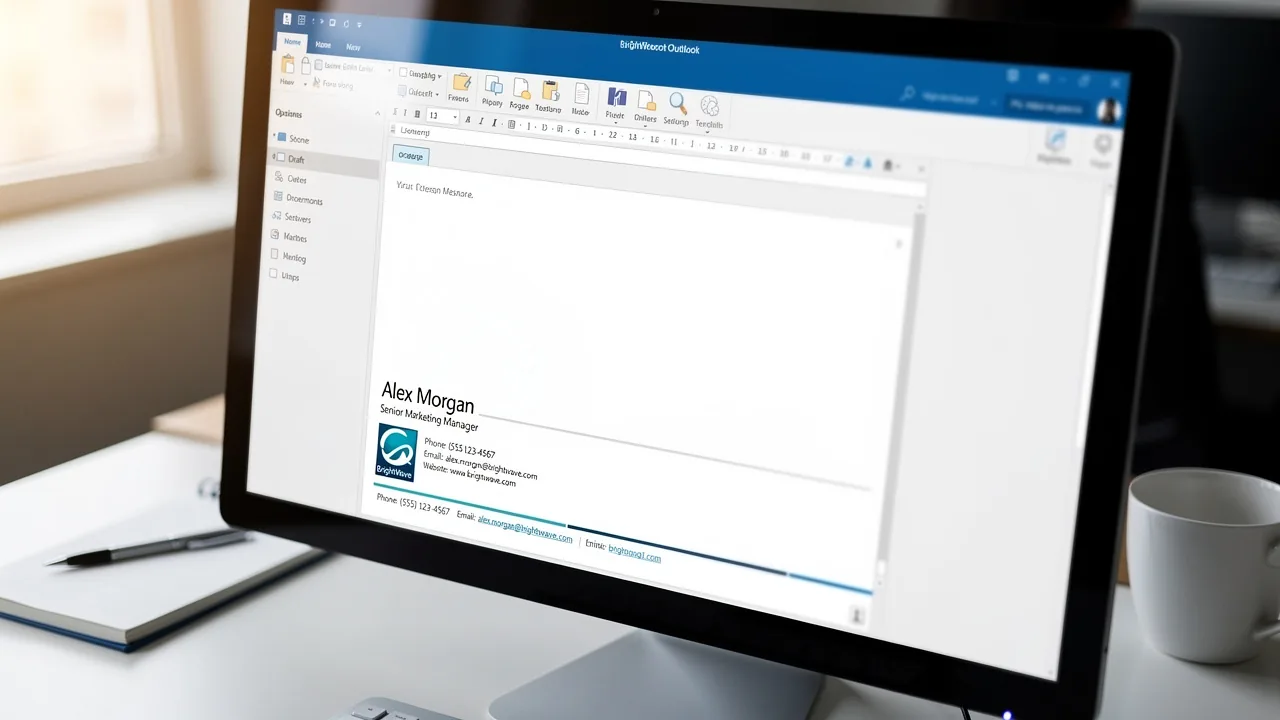
- Insert Signature: In the new message window, navigate to the 'Message' tab. Click on 'Signature' in the Include group, then choose your preferred option from the dropdown list.
- Set Default Signature: To automatically add your sign-off in all new messages, return to the Signatures and Stationery dialog box. Under 'Choose default option', select your identifier for 'New messages' and 'Replies/forwards' as needed.
- After applying your mark, proceed to dispatch your message as usual. Your autograph will now be displayed at the bottom of your messages.
Effectively utilizing professional messaging identifiers can significantly enhance your business's image. Research indicates that consistent branding in digital communications, particularly through automated messages overseen by Scribe, can result in a 14% increase in lead generation. To enable one-click synchronization, you must grant permission to connect with your service provider, requiring Super Admin access. With Scribe's efficient one-click synchronization, any modifications made in your provider will automatically refresh your branding elements, ensuring consistency across all communications. Furthermore, Scribe's SOC 2 Type II compliance ensures the protection of your information, enabling you to manage your correspondence confidently. Scribe ensures that your teammate data is synced daily from your service provider, tailored to your local time, enhancing efficiency. You can format your sign-off with various fonts, colors, and styles, and include images or logos to further personalize your communications. If you are wondering how can I change my signature on Outlook, you may encounter issues with your default message footer not displaying correctly; ensure that your settings are properly configured and consider recreating the footer if needed. By ensuring your email signature is consistently applied, you reinforce your brand identity with every communication.
Troubleshoot Common Signature Issues
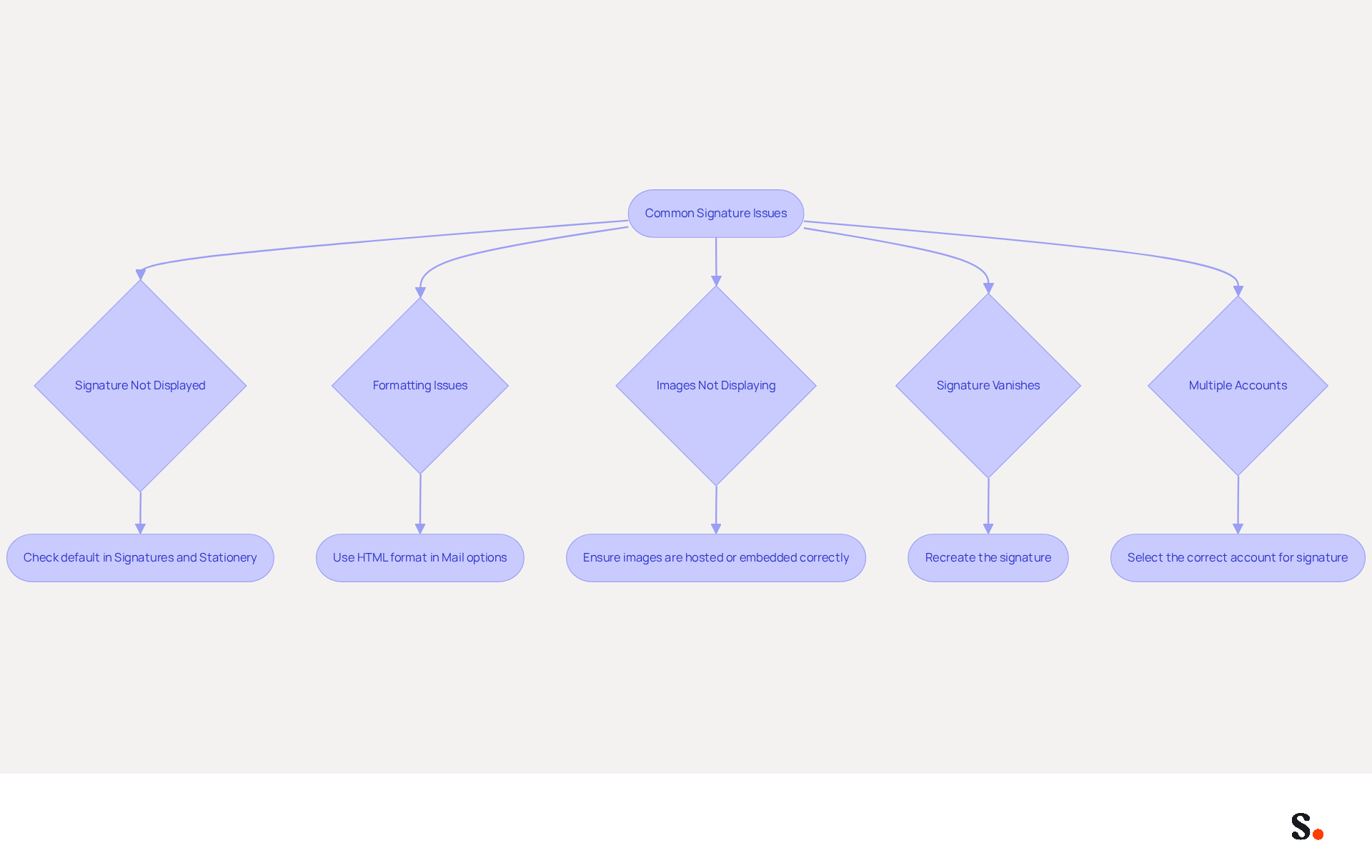
Despite configuring your message footer, users often encounter common challenges that can hinder effective communication. Here are solutions to troubleshoot:
- Signature Not Displayed: If your sign-off isn’t appearing in new messages, first check that it’s set as the default in the Signatures and Stationery dialog box. This is a frequent issue, as research indicates that a significant number of users fail to adjust this setting, leading to confusion.
- Formatting Issues: If your signature looks different when sent, ensure you are using HTML format for your emails. Navigate to 'File' > 'Options' > 'Mail' and confirm that 'HTML' is selected under 'Compose messages'. Formatting discrepancies often arise from using incompatible formats, which can lead to miscommunication and a diminished professional image.
- Images Not Displaying: If images in your email are not showing, ensure they are hosted online or embedded correctly. Check the image links and ensure they are accessible. Many users experience issues with images being blocked or failing to load due to incorrect embedding.
- Signature Vanishes: If your signature disappears after an update, you may need to recreate it. Updates can reset settings, resulting in the loss of identifiers. Following the steps to recreate your personal signature can resolve this issue.
- Multiple Accounts: If you have several accounts, ensure you have chosen the correct one when setting your default signature. This is essential, as signatures can be account-specific, leading to confusion.
By addressing these common issues, you can ensure your message footer functions as intended, maintaining your professional image. Furthermore, syncing your Google Workspace with Scribe can simplify your management of your correspondence identifiers. This integration can save you time by automatically updating your teammates' contact info, so you don’t have to do it manually every time something changes. This feature not only enhances efficiency but also ensures brand consistency across all communications, allowing your marketing team to manage email signatures independently after the initial IT setup.
Conclusion
An outdated email signature can undermine your professional image and create confusion in communication. Updating your email signature in Outlook is crucial for professional communication and can greatly influence how recipients view your brand. A well-crafted signature not only boosts professionalism but also helps in promoting your brand and making it easier for others to reach you. By following these steps, you ensure your email signature accurately represents your role and company, reinforcing your marketing objectives.
Key insights from this guide emphasize the importance of maintaining an updated and professional email signature. From accessing the signature settings to creating and applying a signature, each step is crucial for ensuring that communications are consistent and effective. Additionally, troubleshooting common issues can prevent potential miscommunications and enhance the overall professionalism of your correspondence. Leveraging tools like Scribe can further streamline this process, allowing for automated updates and compliance with security standards such as SOC 2 Type II.
In conclusion, the impact of a well-crafted email signature is profound and should not be overlooked. Organizations should prioritize the management of their email signatures, utilizing solutions like Scribe to ensure brand consistency and marketing effectiveness. By taking these steps, businesses can transform their email communications into powerful tools for connection and growth.
Frequently Asked Questions
Why are email signatures important in business communication?
Email signatures enhance professionalism, promote brand awareness, facilitate contact, and serve as a marketing tool. A well-crafted signature creates a strong first impression and reinforces professional identity.
How do email signatures enhance professionalism?
A consistent and polished email signature can significantly improve professionalism scores, with research indicating that effective branding can raise scores from 6.2 to 8.5 out of 10.
What role do email signatures play in brand awareness?
Incorporating company logos and branding elements in email signatures helps reinforce brand identity, with 80% of organizations considering branded footers crucial for branding.
How do email signatures facilitate contact?
Email signatures provide essential contact details, making it easy for recipients to reach you. Missing contact information can frustrate potential clients, as 70% of consumers express annoyance when such details are absent.
Can email signatures be used as a marketing tool?
Yes, by integrating promotional banners or calls to action, email signatures can turn each email into a marketing opportunity. Click rates to websites can increase from 3% to 15% when branded elements are used.
How does Scribe help with email signature management?
Scribe automates the management of digital signatures, ensuring that team identifiers are always up-to-date and compliant with SOC 2 Type II standards. It syncs with Google Workspace to automatically reflect any changes made to teammates' information.
What are the steps to access email signature settings in Outlook?
To change your email signature in Outlook, open Outlook, navigate to the 'File' tab, select 'Options', go to 'Mail', and click on the 'Signatures...' button to manage your signatures.
Why is it important to regularly update your email signature?
Regular updates to your email signature can greatly impact how recipients perceive your messages. 76-80% of marketers believe that branded signatures build trust with the sender, and neglecting updates can lead to a loss of credibility and engagement.
What is the benefit of integrating Scribe with Google Workspace for email signatures?
Integrating Scribe with Google Workspace allows for one-click synchronization of teammates' data, making it easier to keep everyone’s information up to date, saving time, and ensuring brand consistency in communications.
List of Sources
- Understand the Importance of Email Signatures in Outlook
- What Should a Business Email Signature Look Like for Success? (https://scribe-mail.com/en-US/blog/what-should-a-business-email-signature-look-like-for-success)
- 40+ Email Signature Statistics for 2026 (Data + Insights) (https://wavecnct.com/blogs/email-signature-statistics)
- The impact of email signatures on your branding (https://signitic.com/en/resources/the-impact-of-email-signatures-on-your-branding)
- Research Recap: Branded Email Signatures Increase Company Recognition, Trust - Demand Gen Report (https://demandgenreport.com/industry-news/research-recap-branded-email-signatures-increase-company-recognition-trust/47252)
- Exclaimer Research: 67% of Marketers Expect Email Signatures to Support With Lead Gen In 2023 (https://businesswire.com/news/home/20230612141095/en/Exclaimer-Research-67-of-Marketers-Expect-Email-Signatures-to-Support-With-Lead-Gen-In-2023)
- Access Email Signature Settings in Outlook
- Email Signature Statistics: A Closer Look at Email Signatures in 2026 (https://mysignature.io/blog/email-signature-statistics)
- 40+ Email Signature Statistics for 2026 (Data + Insights) (https://wavecnct.com/blogs/email-signature-statistics)
- How to Add a Quote to Your Email Signature - MySignature (https://mysignature.io/quote-email-signature)
- Email signature statistics: Why every business should optimize their email signatures — Stripo.email (https://stripo.email/blog/email-signature-statistics-why-every-business-should-optimize-their-email-signatures)
- 45+ Clever and Professional Email Signature Quotes (https://bulksignature.com/blog/45-clever-and-professional-email-signature-quotes)
- Create or Modify Your Email Signature
- The Complete Email Signature Guide 2026: Best Practices and Policy (https://opensense.com/complete-email-signature-guide)
- Why Email Signatures Must Be In Your 2026 Marketing Plan | Rocketseed (https://rocketseed.com/blog/what-are-the-biggest-email-trends-for-2026)
- Top 10+ best practices for email signatures design in 2026 (https://mysignature.io/blog/email-signature-best-practices)
- Email Signature Best Practices - NEWOLDSTAMP (https://newoldstamp.com/blog/email-signature-best-practices)
- Best practices for business email signatures in 2026 (https://bybrand.io/blog/best-practices)
- Apply Your Signature to Outgoing Emails
- Default Email Signature content - Microsoft Q&A (https://learn.microsoft.com/en-nz/answers/questions/4670155/default-email-signature-content)
- How do I add a signature to my email? - Microsoft Q&A (https://learn.microsoft.com/en-us/answers/questions/5497314/how-do-i-add-a-signature-to-my-email)
- Automatic Signature in Outlook: Adding and Changing with Ease - NEWOLDSTAMP (https://newoldstamp.com/blog/automatic-signature-in-outlook)
- How to add and change an email signature in Outlook | Microsoft Support (https://support.microsoft.com/en-us/outlook/mail/how-to-add-and-change-an-email-signature-in-outlook)
- How to add signature to outgoing emails - Microsoft Q&A (https://learn.microsoft.com/en-us/answers/questions/4726003/how-to-add-signature-to-outgoing-emails)
- Troubleshoot Common Signature Issues
- Outlook Signature Not Working in Office 365: Causes & Fixes (https://exclaimer.com/email-signature-handbook/outlook-signature-not-working-in-office-365)
- How to solve problems with email signatures in Microsoft 365? (https://mail-signatures.com/articles/problems-email-signatures-office-365)
- Email Signature Troubleshooting - Problems & Solutions - Gimmio (https://blog.gimm.io/email-signature-troubleshooting)
- 40+ Email Signature Statistics for 2026 (Data + Insights) (https://wavecnct.com/blogs/email-signature-statistics)
Get started with Scribe
Create your signature in minutes
Free 14-day trial — no credit card.