How to Add a Logo to Your Gmail Signature Using Scribe
Adding a logo to a Gmail signature is a strategic move that enhances brand recognition and professionalism in digital communications. Incorporating a logo
Sophie Grant
Email Signature Specialist, Scribe

On this page
- Introduction
- Understand the Importance of Adding a Logo to Your Gmail Signature
- Follow Step-by-Step Instructions to Add Your Logo in Gmail
- Troubleshoot Common Issues When Adding a Logo to Your Signature
- Leverage Scribe for Automated Logo Management in Gmail Signatures
- Conclusion
- Frequently Asked Questions
- List of Sources
Introduction
Adding a logo to a Gmail signature is a strategic move that enhances brand recognition and professionalism in digital communications. Incorporating a logo fosters trust and familiarity among recipients, leading to increased engagement and conversions. Many professionals struggle with the technical aspects of adding a logo to their Gmail signature.
How can one effectively navigate the process of adding a logo while ensuring brand consistency and overcoming common pitfalls? This guide will provide step-by-step instructions and insights into leveraging Scribe for seamless logo integration, empowering marketing teams to take control of their email branding.
Understand the Importance of Adding a Logo to Your Gmail Signature
To enhance brand identity and ensure effective communication, it is essential to add a logo to your Gmail signature. Here are several compelling reasons to consider:
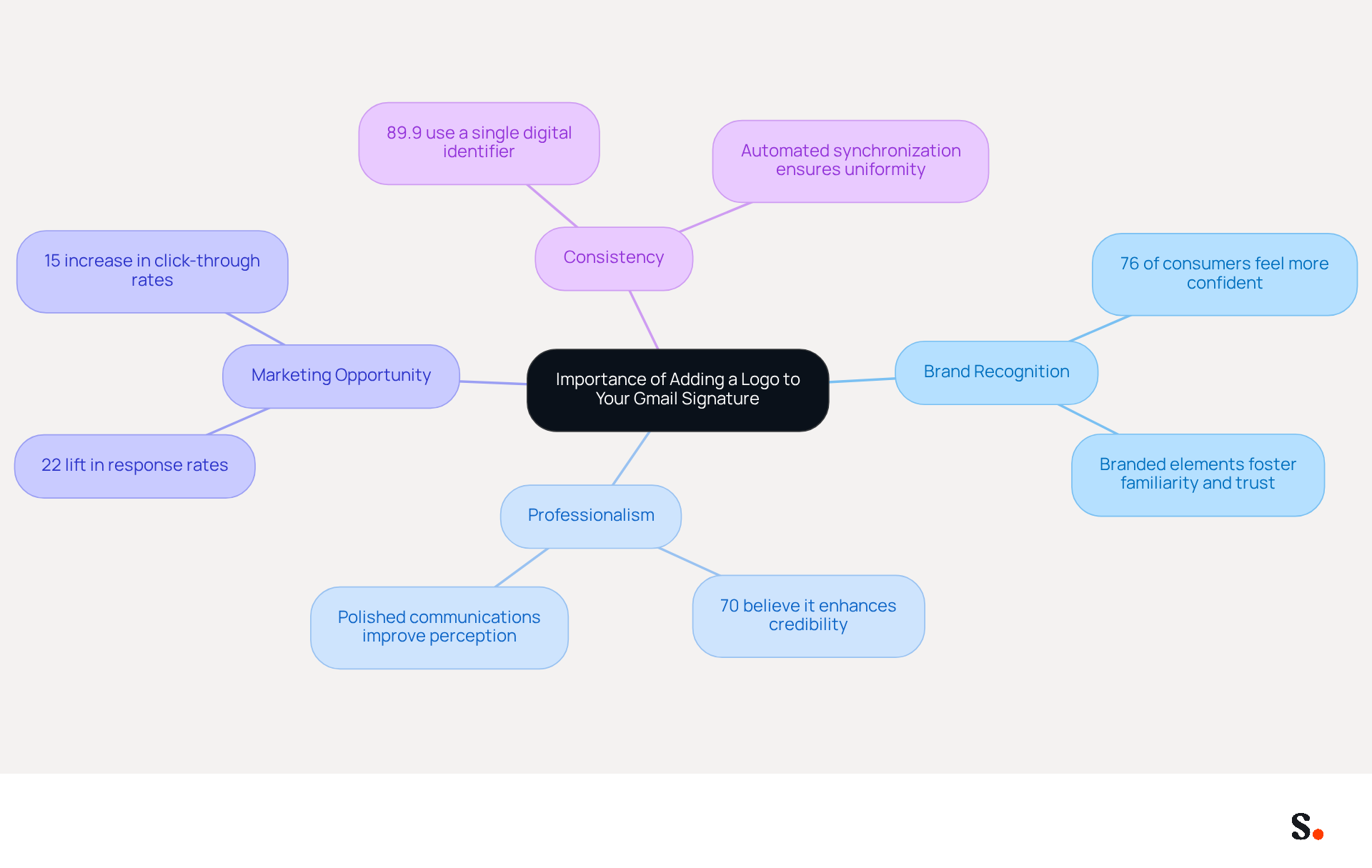
- Brand Recognition: Including your logo allows recipients to instantly identify your brand, fostering familiarity and trust. Studies show that 76% of consumers feel more confident when they see branded elements in messages, emphasizing the significance of visual branding in communication.
- Professionalism: A thoughtfully designed logo not only enhances professionalism but also makes your communications look polished and trustworthy. Nearly 70% of signature users believe that a professional signature enhances their credibility, which can significantly impact how your messages are received.
- Marketing Opportunity: Each message sent represents a chance to promote your brand. A logo serves as a subtle reminder of your business, potentially leading to increased engagement and conversions. In fact, branded digital identifiers can drive a 22% lift in response rates and a 15% increase in click-through rates to company websites.
- Consistency: Consistency in branding across all communications is essential for building a cohesive image and fostering brand loyalty. Research shows that 89.9% of professionals utilize a single digital identifier, highlighting the necessity for consistency in branding. With Scribe's automated synchronization with Aircall, any modifications made to your email branding will be reflected instantly, ensuring that your identity remains consistent across all platforms.
By acknowledging these essential aspects, you can recognize the importance of dedicating time to add a logo to your Gmail signature, which ultimately improves your brand's visibility and professionalism. Investing in a well-designed emblem for your Gmail footer can significantly elevate your brand's presence and credibility in every interaction.
Follow Step-by-Step Instructions to Add Your Logo in Gmail
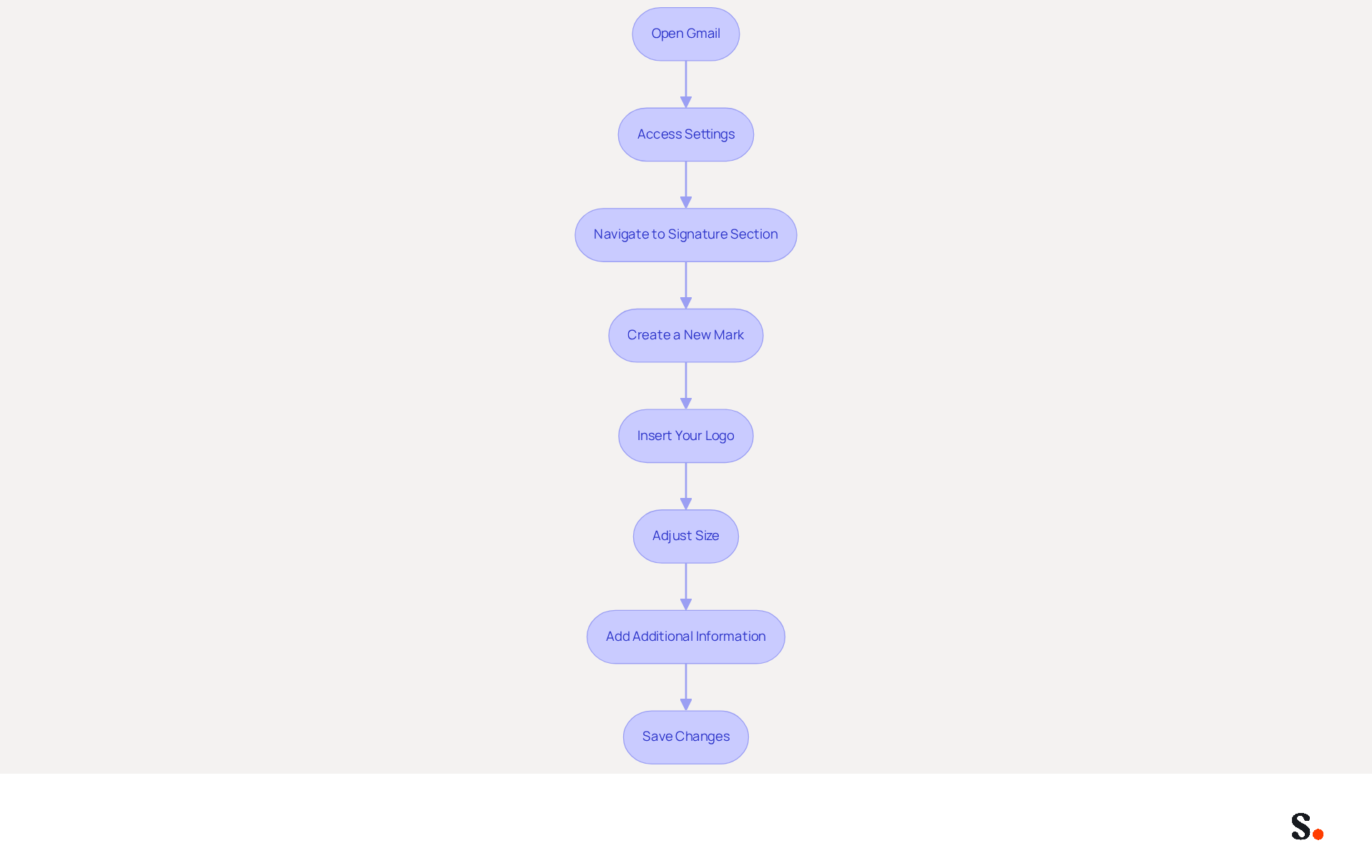
Adding a logo to Gmail signature is a straightforward process that can significantly enhance your professional image. To add your logo to your Gmail signature, follow these steps:
- Open Gmail: Log into your Gmail account on a web browser.
- Access Settings: Click on the gear icon in the top right corner and select 'See all settings'.
- Navigate to Signature Section: Scroll down to the 'Signature' section under the 'General' tab.
- Create a New Mark: Click on 'Create New' to start a new mark.
- Insert Your Logo:
- Click on the 'Insert Image' icon in the signature editor toolbar.
- Upload your emblem from your computer or insert the URL of the image if it's hosted online.
- Adjust Size: Click on the image to resize it if necessary. For optimal visibility, aim for your logo to be between 300 and 400 pixels wide and no taller than 100 pixels. Ensure the file size is under 100KB to avoid triggering spam filters.
- Add Additional Information: Include your name, title, and any other relevant contact information. A professional correspondence footer usually contains essential identity components such as your full name, job title, and direct contact methods.
- Save Changes: Scroll down and click 'Save Changes' at the bottom of the settings page.
Following these steps will help you add logo to gmail signature, making your email communications more professional. Additionally, by syncing your Google Workspace with the application, any updates in your Google Workspace-like moving teammates between groups or changing their information-will automatically sync with Scribe. Studies indicate that a professional branded mark can significantly enhance trust and credibility among recipients. Companies utilizing consistent branded email formats report over a 22% increase in response rates, underscoring the importance of maintaining a professional image in email communications.
Troubleshoot Common Issues When Adding a Logo to Your Signature
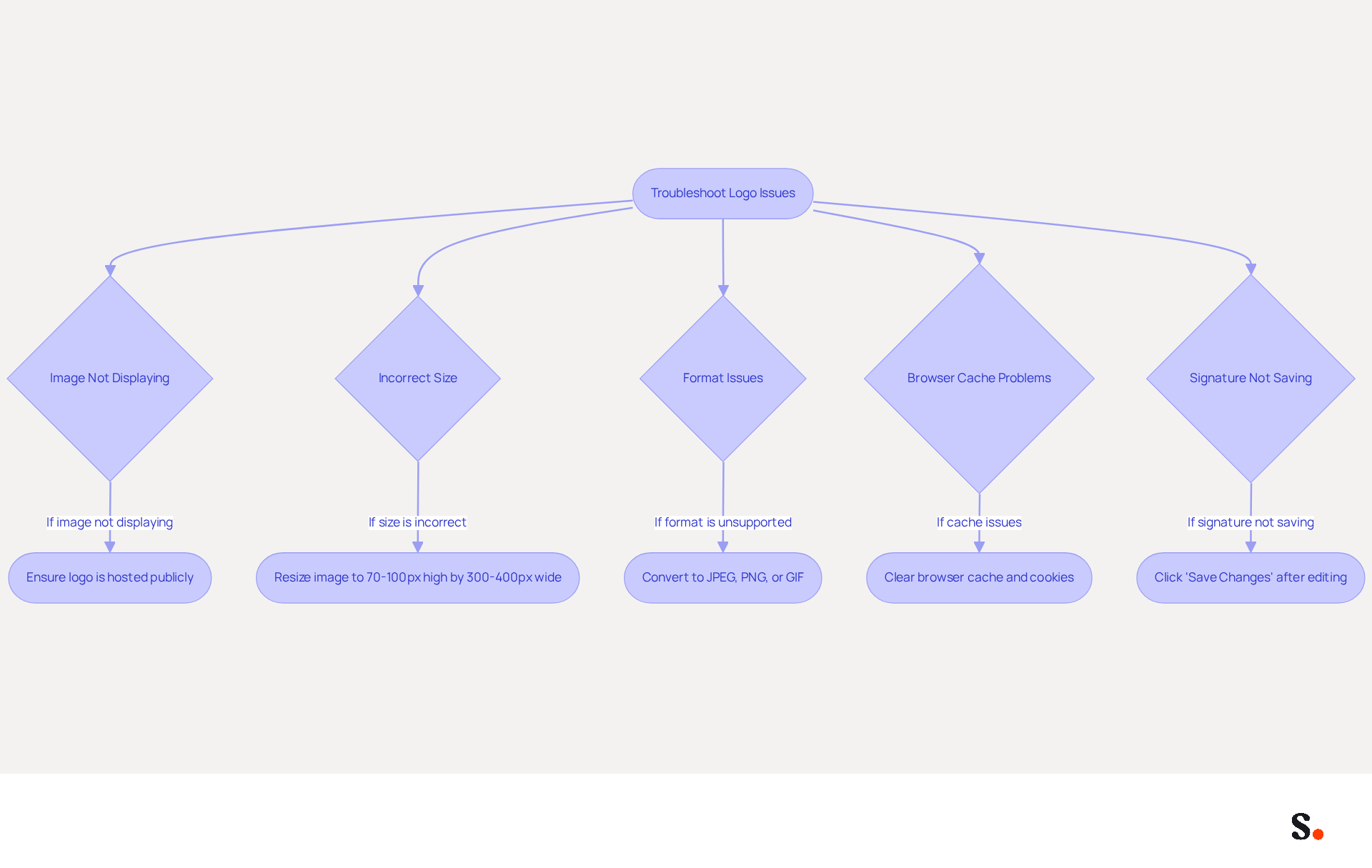
Adding a logo to your Gmail signature can present several challenges that require effective troubleshooting. Here are some tips to help you resolve common issues:
- Image Not Displaying: Ensure your logo is hosted on a publicly accessible server. If the image is stored privately, Gmail may not be able to access it, leading to display issues.
- Incorrect Size: To resize your emblem, simply click on the image in the editor and adjust it as needed. Following the recommended dimensions of 70-100 pixels high by 300-400 pixels wide can help ensure optimal display.
- Format Issues: Make sure your logo is in a supported format such as JPEG, PNG, or GIF. If the format is unsupported, convert it to a compatible type to avoid display problems.
- Browser Cache Problems: Clear your browser's cache and cookies, as outdated data can cause display issues. This can be done by navigating to 'More' > 'More tools' > 'Clear browsing data' in Chrome settings.
- Signature Not Saving: Users often encounter issues with saving changes, which can disrupt the email signature setup process. Make sure to click 'Save Changes' at the bottom of the settings page after you add logo to gmail signature. Consistently refreshing your contact information is essential for preserving brand image and marketing effectiveness.
By integrating the tool with your Google Workspace, you can simplify the management of your email footers. With this synchronization, your teammates' information updates automatically, including the ability to auto-fill their detail attributes. This integration not only streamlines the process but also ensures brand consistency across all communications, a key factor for marketing managers. Remember, 64-70% of participants believe a professional branded electronic correspondence enhances trust and credibility, making it a crucial element of your marketing strategy. Ultimately, a well-managed email signature can significantly influence how your brand is perceived in professional communications.
Leverage Scribe for Automated Logo Management in Gmail Signatures
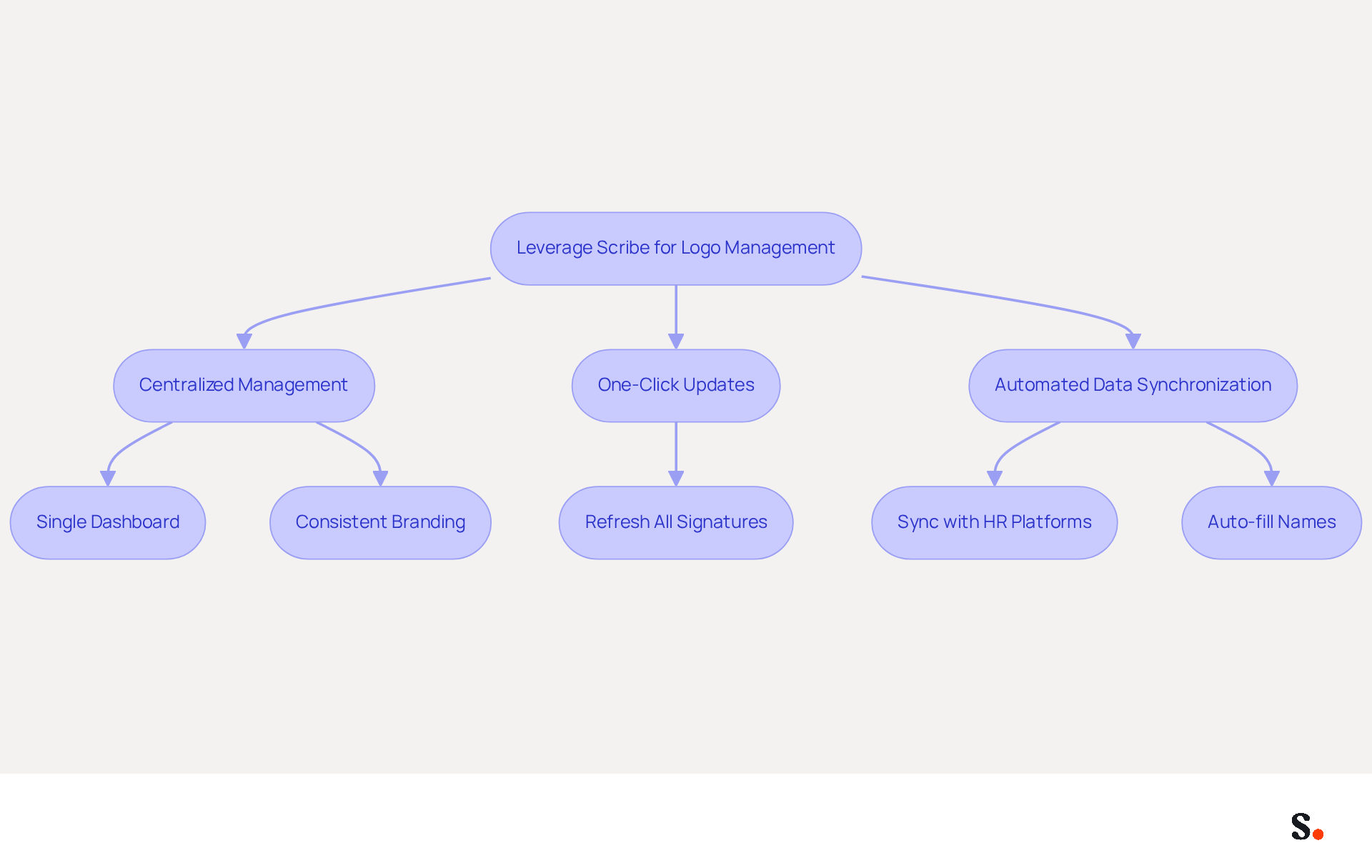
Managing digital identifiers can be a complex task, but Scribe simplifies this process through automated graphic management. Here’s how you can maximize Scribe for this purpose:
- Centralized Management: Scribe allows you to oversee all team signatures from a single dashboard, ensuring that every email sent accurately reflects your brand identity.
One-Click Updates: If you need to make changes, such as when you want to add logo to Gmail signature, Scribe lets you refresh all signatures with a single click, saving time and keeping everything consistent. The seamless integration with Google Workspace and Gmail simplifies the process to add logo to gmail signature, requiring no technical expertise from your team. - Automated Data Synchronization: The system syncs with HR and identity management platforms, ensuring that your logo and other key elements are always current. It also conserves time by automatically filling in names using your business phone system as a data source, reflecting any modifications made in your Aircall configuration.
By utilizing Scribe, you can simplify your management process for your digital signatures, ensuring that your branding stays consistent and professional in all communications. Companies utilizing the platform have reported generating between 60,000 to 80,000 impressions monthly, highlighting its effectiveness in enhancing brand visibility and engagement. With Scribe, you’re not just managing signatures; you’re enhancing your brand’s visibility and ensuring secure data handling.
Conclusion
Incorporating a logo into your Gmail signature is a strategic decision that significantly impacts brand perception and marketing effectiveness. By adding your logo, you create a visual anchor that fosters trust and familiarity among recipients, ultimately leading to improved engagement and response rates. Adding a logo is simple, particularly with Scribe's intuitive interface that enables quick updates and ensures consistent branding in all communications.
This guide has highlighted the critical role of a cohesive brand image and provided detailed steps for integrating your logo effectively. Common troubleshooting tips were also included to ensure a seamless experience, showcasing Scribe's capabilities in automating logo management and data synchronization. With Scribe, organizations can achieve 100% brand consistency while saving time and enhancing their marketing ROI.
In a world where digital communication is paramount, the significance of a well-crafted email signature cannot be overstated. Using Scribe's features helps businesses enhance their professional image and turn every email into a chance for marketing. Embrace the power of branding in your communications and take the necessary steps to ensure your logo is prominently displayed in your Gmail signature, reinforcing your brand identity with every message sent.
Frequently Asked Questions
Why is it important to add a logo to my Gmail signature?
Adding a logo to your Gmail signature enhances brand identity, fosters brand recognition, and ensures effective communication. It allows recipients to instantly identify your brand, which builds familiarity and trust.
How does a logo in my Gmail signature affect brand recognition?
Including your logo allows recipients to recognize your brand quickly. Studies show that 76% of consumers feel more confident when they see branded elements in messages, highlighting the importance of visual branding.
What impact does a logo have on professionalism in email communication?
A well-designed logo enhances professionalism and makes communications appear polished and trustworthy. Nearly 70% of signature users believe that a professional signature boosts their credibility.
Can adding a logo to my Gmail signature serve as a marketing opportunity?
Yes, each email sent is a chance to promote your brand. A logo acts as a reminder of your business, potentially increasing engagement and conversions. Branded digital identifiers can lead to a 22% lift in response rates and a 15% increase in click-through rates to company websites.
Why is consistency in branding important across communications?
Consistency in branding helps build a cohesive image and fosters brand loyalty. Research indicates that 89.9% of professionals use a single digital identifier, emphasizing the need for consistent branding.
How does Scribe help maintain consistency in email branding?
Scribe offers automated synchronization with Aircall, ensuring that any changes made to your email branding are reflected instantly across all platforms, maintaining a consistent brand identity.
List of Sources
- Understand the Importance of Adding a Logo to Your Gmail Signature
- 40+ Email Signature Statistics for 2026 (Data + Insights) (https://wavecnct.com/blogs/email-signature-statistics)
- The impact of email signatures on your branding (https://signitic.com/en/resources/the-impact-of-email-signatures-on-your-branding)
- Email signature statistics and trends in 2024 (https://wisestamp.com/blog/email-signature-statistics)
- The benefits of a branded email signature (https://bybrand.io/blog/branded-email-signature)
- Research Recap: Branded Email Signatures Increase Company Recognition, Trust - Demand Gen Report (https://demandgenreport.com/industry-news/research-recap-branded-email-signatures-increase-company-recognition-trust/47252)
- Follow Step-by-Step Instructions to Add Your Logo in Gmail
- How to add a logo to your email signature (on Gmail & Outlook) (https://signitic.com/en/resources/how-to-add-a-logo-to-your-email-signature)
- 40+ Email Signature Statistics for 2026 (Data + Insights) (https://wavecnct.com/blogs/email-signature-statistics)
- Email Signature Logo: Add Your Logo to Gmail & Outlook (https://freelogoservices.com/blog/email-signature-logo?srsltid=AU7gw4WZ45wjsOb-XG81Z2JgohJRfXMEAc7NDRq0ssKPhkZt6vgciKpF)
- How to Add Signature in Gmail: Step by Step Guide (2026) (https://wpmanageninja.com/how-to-add-signature-in-gmail)
- Email signature statistics: Why every business should optimize their email signatures — Stripo.email (https://stripo.email/blog/email-signature-statistics-why-every-business-should-optimize-their-email-signatures)
- Troubleshoot Common Issues When Adding a Logo to Your Signature
- Troubleshoot issues with Gmail signatures - Gmail Help (https://support.google.com/mail/answer/11468381?hl=en)
- 40+ Email Signature Statistics for 2026 (Data + Insights) (https://wavecnct.com/blogs/email-signature-statistics)
- Email Signature image doesn't show in Gmail - Microsoft Q&A (https://learn.microsoft.com/en-us/answers/questions/4614933/email-signature-image-doesnt-show-in-gmail)
- Fix Your Missing Gmail Signature: 8 Troubleshooting Steps & Best Practices | Newoldstamp - NEWOLDSTAMP (https://newoldstamp.com/blog/gmail-signature-not-showing-up)
- Leverage Scribe for Automated Logo Management in Gmail Signatures
- Email Signature Statistics 2026: ROI, Benchmarks, and Data | Signkit (https://beta.signkit.io/blog/email-signature-statistics)
- 4 Email Signatures Best Practices for Effective Marketing (https://scribe-mail.com/en-US/blog/4-email-signatures-best-practices-for-effective-marketing)
- 100+ Email Marketing and Email Signature Statistics for 2026 - MySignature (https://mysignature.io/insights)
- 10 Best CodeTwo Alternatives for Effective Email Signatures (https://scribe-mail.com/en-US/blog/10-best-codetwo-alternatives-for-effective-email-signatures)
- Scribe vs. Competitors: Best Email Signature Design Service for Marketers (https://scribe-mail.com/en-US/blog/scribe-vs-competitors-best-email-signature-design-service-for-marketers)
Get started with Scribe
Create your signature in minutes
Free 14-day trial — no credit card.