How to Add a Signature to Email in Gmail: Step-by-Step Guide
Creating an effective email signature in Gmail is essential for enhancing professional communication and brand identity. With over 62% of users relying on
Sophie Grant
Email Signature Specialist, Scribe
Introduction
Creating an effective email signature in Gmail is essential for enhancing professional communication and brand identity. With over 62% of users relying on Gmail, the potential to make a lasting impression through a well-crafted email signature is substantial. Despite the importance of email signatures, many users find the setup process confusing and cumbersome. Without a well-designed signature, users risk losing potential engagement and brand recognition.
Access Gmail Settings to Begin Signature Setup
To ensure effective brand communication, it is essential to add signature to email Gmail.
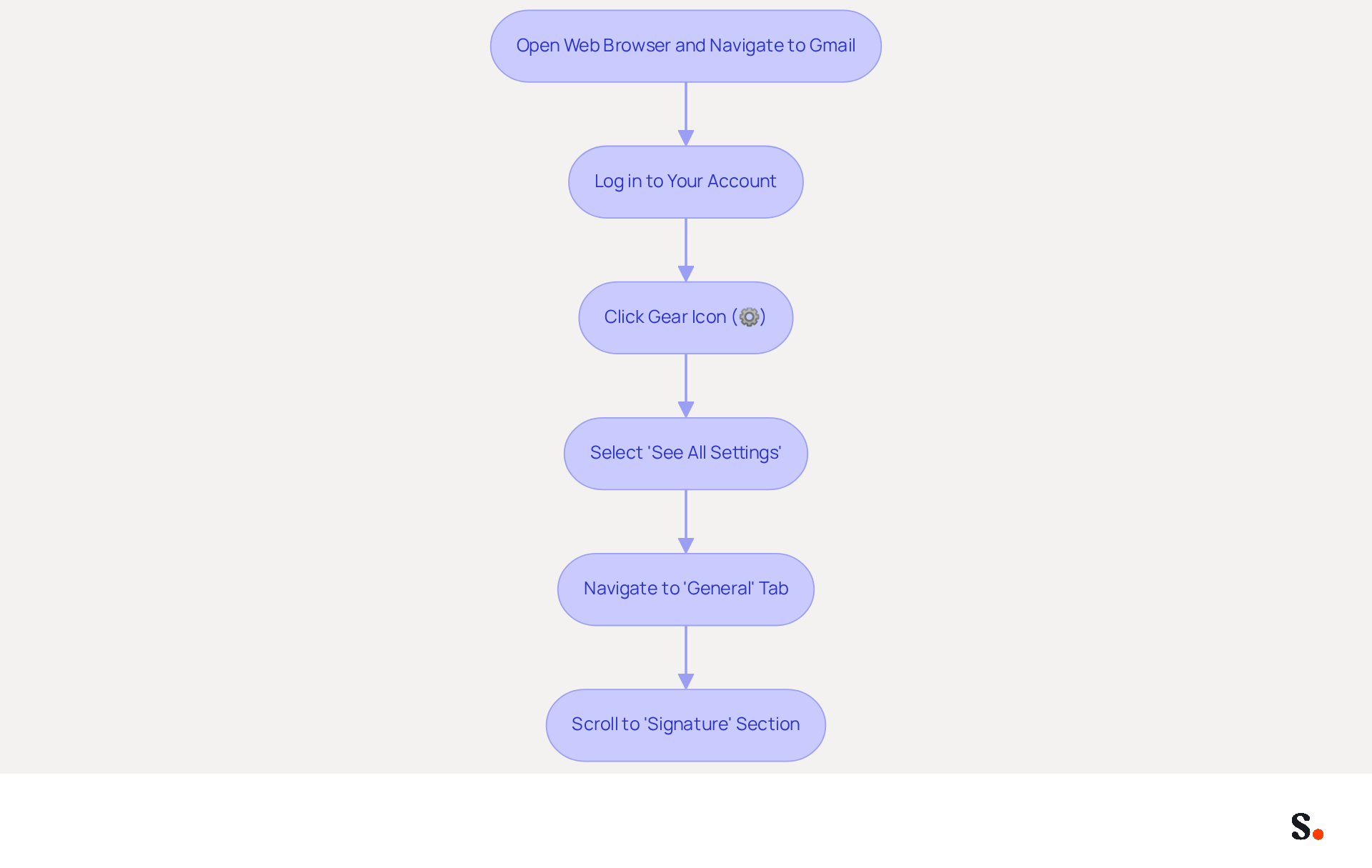
- Open your web browser and navigate to Gmail.
- Log in to your account if prompted.
- In the top right corner, click on the gear icon (⚙️) to access the settings menu.
- Select 'See all settings' from the dropdown menu.
- In the settings menu, navigate to the 'General' tab, where you will find the 'Mark' section.
- Scroll down until you see the 'Signature' section to start creating your mark.
As the leading messaging client, used by 62.2% of users, Gmail necessitates that users add signature to email Gmail to ensure brand consistency and capitalize on marketing opportunities. Many users, about 52%, feel that a strong digital identifier is key to engaging effectively with clients, highlighting the importance of good communication tools. To reinforce your brand's presence in every message, it's important to add signature to email Gmail regularly, ensuring your branding and contact information remain current.
Create and Format Your Email Signature
It is essential to add signature to email gmail for effective communication and brand representation.
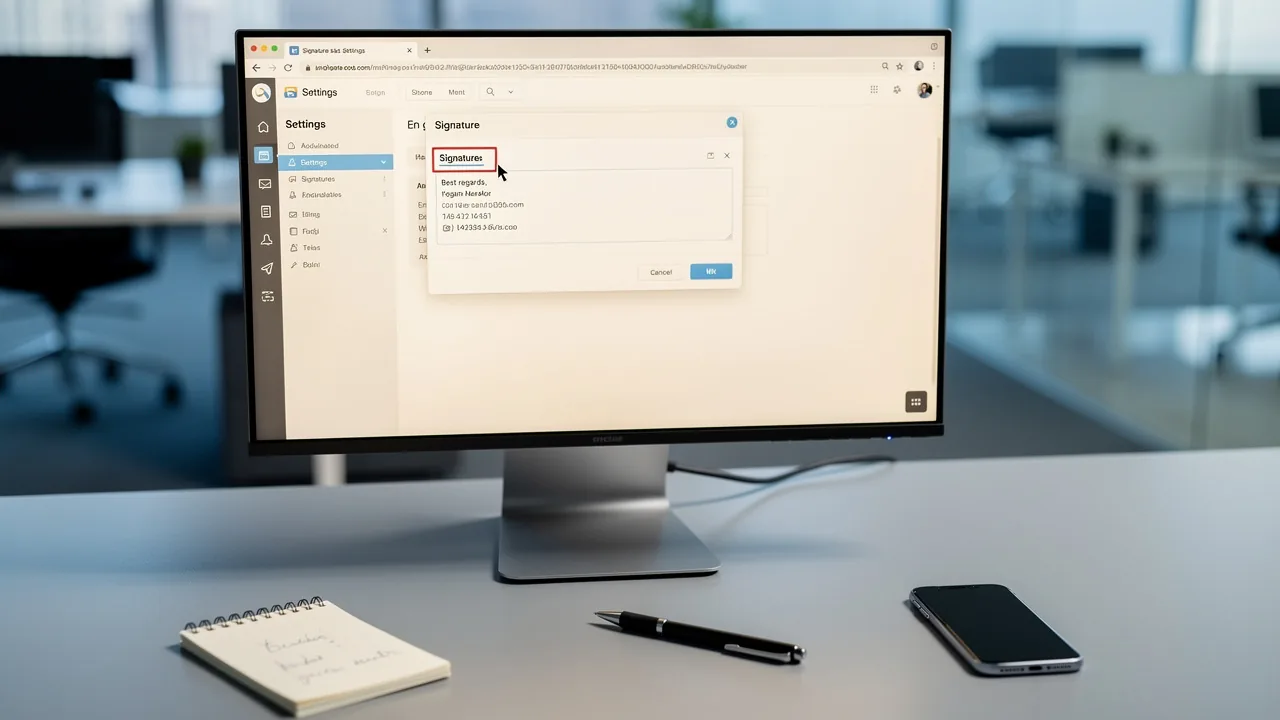
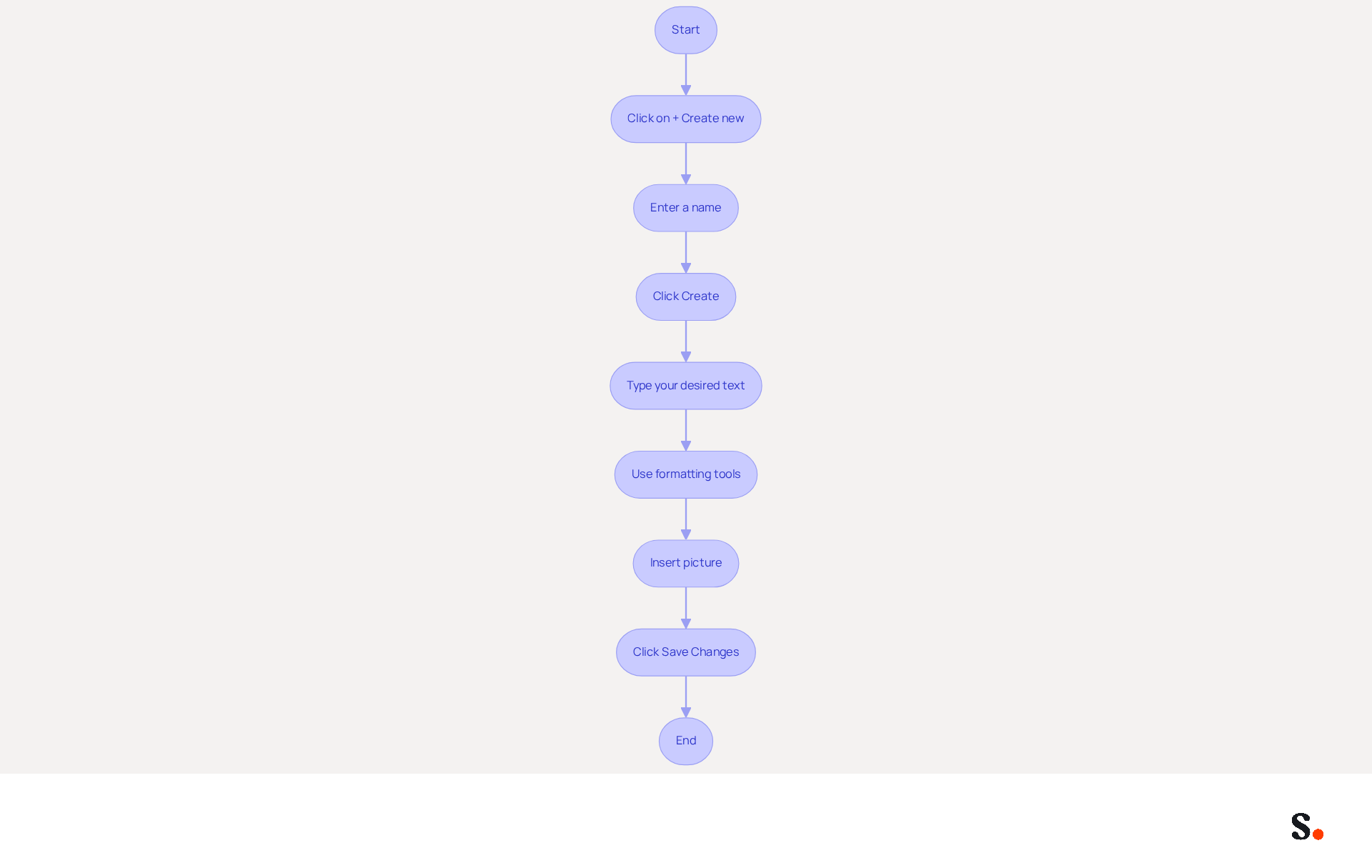
- In the 'Signature' section, click on the '+ Create new' button.
- A pop-up will appear prompting you to name your personal mark. Enter a name that reflects its purpose (e.g., 'Professional Signature').
- After naming, click 'Create'.
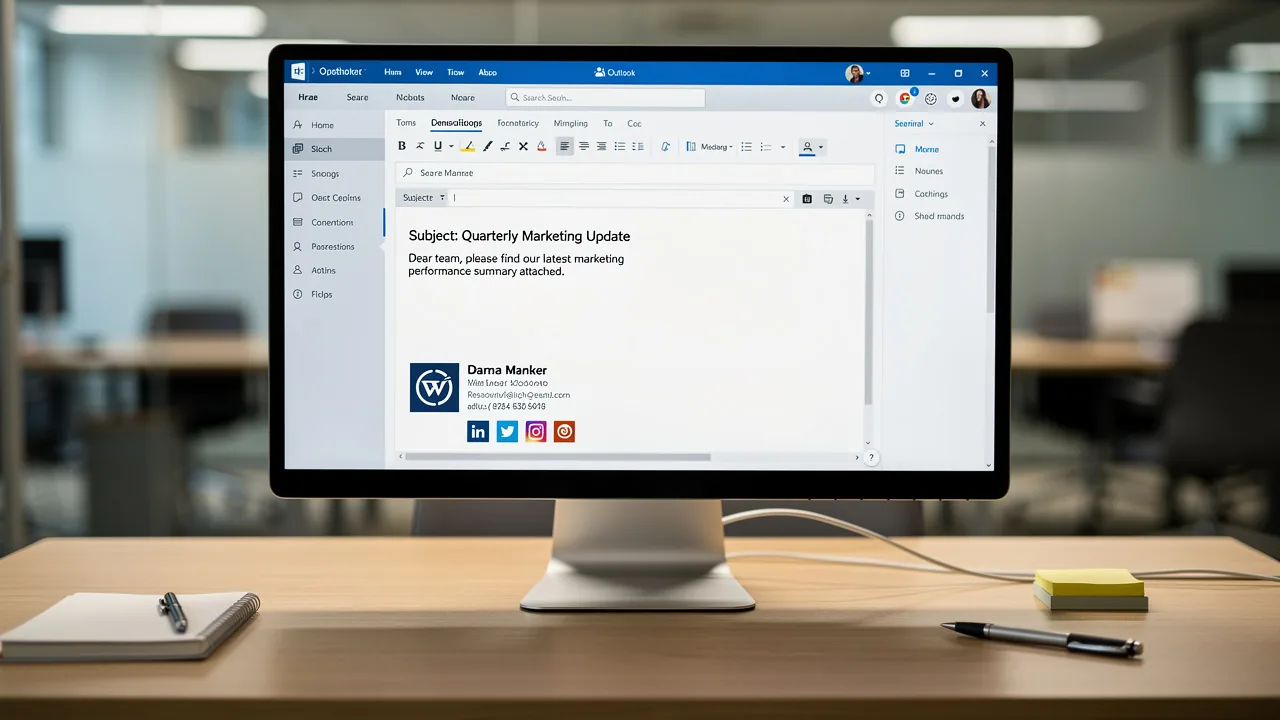
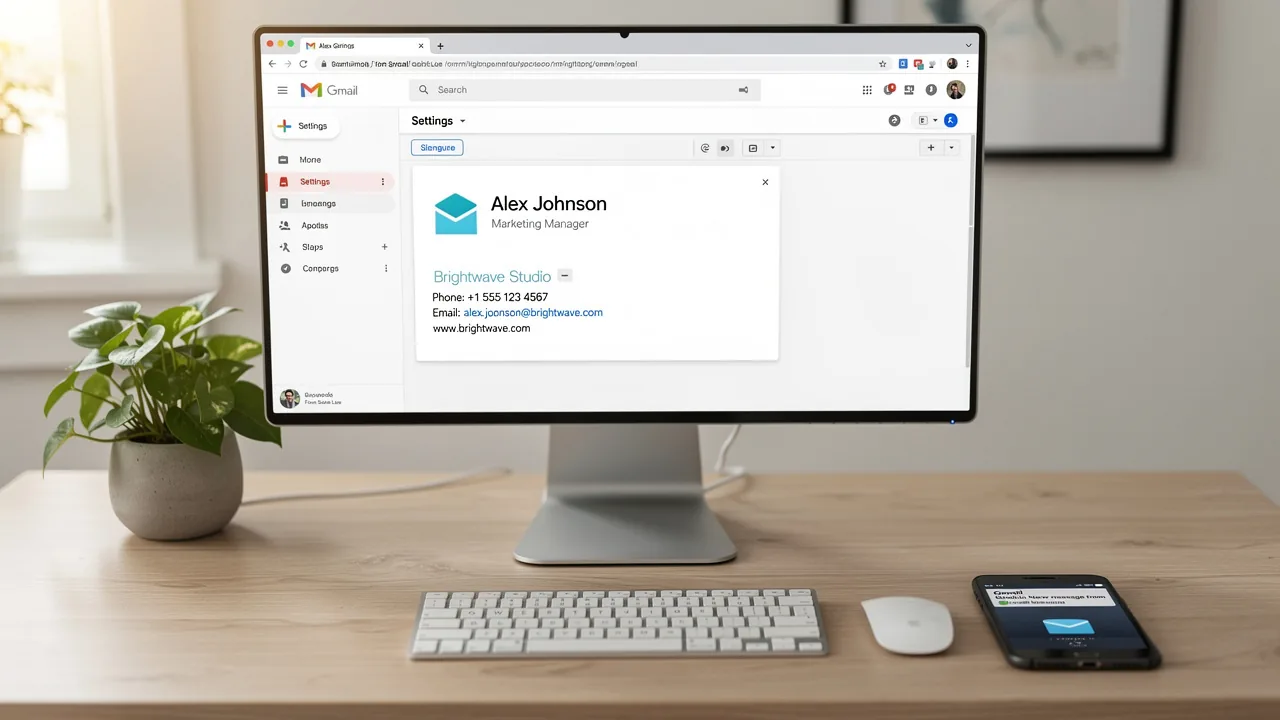
- In the editor for your sign-off, type your desired text, including your name, title, company name, and contact information.
- Use the formatting tools to customize your signature. Change the font, size, color, and add links or visuals as needed.
- To add a picture, click on the 'Insert picture' icon and upload your logo or any relevant graphic. Ensure the image is hosted online to avoid display issues.
- Once satisfied with the design, scroll down and click 'Save Changes' at the bottom of the settings page.
Managing email signatures manually can lead to inconsistencies and wasted time. To enable one-click synchronization with Scribe, make sure you have Super Admin permissions for your service provider. This access allows Scribe to synchronize your messages effortlessly. Customized electronic identifiers can greatly enhance engagement rates, making them a potent marketing instrument. Remember to add signature to email gmail as the default for both new messages and responses to ensure it appears in all communications. Additionally, keep your mark width under 450px for mobile responsiveness and ensure it stays within the maximum character limit of 10,000 characters.
By using Scribe, you can synchronize your messaging identifiers with real-time updates from your business phone system. This ensures your branding stays consistent across all communications. Scribe's automated management of electronic correspondence not only saves time but also ensures adherence to security standards, as it is SOC 2 Type II certified. By following these steps, you can add signature to email gmail, which not only enhances your email signature but also reinforces your brand's professionalism in every interaction.
Manage Multiple Signatures for Different Campaigns
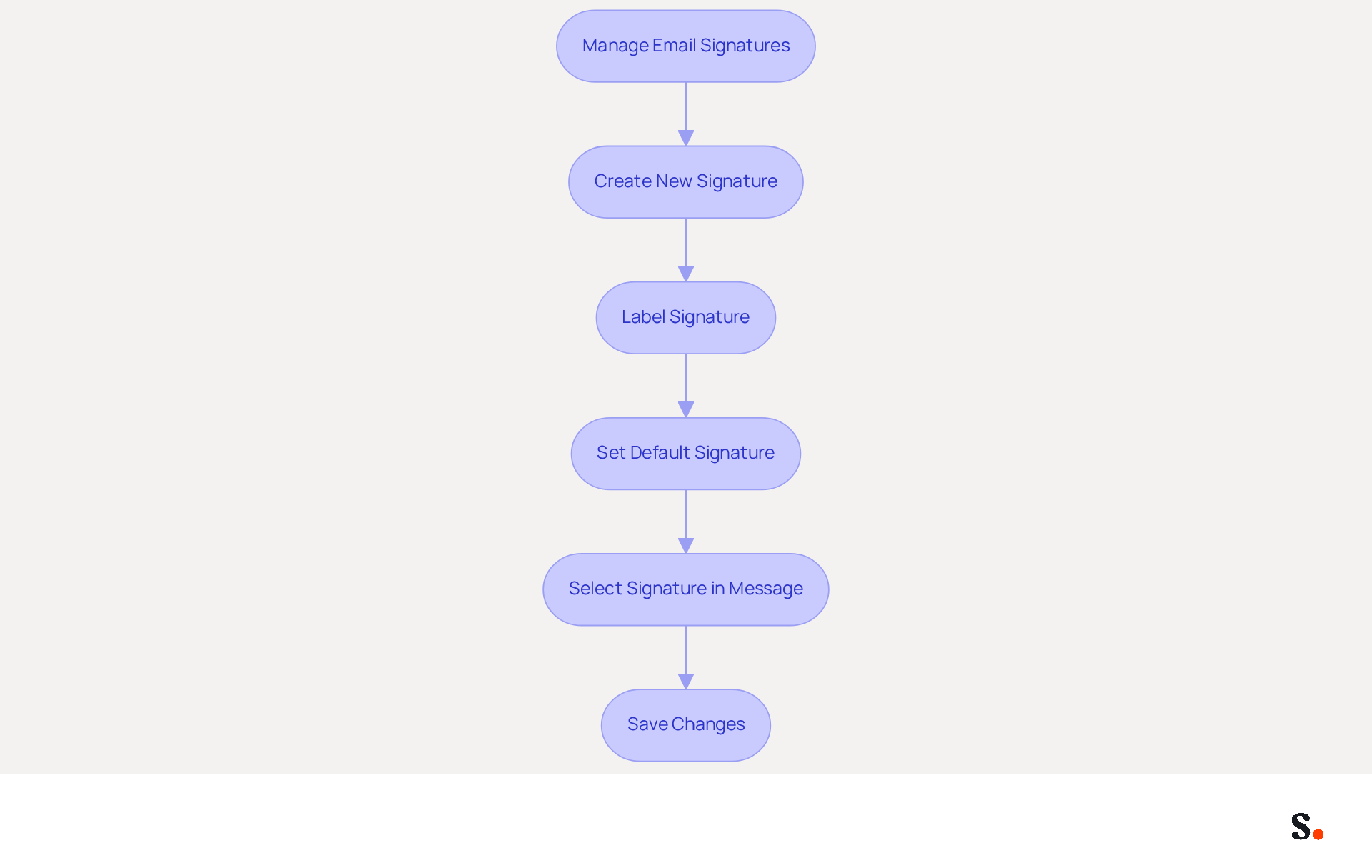
Effectively managing multiple email signatures can significantly enhance your marketing efforts, especially when you add signature to email gmail. In the 'Signature' section of the settings, you can add signature to email gmail by creating multiple entries by clicking on '+ Create new' for each additional one you need. This feature is particularly beneficial for marketing campaigns, as it allows for tailored messaging based on context.
- Label each designation according to its purpose (e.g., 'Sales Campaign', 'Holiday Greetings'). This practice not only assists in organization but also aligns with the 52.6% of companies that incorporate a call-to-action in their correspondence, thereby enhancing engagement.
After creating your signatures, you can add signature to email gmail by selecting your preferred sign-off as the default from the dropdown menu in the 'Defaults for sign-offs' section. This guarantees that your most pertinent mark is automatically applied to new messages.
When composing a new message, you can add signature to email gmail by clicking on the pen icon in the message composition window and selecting your preferred sign-off from the list. This flexibility allows for dynamic communication. Notably, 89.9% of professionals use a single primary contact format, highlighting the need for adaptability.
- Remember to save any modifications you make to your identifiers to ensure they are applied in future messages. Regular updates are crucial, as 44.4% of professionals refresh their contact details 2-4 times a year, ensuring that branding remains consistent and effective.
Effectively managing multiple email identities allows businesses to leverage email as a high-ROI branding channel. In fact, messages with branded identities achieve a 22% higher response rate than those without. Ultimately, a well-organized email signature strategy can transform your communication and branding approach.
Troubleshoot Common Signature Issues
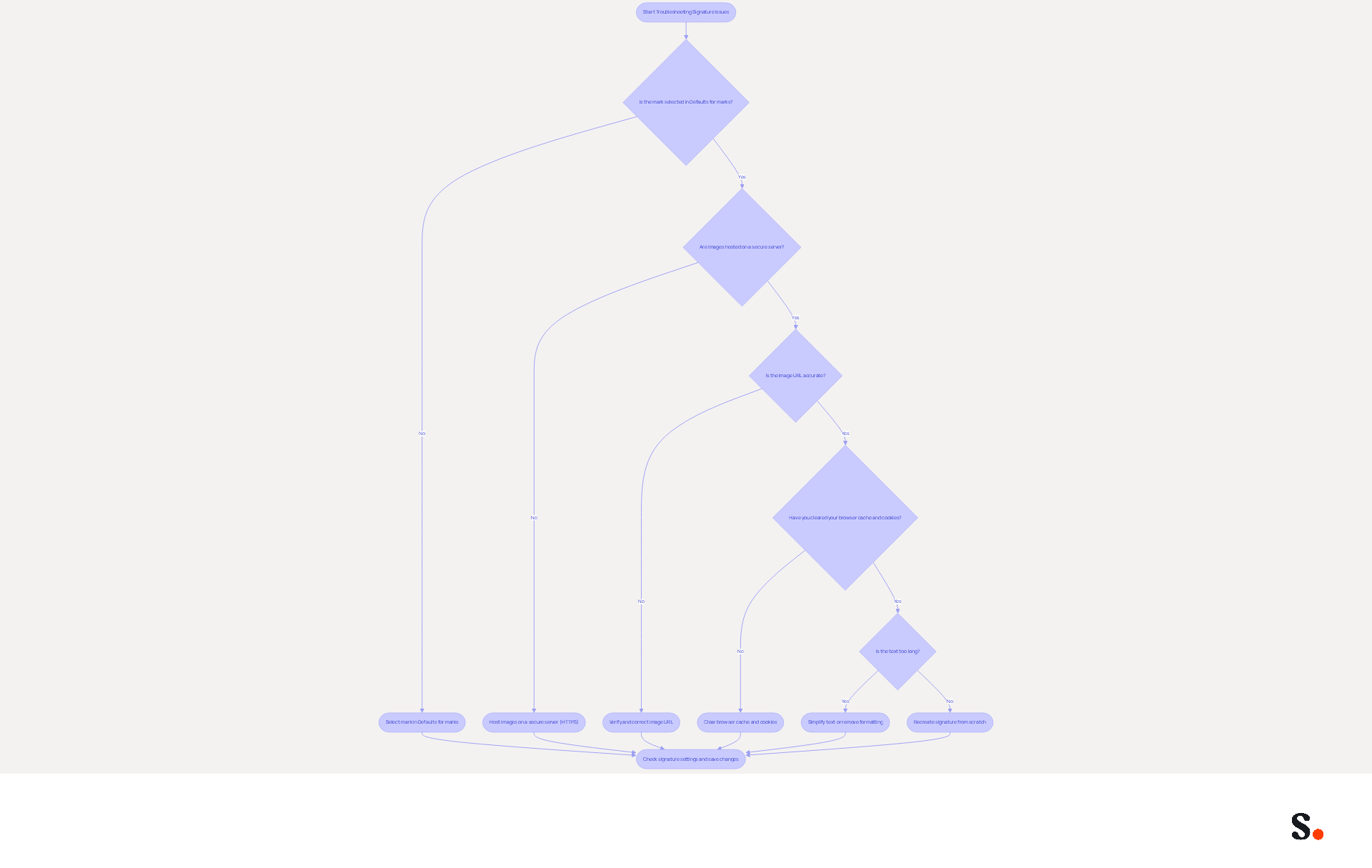
It is crucial for maintaining professionalism in your communications to ensure that when you add a signature to Gmail, it displays correctly. To start, make sure that your mark is selected in the 'Defaults for marks' section; this is essential for proper display. If you notice any missing images, check that they are hosted on a secure server and verify the accuracy of the image URL to ensure they appear correctly. Clearing your browser cache and cookies can help resolve visibility issues, as outdated data often causes disruptions. Should you face a 'too long' error, consider simplifying your sign-off by trimming down the text or eliminating any unnecessary formatting. If problems persist, try recreating your signature from scratch; this can help eliminate any hidden formatting issues that may be causing trouble. Addressing these technical issues is essential for presenting a polished and professional image in all email interactions.
Conclusion
Creating a professional email signature is essential for reinforcing brand identity and ensuring effective communication. Follow these steps to craft a professional email signature that truly reflects your identity and strengthens your brand in every email.
Throughout this guide, we have thoroughly discussed key aspects such as:
- Accessing Gmail settings
- Creating and formatting your signature
- Managing multiple signatures for various campaigns
- Troubleshooting common issues
Each step is designed to ensure that your email signature not only looks professional but also functions seamlessly across different devices and contexts. Many organizations struggle to keep their email signatures updated and organized, leading to inconsistencies in branding. The importance of maintaining updated and well-organized signatures cannot be overstated, as they significantly contribute to higher engagement rates and a polished brand image.
Leveraging tools like Scribe can streamline email signature management, ensuring consistent branding and compliance with security standards. Organizations seeking to maximize their marketing ROI should prioritize the implementation of effective email signature strategies, as they serve as powerful branding tools that can enhance visibility and engagement. Failing to implement a cohesive email signature strategy could mean missing out on valuable opportunities for brand engagement.
Frequently Asked Questions
Why is it important to add a signature to Gmail emails?
Adding a signature to Gmail emails is essential for effective brand communication, ensuring brand consistency, and capitalizing on marketing opportunities.
How do I access Gmail settings to set up my email signature?
To access Gmail settings, open your web browser, navigate to Gmail, log in to your account, click on the gear icon (⚙️) in the top right corner, select 'See all settings' from the dropdown menu, and then go to the 'General' tab to find the 'Signature' section.
What percentage of users utilize Gmail as their messaging client?
Gmail is used by 62.2% of users as their messaging client.
What do many users believe about digital identifiers in emails?
About 52% of users feel that a strong digital identifier is key to engaging effectively with clients, highlighting the importance of good communication tools.
How often should I update my email signature in Gmail?
It is important to add and update your email signature regularly to ensure your branding and contact information remain current.
List of Sources
- Access Gmail Settings to Begin Signature Setup
- Email Signature Statistics: A Closer Look at Email Signatures in 2026 (https://mysignature.io/blog/email-signature-statistics)
- How to Add a Signature in Gmail (2026) - SyncSignature (https://syncsignature.com/blog/add-signature-in-gmail)
- Fix Your Missing Gmail Signature: 8 Troubleshooting Steps & Best Practices | Newoldstamp - NEWOLDSTAMP (https://newoldstamp.com/blog/gmail-signature-not-showing-up)
- Add a good looking signature in Gmail (1 minute guide) (https://wisestamp.com/guides/how-to-add-signature-in-gmail)
- How to create custom Gmail signature (https://foxnews.com/tech/how-to-create-custom-gmail-signature)
- Create and Format Your Email Signature
- How to Add an Email Signature in Gmail (2026 Guide) (https://reallygoodsignatures.com/guides/gmail-email-signature)
- How to Add an Email Signature in Gmail (2026 Guide) (https://inboxsign.com/guides/add-email-signature-gmail)
- How to Set Up a Gmail Signature with Image, Logo, and Links (2026) (https://itsourcecode.com/blogs/how-to-set-up-gmail-signature-image-logo-2026)
- Gmail Signature: Free Generator and Setup Guide (https://emailsign.app/en/blog/how-to-create-email-signature-gmail)
- How to Create an Email Signature in Gmail (2026 Guide) (https://email-tools.me/posts/how-to-create-gmail-signature)
- Manage Multiple Signatures for Different Campaigns
- How do I manage multiple signatures with Gmail? (https://signitic.com/en/guides/how-do-i-manage-multiple-signatures-with-gmail)
- Google Workspace Updates: Create and use multiple signatures in Gmail (https://workspaceupdates.googleblog.com/2020/03/multiple-signatures-gmail.html)
- 40+ Email Signature Statistics for 2026 (Data + Insights) (https://wavecnct.com/blogs/email-signature-statistics)
- Email signature statistics: Why every business should optimize their email signatures — Stripo.email (https://stripo.email/blog/email-signature-statistics-why-every-business-should-optimize-their-email-signatures)
- Gmail API for managing multiple signatures (https://stackoverflow.com/questions/61921754/gmail-api-for-managing-multiple-signatures)
- Troubleshoot Common Signature Issues
- Fix Your Missing Gmail Signature: 8 Troubleshooting Steps & Best Practices | Newoldstamp - NEWOLDSTAMP (https://newoldstamp.com/blog/gmail-signature-not-showing-up)
- Solving a Gmail signature problem (https://signitic.com/en/guides/solving-a-gmail-signature-problem)
- Read our guide for troubleshooting Gmail signatures issues (https://wisestamp.com/guides/how-to-fix-gmail-signature-not-showing)
- Troubleshoot issues with Gmail signatures - Gmail Help (https://support.google.com/mail/answer/11468381?hl=en-GB)
Get started with Scribe
Create your signature in minutes
Free 14-day trial — no credit card.