How to Add a Signature to Your Gmail Account in 4 Easy Steps
Inconsistent email signatures can undermine brand credibility and confuse recipients, making it crucial to craft a professional email signature. With billions
Sophie Grant
Email Signature Specialist, Scribe
Introduction
Inconsistent email signatures can undermine brand credibility and confuse recipients, making it crucial to craft a professional email signature. With billions of emails sent daily, ensuring that each message reflects a consistent and polished image can significantly enhance engagement and lead generation.
In this guide, we’ll explore how to easily add a signature to your Gmail account, highlighting best practices and common pitfalls to avoid.
What if your signature doesn’t display correctly, or managing multiple signatures becomes a hassle? Addressing these challenges can significantly enhance your professional image and communication effectiveness.
Access Gmail Settings to Begin Signature Setup
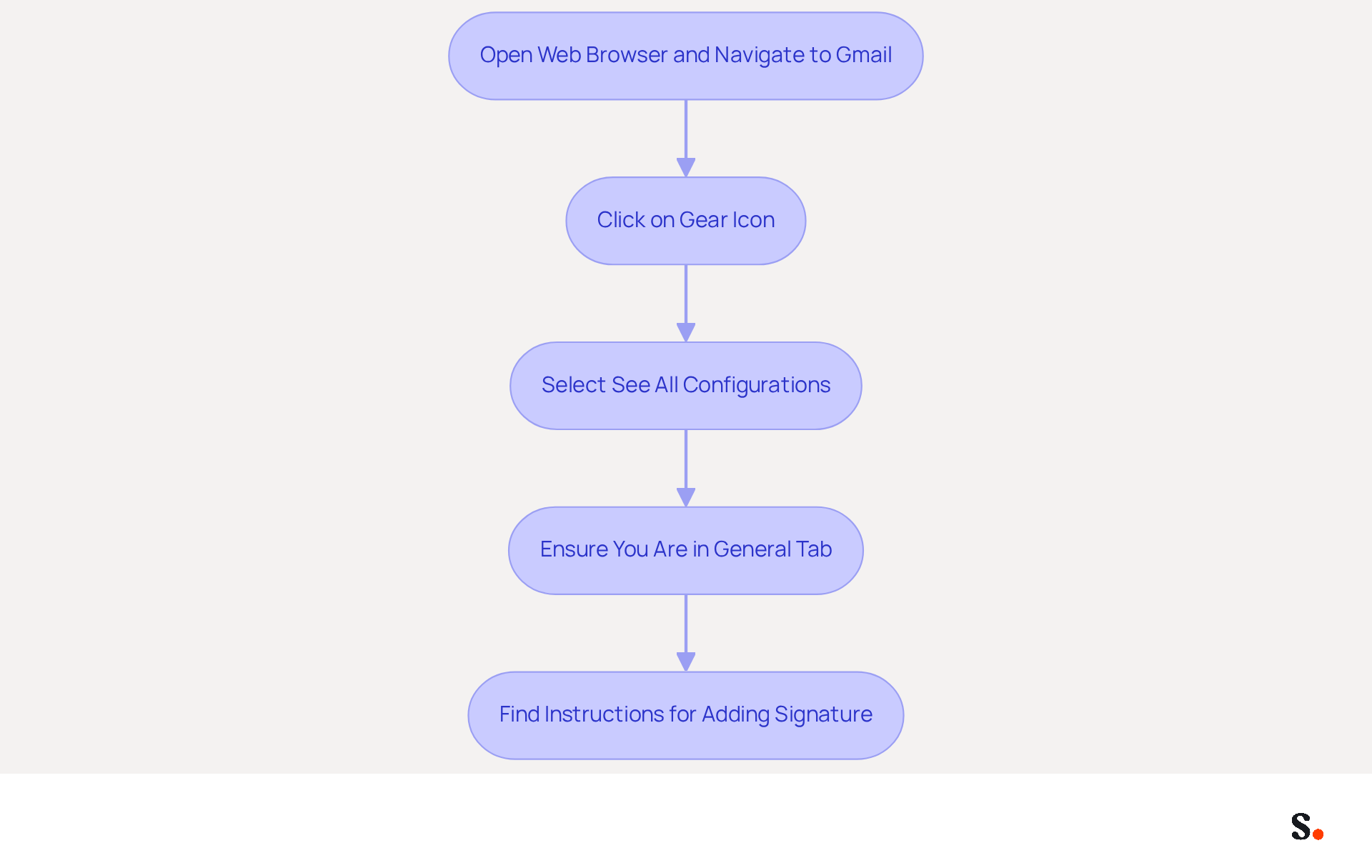
- Open your web browser and navigate to Gmail. Log in with your credentials if prompted.
- In the top right corner of the Gmail interface, find the gear icon (⚙️) and click on it to discover how to add a signature to Gmail account through the configuration menu.
- From the dropdown menu, choose 'See all configurations' to find out how to add a signature to Gmail account and access the complete configurations page.
- Once on the settings page, ensure you are in the 'General' tab, where you will find instructions on how to add a signature to Gmail account further down the page.
Managing digital identifiers can often lead to inconsistencies and confusion. Consider using Scribe for streamlined one-click synchronization with your provider to enhance your management of correspondence identifiers. By granting permission to connect with your messaging system as a Super Admin, you can automatically sync teammate data daily and select specific teammates for syncing, ensuring brand consistency across all identifiers. With Scribe's SOC 2 Type II compliance, you can trust that your data is protected, making it a solid choice for managing your digital identifiers. Managing digital communication identifiers effectively helps maintain brand consistency and unlocks marketing opportunities. With 347 billion messages sent daily, ensuring that every message reflects your brand accurately can significantly impact engagement and lead generation. Companies that implement centralized management of approvals report a 500-2000% ROI compared to traditional advertising methods. Regular audits of email formats are necessary to keep information current and relevant, preventing outdated details that could harm brand perception. By ensuring every message reflects your brand accurately, you can significantly enhance engagement and drive lead generation.
Create Your Professional Email Signature
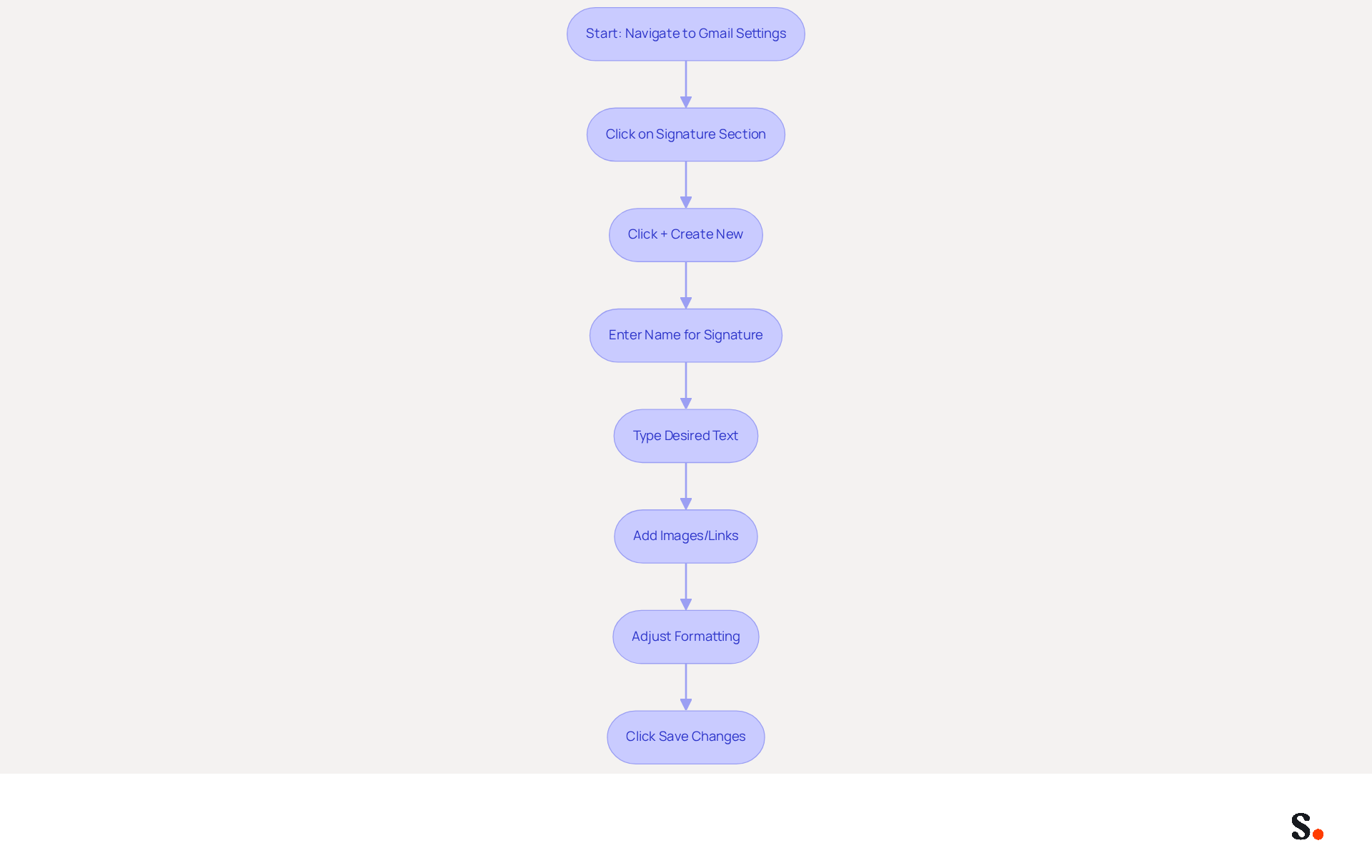
To understand how to add a signature to your Gmail account that reflects your brand, start by navigating to the 'Signature' section of the settings page and clicking on the '+ Create new' button. A pop-up window will appear; enter a name for your mark (e.g., 'Work Mark') and click 'Create'. In the editor, type your desired text, which may include your name, job title, company name, phone number, and any other relevant information.
Scribe automatically syncs your identification information from your business phone system, so any updates happen in real-time without you or your teammates needing to do anything. This capability allows Marketing teams to manage email identifiers independently and efficiently after the initial IT setup, addressing the common challenge of outdated identifiers.
To enhance your personal mark, consider adding images (like a company logo) or links to your social media profiles. Use the formatting tools to adjust font styles, sizes, and colors to match your brand. Remember, Scribe's SOC 2 Type II compliance guarantees that your data remains secure throughout this process.
Companies utilizing Scribe have reported a 12% average click-through rate on banners, demonstrating the effectiveness of well-optimized designs. Once satisfied with your mark, scroll down and click 'Save Changes' at the bottom of the configuration page to learn how to add a signature to your Gmail account.
Integrating with tools like Aircall makes it easier to keep your brand consistent and manage your email branding across the organization. Ultimately, leveraging Scribe not only secures your data but also empowers your marketing efforts, leading to measurable improvements in engagement.
Manage Multiple Signatures for Different Scenarios
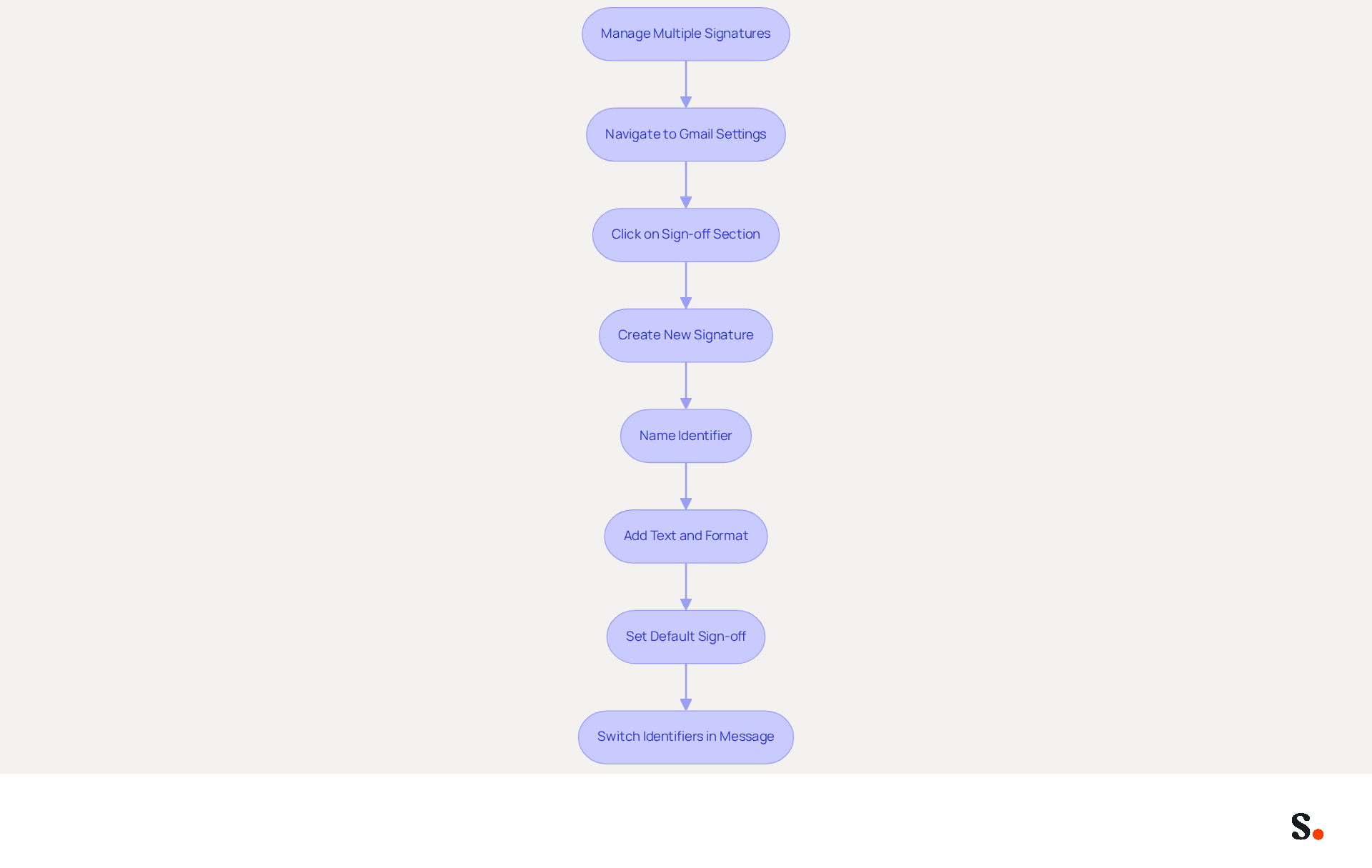
Many professionals find it challenging to manage multiple digital identifiers, which can hinder effective communication. To understand how to add a signature to your Gmail account, navigate back to the 'Sign-off' section in your Gmail settings. Click on 'Create new' to add another signatory. Appropriately name this new identifier (e.g., 'Personal Identifier') and click 'Create'. Continue by adding text and formatting as needed for this new design, ensuring it aligns with your branding. To establish a default sign-off for new messages or responses, scroll to the 'Defaults for sign-offs' section. Here, you can choose which sign to use by default for new messages and replies/forwards. When drafting a message, switch between identifiers by clicking the pen icon in the message toolbar and selecting the preferred identifier from the dropdown menu.
Many professionals struggle with managing multiple digital identifiers, often relying on just one. By utilizing Gmail's features, you can discover how to add a signature to your Gmail account for different scenarios, enhancing your brand's professionalism and engagement. For example, organizations that utilize branded communication footers report a 22% rise in response rates, highlighting the importance of maintaining a professional image in all communications. Furthermore, incorporating calls-to-action in your email footers can further drive engagement, as 52.6% of users include them, leading to higher click-through rates. Moreover, it's crucial to acknowledge that 42% of organizations do not monitor email branding performance, underscoring the necessity for active management of your email branding. With each modification made in your Aircall setup, changes will automatically be reflected in your branding, ensuring seamless updates and brand consistency across all communications. We ensure secure data handling by adhering to SOC 2 Type II compliance and GDPR/CCPA regulations.
Troubleshoot Common Signature Issues in Gmail
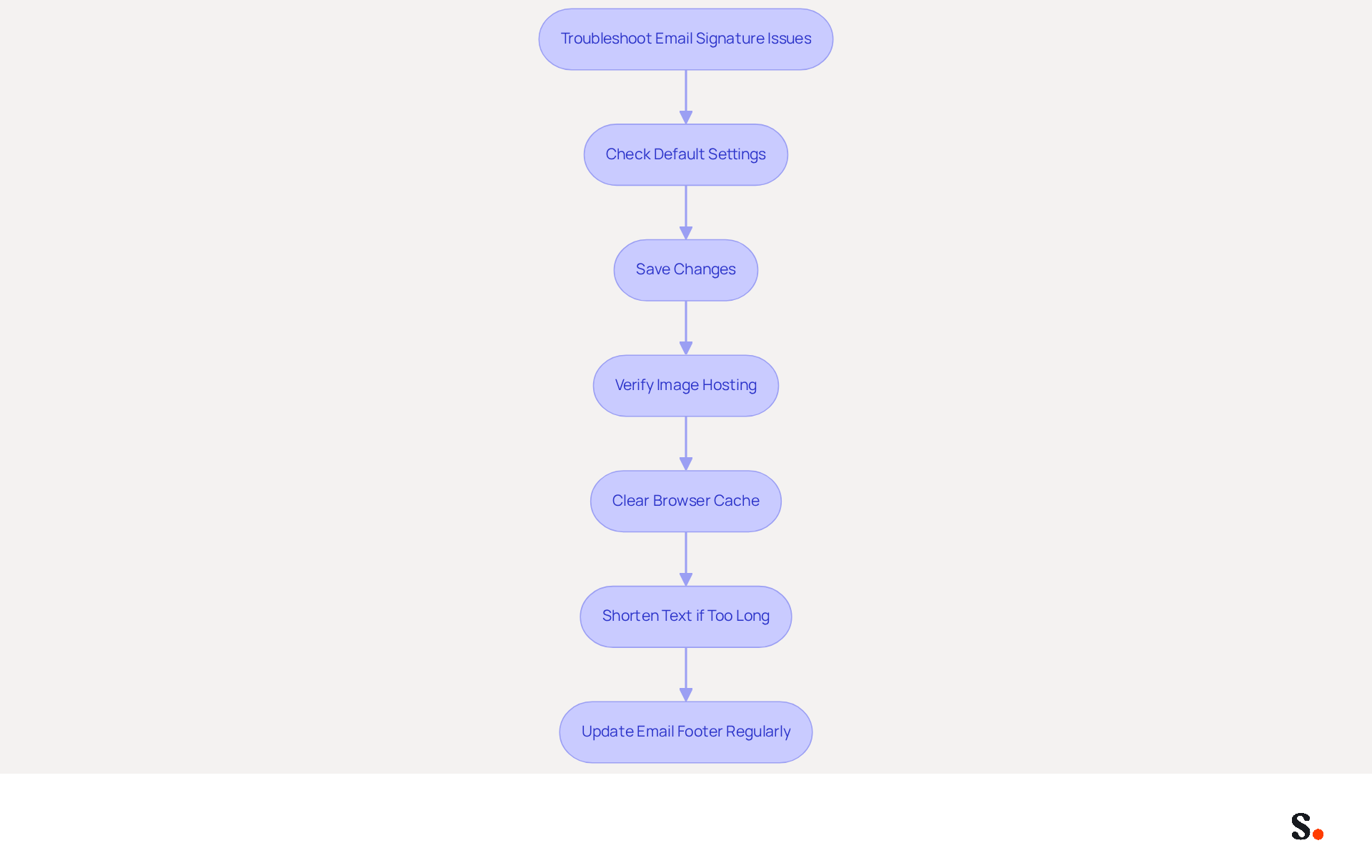
Many users face challenges with email signature visibility, often due to simple oversights in settings. If your mark is not showing in emails, first check that your mark is set as the default option in the 'Defaults for marks' section of the settings. This is a frequent mistake that can prevent your mark from displaying.
Don’t forget to click 'Save Changes' after updating your personal mark. Failing to save changes is a common cause of authentication problems.
If images in your email footer are not displaying, verify that they are hosted on a publicly accessible server. Images must be stored on secure HTTPS servers to ensure visibility; consider re-uploading them if they are not showing up.
Clear your browser's cache and cookies, as outdated data can sometimes cause display issues. To do this, navigate to your browser settings and find the option to clear browsing data. This step can resolve many common issues related to visibility.
If you encounter the error message 'the text is too long', consider shortening it by removing unnecessary elements or simplifying the design. Ignoring this can lead to ineffective communication and a cluttered brand image. Keeping your sign-off concise not only resolves this issue but also enhances its effectiveness as a marketing tool.
Regular updates to your email footer are crucial. They help maintain your brand image and ensure your contact information is accurate. Additionally, syncing your Google Workspace with Scribe can streamline this process, as it allows for automatic updates to your teammates' signatures, saving time and ensuring consistency across your organization. Resolving these issues not only improves your email communication but also reinforces your brand's professionalism.
Conclusion
Creating a professional email signature is essential for effective communication and brand representation. Following these steps allows users to create a signature that reflects their identity and aligns with their brand. This guide highlights how maintaining brand consistency can significantly impact communication effectiveness.
Many users encounter challenges when managing email signatures, which can hinder effective communication. Addressing these challenges enables organizations to improve their communication effectiveness and strengthen their brand image. With Scribe's capabilities, marketing teams can independently manage email signatures, ensuring that every communication is on-brand and up-to-date.
Investing time in email signature management directly contributes to better engagement and a more robust brand presence. Organizations should leverage these practices to enhance their communication strategies, ensuring every email reflects their professionalism and commitment to brand consistency. Organizations that prioritize email signature management will likely see a notable increase in engagement and brand recognition.
Frequently Asked Questions
How do I access Gmail settings to set up a signature?
Open your web browser and navigate to Gmail. Log in with your credentials if prompted. Click on the gear icon (⚙️) in the top right corner and select 'See all configurations' from the dropdown menu to access the complete configurations page.
Where do I find the option to add a signature in Gmail?
Once on the settings page, ensure you are in the 'General' tab, where you will find instructions on how to add a signature further down the page.
What is Scribe and how can it help with managing digital identifiers?
Scribe is a tool that allows for streamlined one-click synchronization with your provider, enhancing the management of correspondence identifiers. It enables Super Admins to automatically sync teammate data daily and select specific teammates for syncing, ensuring brand consistency.
How does Scribe ensure data protection?
Scribe is SOC 2 Type II compliant, which means it adheres to strict security standards to protect your data.
Why is managing digital communication identifiers important?
Effective management of digital communication identifiers helps maintain brand consistency and unlocks marketing opportunities, which can significantly impact engagement and lead generation.
What is the potential ROI for companies that implement centralized management of approvals?
Companies that implement centralized management of approvals report a 500-2000% ROI compared to traditional advertising methods.
Why are regular audits of email formats necessary?
Regular audits are necessary to keep information current and relevant, preventing outdated details that could harm brand perception.
List of Sources
- Access Gmail Settings to Begin Signature Setup
- Email Signature Statistics 2026: ROI, Benchmarks, and Data | Signkit (https://beta.signkit.io/blog/email-signature-statistics)
- How to Ensure Gmail Signature Management for Enhanced Brand Identity (https://patronum.io/how-to-ensure-gmail-signature-management-for-enhanced-brand-identity)
- 40+ Email Signature Statistics for 2026 (Data + Insights) (https://wavecnct.com/blogs/email-signature-statistics)
- Email Signature Best Practices for 2026 (+ 15 Pro Examples) (https://wavecnct.com/blogs/email-signature-best-practices-2026)
- Create Your Professional Email Signature
- Email Signature Best Practices for 2026 (+ 15 Pro Examples) (https://wavecnct.com/blogs/email-signature-best-practices-2026)
- Best practices for business email signatures in 2026 (https://bybrand.io/blog/best-practices)
- How to Create a Professional Email Signature: Complete Guide 2026 | Tools24 (https://tools24.io/blog/how-to-create-professional-email-signature)
- Email Signature Design Trends in 2026: What Works and What to Drop (https://bulksignature.com/blog/email-signature-design-trends)
- Manage Multiple Signatures for Different Scenarios
- 40+ Email Signature Statistics for 2026 (Data + Insights) (https://wavecnct.com/blogs/email-signature-statistics)
- Email Signature Statistics: A Closer Look at Email Signatures in 2026 (https://mysignature.io/blog/email-signature-statistics)
- How do I manage multiple signatures with Gmail? (https://signitic.com/en/guides/how-do-i-manage-multiple-signatures-with-gmail)
- How to Create and Use Multiple Signatures in Gmail - NEWOLDSTAMP (https://newoldstamp.com/blog/more-than-one-signature-in-gmail)
- Email signature statistics: Why every business should optimize their email signatures — Stripo.email (https://stripo.email/blog/email-signature-statistics-why-every-business-should-optimize-their-email-signatures)
- Troubleshoot Common Signature Issues in Gmail
- Fix Your Missing Gmail Signature: 8 Troubleshooting Steps & Best Practices | Newoldstamp - NEWOLDSTAMP (https://newoldstamp.com/blog/gmail-signature-not-showing-up)
- Solving a Gmail signature problem (https://signitic.com/en/guides/solving-a-gmail-signature-problem)
- 4 Best Practices to Fix Why Your Signature Isn't Showing in Gmail (https://scribe-mail.com/en-US/blog/4-best-practices-to-fix-why-your-signature-isn-t-showing-in-gmail)
- Troubleshoot issues with Gmail signatures - Gmail Help (https://support.google.com/mail/answer/11468381?hl=en)
Get started with Scribe
Create your signature in minutes
Free 14-day trial — no credit card.