How to Add an Outlook Signature in 4 Simple Steps
Effective management of email signatures is crucial for enhancing brand perception in professional communication. This guide offers a straightforward approach
Sophie Grant
Email Signature Specialist, Scribe
Introduction
Effective management of email signatures is crucial for enhancing brand perception in professional communication. This guide offers a straightforward approach to adding an Outlook signature in just four simple steps, ensuring that every email sent reflects a polished and cohesive brand identity.
These issues can undermine the professionalism of your communication. Addressing these challenges is crucial for upholding a professional image.
Open Outlook and Access Signature Settings
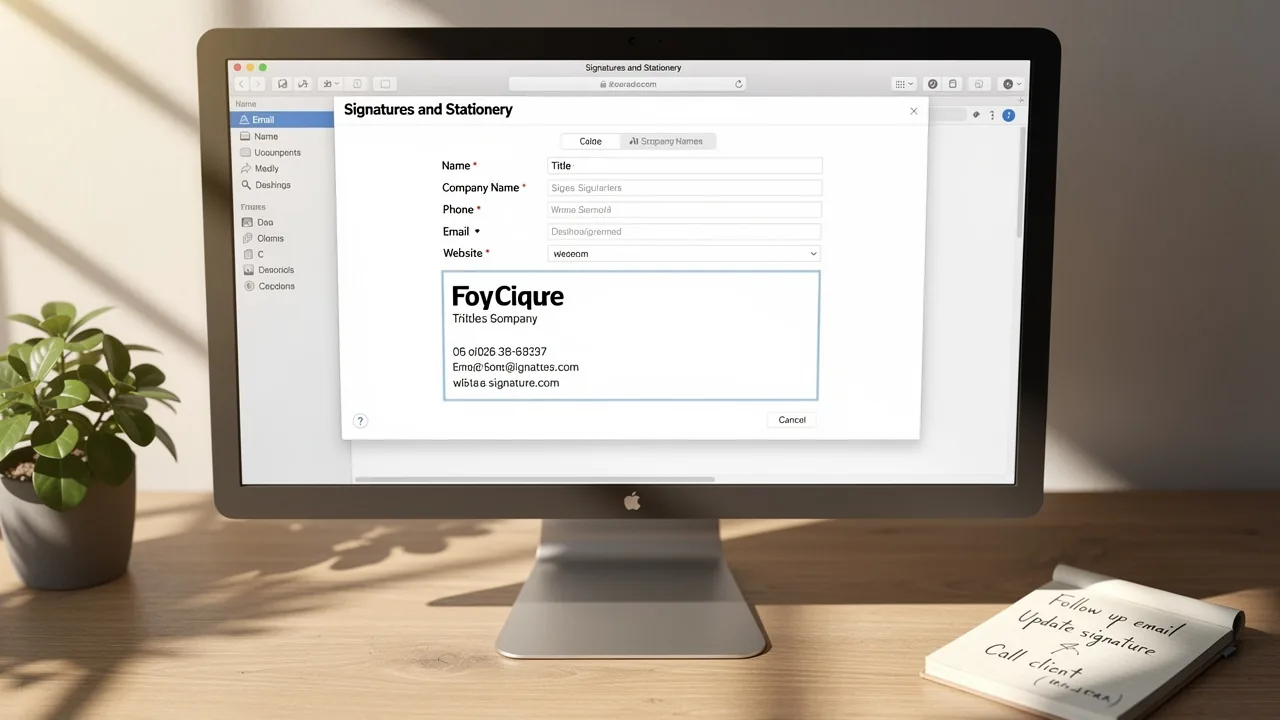
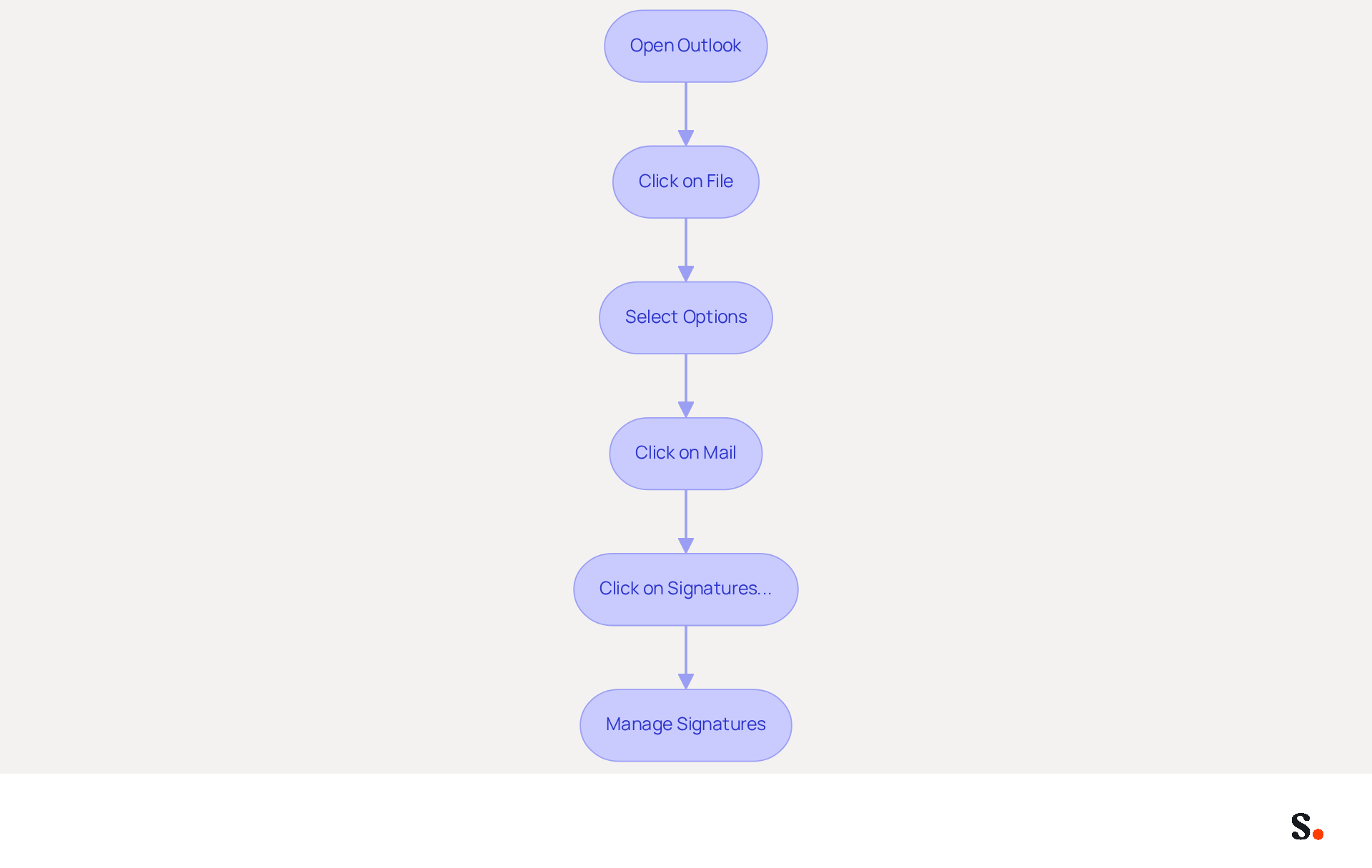
Managing email signatures effectively is crucial for maintaining brand consistency and professionalism in electronic correspondence. To start learning how to add an Outlook signature, launch the Outlook application on your computer. Next, click on the 'File' tab located in the top-left corner of the window. From the menu, choose 'Options' to open the Outlook Options window. In the left pane, click on 'Mail'. To understand how to add an Outlook signature, look for the 'Signatures...' button and click on it to open the Signatures and Stationery dialog. This dialog allows you to create new message identifiers or modify existing ones, ensuring your email signatures are always up-to-date and aligned with your branding strategy.
To ensure efficient management of electronic correspondence, consider best practices such as:
- Maintaining a maximum of seven lines to avoid clutter.
- Using a straightforward, mobile-friendly design.
- Restricting your message footer to two colors to avoid distraction.
With more than 90% of companies using Outlook for messaging, improving your sign-offs can greatly boost brand consistency and engagement. Current trends highlight the significance of automation and integration with tools such as Azure Active Directory for real-time updates, ensuring that your email branding remains up-to-date and compliant across all departments. Implementing these best practices will not only streamline your email communication but also reinforce your brand identity across all interactions.
Create or Select Your Email Signature
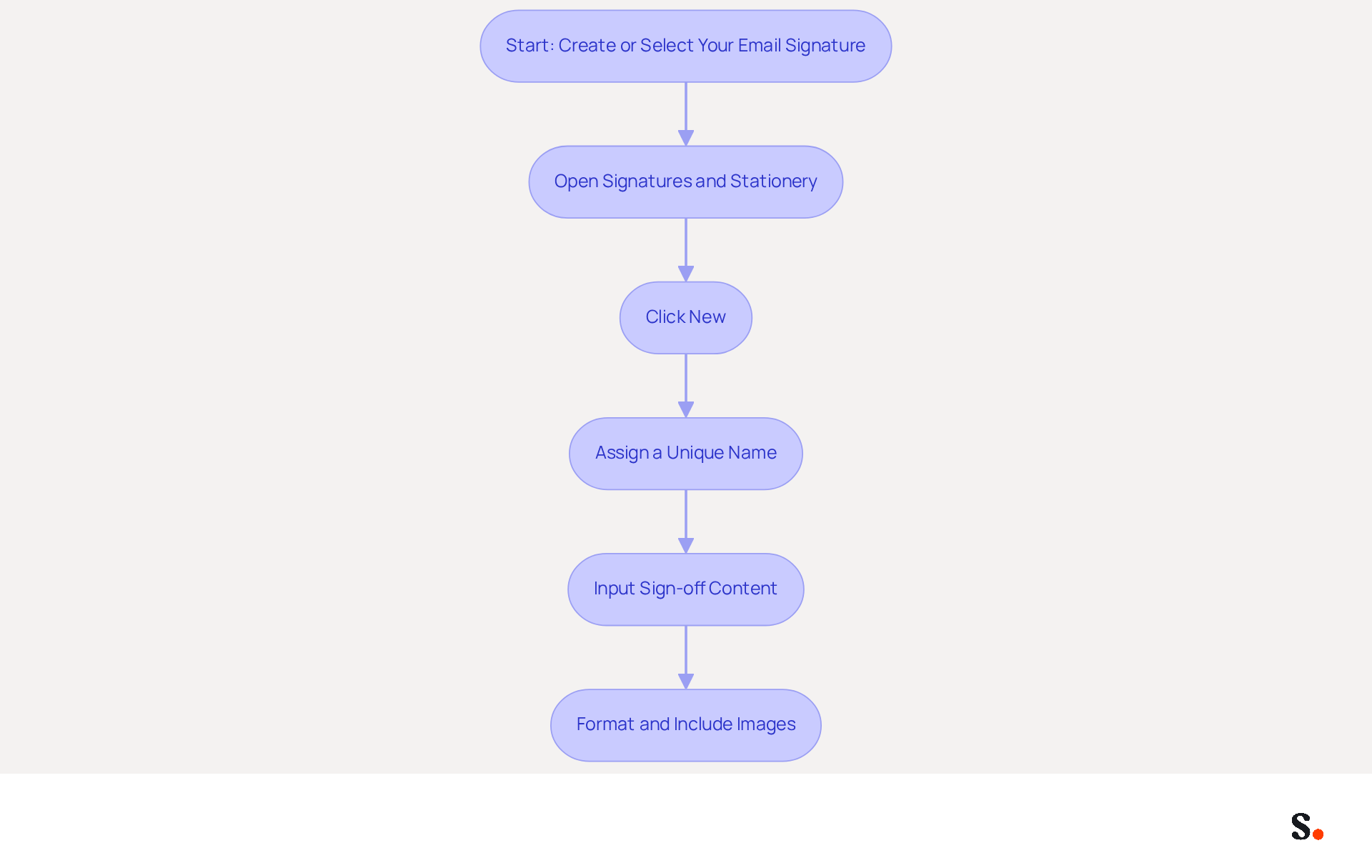
Creating a professional email sign-off in Outlook is essential for effective communication. To learn how to add an Outlook signature, follow these steps:
- Open the Signatures and Stationery dialog in Outlook.
- Click on 'New' to begin the creation of a new sign-off.
- Assign a unique name to your mark, such as 'Professional Mark,' to easily identify it later.
- In the 'Edit sign-off' box, input your sign-off content, which should include your name, title, company name, and contact information.
While learning how to add an Outlook signature, ensure recipients have all necessary details. Scribe ensures that any changes in your Aircall setup are reflected in your branding, which helps maintain consistency across all communications. Additionally, Scribe ensures secure data handling through SOC 2 Type II compliance. This compliance not only enhances trust but also reassures users about data security.
Make use of the available formatting options - like font, size, and color - to ensure your mark reflects your brand's style and looks professional. You can also include images, such as your company logo, and resize them as needed to maintain a clean look. If you have previously created marks, you can choose one from the list to modify or use as a template, enabling customized communication based on the context. This approach not only streamlines your communication but also reinforces your brand's professionalism and reliability.
Add Hyperlinks to Your Signature
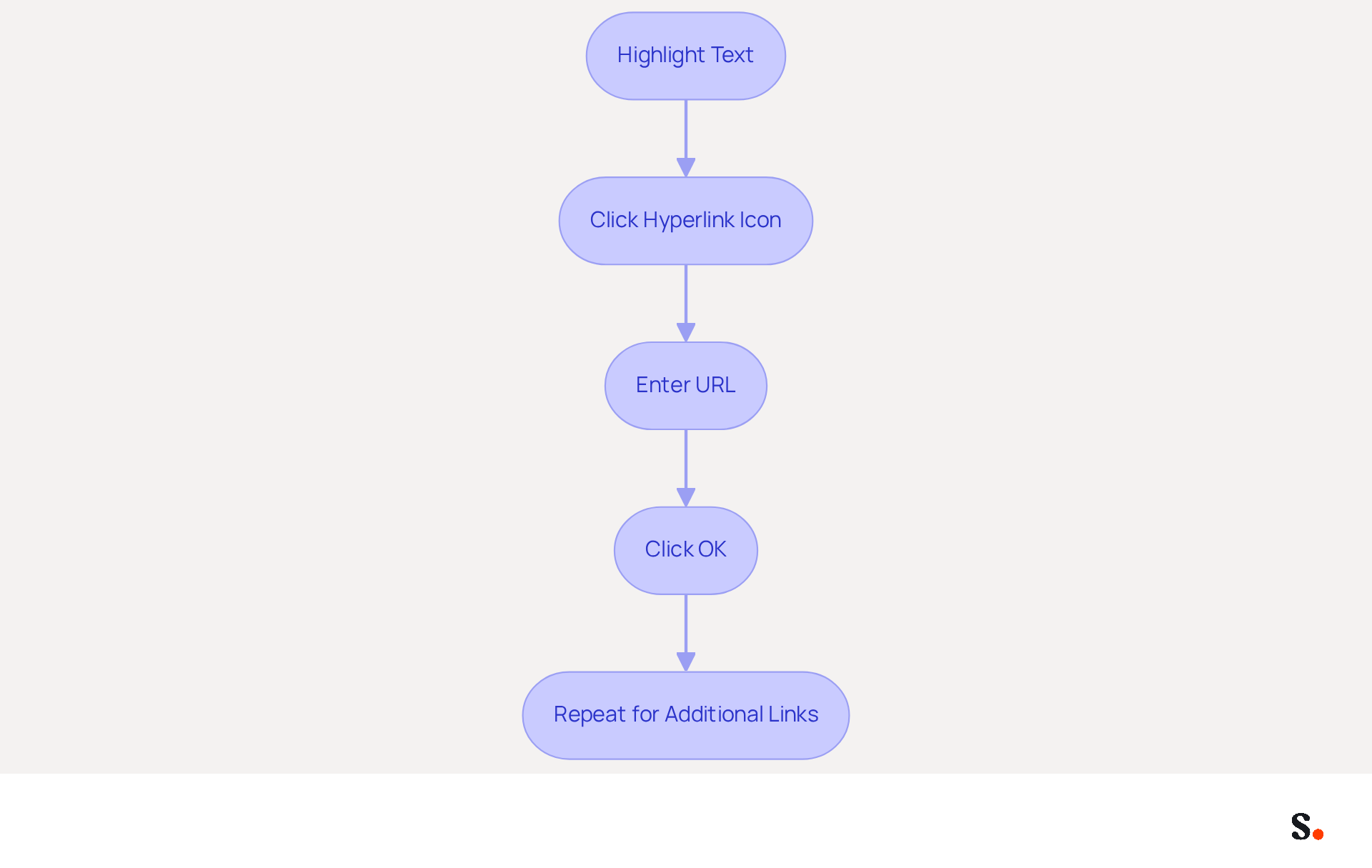
- In the 'Edit label' box, highlight the text you wish to hyperlink, such as 'Visit Our Website' or your company name.
- Click on the hyperlink icon, typically represented by a chain link, in the formatting toolbar.
- In the dialog that appears, enter the desired URL in the 'Address' field.
- Click 'OK' to create the hyperlink.
- Repeat this process for any additional links, including social media profiles or other relevant URLs.
Incorporating hyperlinks into your email footers is essential for maximizing engagement. Studies show that emails with clickable links can significantly increase click-through rates, making them powerful marketing tools. For instance, adding a call to action in your email footer can effectively drive traffic to your website and capture leads.
Using hyperlinks helps promote your brand and gives your emails a more professional touch, leading to better engagement and potential sales. By ensuring that your email footers are optimized with relevant links, you can turn each correspondence into a strategic marketing tool.
Save Your Signature and Set Default Preferences
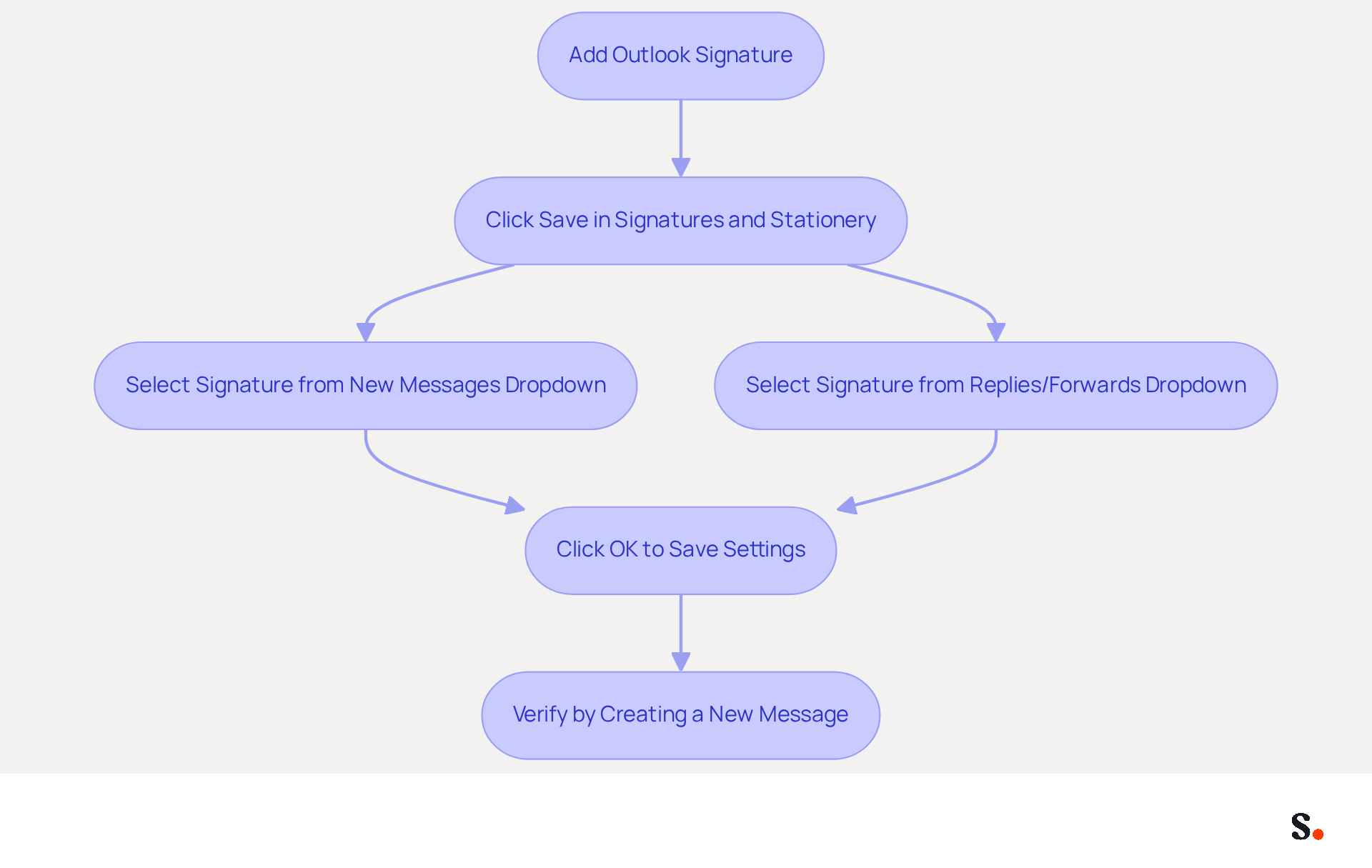
To maintain effective communication, it is crucial to understand how to add an Outlook signature that is up-to-date. After making your mark, click 'Save' in the Signatures and Stationery dialog to ensure your changes are recorded. To understand how to add an Outlook signature as the default for new messages, select it from the 'New messages' dropdown menu. To learn how to add an Outlook signature that also shows in replies and forwards, select it from the 'Replies/forwards' dropdown menu. To learn how to add an Outlook signature, click 'OK' to close the dialog and save your settings. To ensure it looks as expected, verify how to add an Outlook signature by creating a new message.
Having a consistent email signature format across your team can significantly boost your brand's consistency. Research indicates that branded formats can increase response rates by 22%. Many users refresh their identifiers infrequently, leading to outdated information that can hinder effective communication. With Scribe, every modification in your Aircall setup will automatically be reflected in your correspondence identifiers, ensuring seamless updates and adherence to SOC 2 Type II standards for secure data management. By implementing these steps, you not only enhance your brand's image but also foster trust with your audience.
Troubleshoot Common Signature Issues
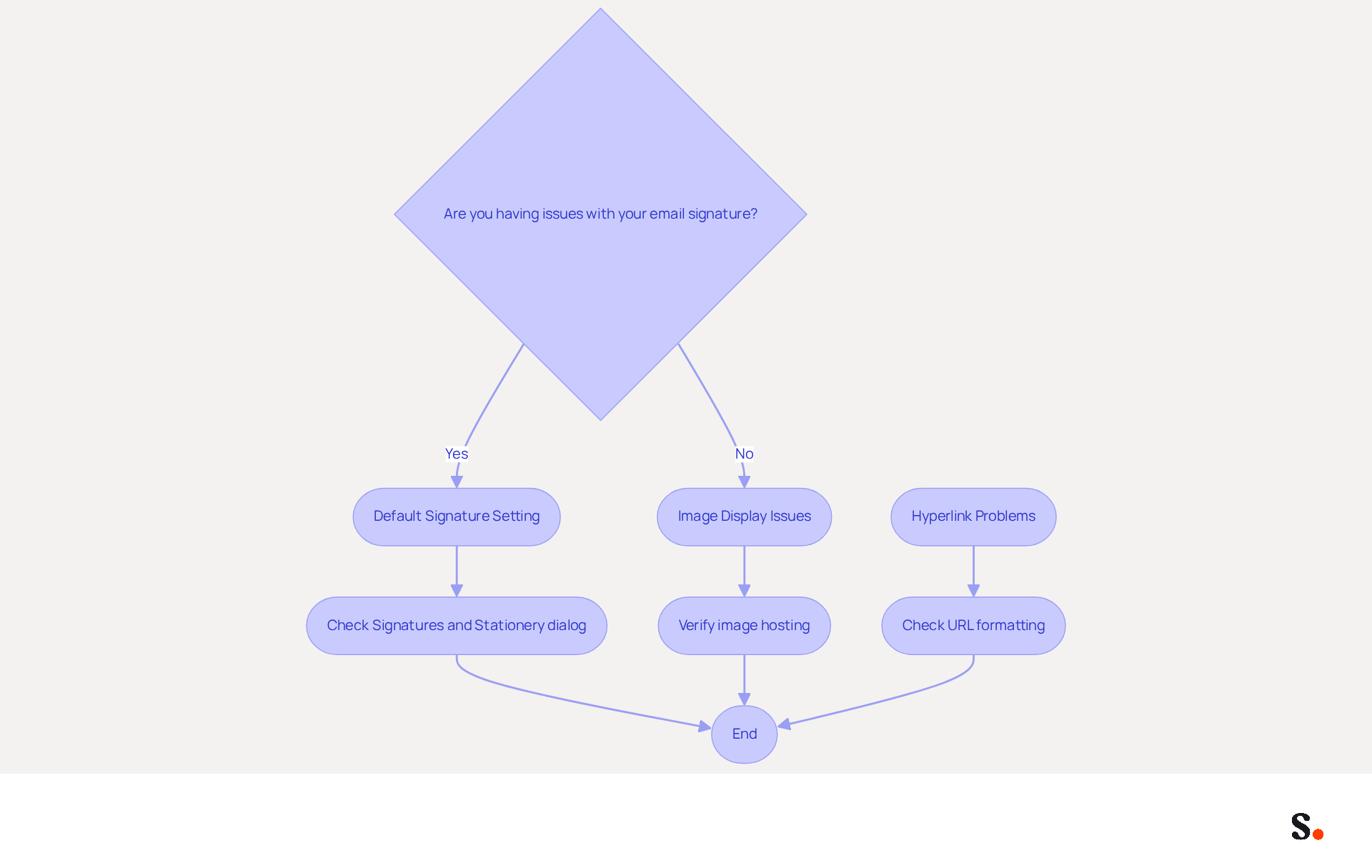
Many users face challenges with their email signatures, often due to simple oversights that can be easily rectified. To ensure your mark appears in new emails, check that it is set as the default in the Signatures and Stationery dialog. Many users overlook this setting, leading to confusion and inconsistency in their email branding.
If images in your email footer aren't displaying, verify that they are hosted online and accessible. This issue often arises from broken links or incorrect hosting. If hyperlinks aren't working, double-check that the URL is correct and properly formatted. Even a minor error in the link can render it non-functional.
If changes to your name aren't saving, consider restarting Outlook and rechecking your settings. This straightforward action can often resolve saving issues. For further issues, refer to the Microsoft support page for additional troubleshooting guidance.
This highlights the importance of regularly checking your email signature settings to maintain professionalism. Moreover, about 70% of professionals believe that a formal sign-off boosts their credibility. Thus, it's crucial to recognize that your email signature serves as a high-ROI branding channel that often goes unmeasured.
Conclusion
A professional email signature in Outlook is essential for effective communication and brand representation. By implementing the steps detailed in this article, users can easily add, customize, and manage their signatures, ensuring that every email sent reflects their professionalism and aligns with their brand identity.
The article outlined the process of:
- Accessing signature settings
- Creating or selecting an email signature
- Adding hyperlinks for enhanced engagement
- Saving preferences for default signatures
It emphasized the importance of maintaining a clean and consistent design while troubleshooting common issues that may arise, ensuring that users can effectively manage their email signatures without hassle.
Many users find it challenging to create a signature that truly represents their brand. Without a professional signature, emails may fail to make a strong impression, leading to missed opportunities. A well-crafted email signature isn't just a formality; it can really boost engagement and response rates. By taking the time to implement these best practices, individuals and organizations can enhance their communication strategy, foster trust with their audience, and ensure that their email correspondence leaves a lasting impression. Mastering your Outlook signature can transform your email communication and enhance your professional image.
Frequently Asked Questions
How do I access the signature settings in Outlook?
To access the signature settings in Outlook, launch the Outlook application, click on the 'File' tab in the top-left corner, select 'Options', then click on 'Mail' in the left pane. Look for the 'Signatures...' button and click on it to open the Signatures and Stationery dialog.
What are the best practices for managing email signatures?
Best practices for managing email signatures include maintaining a maximum of seven lines to avoid clutter, using a straightforward and mobile-friendly design, and restricting your message footer to two colors to minimize distraction.
Why is it important to have a professional email signature?
A professional email signature is essential for effective communication as it helps maintain brand consistency and professionalism in electronic correspondence, which can boost engagement and reinforce brand identity.
How do I create a new email signature in Outlook?
To create a new email signature in Outlook, open the Signatures and Stationery dialog, click on 'New', assign a unique name to your signature, and input your sign-off content in the 'Edit sign-off' box, including your name, title, company name, and contact information.
Can I include images in my email signature?
Yes, you can include images, such as your company logo, in your email signature. You can also resize them as needed to maintain a clean and professional look.
What should I do if I want to modify an existing email signature?
If you want to modify an existing email signature, you can select it from the list in the Signatures and Stationery dialog and make the necessary changes.
How does Scribe help with email signature management?
Scribe ensures that any changes in your Aircall setup are reflected in your branding, maintaining consistency across communications. It also provides secure data handling through SOC 2 Type II compliance, enhancing trust and data security.
What is the significance of automation and integration in email signature management?
Automation and integration with tools like Azure Active Directory allow for real-time updates to email branding, ensuring that signatures remain up-to-date and compliant across all departments.
List of Sources
- Open Outlook and Access Signature Settings
- Email Signature Best Practices - NEWOLDSTAMP (https://newoldstamp.com/blog/email-signature-best-practices-creative-ideas-beautiful-examples-design-hints-and-free-tools-to-use-now)
- MSP Guide to Choosing the Right Email Signature Management Solution (https://channelpronetwork.com/2025/09/21/email-signature-management-msp-guide)
- The Best Way to Manage Email Signatures in Microsoft 365 | Rocketseed (https://rocketseed.com/blog/best-way-to-manage-email-signatures-in-microsoft-365)
- Company Wide Signature Management - What to choose? | Microsoft Community Hub (https://techcommunity.microsoft.com/discussions/exchange_general/company-wide-signature-management---what-to-choose/3838416)
- 5 Effective Ways To Manage Email Signatures For Large Firms (https://paayatech.com/blog/5-effective-ways-to-manage-email-signatures)
- Create or Select Your Email Signature
- How to add and change an email signature in Outlook | Microsoft Support (https://support.microsoft.com/en-us/outlook/mail/how-to-add-and-change-an-email-signature-in-outlook)
- Email Signature Best Practices - NEWOLDSTAMP (https://newoldstamp.com/blog/email-signature-best-practices-creative-ideas-beautiful-examples-design-hints-and-free-tools-to-use-now)
- How to Update Your Outlook Signature (2026) (https://getinboxzero.com/blog/post/how-to-update-signature-in-outlook)
- Email signature statistics: Why every business should optimize their email signatures — Stripo.email (https://stripo.email/blog/email-signature-statistics-why-every-business-should-optimize-their-email-signatures)
- Add Hyperlinks to Your Signature
- How to Add Hyperlink in Outlook Signature | Newoldstamp - NEWOLDSTAMP (https://newoldstamp.com/blog/hyperlink-outlook-signature)
- How to Add Hyperlinks to Your Outlook Signature (https://linkedin.com/pulse/how-add-hyperlinks-your-outlook-signature-newoldstamp-vnmdf)
- Clickable Email Signature: A Complete Guide | Newoldstamp - NEWOLDSTAMP (https://newoldstamp.com/blog/clickable-email-signature)
- How to Add a Link to Email Signature (https://letsignit.com/blog/how-to-add-a-link-to-email-signature)
- Insert hyperlinks to Facebook and X (formerly Twitter) in your Outlook email signature | Microsoft Support (https://support.microsoft.com/en-us/outlook/insert-hyperlinks-to-facebook-and-x-formerly-twitter-in-your-outlook-email-signature)
- Save Your Signature and Set Default Preferences
- 40+ Email Signature Statistics for 2026 (Data + Insights) (https://wavecnct.com/blogs/email-signature-statistics)
- Tips for Adding a Default Signature to Your Microsoft Outlook Email (https://tech42llc.com/tips-for-adding-a-default-signature-to-your-microsoft-outlook-email)
- Outlook Email Signature Won't Save - Microsoft Q&A (https://learn.microsoft.com/en-us/answers/questions/5670038/outlook-email-signature-wont-save)
- How To Add An Email Signature in Outlook (2026) (https://hubspot.com/email-signature-generator/add-signature-outlook)
- Email Signatures vanishing - New Outlook | Microsoft Community Hub (https://techcommunity.microsoft.com/discussions/outlookgeneral/email-signatures-vanishing---new-outlook/4418809)
- Troubleshoot Common Signature Issues
- Email signature statistics and trends in 2024 (https://wisestamp.com/blog/email-signature-statistics)
- Microsoft’s Cloud Email Signatures Solve a Problem for Outlook | Microsoft Community Hub (https://techcommunity.microsoft.com/discussions/exchange_general/microsoft’s-cloud-email-signatures-solve-a-problem-for-outlook/3684035)
- 10 Common Issues in the New Outlook. How to Solve Them? | eWay-CRM (https://eway-crm.com/blog/technology/10-common-issues-in-the-new-outlook-and-how-to-solve-them)
- 40+ Email Signature Statistics for 2026 (Data + Insights) (https://wavecnct.com/blogs/email-signature-statistics)
Get started with Scribe
Create your signature in minutes
Free 14-day trial — no credit card.