How to Add Company Logo in Outlook Signature: 4 Easy Steps
Many organizations fail to recognize the potential impact of their email signatures, resulting in lost opportunities for brand engagement. Studies indicate
Sophie Grant
Email Signature Specialist, Scribe
Introduction
Many organizations fail to recognize the potential impact of their email signatures, resulting in lost opportunities for brand engagement. Studies indicate that a branded footer can increase response rates by 22%, highlighting the significance of a professional email signature. This guide outlines the steps to add a company logo to Outlook signatures, ensuring that every email sent communicates effectively while enhancing brand recognition. Businesses can enhance their marketing impact by effectively utilizing this often-overlooked aspect of digital communication.
Access Signature Settings in Outlook
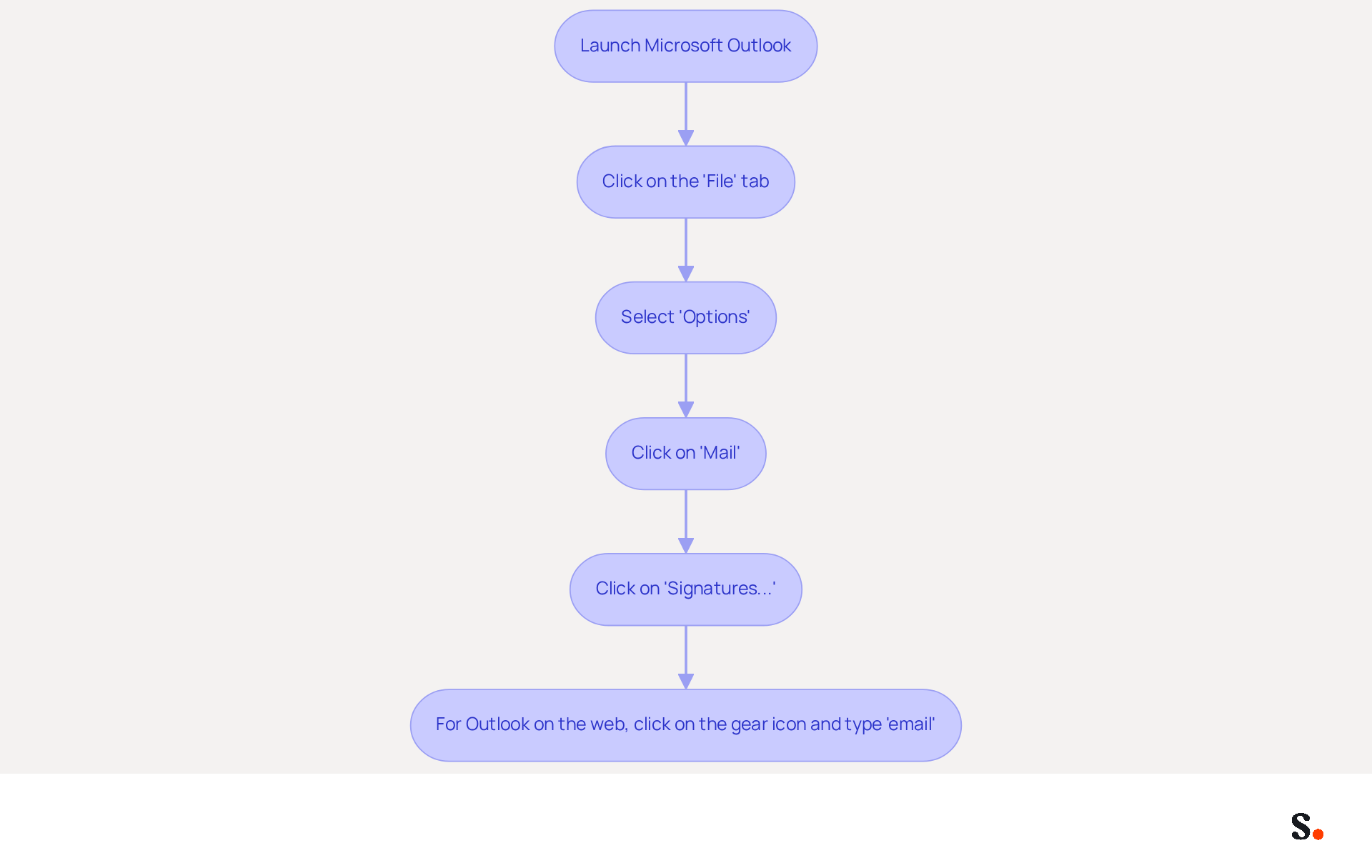
- Launch Microsoft Outlook on your computer.
- Click on the 'File' tab located in the top-left corner of the window.
- From the menu, select 'Options' to open the Outlook Options dialog.
- In the left sidebar, click on 'Mail'.
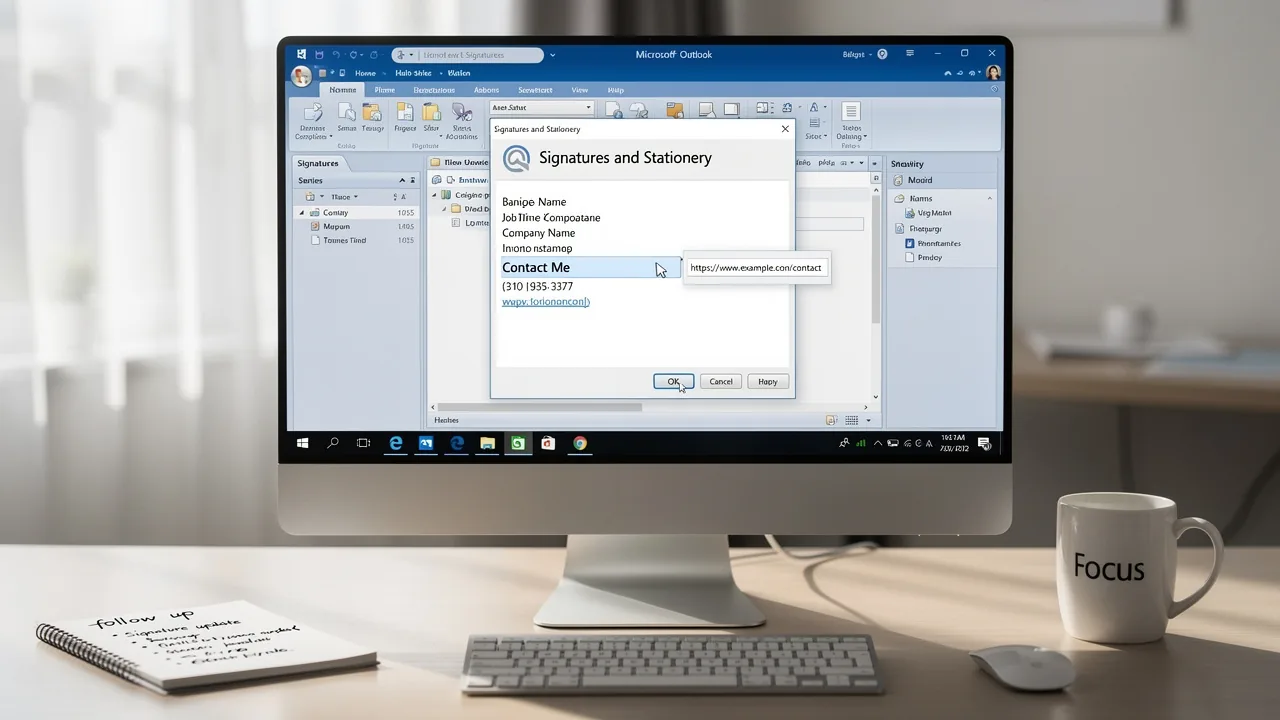
- Locate the 'Signatures...' button and click on it. This action opens the Signatures and Stationery dialog, where you can manage your message identifiers.
- For Outlook on the web, click on the gear icon (⚙️) in the top-right corner, type 'email' in the search bar, and select 'Email settings' from the dropdown options.
Many businesses overlook the importance of managing their email signatures effectively, which can undermine their brand identity. Effective management of branded communication footers is vital, as 80% of participants believe a branded footer is a key aspect of a company's identity. Moreover, businesses that uphold consistent branded digital communication formats report over a 22% increase in response rates. By utilizing Scribe's automated signature management, you save time and keep your signatures up to date through real-time synchronization with your business phone system. To enable one-click synchronization, you must grant permission to Scribe to connect with your provider, and you need to be a Super Admin of your provider to provide these permissions. With Scribe's SOC 2 Type II compliance, you can rest assured that your data is secure, letting you concentrate on boosting your brand's marketing goals. By following these steps, including how to add company logo in outlook signature, you can ensure your email identifiers are not only professional but also aligned with your brand's marketing objectives.
Create or Edit Your Email Signature
It is essential for maintaining brand consistency and clarity in communications to know how to add company logo in Outlook signature when creating a professional email signature in Outlook.
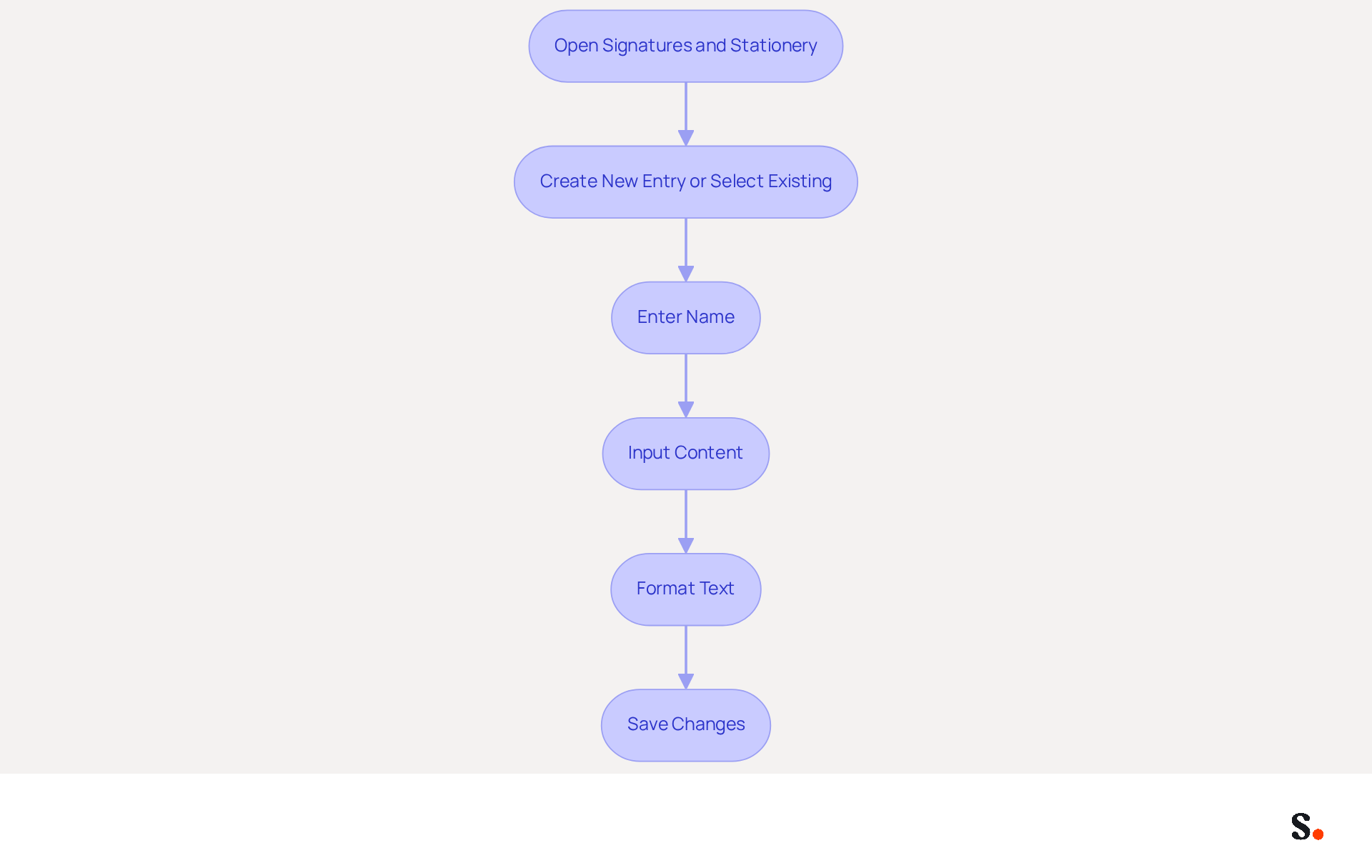
- Open the Signatures and Stationery dialog in Outlook and click on 'New' to create a new entry or select an existing one to modify.
- To create a new identifier, enter a name in the pop-up window and click 'OK'.
- In the 'Edit text' box, input your desired content, including your full name, job title, and contact information, ensuring that all essential elements are included for clarity and professionalism.
- Format the text using the available options (font, size, color) to align with your company’s branding guidelines, as consistent branding can enhance trust and recognition among recipients.
- Once you are satisfied with the content and formatting, save your changes and proceed to implement the branding across your communications.
Implementing these steps will show you how to add company logo in Outlook signature, ensuring that your email signature reflects your professionalism and aligns with your company's branding strategy.
Insert Your Company Logo into the Signature
Many businesses overlook how to add company logo in outlook signature, which can lead to missed opportunities for brand recognition. To add a logo, follow these steps:
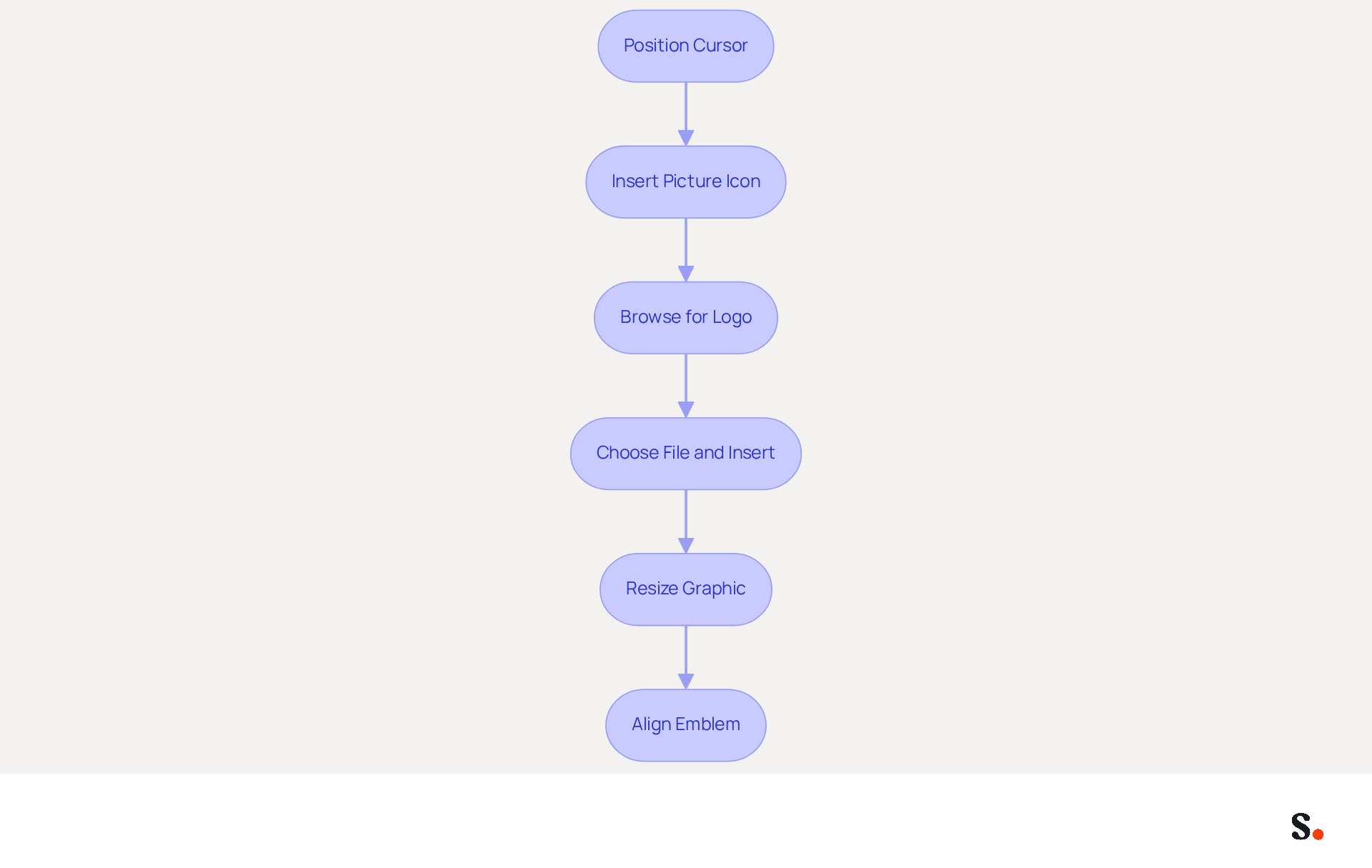
- In the 'Edit signature' box, position your cursor where you want the image to appear as part of how to add company logo in outlook signature.
- To understand how to add company logo in outlook signature, click on the 'Insert Picture' icon, which is typically represented by a small image icon in the formatting toolbar.
- To learn how to add company logo in outlook signature, browse your computer to find the company emblem file, ensuring it is in a supported format such as .jpg or .png.
- To understand how to add company logo in outlook signature, choose the emblem file and click 'Insert'.
- Resize the graphic by clicking on it and dragging the corners to adjust its dimensions as needed, ensuring it maintains a professional appearance.
- Align the emblem with the text in your email for a cohesive appearance.
Knowing how to add company logo in outlook signature significantly boosts brand recognition. Studies show that branded footers lead to a 22% increase in response rates and a 15% rise in click-through rates to company websites. Furthermore, 76% of consumers indicate feeling greater trust in a sender with a branded mark, as confirmed by Exclaimer. Moreover, 52% of potential clients and customers view electronic mail as the primary brand channel, emphasizing the significance of effective digital identifiers in brand communication. On the other hand, 42% of consumers have a negative perception of a business that sends a message without a branded mark. By utilizing Scribe, any changes you make in your Aircall settings will automatically update your email signatures, ensuring your branding stays consistent. Following these steps will help ensure your email communications reflect your brand's professionalism and consistency while adhering to SOC 2 Type II compliance for secure data handling.
Save Changes and Set Default Signature Preferences
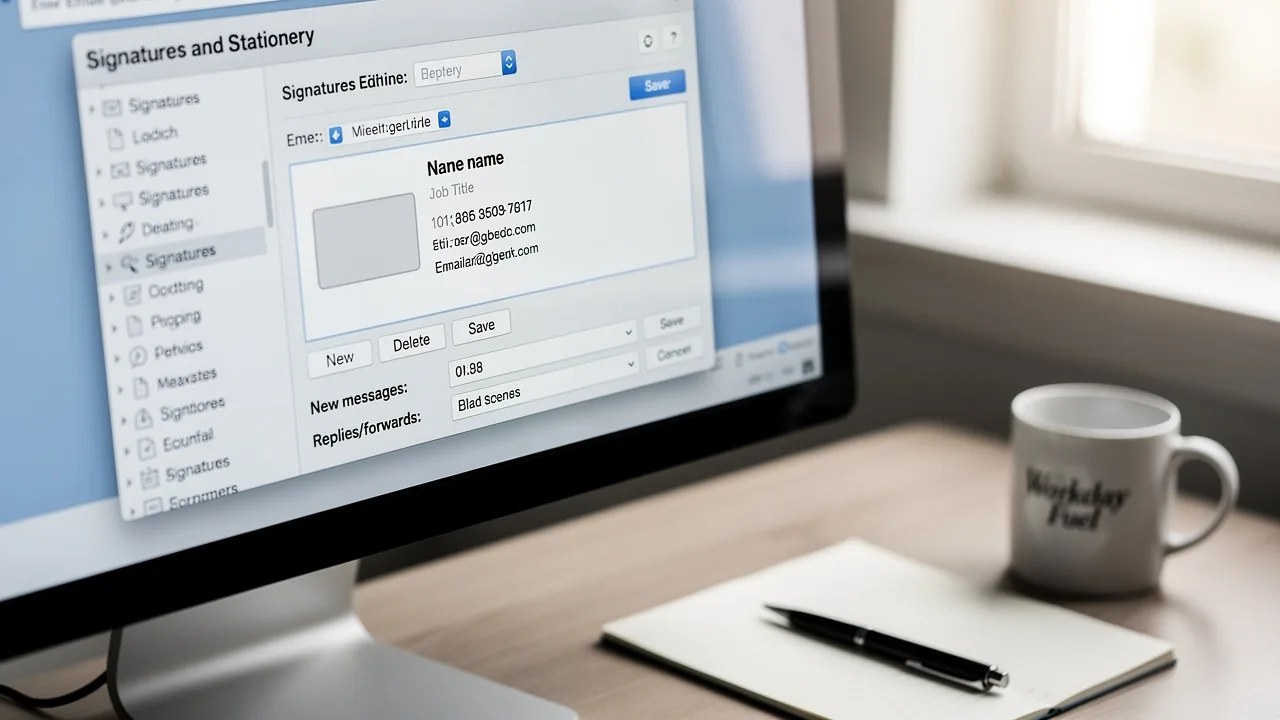
Setting up your email signature correctly is crucial for maintaining a professional image in all communications. After inserting your logo and finalizing your mark, click 'OK' in the Signatures and Stationery dialog to understand how to add company logo in outlook signature and save your changes. To make your new sign-off the default, simply head back to the Signatures and Stationery dialog. Under 'Choose default option', select your email account from the dropdown menu. In the 'New messages' dropdown, select the template you just created or edited. To ensure your sign-off appears in replies and forwards, just choose it from the 'Replies/forwards' dropdown. Click 'OK' to save your settings and close the dialog. Your new emblem featuring the company logo is now ready, including instructions on how to add company logo in outlook signature for use in all outgoing correspondence.
To enable one-click synchronization of your message identifiers with Scribe, you must grant permission for Scribe to connect with your provider, which requires Super Admin access. This tool automatically synchronizes teammate information daily, ensuring that any modifications made in your provider directory are reflected in real-time. By using Scribe, you ensure that your branding remains consistent across all communications, saving you valuable time. Plus, with Scribe's SOC 2 Type II compliance, you can rest assured that your data is secure while managing email signatures efficiently.

Conclusion
Establishing a professional brand identity in digital communications often begins with the details, such as an email signature. Adding a company logo to an Outlook signature is a crucial step in achieving this consistency. By following the outlined steps, businesses can enhance their email signatures, ensuring they convey essential information while reinforcing brand recognition and trust among recipients.
The article detailed the process of:
- Accessing signature settings
- Creating or editing an email signature
- Inserting a company logo
- Saving changes to set default preferences
Each step emphasizes the importance of maintaining brand consistency, which can lead to increased response rates and improved customer perceptions. Utilizing tools like Scribe can streamline this process, allowing for real-time synchronization and compliance with security standards such as SOC 2 Type II.
Adding a logo to email signatures does more than improve visuals; it strategically boosts brand visibility and engagement. Businesses should take advantage of Scribe's capabilities to ensure their email signatures are not only professional but also aligned with their marketing goals. Effective email signature management not only enhances brand presence but also cultivates lasting relationships with clients.
Frequently Asked Questions
How do I access signature settings in Microsoft Outlook?
To access signature settings in Microsoft Outlook, launch the application, click on the 'File' tab in the top-left corner, select 'Options' from the menu, click on 'Mail' in the left sidebar, and then click on the 'Signatures...' button to open the Signatures and Stationery dialog.
How can I manage email signatures in Outlook on the web?
In Outlook on the web, click on the gear icon (⚙️) in the top-right corner, type 'email' in the search bar, and select 'Email settings' from the dropdown options to manage your email signatures.
Why is managing email signatures important for businesses?
Managing email signatures effectively is crucial for businesses as it helps maintain brand identity. 80% of participants believe a branded footer is a key aspect of a company's identity, and consistent branded communication formats can lead to over a 22% increase in response rates.
How does Scribe help with email signature management?
Scribe offers automated signature management that saves time and keeps signatures up to date through real-time synchronization with your business phone system.
What permissions are needed to enable one-click synchronization with Scribe?
To enable one-click synchronization, you must grant permission to Scribe to connect with your provider, and you need to be a Super Admin of your provider to provide these permissions.
Is my data secure when using Scribe for email signature management?
Yes, Scribe is SOC 2 Type II compliant, ensuring that your data is secure while you focus on enhancing your brand's marketing goals.
Can I add a company logo to my Outlook signature?
Yes, by following the steps outlined in the article, you can add a company logo to your Outlook signature to ensure it is professional and aligned with your brand's marketing objectives.
List of Sources
- Access Signature Settings in Outlook
- Email Signature Statistics: A Closer Look at Email Signatures in 2026 (https://mysignature.io/blog/email-signature-statistics)
- Email Signature Trends in Numbers: Infographic [2026] (https://mailtrap.io/blog/email-signature-trends)
- 40+ Email Signature Statistics for 2026 (Data + Insights) (https://wavecnct.com/blogs/email-signature-statistics)
- Release notes for Outlook for Windows (new) - Office release notes (https://learn.microsoft.com/en-us/officeupdates/release-notes-outlook-new)
- Create or Edit Your Email Signature
- Email Signature Design Trends in 2026: What Works and What to Drop (https://bulksignature.com/blog/email-signature-design-trends)
- Email signature statistics: Why every business should optimize their email signatures — Stripo.email (https://stripo.email/blog/email-signature-statistics-why-every-business-should-optimize-their-email-signatures)
- Top 10+ best practices for email signatures design in 2026 (https://mysignature.io/blog/email-signature-best-practices)
- The impact of email signatures on your branding (https://signitic.com/en/resources/the-impact-of-email-signatures-on-your-branding)
- Insert Your Company Logo into the Signature
- 40+ Email Signature Statistics for 2026 (Data + Insights) (https://wavecnct.com/blogs/email-signature-statistics)
- The ultimate guide to email signatures in 2026 (https://signitic.com/en/resources/email-signature)
- How to add a logo to your email signature (on Gmail & Outlook) (https://signitic.com/en/resources/how-to-add-a-logo-to-your-email-signature)
- 4 Best Practices for Your Outlook Signature Line in Marketing (https://scribe-mail.com/en-US/blog/4-best-practices-for-your-outlook-signature-line-in-marketing)
- Save Changes and Set Default Signature Preferences
- Email signature statistics: Why every business should optimize their email signatures — Stripo.email (https://stripo.email/blog/email-signature-statistics-why-every-business-should-optimize-their-email-signatures)
- How to Update Your Outlook Signature (2026) (https://getinboxzero.com/blog/post/how-to-update-signature-in-outlook)
- How To Add An Email Signature in Outlook (2026) (https://hubspot.com/email-signature-generator/add-signature-outlook)
- The New Outlook for Windows: An IT Guide to Email Signatures (https://exclaimer.com/email-signature-handbook/new-outlook-windows-email-signatures)
Get started with Scribe
Create your signature in minutes
Free 14-day trial — no credit card.