How to Add Email Link to Signature in Outlook: A Step-by-Step Guide
Effectively managing email signatures in Outlook presents challenges that can hinder brand visibility and communication efficiency. This guide offers a
Sophie Grant
Email Signature Specialist, Scribe
Introduction
Effectively managing email signatures in Outlook presents challenges that can hinder brand visibility and communication efficiency. This guide offers a detailed, step-by-step approach to adding email links to signatures, ensuring that every correspondence maintains a polished and consistent image. Users often encounter challenges due to the complexity of settings and potential issues, but this guide aims to simplify the process, ensuring they can create effective signatures with ease.
Access Email Signature Settings in Outlook
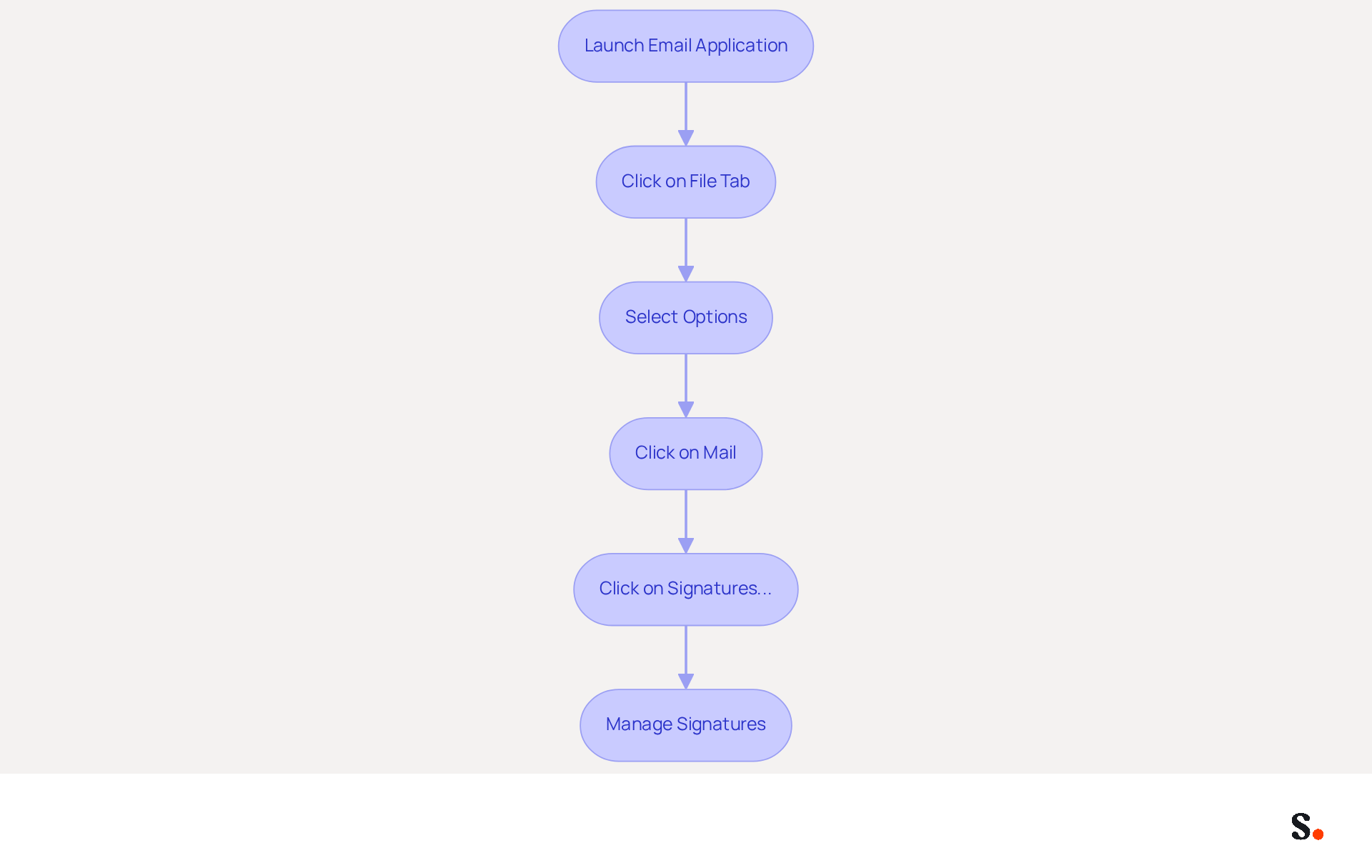
Understanding how to add email link to signature in Outlook is crucial for accessing the signature settings in your email application and achieving effective email branding.
- Launch the email application on your computer.
- Click on the 'File' tab located in the top-left corner of the window.
- From the menu, select 'Options'.
- In the Outlook Options dialog, click on 'Mail' from the left sidebar.
- Look for the 'Signatures...' button and click on it.
- This will open the Signatures and Stationery dialog where you can manage your correspondence.
Following these steps allows you to access the signature settings for understanding how to add email link to signature in Outlook. To enable one-click synchronization with Scribe, grant the necessary permissions as a Super Admin of your service provider. With this tool, you can enhance this process further, ensuring that all modifications are automatically updated. Scribe's SOC 2 Type II compliance ensures that your data remains secure while you manage your email branding efficiently. This ensures that your email branding remains consistent and professional across all communications.
Create or Edit Your Email Signature
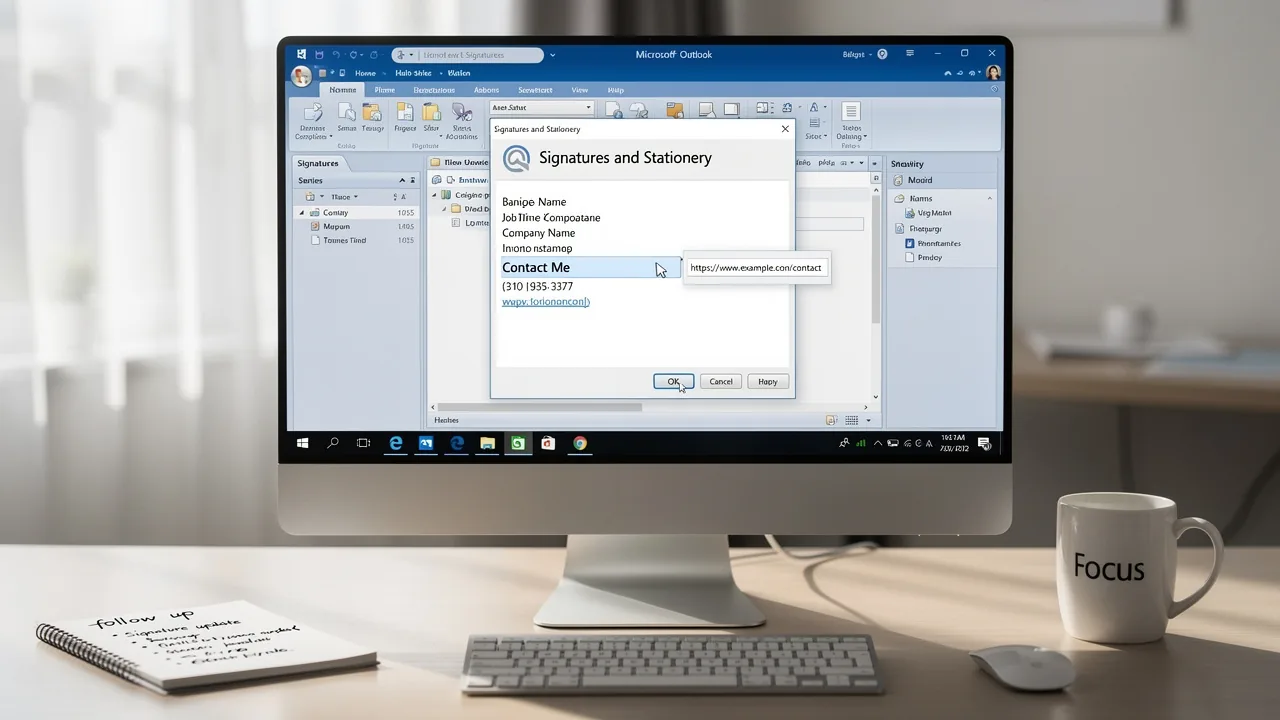
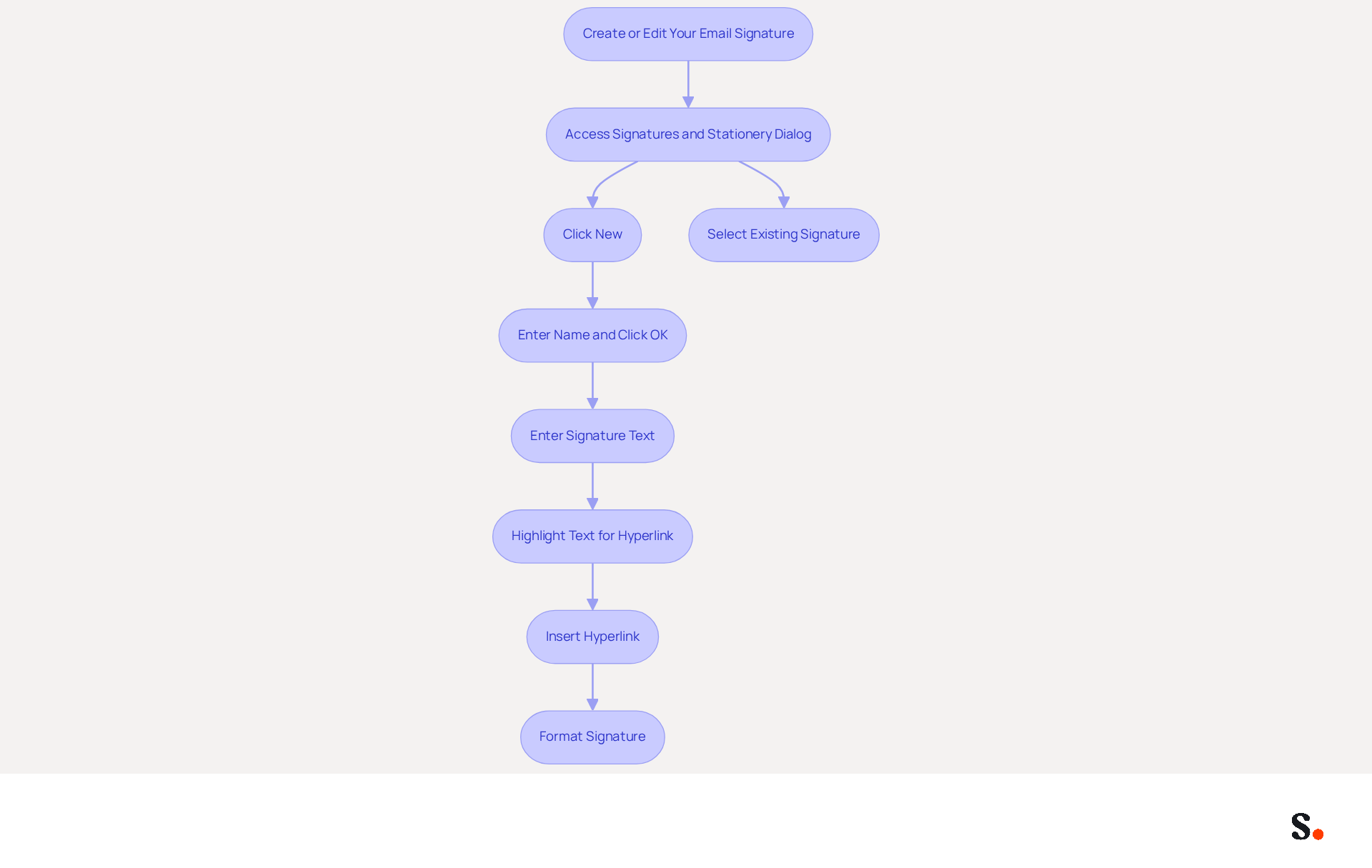
Creating a professional email signature is essential for maintaining brand consistency and enhancing communication effectiveness. To start, you need to know how to add email link to signature in Outlook by accessing the Signatures and Stationery dialog. You can either click 'New' to create a new entry or select an existing one to modify. If you are creating a new identifier, enter a name for it and click 'OK'. In the editing box, enter your signature text. Make sure it aligns with your brand's identity by using consistent colors, fonts, and logos.
To understand how to add email link to signature in Outlook, highlight the text you wish to convert into a hyperlink, such as 'Contact Me'. Click on the 'Insert Hyperlink' icon, which resembles a globe with a chain link. Type mailto:youremail@example.com in the 'Address' field (replace with your actual contact address). Click 'OK' to insert the link, making it easy for recipients to contact you directly.
Format your signature using the available options for fonts and colors. Keep the design simple and professional to enhance readability and ensure it is mobile-friendly. To enable one-click synchronization of your teammates' identifiers, you must grant permission for Scribe to connect with your provider. You need to be a Super Admin of your service provider to provide these permissions.
By employing Scribe's automated management of digital signatures, you can enhance this process even more. Scribe ensures that all modifications made in your connected messaging provider are automatically updated in Scribe, saving time and guaranteeing compliance with SOC 2 Type II standards. This process demonstrates how to add email link to signature in Outlook, allowing you to create a refined communication footer that includes a clickable link and enhances your brand's visibility in every correspondence.
Remember, effective email footers can contribute significantly to marketing efforts, with studies showing that 75.9% of professionals believe their footers help close sales. Implementing a streamlined signature management system can significantly elevate your brand's professional image and communication efficiency.
Save and Set Your Signature as Default
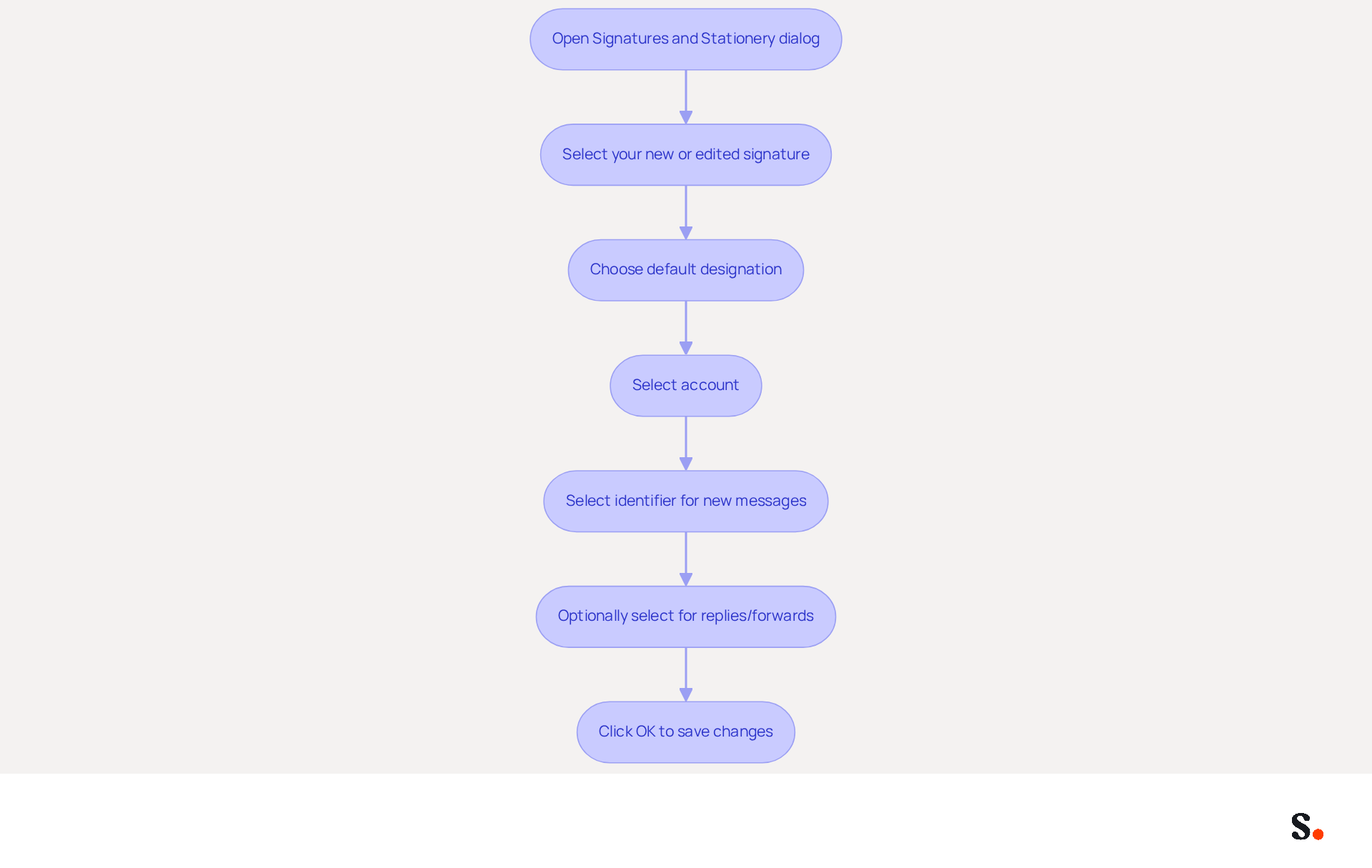
To ensure consistent branding in your communications, follow these steps on how to add email link to signature in Outlook.
- Open the Signatures and Stationery dialog in Outlook. Ensure your new or edited mark is selected.
- Under 'Choose default designation', select the account you wish to associate with this designation, especially if you manage multiple accounts.
- In the 'New messages' dropdown, select your identifier to be used for all new communications.
- Optionally, select the same mark for 'Replies/forwards' to maintain consistency in all communications.
- Click 'OK' to save your changes and close the dialog.
By learning how to add email link to signature in Outlook, you can ensure your sign-off appears automatically in new messages and replies, maintaining consistent branding. Only Super Admins can grant Scribe permission for synchronization, which may limit access for some users. Each account can have its own default configuration for personalized branding strategies. This capability enhances your professional image and simplifies communication. With Scribe's streamlined one-click synchronization, your email identifiers can be automatically updated based on changes in your connected data sources, such as Microsoft Entra ID and your business phone system. This approach not only saves time but also reinforces your organization's commitment to professionalism and security.
Troubleshoot Common Issues with Email Signatures
Ensuring your email signature functions correctly is crucial for maintaining a professional image.
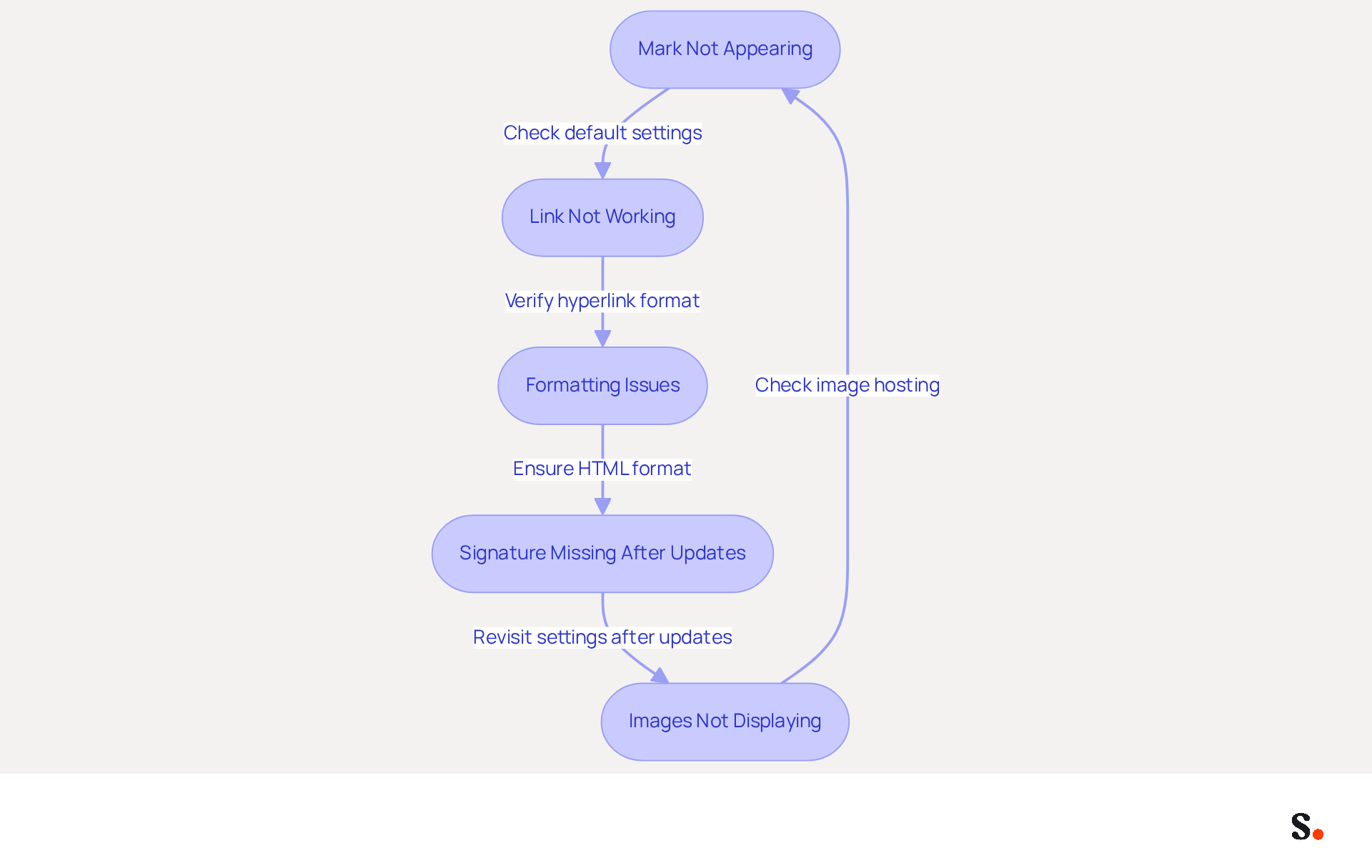
- Mark Not Appearing: Confirm that your mark is set as the default for both new messages and replies. Without a default, Outlook won't automatically add a closing.
- Link Not Working: Ensure that the hyperlink is formatted correctly. Use
mailto:youremail@example.comto create a functional message link. - Formatting Issues: Inconsistent email appearance can undermine professionalism. Check that you are composing emails in HTML format by navigating to 'File' > 'Options' > 'Mail' and verifying the 'Compose messages' settings.
- Signature Missing After Updates: Outlook updates can sometimes reset settings. After an update, revisit the settings for your sign-off to confirm that it is still saved and set as the default.
- Images Not Displaying: Make sure your images are either hosted online or embedded properly. Images linked from external sources may not display due to security settings in messaging clients.
Addressing these common issues will enhance your email communications and reinforce your professional image.
Conclusion
Creating an effective email signature in Outlook is crucial for professional communication and brand representation. By following the outlined steps, users can develop a polished email signature that not only reflects their identity but also facilitates direct contact through clickable links. Many users find it challenging to create email signatures that effectively represent their brand and facilitate communication, making this capability particularly valuable for marketing and IT teams looking to streamline their branding efforts.
The guide provided detailed instructions on:
- Accessing signature settings
- Creating or editing signatures
- Troubleshooting common issues
Key insights included:
- The importance of maintaining a professional design
- Ensuring hyperlinks function correctly
- Setting default signatures for seamless communication
Additionally, by utilizing Scribe, teams can overcome these challenges and ensure their email signatures are both effective and compliant with security standards like SOC 2 Type II.
A well-designed email signature does more than add a personal touch; it can significantly enhance engagement and strengthen brand identity. Organizations are encouraged to adopt these practices and consider utilizing Scribe for a comprehensive solution that guarantees 100% brand consistency and measurable marketing ROI from email signatures. Embracing these strategies not only enhances communication but also positions your organization for greater marketing success.
Frequently Asked Questions
How do I access the email signature settings in Outlook?
To access the email signature settings in Outlook, launch the email application, click on the 'File' tab in the top-left corner, select 'Options' from the menu, click on 'Mail' in the Outlook Options dialog, and then click on the 'Signatures...' button to open the Signatures and Stationery dialog.
Why is it important to add an email link to my signature in Outlook?
Adding an email link to your signature in Outlook is crucial for effective email branding, as it helps ensure that your communications are professional and consistent.
What permissions do I need to enable one-click synchronization with Scribe?
To enable one-click synchronization with Scribe, you need to grant the necessary permissions as a Super Admin of your service provider.
How does Scribe ensure the security of my data?
Scribe ensures the security of your data through its SOC 2 Type II compliance, which helps maintain data security while you manage your email branding efficiently.
List of Sources
- Access Email Signature Settings in Outlook
- Email Signature Trends in Numbers: Infographic [2026] (https://mailtrap.io/blog/email-signature-trends)
- 40+ Email Signature Statistics for 2026 (Data + Insights) (https://wavecnct.com/blogs/email-signature-statistics)
- Email Signature Statistics: A Closer Look at Email Signatures in 2026 (https://mysignature.io/blog/email-signature-statistics)
- Email signature statistics: Why every business should optimize their email signatures — Stripo.email (https://stripo.email/blog/email-signature-statistics-why-every-business-should-optimize-their-email-signatures)
- 14 Key Email Signature Statistics to Know in 2026 (https://mailmodo.com/guides/email-signature-statistics)
- Create or Edit Your Email Signature
- Top 10+ best practices for email signatures design in 2026 (https://mysignature.io/blog/email-signature-best-practices)
- Why Email Signatures Must Be In Your 2026 Marketing Plan | Rocketseed (https://rocketseed.com/blog/what-are-the-biggest-email-trends-for-2026)
- Best practices for business email signatures in 2026 (https://bybrand.io/blog/best-practices)
- Email Signature Best Practices - NEWOLDSTAMP (https://newoldstamp.com/blog/email-signature-best-practices)
- The Complete Email Signature Guide 2026: Best Practices and Policy (https://opensense.com/complete-email-signature-guide)
- Save and Set Your Signature as Default
- How To Add An Email Signature in Outlook (2026) (https://hubspot.com/email-signature-generator/add-signature-outlook)
- Create, insert, or change a signature in Outlook for Mac | Microsoft Support (https://support.microsoft.com/en-us/outlook/create-insert-or-change-a-signature-in-outlook-for-mac)
- How to add and change an email signature in Outlook | Microsoft Support (https://support.microsoft.com/en-us/outlook/mail/how-to-add-and-change-an-email-signature-in-outlook)
- Set a default signature for one email address, and a different default signature for another - Microsoft Q&A (https://learn.microsoft.com/en-us/answers/questions/4691511/set-a-default-signature-for-one-email-address-and)
- Troubleshoot Common Issues with Email Signatures
- 4 Steps to Fix Your Outlook Signature Not Showing Issues (https://scribe-mail.com/en-US/blog/4-steps-to-fix-your-outlook-signature-not-showing-issues)
- Email signature statistics and trends in 2024 (https://wisestamp.com/blog/email-signature-statistics)
- Outlook Signature Not Working in Office 365: Causes & Fixes (https://exclaimer.com/email-signature-handbook/outlook-signature-not-working-in-office-365)
- Email Signatures vanishing - New Outlook | Microsoft Community Hub (https://techcommunity.microsoft.com/discussions/outlookgeneral/email-signatures-vanishing---new-outlook/4418809)
- How to solve problems with email signatures in Microsoft 365? (https://mail-signatures.com/articles/problems-email-signatures-office-365)
Get started with Scribe
Create your signature in minutes
Free 14-day trial — no credit card.