How to Add Logo to Email Signature in Outlook: A Step-by-Step Guide
Creating a professional email signature presents challenges that extend beyond mere formality; it’s a vital component of brand identity that can significantly
Sophie Grant
Email Signature Specialist, Scribe
Introduction
Creating a professional email signature presents challenges that extend beyond mere formality; it’s a vital component of brand identity that can significantly influence communication effectiveness. This guide outlines the step-by-step process of adding a logo to an email signature in Outlook, ensuring that every correspondence reflects a polished and cohesive image. Organizations often struggle to balance aesthetics with functionality in their email signatures, raising the question of how to ensure they enhance engagement and brand consistency.
Prepare Your Logo and Signature Settings
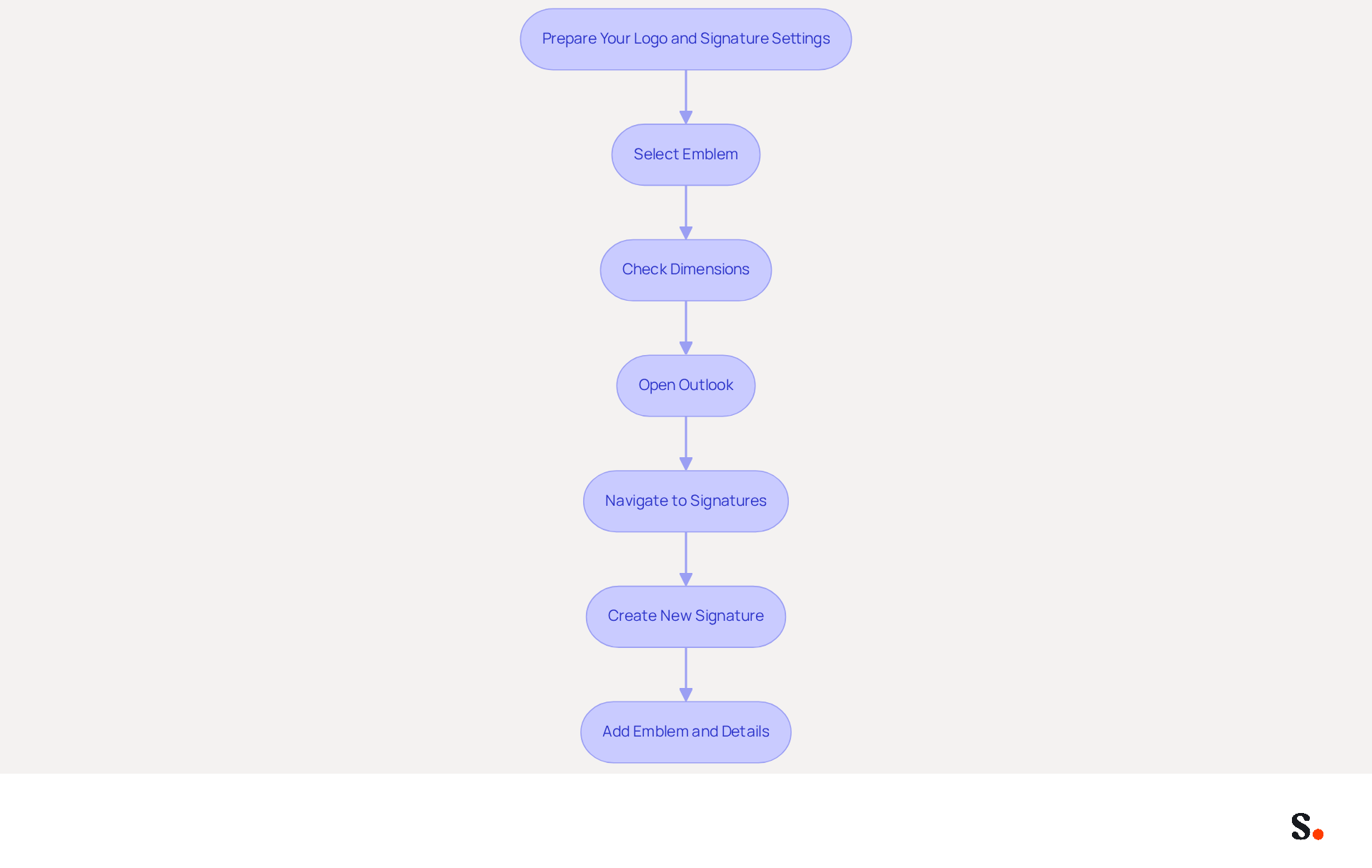
Selecting the right emblem is crucial for maintaining a professional image in digital correspondence. Choose an emblem in a suitable format such as PNG, JPG, or GIF, ensuring it is optimized for correspondence use. Balancing quality and performance can be challenging, but optimizing file size is essential; aim for a file size under 50KB to maintain quality without compromising loading times. Opt for PNG format for its ability to support transparent backgrounds and deliver sharp images.
Next, check the dimensions of your emblem. The optimal size for graphics in digital correspondence is between 150 and 300 pixels wide, with around 300 pixels being a suitable target. Use an image editing application to adjust the size of your graphic if needed, ensuring it fits well within the layout. Remember to maintain the original aspect ratio to prevent distortion.
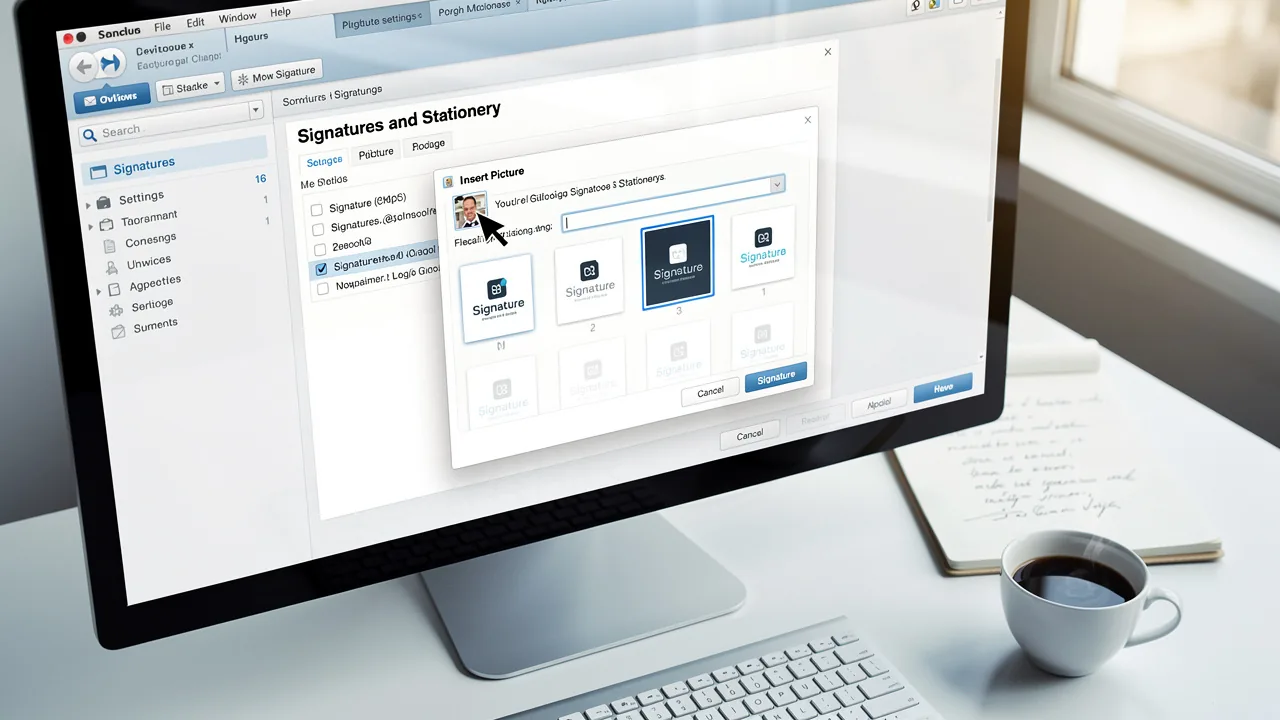
Now, open the Outlook application on your computer to understand how to add logo to email signature in Outlook. Navigate to File > Options > Mail > Signatures. This will open the Signatures and Stationery dialog box, where you can find instructions on how to add logo to email signature in Outlook or modify your email identifiers.
Click on New, assign a name to your signature, and click OK to start editing your signature settings. Here, you can add your emblem and other important contact details. Additionally, consider adding alt text for your emblem to enhance accessibility for visually impaired users. Lastly, ensure there is adequate whitespace around your emblem and other elements to create a clean and professional appearance. Neglecting these details can diminish the impact of your professional communications.
Insert Your Logo into the Email Signature
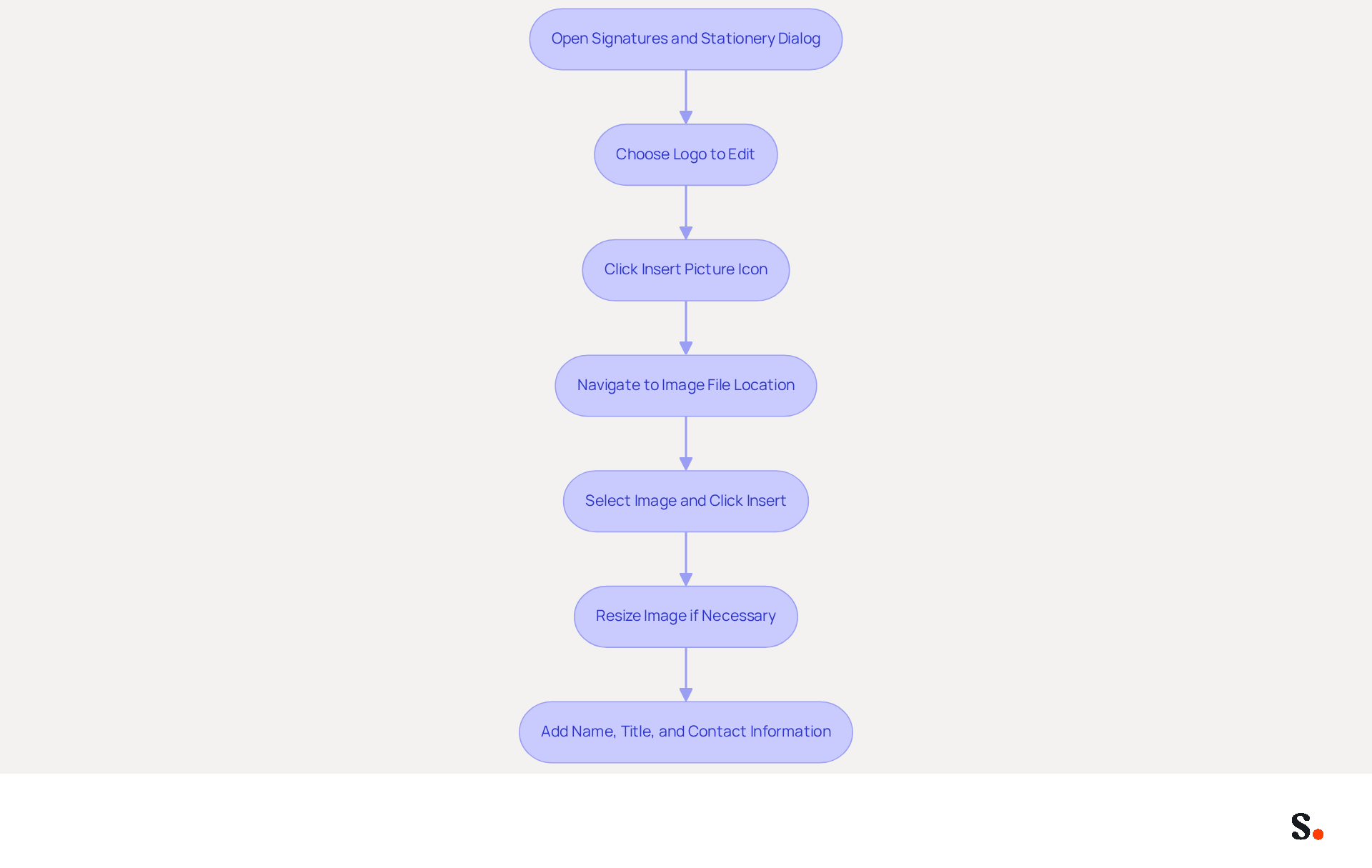
Many organizations underestimate the impact of a logo in their email signatures. To understand how to add a logo to email signature in Outlook, open the Signatures and Stationery dialog and choose the mark you wish to edit from the list provided. Click on the Insert Picture icon, represented by a small picture symbol, within the editing area. Navigate to the location of your image file, select it, and click Insert to add it to your email footer. If the graphic appears too large or small, click on it and use the corner handles to resize it while maintaining the aspect ratio, ensuring it fits well within your layout.
Below or beside the logo, include your name, title, and contact information to finalize your identification. It's crucial because 64% of consumers expect to see contact details in digital messages, which boosts communication effectiveness. Furthermore, consider adding social media links, as 43% of consumers anticipate these in correspondence, further enhancing engagement.
Utilize the formatting options to adjust font styles, colors, and sizes to align with your brand guidelines. A well-formatted sign-off boosts brand identity and builds trust; 76% of people believe branded sign-offs make the sender more trustworthy. Moreover, 80% of participants consider branded digital identifiers as a crucial aspect of a company's brand identity, emphasizing their importance in marketing.
Incorporating a logo into your message footer is not just about aesthetics; it is crucial for understanding how to add a logo to email signature in Outlook, as it plays a significant role in branding and marketing. Organizations that uphold consistent branded communication headers report over a 22% increase in response rates, making this a crucial step in your messaging strategy. Furthermore, 18.8% of users mention lead generation as a primary objective for utilizing professional branding, highlighting their marketing potential. With Scribe, your email identifiers are automatically synchronized with your business phone system, ensuring that any changes made in your Aircall configuration are reflected in real-time. This automated management saves time and keeps your approvals consistent and compliant with SOC 2 Type II standards, ensuring data security.
Finalize and Test Your Email Signature
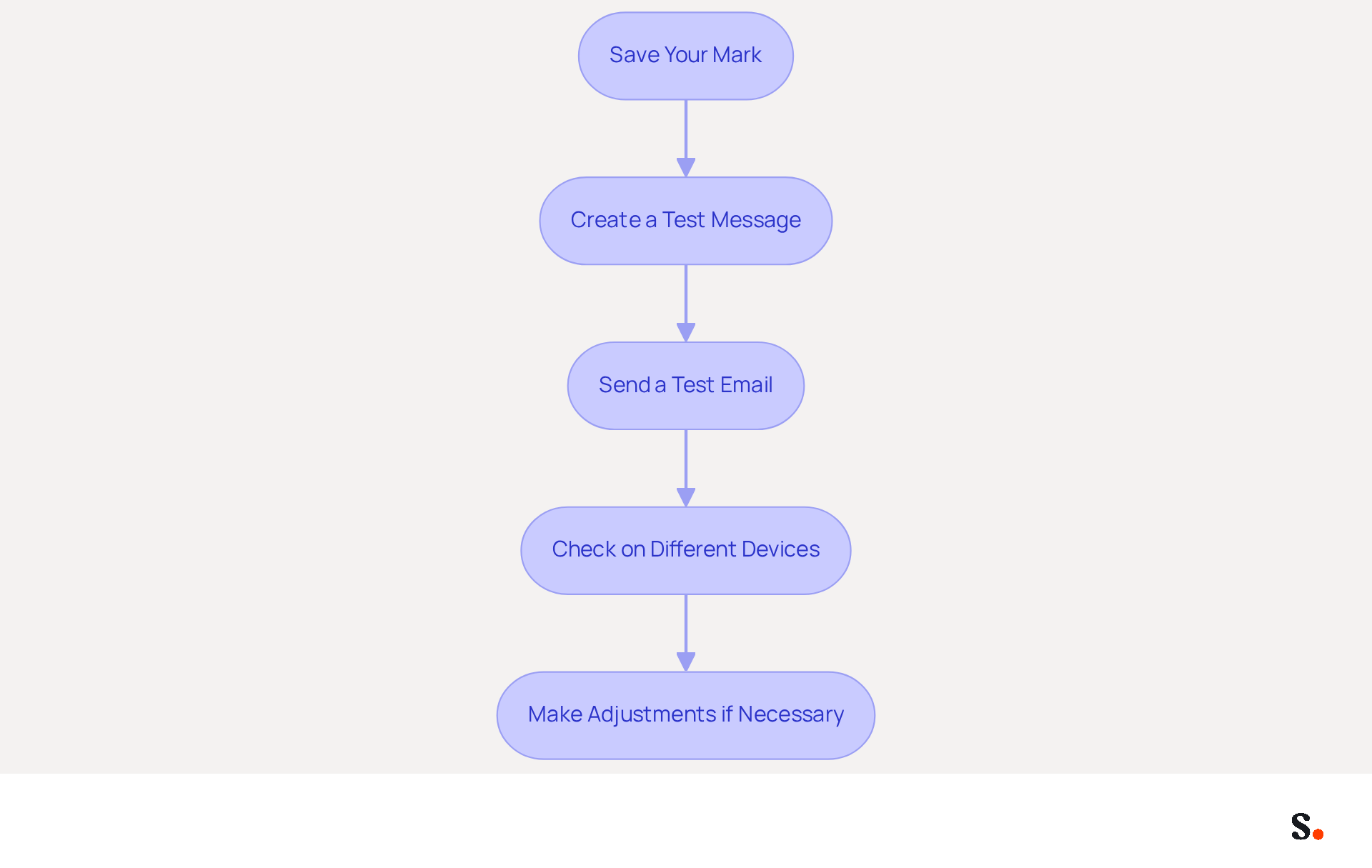
- Save Your Mark: After making all necessary adjustments, click
OKto save your mark settings. To enable one-click synchronization, ensure you have Super Admin permissions to connect the application with your service provider. Scribe simplifies this process. By syncing with your Google Workspace, it enables automatic updates to your details without any manual input. - Create a Test Message: Open a new message in Outlook and select your newly created sign-off from the
Sign-offdropdown menu. Thanks to Scribe's one-click synchronization, any modifications made in your Google Workspace will be automatically reflected in your correspondence. - Send a Test Email: Send the email to yourself or a colleague to check how the signature appears in the inbox. Ensure that the logo displays correctly and that all text is formatted as intended. With Scribe managing your signatures, you can trust that your branding stays consistent in every email you send, and it can enhance teammate information from HR software after synchronization.
- Check on Different Devices: View the messages on various devices, including desktops and mobile phones, as well as different clients like Gmail and Yahoo. Given that 61% of email opens occurred on mobile devices, ensuring compatibility across platforms is essential for effective communication. Scribe's daily synchronization ensures that your mark is always current, regardless of the device used.
- Make Adjustments if Necessary: If you notice any issues, return to the settings to make adjustments. Many professionals neglect to update their email signatures regularly, leading to outdated information. This highlights the importance of maintaining brand consistency. With this tool, you can effortlessly handle these updates on your own after the initial IT setup. Repeat the testing process until you are satisfied with the appearance and functionality of your mark.
Explore Tools for Efficient Email Signature Management
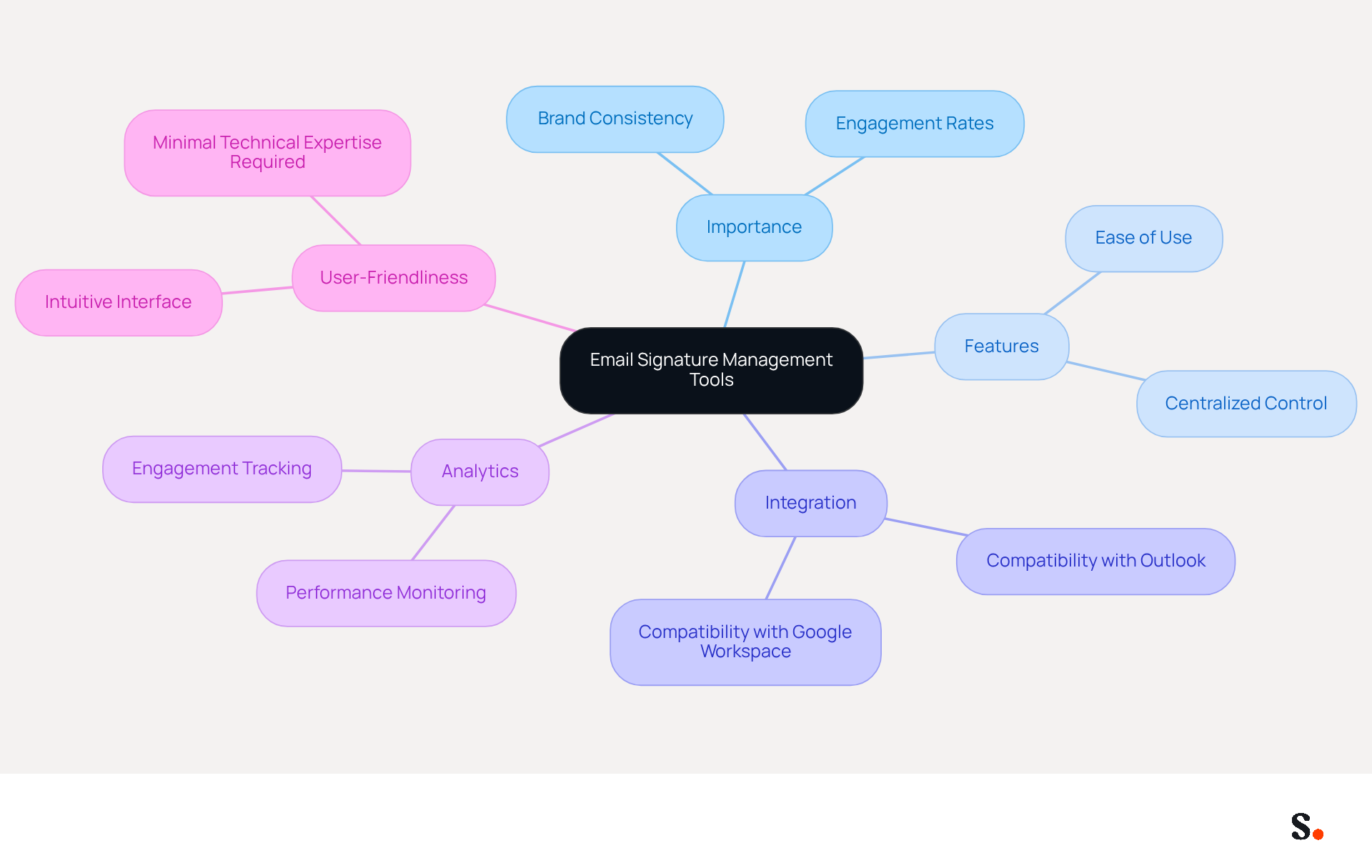
Effective email identity management is crucial for enhancing brand consistency and engagement. Utilizing tools like Scribe automates the creation and management of digital identities. Companies using this software have seen notable increases in engagement rates. This demonstrates a direct impact on their marketing outcomes.
Choose solutions that allow for centralized control over markings, which simplifies how to add logo to email signature in Outlook and enables easy updates for all users with a single click. This approach not only enhances efficiency but also ensures that branding remains consistent, which is crucial for building trust with clients and prospects.
Select tools that seamlessly integrate with existing communication platforms, such as Outlook and Google Workspace. This integration simplifies managing sign-offs, reduces the time spent on manual updates, and provides guidance on how to add logo to email signature in Outlook, ensuring everyone has the latest information in their signatures.
Some email management tools provide analytics to monitor the effectiveness of email branding as marketing instruments. This capability helps measure engagement and effectiveness, allowing businesses to refine their strategies based on data-driven insights.
Ensure that the chosen tool is easy to use, requiring minimal technical expertise. A user-friendly interface empowers all team members to manage their signatures effectively, reducing the burden on IT departments and enhancing overall productivity. Choosing the right email identity management tool can significantly elevate your marketing strategy and brand perception.
Conclusion
Adding a logo to an email signature in Outlook is a strategic move that enhances brand visibility and professionalism in digital communications. By following the outlined steps, users can ensure their email signatures reflect their brand identity effectively, fostering trust and engagement with recipients.
Throughout this guide, key aspects such as preparing the logo, inserting it correctly, and testing the final signature have been emphasized. The importance of maintaining optimal image quality, ensuring proper formatting, and regularly updating signatures cannot be overstated. Utilizing tools like Scribe simplifies this process, allowing for seamless management and synchronization of email signatures across teams, ensuring brand consistency and compliance with security standards.
Investing time in creating a polished email signature can significantly enhance brand recognition and customer engagement. Organizations are encouraged to leverage efficient email signature management tools to streamline this process, ensuring that every email sent is a reflection of their brand's professionalism and commitment to quality. By prioritizing email signature management, organizations can ensure that their communications consistently reflect their brand's values and professionalism.
Frequently Asked Questions
Why is selecting the right emblem important for digital correspondence?
Selecting the right emblem is crucial for maintaining a professional image in digital correspondence.
What formats are suitable for an emblem?
Suitable formats for an emblem include PNG, JPG, or GIF.
What is the recommended file size for an emblem?
Aim for a file size under 50KB to maintain quality without compromising loading times.
Which format is best for supporting transparent backgrounds?
The PNG format is best for supporting transparent backgrounds and delivering sharp images.
What are the optimal dimensions for an emblem in digital correspondence?
The optimal size for graphics is between 150 and 300 pixels wide, with around 300 pixels being a suitable target.
How can I adjust the size of my emblem?
Use an image editing application to adjust the size of your graphic, ensuring it fits well within the layout while maintaining the original aspect ratio to prevent distortion.
How do I add a logo to my email signature in Outlook?
Open the Outlook application, navigate to File > Options > Mail > Signatures, and follow the instructions in the Signatures and Stationery dialog box.
What steps should I follow to create a new signature in Outlook?
Click on New, assign a name to your signature, and click OK to start editing your signature settings.
What additional details should I include in my email signature?
Consider adding your emblem and other important contact details, as well as alt text for your emblem to enhance accessibility for visually impaired users.
Why is whitespace important in an email signature?
Adequate whitespace around your emblem and other elements creates a clean and professional appearance, enhancing the impact of your professional communications.
List of Sources
- Prepare Your Logo and Signature Settings
- Correct Email Signature Dimensions: Width, Height & File Size (https://wisestamp.com/guides/what-are-correct-email-signature-dimensions)
- Best Image Size for Email Signature: Optimize for Performance and Branding (https://scribe-mail.com/en-US/blog/best-image-size-for-email-signature-optimize-for-performance-and-branding)
- Email Signature Best Practices Guide With Examples - MailerLite (https://mailerlite.com/blog/email-signature-best-practices)
- What Size Should Email Signature Be? Key Insights for Marketers (https://scribe-mail.com/en-US/blog/what-size-should-email-signature-be-key-insights-for-marketers)
- Email Signature Size and Layout Tips (https://bulksignature.com/blog/email-signature-size-and-layout-tips)
- Insert Your Logo into the Email Signature
- Research Recap: Branded Email Signatures Increase Company Recognition, Trust - Demand Gen Report (https://demandgenreport.com/industry-news/research-recap-branded-email-signatures-increase-company-recognition-trust/47252)
- Email Signature Statistics: A Closer Look at Email Signatures in 2026 (https://mysignature.io/blog/email-signature-statistics)
- Email Signature Trends in Numbers: Infographic [2026] (https://mailtrap.io/blog/email-signature-trends)
- Email Signature Logo: Add Your Logo to Gmail & Outlook (https://freelogoservices.com/blog/email-signature-logo?srsltid=AU7gw4XX6dL2YCKiLuVEZpSo7rxtF-7w9Xg-zNCki2IEnrdQKd4UaeWT)
- 40+ Email Signature Statistics for 2026 (Data + Insights) (https://wavecnct.com/blogs/email-signature-statistics)
- Finalize and Test Your Email Signature
- Email signature statistics: Why every business should optimize their email signatures — Stripo.email (https://stripo.email/blog/email-signature-statistics-why-every-business-should-optimize-their-email-signatures)
- Managing Outlook Signatures Across Microsoft 365 Devices | Microsoft Community Hub (https://techcommunity.microsoft.com/discussions/outlookgeneral/managing-outlook-signatures-across-microsoft-365-devices/4521215)
- 40+ Email Signature Statistics for 2026 (Data + Insights) (https://wavecnct.com/blogs/email-signature-statistics)
- The ultimate mobile email statistics overview: All mobile email stats (https://emailmonday.com/mobile-email-usage-statistics)
- Outlook Plans to Synchronize Email Signatures Across Devices - Petri IT Knowledgebase (https://petri.com/outlook-synchronizes-email-signatures)
- Explore Tools for Efficient Email Signature Management
- Why Email Signature Management Software is Essential for Marketing Success (https://scribe-mail.com/en-US/blog/why-email-signature-management-software-is-essential-for-marketing-success)
- Best Email Signature Management Software: Top 12 Tools (2026)
- NEWOLDSTAMP (https://newoldstamp.com/blog/email-signature-software)
- Why you should be using an email signature manager (https://blinq.me/blog/why-you-should-be-using-an-email-signature-manager)
- 40+ Email Signature Statistics for 2026 (Data + Insights) (https://wavecnct.com/blogs/email-signature-statistics)
- The Hidden Power Behind Email Signature Management | Black Pearl Mail (https://blackpearlmail.com/blog/the-hidden-power-behind-email-signature-management)
Get started with Scribe
Create your signature in minutes
Free 14-day trial — no credit card.