How to Add Signature in Gmail on Mobile: 4 Easy Steps
As mobile devices become the primary means of communication, the necessity for an effective email signature is paramount. With projections indicating that over
Sophie Grant
Email Signature Specialist, Scribe
Introduction
As mobile devices become the primary means of communication, the necessity for an effective email signature is paramount. With projections indicating that over half of all emails will be opened on handheld devices by 2026, ensuring that signatures are optimized for mobile viewing is essential for maintaining professionalism and brand consistency.
This guide will explore the straightforward steps to add a signature in Gmail on mobile, empowering users to enhance their email communications effectively.
It is crucial to ensure that your signature not only appears professional but also captures the attention of recipients in a crowded inbox.
Access Gmail Mobile Signature Settings
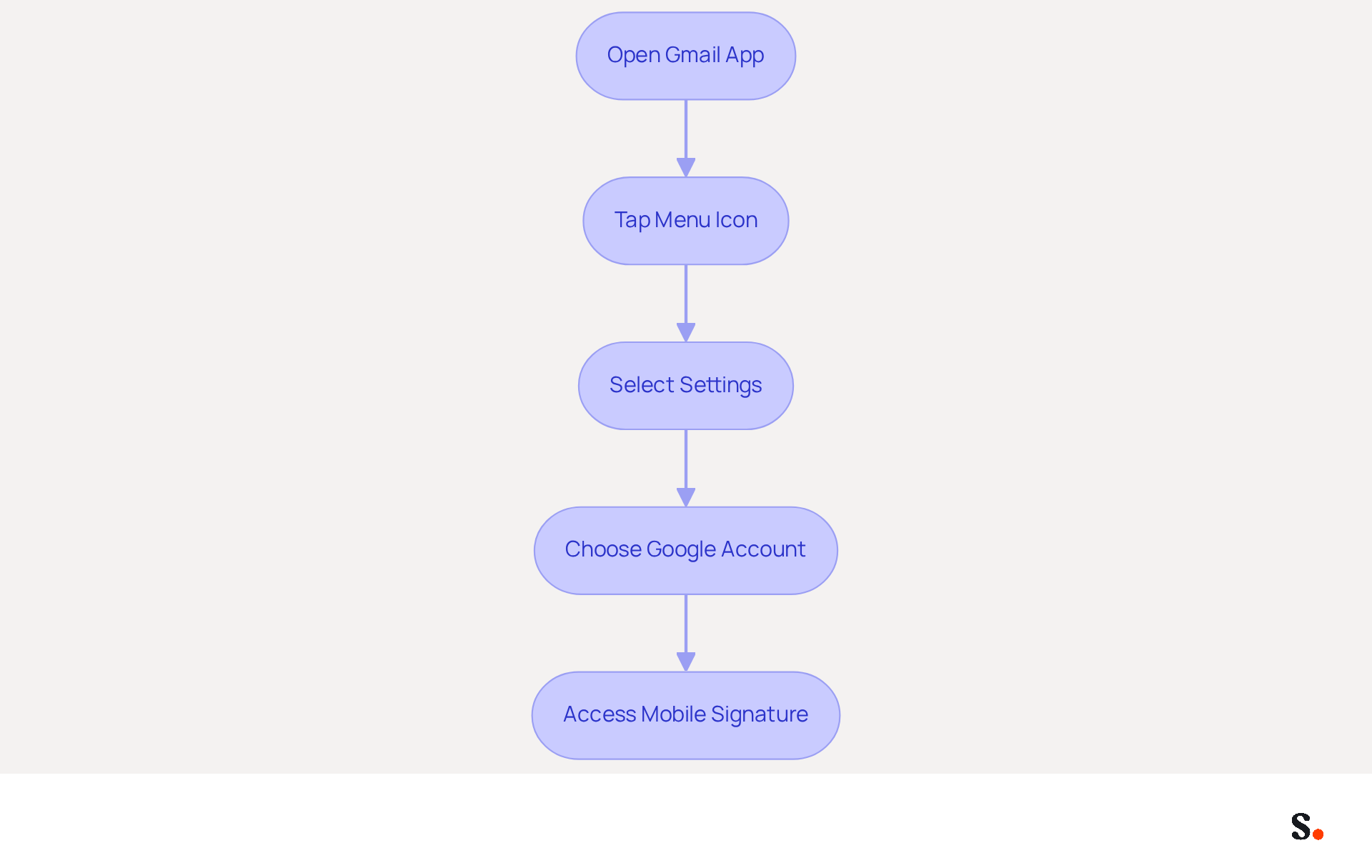
To effectively manage your email signatures on mobile devices, learn how to add signature in Gmail in mobile by following these straightforward steps.
- Open the Gmail app on your mobile device.
- Tap the Menu icon (three horizontal lines) located in the top left corner.
- Scroll down and select 'Settings' from the menu.
- Select the Google Account for which you wish to add a sign-off.
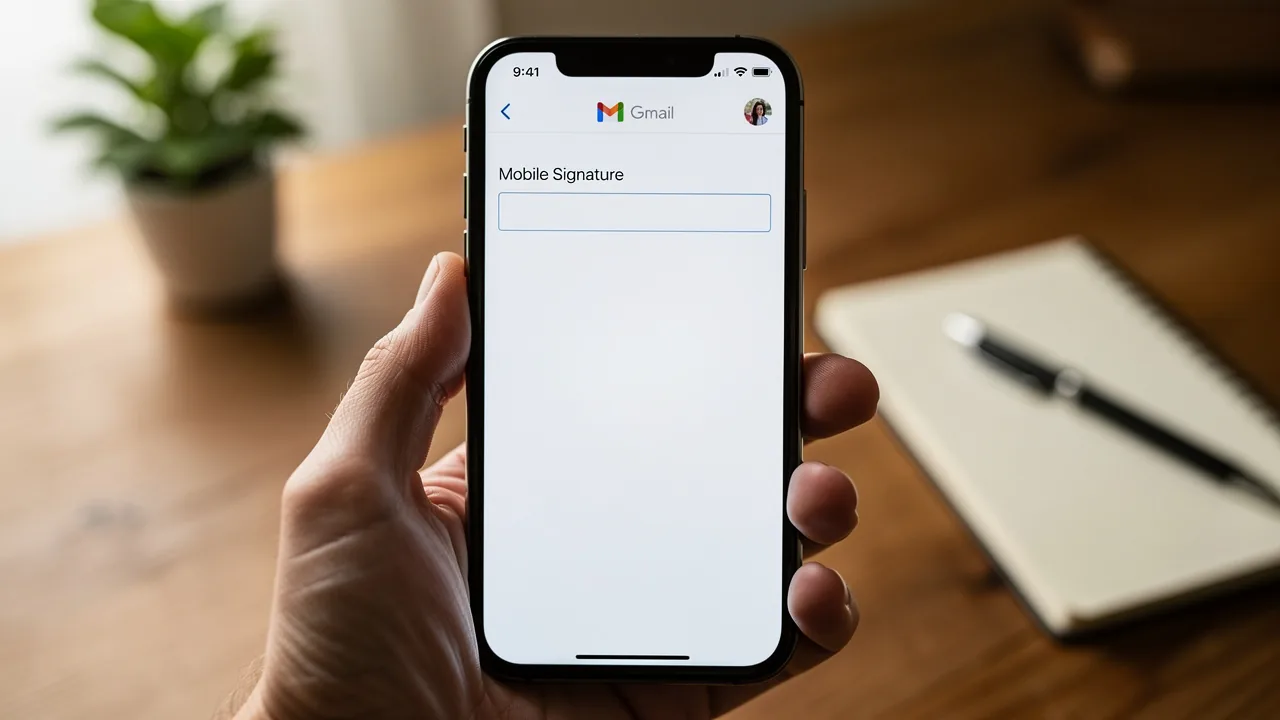
- Scroll down to find the 'Mobile Signature' option and tap on it to access the settings for your mark.
By 2026, it is projected that handheld devices will account for 55% of all message openings globally, emphasizing the essential need for optimizing your correspondence identifier for handheld viewing. Businesses that prioritize mobile optimization are more likely to sustain user engagement and prevent adverse effects on their reputation. For instance, a research analysis indicates that 75% of Americans remove messages that are not optimized for mobile, underscoring the need for effective branding that works seamlessly across all devices.
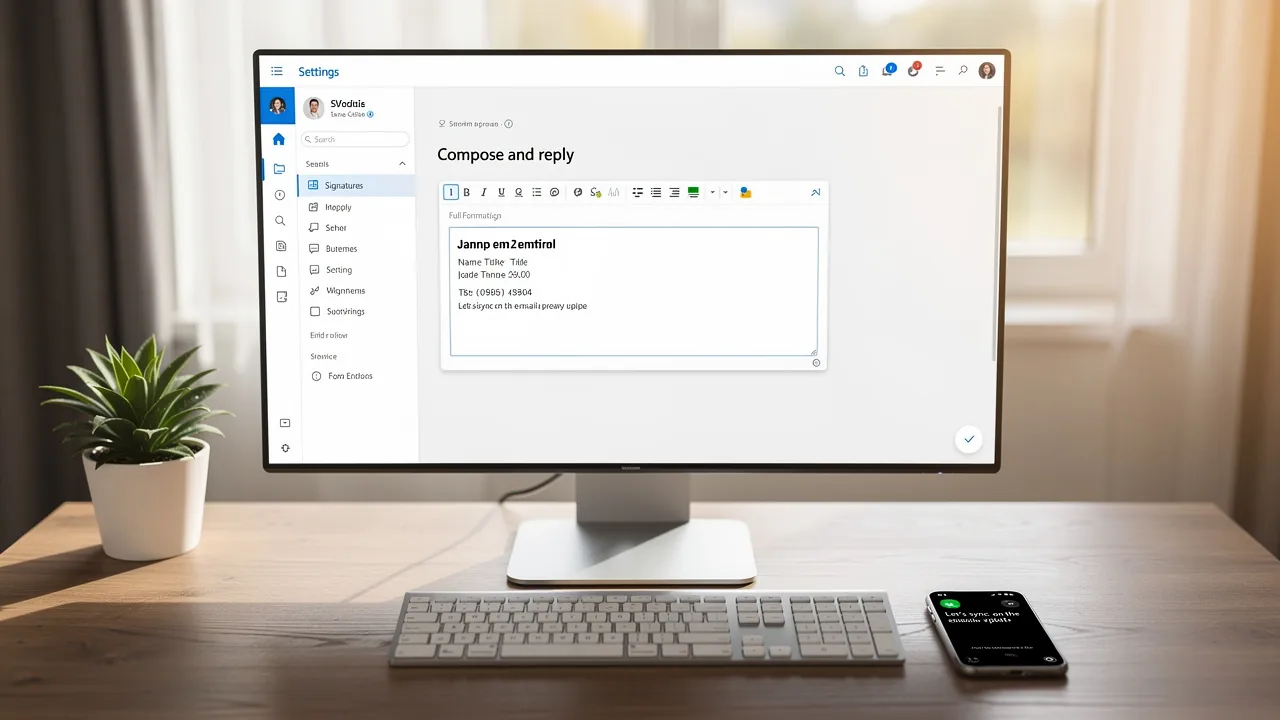
Scribe automates the synchronization of your signatures with your business phone system, ensuring that any changes are updated in real-time without requiring your team's intervention. This automated management not only saves time but also guarantees brand consistency across all communications. Additionally, Scribe is SOC 2 Type II compliant, ensuring that your data is handled securely, which is crucial for maintaining trust and compliance in your marketing efforts. By learning how to add signature in Gmail in mobile, you can enhance your email communications and maintain consistency across platforms. By prioritizing mobile optimization, you not only enhance user experience but also safeguard your brand's reputation in a competitive market.
Create and Customize Your Signature
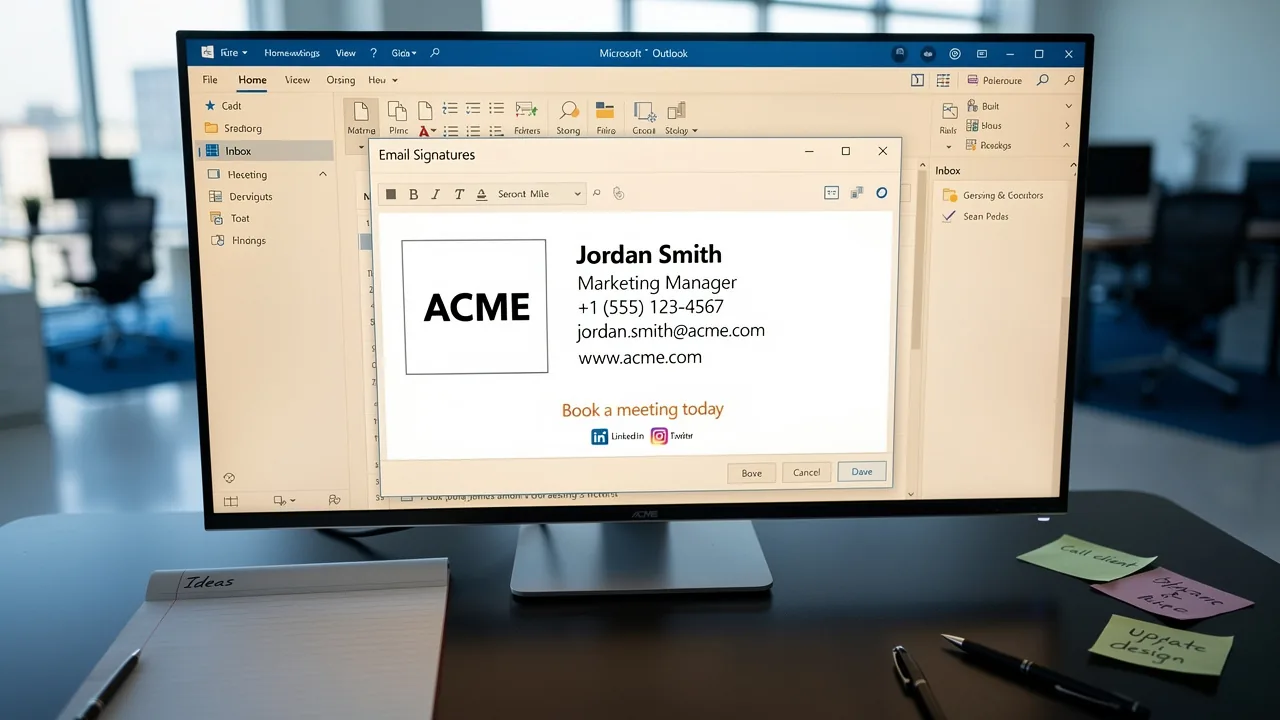
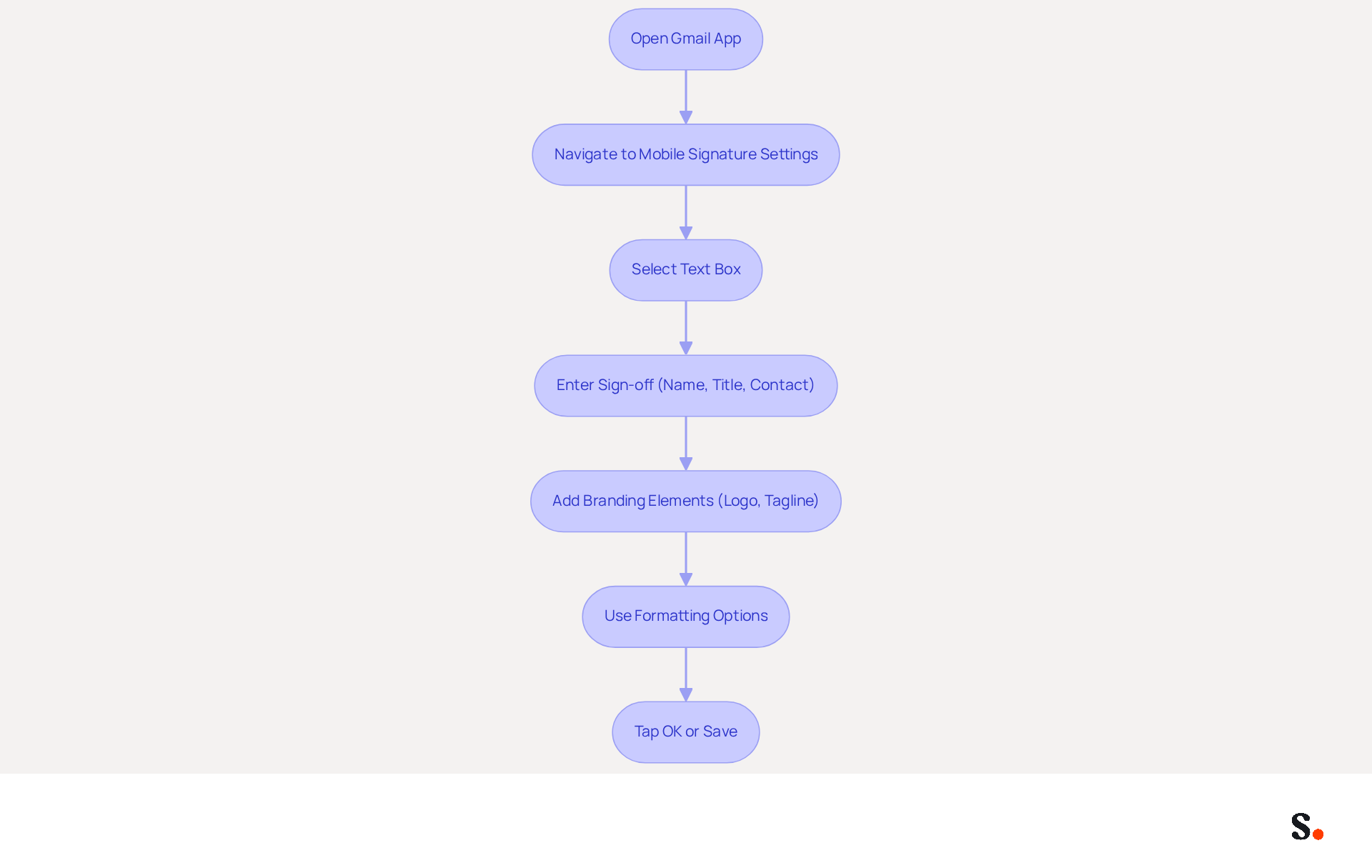
Knowing how to add signature in Gmail on mobile is essential for creating a professional email signature that enhances effective communication and brand representation. To begin, navigate to the 'Mobile Signature' settings in your Gmail app to understand how to add a signature in Gmail on mobile by selecting the text box to create your signature.
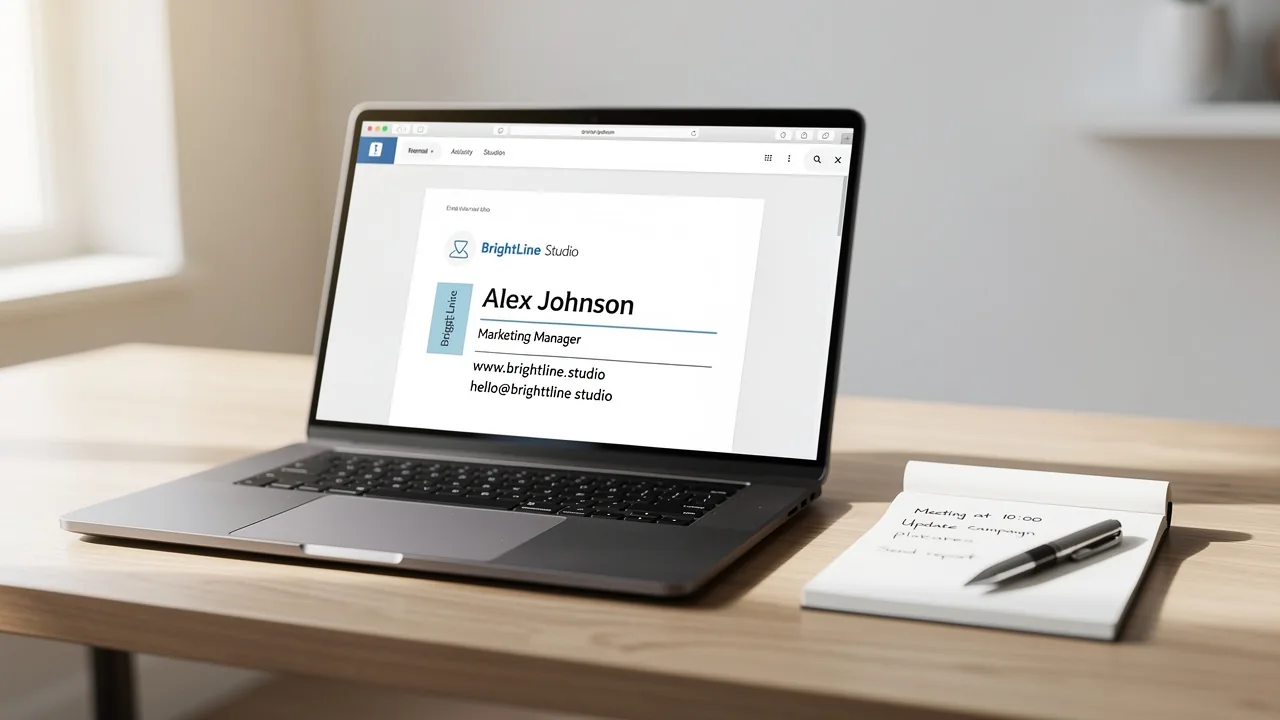
Enter your preferred sign-off, which should include your name, title, and contact details. You may also add branding elements such as your company logo or tagline. Use the formatting options to improve the appearance of your signature while maintaining a professional look.
When you are satisfied with your signature, tap 'OK' or 'Save' to apply the changes. This ensures your signature is ready for all outgoing messages. By following these steps on how to add a signature in Gmail on mobile, you can make sure that your email signature leaves a lasting impression on your recipients.
Test Your Signature for Consistency
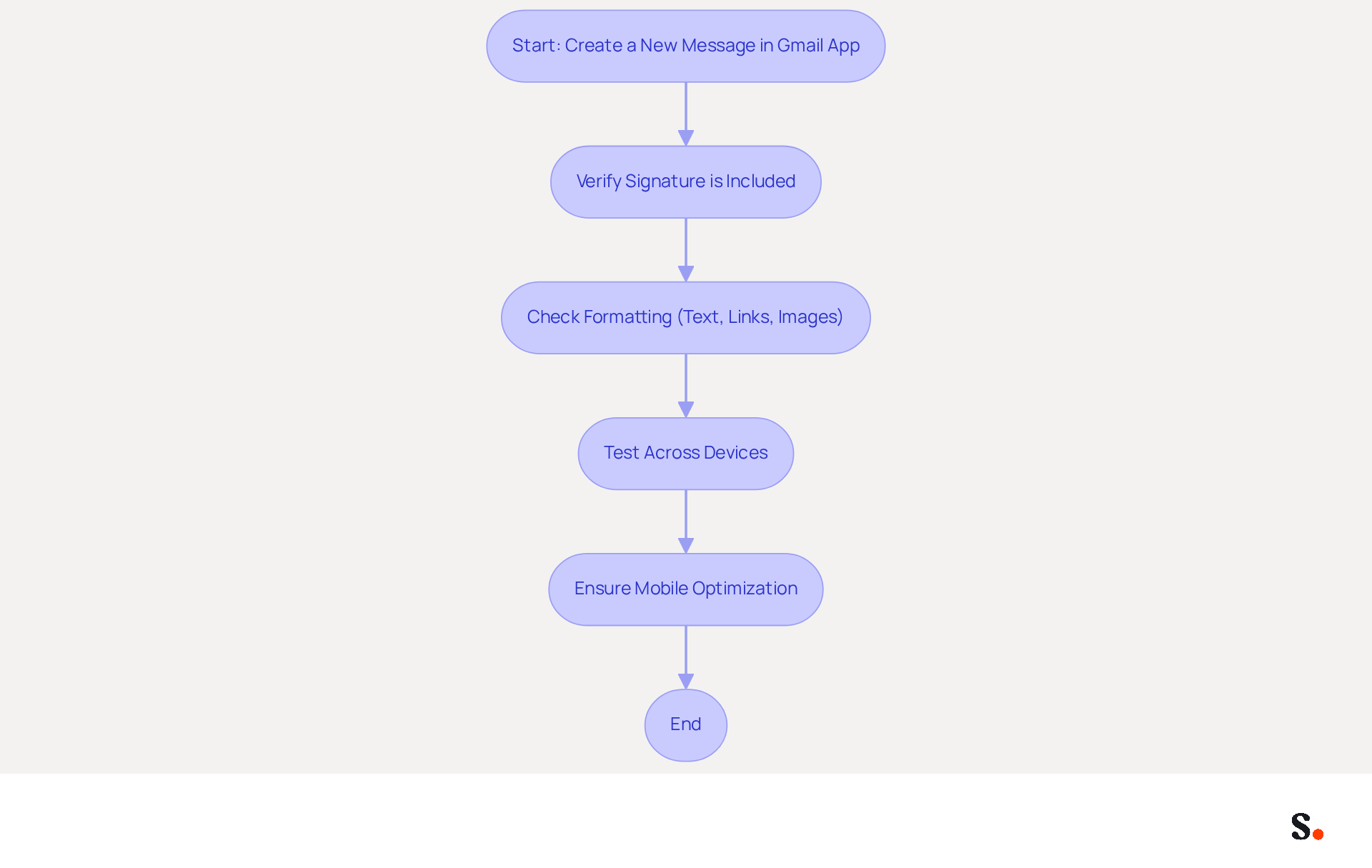
To understand how to add a signature in Gmail on mobile and ensure your email signature reflects your brand accurately, start by creating a new message in the Gmail app. This allows you to verify that your signature is correctly included in your messages, thanks to Scribe's one-click synchronization that keeps it up to date. Check the bottom of the draft to ensure your sign-off appears as intended.
Consistency in branding is essential, as messages with identifiers receive 58% more viewing time. With Scribe, any modifications made in your connected data sources will automatically reflect in your email footer, strengthening your brand's visibility and recognition. Review the formatting, ensuring that all elements (text, links, images) are displayed correctly. Proper formatting not only boosts readability but also engagement; studies show that profiles with headshots attract 15% more viewing time than those without.
Scribe's automated email closing management ensures that your sign-off is always formatted correctly, saving you time and effort. If you encounter any discrepancies, knowing how to add a signature in Gmail on mobile will allow you to rectify them efficiently. Testing your mark across different devices is essential for maintaining a professional appearance and ensuring that all recipients see it as intended.
As mobile devices dominate communication, ensuring your digital marks are optimized for mobile viewing is crucial for maintaining professionalism. Finally, consider utilizing your email footers as a powerful marketing channel to maximize engagement and brand visibility, supported by Scribe's SOC 2 Type II compliance, which guarantees the security of your data.
Implement Best Practices for Email Signatures
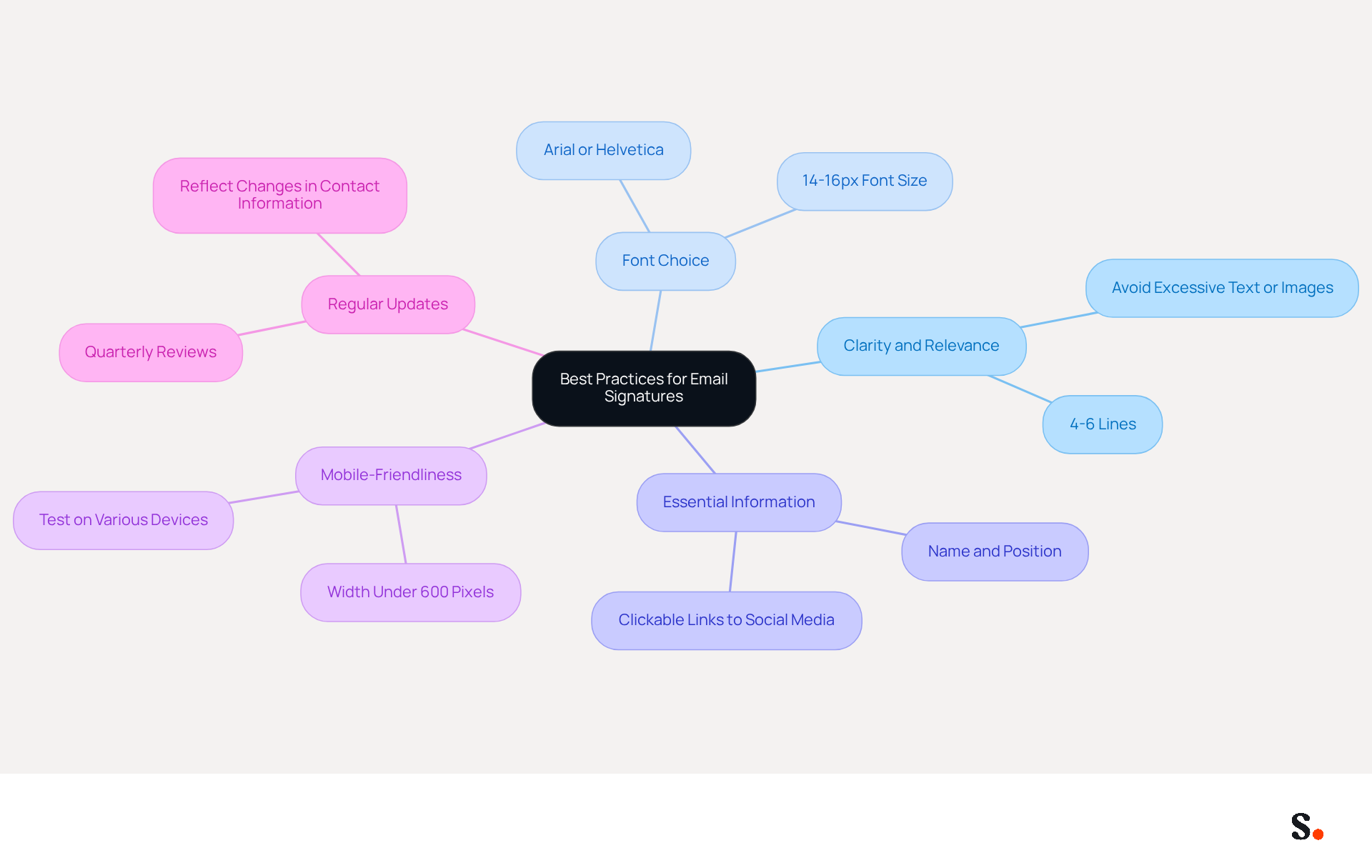
A cluttered email signature can undermine your professional image. Keep your mark concise and relevant, avoiding excessive text or images that may clutter the design. An effective sign-off should have four to six lines, promoting clarity and focus.
Use a clear and professional font, such as Arial or Helvetica, which is easy to read on handheld devices. Maintaining a font size between 14-16px enhances readability across various screens.
Include essential contact information, such as your name, position, and clickable links to your professional social media profiles or website. This facilitates easy access for recipients and encourages engagement.
To ensure your mark is mobile-friendly, you should learn how to add signature in gmail in mobile by keeping the width under 600 pixels and testing it on various devices. This is crucial as 60% of business emails are now opened on mobile devices, which emphasizes the importance of knowing how to add signature in gmail in mobile.
Regularly update your signature to reflect any changes in your contact information or branding. Keeping your signature updated helps you look professional and stay in line with industry standards. Outdated information in your signature can lead to missed connections and opportunities.
Conclusion
Creating a professional email signature in Gmail on mobile is crucial for effective communication and brand representation. Following these steps allows users to create and customize their email signatures effectively, ensuring a lasting impression on recipients and a cohesive brand image.
This guide highlights how crucial mobile optimization is for effective email signatures, especially since a large number of emails are accessed on mobile devices. Utilizing Scribe's automated synchronization capabilities ensures that any updates to signatures are reflected in real-time, promoting brand consistency across all communications. Additionally, adhering to best practices for email signatures - such as keeping designs clean and concise - further enhances readability and engagement.
In today's competitive digital landscape, focusing on effective email signatures can really change how users engage with your brand. Organizations should leverage tools like Scribe to streamline the management of email signatures, ensuring they are not only visually appealing but also compliant with security standards like SOC 2 Type II. By optimizing email signatures for mobile and regularly updating them, businesses can enhance their communication strategies and foster stronger connections with their audience.
Frequently Asked Questions
How can I add a signature in Gmail on my mobile device?
To add a signature in Gmail on your mobile device, open the Gmail app, tap the Menu icon (three horizontal lines) in the top left corner, select 'Settings', choose the Google Account you want to add a signature for, and then scroll down to find the 'Mobile Signature' option to access the settings.
Why is it important to optimize email signatures for mobile devices?
Optimizing email signatures for mobile devices is important because by 2026, it is projected that 55% of all message openings globally will occur on handheld devices. Effective mobile optimization helps sustain user engagement and prevents negative impacts on a business's reputation, as 75% of Americans tend to remove messages that are not optimized for mobile.
What is Scribe and how does it help with email signatures?
Scribe is a tool that automates the synchronization of your email signatures with your business phone system, ensuring that any changes are updated in real-time without requiring team intervention. This automation saves time and guarantees brand consistency across all communications.
Is Scribe compliant with data security standards?
Yes, Scribe is SOC 2 Type II compliant, which ensures that your data is handled securely, maintaining trust and compliance in your marketing efforts.
How does adding a signature in Gmail enhance email communications?
Adding a signature in Gmail enhances email communications by maintaining consistency across platforms and improving user experience, which is crucial for safeguarding your brand's reputation in a competitive market.
List of Sources
- Access Gmail Mobile Signature Settings
- Email Signature Experience in Gmail Android (2025 Update) (https://patronum.io/google-improves-the-email-signature-experience-for-the-gmail-app-on-android-devices)
- Mobile Email Engagement — 32 Statistics Every Marketing Leader Should Know in 2026 (https://genesysgrowth.com/blog/mobile-email-engagement-stats-for-marketing-leaders)
- Gmail is syncing your desktop signature to mobile (https://androidpolice.com/gmail-is-syncing-your-desktop-signature-to-mobile)
- 50+ Email Statistics Every Professional Should Know in 2026 (https://mailover.ai/blog/email-statistics.html)
- The ultimate mobile email statistics overview: All mobile email stats (https://emailmonday.com/mobile-email-usage-statistics)
- Create and Customize Your Signature
- Email Signature Trends 2026: What Designers Are Actually Using (https://markaplugin.com/blog/email-signature-trends-2026)
- 40+ Email Signature Statistics for 2026 (Data + Insights) (https://wavecnct.com/blogs/email-signature-statistics)
- Email Signature Trends 2026: Centralized Control & Automation | SIGNandGO posted on the topic | LinkedIn (https://linkedin.com/posts/signngo_email-signature-trends-to-watch-in-2026-activity-7401523471786217473-zAVL)
- Why Email Signatures Must Be In Your 2026 Marketing Plan | Rocketseed (https://rocketseed.com/blog/what-are-the-biggest-email-trends-for-2026)
- Test Your Signature for Consistency
- The ultimate guide to email signatures in 2026 (https://signitic.com/en/resources/email-signature)
- Seeing Is Believing: Eye-Tracking Test Shows What Works In Email Signatures (https://mediapost.com/publications/article/416520/seeing-is-believing-eye-tracking-test-shows-what.html)
- How to Optimize Your Email Signature for Mobile Devices - Gimmio (https://blog.gimm.io/how-to-optimize-your-email-signature-for-mobile-devices)
- Email Signature Best Practices for 2026 (+ 15 Pro Examples) (https://wavecnct.com/blogs/email-signature-best-practices-2026)
- "Email Signature Trends for 2026: What's In, What's Out" | Crossware posted on the topic | LinkedIn (https://linkedin.com/posts/crossware-ltd_new-year-new-trends-even-for-your-email-activity-7394554686046908416-vD_O)
- Implement Best Practices for Email Signatures
- The Complete Email Signature Guide 2026: Best Practices and Policy (https://opensense.com/complete-email-signature-guide)
- Top 10+ best practices for email signatures design in 2026 (https://mysignature.io/blog/email-signature-best-practices)
- Email Signature Best Practices for 2026 (+ 15 Pro Examples) (https://wavecnct.com/blogs/email-signature-best-practices-2026)
- Best practices for business email signatures in 2026 (https://bybrand.io/blog/best-practices)
- Make Your Email Signature Mobile-Friendly | Rocketseed (https://rocketseed.com/blog/mobile-friendly-email-signature)
Get started with Scribe
Create your signature in minutes
Free 14-day trial — no credit card.