How to Add Signature in Outlook 365: A Step-by-Step Guide
Email signatures serve as critical components of professional communication, influencing brand perception and visibility. Email signatures are essential; they
Sophie Grant
Email Signature Specialist, Scribe
On this page
- Introduction
- Understand the Importance of Email Signatures in Outlook 365
- Access Email Signature Settings in Outlook 365
- Create Your Email Signature in Outlook 365
- Integrate Scribe for Automated Email Signature Management
- Test and Troubleshoot Your Email Signature
- Conclusion
- Frequently Asked Questions
- List of Sources
Introduction
Email signatures serve as critical components of professional communication, influencing brand perception and visibility. Email signatures are essential; they enhance professionalism and boost brand visibility in every communication. This guide provides a clear, step-by-step process for adding a signature in Outlook 365, emphasizing the benefits of effective email signatures and how automated solutions like Scribe ensure brand consistency.
Inconsistencies in email signatures can undermine brand perception and create confusion among recipients. For any organization, knowing how to tackle these challenges is key to turning email signatures into a strategic marketing asset. Addressing these challenges is essential for organizations to fully leverage email signatures as a strategic marketing tool.
Understand the Importance of Email Signatures in Outlook 365
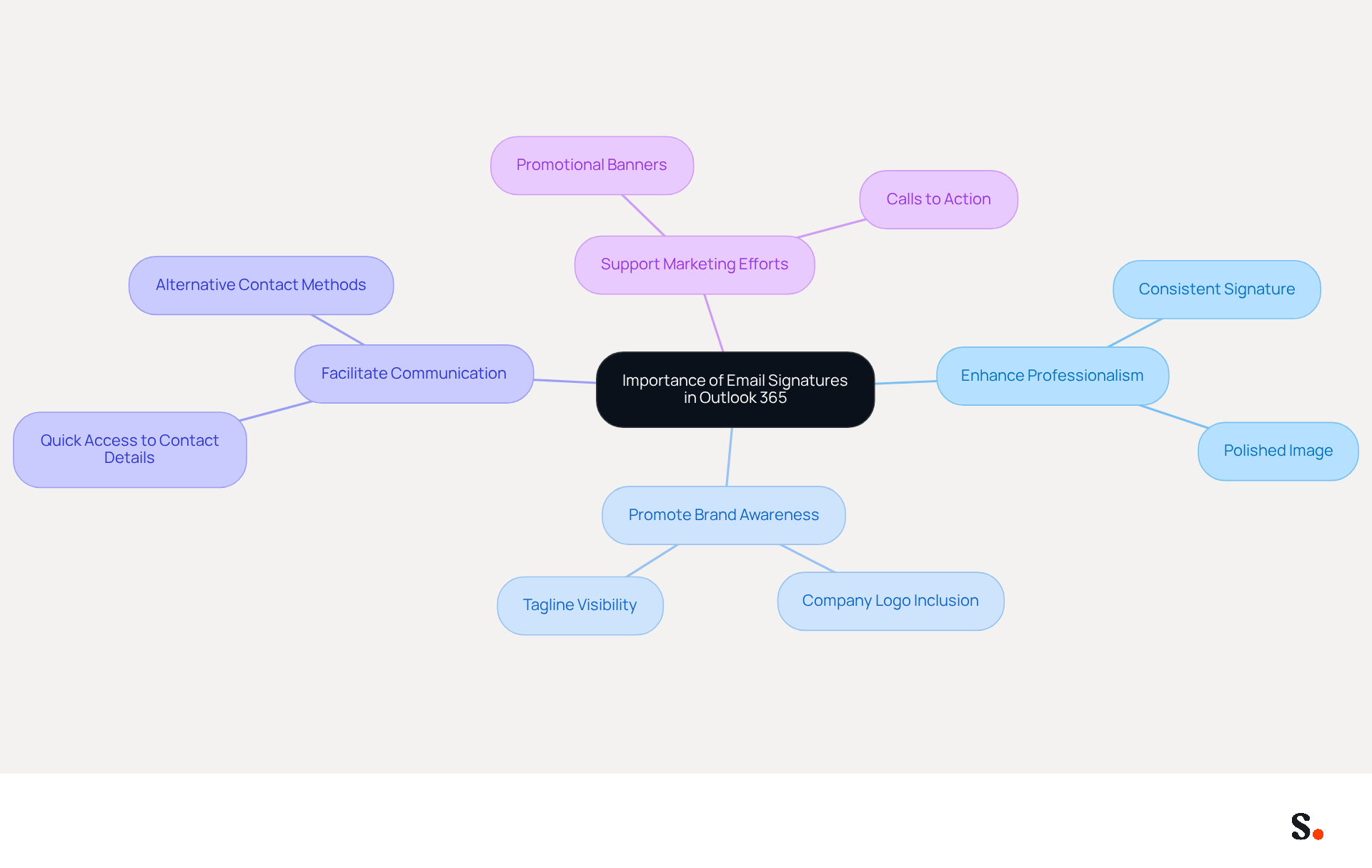
Email footers serve as essential digital business cards, providing crucial contact information while reinforcing corporate identity. In Outlook 365, a well-designed signature can:
- Enhance Professionalism: A consistent signature across all emails presents a polished image to clients and colleagues.
- Promote Brand Awareness: Including your company logo and tagline can help reinforce brand recognition, making your communications more memorable.
- Facilitate Communication: Signatures provide recipients with quick access to your contact details, making it easier for them to reach out.
- Support Marketing Efforts: By incorporating promotional banners or calls to action, you can transform every message into a marketing opportunity.
Without a streamlined solution, managing email signatures can lead to inconsistencies and confusion among team members. This tool makes managing email footers a breeze. The platform automatically syncs your teammates' identifiers with your business phone system, ensuring that any changes made in your Aircall configuration are reflected in real-time. This automated synchronization not only enhances brand consistency but also ensures that your data is handled securely, as Scribe is SOC 2 Type II compliant. Embracing these advantages will empower you to understand how to add signature in Outlook 365, effectively representing both your personal brand and your organization.
Access Email Signature Settings in Outlook 365
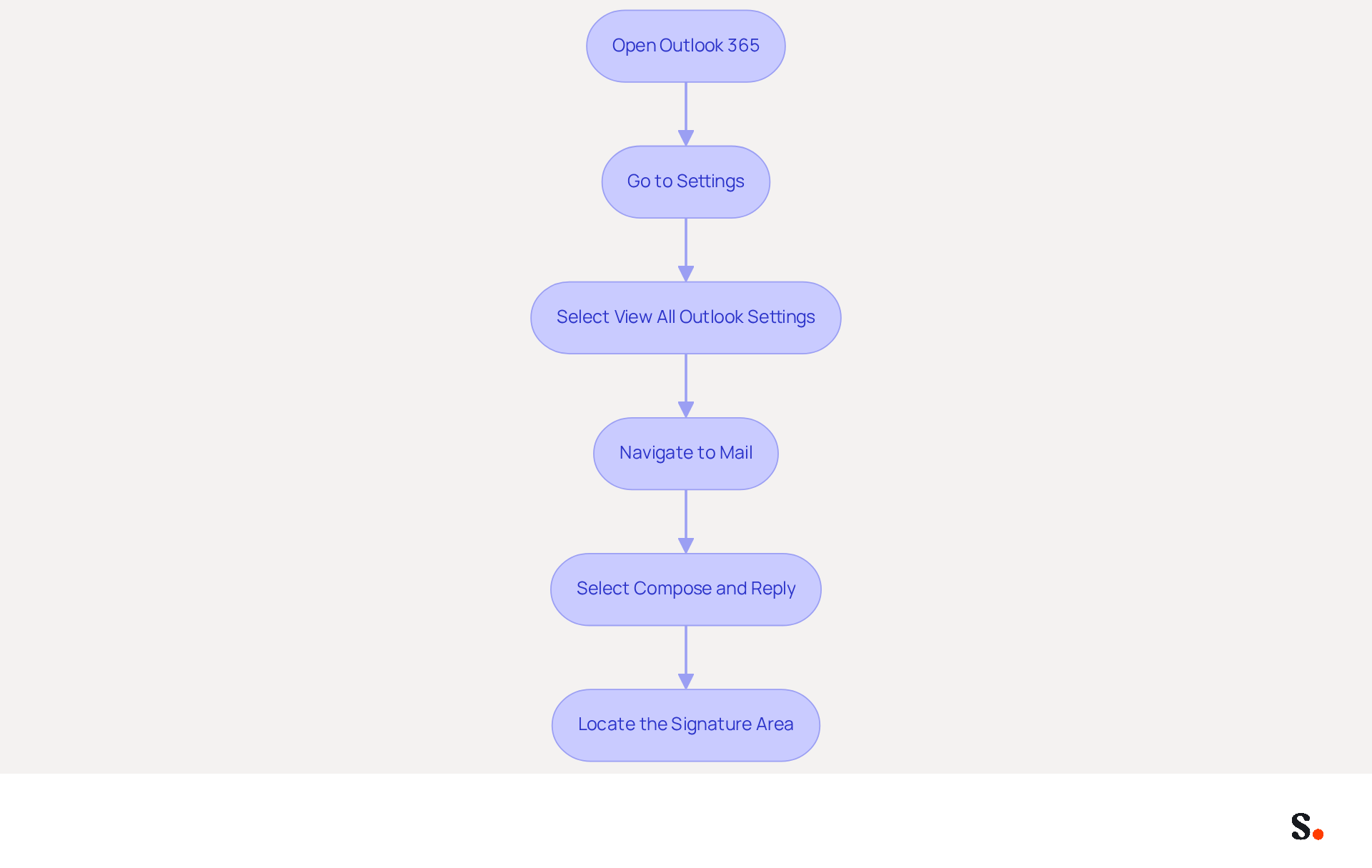
To effectively manage your email communications, it is essential to understand how to add signature in Outlook 365. Follow these steps:
- Open Outlook 365: Launch the Outlook application on your desktop or navigate to the Outlook web app.
- Go to Settings: Click on the gear icon (⚙️) located in the upper right corner of the window.
- Select View All Outlook Settings: Scroll down and click on 'View all Outlook settings' at the bottom of the settings pane.
- Navigate to Mail: In the settings menu, select 'Mail' from the left sidebar.
- Select Compose and Reply: Click on 'Compose and reply' to access the settings for your message footer.
- Locate the Signature Area: Here, you will find the option to create and manage your sign-offs.
By following these steps, you will learn how to add signature in Outlook 365 effectively. Research shows that 80% of participants view a branded electronic communication footer as essential for a company's identity, highlighting the importance of effective digital communication. Additionally, 76% of recipients state that branded electronic communication footers enhance their trust in the sender. Companies using AI-driven solutions for digital identifiers like Scribe report a 20% increase in click-through rates, while branded digital identifiers drive a 22% lift in response rates. Scribe's automated management of digital signatures ensures that your teammates' information is always synced with your HRIS and Google Workspace, saving you time and ensuring compliance with SOC 2 Type II standards for secure data handling. To ensure optimal performance, remember to maintain a maximum dimension of 150x50 pixels for images and keep logo files under 50KB for effective delivery. Neglecting to optimize your digital signatures could hinder your company's ability to establish trust and engagement with clients.
Create Your Email Signature in Outlook 365
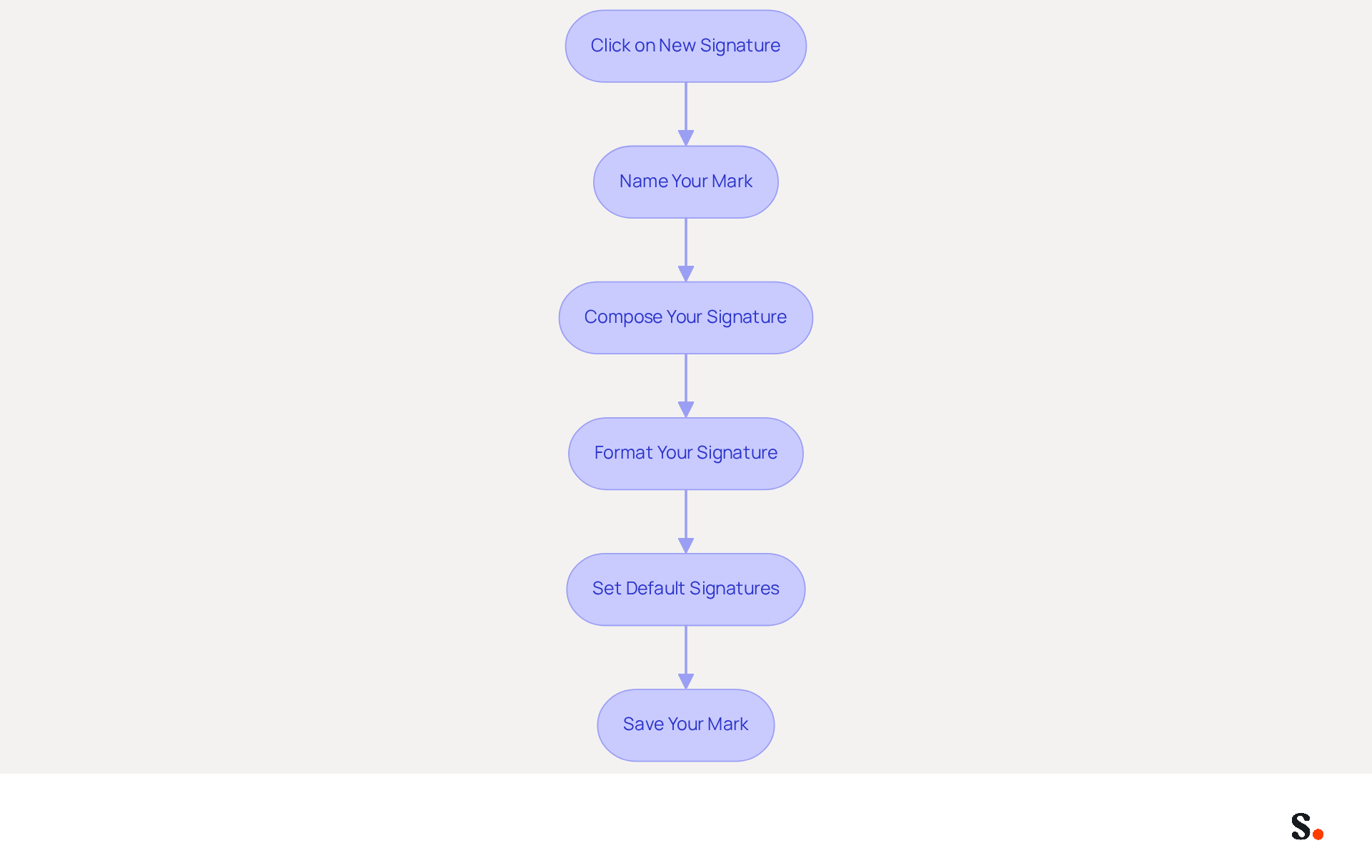
Creating a professional email signature in Outlook 365 is essential for understanding how to add a signature in Outlook 365 for effective communication and brand representation. To create your email signature, follow these steps:
- Click on New Signature: In the settings for your labels, click on the '+ New Signature' button.
- Name Your Mark: Assign a distinct title to your mark that reflects its purpose (e.g., 'Professional' or 'Marketing').
- Compose Your Signature: In the text box, type your desired signature. Include essential elements such as:
- Your full name
- Job title
- Company name
- Contact information (phone number, email address)
- Company logo (if applicable)
- Format Your Signature: Use the formatting options to adjust the font, size, color, and style to align with your brand identity. Incorporating hyperlinks into your social media profiles or company website can boost engagement, as messages with branded elements experience a 22% higher response rate.
- Set Default Signatures: Choose whether to automatically include this identifier in new messages and replies/forwards by selecting the appropriate options. With Scribe, any modifications made in your Aircall setup will automatically sync with your communication identifiers, ensuring consistency in your identity without extra effort from your team.
- Save Your Mark: Click 'Save' to finalize your mark.
Following these steps will teach you how to add a signature in Outlook 365, helping you craft a signature that truly represents your professional identity. Regularly updating your email signature ensures it remains a powerful tool for professional engagement and brand consistency.
Integrate Scribe for Automated Email Signature Management
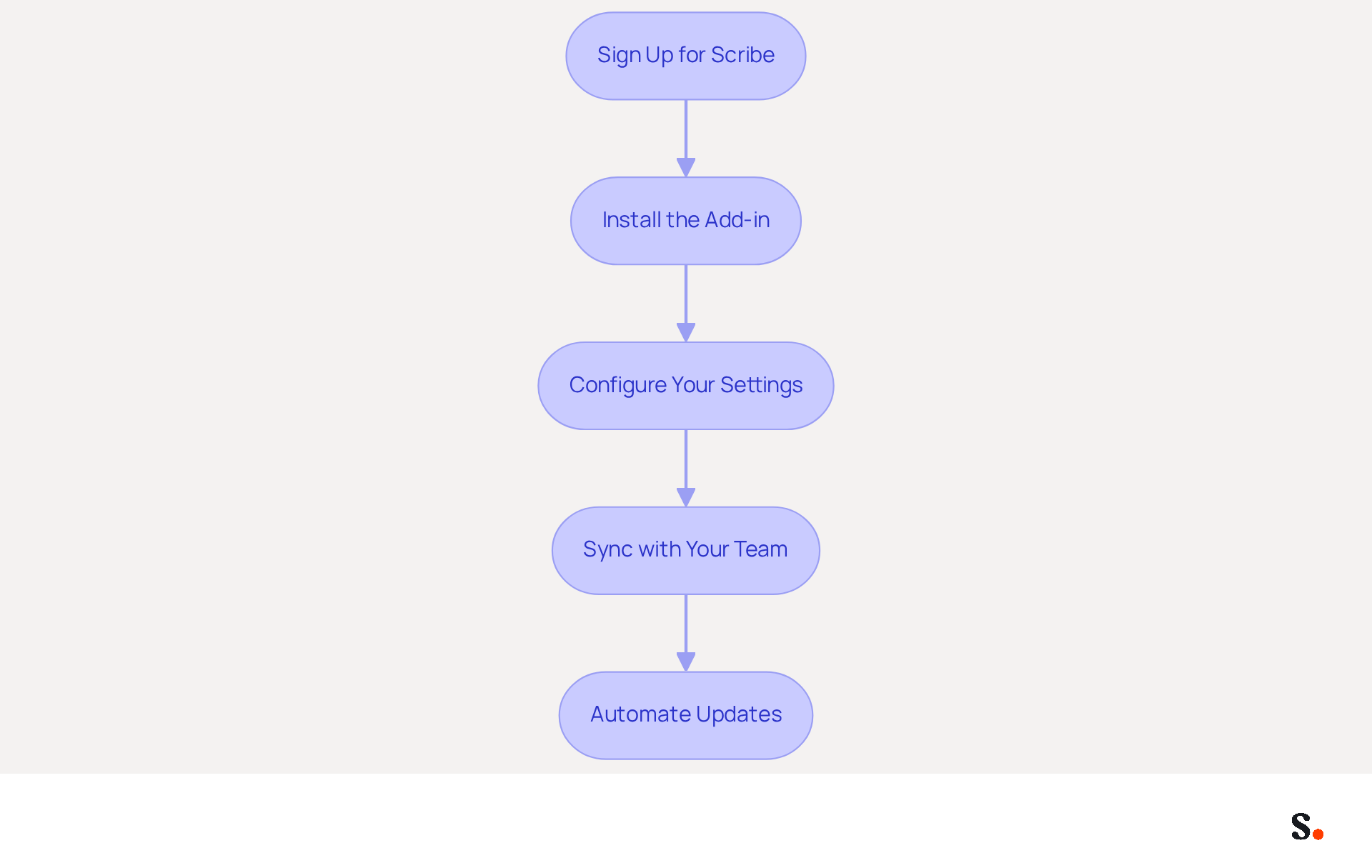
Manual email signature management can lead to inconsistencies and wasted time, making automation a necessity for modern organizations. To integrate Scribe for automated email signature management in Outlook 365, follow these steps:
- Sign Up for Scribe: Create an account on the platform if you haven't already.
- Install the Add-in: Navigate to the Microsoft AppSource, search for the add-in, and click 'Get it now' to install it in your Outlook account.
- Configure Your Settings: Open the add-in and log in with your credentials. Modify the settings to match your branding needs, including logo and colors.
- Sync with Your Team: Utilize Scribe's features to align email footers across your organization, ensuring that all team members have the latest branding and marketing messages in their communications.
- Automate Updates: You can configure Scribe to automatically update labels whenever your team or branding changes, ensuring consistency without manual effort.
Integrating Scribe streamlines message management, saving time and enhancing brand visibility. Organizations that implement automated management solutions for email signatures experience notable benefits, including a 22% increase in response rates and improved brand trust, as 76-80% of marketers believe branded identifiers boost sender credibility. By utilizing Scribe, you can convert your correspondence identifiers into effective marketing instruments that enhance engagement and generate leads. Moreover, Scribe's distinct positioning enables Marketing teams to handle branding elements independently after the initial IT configuration, ensuring agility and responsiveness to branding requirements. Additionally, with Scribe's SAML single sign-on integration, you can ensure secure access for your team, while its compliance with GDPR and SOC 2 Type II standards guarantees that your data handling practices are robust and trustworthy. Monitoring metrics related to digital signatures, such as the 12% average click-through rate on banners, can offer valuable insights into how recipients engage with your messages, enabling data-driven modifications to your marketing strategies. By adopting Scribe, organizations not only streamline their branding efforts but also improve their overall communication effectiveness by learning how to add signature in Outlook 365.
Test and Troubleshoot Your Email Signature
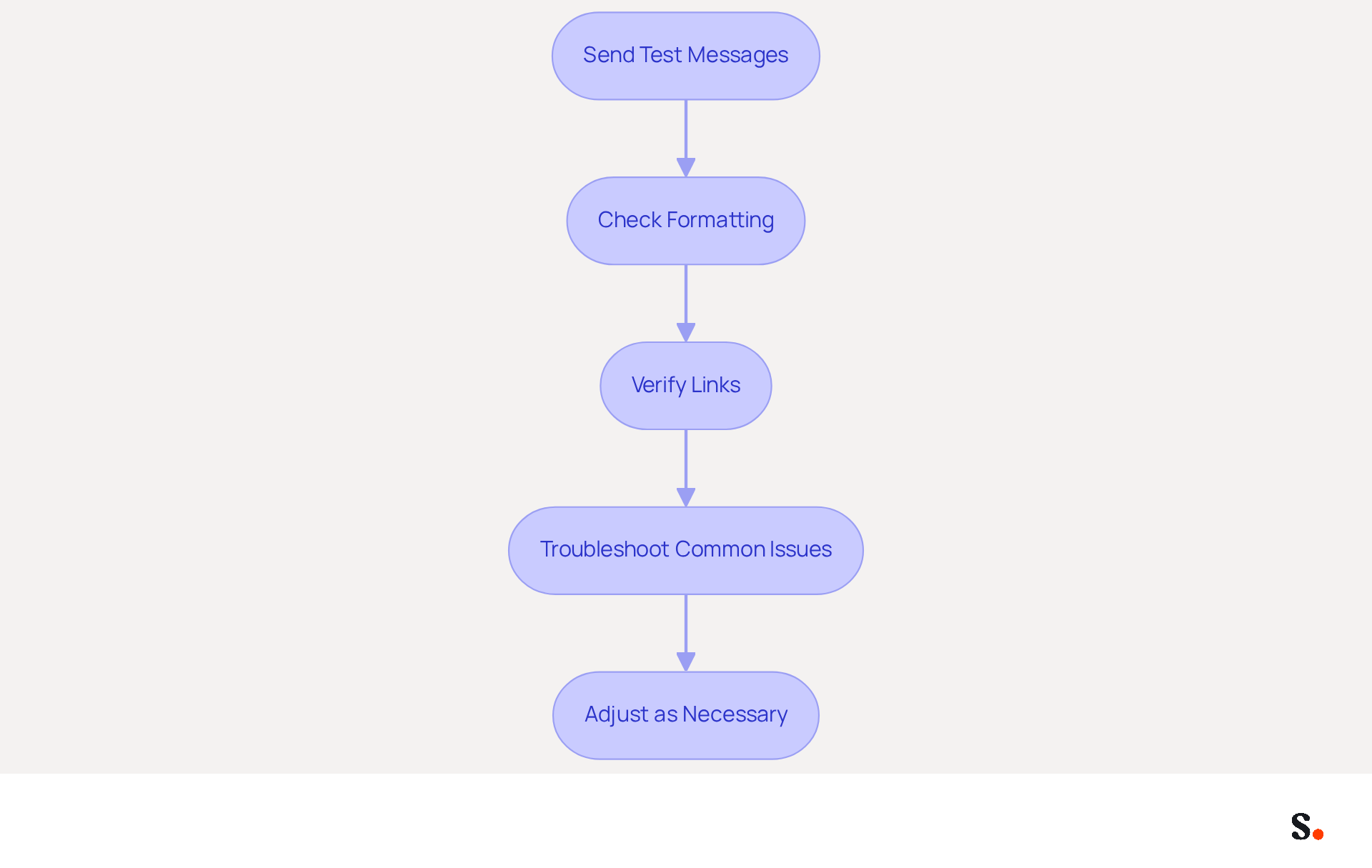
Ensuring your message footer displays correctly is vital for maintaining brand integrity and maximizing lead generation potential. It is crucial to understand how to add signature in Outlook 365 by testing and troubleshooting to ensure it appears as intended in communications. Since nearly 90% of users rely on a single digital identifier, maintaining its integrity is crucial for boosting branding and lead generation. With Scribe, any modifications made in your Aircall configuration will automatically sync with your correspondence identifiers, ensuring brand consistency across all communications. Follow these steps:
- Send Test Messages: Create a new message and send it to yourself or a colleague to verify how the sign-off appears in the recipient's inbox.
- Check Formatting: Verify that the formatting (fonts, colors, images) matches your design intentions. Look for discrepancies between the autograph in the email and how it appears in the settings.
- Verify Links: Click on any hyperlinks in your email footer to confirm they direct to the correct pages, such as your website or social media profiles.
- Troubleshoot Common Issues:
- If images do not display, ensure they are hosted online and accessible. Users often face challenges with images not displaying in emails, which can hinder communication effectiveness.
- If the mark does not appear automatically, you may want to learn how to add signature in Outlook 365 by checking your default mark settings.
- Adjust as Necessary: If you encounter any issues, return to the settings to make modifications. Save changes and retest until you are satisfied with the outcome.
By syncing your Google Workspace with Scribe, you save time by automatically updating your teammates' information, making identifier management effortless. Thoroughly testing and troubleshooting your communication footer ensures it effectively represents your identity in all interactions. Email footers play a crucial role in modern marketing strategies by driving traffic, generating leads, and enhancing brand identity. Neglecting to test your email footer could result in lost opportunities to connect with your audience effectively.
Conclusion
A professional email signature in Outlook 365 is crucial for effective communication and brand representation. By understanding how to add a signature in Outlook 365, individuals and organizations can enhance their professionalism, promote brand awareness, and facilitate seamless communication. The steps outlined in this guide provide a clear pathway to crafting a signature that reflects both personal and corporate identity.
Key insights from this guide emphasize the importance of consistency and automation in email signature management. Utilizing tools like Scribe allows for streamlined updates and ensures that all team members present a unified brand image. This leads to improved engagement metrics, including higher click-through and response rates. Furthermore, Scribe's compliance with SOC 2 Type II and GDPR standards ensures that data handling remains secure and trustworthy.
By embracing automated solutions like Scribe, organizations can turn every email into a strategic opportunity for engagement and growth. Taking these steps not only enhances professional image but also drives business success.
Frequently Asked Questions
Why are email signatures important in Outlook 365?
Email signatures serve as digital business cards, providing crucial contact information, enhancing professionalism, promoting brand awareness, facilitating communication, and supporting marketing efforts.
How can a well-designed email signature enhance professionalism?
A consistent signature across all emails presents a polished image to clients and colleagues, reinforcing a professional appearance.
What elements can be included in an email signature to promote brand awareness?
Including your company logo and tagline in the signature can help reinforce brand recognition and make communications more memorable.
How do email signatures facilitate communication?
Signatures provide recipients with quick access to your contact details, making it easier for them to reach out.
In what way can email signatures support marketing efforts?
By incorporating promotional banners or calls to action, email signatures can transform every message into a marketing opportunity.
What issues can arise from not managing email signatures effectively?
Without a streamlined solution, managing email signatures can lead to inconsistencies and confusion among team members.
How does Scribe help in managing email signatures?
Scribe automatically syncs teammates' identifiers with the business phone system, ensuring real-time updates and enhancing brand consistency while securely handling data.
What are the steps to access email signature settings in Outlook 365?
- Open Outlook 365.
- Go to Settings by clicking the gear icon (⚙️).
- Select 'View all Outlook settings'.
- Navigate to 'Mail' in the settings menu.
- Select 'Compose and reply'.
- Locate the Signature Area to create and manage your sign-offs.
What statistics highlight the importance of branded email signatures?
Research shows that 80% of participants view a branded electronic communication footer as essential for a company's identity, and 76% state that it enhances their trust in the sender.
What benefits do companies using AI-driven solutions for digital identifiers like Scribe report?
Companies report a 20% increase in click-through rates and a 22% lift in response rates when using branded digital identifiers.
What are the optimal dimensions and file size for images in email signatures?
Maintain a maximum dimension of 150x50 pixels for images and keep logo files under 50KB for effective delivery.
What compliance standards does Scribe adhere to for secure data handling?
Scribe is SOC 2 Type II compliant, ensuring secure handling of data.
List of Sources
- Understand the Importance of Email Signatures in Outlook 365
- Why Team Email Signatures Matter More Than You Think: The Hidden Impact on Brand Trust and Customer Experience (https://getmailbird.com/why-team-email-signatures-matter-brand-trust)
- Best practices for business email signatures in 2026 (https://bybrand.io/blog/best-practices)
- Why Email Signatures Must Be In Your 2026 Marketing Plan | Rocketseed (https://rocketseed.com/blog/2026-marketing-plan-email-signatures)
- Top 10 Benefits Of Email Signatures | Rocketseed (https://rocketseed.com/blog/benefits-of-using-email-signatures)
- "Email Signature Trends for 2026: What's In, What's Out" | Crossware posted on the topic | LinkedIn (https://linkedin.com/posts/crossware-ltd_new-year-new-trends-even-for-your-email-activity-7394554686046908416-vD_O)
- Access Email Signature Settings in Outlook 365
- How To Add An Email Signature in Outlook (2026) (https://hubspot.com/email-signature-generator/add-signature-outlook)
- Email signature statistics and trends in 2024 (https://wisestamp.com/blog/email-signature-statistics)
- 40+ Email Signature Statistics for 2026 (Data + Insights) (https://wavecnct.com/blogs/email-signature-statistics)
- Email Signature Statistics: A Closer Look at Email Signatures in 2026 (https://mysignature.io/blog/email-signature-statistics)
- The New Outlook for Windows: An IT Guide to Email Signatures (https://exclaimer.com/email-signature-handbook/new-outlook-windows-email-signatures)
- Create Your Email Signature in Outlook 365
- Microsoft is making it easier to add signatures to Outlook emails (https://neowin.net/news/microsoft-is-making-it-easier-to-add-signatures-to-outlook-emails)
- Email signature statistics: Why every business should optimize their email signatures — Stripo.email (https://stripo.email/blog/email-signature-statistics-why-every-business-should-optimize-their-email-signatures)
- 40+ Email Signature Statistics for 2026 (Data + Insights) (https://wavecnct.com/blogs/email-signature-statistics)
- Best Practices for Email Signatures for Business Owners (https://scribe-mail.com/en-US/blog/best-practices-for-email-signatures-for-business-owners)
- Integrate Scribe for Automated Email Signature Management
- Email signature statistics: Why every business should optimize their email signatures — Stripo.email (https://stripo.email/blog/email-signature-statistics-why-every-business-should-optimize-their-email-signatures)
- 40+ Email Signature Statistics for 2026 (Data + Insights) (https://wavecnct.com/blogs/email-signature-statistics)
- Email signature statistics and trends in 2024 (https://wisestamp.com/blog/email-signature-statistics)
- How to Set Up Signature in Outlook 365 with Scribe: A Step-by-Step Guide (https://scribe-mail.com/en-US/blog/how-to-set-up-signature-in-outlook-365-with-scribe-a-step-by-step-guide)
- Test and Troubleshoot Your Email Signature
- 40+ Email Signature Statistics for 2026 (Data + Insights) (https://wavecnct.com/blogs/email-signature-statistics)
- Email signature statistics and trends in 2024 (https://wisestamp.com/blog/email-signature-statistics)
- Email signature statistics: Why every business should optimize their email signatures — Stripo.email (https://stripo.email/blog/email-signature-statistics-why-every-business-should-optimize-their-email-signatures)
- Microsoft is making it easier to add signatures to Outlook emails (https://neowin.net/news/microsoft-is-making-it-easier-to-add-signatures-to-outlook-emails)
Get started with Scribe
Create your signature in minutes
Free 14-day trial — no credit card.