How to Add Signature in Outlook: A Step-by-Step Guide
Maintaining a professional brand image in email communication presents unique challenges for organizations. With Outlook being a leading platform for over 400
Sophie Grant
Email Signature Specialist, Scribe
Introduction
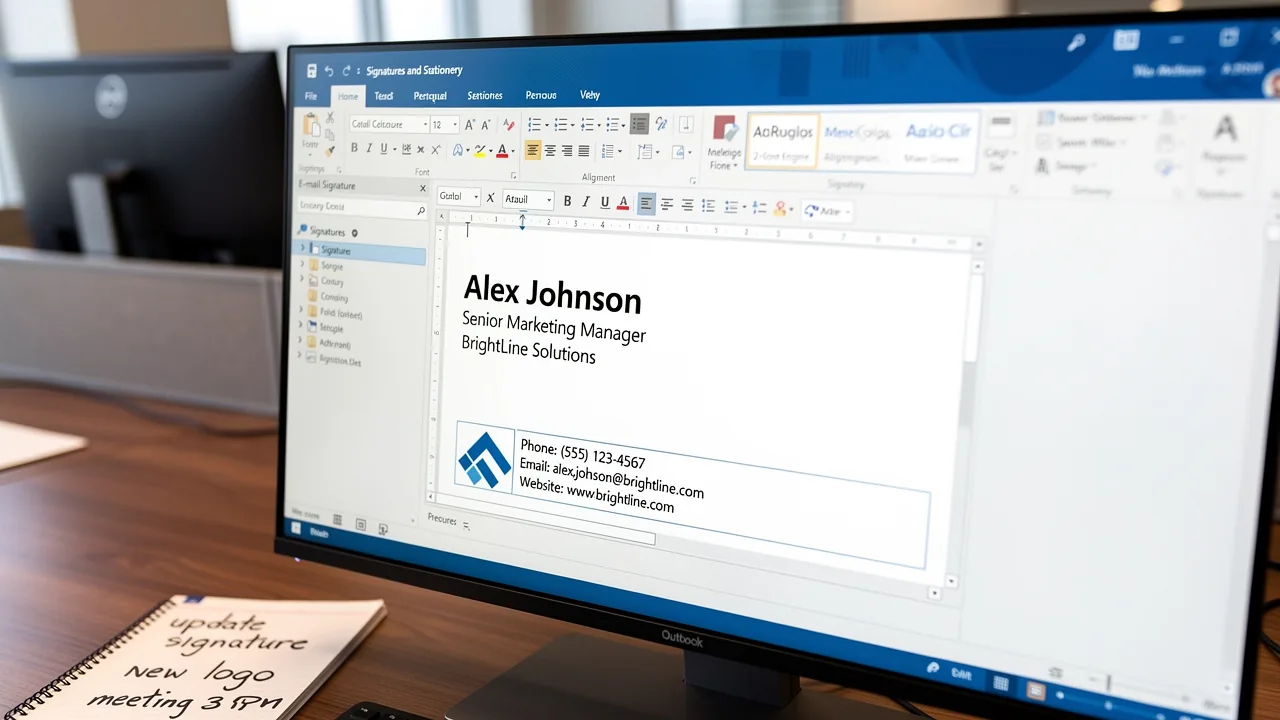
Maintaining a professional brand image in email communication presents unique challenges for organizations. With Outlook being a leading platform for over 400 million users, mastering the art of email signatures is essential for organizations aiming to enhance their communication strategy.
This guide offers a comprehensive, step-by-step approach to creating and managing email signatures in Outlook, ensuring that marketing teams can assert control over their branding while IT departments streamline the setup process.
Finding the right balance between brand consistency and signature management is crucial for effective communication.
Access Signature Settings in Outlook
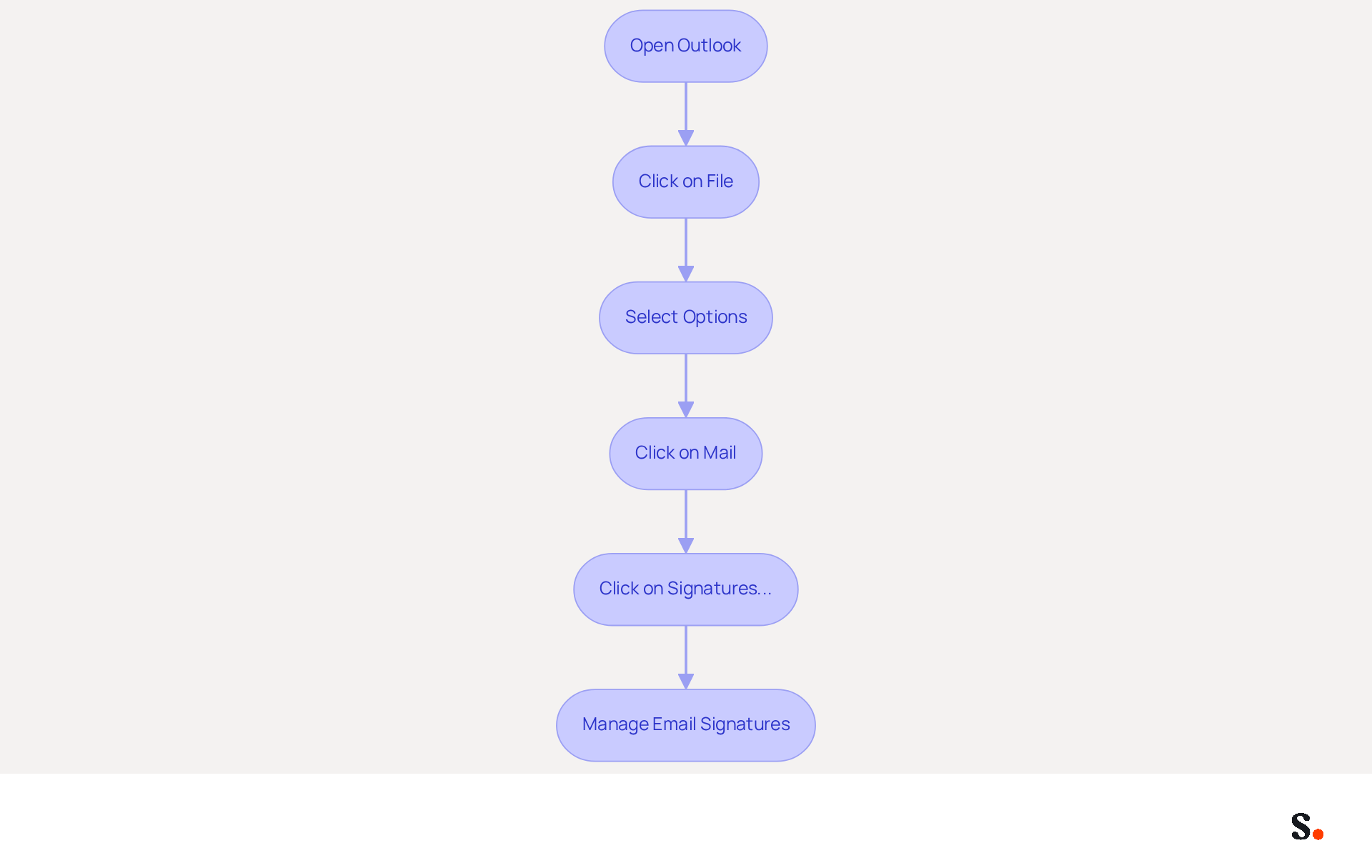
Accessing and managing email identifiers in the new Outlook is essential for organizations navigating recent changes. Open the email application on your computer. Click on the 'File' tab located in the top-left corner of the window. From the menu that appears, select 'Options'. In the Options window, click on 'Mail' from the left sidebar. To understand how to add a signature in Outlook, look for the 'Signatures...' button and click on it to open the Signatures and Stationery dialog box. Here, you can manage your message identifiers, including creating new ones or modifying existing ones.
This shift creates challenges for IT teams, who must audit and possibly rebuild their setups to maintain consistency across users. With over 400 million active users, Outlook is a dominant player in the messaging market. Effective management of sign-offs is vital for preserving brand integrity and maximizing marketing opportunities. Utilizing tools like Scribe allows businesses to streamline their communication footer processes with one-click synchronization. This ensures that every correspondence accurately reflects their brand while maintaining compliance with SOC 2 Type II standards. This automated method saves time and enhances security, allowing Marketing teams to manage email identifiers independently after the initial IT setup.
Compose and Format Your Email Signature
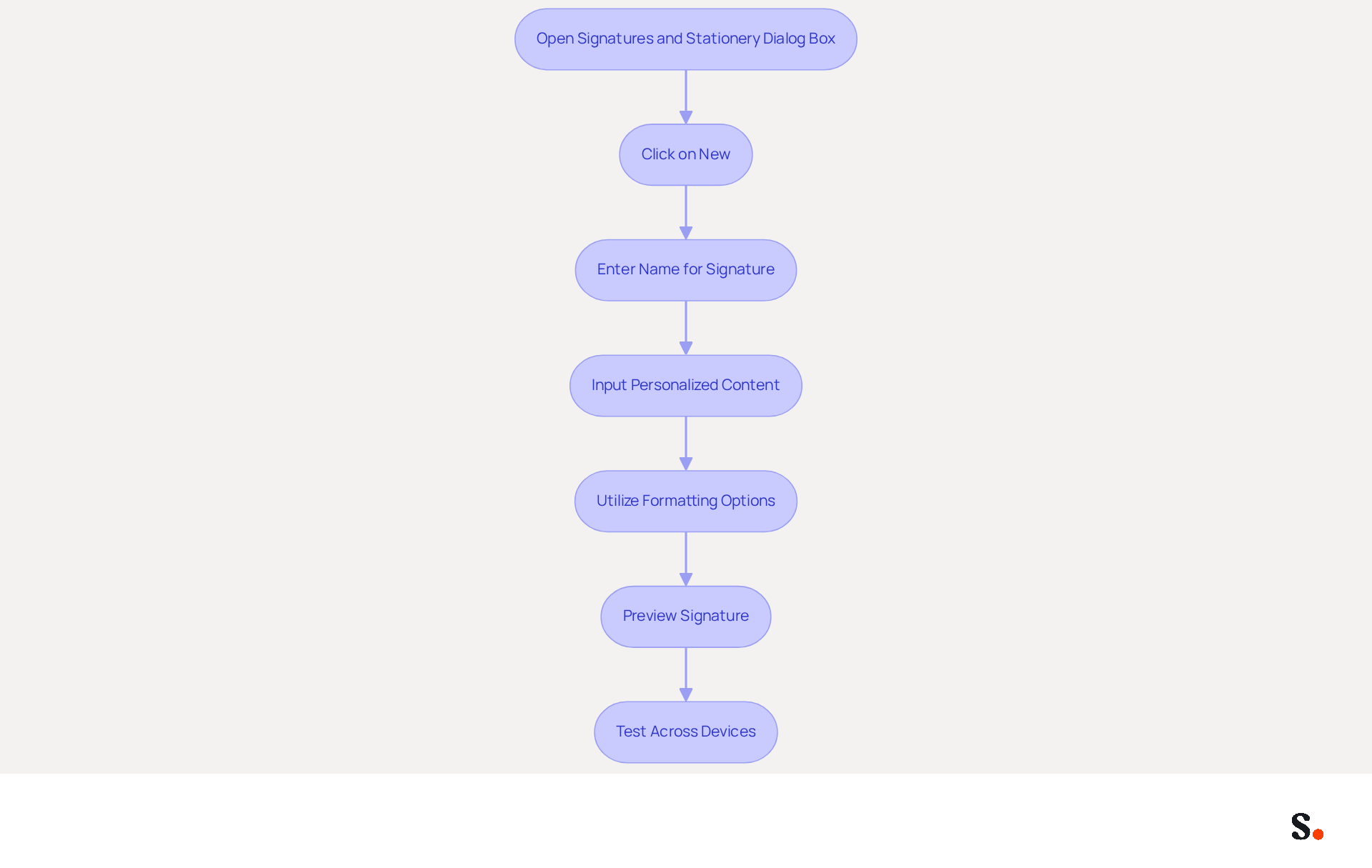
Creating a professional email sign-off is crucial for effective communication. To begin, open the Signatures and Stationery dialog box in Outlook and click on 'New' to understand how to add signature in Outlook. In the pop-up window, enter a name for your mark and click 'OK' to proceed. In the editing area, input your personalized content, which should include your name, job title, company name, and essential contact information. A well-organized sign-off is essential for enhancing brand recognition and ensuring a professional appearance in communications.
Utilize the available formatting options, such as font style, size, and color, to customize your mark's appearance, ensuring it aligns with your brand's visual identity, including how to add signature in Outlook. Preview your mark to evaluate its appearance in messages, making any necessary adjustments to ensure clarity and effectiveness. Testing your mark across various devices and messaging clients is essential to preserve its integrity and functionality.
Without a well-crafted sign-off, your communications may lack the professionalism needed to make a lasting impression.
Enhance Your Signature with Images and Links
Incorporating visuals into email signatures can significantly enhance engagement and trust among recipients. Research indicates that visuals in signatures significantly boost engagement, with 76-80% of marketers affirming that branded signatures build trust with recipients. However, it's crucial to ensure that visuals are small and uncluttered to maintain professionalism and avoid visibility issues in email providers.
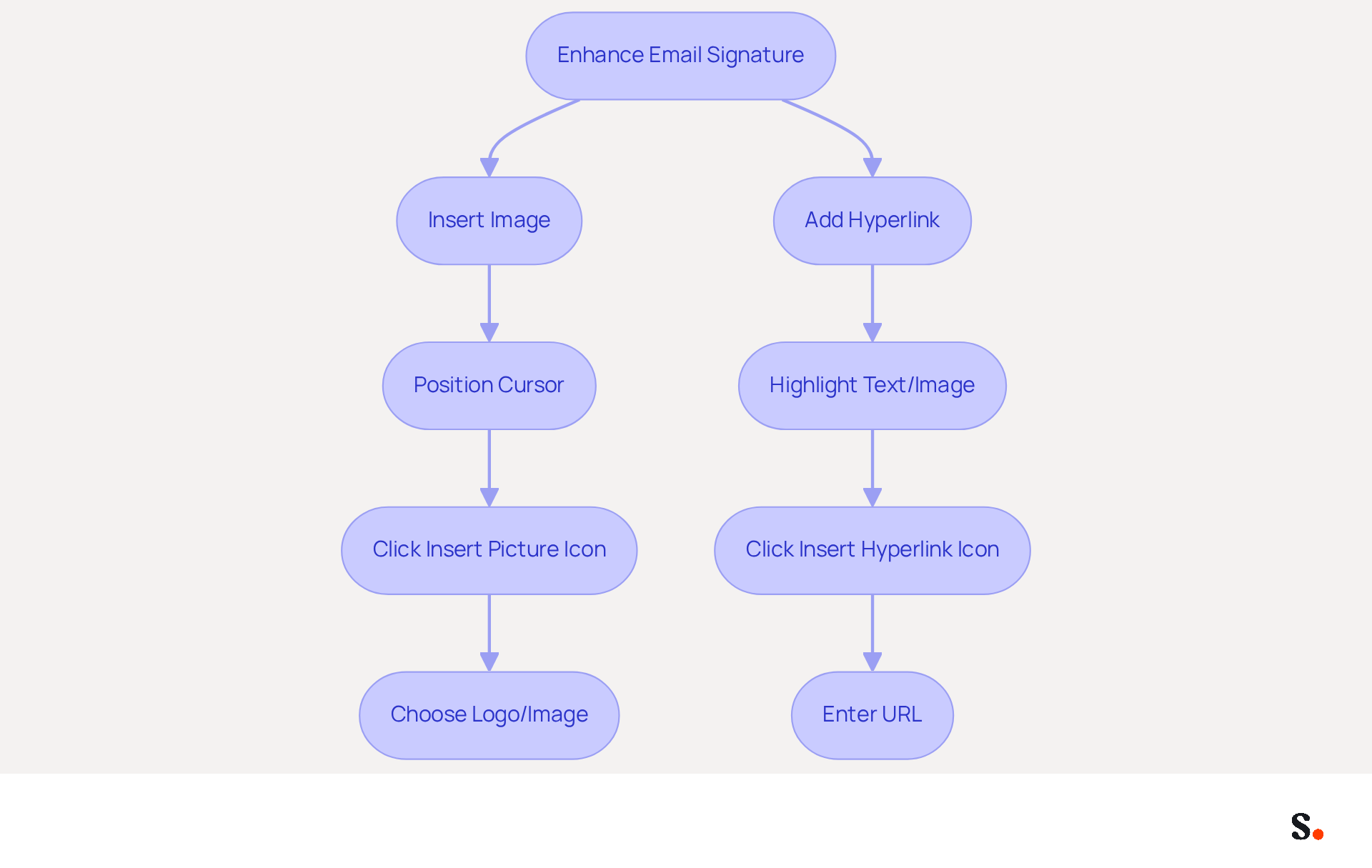
To insert a graphic, position your cursor in the editing area where you wish to add it. Click on the 'Insert Picture' icon, typically represented by a picture icon, to upload an image from your computer. Choose a logo or a professional image that effectively represents you or your brand, as personalized marks can create a stronger connection with recipients. Lynne Golodner emphasizes the importance of clarity and aesthetics in digital identifiers, which can lead to higher response rates and stronger connections.
To add a hyperlink, highlight the text or graphic you wish to link. Including links to your company website or social media profiles can drive traffic and foster relationships with contacts. Click on the 'Insert Hyperlink' icon, often depicted as a chain link icon, and enter the desired URL. This is crucial because effective digital identifiers often include clickable social media icons that can strengthen your online presence.
Ensure that the images are suitably sized and that links are operational by testing them across different devices and messaging clients before finalizing your branding. Failing to ensure that images are appropriately sized and links functional can result in missed opportunities for engagement. Regularly updating your digital identifiers ensures they remain relevant and effective in fostering professional connections.
Set Default Signature Preferences and Finalize Setup
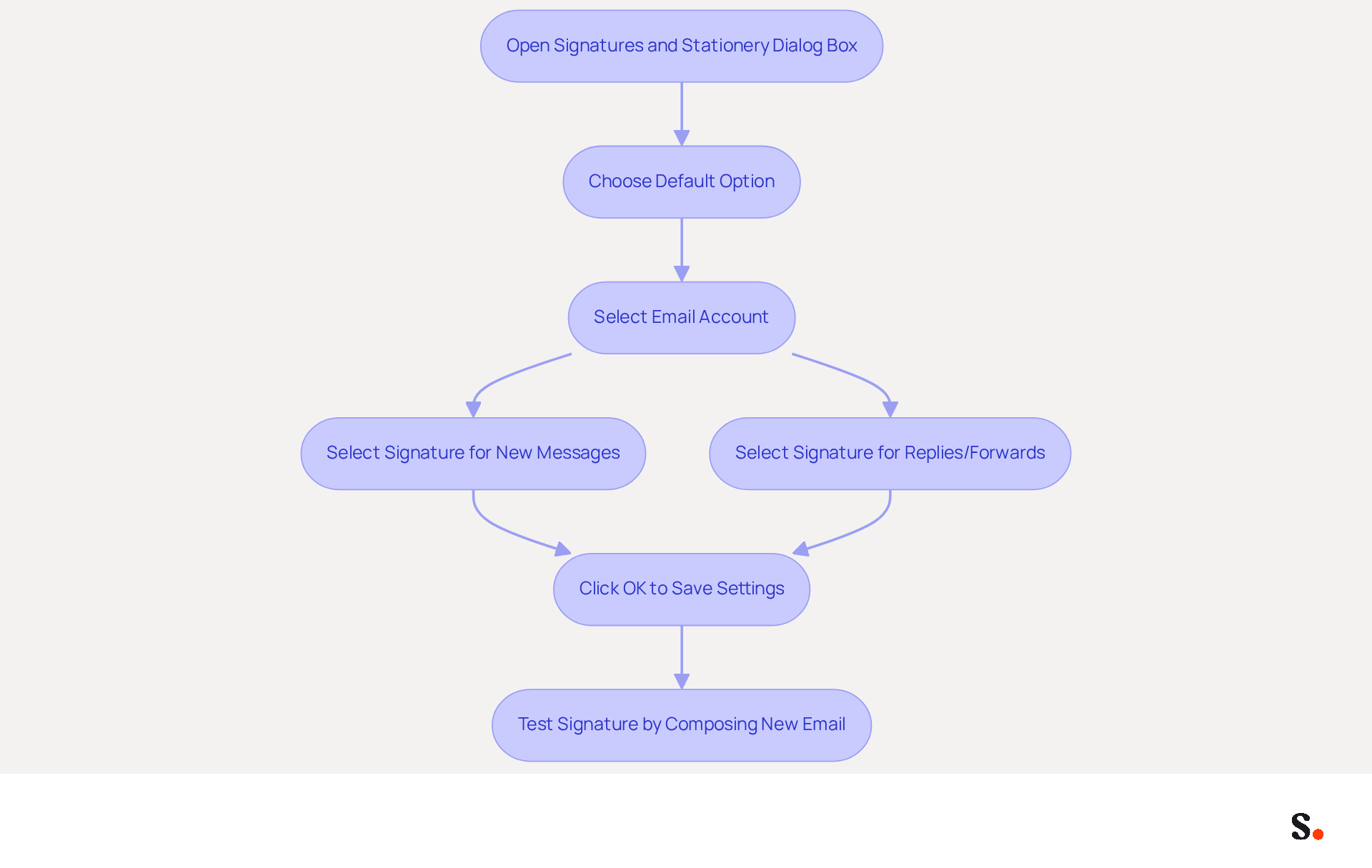
Knowing how to add signature in Outlook is crucial for maintaining professionalism in your communications. In the Signatures and Stationery dialog box, you will find the section on how to add signature in Outlook under the 'Choose default option'. If you have multiple accounts, choose the email account for which you wish to establish the default designation while figuring out how to add signature in Outlook. To understand how to add signature in Outlook, under 'New messages', select the label you just created from the dropdown menu. If desired, you can also select a personal mark for 'Replies/forwards' while learning how to add signature in Outlook. Simply click 'OK' to save your settings and, if you need assistance, check how to add signature in Outlook before exiting the dialog box. To ensure it appears as expected, test how to add signature in Outlook by composing a new email. Make any necessary adjustments by revisiting the settings related to how to add signature in Outlook.
Managing email signatures manually can lead to inconsistencies and wasted time. Syncing Google Workspace with Scribe streamlines this process. This integration enables automatic updates of your teammates' identification information, saving you time and ensuring consistency across your organization. Any changes made in Google Workspace, such as updates to job positions or group assignments, will be reflected in Scribe without additional input, making email signature management more efficient. This integration not only simplifies the process but also enhances the professionalism of your team's communications.
Conclusion
A professional email signature in Outlook is essential for effective communication and brand representation. By following the outlined steps, users can easily navigate the signature settings, compose a personalized sign-off, and enhance it with images and links, making sure each email showcases the organization's professionalism.
Key insights from this guide emphasize the importance of a well-crafted signature, which includes not only essential contact information but also visual elements that can significantly boost engagement. The integration of tools like Scribe further streamlines the management of email signatures, allowing marketing teams to maintain brand consistency effortlessly while adhering to security standards such as SOC 2 Type II compliance. This capability is particularly beneficial for organizations with multiple users, as it simplifies updates and ensures that all communications are aligned with the brand's visual identity.
Taking the time to create and manage email signatures can strengthen professional relationships and boost marketing results. Organizations are encouraged to leverage the tools available, such as Scribe, to optimize their email signature management process, ensuring that every correspondence not only meets but exceeds the expectations of recipients. By prioritizing email signature management, organizations can enhance their brand's visibility and credibility in every interaction.
Frequently Asked Questions
How do I access the signature settings in Outlook?
To access the signature settings in Outlook, open the email application on your computer, click on the 'File' tab in the top-left corner, select 'Options' from the menu, and then click on 'Mail' in the left sidebar. Look for the 'Signatures...' button and click on it to open the Signatures and Stationery dialog box.
Why is managing email signatures important for organizations?
Managing email signatures is important for organizations to maintain consistency across users, preserve brand integrity, and maximize marketing opportunities. Effective management of sign-offs ensures that every correspondence accurately reflects the brand.
What challenges do IT teams face with the new Outlook signature settings?
IT teams face challenges such as auditing and possibly rebuilding their setups to maintain consistency across users due to recent changes in Outlook's signature management.
How can Scribe assist businesses with email signatures?
Scribe allows businesses to streamline their communication footer processes with one-click synchronization, ensuring that email signatures accurately reflect the brand while maintaining compliance with SOC 2 Type II standards.
What benefits does the automated method of managing email signatures provide?
The automated method saves time and enhances security, allowing Marketing teams to manage email identifiers independently after the initial IT setup.
List of Sources
- Access Signature Settings in Outlook
- What's new in new Outlook for Windows | Microsoft Support (https://support.microsoft.com/en-us/outlook/getstarted/what-s-new-in-new-outlook-for-windows)
- Release notes for Outlook for Windows (new) - Office release notes (https://learn.microsoft.com/en-us/officeupdates/release-notes-outlook-new)
- Email Signatures vanishing - New Outlook | Microsoft Community Hub (https://techcommunity.microsoft.com/discussions/outlookgeneral/email-signatures-vanishing---new-outlook/4418809)
- Outlook Statistics For 2026: Key Trends Shaping the Future (https://clean.email/blog/email-providers/outlook-statistics)
- The New Outlook for Windows: An IT Guide to Email Signatures (https://exclaimer.com/email-signature-handbook/new-outlook-windows-email-signatures)
- Compose and Format Your Email Signature
- The ultimate guide to email signatures in 2026 (https://signitic.com/en/resources/email-signature)
- Why Email Signatures Must Be In Your 2026 Marketing Plan | Rocketseed (https://rocketseed.com/blog/what-are-the-biggest-email-trends-for-2026)
- Email Signatures and Brand Consistency: A Guide for Small Businesses (https://designhill.com/design-blog/email-signature-brand-consistency-guide)
- Email Signature Best Practices for 2026 (+ 15 Pro Examples) (https://wavecnct.com/blogs/email-signature-best-practices-2026)
- Email Signature Trends 2026: Centralized Control & Automation | SIGNandGO posted on the topic | LinkedIn (https://linkedin.com/posts/signngo_email-signature-trends-to-watch-in-2026-activity-7401523471786217473-zAVL)
- Enhance Your Signature with Images and Links
- How do I design a pretty, reliable & clickable email signature? (https://launchthedamnthing.com/blog/design-custom-clickable-pretty-reliable-branded-email-signature)
- Best Practices Designing Email Signatures - Lynne Golodner (https://lynnegolodner.com/articles/best-practices-designing-email-signatures)
- Linked vs embedded images in email signatures - which to use? (https://mail-signatures.com/articles/linked-vs-embedded-images-email-signatures)
- 40+ Email Signature Statistics for 2026 (Data + Insights) (https://wavecnct.com/blogs/email-signature-statistics)
- The ultimate guide to email signatures in 2026 (https://signitic.com/en/resources/email-signature)
- Set Default Signature Preferences and Finalize Setup
- 40+ Email Signature Statistics for 2026 (Data + Insights) (https://wavecnct.com/blogs/email-signature-statistics)
- How To Add An Email Signature in Outlook (2026) (https://hubspot.com/email-signature-generator/add-signature-outlook)
- How to Add Email Signature in Outlook Desktop (2026) (https://wavecnct.com/blogs/email-signature-in-outlook-desktop)
- Default email signatures for replies and forwards - Microsoft Q&A (https://learn.microsoft.com/en-us/answers/questions/1119661/default-email-signatures-for-replies-and-forwards)
Get started with Scribe
Create your signature in minutes
Free 14-day trial — no credit card.