How to Add Signature in Outlook App: 4 Easy Steps
In the digital age, a professional email signature is essential for effective communication, yet many overlook its importance. With millions of users relying
Sophie Grant
Email Signature Specialist, Scribe

Introduction
In the digital age, a professional email signature is essential for effective communication, yet many overlook its importance. With millions of users relying on the Outlook app for their correspondence, understanding how to add and customize signatures can significantly enhance brand consistency and engagement. Yet, many users find the app's settings confusing, leading to frustration and missed opportunities for professional presentation.
How can one ensure their email signature not only reflects their identity but also functions seamlessly across various devices?
Prepare Your Outlook App for Signature Setup
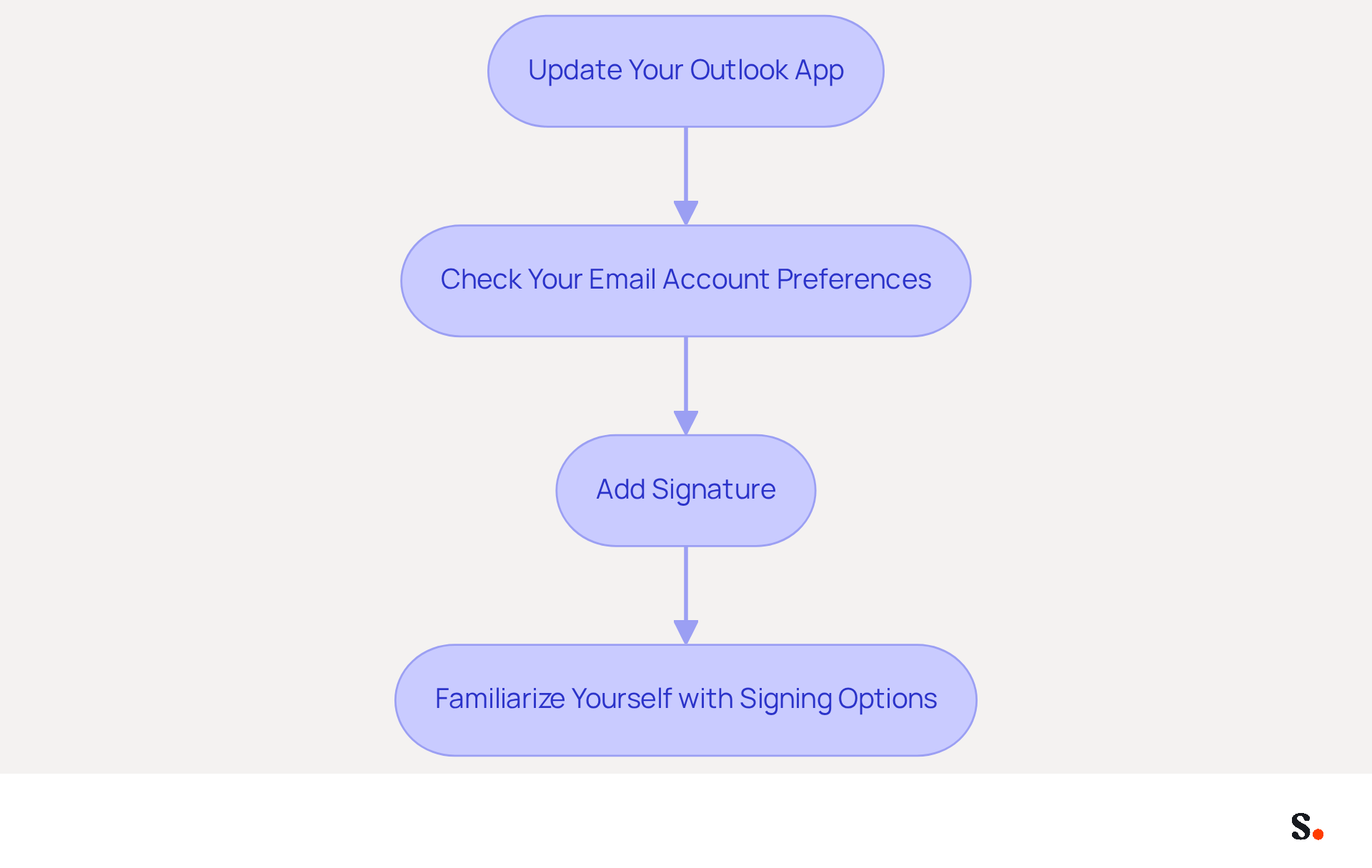
- Update Your Outlook App: To ensure seamless communication, it is essential to optimize your Outlook app settings effectively. Begin by ensuring that your Outlook app is updated to the latest version. This can be easily done through the app store on your device, whether it's the Google Play Store for Android or the App Store for iOS. Updating your app is vital; nearly 50% of Outlook users have switched to new devices, emphasizing the need for the latest features and security updates.
- Check Your Email Account Preferences: Open the Outlook app and navigate to the options by tapping the gear icon. Verify that your email account is properly configured and connected. With over 400 million active users, ensuring accurate configurations can prevent common issues. This misconfiguration can lead to access denied errors, impacting 13% of users.
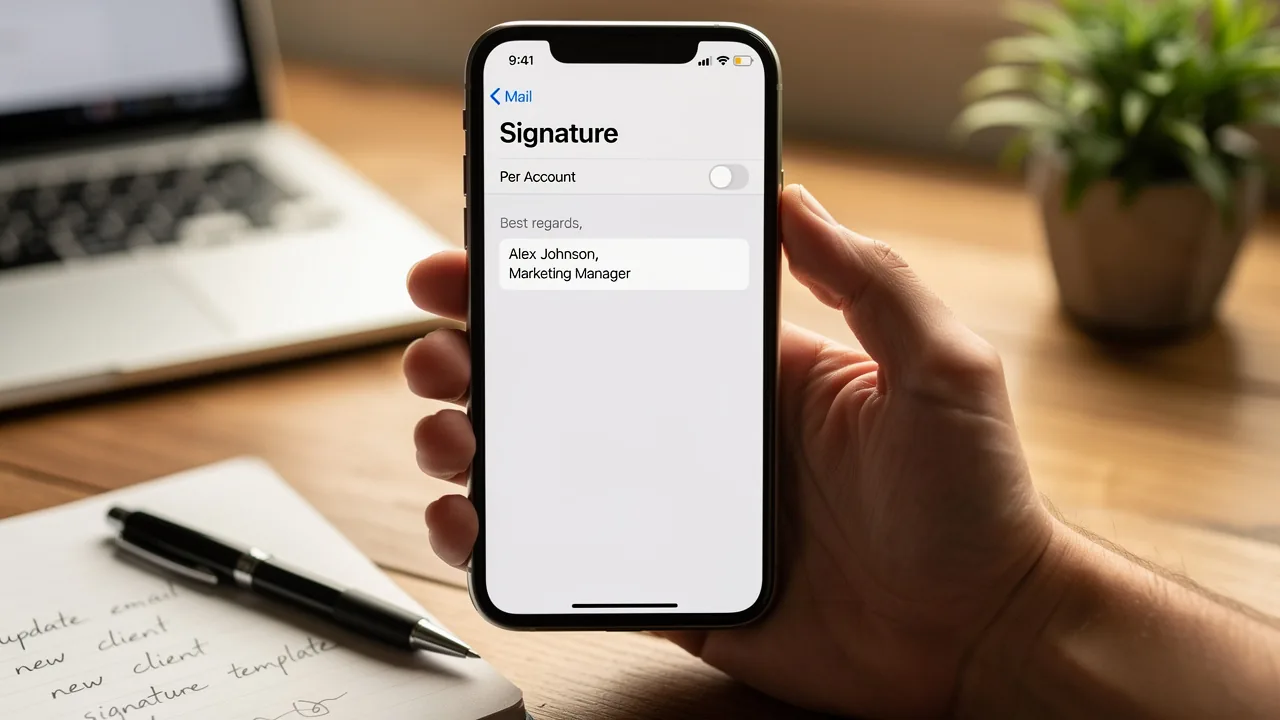
- To learn how to add signature in Outlook app, access the settings menu and scroll down to find the 'Signature' option. This is where you will create and manage your messaging identifiers. Outlook allows multiple identifiers for different accounts, enabling you to customize your communication effectively.
- Familiarize Yourself with Signing Options: Understand the various choices available for sign-offs, such as whether you want to use a single sign-off for all emails or different sign-offs for different accounts. Understanding these options will help you plan your setup more effectively, as 30% of users encounter send-receive errors. Without a clear strategy, users may experience increased send-receive errors, impacting their communication efficiency. A well-organized email signature strategy can significantly enhance your professional communication and also teach you how to add signature in Outlook app, thereby reducing common errors.
Create and Customize Your Email Signature
Creating a professional email signature is essential for effective communication in today's business environment.
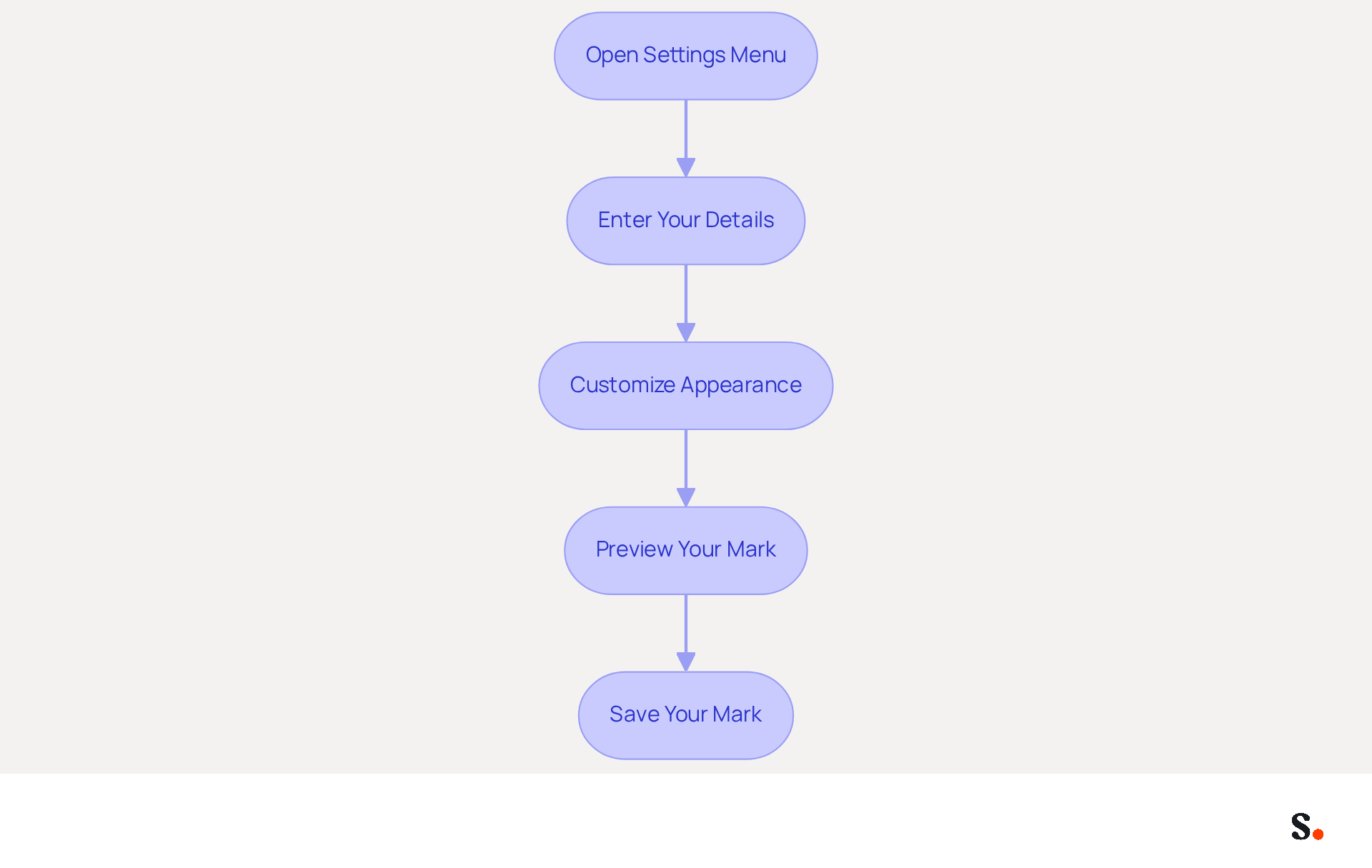
- To understand how to add signature in outlook app, open the settings menu for your sign-off and tap on 'Add Sign-off' to begin creating a new one.
- Enter Your Details: Input essential information such as your name, job title, company name, and contact details. Consider including links to your social media profiles or your company website to enhance connectivity.
- Customize the Appearance: Utilize the available formatting options to adjust the font style, size, and color. You can also incorporate images, like your company logo, by tapping the image icon and selecting an image from your device. An effective logo can enhance customer trust and strengthen your brand identity.
- Preview Your Mark: Before finalizing, check how your mark will look in messages. Make necessary adjustments to ensure it looks professional and aligns with your brand identity. Research indicates that emails featuring branded designs can lead to a 22% increase in response rates, emphasizing the significance of a refined appearance.
- Save Your Mark: After finalizing your design, save it for easy access in future messages, turning every email into a chance to strengthen your brand.
Set Default Signatures and Manage Multiple Options
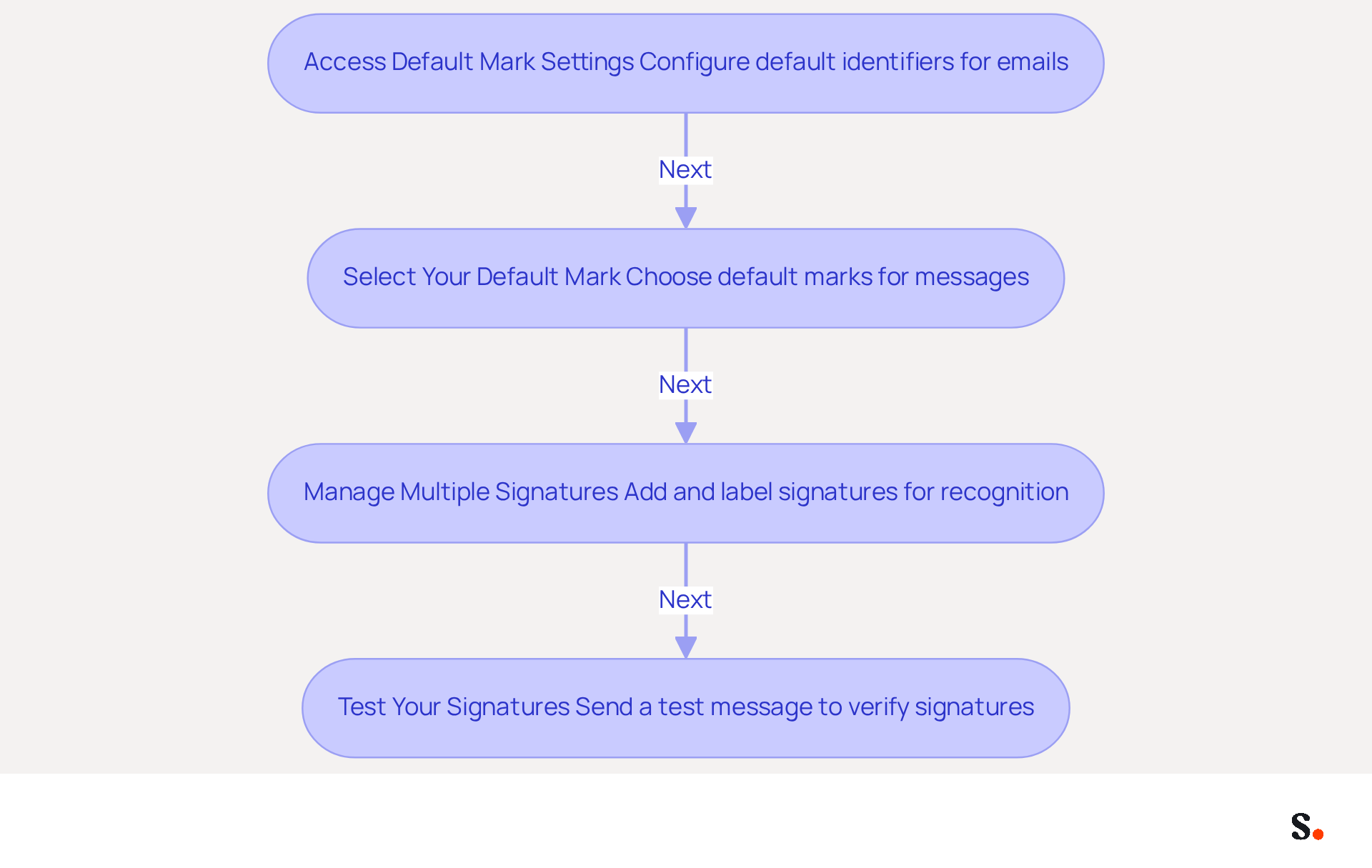
- Access Default Mark Settings: To ensure consistency in your email communications, it's crucial to access and configure the default mark settings in the Outlook app. Look for the option to set default identifiers for new emails and replies/forwards, which is essential for maintaining uniformity across communications.
- Select Your Default Mark: Choose the mark you want to use as the default for new messages and replies. If you have multiple endorsements, you can assign different ones for each category, allowing for tailored communication based on context or department.
- Manage Multiple Signatures: To understand how to add a signature in the Outlook app, repeat the steps from the previous section. Label each identifier for easy recognition, which is especially beneficial in corporate settings where many users struggle with the limitations of having only one digital identifier. With Scribe, you can sync your Google Workspace, automatically updating teammate information. This ensures your identifiers remain current and consistent across your organization. Scribe is SOC 2 Type II compliant and adheres to GDPR and CCPA, ensuring the security of your data.
- Test Your Signatures: Send a test message to yourself to ensure that the correct sign-off appears in both new communications and replies. Modify configurations if needed to ensure uniformity, as this can lead to a 22% increase in response rates, significantly enhancing engagement. With Scribe's one-click synchronization, changes in your Google Workspace automatically reflect in Scribe, saving time and enhancing branding.
Troubleshoot Common Signature Issues
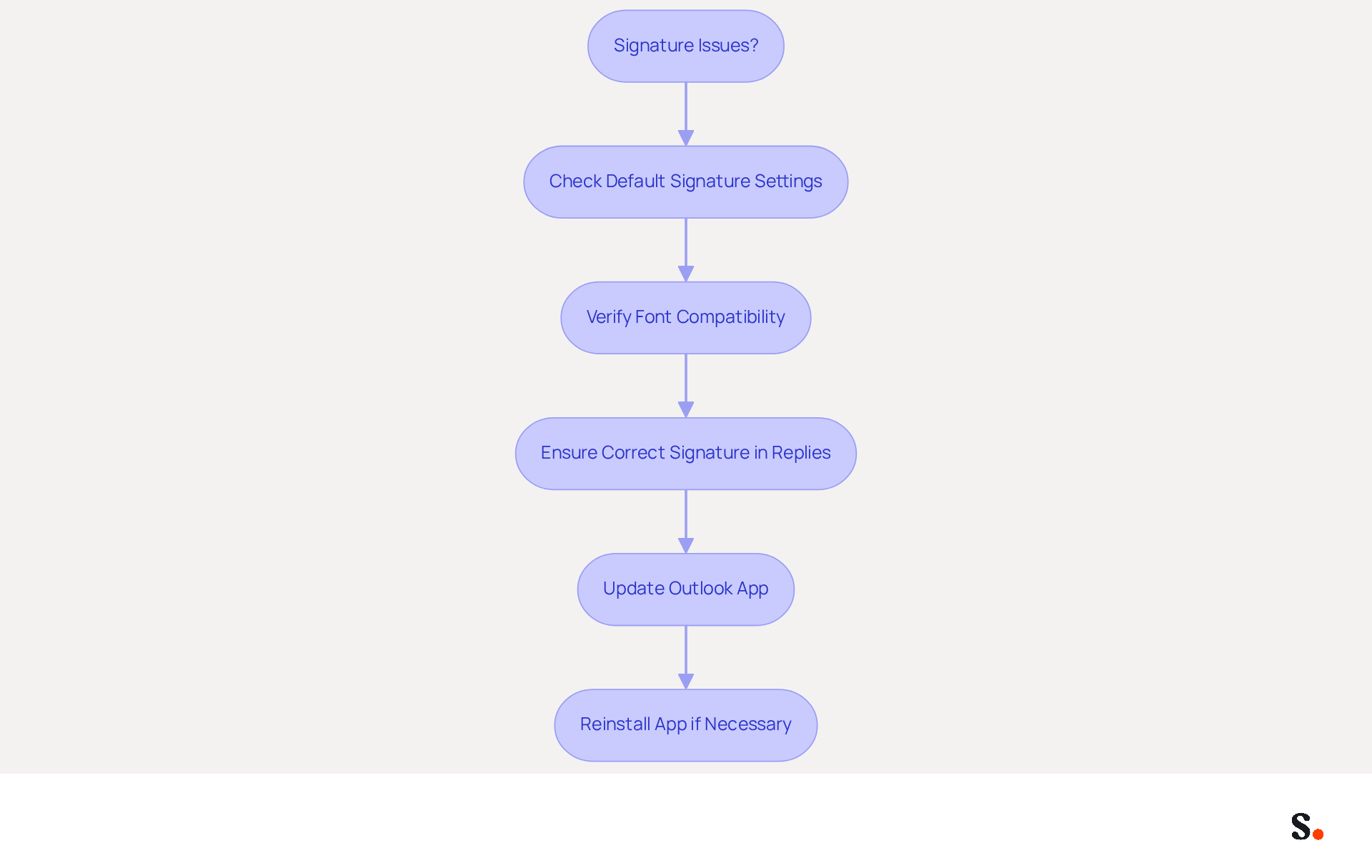
Many users encounter issues with email signatures, often due to simple oversights in settings. If your signature isn't showing in messages, you should learn how to add signature in outlook app and check that it's set as the default for new communications and replies in your settings. This is a common oversight, as 90% of instances where signatures do not appear arise from not being set as the default.
If the formatting of your sign-off appears inconsistent in emails, ensure you are using compatible fonts and that images are properly uploaded. Avoid overly complex formatting, as this can lead to rendering issues. Many users have experienced issues with signatures that have complex layouts, especially when they are copied from word processors.
If your signature isn't showing up in replies, ensure you understand how to add signature in outlook app by selecting the correct one in your signature preferences. Outlook applies different rules for new messages compared to replies and forwards, so verifying the configurations is essential.
Lastly, ensure your Outlook app is updated to the latest version, as updates frequently address bugs and enhance functionality. If issues persist, consider reinstalling the app to reset settings. Users have found that reinstalling can resolve persistent signature issues, particularly when signatures disappear unexpectedly due to updates or sync delays. Addressing these common issues can significantly enhance your professional communication and brand consistency.
Conclusion
Setting up an email signature in the Outlook app is essential for enhancing professional communication. Following these steps helps users create signatures that are visually appealing and consistent in all communications. Paying attention to these details shows a strong commitment to professionalism and reinforces your brand identity, which is vital for standing out in a crowded market.
The article provided a comprehensive guide on:
- Preparing the Outlook app for signature setup
- Creating and customizing signatures
- Managing multiple options
- Addressing common challenges
Key insights included:
- The importance of keeping the app updated
- Understanding the various signing options
- Ensuring that signatures are set as defaults to avoid common pitfalls
Additionally, leveraging tools like Scribe can streamline the process, ensuring brand consistency and compliance with security standards such as SOC 2 Type II, GDPR, and CCPA.
Ultimately, mastering the art of email signatures in the Outlook app is not just about aesthetics; it’s about creating a cohesive brand presence and improving engagement. By implementing these strategies, professionals can turn every email into an opportunity for connection and brand reinforcement. A well-crafted email signature can transform your communication strategy and strengthen your brand identity.
Frequently Asked Questions
How can I prepare my Outlook app for signature setup?
To prepare your Outlook app for signature setup, first ensure that your app is updated to the latest version through the app store on your device. Then, check your email account preferences by navigating to the options menu and verifying that your email account is properly configured and connected.
Why is it important to update the Outlook app?
Updating the Outlook app is important to access the latest features and security updates. Nearly 50% of Outlook users have switched to new devices, making it essential to keep the app updated for seamless communication.
How do I check my email account preferences in the Outlook app?
To check your email account preferences, open the Outlook app, tap the gear icon to access the options menu, and verify that your email account is properly configured and connected.
What should I do if I encounter access denied errors in Outlook?
If you encounter access denied errors, it may be due to misconfiguration of your email account. Ensure that your email account is correctly set up in the Outlook app to prevent these issues.
How can I add a signature in the Outlook app?
To add a signature in the Outlook app, access the settings menu, scroll down to find the 'Signature' option, and create or manage your messaging identifiers from there.
Can I have different signatures for different email accounts in Outlook?
Yes, Outlook allows you to create multiple identifiers for different accounts, enabling you to customize your communication with different signatures for each account.
What are the signing options available in Outlook?
The signing options in Outlook include the choice to use a single sign-off for all emails or different sign-offs for different accounts. Understanding these options can help you plan your signature setup effectively.
How can a well-organized email signature strategy benefit me?
A well-organized email signature strategy can enhance your professional communication and reduce common errors, such as send-receive errors, improving your overall communication efficiency.
List of Sources
- Prepare Your Outlook App for Signature Setup
- Email Client Market Share: Trends & Statistics 2026 (https://litmus.com/email-client-market-share)
- Outlook Statistics And Facts (2025) (https://electroiq.com/stats/outlook-statistics)
- How To Add An Email Signature in Outlook (2026) (https://hubspot.com/email-signature-generator/add-signature-outlook)
- CCI Technology Services And Support Site (https://support.cci.drexel.edu/software-courses/office-365-or-office365/office-365-public-documentation-home/office-365-outlook/outlook-changing-email-signature-ipad-or-iphone)
- Create and Customize Your Email Signature
- Email Signature Statistics: A Closer Look at Email Signatures in 2026 (https://mysignature.io/blog/email-signature-statistics)
- Email Signature Best Practices - NEWOLDSTAMP (https://newoldstamp.com/blog/email-signature-best-practices)
- 20 Examples of Professional Email Signatures | Letsignit (https://letsignit.com/blog/professional-email-signature)
- Email signature statistics: Why every business should optimize their email signatures — Stripo.email (https://stripo.email/blog/email-signature-statistics-why-every-business-should-optimize-their-email-signatures)
- Email Signature Design Guide: Best Practices and Examples (https://designmodo.com/email-signature)
- Set Default Signatures and Manage Multiple Options
- The impact of email signatures on your branding (https://signitic.com/en/resources/the-impact-of-email-signatures-on-your-branding)
- Email Signature Trends in Numbers: Infographic [2026] (https://mailtrap.io/blog/email-signature-trends)
- Email signature statistics: Why every business should optimize their email signatures — Stripo.email (https://stripo.email/blog/email-signature-statistics-why-every-business-should-optimize-their-email-signatures)
- Troubleshoot Common Signature Issues
- Outlook Signature Disappears? 6 Common Problems + Fixes (https://conbool.com/blog/outlook-signature-disappears-fixes-problems)
- How to solve problems with email signatures in Microsoft 365? (https://mail-signatures.com/articles/problems-email-signatures-office-365)
- Outlook Signature Not Working in Office 365: Causes & Fixes (https://exclaimer.com/email-signature-handbook/outlook-signature-not-working-in-office-365)
- Email Signatures Not Syncing | Microsoft Community Hub (https://techcommunity.microsoft.com/discussions/microsoft-365/email-signatures-not-syncing/3214931)
- Email Signatures vanishing - New Outlook | Microsoft Community Hub (https://techcommunity.microsoft.com/discussions/outlookgeneral/email-signatures-vanishing---new-outlook/4418809)
Get started with Scribe
Create your signature in minutes
Free 14-day trial — no credit card.