How to Add Signature in Outlook Automatically with Scribe
Email signatures in Outlook are not merely digital sign-offs; they are pivotal branding tools that can shape professional communication. With the right
Sophie Grant
Email Signature Specialist, Scribe
Introduction
Email signatures in Outlook are not merely digital sign-offs; they are pivotal branding tools that can shape professional communication. With the right approach, organizations can leverage these signatures to enhance their brand identity and foster trust among recipients. This guide explores how to add signatures in Outlook automatically using Scribe, a solution that not only simplifies the process but also ensures compliance with security standards like SOC 2 Type II, GDPR, and CCPA.
Users often face challenges that hinder the effectiveness of their email signatures. Effectively addressing these challenges is essential for preserving a professional image in every email communication.
Understand Email Signatures in Outlook
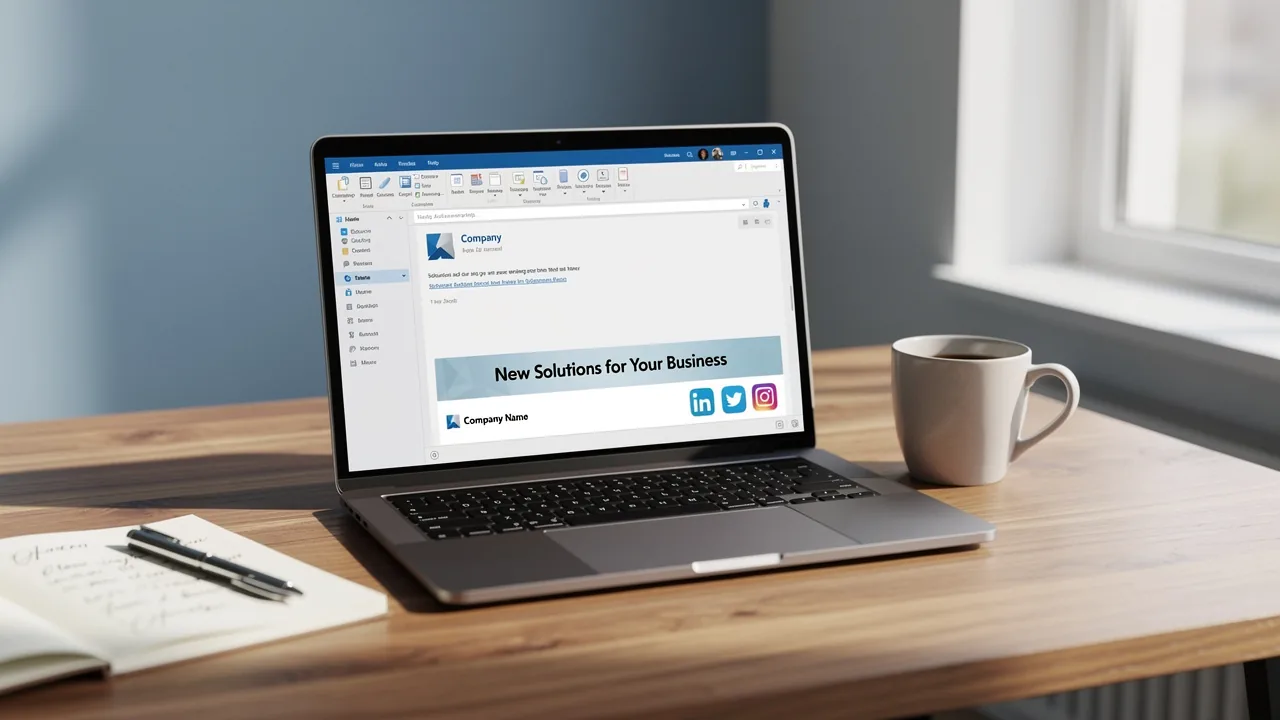
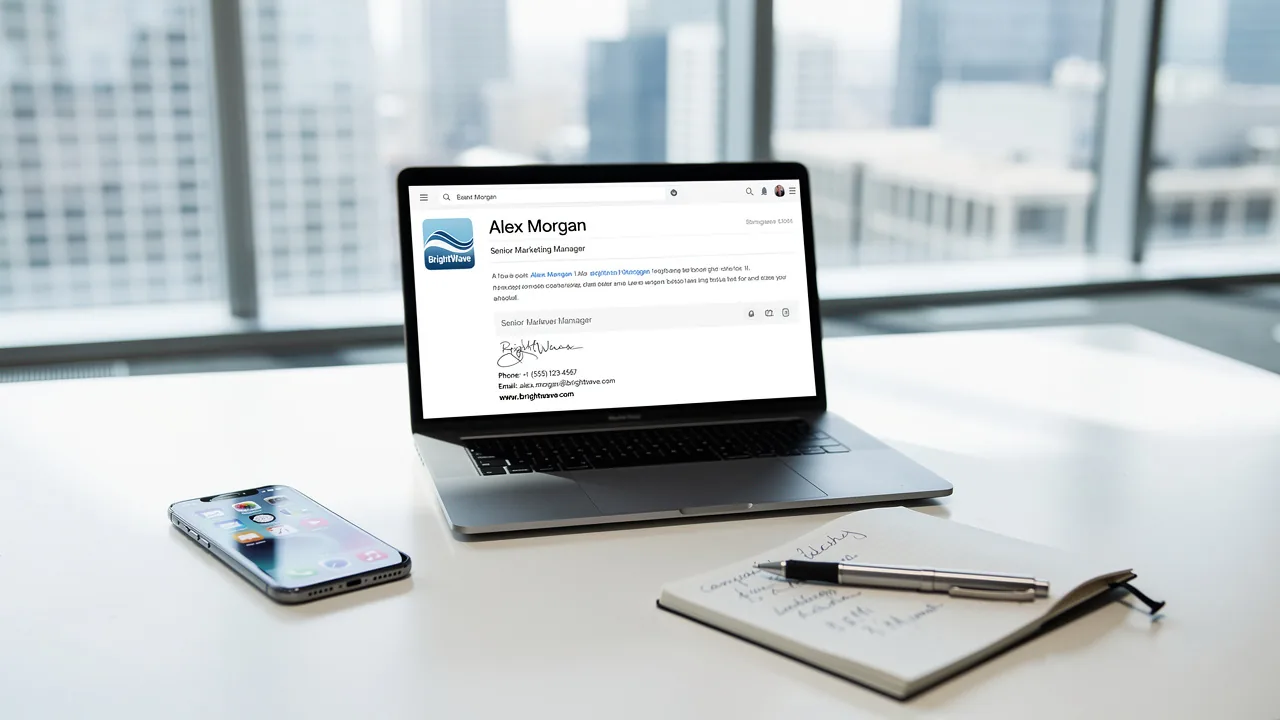
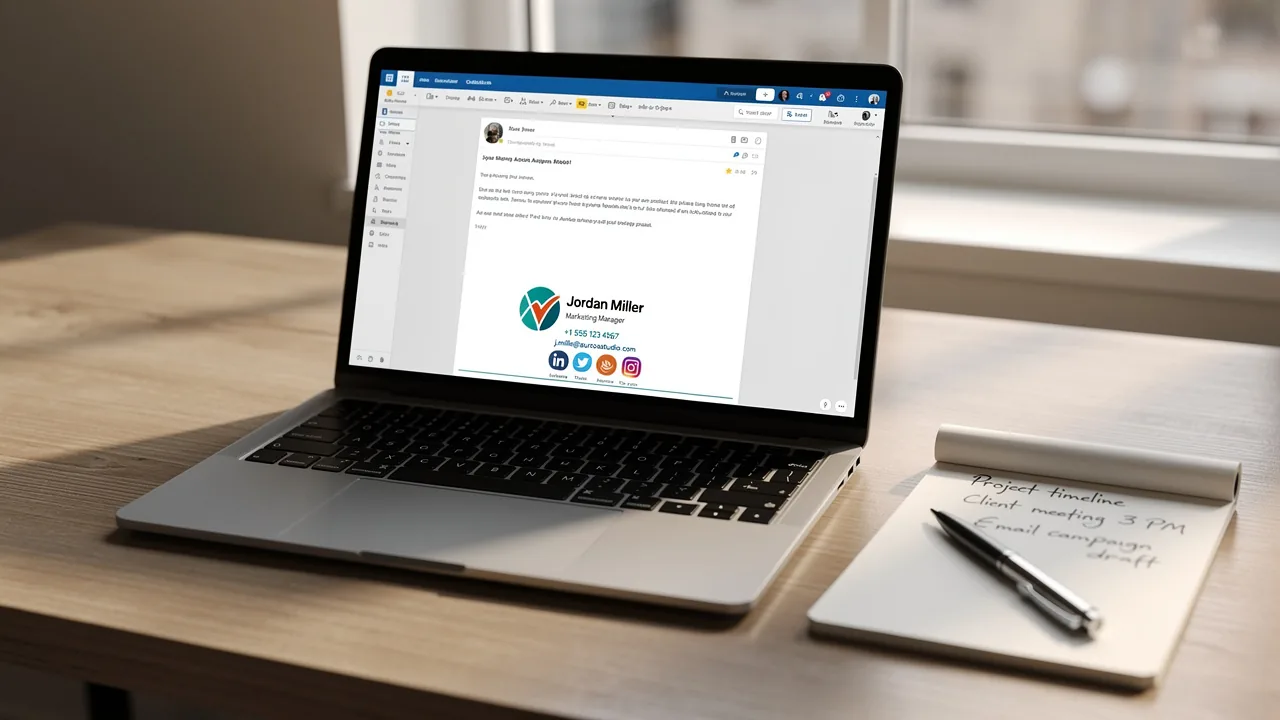
In the realm of professional communication, email identifiers in Outlook are not just contact details; they are pivotal branding tools that convey your company's identity. A well-crafted sign-off can include essential elements such as your name, title, company logo, and links to your social media profiles or website. Understanding these elements is essential for maintaining consistency and professionalism in your communications.
Managing email elements can often be complex, but with Scribe, it becomes straightforward and efficient, particularly when you understand how to add signature in outlook automatically. The tool automates the synchronization of sign-offs with your business phone system, ensuring that any modifications made in your Aircall configuration are automatically reflected in your Outlook sign-offs. This real-time synchronization ensures that your teammates' signature information is always current, enhancing professionalism without any effort on their part. Additionally, Scribe is SOC 2 Type II compliant, ensuring that your data is handled securely and in compliance with industry standards.
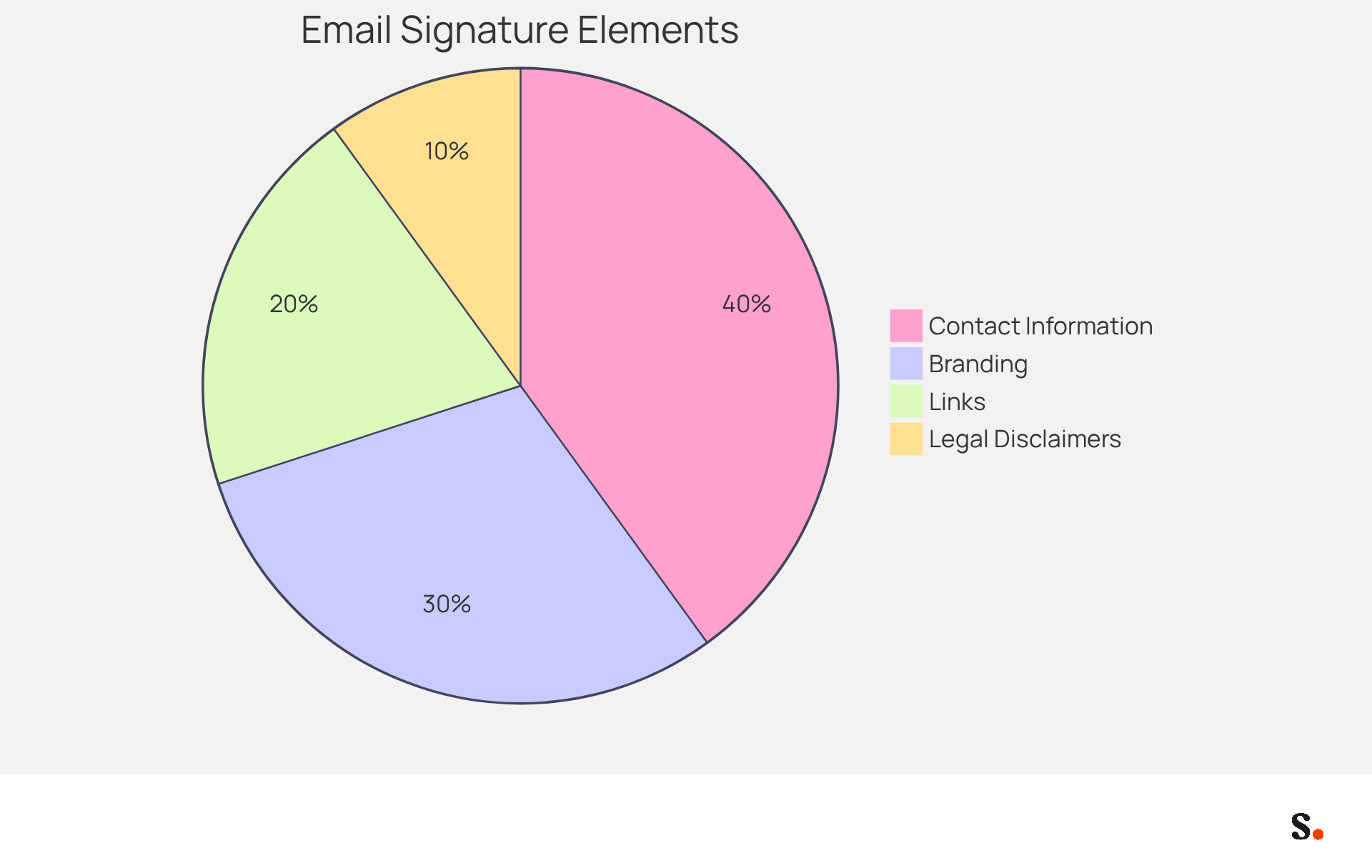
Key Elements of an Effective Email Signature:
- Contact Information: Always include your full name, job title, and company name to establish credibility.
- Branding: Utilize your company logo and colors to maintain brand consistency, which can enhance recognition and trust among recipients. Statistics indicate that consistent branding can lead to a 22% increase in response rates for messages.
- Links: Incorporate links to your website and social media profiles to foster engagement. A notable 43% of consumers anticipate discovering these links in message footers, which can enhance traffic and engagement.
- Legal Disclaimers: If applicable, include any necessary legal disclaimers relevant to your industry to ensure compliance and professionalism.
By understanding these key elements and using Scribe's automation, you will discover how to add signature in outlook automatically, allowing you to create a professional closing that serves as a powerful marketing tool in every message. Case studies indicate that organizations utilizing well-crafted digital identifiers experience heightened brand awareness and increased trust, with 76% of recipients feeling more assured in the sender when a professional mark is employed.
Create Your Email Signature in Outlook
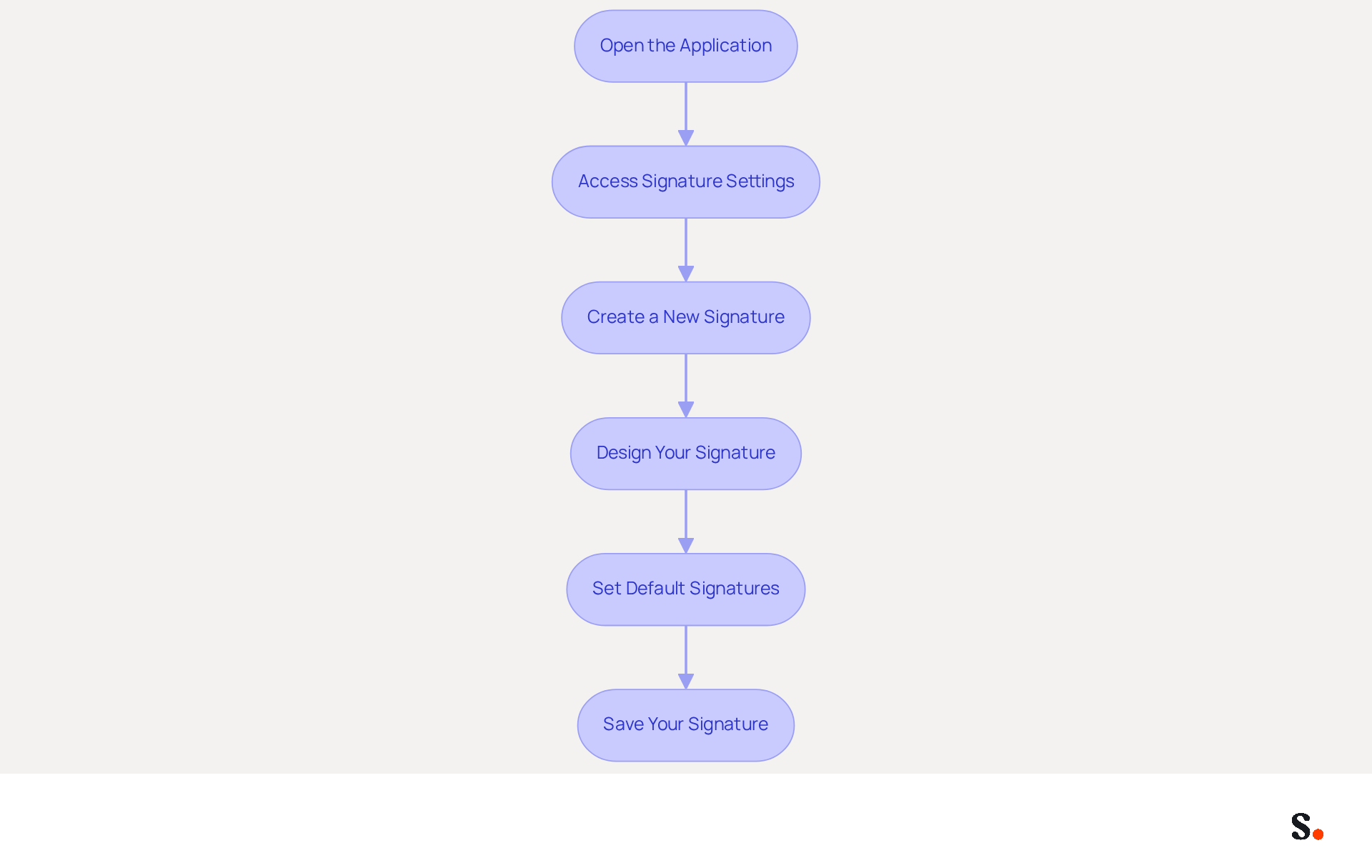
Knowing how to add signature in Outlook automatically is essential for creating a professional email signature and effective communication. To create your email signature in Outlook, follow these steps:
- Open the application: Launch the email program on your computer.
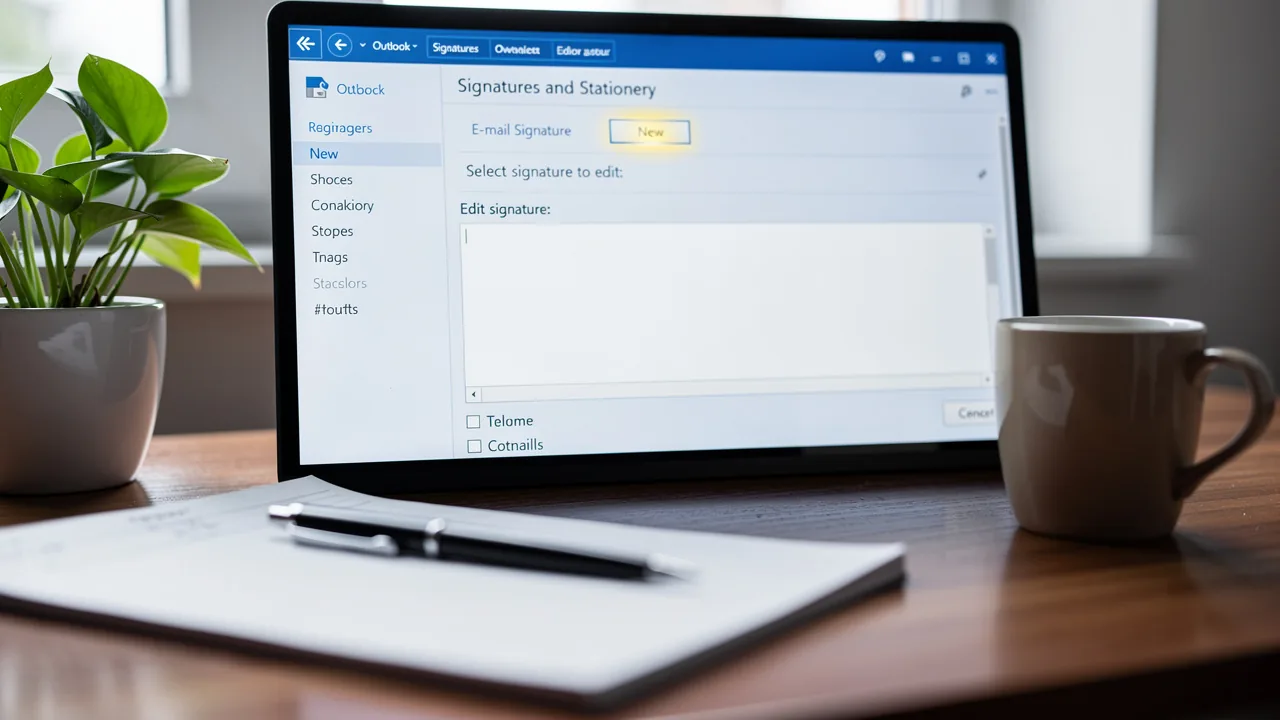
- Access Signature Settings: Click on 'File' in the top-left corner, then select 'Options'. In the Outlook Options window, click on 'Mail' and then 'Signatures'.
- Create a New Signature: In the Signatures and Stationery dialog box, click 'New'. Enter a name for your signature and click 'OK'.
- Design Your Signature: In the editing area, type your signature. Format the text using the available options (font, size, color). Click the image icon to upload your logo, keeping it under 50KB and within the maximum dimensions of 150x50 pixels for optimal display.
- Set Default Signatures: Under 'Choose default option', select your email account and set your new signature for new messages and replies/forwards. Ensure that your signature is selected as the default for 'New messages' and 'Replies/forwards' to avoid common oversights.
- Save Your Signature: Click 'OK' to save your signature settings.
By learning how to add signature in Outlook automatically, you will create a professional email signature that strengthens your brand's presence in communications. Scribe ensures that any changes in your Aircall setup are instantly reflected in your email signatures, maintaining consistent branding. Scribe is also SOC 2 Type II certified and compliant with GDPR and CCPA, providing secure data handling. Research shows that 76% of recipients feel greater trust in the sender when a branded footer is included, and organizations with consistent branded footers experience over 22% increases in response rates and enhancements in perceived professionalism. Additionally, for mobile identifiers in Outlook for Android, keep them concise, limited to 2-3 lines maximum, to ensure optimal display on smaller screens. Implementing these steps not only enhances your brand's professionalism but also fosters trust with your audience.
Automate Signature Management with Scribe
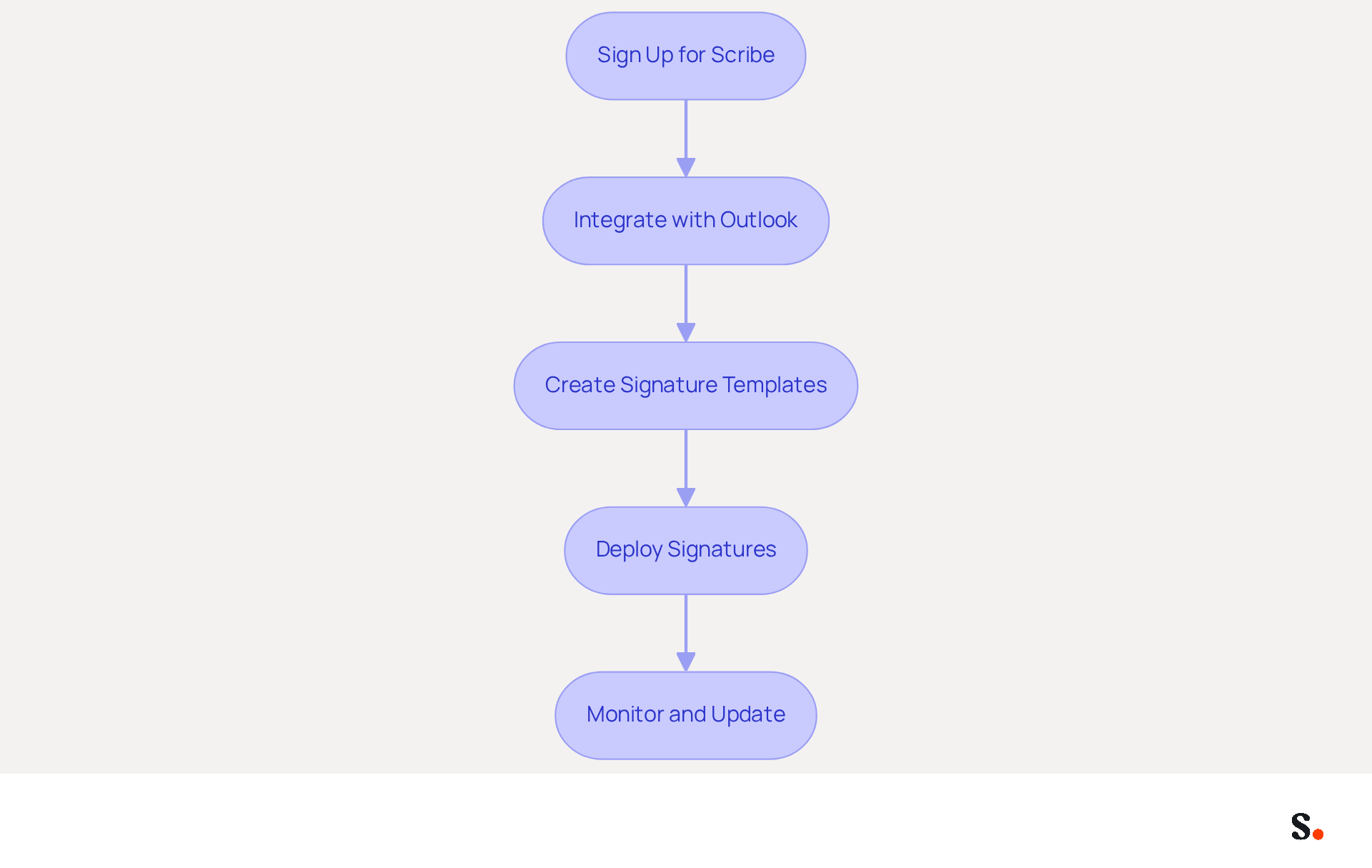
Managing email signatures manually can lead to inconsistencies and wasted time, but Scribe provides a streamlined solution that demonstrates how to add signature in Outlook automatically, empowering marketing teams to take control. Here’s how to set it up:
- Sign Up for Scribe: Begin by visiting the website to create your account.
- Integrate with Outlook: Follow the integration instructions to connect the application with your Outlook account, typically by installing the add-in from Microsoft AppSource.
- Create Signature Templates: Utilize Scribe’s template creator to design on-brand email identifiers. Customize elements such as logos, colors, and fonts to align with your brand identity.
- Deploy Signatures: After preparing your templates, deploy them organization-wide with a single click. Scribe’s centralized management guarantees that all team members possess the most up-to-date version of the sign-off, and sign-offs are automatically synchronized with your business phone system, reflecting updates in real-time without necessitating action from your colleagues.
- Monitor and Update: Utilize Scribe’s analytics to track engagement metrics, including a 12% average click-through rate on banners, and make necessary adjustments. Easily update logos for marketing campaigns or new branding initiatives.
By learning how to add signature in Outlook automatically, organizations can automate management of messaging branding with Scribe, achieving brand consistency, saving valuable time, and enhancing marketing efforts with every message sent. With Scribe, organizations not only enhance their branding efforts but also ensure compliance with the highest data security standards, transforming their email communication strategy.
Troubleshoot Common Signature Issues
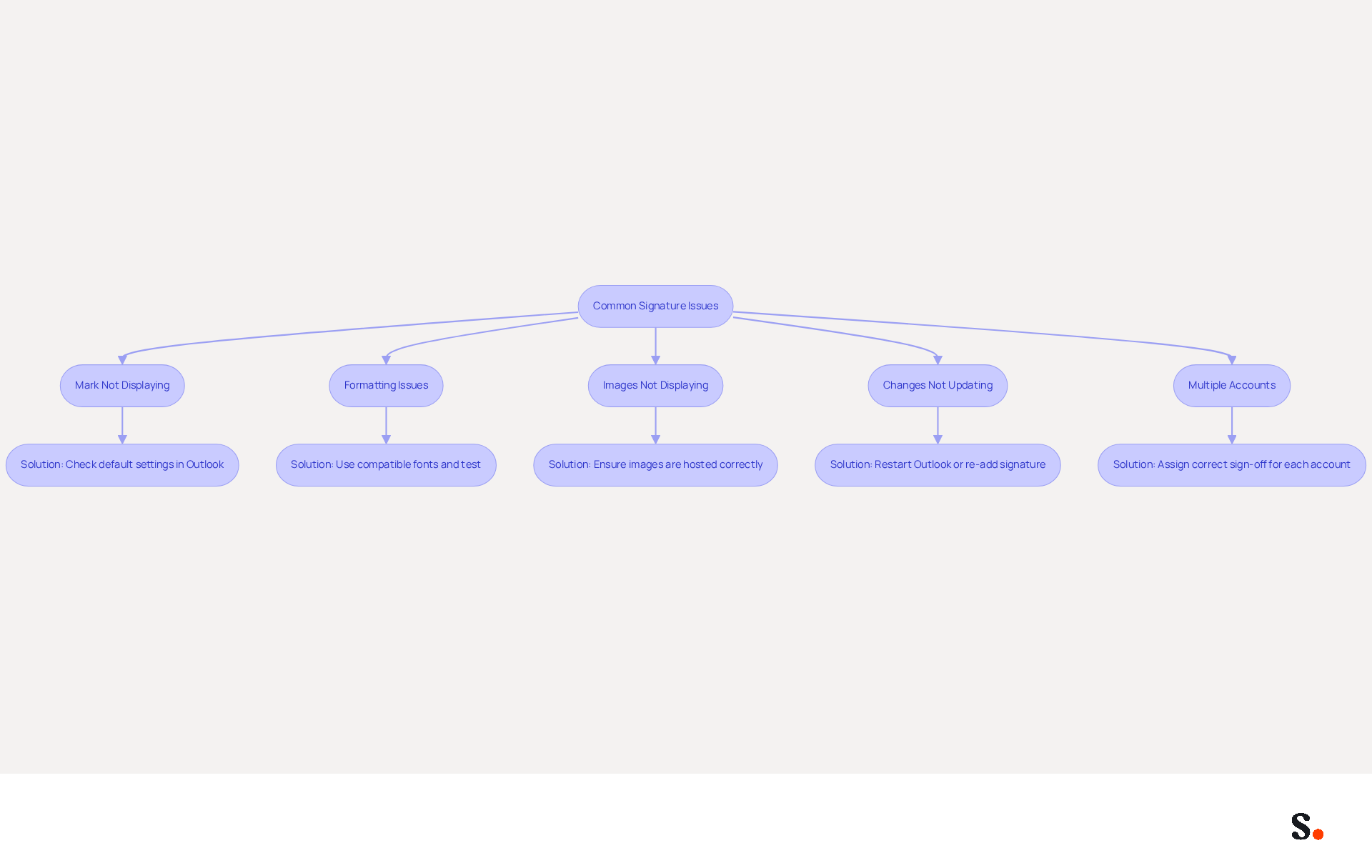
Despite having a well-designed message footer, users frequently encounter challenges that can undermine their effectiveness. Here are some common problems and how to troubleshoot them:
- Mark Not Displaying: If your mark isn’t visible in new messages, users often struggle with visibility issues in new messages due to incorrect default settings. To understand how to add signature in outlook automatically, navigate to 'File' > 'Options' > 'Mail' > 'Signatures' and ensure your personal mark is selected for new messages. Notably, 44.4% of users update their contact details just 2-4 times a year, leading to potential outdated configurations.
- Formatting Issues: If your mark looks different when sent, it may be due to HTML formatting. Ensure you are using compatible fonts and avoid excessive formatting. Test your mark by sending emails to various email clients, as formatting issues often occur due to differences in how clients display HTML.
- Images Not Displaying: If images in your email are not showing, ensure they are hosted online or embedded correctly. Check the image links and ensure they are accessible. Images are more likely to fail in web and mobile clients than in desktop applications, so consider using embedded graphics to avoid issues with blocked images.
- Changes to Your Signature Not Updating: If modifications to your sign-off aren’t reflected, try restarting the application or re-adding the sign-off. Temporary synchronization problems can hinder loading of identifiers correctly, particularly following updates. A common solution for resolving issues with missing or inconsistent email identifiers is to learn how to add signature in outlook automatically by creating a new Outlook profile.
- Multiple Accounts: If you have several accounts, ensure that the correct sign-off is assigned to each one. You can set different sign-offs for various accounts in the settings. With 89.9% of professionals utilizing a single electronic identifier, it’s essential to manage these settings actively to prevent confusion.
Resolving these common issues will ensure your email signature operates effectively, reinforcing your brand's professionalism in communications.
Conclusion
Establishing a professional presence in digital communications hinges on mastering email signatures in Outlook. By utilizing Scribe, organizations can automate the process of adding signatures, ensuring that every email sent reflects brand consistency and professionalism without the hassle of manual updates. This enhances the sender's credibility and turns email signatures into effective marketing tools.
Throughout this guide, key steps have been outlined to create and manage email signatures effectively. From understanding the essential elements of a signature to troubleshooting common issues, Scribe simplifies the entire process. The integration with Outlook allows for seamless updates and real-time synchronization, ensuring that all team members present a unified brand image. Scribe also ensures data security by complying with SOC 2 Type II, GDPR, and CCPA standards.
First impressions are crucial in professional communications, and leveraging Scribe for email signature management is not just a convenience; it is a strategic advantage. Organizations are encouraged to embrace this automation to enhance their branding efforts, save time, and ultimately drive engagement through every email sent. By taking control of email signatures, businesses can foster trust and recognition among their audience, paving the way for stronger professional relationships.
Frequently Asked Questions
What is the purpose of email signatures in Outlook?
Email signatures in Outlook serve as pivotal branding tools that convey your company's identity and include essential elements such as your name, title, company logo, and links to social media profiles or websites.
How can Scribe help with managing email signatures in Outlook?
Scribe automates the synchronization of email signatures with your business phone system, ensuring that any modifications made in your Aircall configuration are automatically reflected in your Outlook sign-offs, keeping signature information current and professional.
What are the key elements of an effective email signature?
Key elements of an effective email signature include contact information (full name, job title, company name), branding (company logo and colors), links to the website and social media profiles, and any necessary legal disclaimers relevant to your industry.
Why is branding important in email signatures?
Branding is important in email signatures because it maintains brand consistency, which can enhance recognition and trust among recipients. Consistent branding can lead to a 22% increase in response rates for messages.
What impact do email signatures have on recipient perception?
Well-crafted digital identifiers in email signatures can heighten brand awareness and increase trust, with 76% of recipients feeling more assured in the sender when a professional mark is employed.
Is Scribe compliant with data security standards?
Yes, Scribe is SOC 2 Type II compliant, ensuring that your data is handled securely and in compliance with industry standards.
List of Sources
- Understand Email Signatures in Outlook
- Research Recap: Branded Email Signatures Increase Company Recognition, Trust - Demand Gen Report (https://demandgenreport.com/industry-news/research-recap-branded-email-signatures-increase-company-recognition-trust/47252)
- Why Email Signatures Must Be In Your 2026 Marketing Plan | Rocketseed (https://rocketseed.com/blog/2026-marketing-plan-email-signatures)
- Best Practices for Email Signatures for Companies to Boost Branding (https://scribe-mail.com/en-US/blog/best-practices-for-email-signatures-for-companies-to-boost-branding)
- 4 Best Practices for a Professional Looking Email Signature (https://scribe-mail.com/en-US/blog/4-best-practices-for-a-professional-looking-email-signature)
- The impact of email signatures on your branding (https://signitic.com/en/resources/the-impact-of-email-signatures-on-your-branding)
- Create Your Email Signature in Outlook
- 40+ Email Signature Statistics for 2026 (Data + Insights) (https://wavecnct.com/blogs/email-signature-statistics)
- How To Add An Email Signature in Outlook (2026) (https://hubspot.com/email-signature-generator/add-signature-outlook)
- How to add and change an email signature in Outlook | Microsoft Support (https://support.microsoft.com/en-us/outlook/mail/how-to-add-and-change-an-email-signature-in-outlook)
- How To Setup An Email Signature In Outlook (https://getmailbird.com/how-to-setup-an-email-signature-in-outlook)
- Automate Signature Management with Scribe
- 40+ Email Signature Statistics for 2026 (Data + Insights) (https://wavecnct.com/blogs/email-signature-statistics)
- Scribe revenue, funding & news (https://sacra.com/c/scribe)
- Email signature statistics: Why every business should optimize their email signatures — Stripo.email (https://stripo.email/blog/email-signature-statistics-why-every-business-should-optimize-their-email-signatures)
- Why Email Signature Management Software is Essential for Marketing Success (https://scribe-mail.com/en-US/blog/why-email-signature-management-software-is-essential-for-marketing-success)
- Troubleshoot Common Signature Issues
- 40+ Email Signature Statistics for 2026 (Data + Insights) (https://wavecnct.com/blogs/email-signature-statistics)
- Outlook Signature Not Working in Office 365: Causes & Fixes (https://exclaimer.com/email-signature-handbook/outlook-signature-not-working-in-office-365)
- How to solve problems with email signatures in Microsoft 365? (https://mail-signatures.com/articles/problems-email-signatures-office-365)
- Microsoft Outlook Classic Email Signatures Picture Display Issues - Microsoft Q&A (https://learn.microsoft.com/en-us/answers/questions/5982071/microsoft-outlook-classic-email-signatures-picture)
- Email Signature Troubleshooting - Problems & Solutions - Gimmio (https://blog.gimm.io/email-signature-troubleshooting)
Get started with Scribe
Create your signature in minutes
Free 14-day trial — no credit card.