How to Add Social Media Icons to Your Email Signature in 4 Steps
In a digital landscape where brand visibility is paramount, adding social media icons to email signatures emerges as a strategic necessity. As organizations
Sophie Grant
Email Signature Specialist, Scribe

Introduction
In a digital landscape where brand visibility is paramount, adding social media icons to email signatures emerges as a strategic necessity. As organizations increasingly recognize the importance of cohesive branding across all communication channels, the integration of social media links into email signatures has become a best practice. This article outlines key steps for effectively incorporating social media icons into email signatures, ensuring that every email sent conveys professionalism while inviting recipients to connect on various platforms.
However, what key considerations should organizations keep in mind to ensure these icons enhance their signatures without overwhelming them?
Prepare Your Email Signature for Social Media Icons
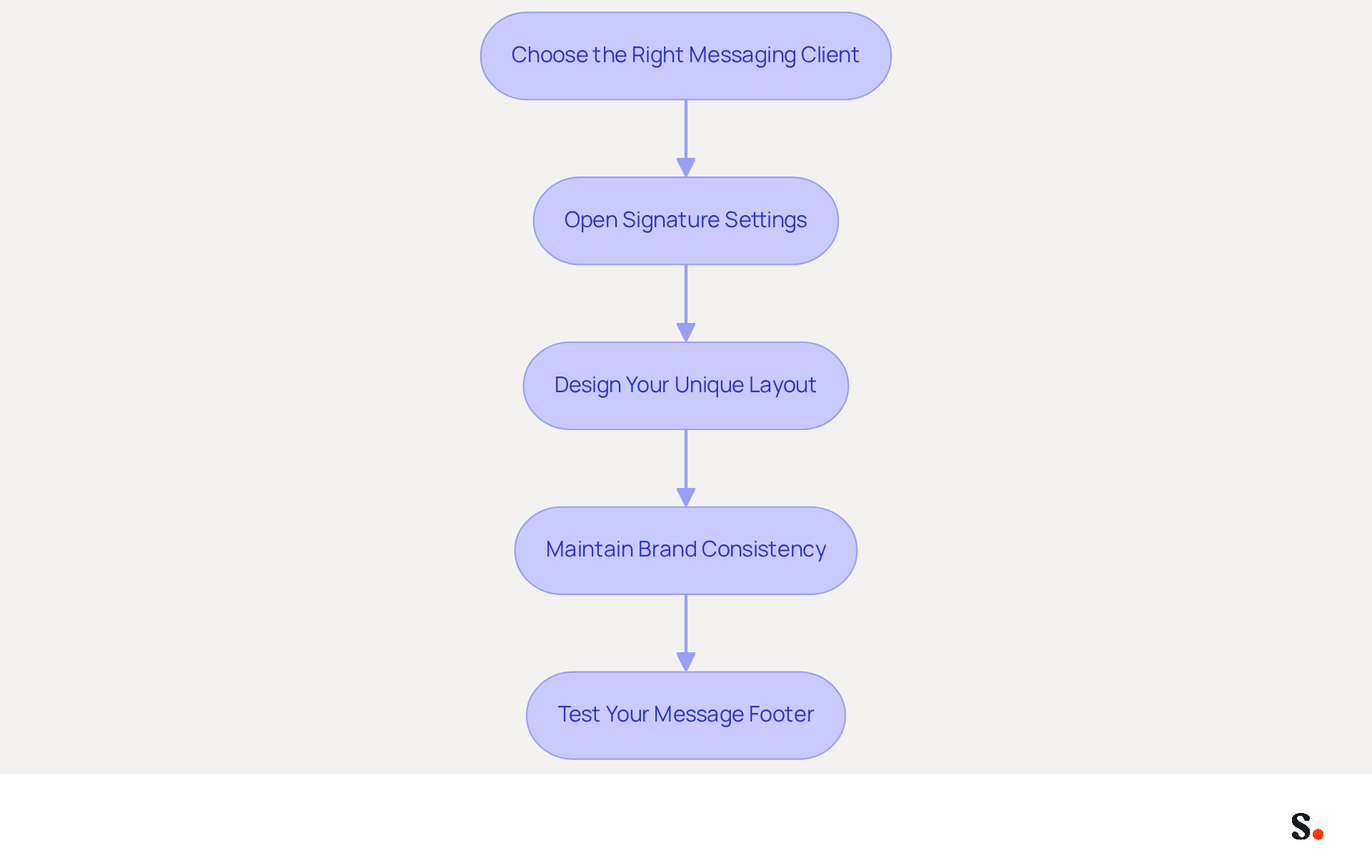
- Choose the Right Messaging Client: Selecting the right messaging client is crucial for effective email signature management. Ensure your messaging client supports HTML formats. Popular choices include Gmail, Outlook, and Apple Mail, which enable rich formatting and the ability to add social media icons to email signatures.
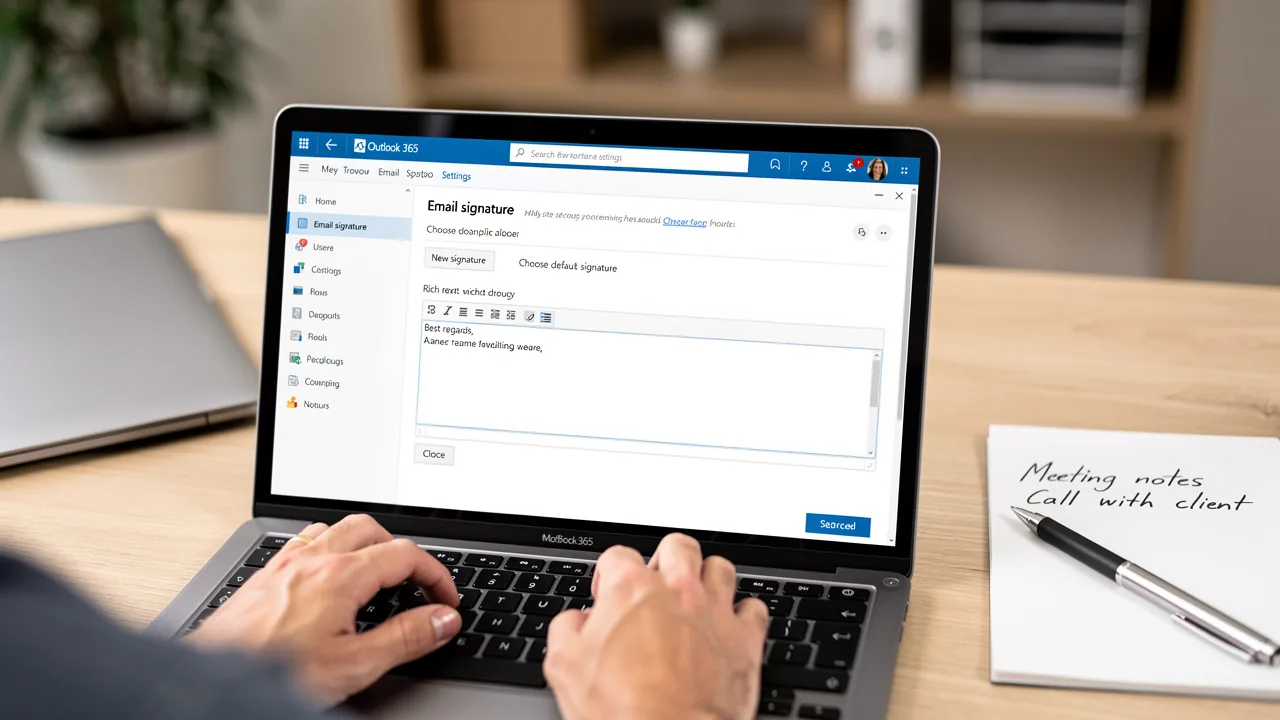
- Open Signature Settings: Access your email preferences to configure your personal mark. For example, in Gmail, click the gear symbol, select 'See all settings', and navigate to the 'Signature' section to begin editing.
- Design your unique layout by positioning social media icons at the bottom to ensure visibility without overwhelming the main content, and also remember to add social media icons to your email signature. This layout enhances professionalism and ensures clarity. Additionally, consider using dividers to separate content for better scannability.
- Maintain Brand Consistency: Use colors and fonts that reflect your brand identity. Consistency in design not only strengthens brand recognition but also elevates the overall perception of your communications. Using Scribe, changes in your Aircall settings will sync with your email signatures automatically, ensuring that your branding remains consistent across all communications. Scribe's SOC 2 Type II certification and compliance with GDPR and CCPA ensure that your data handling is secure and compliant. To avoid clutter and maintain focus on your key messages, you should add social media icons to your email signature, limiting them to 3-5. Furthermore, ensure that the graphics are high-resolution PNG or SVG files for optimal visual quality, and add descriptive alt text to each graphic for accessibility. Finally, test your message footer across various clients to confirm that the icons display and function correctly. By syncing your Google Workspace with Scribe, you save time and ensure that any updates to your teammates' information are automatically reflected in their identifiers, streamlining your management process. This approach empowers Marketing teams to take control of email signature management post-setup, enhancing efficiency and control.
Select and Download Social Media Icons
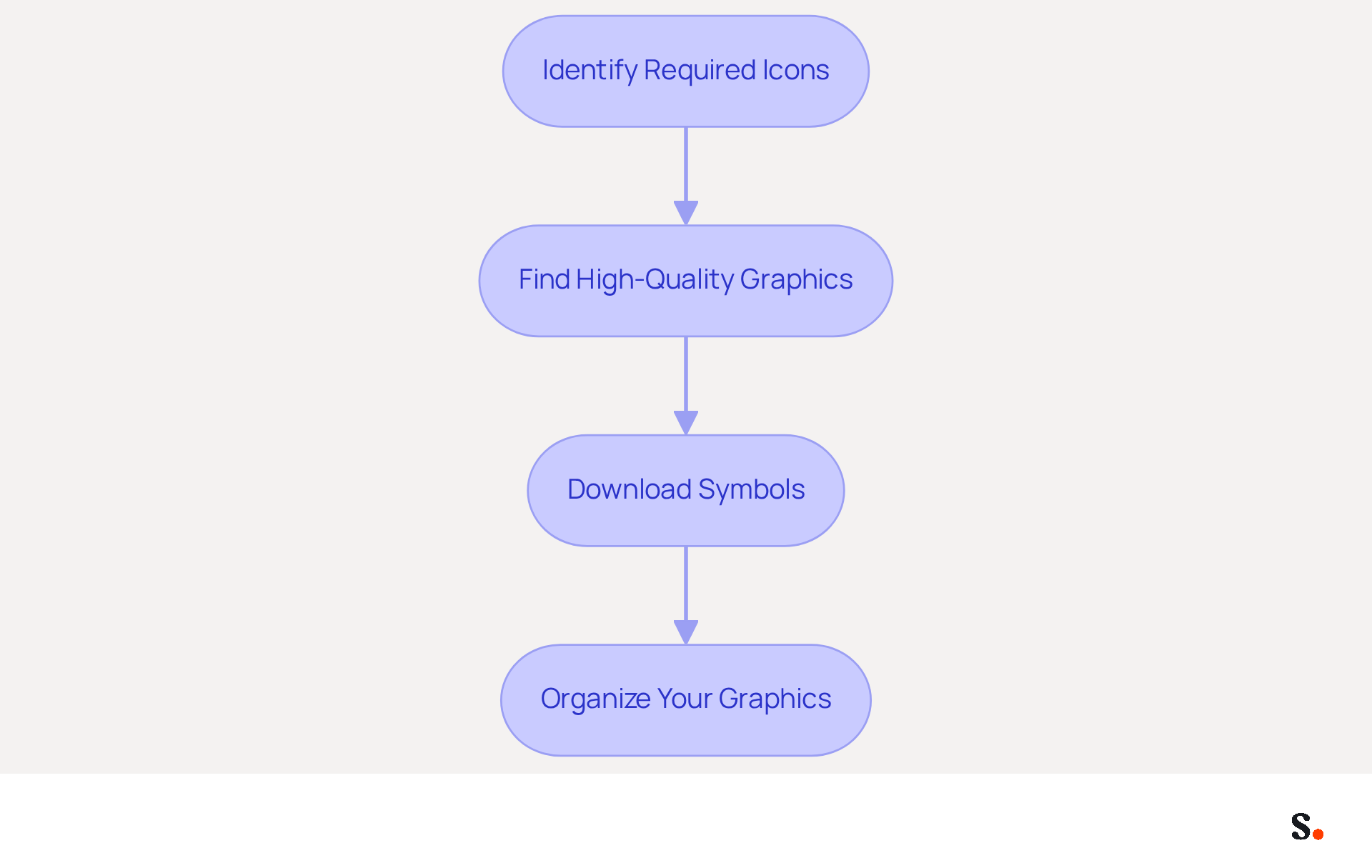
- Identify Required Icons: Selecting the right social media icons is crucial for aligning your brand with its marketing objectives. Popular choices include Facebook, LinkedIn, and Instagram, as they cater to diverse audiences and enhance brand visibility. Limit the number of symbols to 3-5 to maintain a clean and professional appearance.
- Find High-Quality Graphics: Source your visuals from reputable platforms such as Flaticon, Icons8, or Canva. These sites provide a variety of free and premium choices, ensuring you discover graphics that are both visually appealing and professional.
- Download Symbols: Opt for graphics in PNG format, as they are the most dependable option across email clients. Ensure the graphics are sized between 16x16 and 24x24 pixels for optimal visibility without overwhelming your signature. Consistency in style and color is crucial for maintaining a polished look. Additionally, remember to include descriptive alt text for each graphic for accessibility, such as 'Follow us on LinkedIn'.
- Organize Your Graphics: Create a dedicated folder on your computer to store the downloaded graphics. Keeping your graphics organized makes it easier to add them to your emails whenever you're ready. Regularly review your online links to ensure they remain active and relevant, and test your message footers across different clients to confirm that graphics display correctly and function as intended.
To significantly enhance your marketing strategy, you should add social media icons to email signature, turning every message into an opportunity for engagement. By ensuring your media links are consistently active, you reinforce your brand's reliability and enhance audience engagement.
Integrate Icons into Your Email Signature
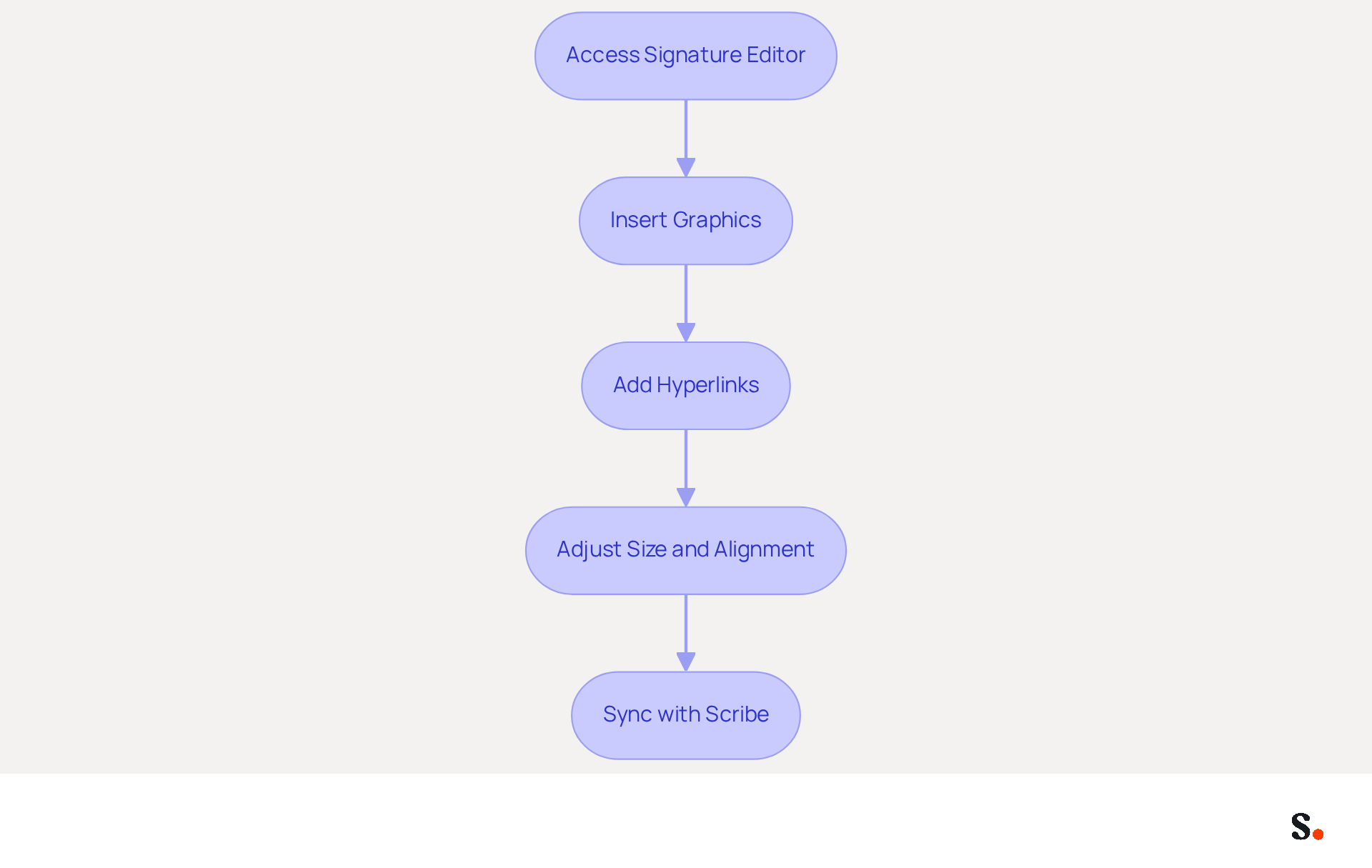
- Access Signature Editor: To effectively manage your email signature, navigate to your email settings and open the signature editor. For Gmail users, this can be found under the 'Signature' section.
- Insert Graphics: Click on the 'Insert Image' option to upload the media symbols you have downloaded. Position them according to your design layout, ensuring they are visually appealing and consistent with your brand.
- Add Hyperlinks: After inserting each graphic, connect them to the relevant media profiles. Right-click on the icon, select 'Link', and paste the URL of your media page. Interactivity is crucial; 75.8% of users choose to add social media icons to email signature to boost engagement. With Scribe, any changes made in your Aircall configuration will automatically sync with your email signatures, maintaining brand consistency across communications and saving you valuable time.
- Adjust Size and Alignment: Ensure the graphics are appropriately sized and aligned. When you add social media icons to email signature, the ideal dimensions for social media graphics are between 20 and 25 pixels square, which helps maintain a clean appearance without overshadowing your contact details or company logo. Use the formatting tools in your email client to maintain this balance; consistent icon sizes help your design load quickly. Furthermore, Scribe's SOC 2 Type II compliance ensures that your data is managed securely, ensuring secure management of your messaging branding.
Test and Optimize Your Email Signature
Ensuring the effectiveness of your email signature requires thorough testing and feedback.
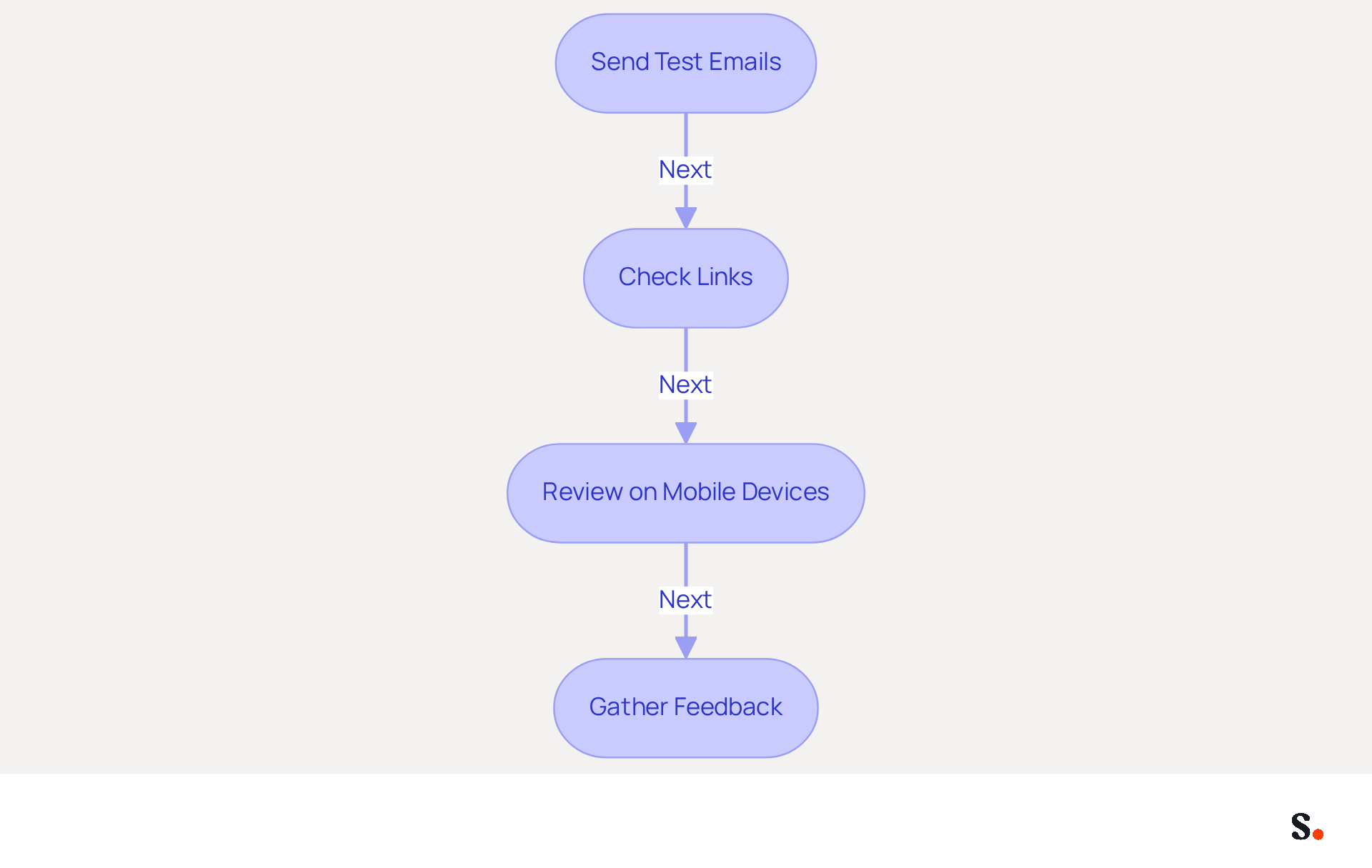
- Send Test Emails: Distribute test emails to yourself and colleagues across various email clients, such as Gmail, Outlook, and Apple Mail. This helps you see how the mark looks in various environments, ensuring consistency and professionalism.
- Check Links: Click on each social media icon to verify that the links direct to the correct profiles when you add social media icons to email signature. This functionality is crucial because broken links can reduce the effectiveness of your email branding.
- Review on Mobile Devices: Evaluate how the mark appears on mobile devices. Ensure that the icons are appropriately sized and that the overall layout remains intact, as mobile-friendly designs can significantly enhance user experience and engagement.
- Gather Feedback: Actively seek input from colleagues about the document's appearance and functionality, as their insights can reveal hidden issues. Regular updates and testing are crucial; with 44.4% of professionals updating their email signatures only 2-4 times a year, outdated information can lead to missed opportunities. Neglecting these steps could result in missed opportunities and a lack of professionalism in your email communications.
Conclusion
Integrating social media icons into email signatures presents a significant opportunity for enhancing brand visibility and engagement. Following these steps allows individuals and organizations to craft a professional email signature that reflects their brand and invites recipients to connect on various platforms.
The article emphasizes the importance of:
- Selecting the right messaging client
- Maintaining brand consistency
- Ensuring that the icons are visually appealing and functional
Key insights include:
- The necessity of testing the signature across different email clients and devices
- The significance of using high-quality graphics and appropriate sizing
Tools like Scribe simplify this process, enabling marketing teams to manage email signatures effectively while adhering to security standards like SOC 2 Type II, GDPR, and CCPA.
This integration not only improves visibility but also opens new channels for audience interaction. By implementing these best practices, organizations can enhance their communication and foster stronger connections with their audience, reinforcing their brand's reliability and professionalism. By adopting these strategies, organizations can transform their email signatures into effective tools for fostering engagement and reinforcing brand trust.
Frequently Asked Questions
Why is it important to choose the right messaging client for email signature management?
Choosing the right messaging client is crucial because it ensures that the client supports HTML formats, allowing for rich formatting and the addition of social media icons to email signatures. Popular choices include Gmail, Outlook, and Apple Mail.
How do I access the signature settings in my email client?
To access your email signature settings, go to your email preferences. For example, in Gmail, click the gear symbol, select 'See all settings', and navigate to the 'Signature' section to begin editing.
What is the recommended layout for adding social media icons to an email signature?
It is recommended to position social media icons at the bottom of the email signature to ensure visibility without overwhelming the main content. Using dividers can also help separate content for better scannability.
How can I maintain brand consistency in my email signature?
To maintain brand consistency, use colors and fonts that reflect your brand identity. This strengthens brand recognition and elevates the perception of your communications.
How does Scribe help with email signature management?
Using Scribe, changes in your Aircall settings will sync automatically with your email signatures, ensuring consistent branding across all communications. Scribe also offers SOC 2 Type II certification and compliance with GDPR and CCPA for secure data handling.
How many social media icons should I include in my email signature?
It is recommended to limit the number of social media icons to 3-5 to avoid clutter and maintain focus on key messages.
What file formats should I use for social media icons in my email signature?
Use high-resolution PNG or SVG files for optimal visual quality of the social media icons in your email signature.
Why is it important to add descriptive alt text to graphics in my email signature?
Adding descriptive alt text to each graphic enhances accessibility, ensuring that all recipients can understand the content of the icons.
How can I ensure that my email signature displays correctly across various clients?
It is important to test your email signature across various clients to confirm that the icons display and function correctly.
What benefits does syncing Google Workspace with Scribe provide?
Syncing Google Workspace with Scribe saves time and ensures that any updates to your teammates' information are automatically reflected in their identifiers, streamlining the management process and empowering Marketing teams to control email signature management post-setup.
List of Sources
- Prepare Your Email Signature for Social Media Icons
- Email Signature Design Best Practices Illustrated with 20+ Examples (https://chamaileon.io/resources/email-signature-design-best-practices)
- Best Practices for Social Media Icon Email Signature Integration (https://scribe-mail.com/en-US/blog/best-practices-for-social-media-icon-email-signature-integration)
- Social Media Icons for Email Signatures (with Free Downloads) | Exclaimer (https://exclaimer.com/email-signature-handbook/social-media-icons-in-email-signatures)
- How to add social media icons to your email signature and email footer — Stripo.email (https://stripo.email/blog/add-social-media-icons-email-signature)
- Stand Out in Every Inbox: How To Add Social Media Icons to Your Email Signature (https://medium.com/hihello-me/stand-out-in-every-inbox-how-to-add-social-media-icons-to-your-email-signature-2643d93489e6)
- Select and Download Social Media Icons
- Social Media Icons for Email Signatures - Gimmio (https://blog.gimm.io/social-media-icons-for-email-signatures)
- Social Media Icons for Email Signatures | Mailchimp (https://mailchimp.com/resources/social-media-icons-for-email-signature)
- Social Media Icons for Email Signatures (with Free Downloads) | Exclaimer (https://exclaimer.com/email-signature-handbook/social-media-icons-in-email-signatures)
- Social media icons in email signatures - free download (https://mail-signatures.com/articles/free-social-media-icons-for-email-signatures)
- Where to Find Free Social Media Icons and How to Use Them Without Worries (https://agorapulse.com/blog/social-media-content-creation/free-social-media-icons)
- Integrate Icons into Your Email Signature
- 40+ Email Signature Statistics for 2026 (Data + Insights) (https://wavecnct.com/blogs/email-signature-statistics)
- Best Practices for Social Media Icon Email Signature Integration (https://scribe-mail.com/en-US/blog/best-practices-for-social-media-icon-email-signature-integration)
- How to Use Social Media Icons in Your Email Signature? (https://letsignit.com/blog/social-media-icons-in-email-signature)
- Email Signature Statistics: A Closer Look at Email Signatures in 2026 (https://mysignature.io/blog/email-signature-statistics)
- Email signature statistics and trends in 2024 (https://wisestamp.com/blog/email-signature-statistics)
- Test and Optimize Your Email Signature
- Email signature statistics: Why every business should optimize their email signatures — Stripo.email (https://stripo.email/blog/email-signature-statistics-why-every-business-should-optimize-their-email-signatures)
- 4 Best Practices for a Modern Email Signature That Engages (https://scribe-mail.com/en-US/blog/4-best-practices-for-a-modern-email-signature-that-engages)
- Optimizing Mobile Email Signatures: Best Practices for Seamless Communication | MySignature (https://mysignature.io/blog/optimizing-mobile-email-signatures)
- How to Make Email Signature Mobile-Friendly in 2023 (https://pandadoc.com/ask/how-to-make-email-signature-mobile-friendly)
- How to Optimize Your Email Signature for Mobile Devices - Gimmio (https://blog.gimm.io/how-to-optimize-your-email-signature-for-mobile-devices)
Get started with Scribe
Create your signature in minutes
Free 14-day trial — no credit card.