How to Add Teams Add-In to Outlook: A Step-by-Step Guide
Integrating the Teams Add-In into Outlook presents a unique opportunity to enhance productivity, yet many users face challenges during installation. This guide
Sophie Grant
Email Signature Specialist, Scribe

Introduction
Integrating the Teams Add-In into Outlook presents a unique opportunity to enhance productivity, yet many users face challenges during installation. This guide provides a clear, step-by-step process for installing the add-in, helping users make the most of its features for better collaboration.
Yet, many users encounter challenges during installation. What are the common pitfalls, and how can they be resolved to maximize the benefits of this tool?
Understand the Teams Add-In for Outlook
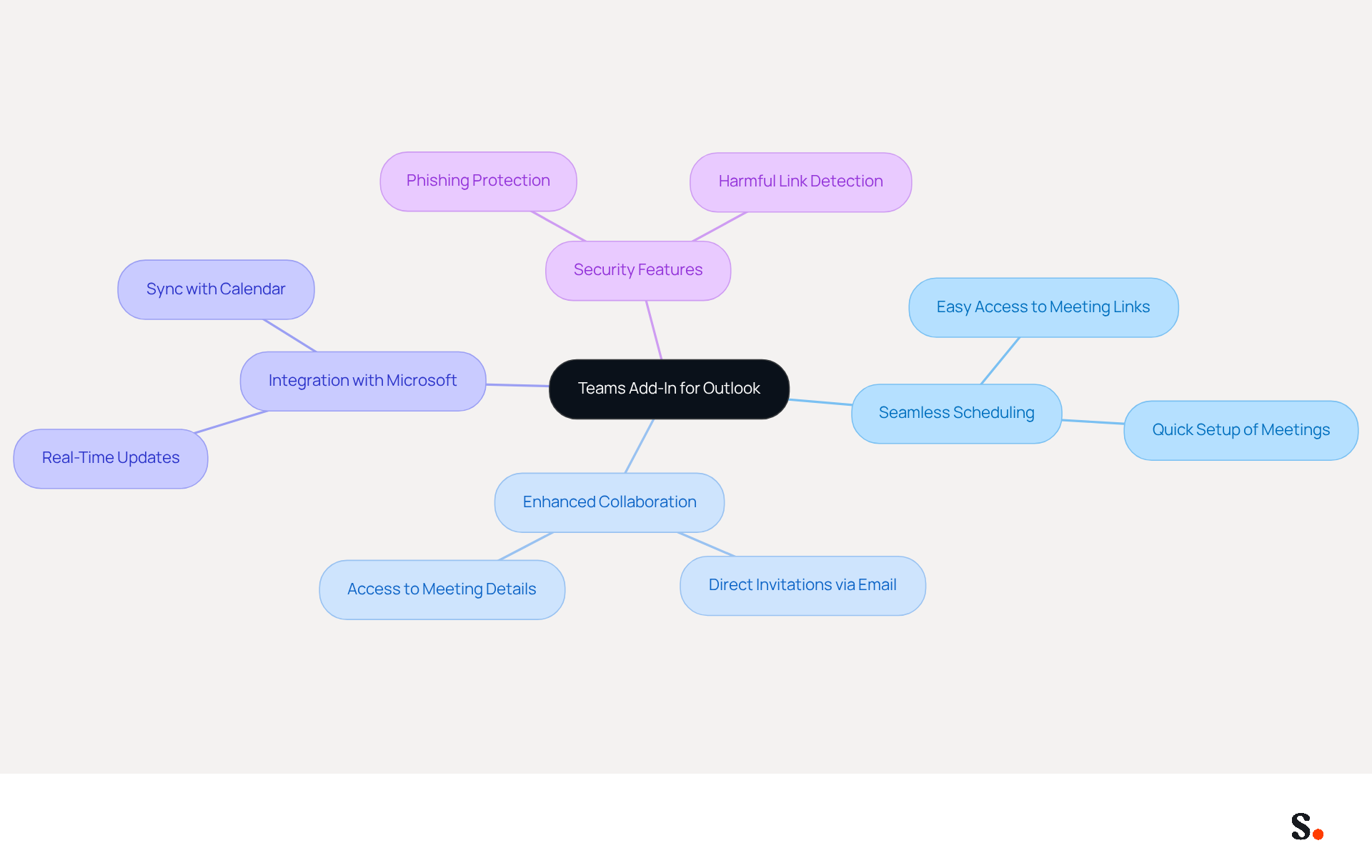
The add teams add-in to Outlook helps address the common challenges of scheduling and managing Microsoft collaboration sessions directly from the Outlook calendar. This integration streamlines the process of arranging virtual gatherings, allowing users to set up collaborative sessions with just a few clicks. Key features of the add-in include:
- Seamless Scheduling: Easily add Teams meeting links to calendar invites, ensuring that all participants have easy access to join.
- Enhanced Collaboration: Invite participants to join discussions directly through the email application, ensuring everyone has access to the details.
- Integration with Microsoft: Automatically syncs with Microsoft, allowing for real-time updates and notifications.
Utilizing the collaboration tool enhances efficiency and simplifies communication, making it essential for Outlook users scheduling appointments. Statistics show that Microsoft’s collaboration platform boasts approximately eight times the user base of its nearest competitor, underscoring its effectiveness. Furthermore, organizations that have incorporated the collaboration tool report enhanced meeting management and participant engagement, demonstrating its significance in contemporary business settings. Additionally, the application includes robust security features, such as phishing protection and the detection of harmful links, ensuring a safe environment for all users. This tool not only enhances productivity but also fosters a more collaborative work environment, essential for modern business success.
Check Prerequisites for Installation
Before integrating the Teams Add-In into Outlook, it is crucial to verify that specific prerequisites are met to ensure a smooth installation process:
- Microsoft 365 Subscription: You must have a valid Microsoft 365 subscription that includes Microsoft collaboration tools.
- Email Client Version: Ensure you are using a compatible version of the email client (2016 or later).
- The desktop application for the platform should be installed and running on your computer.
- Administrator Permissions: You may need administrator rights to install the add-in, especially in a corporate environment.
- WebView2 and .NET 4.8: Ensure that WebView2 and .NET Framework 4.8 are installed to avoid any compatibility issues.
Failing to meet these prerequisites may result in installation errors or limited functionality when you add the Teams add-in to Outlook. By confirming these prerequisites, you can facilitate a seamless integration of the Teams add-in to Outlook in your environment.

Add the Teams Add-In to Outlook
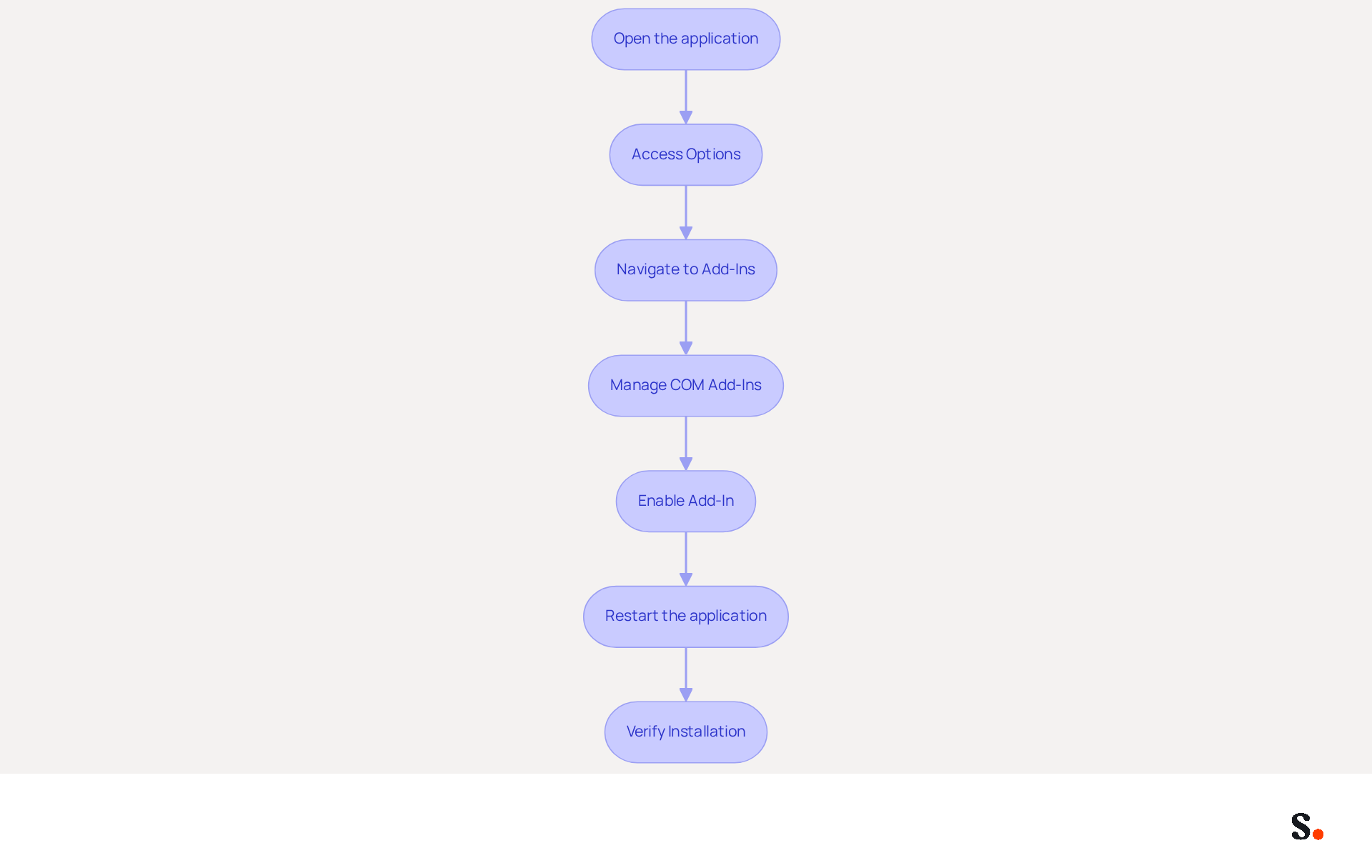
To integrate the Teams Add-In into Outlook effectively, follow these essential steps:
- Open the application: Launch the email program on your computer.
- Access Options: Click on 'File' in the top left corner, then select 'Options' from the menu.
- Navigate to Add-Ins: In the Options window, click on 'Add-ins' in the left sidebar.
- Manage COM Add-Ins: At the bottom of the window, find the 'Manage' dropdown menu, select 'COM Add-ins', and click 'Go'.
- Enable Add-In: Look for 'Microsoft Meeting Add-in for Microsoft Office' in the list. If it is unchecked, check the box next to it and click 'OK'.
- Restart the application: Close and reopen the program to ensure the changes take effect.
- Verify Installation: Go to your calendar view and check if the 'New Meeting' option is available in the ribbon.
By following these steps, you can seamlessly arrange virtual gatherings in Outlook. Notably, organizations using Microsoft 365's built-in security features can respond to incidents 75% faster, highlighting the importance of incorporating tools like this collaboration extension for enhanced productivity and security. However, users might face challenges like corrupted profiles or registry settings that can prevent the Add-in from loading properly. Ultimately, leveraging the ability to add teams add-in to Outlook can transform your scheduling process, making it more efficient and aligned with modern work demands.
Troubleshoot Common Installation Issues
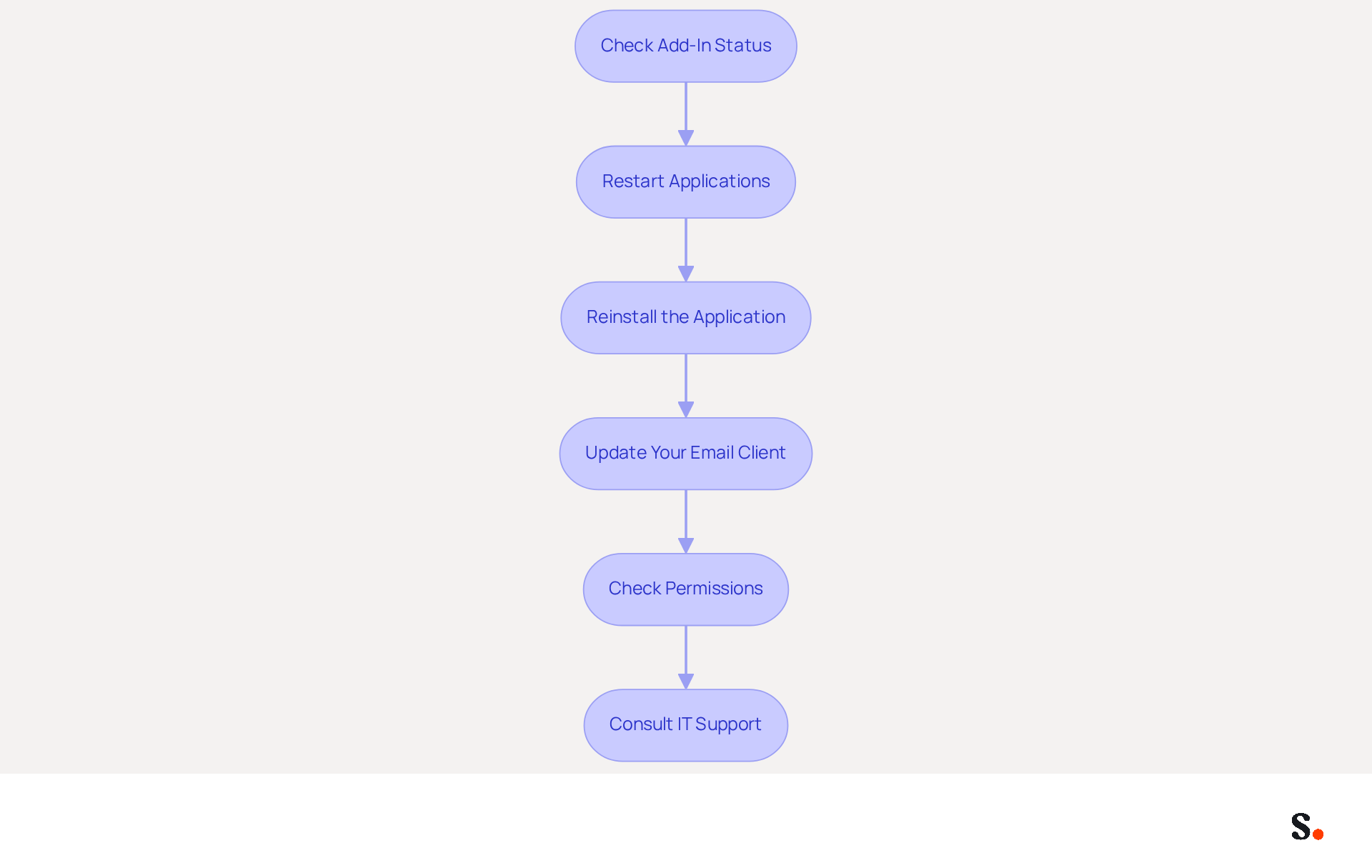
When encountering difficulties with the installation process, it is important to follow a systematic approach to add teams add-in to Outlook effectively.
- Check Add-In Status: Navigate to 'File' > 'Options' > 'Add-ins' and confirm that the Add-In is listed as active. If it appears under 'Disabled Items', select it and click 'Enable'.
- Restart Applications: Close both email and collaboration tools, then restart them to refresh the connection and ensure proper integration.
- Reinstall the application: If the add-in is missing, try uninstalling and then reinstalling the desktop application to ensure proper integration with your email client.
- Update your email client: Ensure your application is current. Go to 'File' > 'Office Account' > 'Update Options' > 'Update Now' to check for updates. Users must have version 2016 or a newer edition for the Meeting add-in to be installed.
- Check Permissions: Verify that you possess the necessary permissions to install add-ins on your computer, particularly in a corporate environment where restrictions may apply. This is crucial as users often encounter obstacles when trying to install add-ins, primarily due to permission issues and outdated software.
- Consult IT Support: If problems continue, contact your IT department for help; they might have specific settings or restrictions that could impact the installation.
Additionally, it is important to note that you need to be on Windows 10 or higher to run the troubleshooter. There is also a known issue with the MicrosoftTeamsMeetingAddinInstaller.msi in the new client, which may affect installation. By addressing these common challenges, users can ensure a seamless integration when they add teams add-in to Outlook, ultimately enhancing their productivity.
Conclusion
Integrating the Teams Add-In into Outlook is crucial for enhancing virtual meeting management and collaboration. Following these steps allows users to add this powerful tool to Outlook, enhancing communication and productivity.
Key insights from this guide include:
- The importance of verifying prerequisites such as having a compatible Microsoft 365 subscription and the necessary software versions.
- Troubleshooting common installation issues can prevent disruptions and ensure that users can fully leverage the capabilities of the Teams Add-In.
This integration simplifies meeting setup and boosts security, making it essential for effective collaboration.
Embracing the Teams Add-In for Outlook is a strategic move for organizations aiming to foster collaboration and improve meeting management. By installing and troubleshooting this add-in, users can fully utilize its capabilities, ultimately leading to a more productive and connected work environment.
Frequently Asked Questions
What is the Teams add-in for Outlook?
The Teams add-in for Outlook helps users schedule and manage Microsoft collaboration sessions directly from the Outlook calendar, streamlining the process of arranging virtual gatherings.
What are the key features of the Teams add-in?
Key features include seamless scheduling of Teams meeting links in calendar invites, enhanced collaboration by inviting participants directly through email, and integration with Microsoft for real-time updates and notifications.
How does the Teams add-in improve scheduling efficiency?
The add-in allows users to set up collaborative sessions with just a few clicks, making it easier to arrange meetings and ensuring all participants have easy access to join.
What benefits do organizations experience by using the Teams add-in?
Organizations report enhanced meeting management and participant engagement, which demonstrates the add-in's significance in contemporary business settings.
How does the Teams add-in ensure user security?
The application includes robust security features such as phishing protection and the detection of harmful links, ensuring a safe environment for all users.
Why is the Teams add-in considered essential for Outlook users?
It enhances productivity and fosters a more collaborative work environment, which is essential for modern business success.
List of Sources
- Understand the Teams Add-In for Outlook
- Microsoft: Enabling Teams Meeting add-in breaks Classic Outlook (https://bleepingcomputer.com/news/microsoft/microsoft-enabling-teams-meeting-add-in-breaks-outlook-classic)
- Microsoft Teams Revenue and Usage Statistics (2026) (https://businessofapps.com/data/microsoft-teams-statistics)
- What’s New in Microsoft 365 | August Updates (https://blog.cloudcapsule.io/blog/whats-new-in-microsoft-365-august-updates)
- What's new in Microsoft Teams | Microsoft Support (https://support.microsoft.com/en-us/teams/platform/what-s-new-in-microsoft-teams)
- Microsoft Teams Team Usage Report - Microsoft 365 admin (https://learn.microsoft.com/en-us/microsoft-365/admin/activity-reports/microsoft-teams-usage-activity?view=o365-worldwide)
- Check Prerequisites for Installation
- Teams Meeting add-in is missing in Outlook Desktop after updating to New Teams | Microsoft Support (https://support.microsoft.com/en-us/support/known-issues/teams-meeting-add-in-is-missing-in-outlook-desktop-after-updating-to-new-teams)
- Microsoft 365 Statistics By Downloads, Subscribers, Revenue and Facts (https://electroiq.com/stats/microsoft-365-statistics)
- Understanding the Microsoft Teams Meeting Add-in for Outlook: Eligibility, Issues, and Troubleshooting | Microsoft Support (https://support.microsoft.com/en-us/outlook/understanding-the-microsoft-teams-meeting-add-in-for-outlook-eligibility-issues-and-troubleshooting)
- Installing the Teams Plug-In for Outlook (https://cedarcrest.teamdynamix.com/TDClient/2020/Portal/KB/Article/105749/Installing-the-Teams-Plug-In-for-Outlook)
- Microsoft 365 Statistics 2026: Global Growth Facts (https://sqmagazine.co.uk/microsoft-365-statistics)
- Add the Teams Add-In to Outlook
- Microsoft: Enabling Teams Meeting add-in breaks Classic Outlook (https://bleepingcomputer.com/news/microsoft/microsoft-enabling-teams-meeting-add-in-breaks-outlook-classic)
- Teams Add-In No Longer in Outlook - Microsoft Q&A (https://learn.microsoft.com/en-ie/answers/questions/5917703/teams-add-in-no-longer-in-outlook)
- Understanding the Microsoft Teams Meeting Add-in for Outlook: Eligibility, Issues, and Troubleshooting | Microsoft Support (https://support.microsoft.com/en-us/outlook/understanding-the-microsoft-teams-meeting-add-in-for-outlook-eligibility-issues-and-troubleshooting)
- Microsoft 365 Statistics 2026: Global Growth Facts (https://sqmagazine.co.uk/microsoft-365-statistics)
- Outlook Analytics Tools: Setup, Metrics & Benefits (2025) (https://hiverhq.com/blog/outlook-analytics-tools)
- Troubleshoot Common Installation Issues
- Resolution for new Teams add-in issues (https://nmmhelp.getnerdio.com/hc/en-us/community/posts/28548687700109-Resolution-for-new-Teams-add-in-issues)
- Troubleshoot the Teams Meeting add-in in Outlook for Windows | Microsoft Support (https://support.microsoft.com/en-us/outlook/troubleshoot-the-teams-meeting-add-in-in-outlook-for-windows)
- Microsoft: Enabling Teams Meeting add-in breaks Classic Outlook (https://bleepingcomputer.com/news/microsoft/microsoft-enabling-teams-meeting-add-in-breaks-outlook-classic)
- Fix Teams Meeting add-in problems in Classic Outlook - Microsoft Teams (https://learn.microsoft.com/en-us/troubleshoot/microsoftteams/meetings/resolve-teams-meeting-add-in-issues)
Get started with Scribe
Create your signature in minutes
Free 14-day trial — no credit card.