How to Change Gmail Signature on Phone: A Step-by-Step Guide
While changing an email signature on a mobile device appears straightforward, it often leads to unexpected challenges. With the increasing reliance on mobile
Sophie Grant
Email Signature Specialist, Scribe
Introduction
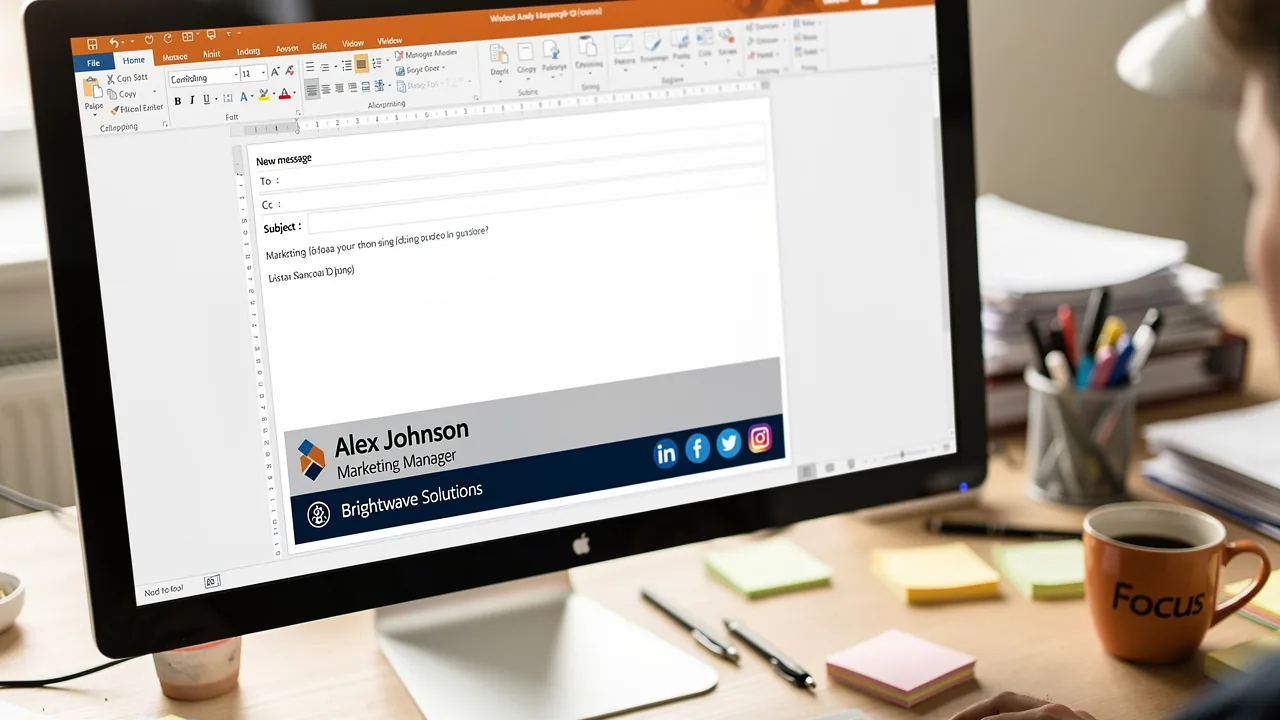
While changing an email signature on a mobile device appears straightforward, it often leads to unexpected challenges. With the increasing reliance on mobile communication, ensuring a professional and consistent email signature is crucial for effective branding and communication. This guide will help you navigate the Gmail app's signature settings with ease, empowering you to create and customize your signatures seamlessly.
What should you do if your signature doesn’t appear as intended? Addressing these common issues is essential for maintaining a professional image in digital communications.
Open the Gmail App and Access Settings
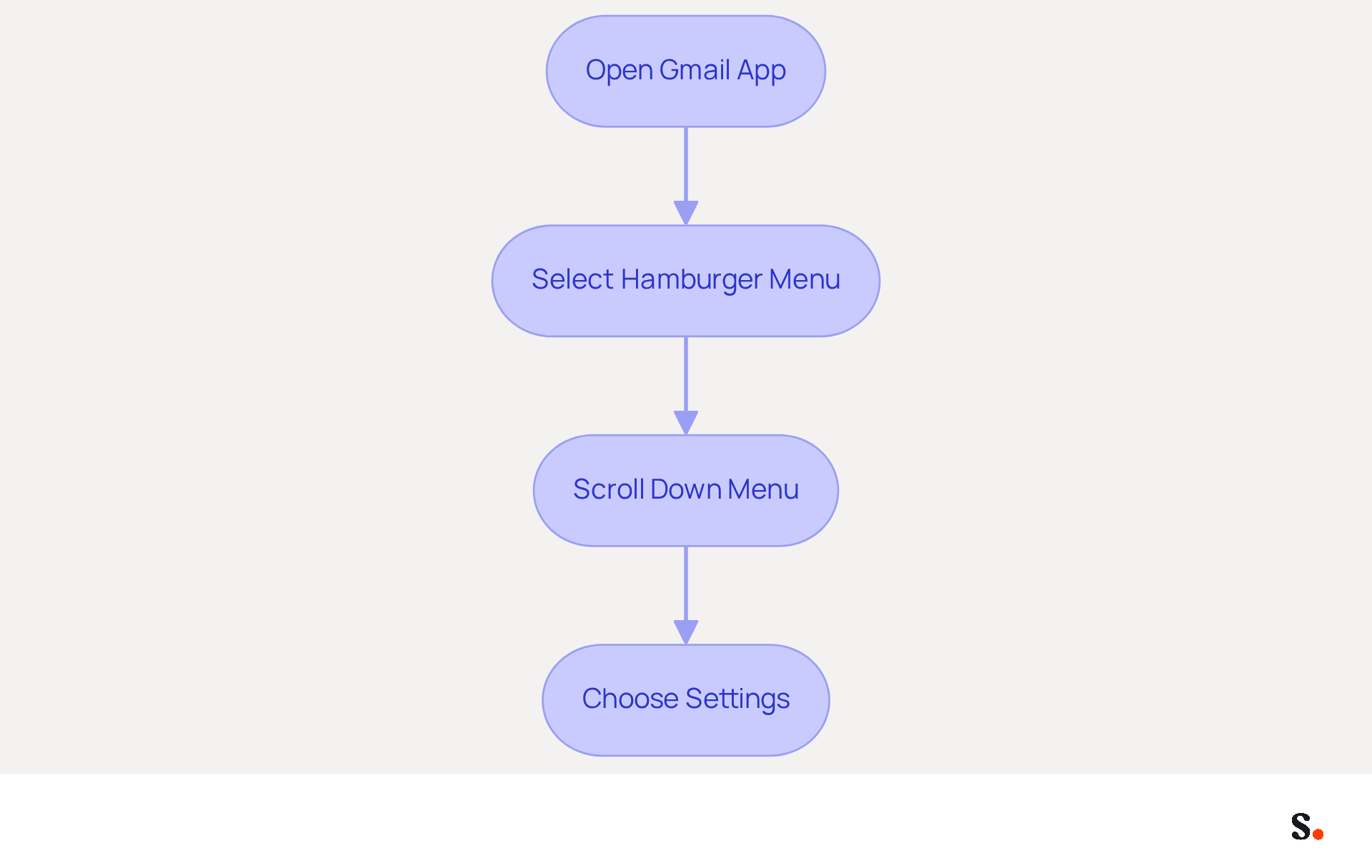
Begin by locating the Gmail app on your mobile device and opening it. Next, identify the three horizontal lines, commonly known as the 'hamburger menu,' located in the top left corner of the screen, and select it. Proceed to scroll down the displayed menu and choose 'Settings' to access various management options for your Gmail account. This action will lead you to the settings menu, where you can effectively manage different aspects of your Gmail account, including your email footer.
Navigate to the Signature Settings Section
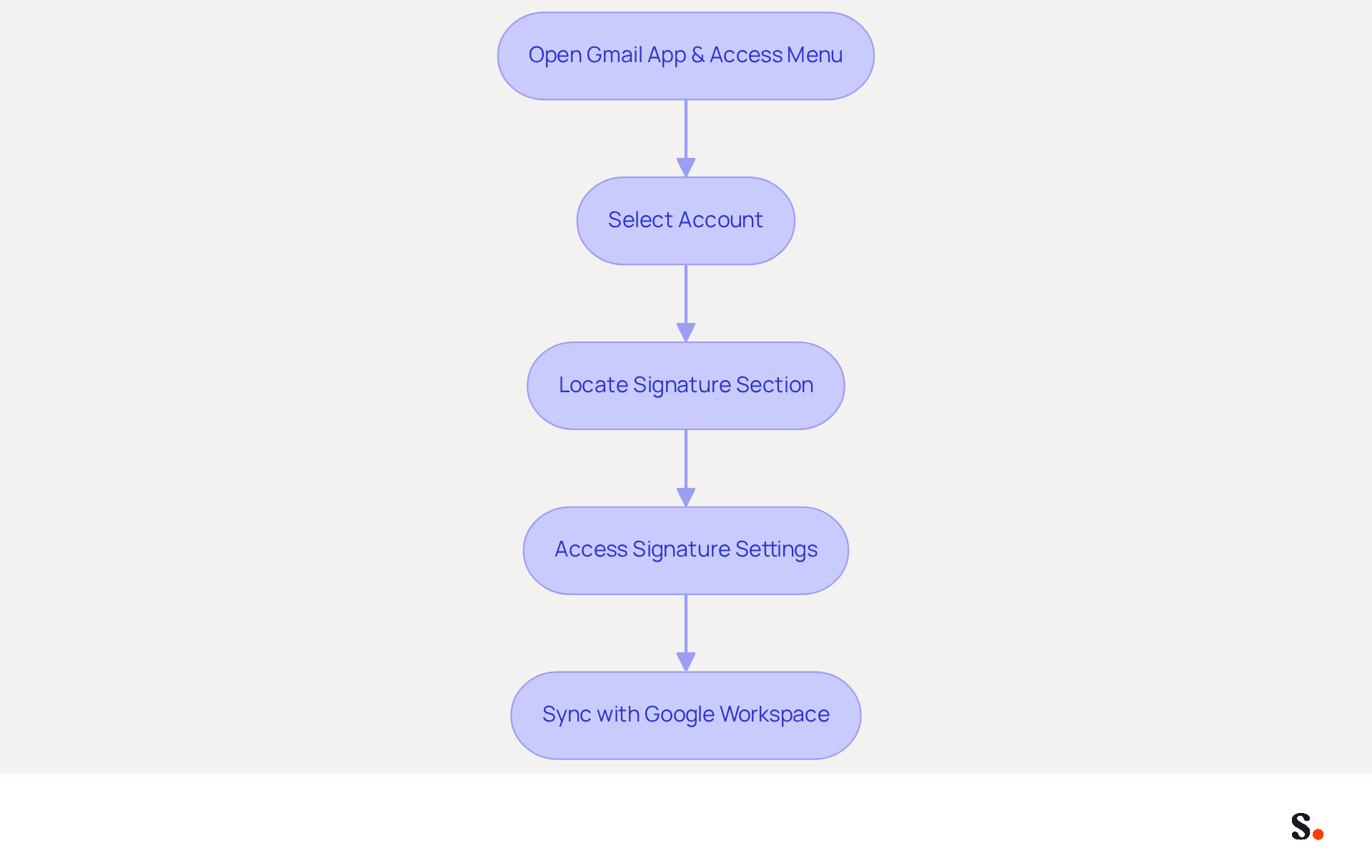
- Open the Gmail application and tap the Menu icon to access the Settings menu, where you'll find a list of your accounts. Choose the account for which you want to know how to change gmail signature on phone.
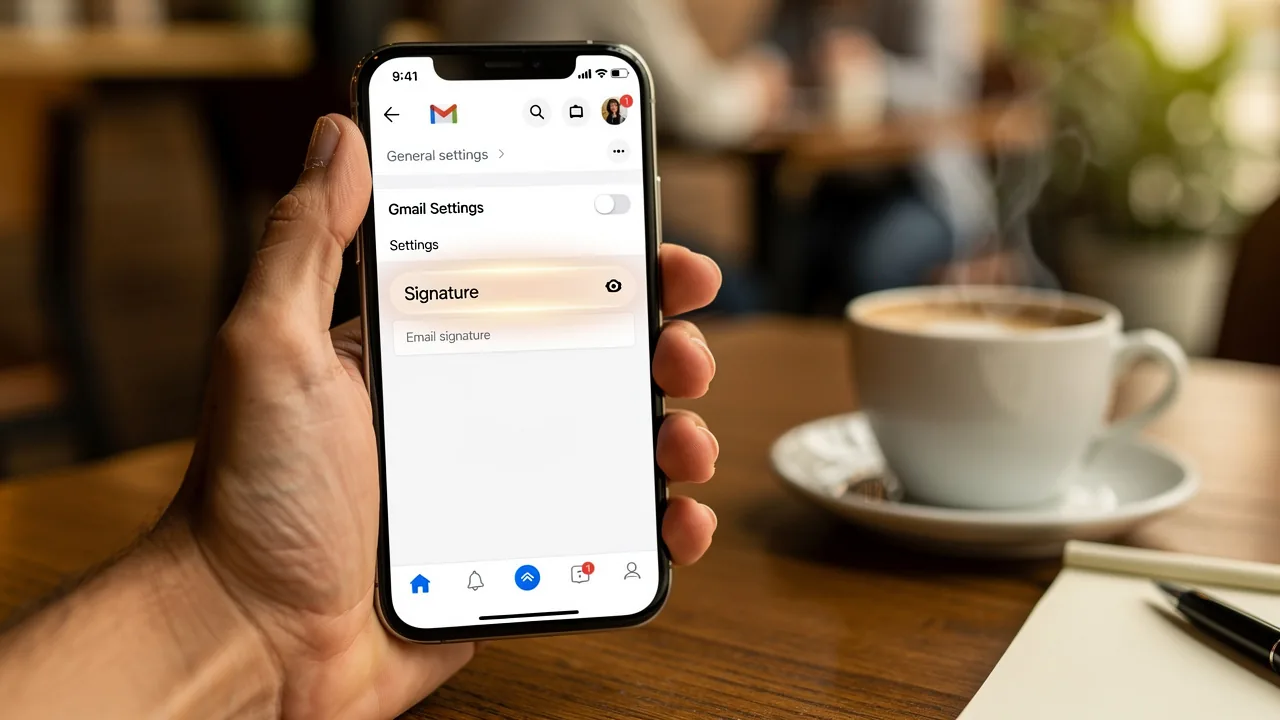
- Scroll down to locate the 'Signature' section, which may also be labeled as 'Mobile Signature' on some devices when you are figuring out how to change gmail signature on phone. Remember, roughly 80% of professionals incorporate a sign-off in their emails, which is crucial for effective communication.
- Tap on this option to access the settings for your sign, where you can learn how to change gmail signature on phone. Keep mobile identifiers brief-two or three lines with your name, role, and one contact method for easy reading on smaller screens. Keep in mind that mobile marks are text-only and do not support HTML formatting, so testing your mark across devices is essential to ensure it displays correctly.
Furthermore, by syncing your Google Workspace with Scribe, you can simplify your email management. This integration saves significant time by automatically updating your teammates' identification information, reflecting any changes made in Google Workspace without manual input. This feature boosts efficiency and keeps your brand consistent in all communications.
Create or Edit Your Signature Text
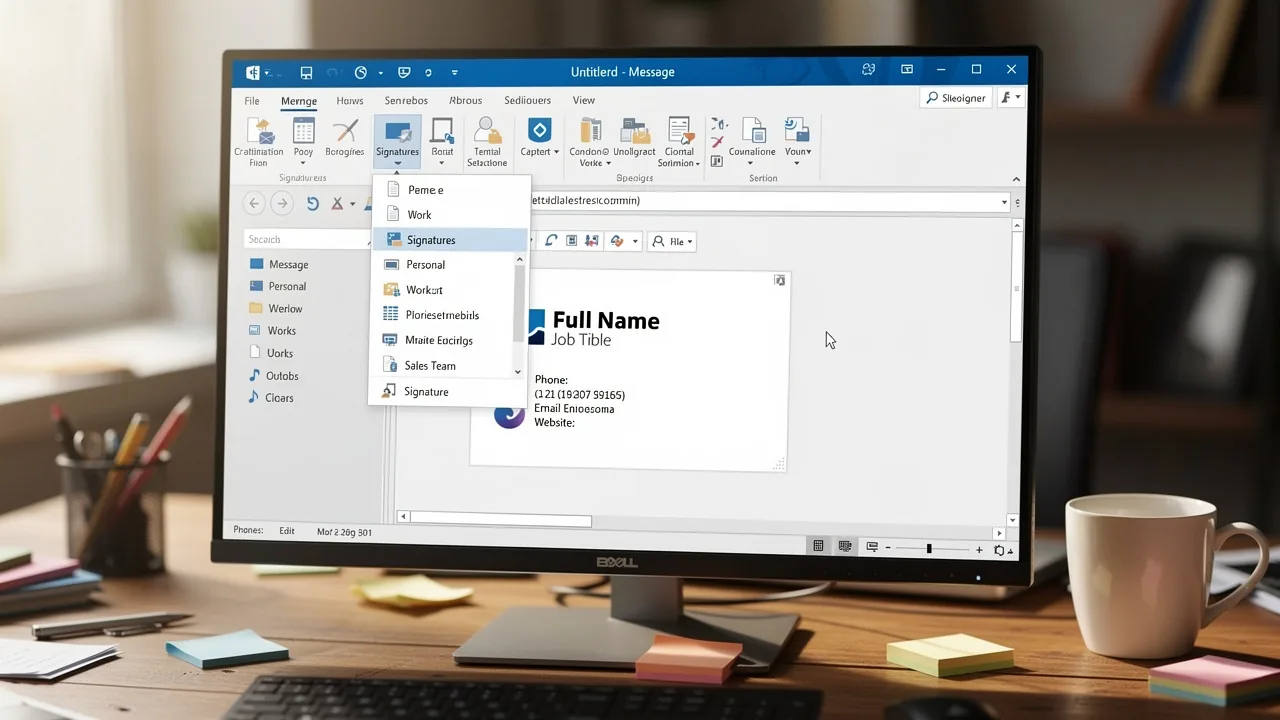
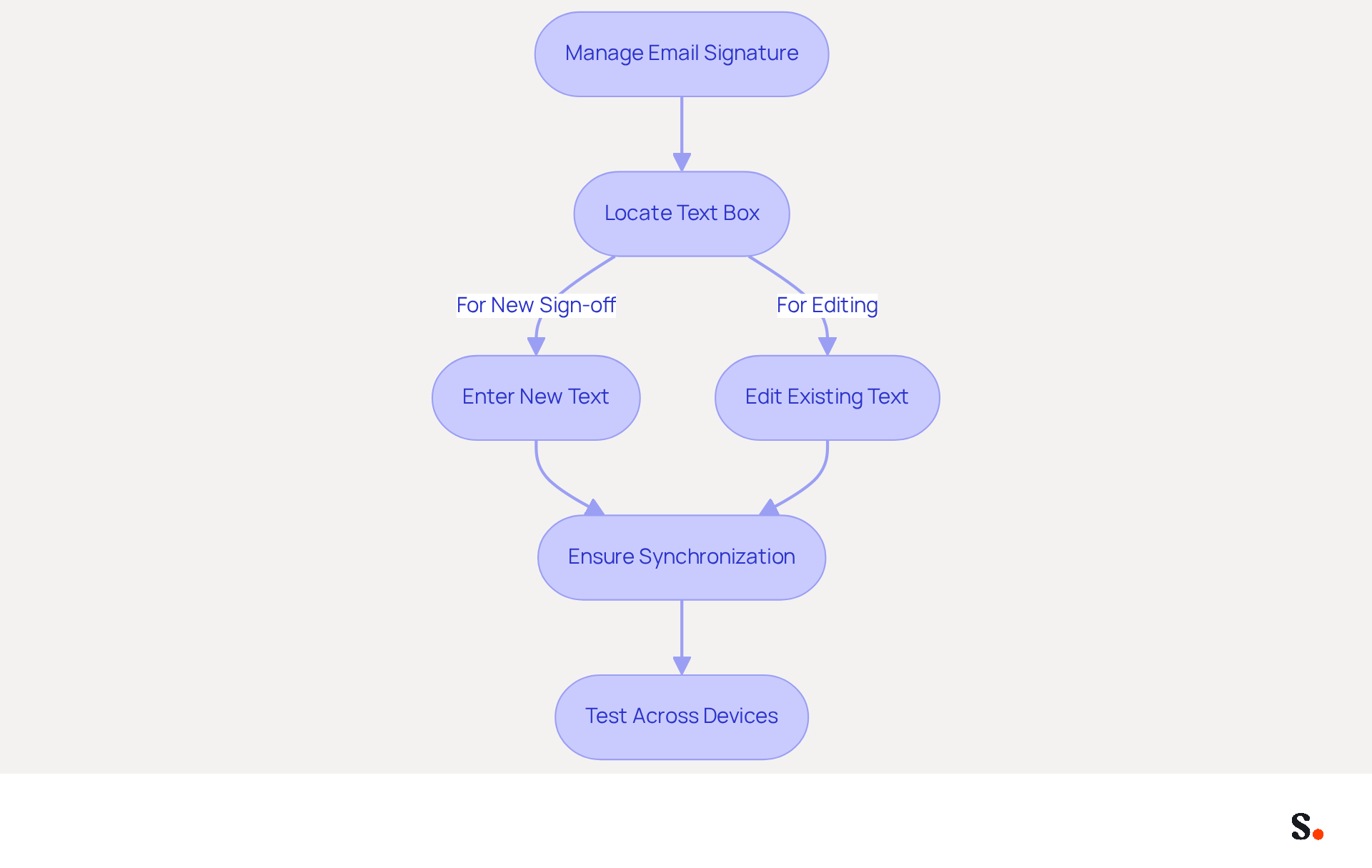
Managing email signatures can often lead to inconsistencies and confusion among team members, especially without a reliable system in place. In the settings, locate the text box to enter your name. For a new sign-off, enter your desired text here. If you are editing an existing mark, simply modify the text as needed. With Scribe, your teammates' identification details are automatically synchronized with your business phone system, ensuring that any modifications are updated in real-time without requiring action from your team.
Include essential details such as:
- Your full name
- Job title
- Company name
- Direct phone number
- Website link
Adding a call-to-action or a link to your website can further enhance engagement. Remember to keep the total size of your email footer under 100 KB to optimize loading times. Scribe's automated management ensures uniformity of your digital identifiers while complying with data security regulations, such as SOC 2 Type II, which protects your information.
Keep in mind that formatting options on mobile devices may be limited; therefore, prioritize clarity and conciseness in your text. Use web-safe fonts and limit your color palette to a maximum of two colors for better readability and professionalism. Testing your mark across various devices and email clients is also essential to ensure proper display. With Scribe, you can manage these approvals independently after the initial IT setup, enabling quick adjustments as necessary. By utilizing Scribe, you not only enhance your professional image but also ensure that your team's digital identifiers are consistently managed and secure.
Save Changes and Test Your Signature
To ensure your digital identifiers are effective, follow these steps to manage your email signature with Scribe.
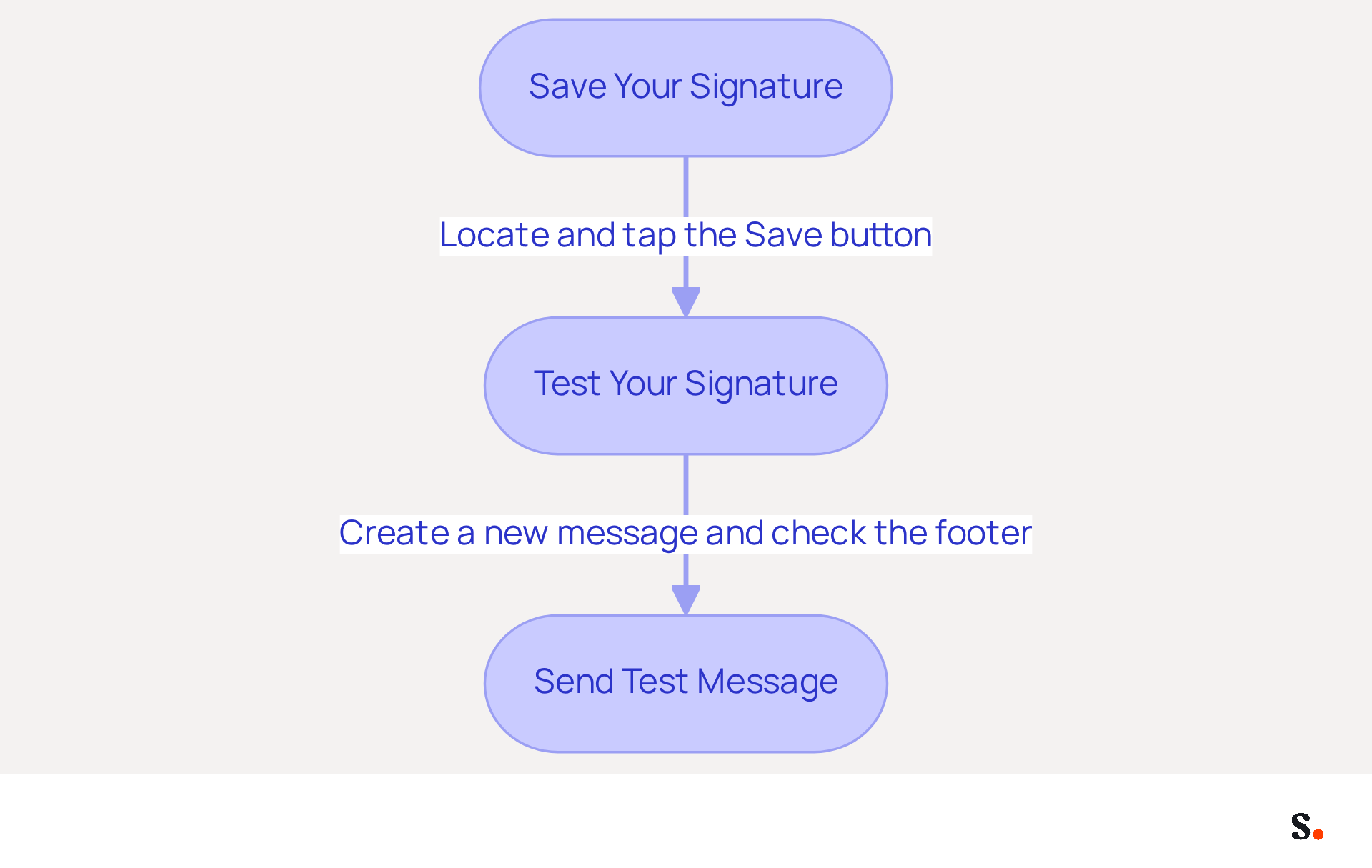
- After entering or editing your mark, locate the 'Save' or 'Done' button, typically found at the top or bottom of the screen, and tap it to save your changes. With Scribe, your teammates' identification information is automatically synced with your HRIS, ensuring that updates are effortless and require no action from them.
- To test your new mark, create a new message within the Gmail app. Ensure that your mark appears correctly at the bottom of the draft message. With Scribe's automated management, any changes made in your connected source will update your message footer automatically.
- Send a test message to yourself or a colleague to verify that the sign-off appears as expected in the received correspondence. You can feel confident knowing that your data is secure with Scribe's SOC 2 Type II compliance while managing your digital identifiers.
Testing your message footer is essential; research indicates that communications with well-crafted footers can achieve a 22% higher response rate. Furthermore, 52% of professionals think a robust digital identifier is crucial for establishing trust with clients. Regular testing ensures that your identifier maintains its effectiveness and aligns with your branding goals, especially considering that 44.4% of users update their identifiers 2-4 times per year. This emphasizes the significance of continuous testing to keep your digital identity relevant and effective. With over 10,000 marketing and IT teams utilizing Scribe globally, the effectiveness of electronic identifiers is a validated approach for improving communication. By prioritizing regular testing of your identifiers, you can enhance your communication effectiveness and strengthen client trust.
Troubleshoot Common Signature Issues
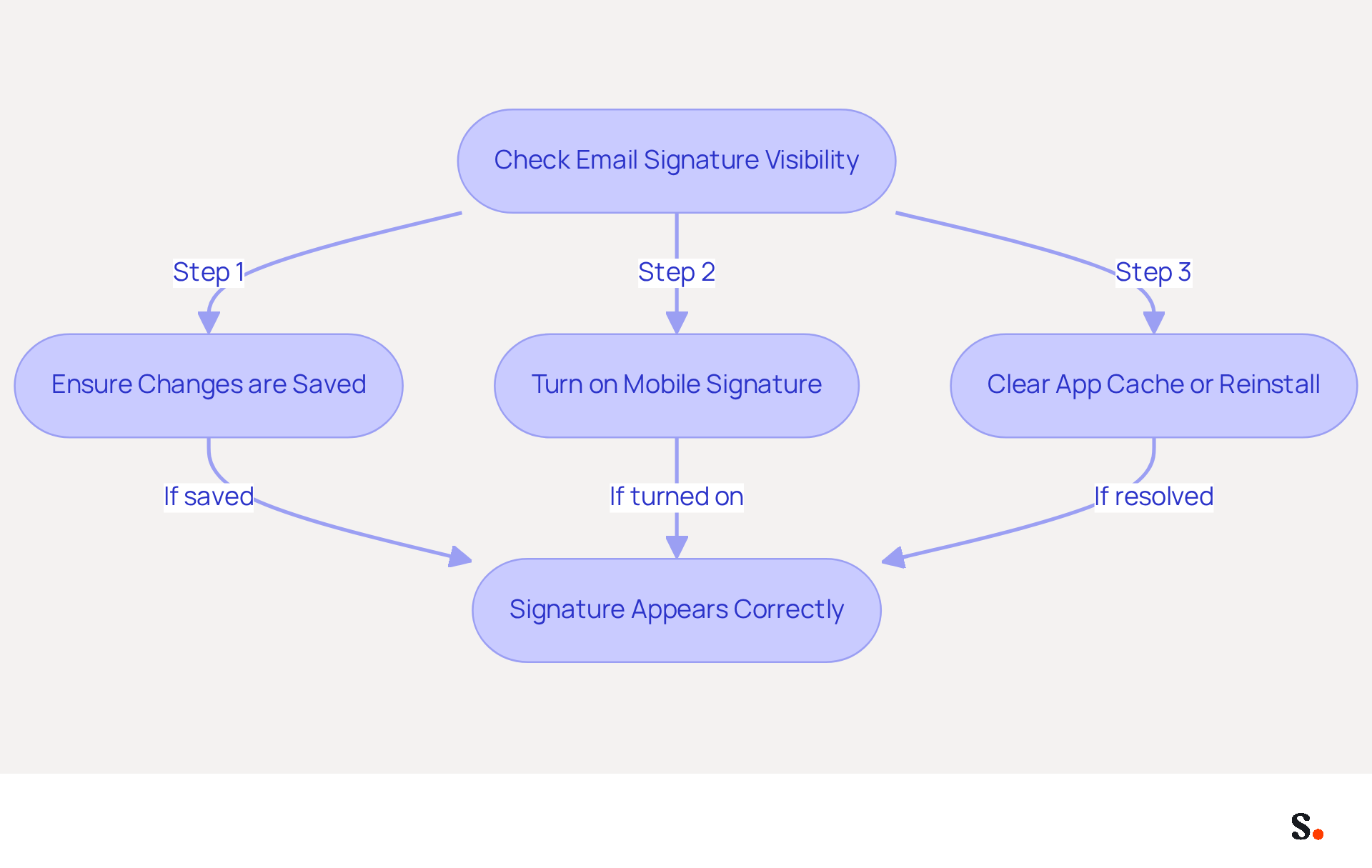
To ensure your email signature appears correctly, you should learn how to change gmail signature on phone by following these troubleshooting steps.
- If your signature isn’t appearing in messages, ensure you understand how to change gmail signature on phone and have saved your changes.
- Ensure that you know how to change gmail signature on phone by turning on the 'Mobile Signature' option. If it’s off, your signature won’t show up in emails sent from the mobile app, which is essential for understanding how to change gmail signature on phone.
- If you are still experiencing issues, users may need to learn how to change gmail signature on phone, as their email signatures may not appear as expected. Try clearing the app cache or reinstalling the Gmail app to resolve any potential glitches. Additionally, ensure that your app is updated to the latest version.
By following these guidelines, you can enhance the visibility of your email signature and improve communication.
Conclusion
Effectively managing your Gmail signature on mobile devices is essential for enhancing professional communication. By following the outlined steps, users can easily navigate the Gmail app settings, create or edit their signatures, and ensure that their digital identifiers are both effective and consistent. This ensures brand integrity and builds trust with clients and colleagues.
Key insights from this guide include the importance of keeping signatures concise and clear, especially on mobile devices, where space is limited. Utilizing Scribe's integration with Google Workspace can streamline the management of email signatures, ensuring that updates are automatically reflected across the board. Additionally, the significance of testing your signature cannot be overstated, as it directly impacts engagement and response rates.
Mastering your email signature is key to effective communication in our digital world. By implementing these strategies and leveraging tools like Scribe, professionals can ensure their email signatures are not only visually appealing but also compliant with security standards such as SOC 2 Type II. Embrace the opportunity to enhance your digital presence and make a lasting impression with every email sent.
Frequently Asked Questions
How do I access the settings in the Gmail app?
To access the settings in the Gmail app, open the app on your mobile device, tap the three horizontal lines (the 'hamburger menu') in the top left corner, scroll down, and select 'Settings.'
Where can I find the signature settings in the Gmail app?
In the Gmail app, after accessing the Settings menu, choose the account for which you want to change the signature. Scroll down to locate the 'Signature' section, which may also be labeled as 'Mobile Signature' on some devices.
What should I include in my mobile email signature?
Your mobile email signature should be brief, ideally two or three lines, including your name, role, and one contact method for easy reading on smaller screens.
Are there any formatting options for mobile email signatures in Gmail?
Mobile email signatures in Gmail are text-only and do not support HTML formatting, so it's important to keep the signature simple and test it across devices to ensure it displays correctly.
How can syncing Google Workspace with Scribe help with email management?
Syncing Google Workspace with Scribe simplifies email management by automatically updating your teammates' identification information, reflecting any changes made in Google Workspace without manual input, which boosts efficiency and maintains brand consistency in communications.
List of Sources
- Open the Gmail App and Access Settings
- 49 Top Email Marketing Statistics (https://forbes.com/advisor/business/software/email-marketing-statistics)
- The ultimate mobile email statistics overview: All mobile email stats (https://emailmonday.com/mobile-email-usage-statistics)
- Mobile Email Engagement — 32 Statistics Every Marketing Leader Should Know in 2026 (https://genesysgrowth.com/blog/mobile-email-engagement-stats-for-marketing-leaders)
- Gmail Statistics 2026 – Visits Data & Market Share (https://demandsage.com/gmail-statistics)
- Navigate to the Signature Settings Section
- How to Add Email Signature in Gmail (2026) (https://wavecnct.com/blogs/email-signature-gmail)
- How to Add Signature in Gmail Mobile (Android + iPhone 2026) (https://itsourcecode.com/blogs/how-to-add-signature-in-gmail-mobile-2026)
- How To Add Signature In Gmail In Mobile: iPhone & Android Guide - NEWOLDSTAMP (https://newoldstamp.com/blog/create-gmail-mobile-signature)
- Gmail Email Signature on Mobile App (2026 Guide) (https://email-tools.me/posts/gmail-signature-mobile)
- Mobile Email Signature: iPhone, Android & Gmail (2026) | Signkit (https://beta.signkit.io/blog/email-signature-mobile)
- Create or Edit Your Signature Text
- Email Signature Best Practices Guide With Examples - MailerLite (https://mailerlite.com/blog/email-signature-best-practices)
- The ultimate guide to email signatures in 2026 (https://signitic.com/en/resources/email-signature)
- Email Signature Design Trends in 2026: What Works and What to Drop (https://bulksignature.com/blog/email-signature-design-trends)
- Best practices for business email signatures in 2026 (https://bybrand.io/blog/best-practices)
- 12 clever ways to use your email signature to support your marketing campaigns (https://blog.hubspot.com/blog/tabid/6307/bid/31054/10-clever-ways-your-email-signature-can-support-your-marketing.aspx)
- Save Changes and Test Your Signature
- Email Signature Trends in Numbers: Infographic [2026] (https://mailtrap.io/blog/email-signature-trends)
- Email Signature Experience in Gmail Android (2025 Update) (https://patronum.io/google-improves-the-email-signature-experience-for-the-gmail-app-on-android-devices)
- Email signature statistics: Why every business should optimize their email signatures — Stripo.email (https://stripo.email/blog/email-signature-statistics-why-every-business-should-optimize-their-email-signatures)
- Email Signature Statistics: A Closer Look at Email Signatures in 2026 (https://mysignature.io/blog/email-signature-statistics)
- Email signature statistics and trends in 2024 (https://wisestamp.com/blog/email-signature-statistics)
- Troubleshoot Common Signature Issues
- 40+ Email Signature Statistics for 2026 (Data + Insights) (https://wavecnct.com/blogs/email-signature-statistics)
- Gmail Signature Not Showing Up? Here's How to Fix It - Indy (https://weareindy.com/blog/gmail-signature-not-showing-up)
- What To Do When Your Gmail Signature is Not Showing Up (https://appointlet.com/blog/gmail-signature-not-showing-up)
- Fix Your Missing Gmail Signature: 8 Troubleshooting Steps & Best Practices | Newoldstamp - NEWOLDSTAMP (https://newoldstamp.com/blog/gmail-signature-not-showing-up)
- 10 Reasons Your Gmail Signature Is Not Showing and How to Fix It (https://scribe-mail.com/en-US/blog/10-reasons-your-gmail-signature-is-not-showing-and-how-to-fix-it)
Get started with Scribe
Create your signature in minutes
Free 14-day trial — no credit card.