How to Change Signature in Outlook App: A Step-by-Step Guide
In professional communication, a poorly executed email signature can undermine your brand's credibility and impact. It serves not only as a digital business
Sophie Grant
Email Signature Specialist, Scribe

Introduction
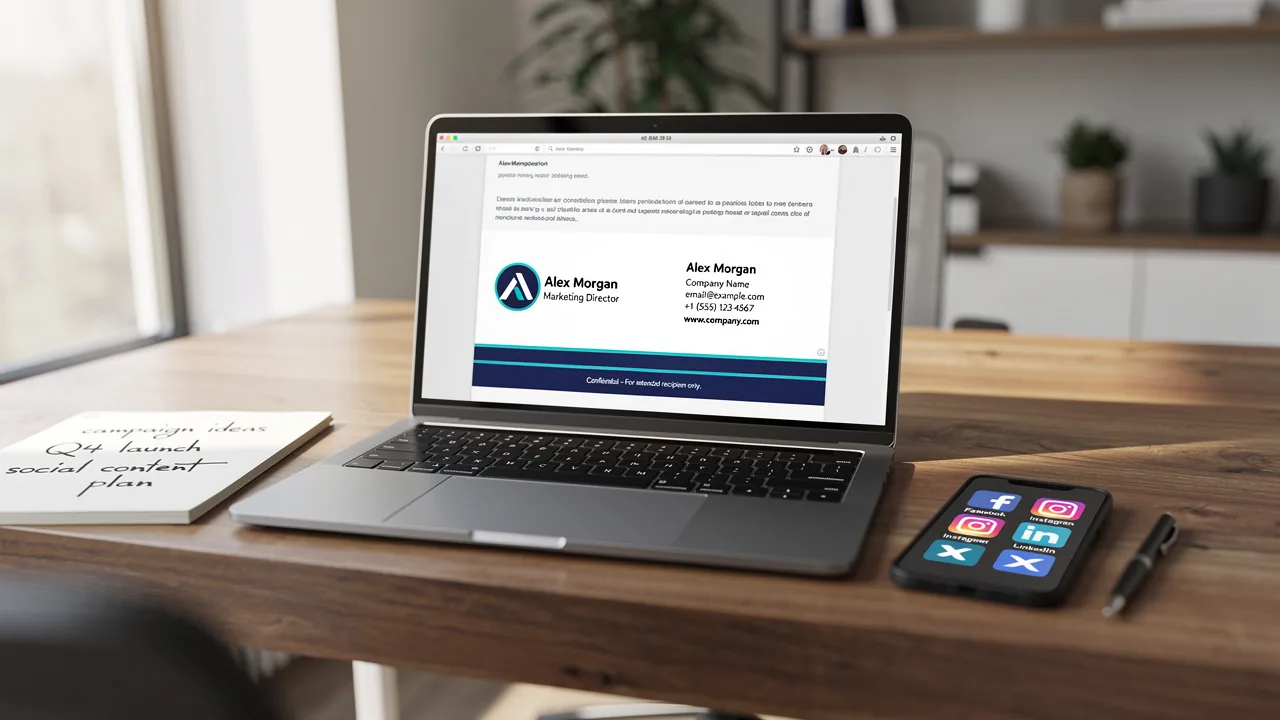
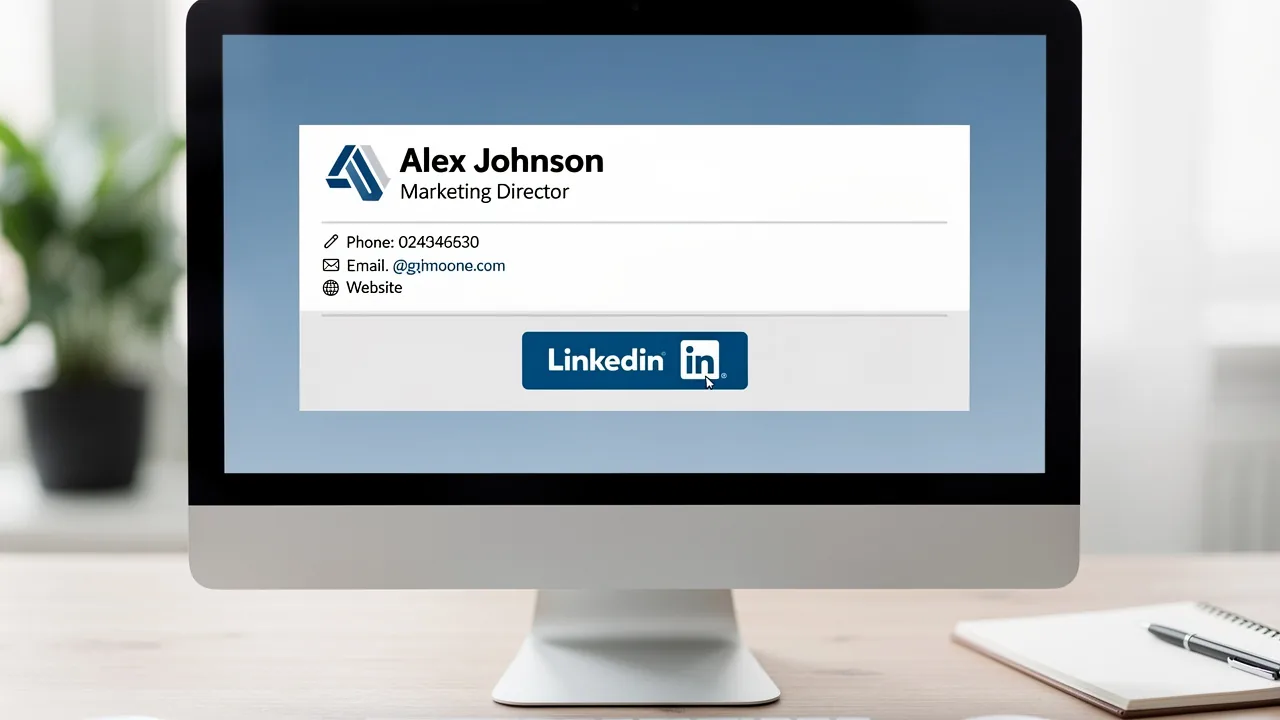
In professional communication, a poorly executed email signature can undermine your brand's credibility and impact. It serves not only as a digital business card but also as a vital branding tool that can enhance trust and engagement with recipients. This guide outlines the step-by-step process of changing your signature in the Outlook app, ensuring that every email sent reflects your brand's professionalism and consistency.
Many professionals encounter issues with email signatures that do not display correctly or fail to represent their brand effectively. Navigating these challenges is crucial for maintaining a professional image that resonates with clients and partners.
Access Signature Settings in Outlook App
- Open the Outlook app on your device.
- Tap the menu icon (three horizontal lines) located in the upper left corner.
- Scroll down and tap on the gear icon (Settings) at the bottom left of the menu.
- In the Settings menu, look for the 'Mail' section to find instructions on how to change signature in Outlook app by tapping on 'Signature'.
- You will now see the settings for your identifier where you can learn how to change signature in Outlook app or modify your correspondence signature.
In a competitive corporate environment, effective branding through electronic footers is crucial for establishing identity and enhancing communication. A recent survey revealed that:
- 80% of participants consider a branded message footer vital for a company's identity.
- 76% believe it boosts trust in the sender.
- Companies that employ branded identifiers can observe a 15% rise in click-through rates to their websites.
With Scribe, any changes in your Aircall setup are instantly reflected in your digital identifiers, making updates easy and consistent. This automated management ensures secure data handling, backed by Scribe's SOC 2 Type II compliance. Case studies show that organizations utilizing effective email management, such as those using Scribe, have successfully maintained consistency and enhanced engagement. With the simplicity of accessing and personalizing sign-offs in the email application, businesses can ensure their communications reflect their brand's professionalism and credibility. By leveraging Scribe's capabilities, businesses can transform their email communications into powerful branding tools that foster trust and engagement.

Create or Edit Your Email Signature
It is essential for effective communication to know how to change signature in Outlook app when creating a professional email signature. To understand how to change signature in Outlook app, access the Signature settings and tap on 'Add New' or choose an existing one to modify. Input your desired text in the designated box, including your full name, job title, company name, and contact information to ensure clarity and professionalism. Use Arial or Helvetica fonts sized between 14 and 16 pixels for optimal readability. Utilize the formatting options to customize the font, size, and color of your text, aligning with your brand's style for consistency. Ensure your autograph has a maximum width of 600 pixels for mobile-friendliness. To improve the visual appeal of your mark, tap on the image icon to add pictures or logos from your device, ensuring they are optimized for display in messages. A professional headshot may significantly enhance your response rates. After finalizing your mark, tap 'Save' to implement the changes, which is part of how to change signature in Outlook app, ensuring it is shown at the bottom of all your outgoing messages. Maintaining an effective email signature requires regular updates to ensure it remains relevant and functional. Regularly review your identifier quarterly and check links monthly. By prioritizing these updates, you not only enhance your professional image but also foster stronger connections with your audience. With Scribe, any modifications made in your Aircall configuration will automatically sync to your contact details, ensuring brand consistency and effortless updates. Scribe's SOC 2 Type II compliance guarantees secure data handling throughout this process, providing peace of mind for your organization.

Set Default Signature Preferences for Emails
To maintain brand consistency, it is crucial to understand how to change signature in Outlook app for your email accounts. In the Signature settings, locate the option labeled 'Choose default option' to learn how to change signature in Outlook app. If you manage multiple email accounts, select the specific account to understand how to change signature in Outlook app for setting the default closing. To learn how to change signature in Outlook app, select the mark you created for 'New messages' and 'Replies/forwards' from the dropdown menu. To ensure brand consistency across communications, verify how to change signature in Outlook app for the appropriate emblem selected for each category. Finally, click 'Save' to finalize how to change signature in Outlook app settings.
Syncing your Google Workspace with Scribe not only saves you time but also ensures that your teammates' identification information is automatically updated. Scribe's SOC 2 Type II certification and adherence to GDPR and CCPA offer an additional layer of trust and security in your management process. Any modifications in your Google Workspace, such as relocating teammates or updating their details, will be reflected in Scribe without any manual input, streamlining your management process. Furthermore, organizations can gain from a 12% average click-through rate on banner ads, boosting engagement and marketing ROI. Scribe guarantees that your email communications remain current and professionally branded.

Troubleshoot Common Signature Issues
Confirming your mark as the default in Outlook is vital for maintaining a professional image in your communications. This step is crucial because marks that aren’t set as default won’t show up in new messages or replies. Notably, 42% of consumers feel negatively toward businesses that send messages without a branded identifier. This underscores the importance of this step in maintaining a professional image.
Scribe ensures that any changes made to your Calendly configuration sync automatically with your email layouts. This guarantees brand consistency across all communications and complies with SOC 2 Type II and GDPR/CCPA standards.

Conclusion
Updating your email signature in the Outlook app is crucial for maintaining a professional image and reinforcing your brand identity. By following the outlined steps, users can easily access signature settings, create or edit their signatures, and set default preferences that align with their branding strategy. This means individuals and organizations can keep their emails looking professional and consistent.
Throughout the guide, key insights were shared, such as the importance of a branded email signature in enhancing trust and engagement. Research shows that 70% of consumers consider branded footers essential for establishing credibility, and companies utilizing effective email management can see a notable increase in click-through rates. Moreover, Scribe's capabilities ensure that any updates made to email signatures are seamlessly integrated, providing peace of mind regarding compliance and security.
In the end, managing email signatures well can turn your communication into a strong branding asset. Organizations are encouraged to prioritize regular updates and leverage solutions like Scribe to ensure their email signatures reflect their professionalism and commitment to brand consistency. By doing so, they not only enhance their image but also foster stronger connections with their audience, driving engagement and ultimately contributing to their marketing success.
Frequently Asked Questions
How do I access signature settings in the Outlook app?
To access signature settings in the Outlook app, open the app, tap the menu icon (three horizontal lines) in the upper left corner, scroll down to tap the gear icon (Settings) at the bottom left, and then look for the 'Mail' section to find the option for 'Signature'.
Why is having a branded message footer important?
A branded message footer is vital for a company's identity, as 80% of participants in a survey consider it essential. Additionally, 76% believe it boosts trust in the sender, and companies with branded identifiers can see a 15% increase in click-through rates to their websites.
How does Scribe enhance email signature management?
Scribe allows any changes in your Aircall setup to be instantly reflected in your digital identifiers, ensuring updates are easy and consistent. This automated management supports secure data handling and is backed by Scribe's SOC 2 Type II compliance.
What benefits do organizations experience by using Scribe for email management?
Organizations using Scribe for email management have successfully maintained consistency in their communications and enhanced engagement, transforming their email communications into effective branding tools that foster trust and credibility.
List of Sources
- Access Signature Settings in Outlook App
- 40+ Email Signature Statistics for 2026 (Data + Insights) (https://wavecnct.com/blogs/email-signature-statistics)
- Email Signature Statistics: A Closer Look at Email Signatures in 2026 (https://mysignature.io/blog/email-signature-statistics)
- Email Signature Trends in Numbers: Infographic [2026] (https://mailtrap.io/blog/email-signature-trends)
- What's new in new Outlook for Windows | Microsoft Support (https://support.microsoft.com/en-us/outlook/getstarted/what-s-new-in-new-outlook-for-windows)
- Email signature edits are not saved in the new settings pane in Outlook for Mac | Microsoft Support (https://support.microsoft.com/en-us/support/known-issues/signature-edits-not-saved-new-settings-pane)
- Create or Edit Your Email Signature
- Email Signature Best Practices for 2026 (+ 15 Pro Examples) (https://wavecnct.com/blogs/email-signature-best-practices-2026)
- Email Signature Best Practices - NEWOLDSTAMP (https://newoldstamp.com/blog/email-signature-best-practices)
- The ultimate guide to email signatures in 2026 (https://signitic.com/en/resources/email-signature)
- Why Email Signatures Must Be In Your 2026 Marketing Plan | Rocketseed (https://rocketseed.com/blog/what-are-the-biggest-email-trends-for-2026)
- Set Default Signature Preferences for Emails
- 4 Best Practices for Your Work Email Signature Strategy (https://scribe-mail.com/en-US/blog/4-best-practices-for-your-work-email-signature-strategy)
- Email Signature Best Practices - NEWOLDSTAMP (https://newoldstamp.com/blog/email-signature-best-practices)
- Tips for Adding a Default Signature to Your Microsoft Outlook Email (https://tech42llc.com/tips-for-adding-a-default-signature-to-your-microsoft-outlook-email)
- Set a default signature for one email address, and a different default signature for another - Microsoft Q&A (https://learn.microsoft.com/en-us/answers/questions/4691511/set-a-default-signature-for-one-email-address-and)
- Create, insert, or change a signature in Outlook for Mac | Microsoft Support (https://support.microsoft.com/en-us/outlook/create-insert-or-change-a-signature-in-outlook-for-mac)
- Troubleshoot Common Signature Issues
- Email signature edits are not saved in the new settings pane in Outlook for Mac | Microsoft Support (https://support.microsoft.com/en-us/support/known-issues/signature-edits-not-saved-new-settings-pane)
- 40+ Email Signature Statistics for 2026 (Data + Insights) (https://wavecnct.com/blogs/email-signature-statistics)
- How to solve problems with email signatures in Microsoft 365? (https://mail-signatures.com/articles/problems-email-signatures-office-365)
- Outlook Signature Not Working in Office 365: Causes & Fixes (https://exclaimer.com/email-signature-handbook/outlook-signature-not-working-in-office-365)
- Microsoft’s Cloud Email Signatures Solve a Problem for Outlook | Microsoft Community Hub (https://techcommunity.microsoft.com/discussions/exchange_general/microsoft’s-cloud-email-signatures-solve-a-problem-for-outlook/3684035)
Get started with Scribe
Create your signature in minutes
Free 14-day trial — no credit card.