How to Change Signature in Outlook Office 365: A Step-by-Step Guide
In a digital landscape where first impressions are crucial, managing email signatures in Outlook Office 365 presents both challenges and opportunities for
Sophie Grant
Email Signature Specialist, Scribe
Introduction
In a digital landscape where first impressions are crucial, managing email signatures in Outlook Office 365 presents both challenges and opportunities for brand consistency. With approximately 400 million active users, the platform's widespread adoption underscores the importance of effectively managing digital identifiers to enhance engagement and professionalism.
Professionals often struggle to balance brand representation with security requirements in their email communications. This guide outlines the step-by-step process of changing signatures in Outlook Office 365, providing insights into best practices that can elevate email communications and drive engagement.
By mastering the management of email signatures, professionals can enhance their brand's image and ensure compliance with security standards, ultimately fostering greater engagement in their communications.
Access Signature Settings in Outlook Office 365
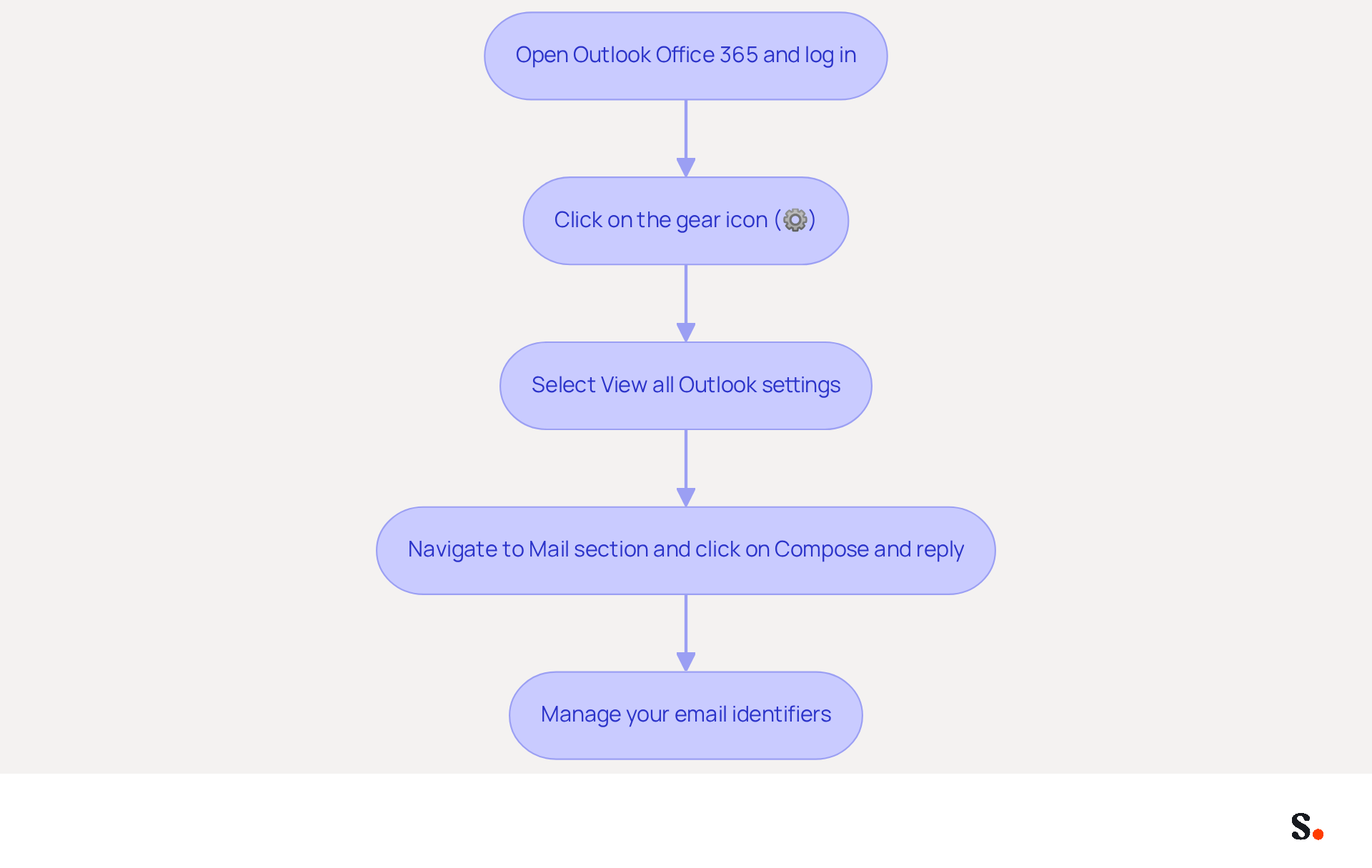
- To understand how to change signature in Outlook Office 365, first open Outlook Office 365 and log in to your account.
- To find out how to change signature in Outlook Office 365, click on the gear icon (⚙️) located in the top right corner to access the Settings menu.
- In the Settings pane, scroll down and select 'View all Outlook settings' to find instructions on how to change signature in Outlook Office 365.
- To understand how to change signature in Outlook Office 365, navigate to the 'Mail' section and click on 'Compose and reply'.
- Here, you will find the 'Email section' where you can manage your email identifiers and discover how to change signature in Outlook Office 365.
Managing digital identifiers effectively is crucial for maintaining brand consistency in a crowded digital landscape. As of 2026, Outlook Office 365 boasts approximately 400 million active users globally, reflecting its strong adoption among professionals, particularly in corporate environments. This widespread usage underscores the need for effective management of digital identifiers to enhance brand consistency and engagement. By integrating Scribe with your messaging provider, you can simplify the process of updating identifiers. This tool enables one-click synchronization with Google Workspace, ensuring that any modifications made in your directory are automatically reflected in your correspondence. This not only saves time but also maintains compliance with security standards, as Scribe is SOC 2 Type II certified. Experts recommend regularly updating contact details to keep communications relevant and effective, ensuring that communications stay current and impactful. Research shows that enhancements in email settings have resulted in improved user experiences, facilitating professionals in effortlessly maintaining their email branding.
Create or Edit Your Email Signature
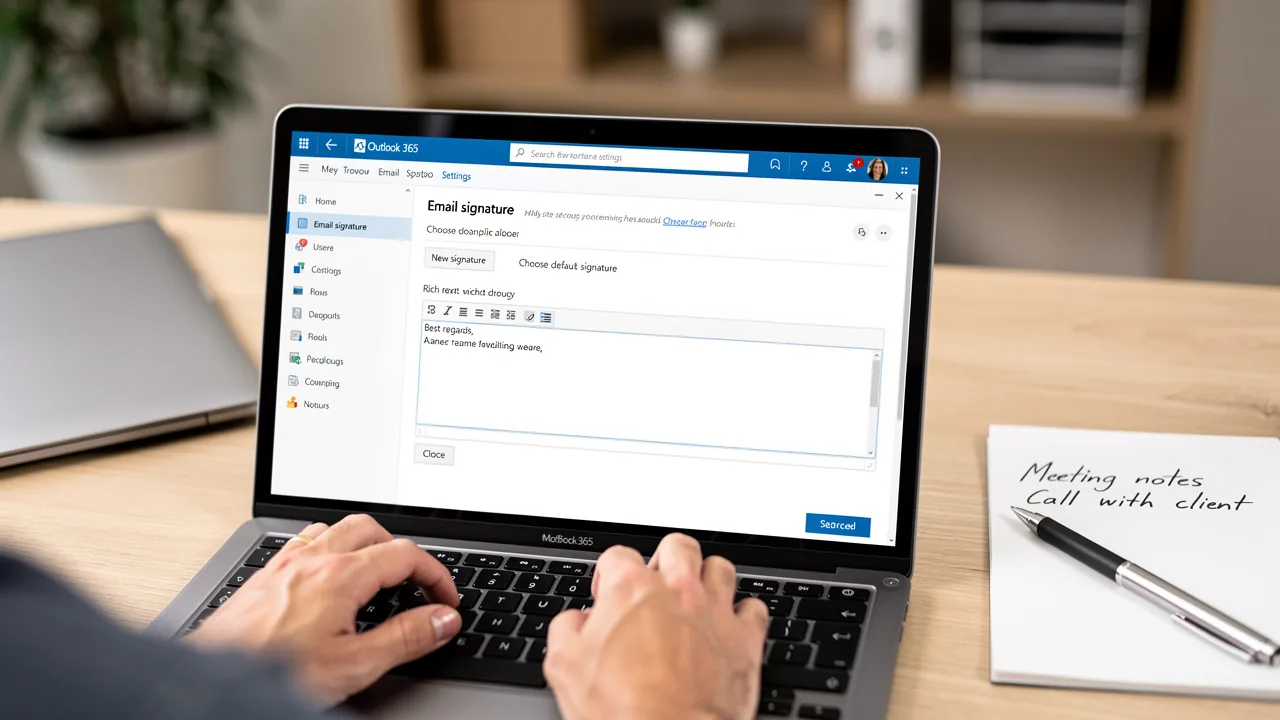
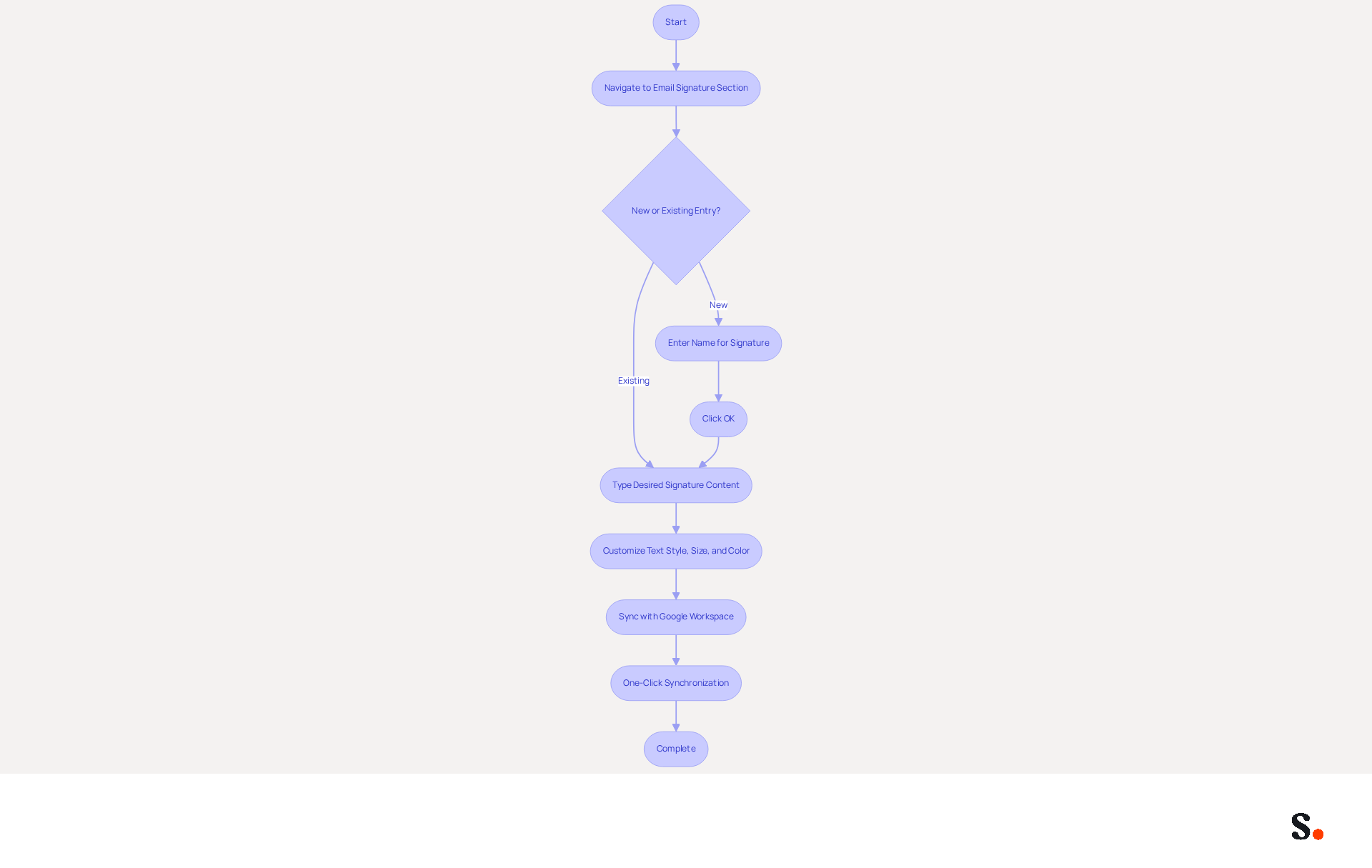
To understand how to change signature in Outlook Office 365, navigate to the 'Email signature' section and click on 'New' or select an existing entry. Enter a name for your mark (if creating a new one) and click 'OK'. To learn how to change signature in Outlook Office 365, type your desired signature content, including your name, title, company name, and contact information in the signature editor. Use the formatting options available to customize the text style, size, and color as needed.
Super Admin access is required to grant the necessary permissions for synchronization. By syncing your Google Workspace with the application, you can streamline this process significantly. The tool enables one-click synchronization, ensuring that any updates to your teammates' information - such as job titles or contact details - are automatically reflected in their email footers. This streamlines the management process and ensures uniformity in your brand's email communications. Additionally, Scribe's attribute feature enables you to auto-fill information for your sign-off, further simplifying the process. Scribe's SOC 2 Type II compliance guarantees that your data remains secure throughout this automated management process.
Format Your Email Signature for Professionalism
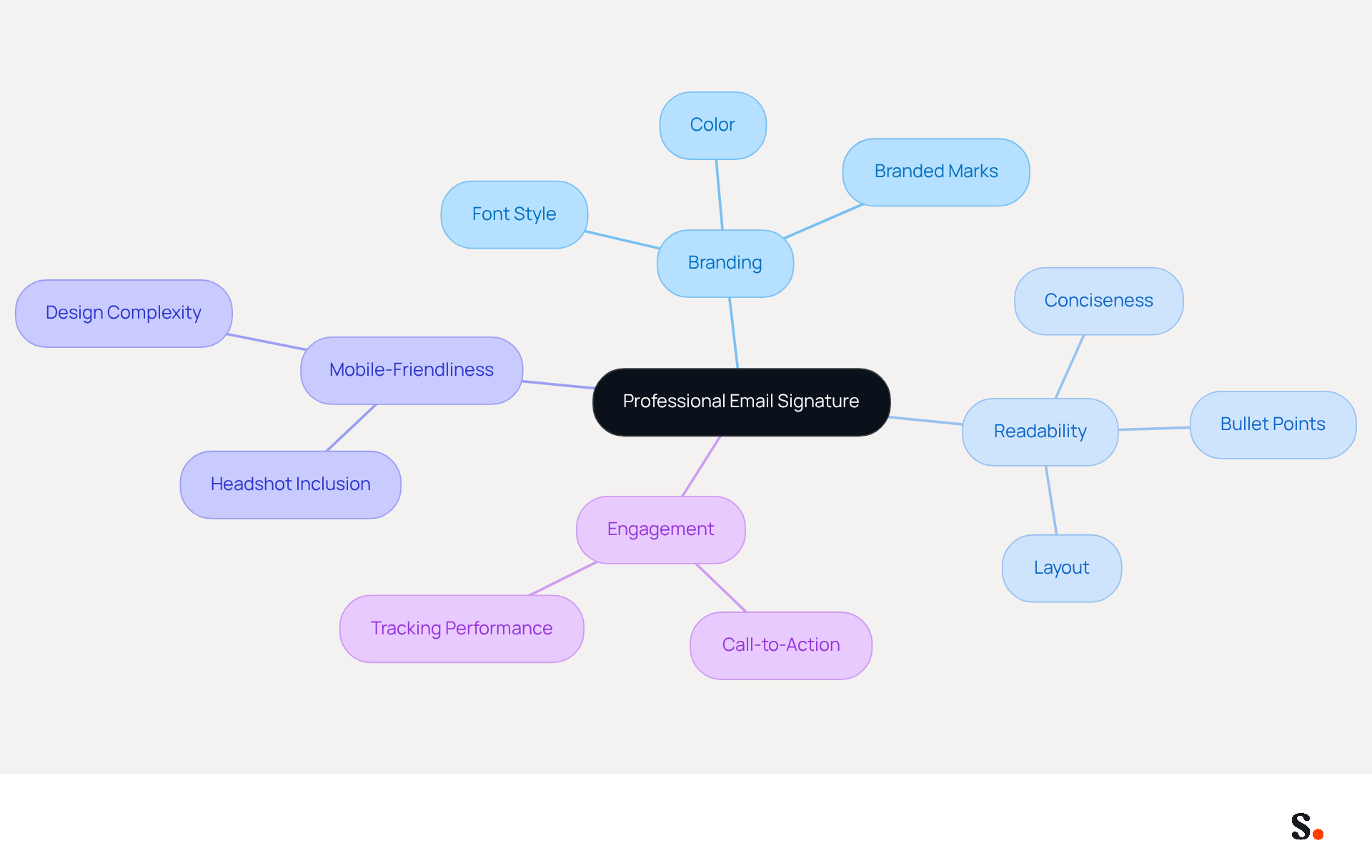
Creating a professional email footer is not just about aesthetics; it’s a strategic move that can enhance your brand's visibility and engagement. In the editor, utilize the formatting toolbar to modify the font style, size, and color, ensuring alignment with your brand's identity. A well-crafted mark reflects professionalism and boosts brand recognition; 80% of businesses consider branded marks vital for their image.
Keep your sign-off concise, ideally limited to 4-5 lines of text. This brevity enhances readability and ensures that essential information is easily accessible. This is especially important since 60% of business emails are opened on mobile devices.
Utilize bullet points or line breaks to separate different pieces of information, improving clarity and scannability. Studies show that clear layouts can really boost engagement rates, with left-aligned, single-column formats achieving 3x higher click rates compared to multi-column styles.
Ensure your mark is mobile-friendly by avoiding overly complex designs or large images. Without a mobile-friendly design, you risk losing engagement from a significant portion of your audience. Including a professional headshot can also enhance response rates by 32%, making your email more engaging.
By following these guidelines, you can significantly boost your email engagement rates, transforming each email into a strategic communication opportunity.
Add Images or Logos to Your Signature
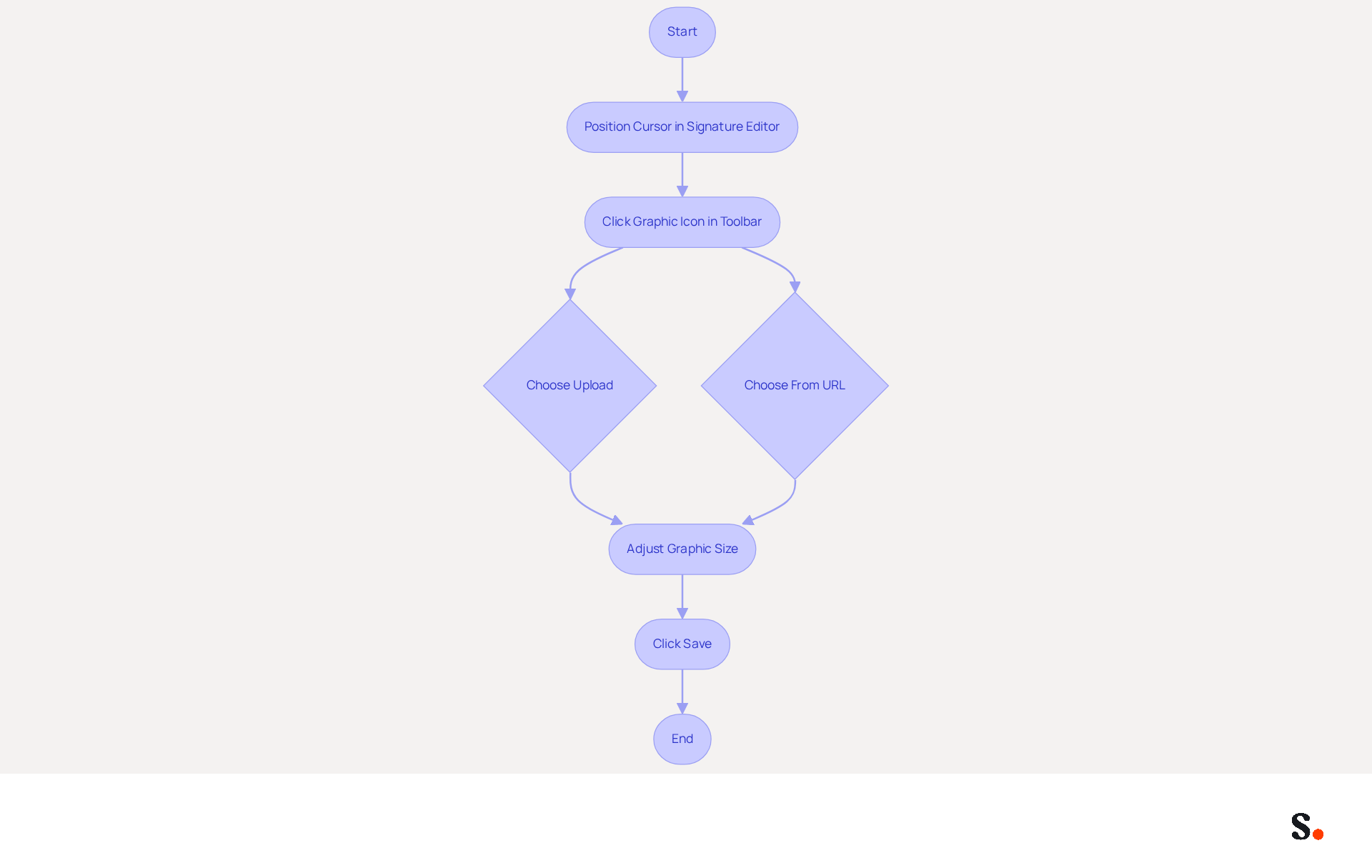
- In the signature editor, position your cursor at the desired location for the graphic or logo.
- Click on the icon representing the graphic located in the formatting toolbar.
- Choose 'Upload' to select a file from your computer or opt for 'From a URL' to insert a picture that is hosted online.
- Adjust the graphic as necessary to ensure it fits smoothly within the layout. Small logos or headshots should be no larger than 150 x 150 pixels, while larger visuals should ideally be between 400 and 600 pixels wide for the best display.
- After making adjustments, click 'Save' to apply the changes to your mark.
Incorporating visuals into email footers can significantly enhance brand identity and engagement. For example, a case study demonstrated how incorporating clickable logos in email footers enhanced engagement by directing traffic to company websites. Today, visually appealing signatures with graphics are known to boost brand identity and maintain professional consistency in communications. Experts recommend using high-resolution visuals sized between 300 and 600 pixels, with file sizes under 50 KB, to ensure clarity on high-DPI screens, making your email communications more effective. Additionally, be cautious of using Vector Markup Language (VML) tags, as they can cause images to appear as attachments instead of inline images. This can lead to inconsistencies in branding if not properly managed. Remember that initials are stored locally on the device and may not be accessible across different devices unless managed through a Microsoft account. Effective management of visuals not only enhances brand identity but also ensures consistency across communications. With Scribe, each change made in your Aircall configuration will automatically be reflected in your email signatures, ensuring brand consistency and compliance with SOC 2 Type II standards.
Conclusion
A well-crafted email signature is essential for effective professional communication. By following the outlined steps, users can easily access signature settings, create or edit their signatures, and ensure that their email footers reflect their brand identity effectively. This approach ensures that your brand remains consistent and resonates with your audience.
Key insights from this guide emphasize the importance of a well-formatted signature that aligns with your brand's image. Utilizing the formatting tools available in Outlook, along with incorporating images or logos, can elevate the professionalism of your emails. Moreover, leveraging tools like Scribe can streamline the management of email signatures across teams, ensuring that updates are made seamlessly and securely, in compliance with SOC 2 Type II standards.
By prioritizing your email signature, you position your brand for greater recognition and trust in every correspondence. By implementing the best practices discussed, professionals can transform their email communications into powerful marketing tools, driving better connections and fostering a consistent brand presence in every interaction.
Frequently Asked Questions
How do I access the signature settings in Outlook Office 365?
To access the signature settings in Outlook Office 365, first open Outlook Office 365 and log in to your account. Then, click on the gear icon (⚙️) in the top right corner to open the Settings menu.
What steps do I need to follow to change my email signature in Outlook Office 365?
After accessing the Settings menu, scroll down and select 'View all Outlook settings'. Navigate to the 'Mail' section and click on 'Compose and reply' to find the 'Email section' where you can manage your email signatures.
Why is managing digital identifiers important in Outlook Office 365?
Managing digital identifiers effectively is crucial for maintaining brand consistency in a crowded digital landscape, especially given that Outlook Office 365 has approximately 400 million active users globally as of 2026.
How can Scribe help with managing email signatures in Outlook Office 365?
By integrating Scribe with your messaging provider, you can simplify the process of updating identifiers. Scribe enables one-click synchronization with Google Workspace, ensuring that any modifications made in your directory are automatically reflected in your correspondence.
What security standards does Scribe comply with?
Scribe is SOC 2 Type II certified, which ensures compliance with security standards while managing digital identifiers.
How often should I update my contact details in Outlook Office 365?
Experts recommend regularly updating contact details to keep communications relevant and effective, ensuring that your email branding remains current and impactful.
List of Sources
- Access Signature Settings in Outlook Office 365
- Best Email Signature Quotes (2026) - HubSpot (https://hubspot.com/email-signature-generator/best-signature-quotes)
- What's new in new Outlook for Windows | Microsoft Support (https://support.microsoft.com/en-us/outlook/getstarted/what-s-new-in-new-outlook-for-windows)
- 100 Professional Email Signature Quotes: Best Ideas - NEWOLDSTAMP (https://newoldstamp.com/blog/email-signature-quotes)
- Outlook Statistics For 2026: Key Trends Shaping the Future (https://clean.email/blog/email-providers/outlook-statistics)
- Outlook Email Statistics: Key Metrics, Trends, and Insights - SEO Sandwitch (https://seosandwitch.com/outlook-email-stats)
- Create or Edit Your Email Signature
- Create an Email Signature in Microsoft 365 | Help - Illinois State (https://help.illinoisstate.edu/display/Technology/Create+an+Email+Signature+in+Microsoft+365)
- Create and Optimize Your Email Signature in Outlook 365 (https://scribe-mail.com/en-US/blog/create-and-optimize-your-email-signature-in-outlook-365)
- Create, insert, or change a signature in Outlook for Mac | Microsoft Support (https://support.microsoft.com/en-us/outlook/create-insert-or-change-a-signature-in-outlook-for-mac)
- How to add and change an email signature in Outlook | Microsoft Support (https://support.microsoft.com/en-us/outlook/mail/how-to-add-and-change-an-email-signature-in-outlook)
- How to add a signature in Outlook 365? (https://syskit.com/blog/create-office-365-outlook-signature)
- Format Your Email Signature for Professionalism
- The impact of email signatures on your branding (https://signitic.com/en/resources/the-impact-of-email-signatures-on-your-branding)
- The Importance Of Email Signatures | Email Marketing Blog | Mail Blaze (https://mailblaze.com/thinking/email-signatures-in-email-marketing)
- Email Signature Best Practices for 2026 (+ 15 Pro Examples) (https://wavecnct.com/blogs/email-signature-best-practices-2026)
- Why Email Signatures Are So Important (https://findlight.net/salesacademy/why-email-signatures-are-so-important)
- Add Images or Logos to Your Signature
- How to add and change an email signature in Outlook | Microsoft Support (https://support.microsoft.com/en-us/outlook/mail/how-to-add-and-change-an-email-signature-in-outlook)
- How to Add an Image to Your Outlook Signature - NEWOLDSTAMP (https://newoldstamp.com/blog/image-to-outlook-signature)
- How to Add an Image to Display on Your Signature in Microsoft 365 | University IT (https://uit.stanford.edu/service/microsoft365/signature-image)
- How do I get my outlook signature pictures to display in the new outlook? - Microsoft Q&A (https://learn.microsoft.com/en-us/answers/questions/4615529/how-do-i-get-my-outlook-signature-pictures-to-disp)
Get started with Scribe
Create your signature in minutes
Free 14-day trial — no credit card.