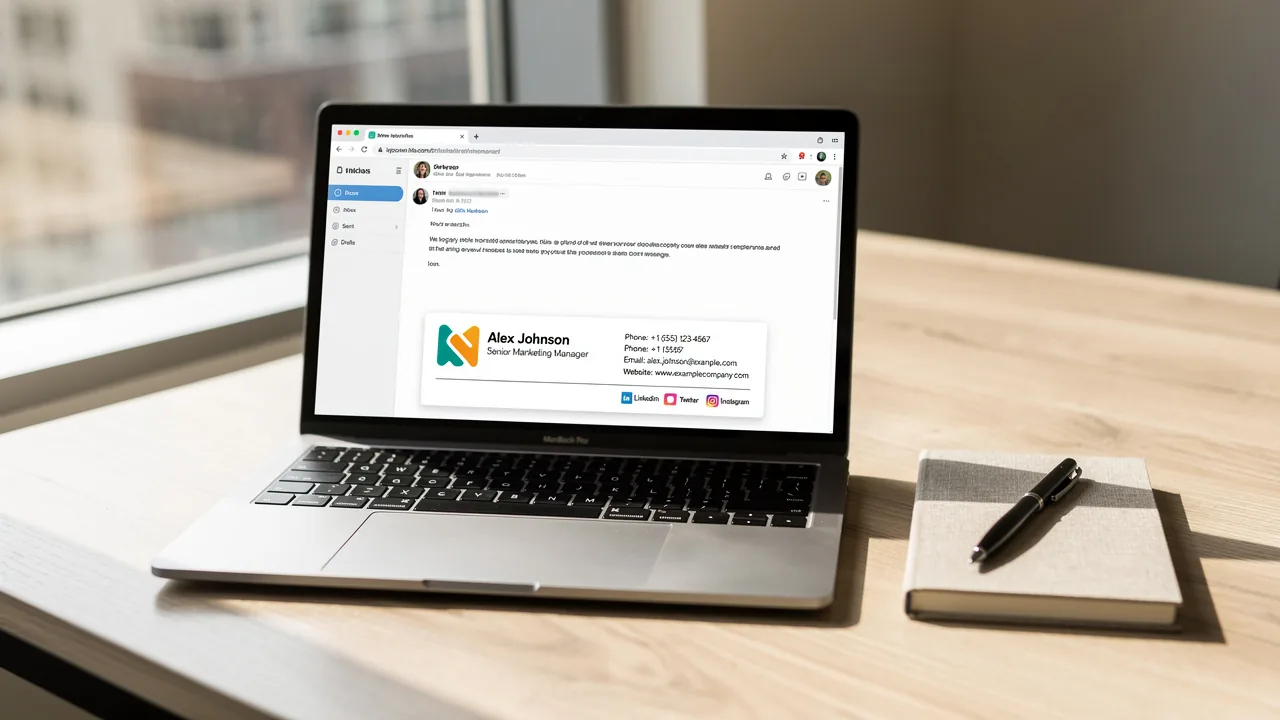
How to Change Your Email Signature in 4 Simple Steps
Many professionals struggle with the complexities of email signature management, particularly when aiming for brand consistency across multiple platforms. This
Sophie Grant
Email Signature Specialist, Scribe
Introduction
Many professionals struggle with the complexities of email signature management, particularly when aiming for brand consistency across multiple platforms. This guide provides a straightforward approach, detailing four actionable steps for changing email signatures. It is critical to understand the common pitfalls that can arise during this process. Recognizing these challenges is essential for maintaining a polished professional image and effective communication.
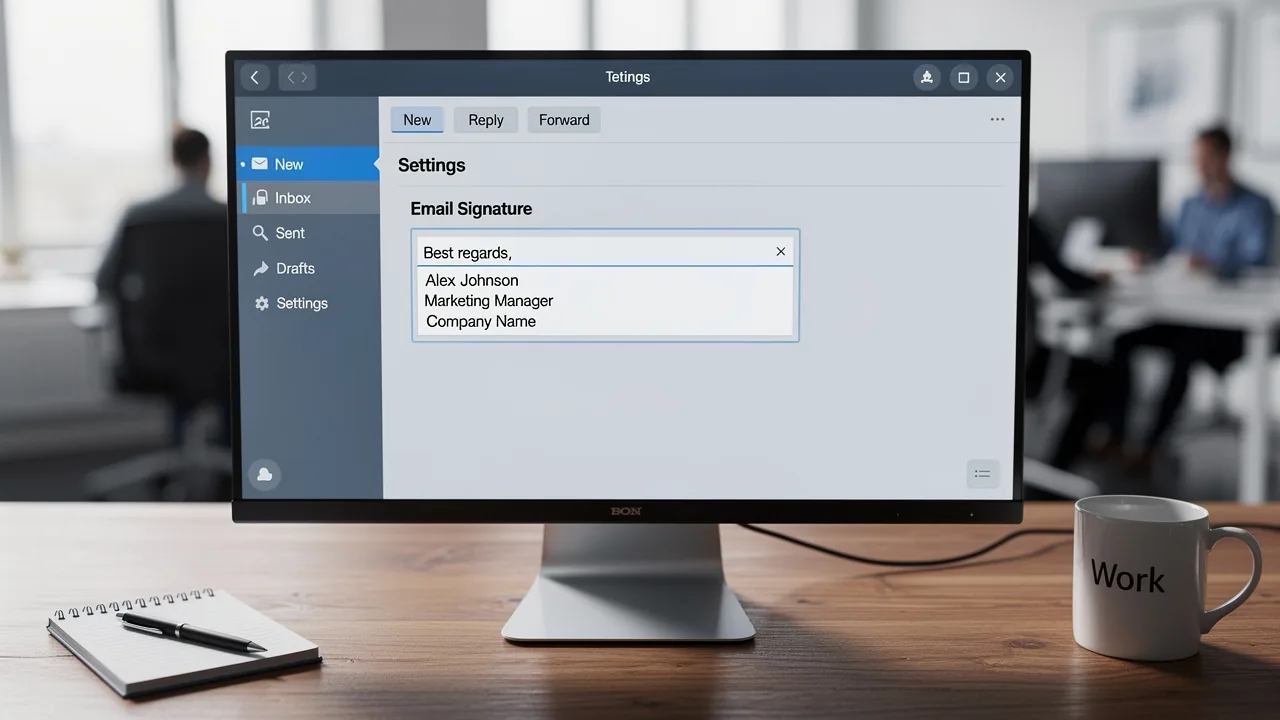
Access Your Email Signature Settings
Navigating the settings of various email clients can often be a daunting task for users trying to understand how to change email signature effectively. Here’s how to do it for some of the most popular platforms:
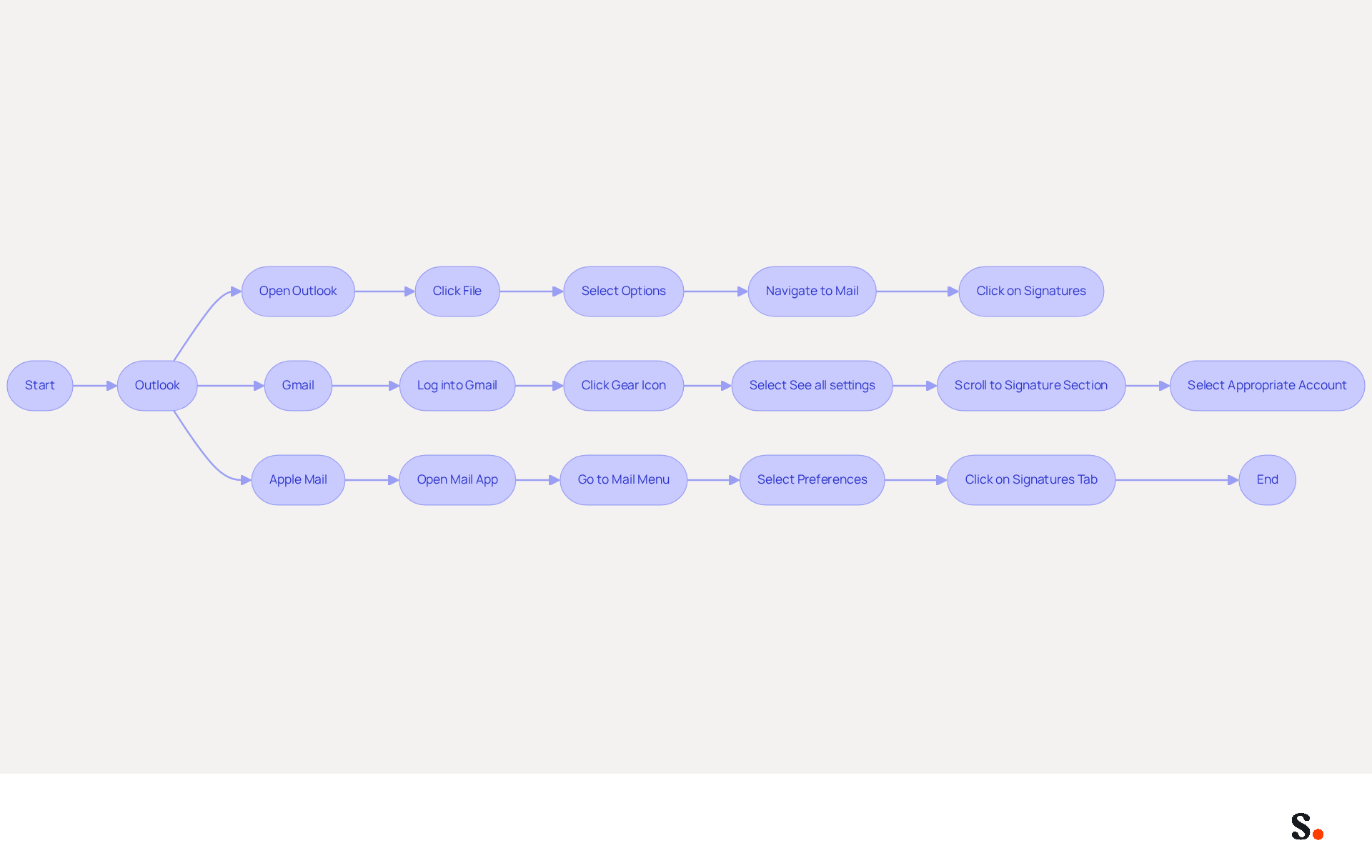
- Outlook: Open Outlook and click on
Filein the top-left corner. To learn how to change email signature, selectOptions, then navigate toMailand click onSignatures. Outlook allows for advanced formatting options, making it ideal for corporate environments. - Gmail: Log into your Gmail account. Click on the gear icon in the top right corner, then select
See all settings. Scroll down to theSignaturesection under theGeneraltab. When managing multiple email addresses, it is crucial to select the appropriate account to understand how to change email signature accurately. Gmail supports unlimited email identifiers and automatic syncing across devices, which is advantageous for users managing multiple accounts. - Apple Mail: Open the Mail app, go to
Mailin the menu bar, and selectPreferences. Click on theSignaturestab to find out how to change email signature and edit your signatures. Apple Mail integrates seamlessly with macOS and iOS, although it has limited advanced features compared to other applications.
As mobile devices account for 55% of email opens, ensuring your email signature is optimized for mobile is no longer optional but essential for effective communication.
Edit Your Email Signature Content
To effectively edit your email signature across various platforms, follow these structured steps:
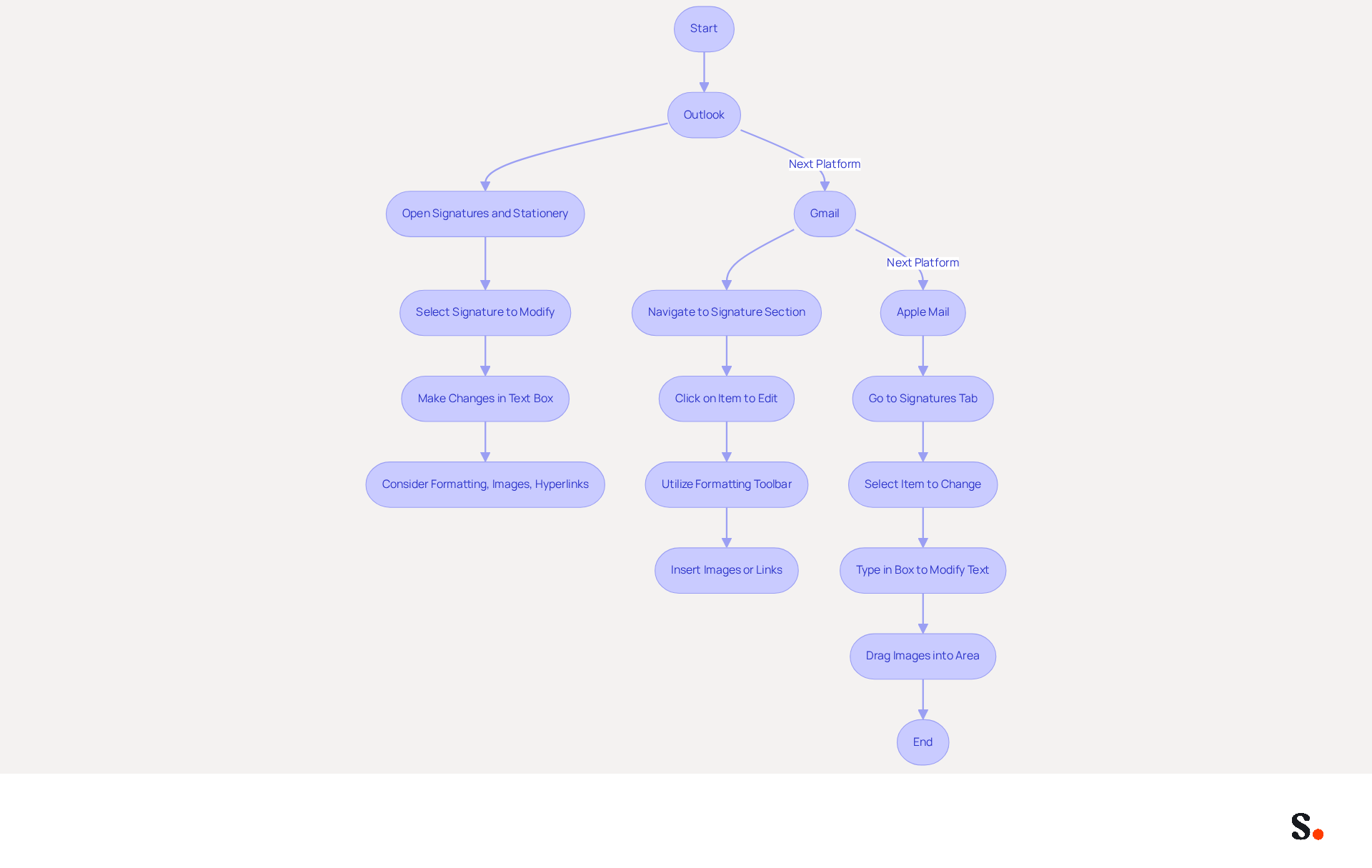
- Outlook: Open the
Signatures and Stationerywindow, select the signature you wish to modify, and make your changes in the text box. Consider formatting the text, adding images, and including hyperlinks to improve your email footer's functionality. - Gmail: Navigate to the
Signaturesection to understand how to change email signature by clicking on the item you want to edit. Utilize the formatting toolbar to adjust the font, size, and color. You can also insert images or links to provide additional context or resources. - Apple Mail: In the
Signaturestab, you can find out how to change email signature by selecting the item you want to change. You can directly type in the box to modify the text and drag images into the area to enhance your visual representation.
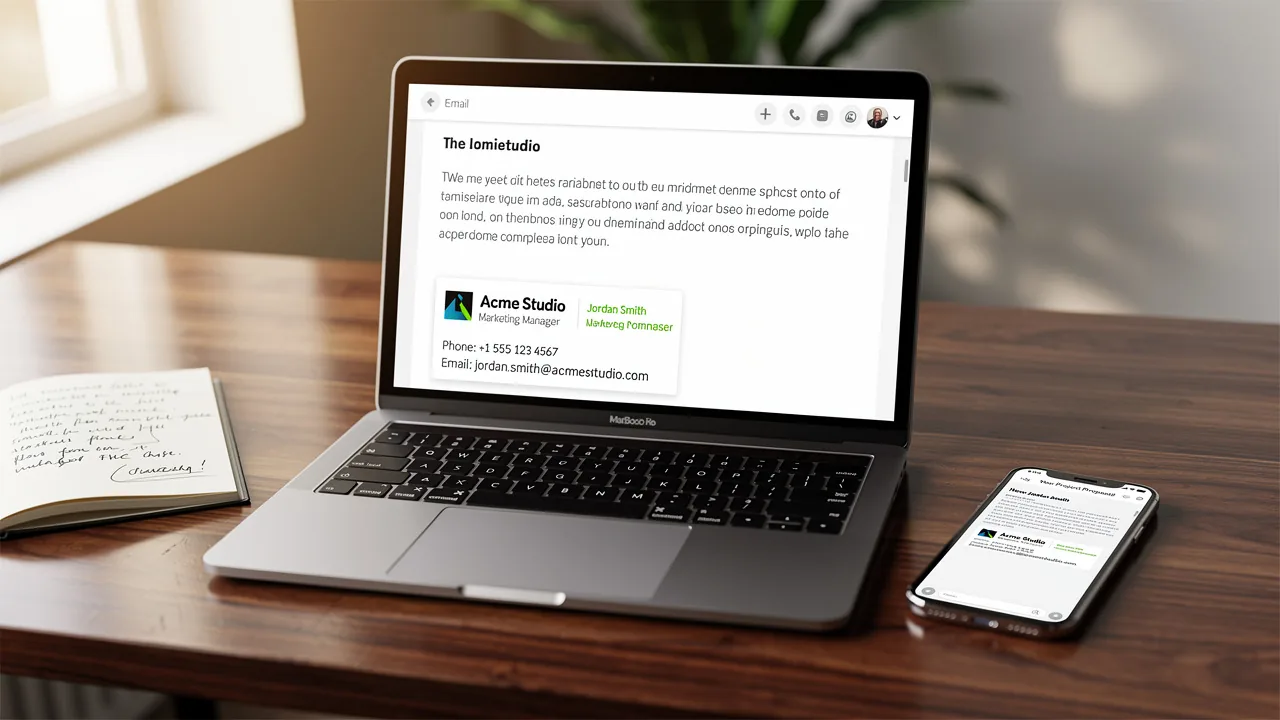
When crafting your email signature, it is essential to prioritize professionalism and brevity. Essential elements to include are your full name, job title, company name, and direct contact information. Research indicates that concise and clean designs significantly improve engagement rates, with designs that maintain a clean aesthetic and include strategic calls-to-action converting 40% better than generic options. Keeping your sign-off concise-ideally no longer than seven lines-will help avoid clutter and ensure clarity, as recommended by best practices.
Save and Apply Your Changes
Ensuring your contact details are up-to-date is crucial for maintaining effective communication. Here’s how to do it across popular email platforms:
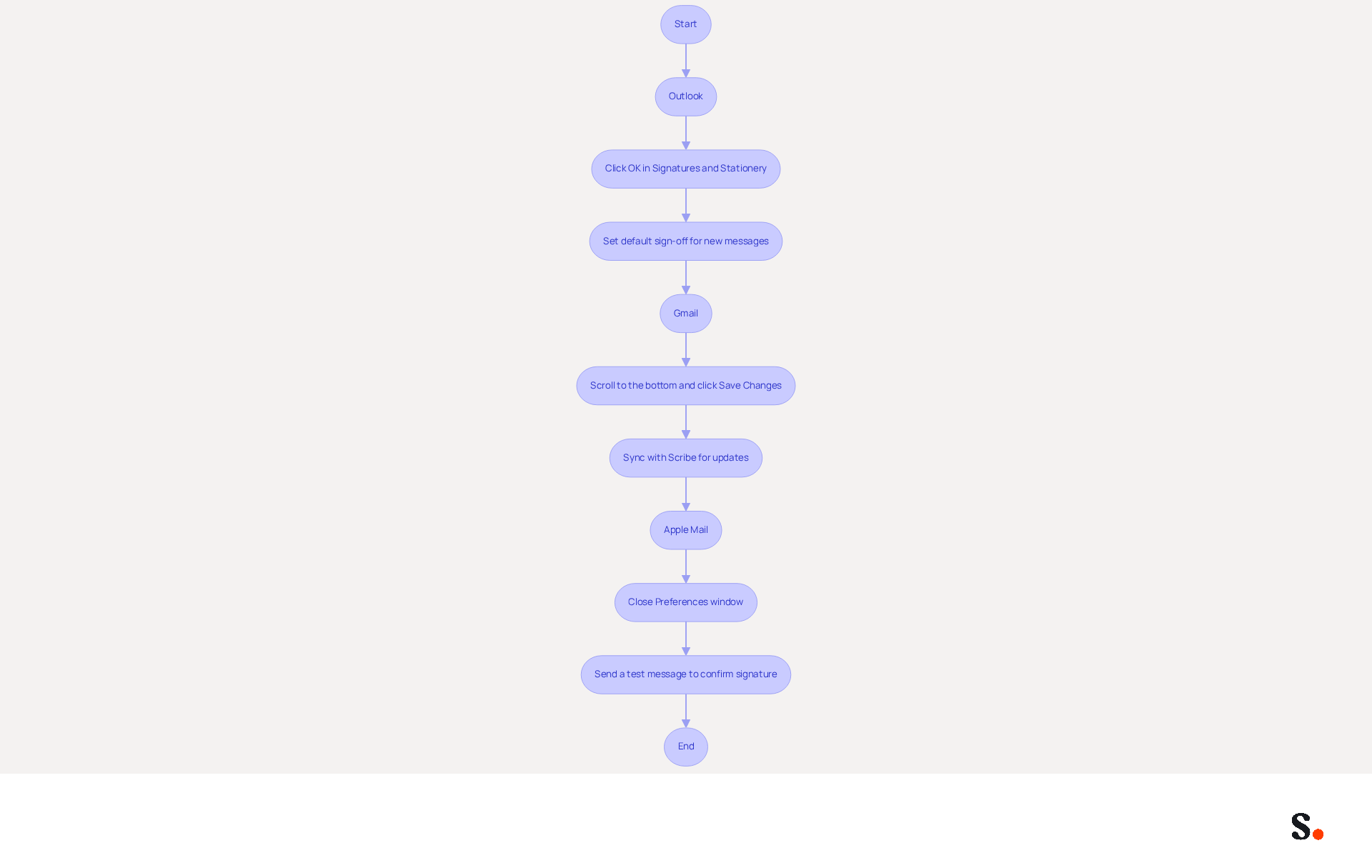
- Outlook: Click
OKin theSignatures and Stationerywindow to save your changes. Ensure that the appropriate sign-off is set as the default for new messages and replies/forwards if desired. Centralized management of messaging branding can result in 85% improved brand consistency. This consistency can significantly impact customer perception and engagement. - Gmail: To understand how to change email signature, scroll to the bottom of the settings page and click
Save Changes. Your new identifier will automatically be applied to all outgoing messages. Regular updates to digital identifiers help avoid miscommunication, as outdated information can lead to lost opportunities. Additionally, if you sync your Google Workspace with Scribe, any updates to your teammates' information will be automatically reflected in Scribe, saving you time and ensuring consistency. - Apple Mail: To learn how to change email signature, close the
Preferenceswindow after making your changes. Your mark will be stored automatically and will show up in your new messages. To confirm your signature displays correctly, send a test message to yourself.
In 2026, 42.2% of users view marketing through messages as one of the top three most effective promotional channels, emphasizing the significance of a well-crafted message footer. By implementing these practices, you position your brand for greater recognition and trust among your audience.
Troubleshoot Common Signature Issues
Despite successfully figuring out how to change email signature, various issues may still arise that require attention. Here are common problems and how to troubleshoot them:
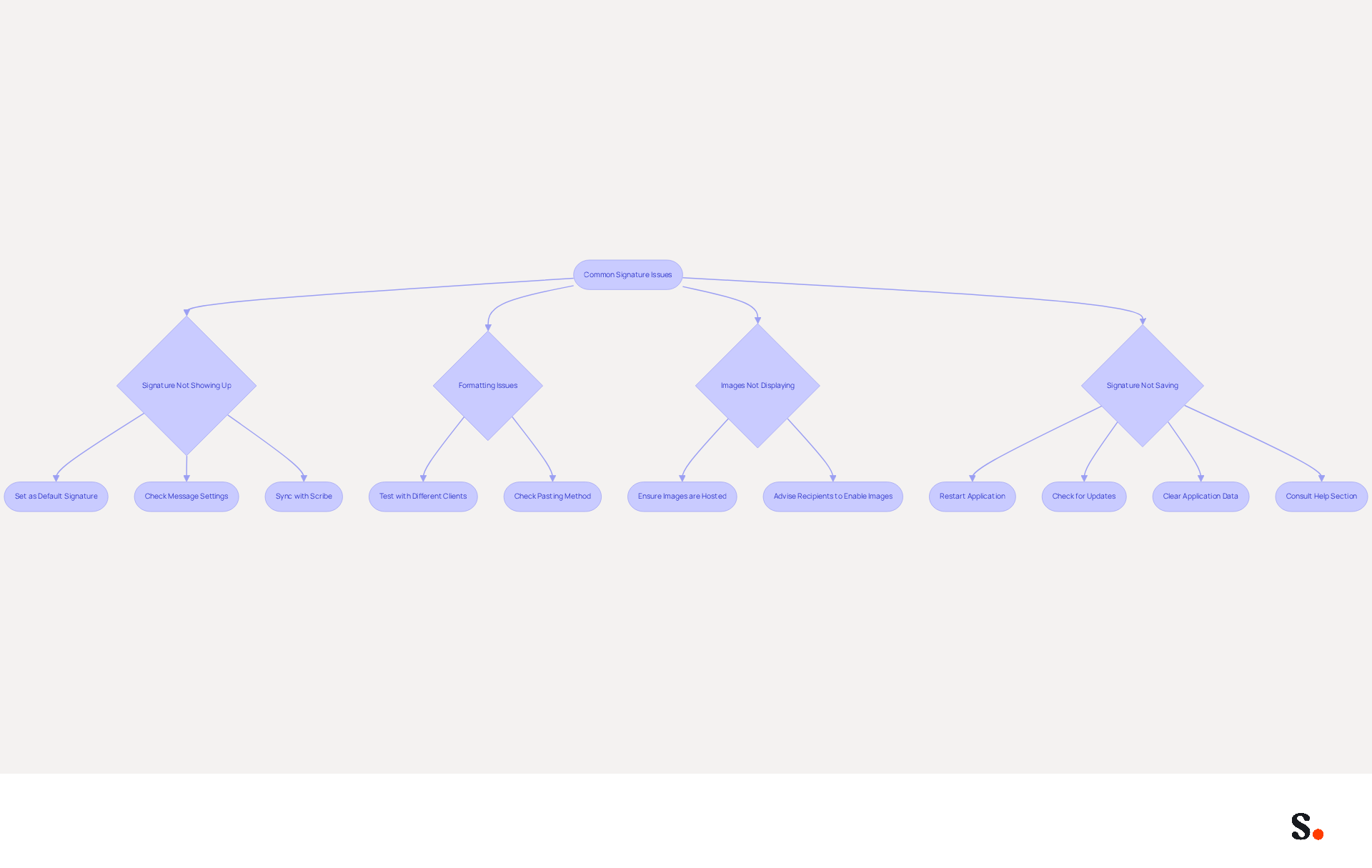
- Signature Not Showing Up: Ensure that you have set the new signature as the default for new emails and replies. Check your message settings to confirm this. Most professionals (89.9%) use a single digital format, making it crucial to select the right one. If you sync your Google Workspace with Scribe, any changes made in your workspace will automatically reflect in Scribe, reducing the chances of this issue occurring.
- Formatting Issues: If your signature appears differently when sent, it may be due to the recipient's messaging application. Test your personal signature by sending emails to various clients (e.g., Gmail, Outlook) to see how it appears. Formatting issues often arise when names are pasted from word processors, leading to altered fonts and spacing.
- Images Not Displaying: If images in your signature are not showing, ensure they are hosted online or embedded correctly. Some messaging applications block images by default, so advise recipients to enable images. Images should be set at a resolution of 72 DPI for most users and 96 DPI for older Outlook versions to prevent blurriness.
- Signature Not Saving: Users often find that their changes do not save, leading to frustration and wasted time. Restarting your messaging application or checking for updates may help. Sometimes, settings may revert due to application issues. A typical troubleshooting measure is to clear application data before re-downloading the messaging software. However, if you are using Scribe and have synced your Google Workspace, any updates or changes should be automatically managed, reducing the risk of saved documents not being retained.
If issues continue, consult the help section of your messaging client or reach out to their support for further assistance on how to change email signature. Keep in mind, 42% of consumers have a negative perception of a business when they receive a message lacking a branded identifier, emphasizing the necessity of addressing these signature issues promptly. Additionally, Scribe complies with SOC 2 Type II, GDPR, and CCPA, ensuring that your email signature management is secure and compliant.
Conclusion
An outdated email signature can undermine your professional communication and brand image. By following the outlined steps for popular email platforms like Outlook, Gmail, and Apple Mail, users can easily access their signature settings, edit content, and ensure that their signatures reflect current information and branding. However, many users overlook the importance of regularly updating their signatures, leading to outdated information. This process is crucial for maintaining professionalism and ensuring that your brand message remains consistent across all communications.
Key insights from this guide emphasize the importance of maintaining an updated and well-designed email signature. From ensuring that contact details are accurate to troubleshooting common issues, each step contributes to a seamless communication experience. The integration of tools like Scribe can further streamline this process, allowing marketing teams to manage signatures independently while ensuring compliance with security standards such as SOC 2 Type II, GDPR, and CCPA. Failing to maintain an updated signature can result in missed opportunities for brand engagement.
A well-crafted email signature isn't just a detail; it's a powerful marketing tool that can enhance brand recognition and trust among recipients. By prioritizing clarity and professionalism in email signatures, organizations can leverage this often-overlooked aspect of communication to drive engagement and foster positive perceptions. Consider how a simple update to your email signature could transform your professional interactions and enhance your brand's reputation.
Frequently Asked Questions
How do I access my email signature settings in Outlook?
To access your email signature settings in Outlook, open Outlook and click on File in the top-left corner. Then, select Options, navigate to Mail, and click on Signatures.
What are the formatting options available for email signatures in Outlook?
Outlook allows for advanced formatting options for email signatures, making it ideal for corporate environments.
How can I change my email signature in Gmail?
To change your email signature in Gmail, log into your Gmail account, click on the gear icon in the top right corner, select See all settings, and scroll down to the Signature section under the General tab.
What should I consider when managing multiple email addresses in Gmail?
When managing multiple email addresses in Gmail, it is crucial to select the appropriate account to ensure you are changing the email signature accurately.
How do I change my email signature in Apple Mail?
To change your email signature in Apple Mail, open the Mail app, go to Mail in the menu bar, select Preferences, and click on the Signatures tab to edit your signatures.
How does Apple Mail integrate with other devices?
Apple Mail integrates seamlessly with macOS and iOS, although it has limited advanced features compared to other applications.
Why is it important to optimize my email signature for mobile devices?
It is essential to optimize your email signature for mobile devices because mobile devices account for 55% of email opens, which is crucial for effective communication.
List of Sources
- Access Your Email Signature Settings
- Email Signature Trends 2026: What Designers Are Actually Using (https://markaplugin.com/blog/email-signature-trends-2026)
- Gmail vs Outlook vs Apple Mail: Complete Email Signature Setup Guide (2025) (https://generate.folderly.com/blog/gmail-outlook-apple-mail-email-signature-setup-guide)
- Email Marketing Statistics | Ultimate List | CodeCrew (https://codecrew.us/blog/email-marketing-stats-you-need-to-know-the-ultimate-list)
- 100 Compelling Email Statistics for 2026 | PGM Solutions (https://porchgroupmedia.com/blog/100-compelling-email-statistics-to-inform-your-strategy-in-2023)
- Email Client Market Share: Trends & Statistics 2026 (https://litmus.com/email-client-market-share)
- Edit Your Email Signature Content
- Email Signature Best Practices for 2026 (+ 15 Pro Examples) (https://wavecnct.com/blogs/email-signature-best-practices-2026)
- Email Signature Trends 2026: What Designers Are Actually Using (https://markaplugin.com/blog/email-signature-trends-2026)
- Email signature statistics: Why every business should optimize their email signatures — Stripo.email (https://stripo.email/blog/email-signature-statistics-why-every-business-should-optimize-their-email-signatures)
- Why Email Signatures Must Be In Your 2026 Marketing Plan | Rocketseed (https://rocketseed.com/blog/what-are-the-biggest-email-trends-for-2026)
- Email Signature Best Practices - NEWOLDSTAMP (https://newoldstamp.com/blog/email-signature-best-practices)
- Save and Apply Your Changes
- Email Signature Statistics: A Closer Look at Email Signatures in 2026 (https://mysignature.io/blog/email-signature-statistics)
- Email Signature Best Practices for 2026 (+ 15 Pro Examples) (https://wavecnct.com/blogs/email-signature-best-practices-2026)
- Email Signature Trends 2026: What Designers Are Actually Using (https://markaplugin.com/blog/email-signature-trends-2026)
- Do Email Signatures Actually Matter in 2026? (https://community.constantcontact.com/faqs/post/do-email-signatures-actually-matter-in-2026-Ka01TMi6sBKzXMl)
- Troubleshoot Common Signature Issues
- Email signature statistics and trends in 2024 (https://wisestamp.com/blog/email-signature-statistics)
- Problem with signature placement in replies since newest update - Microsoft Q&A (https://learn.microsoft.com/en-ca/answers/questions/5838908/problem-with-signature-placement-in-replies-since)
- Email Signature Troubleshooting - Problems & Solutions - Gimmio (https://blog.gimm.io/email-signature-troubleshooting)
- 40+ Email Signature Statistics for 2026 (Data + Insights) (https://wavecnct.com/blogs/email-signature-statistics)
- How to solve problems with email signatures in Microsoft 365? (https://mail-signatures.com/articles/problems-email-signatures-office-365)
Get started with Scribe
Create your signature in minutes
Free 14-day trial — no credit card.