How to Change Your Email Signature on iPhone: A Step-by-Step Guide
Effectively managing email signatures on an iPhone is crucial for projecting a professional image in digital communications. This guide provides a step-by-step
Sophie Grant
Email Signature Specialist, Scribe
Introduction
Effectively managing email signatures on an iPhone is crucial for projecting a professional image in digital communications. This guide provides a step-by-step method for changing your email signature to reflect your brand and enhance recipient engagement. Many users struggle with formatting issues that can undermine their professional image. Successfully addressing these challenges can lead to a polished and professional email signature that enhances engagement.
Understand Your Email Settings on iPhone
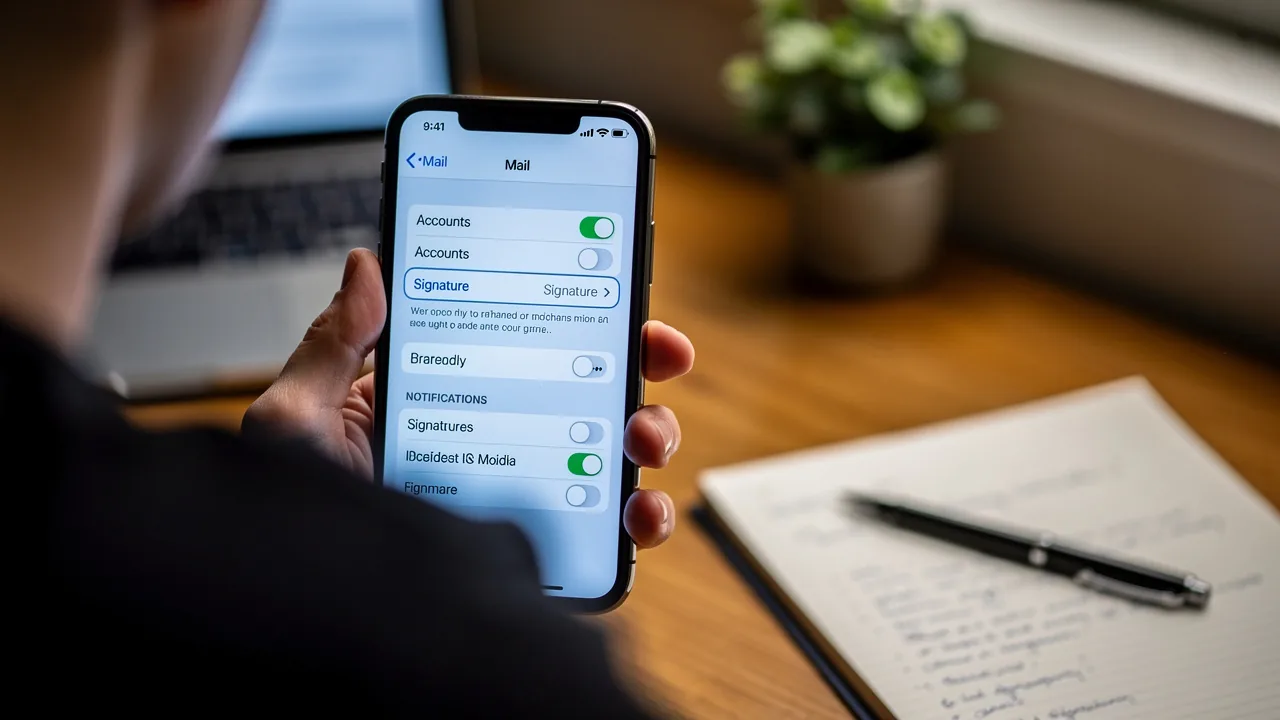
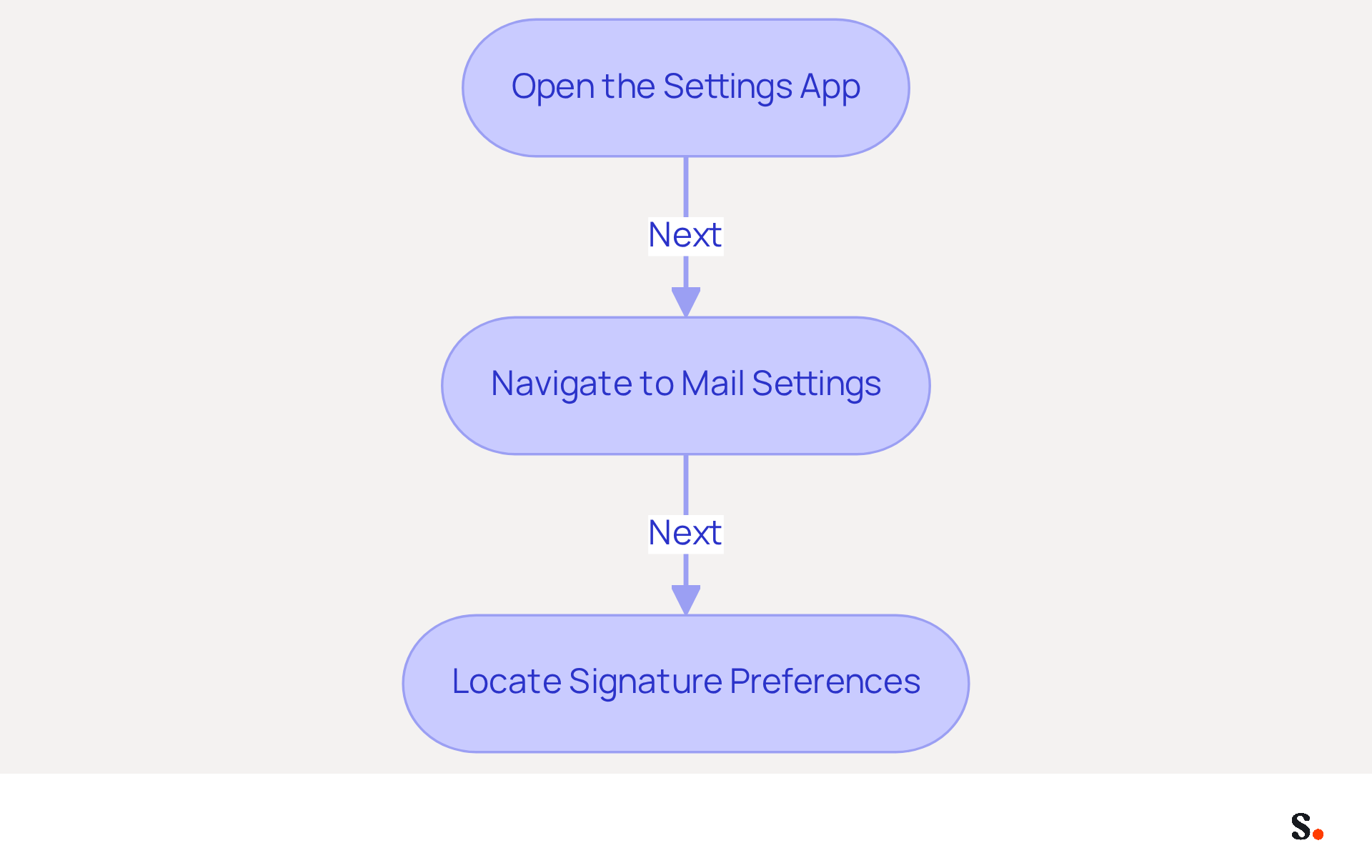
To effectively manage your email communications, it is crucial to understand how to change email signature iPhone. Follow these straightforward steps to access the necessary settings:
- Open the Settings App: Find the Settings app on your iPhone, indicated by a gear icon.
- Navigate to Mail Settings: Scroll down and select 'Mail'. This section includes all configurations related to your messaging accounts.
- Locate Signature Preferences: Within the Mail options, search for the 'Signature' choice, typically found under the 'Composing' section. Here, you can modify your contact footer.
Understanding these settings is vital, especially since 91% of consumers check their messages daily on their smartphones. Furthermore, 71.6% of users will remove messages that do not render properly on mobile devices, highlighting the importance of a well-crafted signature.
Research shows that companies focusing on mobile optimization experience notable increases in engagement. For example, a study showed that 50% of consumers made purchases via mobile websites after viewing a marketing message, underscoring the necessity for effective management of digital signatures. By mastering these settings, you can significantly enhance your professional image and communication effectiveness.
Access and Edit Your Email Signature
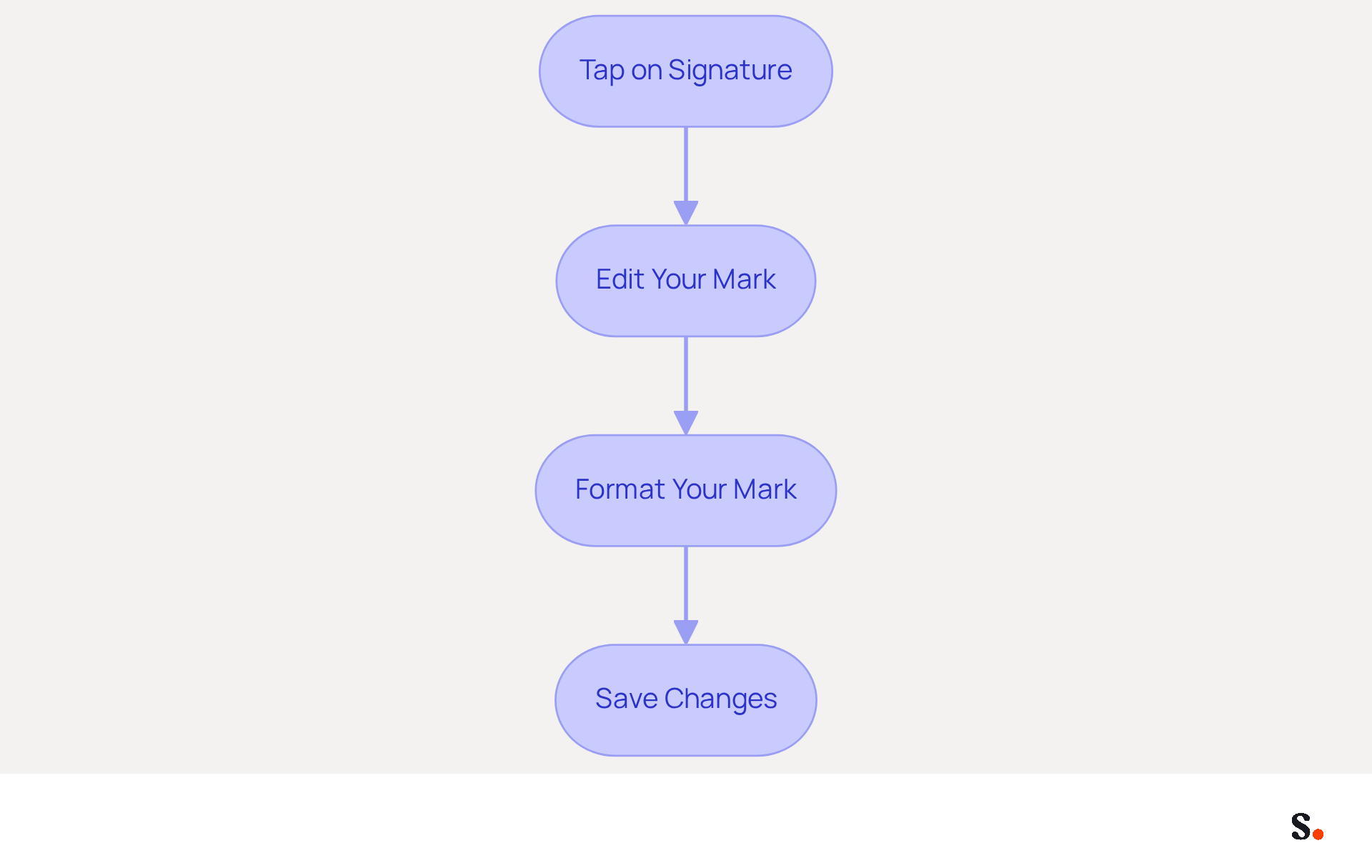
Knowing how to change email signature iphone is a crucial step in maintaining professional communication.
- Tap on Signature: Navigate to the Mail settings and select 'Signature'. This will bring up a text field where you can enter your new signature.
- Edit Your Mark: To create a new mark, delete the existing text and enter your desired mark. Include key details like your full name, job title, and company name, as these elements are crucial for identification and credibility.
- Format Your Mark: For additional formatting like bold or italics, create your mark in a text editor first, then copy and paste it into the mark field.
- Save Changes: After making your edits, tap outside the text box or press the Home button to save your changes automatically.
With Scribe, any modifications made in your Aircall configuration will automatically sync to your communication details, ensuring brand consistency without requiring additional action from your teammates. This automation saves you time and keeps your contact details up-to-date, so you don’t have to worry about manual updates. Moreover, Scribe is SOC 2 Type II compliant, ensuring that your data is handled securely.
Updating your contact information is essential, as branded formats can result in a 22% rise in response rates (source: Crossware365) and build trust among recipients. In fact, 76% of professionals believe that a well-crafted sign-off enhances credibility (source: DemandGen). By following these steps on how to change email signature iphone, you can ensure that your message footer effectively reflects your brand and engages your audience.
Implement Best Practices for Signature Design
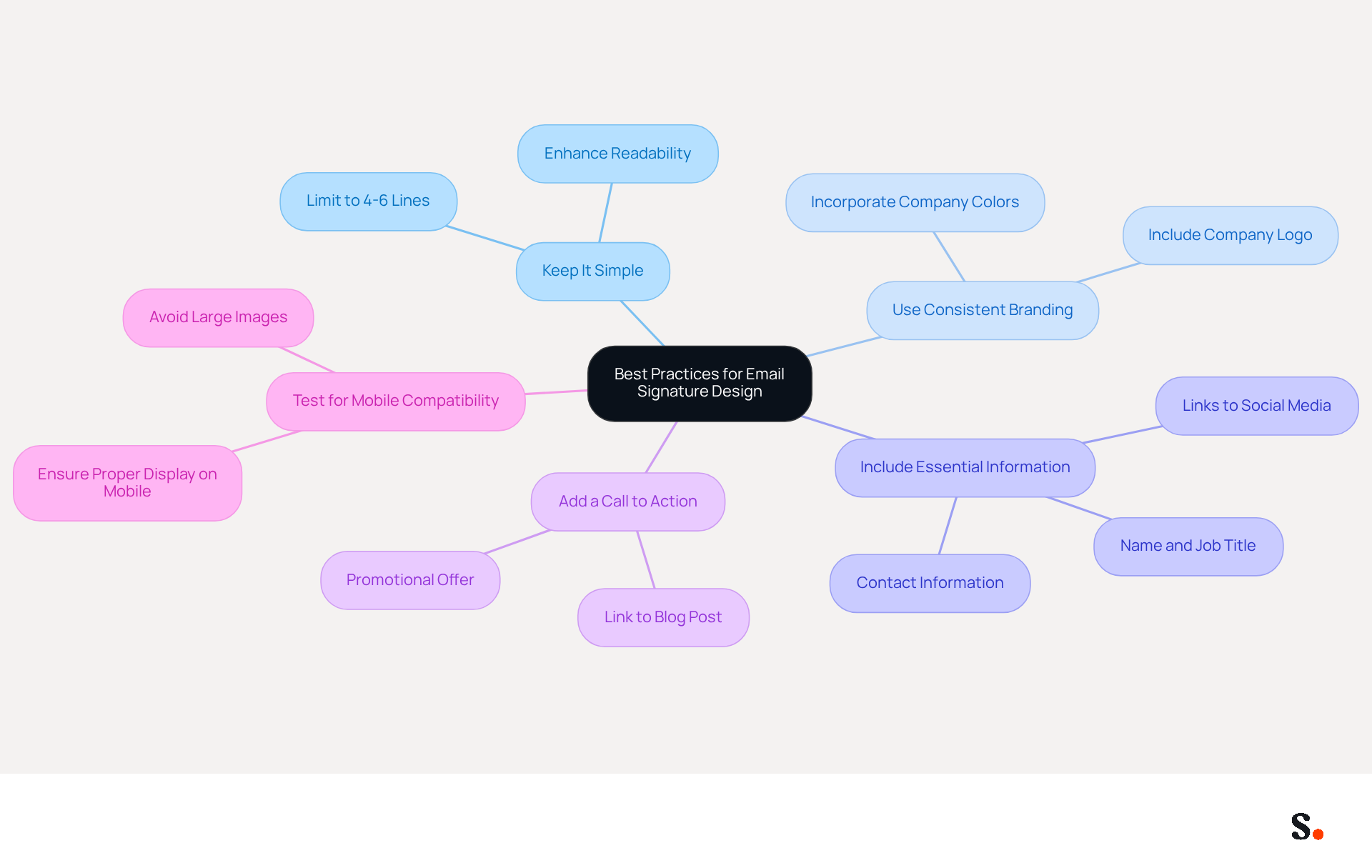
It is essential for effective communication and brand representation to know how to change email signature iphone. To achieve this, adhere to the following best practices:
- Keep It Simple: Limit your sign-off to 4-6 lines of text to avoid clutter. A concise mark enhances readability and professionalism.
- Use Consistent Branding: Incorporate your company’s colors and logo to maintain brand consistency. This reinforces your brand identity and helps recipients recognize your communications.
- Include Essential Information: Ensure your sign-off contains your name, job title, company name, and contact information. Adding links to your social media profiles or company website can further enhance engagement.
- Add a Call to Action: If relevant, include a call to action, such as a link to your latest blog post or a promotional offer. This can drive traffic and engagement without additional marketing costs.
- Test for Mobile Compatibility: However, many email signatures fail to display correctly on mobile devices, leading to potential miscommunication. With 46% of all message openings happening on mobile devices, it’s crucial to ensure your identifier displays well on smaller screens. Avoid large images that may not render correctly.
By implementing these best practices, you will understand how to change email signature iphone to create a professional email signature that effectively promotes your brand. Businesses employing branded footers have reported a 15% rise in website click-through rates, and messages with branded footers receive a 22% higher response rate than those lacking them, demonstrating how well-crafted footers can significantly boost engagement metrics. Additionally, Scribe's automated synchronization with Aircall ensures that any changes made in your Aircall configuration are automatically reflected in your Scribe branding, enhancing brand consistency across all communications. Moreover, the smooth integration with Calendly enables automatic updates to your contact details, ensuring that your branding stays consistent and current. As businesses increasingly focus on sustainability in their digital communications, incorporating eco-friendly elements can further enhance your brand's image and align with current marketing trends, making your interactions not only effective but also responsible. Ultimately, a well-designed email signature can transform your communication strategy and enhance your brand's reputation.
Troubleshoot Common Signature Issues
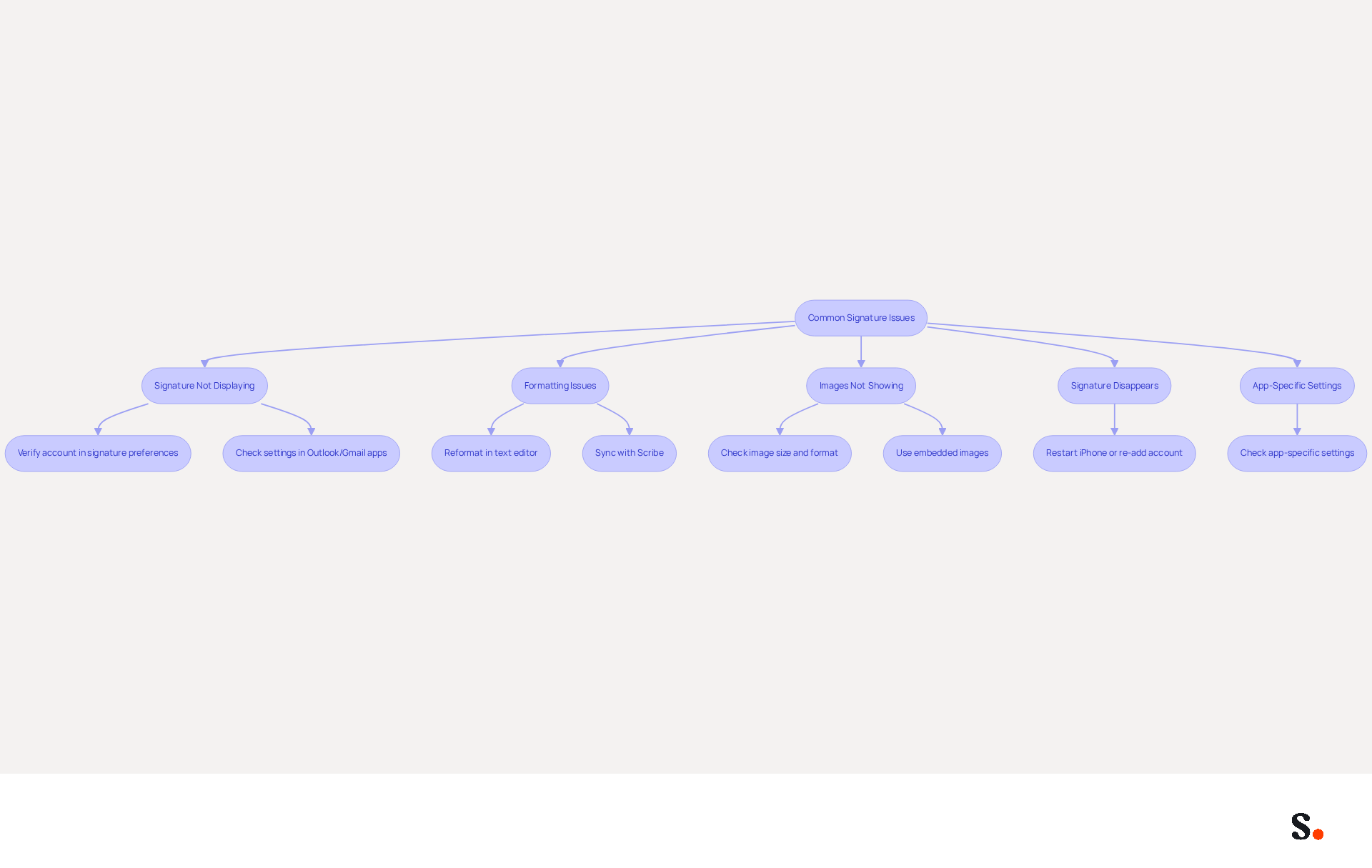
Many users encounter challenges with their email signatures, which can disrupt professional communication.
- Signature Not Displaying: If your email signature is not displaying, first verify that you have selected the correct account in your signature preferences. iOS allows for multiple identifiers across different accounts. Additionally, iPhone 15 users have reported issues with email identifiers not appearing in the Outlook and Gmail apps, so double-check your settings in these applications. Syncing your Google Workspace with Scribe can help prevent these issues by ensuring that your identification information is always up-to-date and accurately reflected.
- Formatting Issues: If your signature appears differently than expected, try reformatting it in a text editor before copying it into the signature field. Avoid using complex formatting that may not be supported. Many users have reported challenges with the iPhone Mail logo not appearing, highlighting a common formatting issue. By syncing with Scribe, you can simplify the management of your formatting, decreasing the chances of these issues.
- Images Not Showing: If you included images in your signature and they are not displaying, check the image size and format. Large images may not load properly. Consider using smaller images or hosting them online. Ensure that images are embedded rather than linked, as many email clients block linked images by default. Scribe’s integration with Google Workspace can help manage these images more effectively, ensuring they display correctly across all platforms.
- Signature Disappears: If your email signature disappears unexpectedly, it could be due to syncing issues that many users experience. Restart your iPhone or re-add your email account to resolve this. Users have reported that restarting their devices often resolves temporary glitches affecting the display, as seen in various case studies. With Scribe, any modifications made in your Google Workspace, such as updates to your team’s information, will automatically sync, reducing the risk of disappearing signatures.
- App-Specific Settings: Be aware that app-specific configuration settings may override device settings, leading to inconsistencies. If you are managing digital identifiers in a corporate setting, be aware that additions made on the server side may not show up in the sender's Sent Items folder, complicating the verification of disclaimers. Leveraging Scribe’s features to synchronize with Google Workspace can assist in maintaining consistency across various applications, ensuring that your correspondence identifiers are always in line with your brand’s standards.
By implementing these troubleshooting steps and utilizing Scribe’s integration, you can enhance the reliability of your email signatures.
Conclusion
Changing your email signature on an iPhone is crucial for projecting a professional image in digital communications. Understanding the settings and following the steps allows users to customize their signatures, reflecting their brand identity and improving engagement.
Key insights from this guide highlight the importance of simplicity and consistency in signature design, along with the necessity of troubleshooting common issues that may arise. Best practices include:
- Including your name
- Including your title
- Including your contact information
- Ensuring mobile compatibility
These practices enhance the effectiveness of email signatures. Additionally, leveraging tools like Scribe can streamline the management of signatures, ensuring brand consistency and reducing the likelihood of errors.
A well-crafted email signature goes beyond being just a digital footer; it serves as a vital tool for communication and branding. By taking the time to optimize this aspect of email correspondence, professionals can enhance their credibility and foster stronger connections with their audience. Embrace the opportunity to refine your email signature today, and witness the positive impact it can have on your professional interactions.
Frequently Asked Questions
Why is it important to understand email settings on iPhone?
Understanding email settings on iPhone is crucial for effectively managing email communications and ensuring that messages render properly on mobile devices, as 91% of consumers check their messages daily on smartphones.
How can I change my email signature on iPhone?
To change your email signature on iPhone, open the Settings app, navigate to 'Mail', and locate the 'Signature' option under the 'Composing' section to modify your contact footer.
What percentage of users remove messages that do not render properly on mobile devices?
Approximately 71.6% of users will remove messages that do not render properly on mobile devices.
How does mobile optimization impact consumer behavior?
Research indicates that companies focusing on mobile optimization experience notable increases in engagement, with 50% of consumers making purchases via mobile websites after viewing a marketing message.
What is the benefit of mastering email signature settings on iPhone?
Mastering email signature settings can significantly enhance your professional image and communication effectiveness.
List of Sources
- Understand Your Email Settings on iPhone
- Mobile Email Engagement — 32 Statistics Every Marketing Leader Should Know in 2026 (https://genesysgrowth.com/blog/mobile-email-engagement-stats-for-marketing-leaders)
- Email Users Statistics and Facts (https://market.us/statistics/internet/email-users)
- 15 Mobile Email Statistics You Must Know as a Marketer (https://mailmodo.com/guides/mobile-email-statistics)
- The ultimate mobile email statistics overview: All mobile email stats (https://emailmonday.com/mobile-email-usage-statistics)
- 100 Compelling Email Statistics for 2026 | PGM Solutions (https://porchgroupmedia.com/blog/100-compelling-email-statistics-to-inform-your-strategy-in-2023)
- Access and Edit Your Email Signature
- 40+ Email Signature Statistics for 2026 (Data + Insights) (https://wavecnct.com/blogs/email-signature-statistics)
- Email signature statistics and trends in 2024 (https://wisestamp.com/blog/email-signature-statistics)
- Email signature statistics: Why every business should optimize their email signatures — Stripo.email (https://stripo.email/blog/email-signature-statistics-why-every-business-should-optimize-their-email-signatures)
- Email Signature Statistics: A Closer Look at Email Signatures in 2026 (https://mysignature.io/blog/email-signature-statistics)
- Implement Best Practices for Signature Design
- Why Email Signatures Must Be In Your 2026 Marketing Plan | Rocketseed (https://rocketseed.com/blog/what-are-the-biggest-email-trends-for-2026)
- Email signature statistics and trends in 2024 (https://wisestamp.com/blog/email-signature-statistics)
- Email signature statistics: Why every business should optimize their email signatures — Stripo.email (https://stripo.email/blog/email-signature-statistics-why-every-business-should-optimize-their-email-signatures)
- Email Signature Best Practices - NEWOLDSTAMP (https://newoldstamp.com/blog/email-signature-best-practices)
- Email signature marketing: Triple your conversions with signature marketing (https://mailbutler.io/blog/email/signature-marketing)
- Troubleshoot Common Signature Issues
- justanswer.com (https://justanswer.com/email/ntdhq-iphone-15-use-outlook-gmail-signature.html)
- Issue with email signature - Gmail Community (https://support.google.com/mail/thread/328430201/issue-with-email-signature?hl=en)
- Email Signature Troubleshooting - Problems & Solutions - Gimmio (https://blog.gimm.io/email-signature-troubleshooting)
- How to solve problems with email signatures in Microsoft 365? (https://mail-signatures.com/articles/problems-email-signatures-office-365)
- iPhone email signature image not showing - Apple Community (https://discussions.apple.com/thread/250700810)
Get started with Scribe
Create your signature in minutes
Free 14-day trial — no credit card.