How to Change Your Signature Line in Gmail: A Step-by-Step Guide
Creating a Gmail signature can be a daunting task, yet it holds the key to enhancing professionalism and brand identity in every email. With the right
Sophie Grant
Email Signature Specialist, Scribe
Introduction
Creating a Gmail signature can be a daunting task, yet it holds the key to enhancing professionalism and brand identity in every email. With the right signature, individuals can boost their credibility, facilitate communication, and leverage marketing opportunities - all while ensuring consistency across their organization. This struggle often results in missed opportunities for professional engagement.
How can one navigate the intricacies of Gmail settings to create a signature that not only looks professional but also aligns with their branding goals? Navigating these settings effectively can transform a simple email into a powerful branding tool.
Understand the Importance of Your Gmail Signature
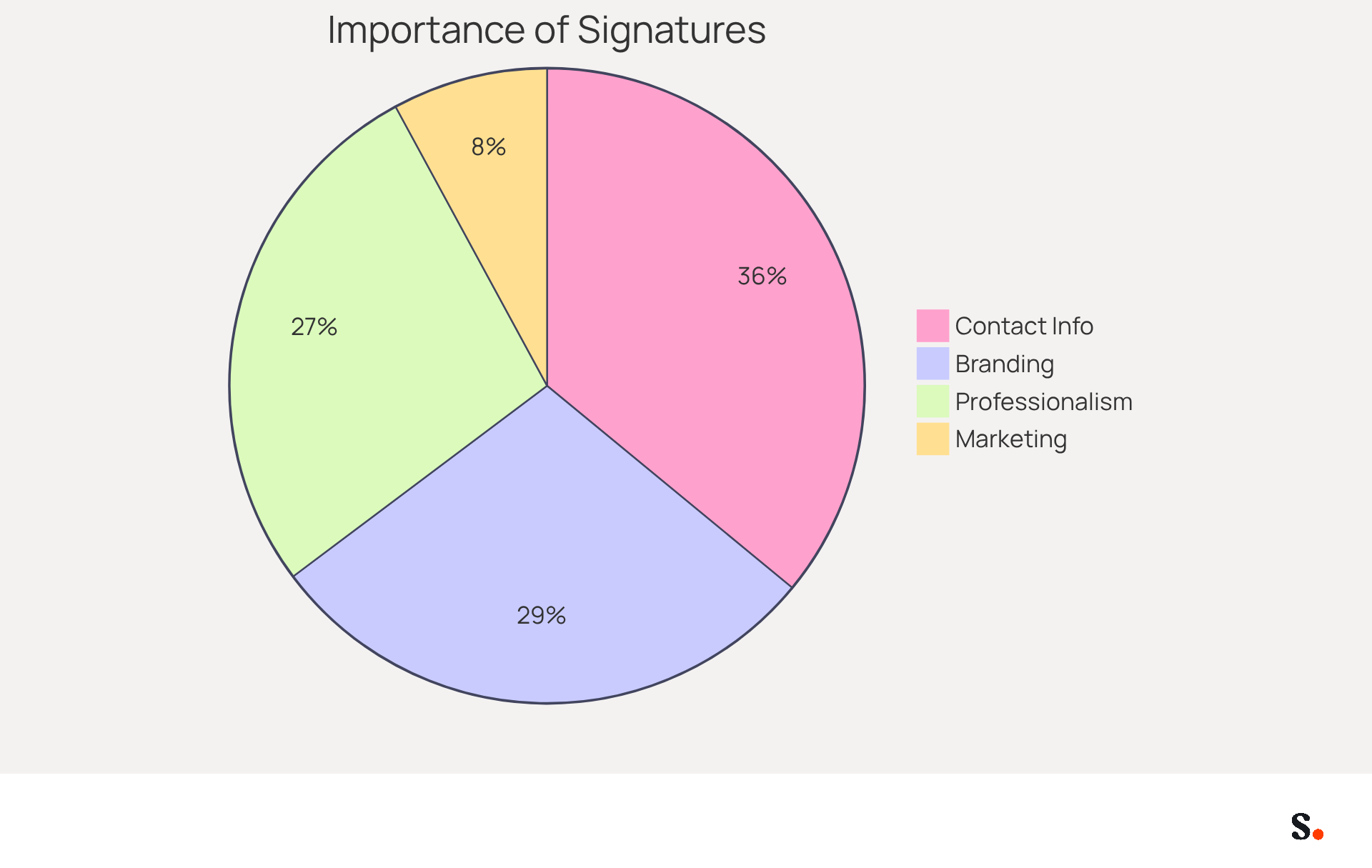
A Gmail sign-off is not merely a formality; it serves as a vital component of your professional identity in digital communication. Here are several compelling reasons to prioritize a well-designed signature:
- Professionalism: A polished signature elevates your emails, fostering credibility and trustworthiness among recipients. Research indicates that 76% of recipients feel more assured about the sender when a branded closing is included.
- Branding: Consistent use of logos, colors, and fonts in your email reinforces your brand identity. In fact, 80% of businesses view a branded message footer as crucial for their branding strategy, resulting in a 22% rise in response rates.
- Contact Information: Including your phone number, contact address, and social media links facilitates easy communication, ensuring recipients can reach you without hassle. This accessibility is crucial in maintaining professional relationships.
- Marketing Opportunities: Your autograph can be a powerful marketing tool, promoting upcoming events, new products, or special offers. Dynamic banners in messages can boost click-through rates by 22%, turning each correspondence into a potential marketing opportunity.
Managing email signatures manually can lead to inconsistencies and outdated information, which may harm professional image. Imagine automating your email signature management with Scribe, keeping everything current and consistent across your organization. By syncing with your business phone system, this tool enables real-time updates to email footers, enhancing brand consistency and adherence to SOC 2 Type II standards. This indicates that any modifications made in your Aircall configuration will automatically reflect in your branding, streamlining the process and ensuring your identity remains intact. Additionally, Scribe's unique positioning enables marketing teams to manage email branding independently after the initial IT setup, allowing for greater flexibility and control. By grasping these elements, you can craft a signature that reflects your professional image while supporting your business goals, ultimately enhancing engagement and driving results.
Access Gmail Settings to Change Your Signature
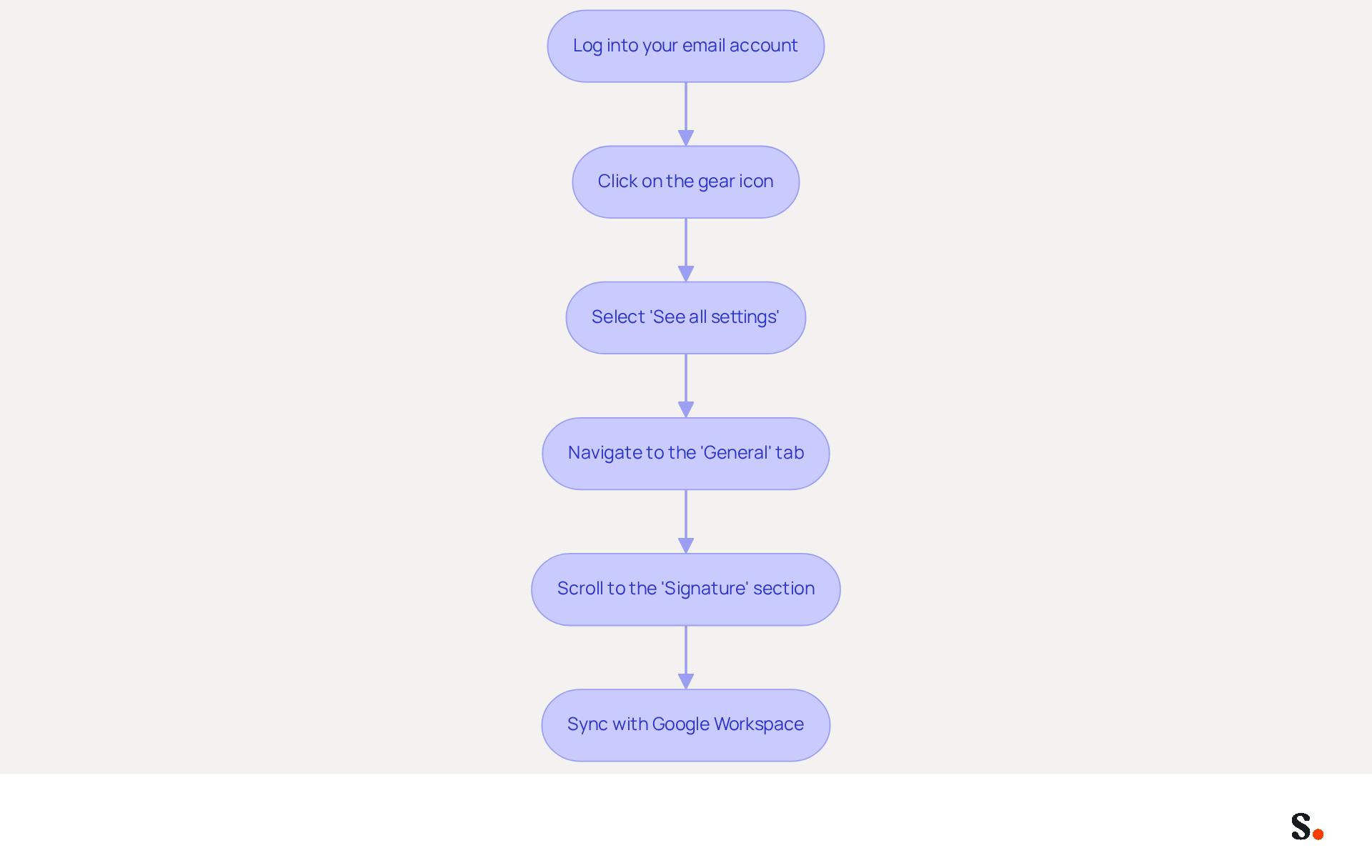
Changing your Gmail signature can significantly impact your professional image and communication effectiveness. To change your Gmail signature, follow these steps:
- Log into your email account: Open your preferred web browser and navigate to the email service.
- Click on the gear icon: Located in the top right corner of the Gmail interface, this icon represents settings.
- Select 'See all settings': From the dropdown menu, click on this option to access the full settings menu.
- Navigate to the 'General' tab: This is usually the default tab that opens, but if not, click on 'General' at the top of the settings page.
- Scroll to the 'Signature' section: Here, you will find the area where you can create or modify your sign-off.
Research indicates that 76% of marketers assert that branded identifiers enhance sender trust, highlighting their importance in professional communication. Moreover, businesses that employ consistent branded email identifiers report a 22% increase in response rates. By following these steps, you will understand how to change your signature line in Gmail, allowing you to create or modify your signature to accurately represent your brand identity and resonate with your audience.
For organizations utilizing this tool, syncing your Google Workspace with it streamlines this process. With one-click synchronization, you can automatically update your teammates' signature information, saving time and ensuring brand consistency. Any modifications made in your Google Workspace, such as updates to job positions or group assignments, will be automatically reflected in the application without any manual input. Additionally, Scribe is SOC 2 Type II compliant, ensuring the safety of your data. Consider adding dynamic links or call-to-action buttons to your email footer to further enhance engagement and drive traffic. Implementing these strategies not only enhances your brand's visibility but also fosters trust and engagement with your audience.
Create or Edit Your Signature: Step-by-Step Instructions
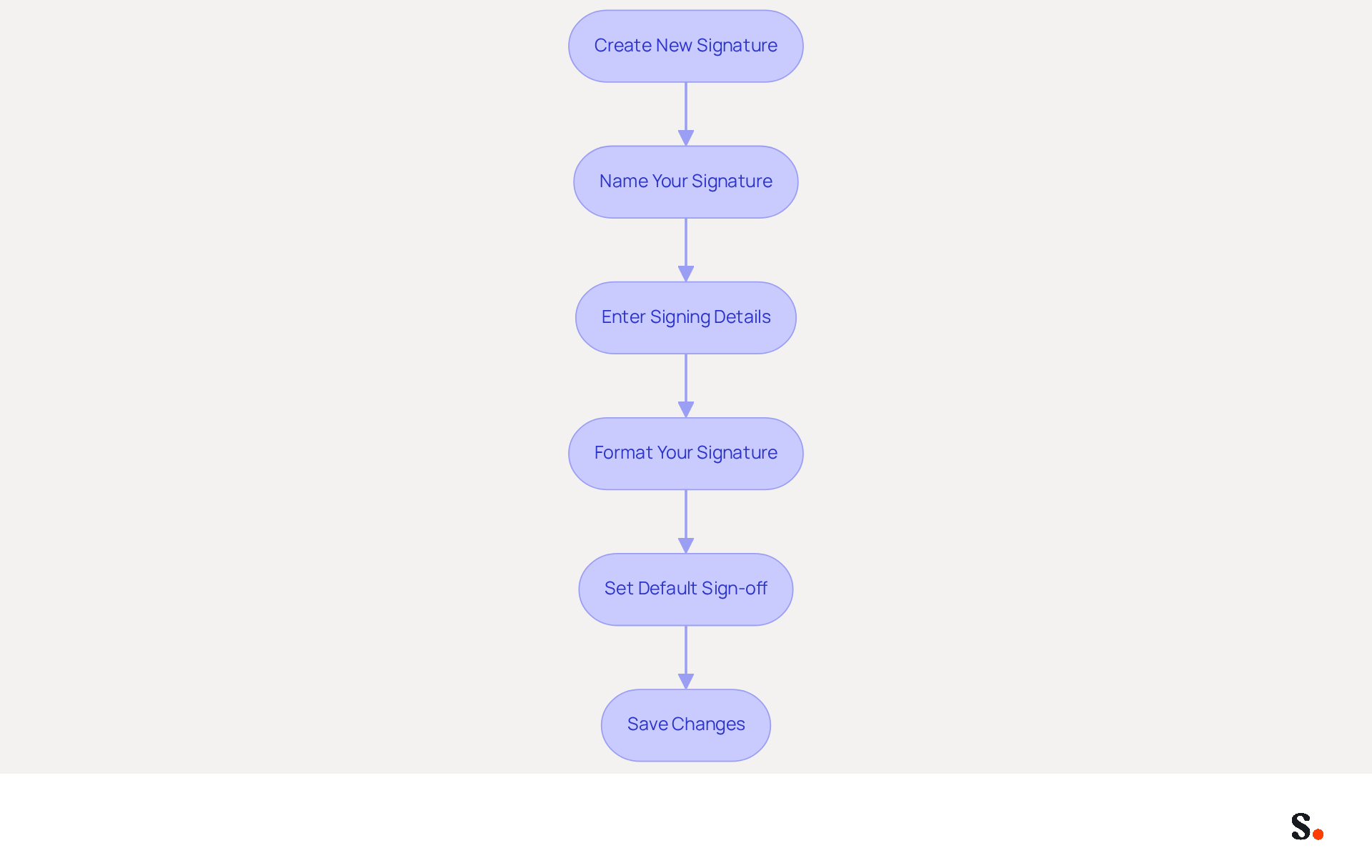
Creating a professional Gmail signature is essential for effective communication and branding. To create or edit your Gmail signature, follow these detailed steps:
- In the Signature section, click 'Create new': This option allows you to start fresh if you're creating a new identifier. If you're modifying an existing one, simply select it from the list.
- Name your unique mark: Assign a recognizable title to your unique mark, especially if you plan to have multiple versions.
- Enter your signing details: In the provided text box, type your name. Include essential information such as your name, title, company name, and contact details.
- Format your mark: Utilize the formatting tools to adjust the font, size, color, and style. Including images or links to your social media profiles is beneficial; approximately 75.8% of users incorporate these links in their email footers, highlighting their role in enhancing interaction and visibility.
- Set your default sign-off: If you have multiple sign-offs, choose which one will be the default for new messages and responses.
- Click 'Save Changes': Ensure you save your changes at the bottom of the settings page.
Following these steps will teach you how to change signature line in Gmail, allowing you to craft a professional signature that boosts your communication effectiveness and adheres to footer design best practices. With Scribe's automated management of digital signatures, you can save time by auto-filling your teammates' details using your HRIS as a data source, ensuring that their information is always synced and updated without any action needed from them. Additionally, Scribe is SOC 2 Type II compliant, ensuring that your data is handled securely. Statistics show that 52% of users believe a strong email footer is crucial for effective communication, and companies utilizing branded email footers can see a 15% increase in website click-through rates, making this an essential aspect of your marketing strategy. Neglecting this aspect could undermine your professional image and hinder engagement with your audience.
Troubleshoot Common Issues with Gmail Signatures
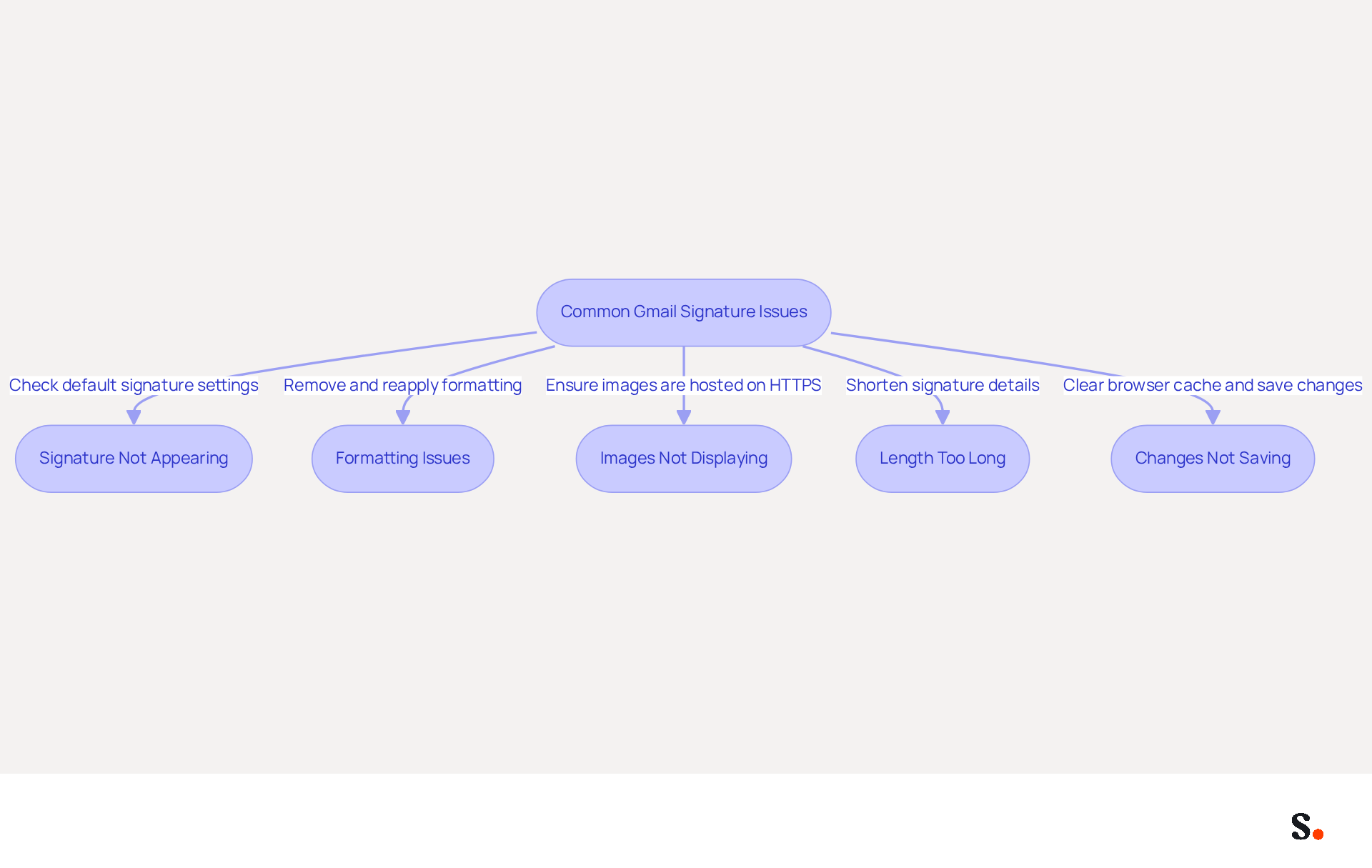
Despite clear instructions, users frequently encounter challenges when modifying their Gmail account's personal message. Here are some common problems and how to troubleshoot them:
- Signature not appearing: Ensure that you have selected the correct signature as your default. Check if the 'No signature' option is selected, as 89.9% of professionals use just one email style and rarely update it.
- Formatting issues: If your signature does not appear as intended, consider removing existing formatting and reapplying it for clarity. Copying from other sources can introduce unwanted formatting, which is a common issue since 31.6% of users update their personal identifiers only once every few years.
- Images not displaying: Make sure that the images you are using are hosted online and accessible. If they are not showing up, try re-uploading them or using a different image link. Remember, images in email footers must be hosted on secure HTTPS servers; local or non-HTTPS images will not display.
- Length too long: Gmail has a character limit for email footers. If you encounter an error regarding length, try shortening your sign-off by removing unnecessary details. A well-crafted signature should be concise and avoid clutter to maintain clarity.
- Changes not saving: Users often overlook the 'Save Changes' button, leading to frustration when updates are not reflected. If issues persist, try clearing your browser cache or using a different browser. Technical issues can impact email formatting, so regular inspections for common issues are advisable.
By resolving these common issues, users can significantly enhance their email communication effectiveness.
Conclusion
Many professionals underestimate the impact of a well-designed email signature on their communication effectiveness. Focusing on the design and content of your email signature can significantly improve your credibility, brand consistency, and marketing opportunities. The steps outlined in this guide provide a clear pathway to creating or modifying a signature that reflects personal or corporate branding while fostering trust and engagement with recipients.
Throughout the article, key insights were shared on the importance of a professional signature, including its role in branding, the inclusion of essential contact information, and the potential for marketing through dynamic content. The step-by-step instructions for accessing Gmail settings, creating or editing a signature, and troubleshooting common issues empower users to take control of their email communication. Additionally, leveraging tools like Scribe can streamline the management of email signatures, ensuring consistency and compliance with industry standards such as SOC 2 Type II.
Investing time in your Gmail signature goes beyond looks; it’s a smart strategy to boost communication, strengthen your brand, and increase engagement. Embrace the opportunity to refine your email signature today, and witness the positive impact it can have on your professional interactions and marketing efforts.
Frequently Asked Questions
Why is a Gmail signature important?
A Gmail signature is important because it enhances professionalism, reinforces brand identity, provides essential contact information, and serves as a marketing opportunity.
How does a well-designed signature affect professionalism?
A polished signature elevates emails and fosters credibility and trustworthiness among recipients, with research showing that 76% of recipients feel more assured about the sender when a branded closing is included.
What role does branding play in email signatures?
Consistent use of logos, colors, and fonts in email signatures reinforces brand identity, and 80% of businesses consider a branded message footer crucial for their branding strategy, leading to a 22% increase in response rates.
What contact information should be included in a Gmail signature?
A Gmail signature should include your phone number, contact address, and social media links to facilitate easy communication and maintain professional relationships.
How can a Gmail signature serve as a marketing tool?
A Gmail signature can promote upcoming events, new products, or special offers, with dynamic banners in messages potentially boosting click-through rates by 22%.
What issues can arise from managing email signatures manually?
Managing email signatures manually can lead to inconsistencies and outdated information, which may harm your professional image.
How does Scribe help with email signature management?
Scribe automates email signature management, ensuring everything is current and consistent across your organization by syncing with your business phone system for real-time updates.
What benefits does Scribe provide for marketing teams?
Scribe allows marketing teams to manage email branding independently after the initial IT setup, providing greater flexibility and control over email signatures.
List of Sources
- Understand the Importance of Your Gmail Signature
- The impact of email signatures on your branding (https://signitic.com/en/resources/the-impact-of-email-signatures-on-your-branding)
- 40+ Email Signature Statistics for 2026 (Data + Insights) (https://wavecnct.com/blogs/email-signature-statistics)
- Email signature statistics: Why every business should optimize their email signatures — Stripo.email (https://stripo.email/blog/email-signature-statistics-why-every-business-should-optimize-their-email-signatures)
- Email Signature Essentials: Key Statistics to Know for 2023 (https://blog.hubspot.com/marketing/email-signature-statistics)
- Access Gmail Settings to Change Your Signature
- How to create custom Gmail signature (https://foxnews.com/tech/how-to-create-custom-gmail-signature)
- 40+ Email Signature Statistics for 2026 (Data + Insights) (https://wavecnct.com/blogs/email-signature-statistics)
- Email Signature Statistics: A Closer Look at Email Signatures in 2026 (https://mysignature.io/blog/email-signature-statistics)
- Email signature statistics: Why every business should optimize their email signatures — Stripo.email (https://stripo.email/blog/email-signature-statistics-why-every-business-should-optimize-their-email-signatures)
- Email Signature Trends in Numbers: Infographic [2026] (https://mailtrap.io/blog/email-signature-trends)
- Create or Edit Your Signature: Step-by-Step Instructions
- 40+ Email Signature Statistics for 2026 (Data + Insights) (https://wavecnct.com/blogs/email-signature-statistics)
- Email signature statistics and trends in 2024 (https://wisestamp.com/blog/email-signature-statistics)
- Email Signature Statistics: A Closer Look at Email Signatures in 2026 (https://mysignature.io/blog/email-signature-statistics)
- Email signature statistics: Why every business should optimize their email signatures — Stripo.email (https://stripo.email/blog/email-signature-statistics-why-every-business-should-optimize-their-email-signatures)
- Troubleshoot Common Issues with Gmail Signatures
- 40+ Email Signature Statistics for 2026 (Data + Insights) (https://wavecnct.com/blogs/email-signature-statistics)
- Fix Your Missing Gmail Signature: 8 Troubleshooting Steps & Best Practices | Newoldstamp - NEWOLDSTAMP (https://newoldstamp.com/blog/gmail-signature-not-showing-up)
- Solving a Gmail signature problem (https://signitic.com/en/guides/solving-a-gmail-signature-problem)
- What To Do When Your Gmail Signature is Not Showing Up (https://appointlet.com/blog/gmail-signature-not-showing-up)
- Ongoing Signature Issue with Gmail - Seeking Assistance - Google Workspace Admin Community (https://support.google.com/a/thread/231294140/ongoing-signature-issue-with-gmail-seeking-assistance?hl=en)
Get started with Scribe
Create your signature in minutes
Free 14-day trial — no credit card.