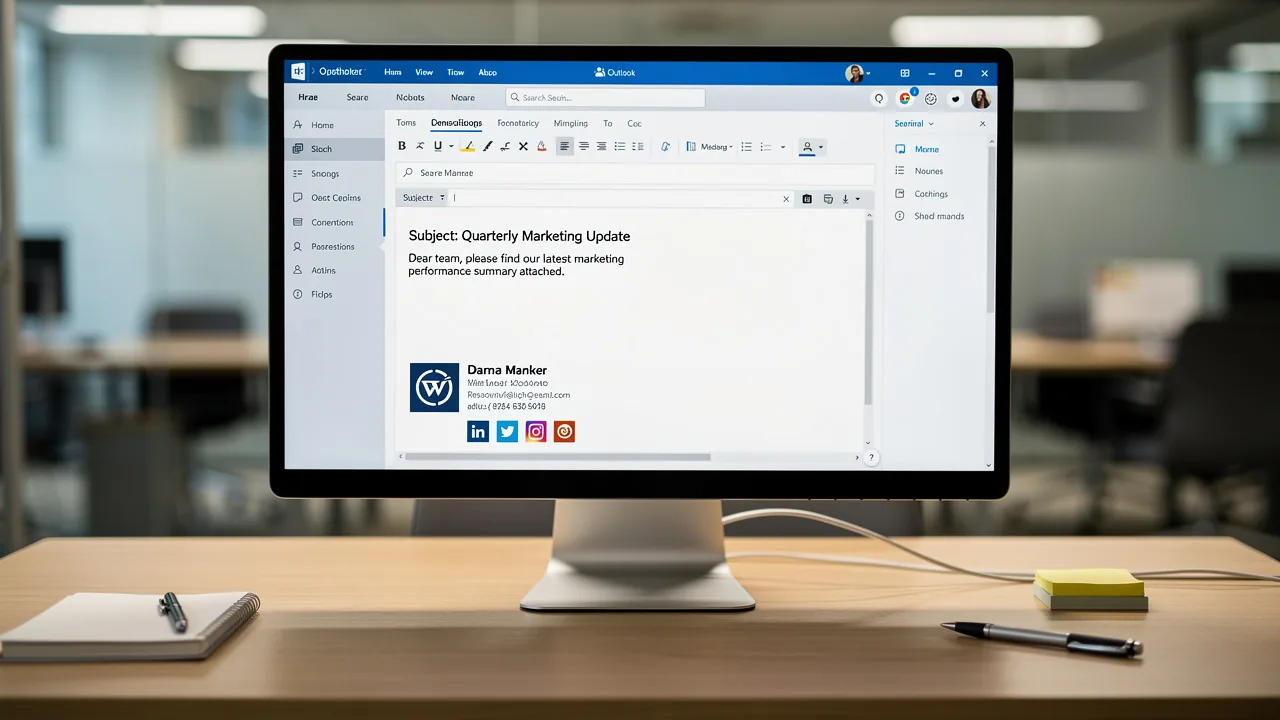
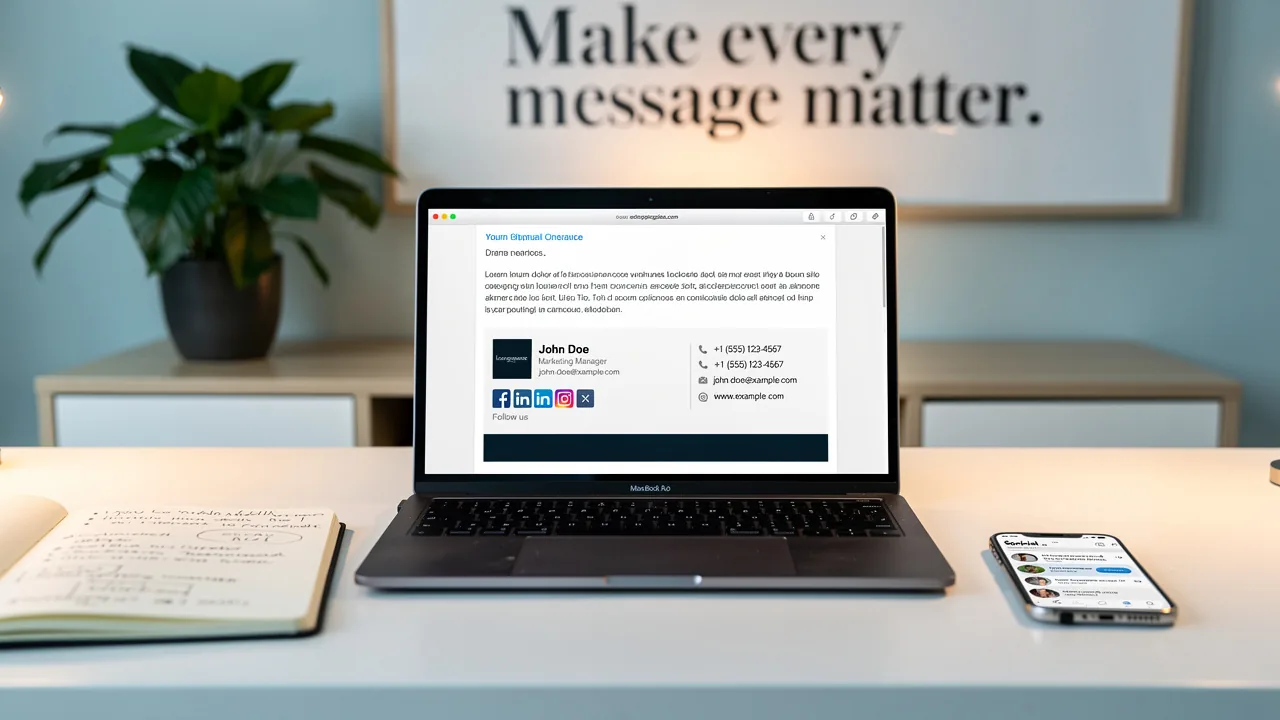
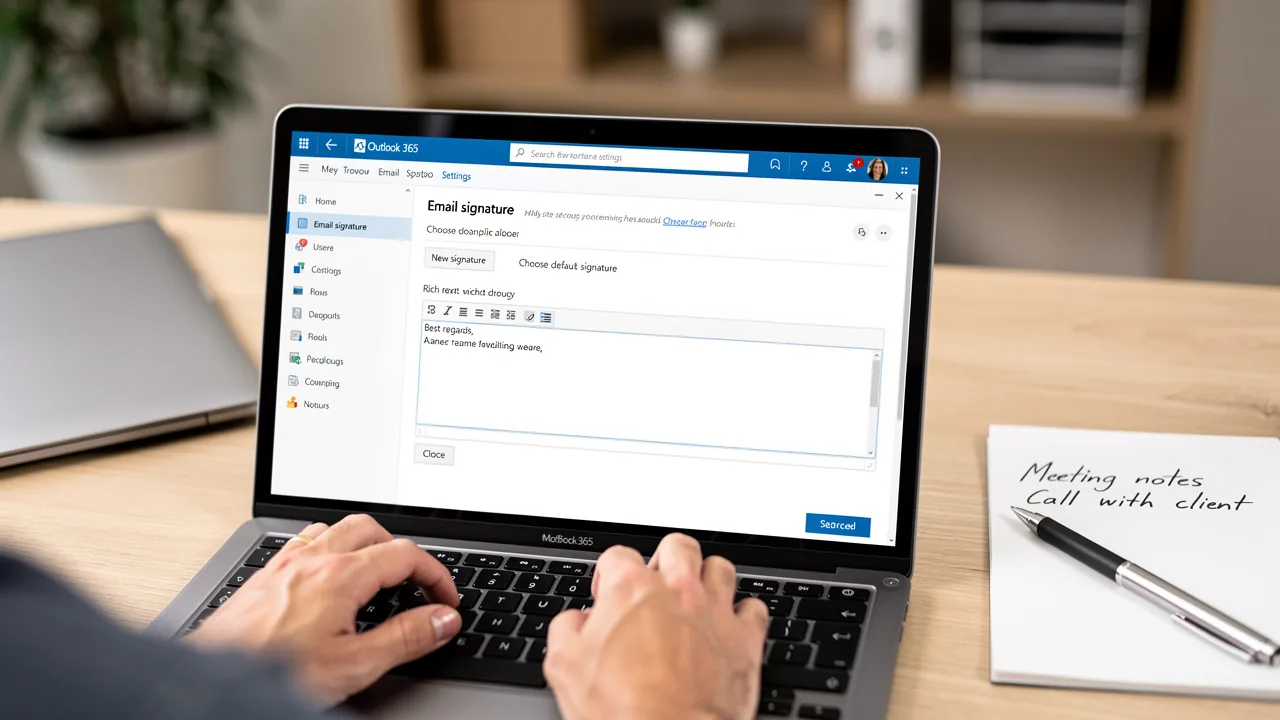
How to Create a Gmail Signature with Logo: Step-by-Step Guide
Creating a Gmail signature is often more challenging than it appears, yet it holds the potential to significantly impact your professional image. A
Sophie Grant
Email Signature Specialist, Scribe
Introduction
Creating a Gmail signature is often more challenging than it appears, yet it holds the potential to significantly impact your professional image. A well-crafted signature serves as a powerful branding tool, enhancing professionalism and credibility in every email sent. Incorporating a logo into this signature can elevate a brand's visibility and trustworthiness. Despite the importance of a well-crafted signature, many professionals find themselves overwhelmed by the details involved. Failing to address these nuances can lead to missed opportunities for brand enhancement.
Understand Gmail Signature Basics
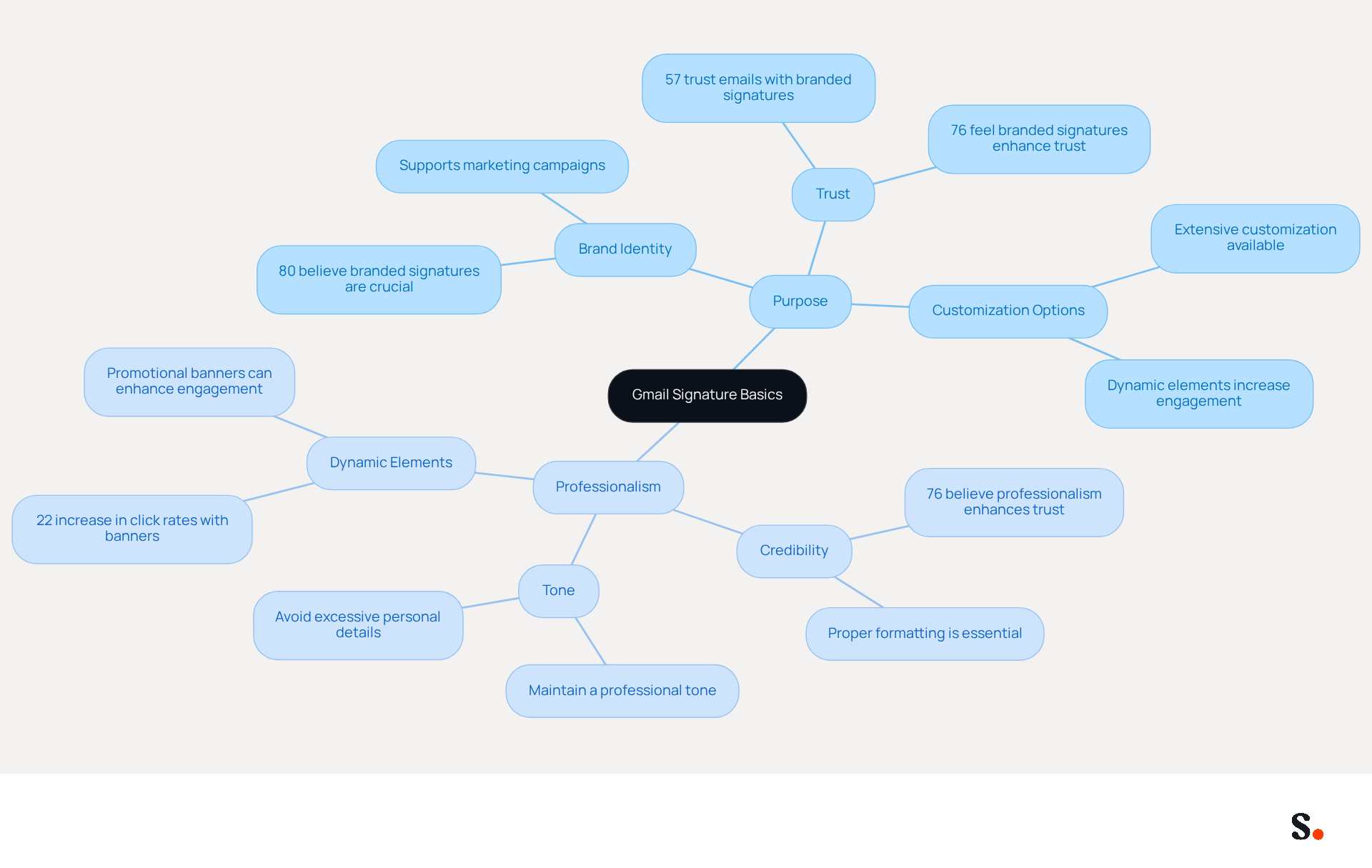
In today's digital communication landscape, a Gmail footer serves as a vital tool for establishing professional identity and credibility. A Gmail footer is crucial; it automatically appears at the end of your messages, functioning as your digital business card. When learning how to create signature in gmail with logo, it typically includes your name, title, company name, and contact information, and can also feature a logo or other branding elements. Consider the following key aspects:
- Purpose: Signatures provide essential information to recipients and reinforce your brand identity. Indeed, 80% of participants think a branded digital footer is essential for a company's brand identity, boosting trust and engagement. Moreover, 57% of participants trust emails from businesses because of branded email identifiers, further highlighting their significance in building credibility. Gmail offers extensive customization options for your email footer, including how to create signature in gmail with logo, as well as various fonts, colors, and images. This adaptability allows you to design a mark that corresponds with your visual identity. Furthermore, with Scribe, any modifications made in your Aircall setup will automatically be reflected in your communication identifiers, ensuring seamless consistency across all interactions. Moreover, Scribe's integration with Calendly enables automatic updates to your contact details, further improving brand consistency and conserving time.
- Professionalism: A well-crafted email footer can significantly enhance your credibility, making a positive impression on your recipients. Research shows that 76% of consumers believe that branded email identifiers enhance their trust in the sender, emphasizing the significance of professionalism in email communications. It's crucial to uphold a professional tone and avoid excessive personal details in your email footer.
When designing your email footer, think about which elements truly reflect your identity and ensure it’s both informative and visually appealing. Incorporating dynamic elements, such as promotional banners, can further increase engagement, with studies showing a 22% increase in click rates when such features are included. Moreover, email footers can effectively support marketing campaigns and reinforce brand identity when strategically aligned. Neglecting to optimize your email footer could result in missed opportunities and diminished trust from your recipients.
Add a Logo to Your Gmail Signature
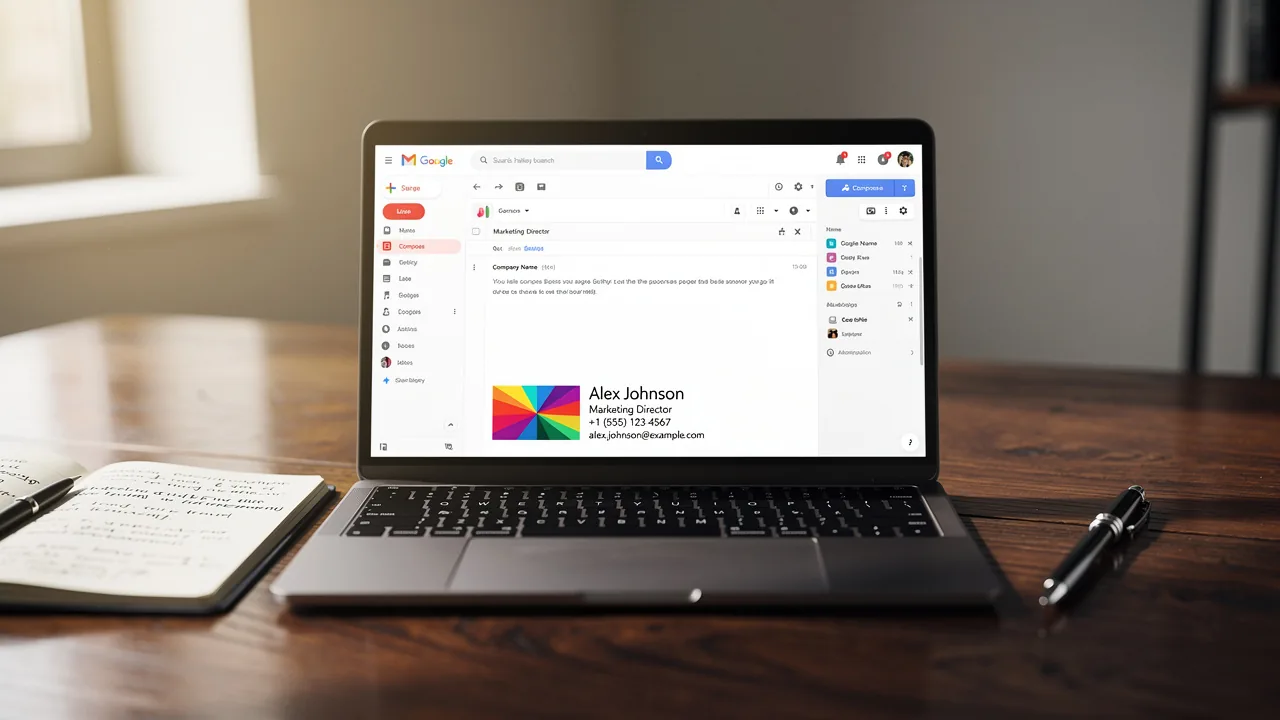
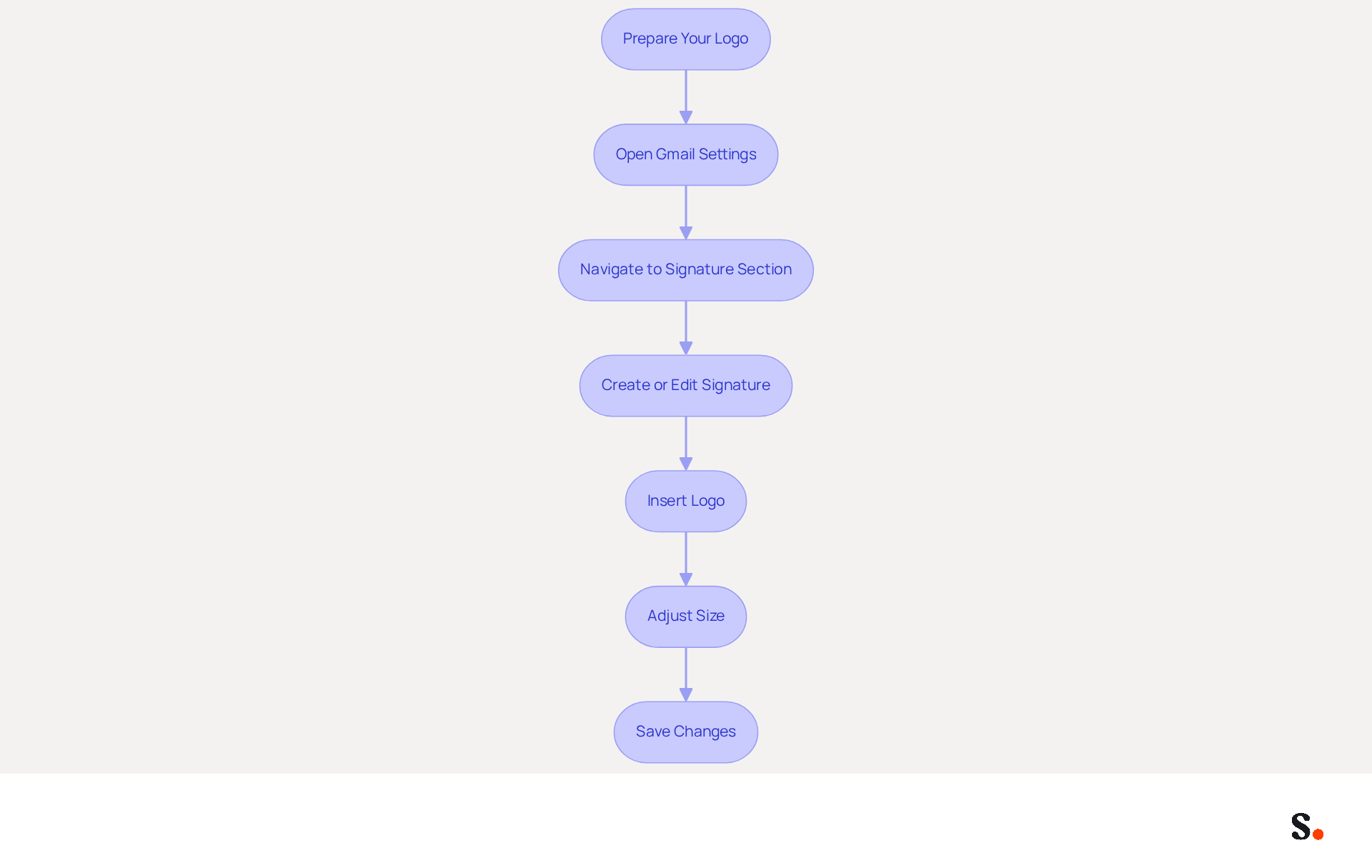
Understanding how to create signature in Gmail with logo is a crucial step in establishing a professional image in your communications. To do this effectively, follow these steps:
- Prepare Your Logo: Ensure your logo is in a web-friendly format (PNG or JPEG) and is appropriately sized (ideally 100-200 pixels wide).
- Open Gmail Settings: Log into your Gmail account, click on the gear icon in the top right corner, and select 'See all settings'.
- Navigate to Signature Section: Scroll down to the 'Signature' section under the 'General' tab.
- Create or Edit Signature: If you don’t have one yet, click on 'Create New'. If you do, choose the mark you wish to modify.
- Insert Logo: Click on the 'Insert Image' icon in the email editor. You can upload your logo from your computer or insert it from a URL if it’s hosted online.
- Adjust Size: Click on the logo in the editor to resize it if necessary. Ensure it fits well within the overall design layout.
- Save Changes: Scroll down and click 'Save Changes' at the bottom of the settings page.
By learning how to create signature in Gmail with logo, your logo will be visible in your email footer, helping you present a more professional image in your messages.
Manage Multiple Signatures in Gmail
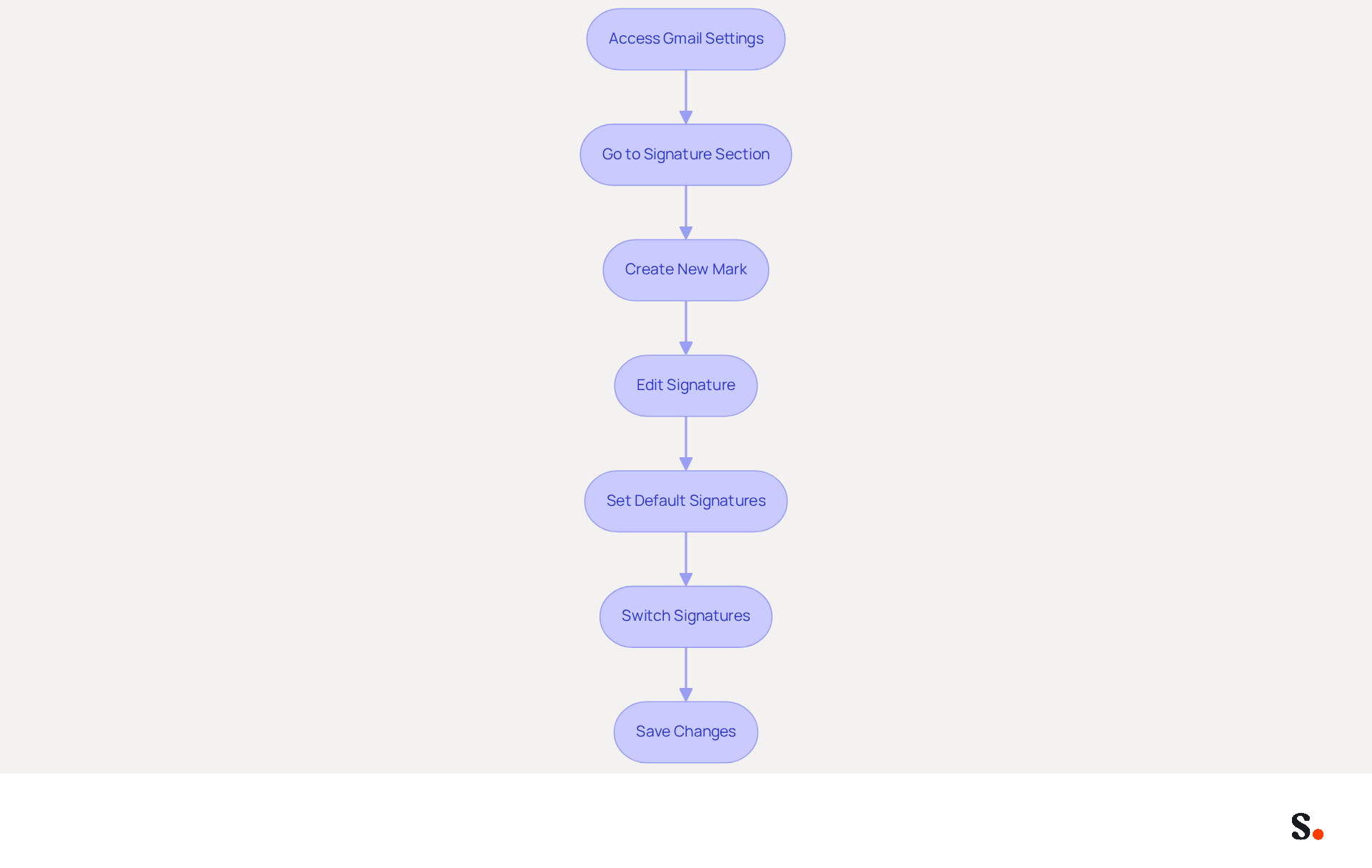
Knowing how to create signature in Gmail with logo can help manage multiple email signatures, streamlining your communication and enhancing your professional image. To manage multiple signatures effectively, follow these steps:
- Access Gmail Settings: Log into your Gmail account and click on the gear icon, then select 'See all settings'.
- Go to Signature Section: Under the 'General' tab, scroll to the 'Signature' section.
- Create New Mark: Click on 'Create New' to add a new mark. Name it appropriately (e.g., 'Business', 'Personal').
- Edit Signature: In the editor, add the desired text and images for this mark. You can format it as needed, ensuring it aligns with your branding.
- Set Default Signatures: Below the editor, you can establish default signatures for new messages and replies/forwards. Select the suitable sign-off for each situation.
- Switch Signatures: When drafting a new message, click on the icon in the compose window to choose which sign-off to use for that message.
- Save Changes: Remember to save your settings before exiting.
Learning how to create signature in Gmail with logo allows for implementing multiple signatures that enable tailored communication, significantly enhancing engagement and professionalism. Research shows that nearly 90% of professionals stick to a single digital identifier, revealing a substantial opportunity for improvement. Organizations that utilize branded identifiers report a 15% increase in click-through rates and a 22% rise in response rates, showcasing the marketing potential of well-managed digital branding. Utilizing Scribe's robust features ensures your communications are effective and aligned with your brand identity.
Troubleshoot Signature Issues
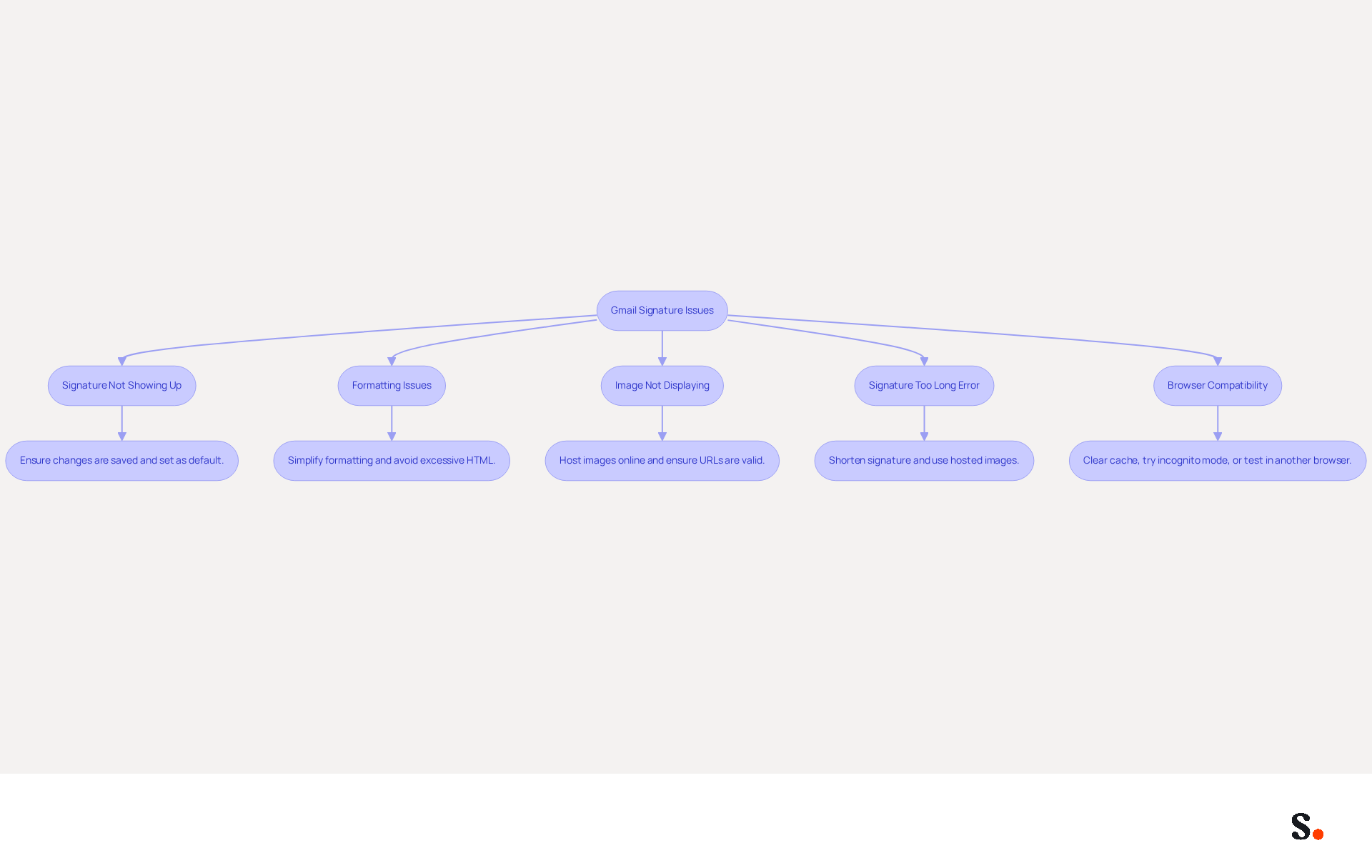
Encountering issues with your Gmail signature can disrupt your professional communication. Here are some common problems and their solutions:
- Signature Not Showing Up: Ensure that you have saved your changes in the settings. Confirm that the appropriate mark is set as the default for new emails and replies. Each email address can have its own personalized closing, so check the settings under 'Send mail as' to confirm.
- Formatting Issues: Complex formatting can lead to unexpected changes in your signature's appearance. The email service frequently removes unsupported HTML, so simplify your closing by using basic text formatting and avoiding excessive HTML elements.
- Image Not Displaying: For images to appear correctly, they must be hosted online and publicly accessible. If using a URL, ensure it is valid. Alternatively, upload the image directly from your computer to avoid issues with broken links.
- Signature Too Long Error: Email footers are restricted to 10,000 characters, encompassing HTML and image URLs. If you encounter this error, simplifying your signature can prevent the error and ensure it displays correctly. Consider using hosted images instead of inline base64 images to stay within the limit.
- Browser Compatibility: Browser extensions or settings can interfere with Gmail functionality. If you encounter problems, try clearing your browser cache and cookies, or test your credentials in a different browser or incognito mode to rule out conflicts.
Following these troubleshooting steps will help you resolve common signature issues and keep your correspondence looking professional. Regularly updating your branding not only enhances your professional image but also maximizes the impact of your email communications.
Conclusion
Establishing a strong brand identity in digital communications hinges on creating a professional Gmail signature with a logo. Utilizing this feature enhances credibility and ensures messages leave a lasting impression. A well-designed signature conveys essential contact information and reinforces brand recognition, making it vital for professional correspondence.
This guide outlined key steps for crafting a Gmail signature that includes a logo, managing multiple signatures, and troubleshooting common issues. From preparing your logo in the correct format to navigating Gmail settings for optimal customization, each step empowers users to create a signature that aligns with their branding goals. Additionally, the importance of maintaining professionalism and consistency in email communications was emphasized, highlighting how a well-crafted signature can significantly impact engagement and trust.
In conclusion, creating and managing a Gmail signature is not just about aesthetics; it strategically enhances communication effectiveness and brand visibility. Organizations should leverage tools like Scribe to ensure seamless integration and management of email signatures, allowing marketing teams to maintain control over their branding efforts. By prioritizing this often-overlooked aspect of email communication, businesses can significantly enhance their engagement strategies and build lasting relationships with their audience.
Frequently Asked Questions
What is a Gmail footer and why is it important?
A Gmail footer, also known as an email signature, automatically appears at the end of your messages and serves as a digital business card. It is important for establishing professional identity and credibility, providing essential information to recipients, and reinforcing brand identity.
What elements should be included in a Gmail signature?
A Gmail signature typically includes your name, title, company name, contact information, and can also feature a logo or other branding elements.
How does a branded email footer impact trust and engagement?
Research indicates that 80% of participants believe a branded digital footer is essential for a company's brand identity, boosting trust and engagement. Additionally, 57% of participants trust emails from businesses because of branded email identifiers.
What customization options does Gmail offer for email footers?
Gmail offers extensive customization options for email footers, including various fonts, colors, images, and the ability to create a signature with a logo.
How does Scribe enhance the management of email signatures?
With Scribe, any modifications made in your Aircall setup will automatically be reflected in your communication identifiers, ensuring seamless consistency across all interactions. Additionally, Scribe's integration with Calendly allows for automatic updates to your contact details.
What is the impact of a well-crafted email footer on professionalism?
A well-crafted email footer can significantly enhance your credibility and make a positive impression on recipients. Research shows that 76% of consumers believe that branded email identifiers enhance their trust in the sender.
How can dynamic elements in an email footer increase engagement?
Incorporating dynamic elements, such as promotional banners, can increase engagement, with studies showing a 22% increase in click rates when such features are included.
What are the consequences of neglecting to optimize your email footer?
Neglecting to optimize your email footer could result in missed opportunities and diminished trust from your recipients.
List of Sources
- Understand Gmail Signature Basics
- Research Recap: Branded Email Signatures Increase Company Recognition, Trust - Demand Gen Report (https://demandgenreport.com/industry-news/research-recap-branded-email-signatures-increase-company-recognition-trust/47252)
- Why Email Signatures Are So Important (https://findlight.net/salesacademy/why-email-signatures-are-so-important)
- Why Email Signatures Must Be In Your 2026 Marketing Plan | Rocketseed (https://rocketseed.com/blog/2026-marketing-plan-email-signatures)
- 40+ Email Signature Statistics for 2026 (Data + Insights) (https://wavecnct.com/blogs/email-signature-statistics)
- The impact of email signatures on your branding (https://signitic.com/en/resources/the-impact-of-email-signatures-on-your-branding)
- Add a Logo to Your Gmail Signature
- Email signature statistics and trends in 2024 (https://wisestamp.com/blog/email-signature-statistics)
- 40+ Email Signature Statistics for 2026 (Data + Insights) (https://wavecnct.com/blogs/email-signature-statistics)
- The impact of email signatures on your branding (https://signitic.com/en/resources/the-impact-of-email-signatures-on-your-branding)
- Email signature statistics: Why every business should optimize their email signatures — Stripo.email (https://stripo.email/blog/email-signature-statistics-why-every-business-should-optimize-their-email-signatures)
- The comprehensive guide to email signature sizes (https://signature.email/guides/comprehensive-guide-email-signature-sizes)
- Manage Multiple Signatures in Gmail
- 40+ Email Signature Statistics for 2026 (Data + Insights) (https://wavecnct.com/blogs/email-signature-statistics)
- How to Set Multiple Signatures in Gmail (Manage 2026 Guide) (https://itsourcecode.com/gmail/how-to-set-multiple-signatures-in-gmail-2026)
- How do I manage multiple signatures with Gmail? (https://signitic.com/en/guides/how-do-i-manage-multiple-signatures-with-gmail)
- How to Create and Use Multiple Signatures in Gmail - NEWOLDSTAMP (https://newoldstamp.com/blog/more-than-one-signature-in-gmail)
- Email signature statistics: Why every business should optimize their email signatures — Stripo.email (https://stripo.email/blog/email-signature-statistics-why-every-business-should-optimize-their-email-signatures)
- Troubleshoot Signature Issues
- Gmail Signature Troubleshooting | WiseStamp Help Center (https://support.wisestamp.com/en/articles/13366705-gmail-signature-troubleshooting)
- Gmail Signature Not Showing? 9 Fixes That Actually Work (2026) (https://email-tools.me/posts/gmail-signature-not-showing)
- Troubleshoot issues with Gmail signatures - Gmail Help (https://support.google.com/mail/answer/11468381)
- Email Signature Not Showing in Gmail? 7 Fixes (2026) | Signkit (https://beta.signkit.io/blog/email-signature-not-showing-gmail)
- What To Do When Your Gmail Signature is Not Showing Up (https://appointlet.com/blog/gmail-signature-not-showing-up)
Get started with Scribe
Create your signature in minutes
Free 14-day trial — no credit card.