How to Delay Sending Emails in Outlook: A Step-by-Step Guide
Despite the potential for improved engagement and productivity, many professionals overlook the strategic advantages of email timing. Outlook's Delay Delivery
Sophie Grant
Email Signature Specialist, Scribe
Introduction
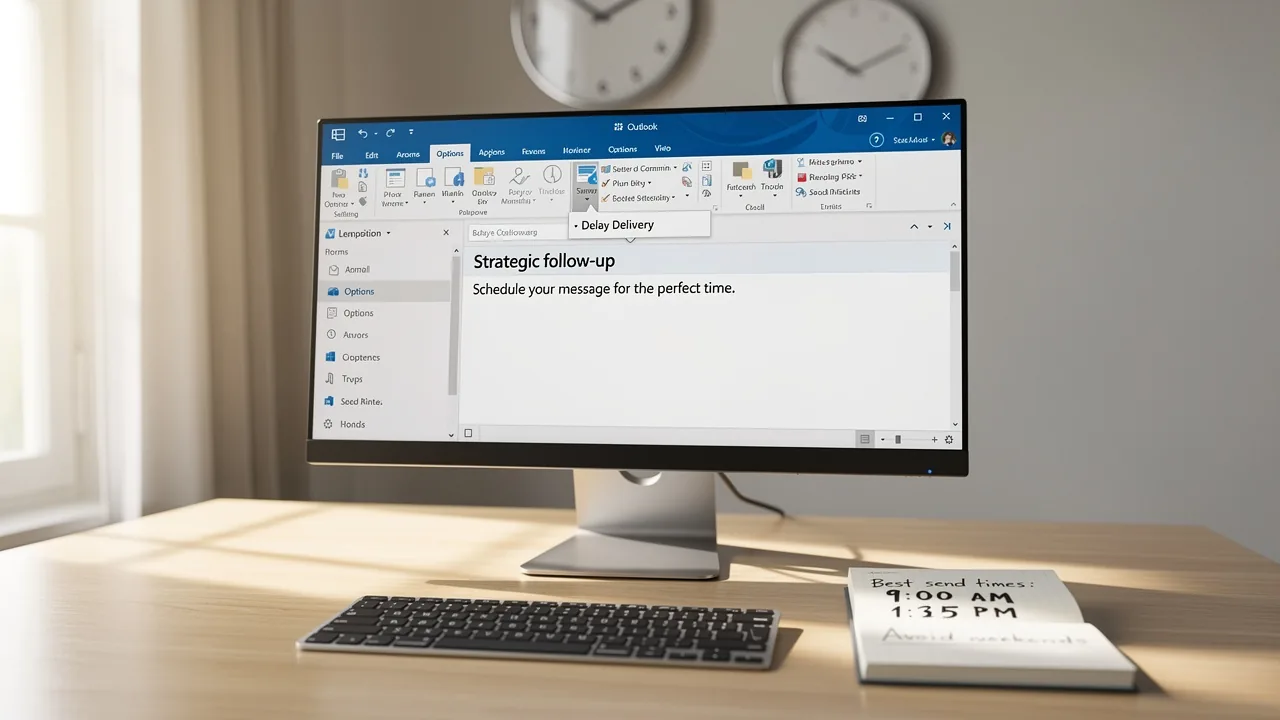
Despite the potential for improved engagement and productivity, many professionals overlook the strategic advantages of email timing. Outlook's Delay Delivery feature empowers users to strategically time their messages, ensuring they reach recipients at the most opportune moments. However, many professionals struggle to harness the full benefits of this feature, raising the question: how can one leverage Outlook's capabilities to enhance email timing and improve response rates?
In this article, we will explore how to delay email delivery in Outlook, providing practical insights that can enhance communication strategies for marketing and IT teams.
Understand the Delay Delivery Feature in Outlook
Many users find it challenging to determine the best time to send their emails for maximum impact. The Delay Sending feature in Outlook provides users with the ability to manage how to delay sending emails in Outlook, offering flexibility and control over communication. This feature helps you send your messages at just the right time, increasing the chances of engagement from recipients.
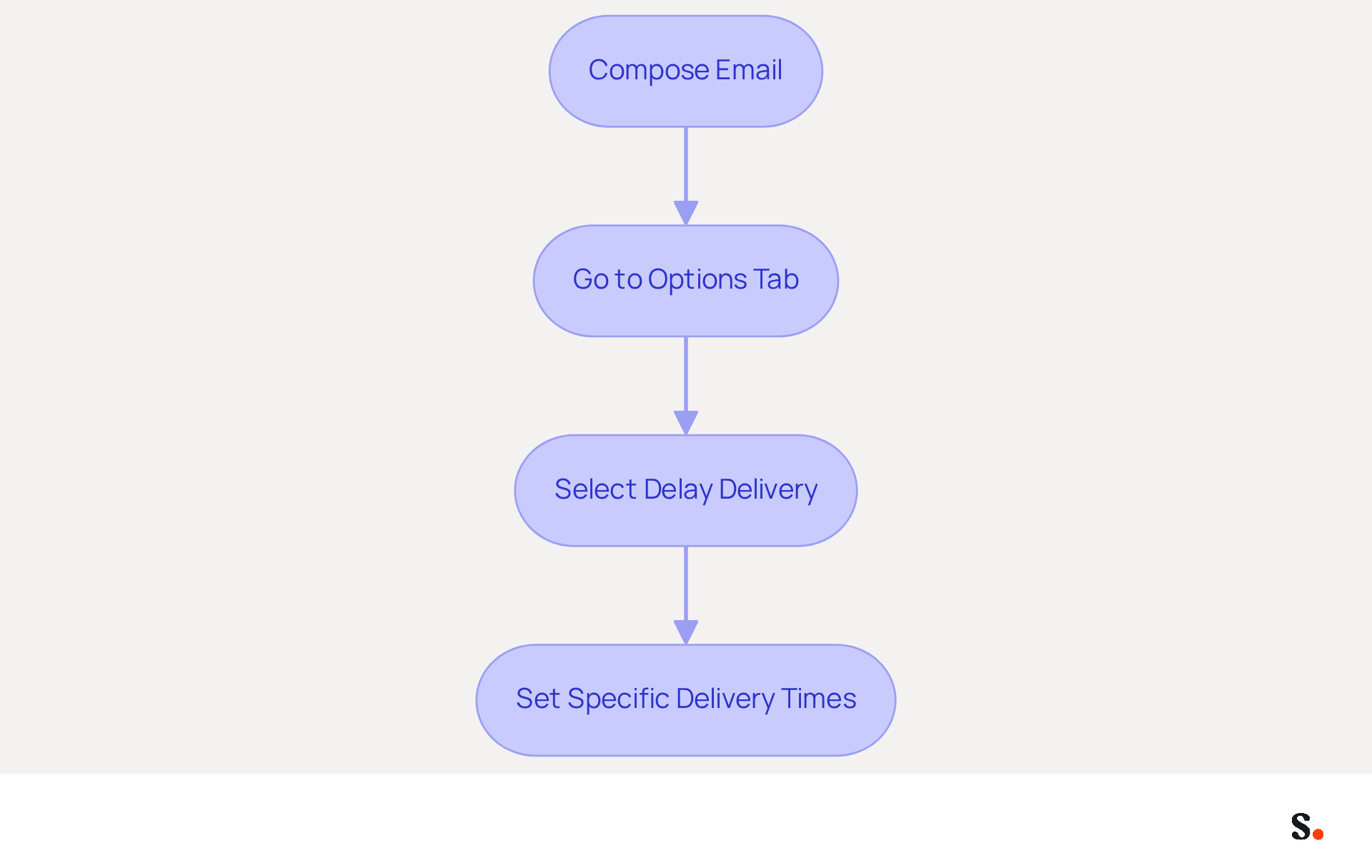
To learn how to delay sending emails in Outlook, go to the 'Options' tab while composing your message and select 'Delay Delivery.' Here, you can set specific delivery times, ensuring your messages reach recipients when they are most likely to be seen.
Strategically timing your emails can lead to significantly improved engagement from your recipients.
Delay Delivery for a Single Email
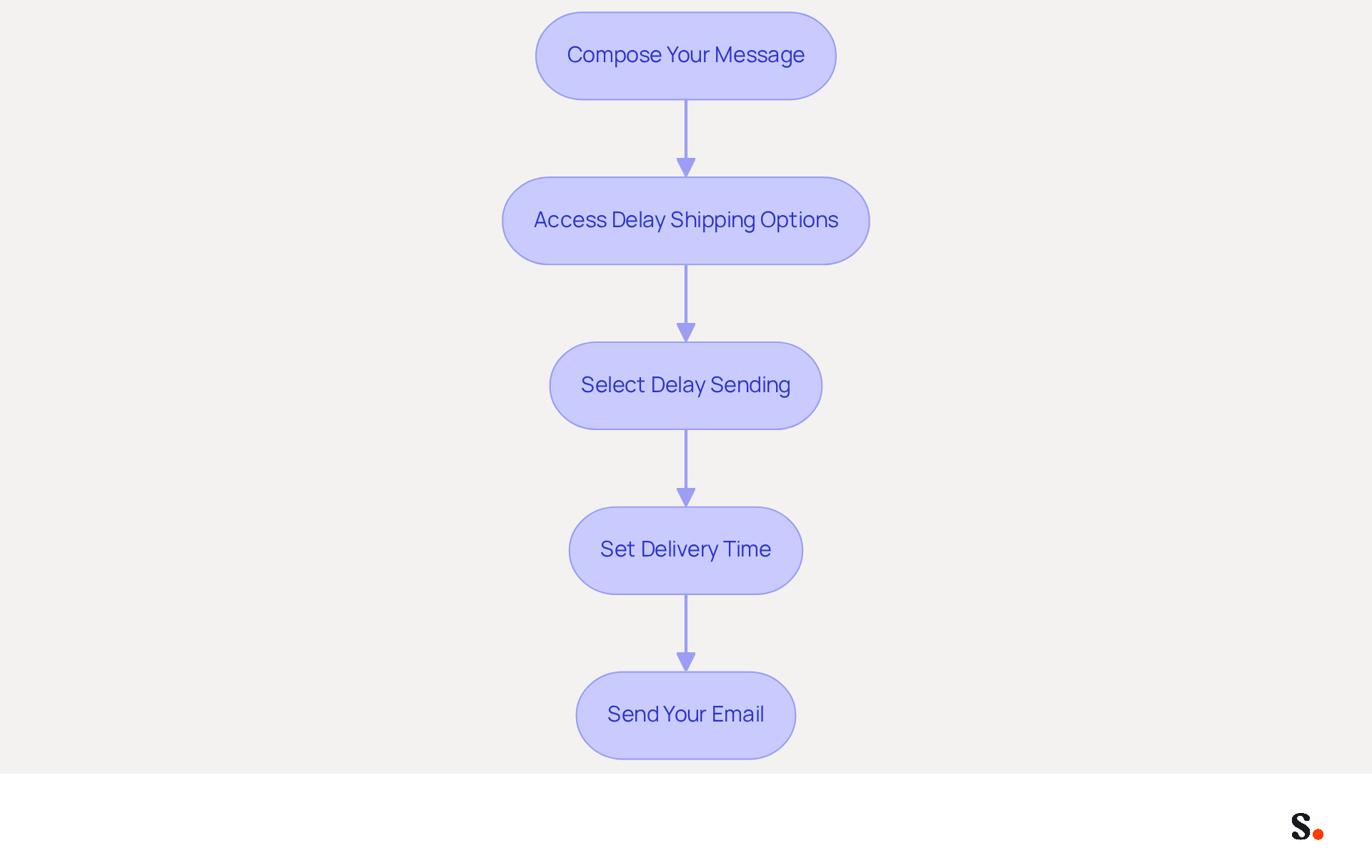
To effectively manage email timing in Outlook, follow these straightforward steps to delay the delivery of your messages:
- Compose Your Message: Start by creating a new message as you normally would.
- Access Delay Shipping Options: Click on the 'Options' tab in the email window.
- Select Delay Sending: In the 'More Options' group, click on 'Delay Sending'.
- Set Delivery Time: In the 'Delivery options' section, check the box next to 'Do not deliver before'. Then, choose the preferred date and moment for the message to be sent.
- Send Your Email: After setting the delivery schedule, click 'Close' and then 'Send'. Your message will stay in the Outbox until the designated moment, ensuring it is sent at your preferred instant.
To time your marketing messages more effectively, you can utilize the delay delivery feature, which raises the question of how do you delay sending emails in Outlook. Studies show that sending messages at optimal times can increase open rates by up to 20%. As noted by marketing professionals, 'Mastering the art of the delayed send can help you improve productivity while making a better impression on your recipients.' This method not only honors your colleagues' work-life balance but also facilitates improved scheduling in communication, particularly across various time zones.
Keep in mind that to understand how do you delay sending emails in Outlook, the application needs to remain open during the scheduled send time. The default delay settings may not offer enough customization for all users' needs. If you require more sophisticated scheduling options, consider utilizing tools like Boomerang for Outlook, which enables you to schedule messages without needing to keep Outlook open or connected. Furthermore, you can edit or cancel a delayed message by navigating to your drafts folder and making the necessary changes. Real-world examples demonstrate that businesses leveraging this feature have optimized their communication timing, leading to improved engagement and response rates.
Schedule Emails for Future Sending
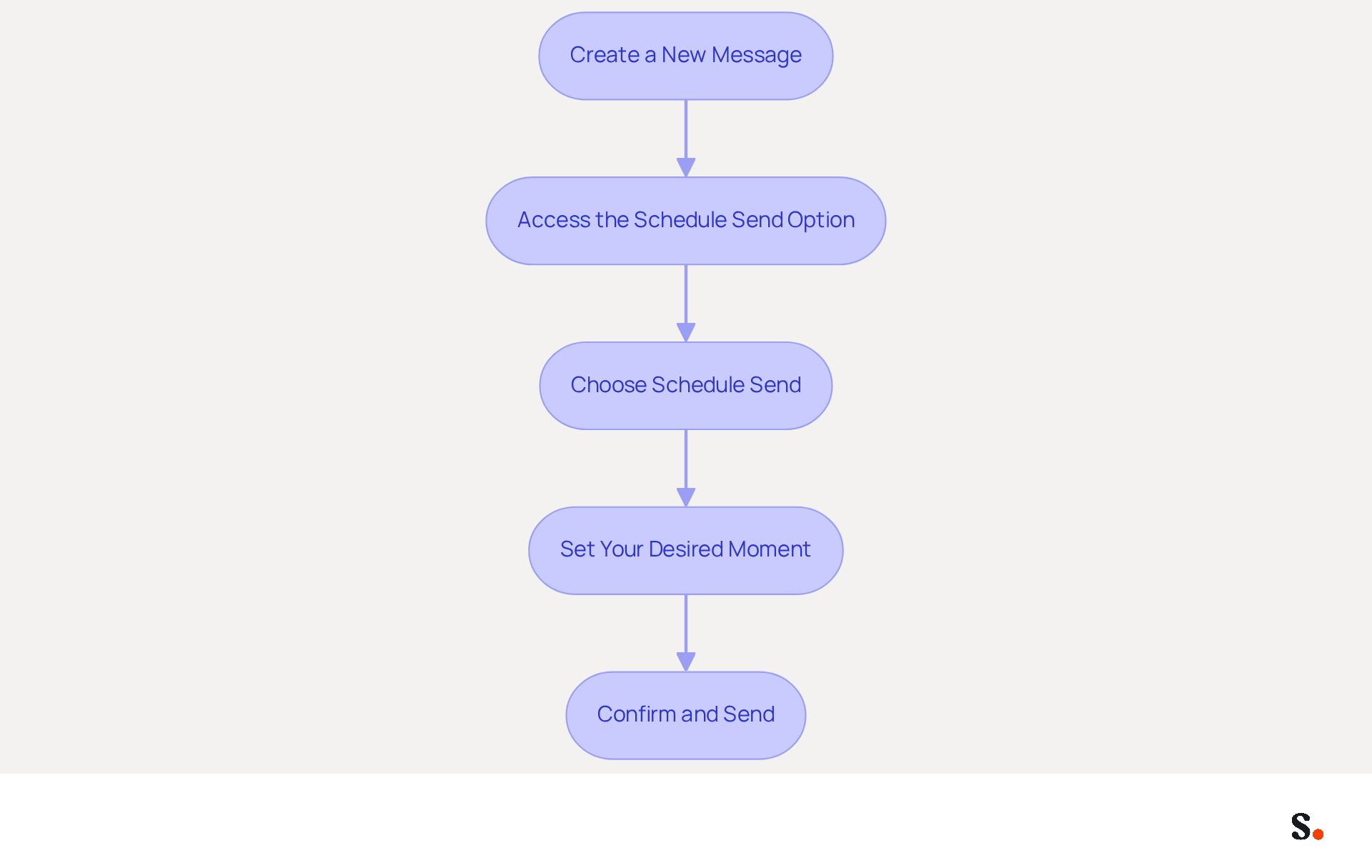
Many marketing teams face challenges in managing timely communications, but understanding how do you delay sending emails in Outlook can effectively streamline this process. To schedule emails for future sending in Outlook, follow these steps:
- Create a New Message: Open a new window and compose your text.
- Access the Schedule Send Option: Click the down arrow next to the 'Send' button.
- Choose Schedule Send: Select 'Schedule Send' from the dropdown menu.
- Set Your Desired Moment: Select a date and hour for when you want the message to be sent. You can choose from predefined options or input a custom duration.
- Confirm and Send: Click 'Send'. Your message will be sent automatically at the scheduled time, allowing you to focus on other important tasks.
Effective scheduling of messages, including understanding how do you delay sending emails in Outlook, can significantly enhance productivity within marketing teams. By automating the sending process, teams can prioritize other critical tasks while ensuring timely communication with their audience. Studies indicate that sending messages during peak times, particularly from Tuesday to Thursday between 10 AM and 2 PM, can lead to higher engagement rates, with Tuesday identified as the top day to send marketing communications according to 2025 studies. Furthermore, A/B testing different sending moments can offer valuable insights into audience preferences, as it uncovers patterns of when your subscribers are most likely to open and click.
For instance, a digital marketing agency used AI-driven scheduling tools to analyze their past message performance, leading to customized send moments that enhanced open rates. This approach not only improved engagement but also streamlined their overall marketing efforts, demonstrating the effectiveness of strategic scheduling. Furthermore, considering recipients' local times is crucial for optimizing engagement, ensuring that emails reach audiences when they are most likely to check their inbox. Ultimately, understanding the nuances of scheduling can transform your marketing strategy and elevate audience engagement beyond expectations.
Troubleshoot Common Delay Sending Issues
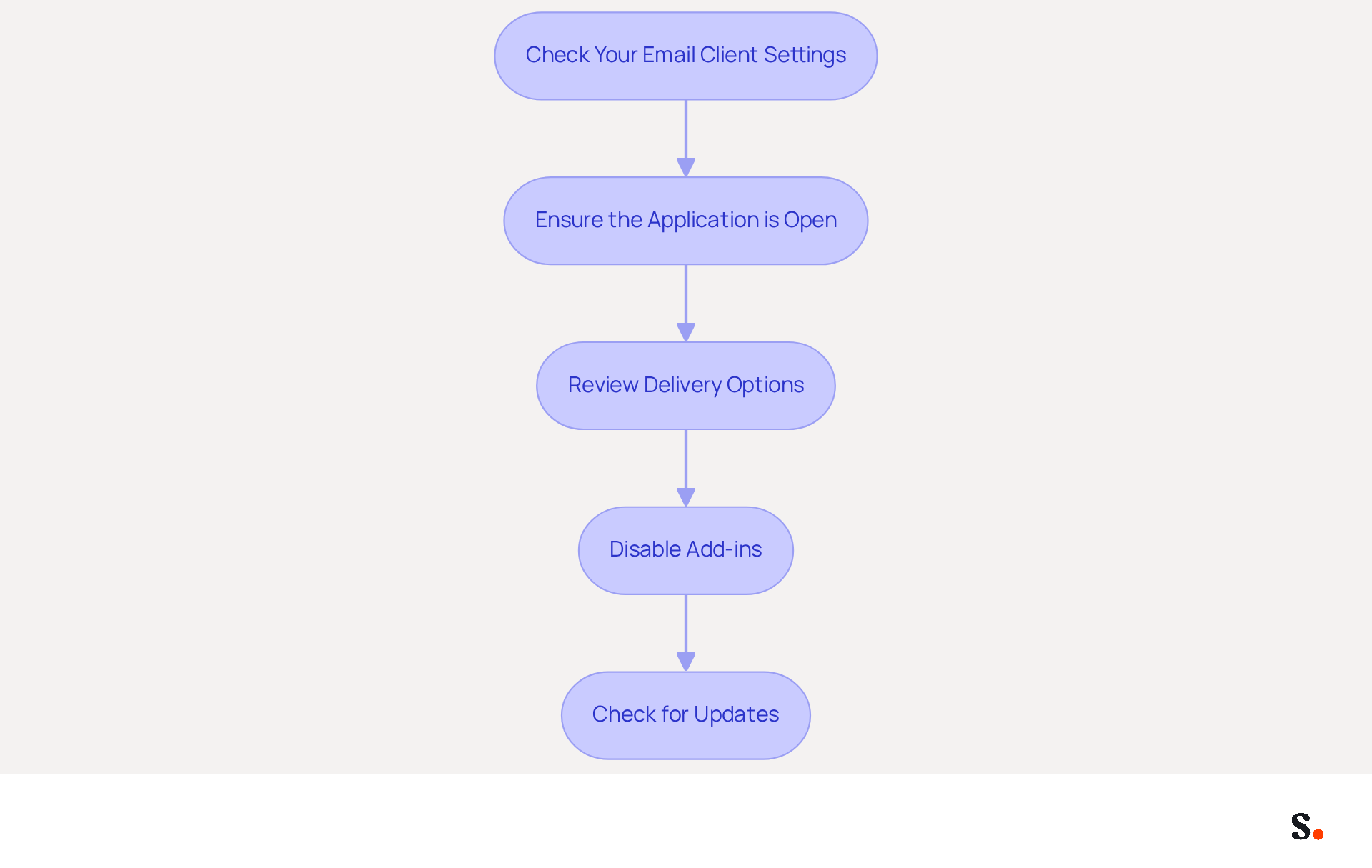
If you encounter issues with the Delay Delivery feature in Outlook, it is crucial to follow these troubleshooting steps to ensure effective email communication:
- Check Your Email Client Settings: Ensure that your email application is configured correctly. Navigate to 'File' > 'Account Settings' > 'Account Settings' and verify your account settings.
- Ensure the Application is Open: Remember that delayed messages will only send if the program is open at the scheduled time. If you close Outlook, the message will stay in the Outbox until you reopen it.
- Review Delivery Options: Double-check that the 'Do not deliver before' option is set correctly. If the time is set incorrectly, the message may not send as expected.
- Disable Add-ins: Sometimes, add-ins can interfere with email delivery. Disable any unnecessary add-ins by going to 'File' > 'Options' > 'Add-ins'. Restart the email application and test the feature again.
- Check for Updates: Ensure that your Outlook application is up to date. Go to 'File' > 'Office Account' > 'Update Options' > 'Update Now' to check for updates.
Misconfigured settings and add-ins frequently disrupt the feature of how do you delay sending emails in Outlook, causing frustration for users. Addressing these issues can lead to more reliable email delivery and enhanced communication efficiency. Users who implement these troubleshooting steps often report a marked improvement in their message delivery success rates. By implementing these strategies, you can enhance the reliability of your email communications and minimize disruptions.
Conclusion
Mastering the Delay Delivery feature in Outlook empowers users to optimize their email communication by sending messages at the most impactful times. This capability not only enhances engagement but also allows for better management of communication across different time zones, ensuring that emails are received when recipients are most likely to engage with them.
Throughout this guide, key steps have been outlined for utilizing the Delay Delivery feature effectively, including:
- How to set up delays for individual emails
- How to schedule future messages
Additionally, troubleshooting common issues has been addressed, providing users with the tools needed to ensure reliable email delivery. By implementing these strategies, users can significantly improve their email management and communication efficiency.
Effectively managing email communication is essential for maximizing engagement and productivity. Leveraging Outlook's Delay Delivery feature helps streamline workflows and boosts productivity. As marketing teams and professionals seek to maximize their impact, understanding and utilizing these tools is imperative for achieving success in today's fast-paced communication landscape.
Frequently Asked Questions
What is the Delay Delivery feature in Outlook?
The Delay Delivery feature in Outlook allows users to manage the timing of when their emails are sent, providing flexibility and control over communication.
How can I access the Delay Delivery feature in Outlook?
To access the Delay Delivery feature, go to the 'Options' tab while composing your message and select 'Delay Delivery.'
What can I do with the Delay Delivery feature?
With the Delay Delivery feature, you can set specific delivery times for your emails, ensuring they reach recipients when they are most likely to be seen.
Why is it important to strategically time emails?
Strategically timing your emails can lead to significantly improved engagement from your recipients.
List of Sources
- Understand the Delay Delivery Feature in Outlook
- Microsoft is pushing 15 new Outlook features, but Classic users have had most of them for years (https://windowslatest.com/2026/06/07/microsoft-wants-classic-outlook-holdouts-to-switch-with-15-productivity-features-in-new-outlook-for-windows)
- Microsoft Delays By a Year Its New Outlook Rollout (https://directionsonmicrosoft.com/microsoft-delays-by-a-year-its-new-outlook-rollout)
- 49 Top Email Marketing Statistics (https://forbes.com/advisor/business/software/email-marketing-statistics-jun-26)
- Email Marketing Statistics | Ultimate List | CodeCrew (https://codecrew.us/blog/email-marketing-stats-you-need-to-know-the-ultimate-list)
- Delay Delivery for a Single Email
- How to delay or schedule sending email in Outlook | Harvard T.H. Chan School of Public Health (https://hsph.harvard.edu/information-technology/news/how-to-delay-or-schedule-sending-email-in-outlook)
- How to delay delivery in Outlook in 2026 | Boomerang (https://boomerangoutlook.com/l/outlook-delay-delivery)
- Setting a Delay to All Outgoing Emails in New Outlook - Microsoft Q&A (https://learn.microsoft.com/en-us/answers/questions/5740143/setting-a-delay-to-all-outgoing-emails-in-new-outl)
- Step by step guide on how to schedule Email in Outlook (https://m.economictimes.com/news/international/us/step-by-step-guide-on-how-to-schedule-email-in-outlook/articleshow/97065304.cms)
- Delay or schedule sending email messages in Outlook | Microsoft Support (https://support.microsoft.com/en-us/outlook/mail/delay-or-schedule-sending-email-messages-in-outlook)
- Schedule Emails for Future Sending
- Email Scheduling Best Practices: Maximize Open Rates (https://xobee.com/2025/05/email-scheduling-best-practices-maximize-open-rates-and-engagement)
- Microsoft scraps planned email limits for Exchange Online (https://computerworld.com/article/4114627/microsoft-scraps-criticized-change-in-exchange-online.html)
- The Best Time To Send Marketing Emails (2026) (https://salesforce.com/marketing/email/best-time-to-send-emails)
- Best day and time to send marketing emails | Customer.io (https://customer.io/learn/lifecycle-marketing/email-sending-schedule)
- Microsoft Delays By a Year Its New Outlook Rollout (https://directionsonmicrosoft.com/microsoft-delays-by-a-year-its-new-outlook-rollout)
- Troubleshoot Common Delay Sending Issues
- Fixes or workarounds for recent issues in classic Outlook for Windows | Microsoft Support (https://support.microsoft.com/en-us/support/known-issues/fixes-or-workarounds-for-recent-issues-in-classic-outlook-for-windows)
- New Outlook delays (typically 2.5 hours) in actually sending emails - after reporting unable to do so (immediately after initiating Send) - Microsoft Q&A (https://learn.microsoft.com/en-us/answers/questions/5927278/new-outlook-delays-(typically-2-5-hours)-in-actual)
- Microsoft 365 outage disrupts Outlook, Teams for thousands of users (https://cbsnews.com/miami/video/microsoft-365-outage-disrupts-outlook-teams-for-thousands-of-users)
- Microsoft fixes Outlook email issues (https://cnbc.com/2026/01/22/microsoft-outlook-outage-email-issues.html)
Get started with Scribe
Create your signature in minutes
Free 14-day trial — no credit card.