How to Have a Signature in Gmail: Step-by-Step Setup Guide
Creating a professional email signature in Gmail presents a unique opportunity to strengthen brand visibility and enhance communication.
Sophie Grant
Email Signature Specialist, Scribe
Introduction
Creating a professional email signature in Gmail presents a unique opportunity to strengthen brand visibility and enhance communication.
With over 1.8 billion active users on Gmail, the importance of a well-designed signature cannot be overstated, as it can significantly impact response rates and client engagement.
Many professionals find it challenging to create and maintain multiple email signatures in Gmail.
Navigating Gmail's signature settings is crucial for ensuring a consistent and impactful digital identity.
Access Gmail Settings for Signature Setup
To effectively manage how to have a signature in Gmail, you should follow these straightforward steps.
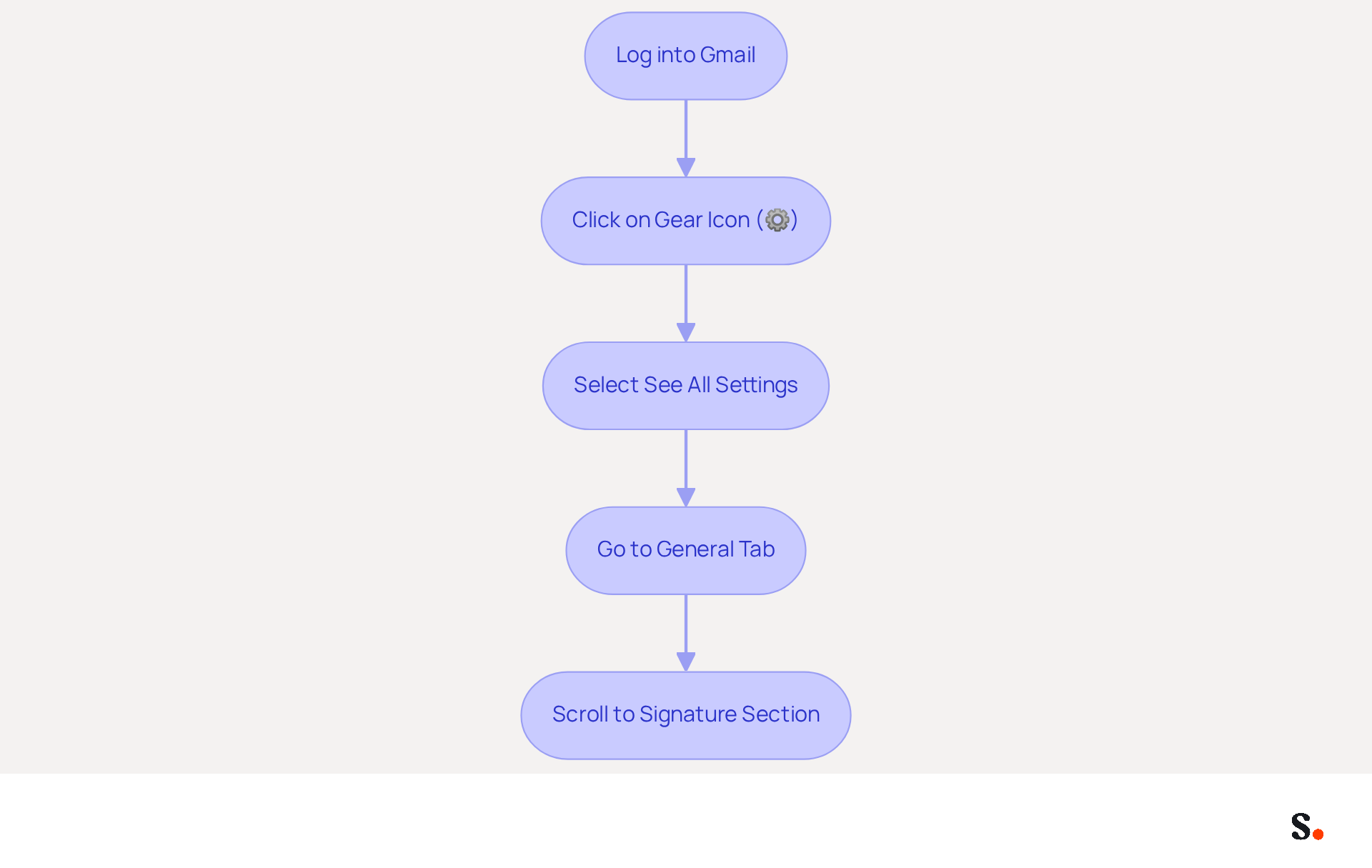
- Open your web browser and log into your Gmail account.
- In the top right corner, click on the gear icon (⚙️) to access the Quick Settings menu.
- Select 'See all settings' from the dropdown menu to navigate to the full settings page.
- In the settings menu, go to the 'General' tab, where you will find the 'Signature' section.
- Scroll down to the 'Signature' section, where you can create and manage your signatures.
To enable one-click synchronization, you must grant permission for Scribe to connect with your provider. Without Super Admin access, you cannot grant the necessary permissions for integration. Once granted, you can choose which teammates you wish to sync with the application, enabling automatic updates. This integration automatically reflects any changes made in your Google Workspace, like moving teammates or updating their information, in Scribe.
With Gmail being the most popular provider for messages, boasting 1.8 billion active users, having a well-crafted message footer is essential for brand consistency. Did you know that 52% of users believe a strong digital identifier is crucial for effective client communication? Moreover, messages that feature a branded closing can attain a 22% greater response rate compared to those lacking it. As you create your personal sign-off, consider including your name, job title, company, and relevant contact information, along with a company logo to enhance your professional image.
By syncing your Google Workspace with Scribe, you can simplify the management of your correspondence identifiers. This integration enables automatic updates, ensuring that any modifications made in your Google Workspace are reflected in the application without any manual input. Furthermore, the tool can improve teammate details from HR software and other sources after syncing with the provider, utilizing attributes to automatically fill in information and save time. Scribe's SOC 2 Type II compliance guarantees that your data stays protected, making it a trustworthy option for managing digital identities efficiently. Learning how to have a signature in Gmail is not just a task; it's a strategic move that can elevate your brand's communication.
Create Your Signature: Step-by-Step Instructions
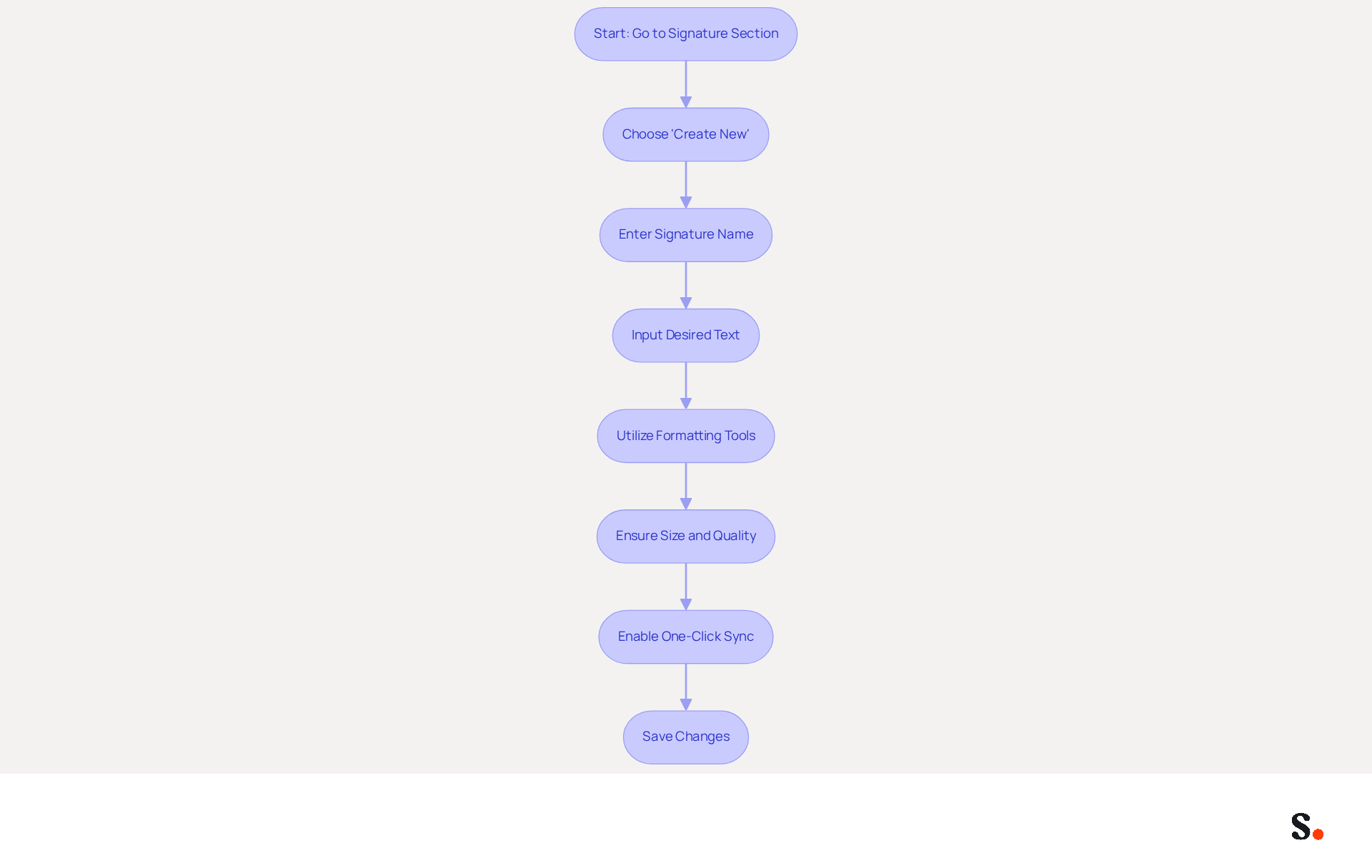
To kick things off, head to the 'Signature' section and choose 'Create new' to understand how to have signature in Gmail. A pop-up window will appear; when it does, simply enter a name for your mark, like 'Work Mark', and hit 'Create'. In the editor for your sign-off, you can learn how to have signature in Gmail by inputting your desired text, including your full name, job title, company name, and direct contact information.
Including essential elements in your email footer is crucial for establishing credibility and trust. Utilize the formatting tools to understand how to have signature in Gmail effectively. You can adjust the font, size, color, and incorporate images or links. Remember, signatures should be visually appealing yet simple, ideally under 100KB in size and 600px wide for optimal display across devices. Following these guidelines guarantees proper display on mobile devices and quick loading across all messaging clients.
Furthermore, Scribe's automated signature management ensures that any modifications made in your connected data sources, such as your business phone system, will be automatically reflected in your signature, conserving your time and preserving brand consistency. To enable one-click synchronization, you must grant permission to connect with your email provider, and you need to be a Super Admin to provide these authorizations. You will also have the option to select which teammates you want to sync with Scribe.
Once content with your autograph, scroll down and click 'Save Changes' at the bottom of the settings page. Regularly review your mark to ensure it remains current and effective, as companies that understand how to have signature in Gmail see a 15% increase in click-through rates to their websites. By ensuring your email signature is consistently updated, you not only enhance your brand's image but also maximize your marketing potential.
Manage Multiple Signatures for Different Contexts
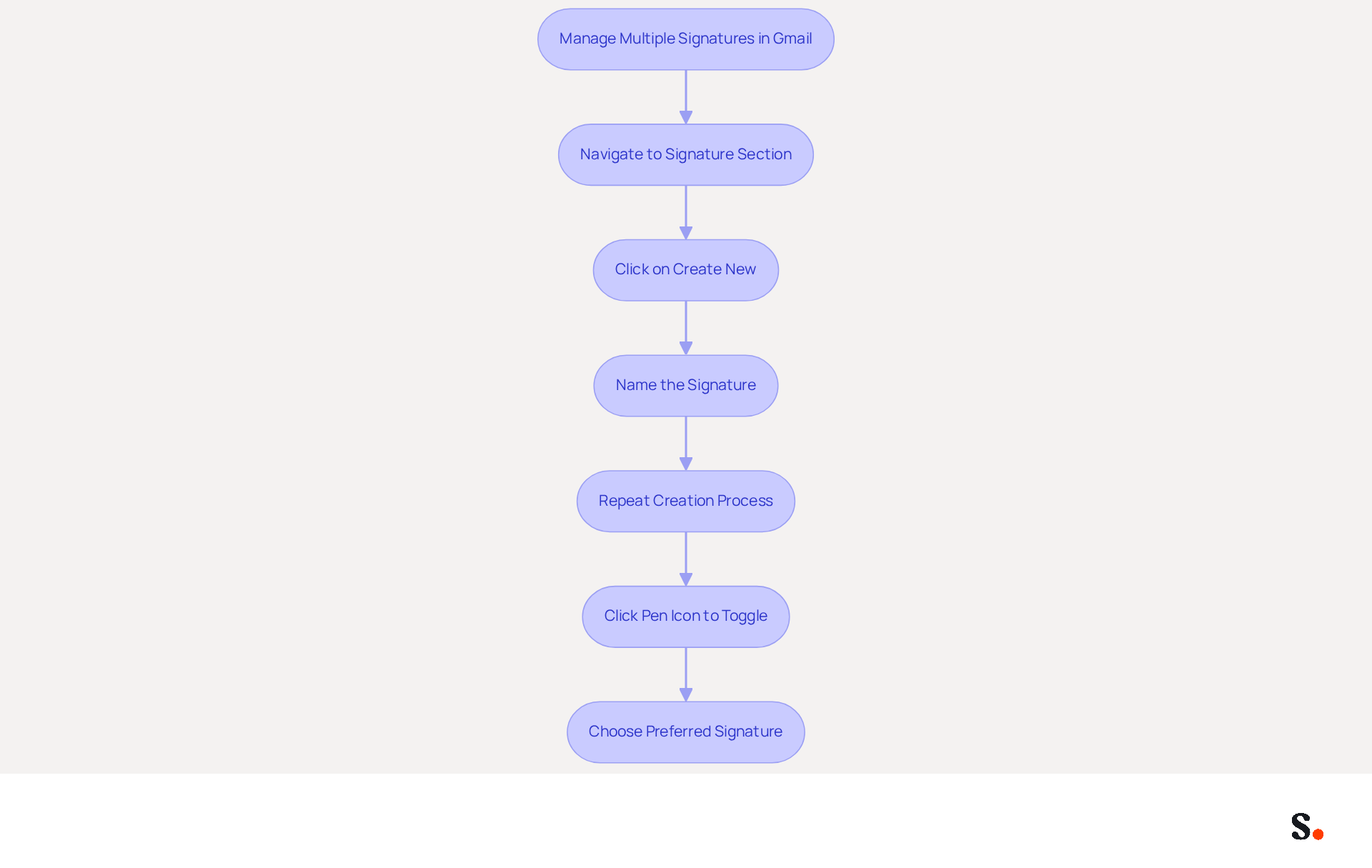
Managing multiple email signatures in Gmail can be challenging, but learning how to have a signature in Gmail with Scribe offers a streamlined solution. To effectively manage multiple email signatures in Gmail using Scribe, follow these steps:
- To understand how to have a signature in Gmail, navigate back to the 'Signature' section in your Gmail settings.
- Click on 'Create new' to add another entry, naming it appropriately (e.g., 'Personal Entry').
- Repeat the creation process for the mark as previously outlined.
- When drafting a message, click on the pen icon in the composition window to toggle between different identities.
- Choose the preferred mark from the dropdown menu to apply it to your message.
With Scribe's one-click synchronization, all changes in your email directory will automatically update your signatures. This not only enhances branding consistency but also allows for effortless updates, as Scribe syncs teammate data daily at your local time. Managing multiple signatures enables tailored communication, boosting professionalism and brand consistency. This highlights a significant opportunity for professionals who can effectively manage multiple signatures. Furthermore, 44.4% of users refresh their contact details 2-4 times annually, underscoring the importance of keeping them current and relevant. With Scribe's SOC 2 Type II compliance, you can rest assured that your data is handled securely. By utilizing various endorsements, businesses can better connect with their audience and uphold a strong brand presence in every email sent.
Enhance Your Signature with Links and Call-to-Actions
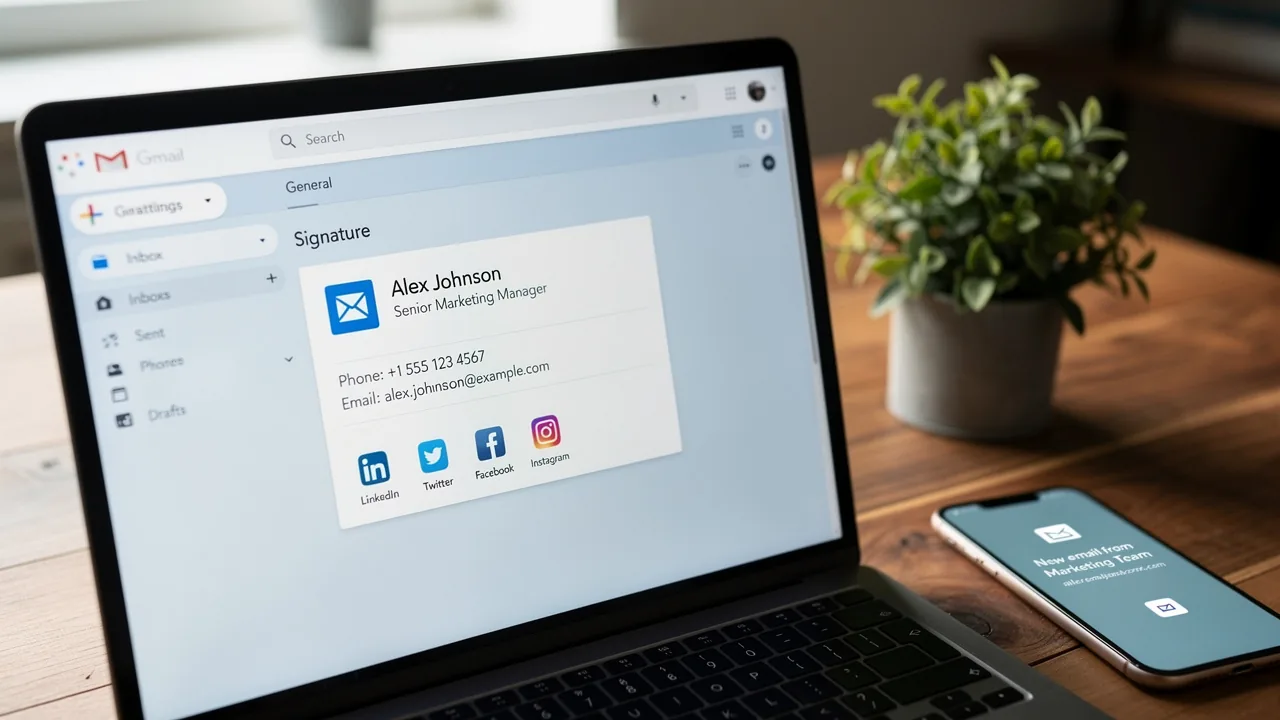
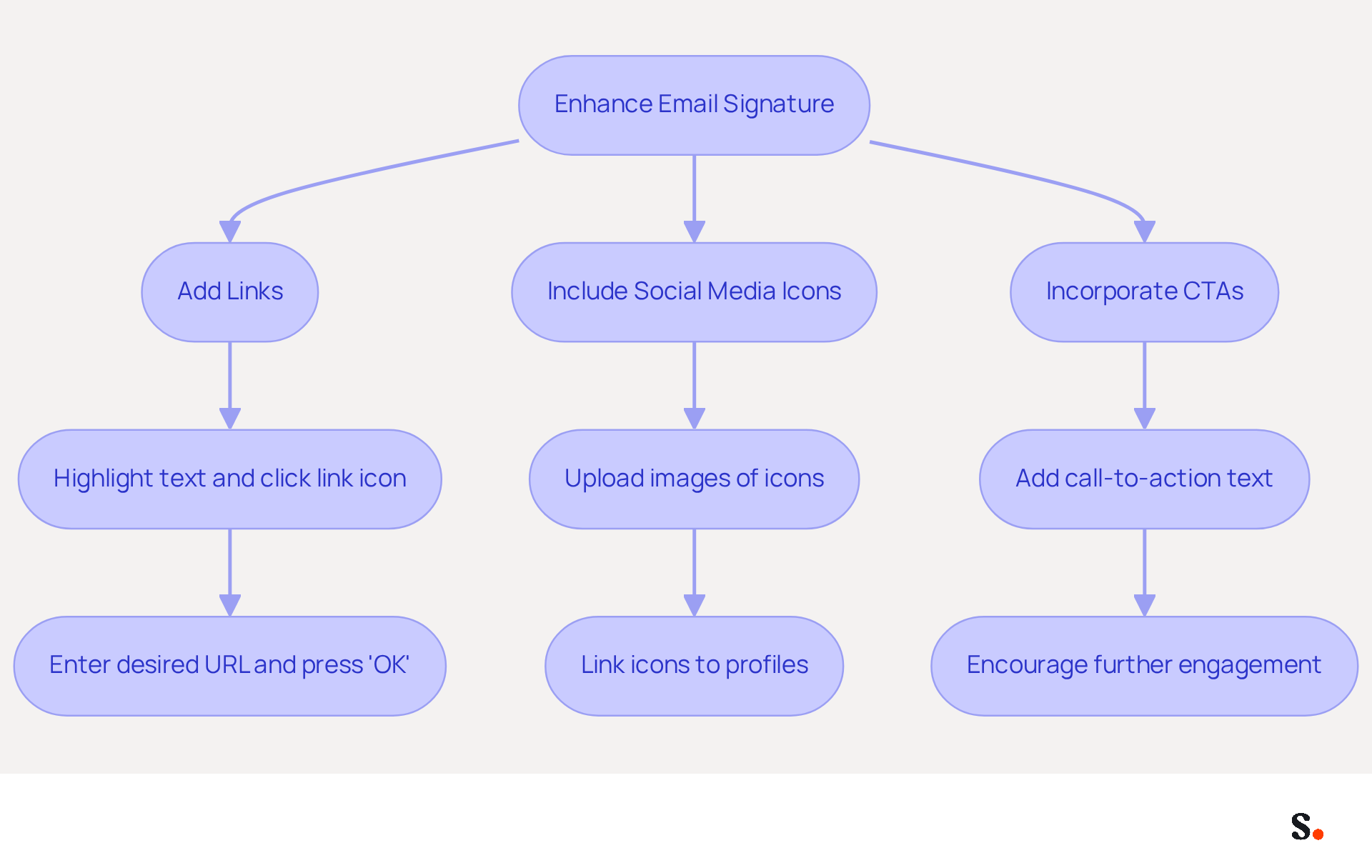
Integrating links and CTAs into your email signatures can significantly enhance engagement and brand visibility. In the editing tool, to convert text into a link, simply highlight it and click the link icon in the formatting toolbar. Enter the desired URL and press 'OK'. To add social media icons, upload images of the icons and link them to your profiles using the same method. Using social media icons in your signatures can really boost engagement, making it a valuable addition.
Adding a call-to-action like 'Schedule a meeting' or 'Check out our latest offer' can significantly encourage recipients to engage further. Incorporating CTAs can increase clicks by 371% and sales by 1617%, making them a powerful tool for driving engagement. Furthermore, message footer CTAs can reach a click-through rate of up to 7%.
Including links to recent blog posts or promotional offers keeps your audience informed and engaged, enhancing the overall effectiveness of your email communications. Don't forget to include your company logo and tagline to boost brand recognition and awareness. Any changes you make in your Aircall configuration will automatically update in your Scribe signatures, ensuring brand consistency across all communications.
Conclusion
Creating a professional email signature in Gmail is a strategic move that can significantly enhance brand visibility and communication effectiveness. By following the outlined steps, users can set up, manage, and optimize their signatures to accurately reflect their professional identity while ensuring brand consistency across all communications.
Key insights from this guide include:
- The importance of integrating essential contact information
- Utilizing Scribe for seamless management of multiple signatures
- Enhancing engagement through links and call-to-action elements
The ability to sync with Google Workspace and automatically update signatures ensures that your branding remains consistent and current, which is crucial in today’s digital communication landscape.
By mastering email signatures, organizations can enhance their engagement rates and solidify their brand presence in every communication. Leveraging tools like Scribe allows organizations to streamline their signature management and maximize their marketing potential. Embrace this opportunity to elevate your email communications and make a lasting impression with every message sent.
Frequently Asked Questions
How do I access Gmail settings to set up a signature?
To access Gmail settings for signature setup, log into your Gmail account, click on the gear icon (⚙️) in the top right corner, select 'See all settings' from the dropdown menu, and go to the 'General' tab where you will find the 'Signature' section.
What steps should I follow to create and manage my signature in Gmail?
Scroll down to the 'Signature' section in the 'General' tab of the settings menu to create and manage your signatures.
What is required for one-click synchronization with Scribe?
To enable one-click synchronization with Scribe, you must grant permission for Scribe to connect with your provider. Note that Super Admin access is required to grant the necessary permissions for integration.
How does syncing Google Workspace with Scribe benefit me?
Syncing Google Workspace with Scribe simplifies the management of your correspondence identifiers, enabling automatic updates that reflect any changes made in your Google Workspace without manual input.
Why is having a well-crafted email signature important?
A well-crafted email signature is essential for brand consistency, as 52% of users believe a strong digital identifier is crucial for effective client communication. Additionally, messages with a branded closing can achieve a 22% greater response rate.
What information should I include in my email signature?
Your email signature should include your name, job title, company, relevant contact information, and a company logo to enhance your professional image.
How does Scribe ensure the protection of my data?
Scribe's SOC 2 Type II compliance guarantees that your data stays protected, making it a trustworthy option for managing digital identities efficiently.
List of Sources
- Access Gmail Settings for Signature Setup
- 100 Compelling Email Statistics for 2026 | PGM Solutions (https://porchgroupmedia.com/blog/100-compelling-email-statistics-to-inform-your-strategy-in-2023)
- How to create custom Gmail signature (https://foxnews.com/tech/how-to-create-custom-gmail-signature)
- Email Signature Statistics: A Closer Look at Email Signatures in 2026 (https://mysignature.io/blog/email-signature-statistics)
- 40+ Email Signature Statistics for 2026 (Data + Insights) (https://wavecnct.com/blogs/email-signature-statistics)
- Email signature statistics: Why every business should optimize their email signatures — Stripo.email (https://stripo.email/blog/email-signature-statistics-why-every-business-should-optimize-their-email-signatures)
- Create Your Signature: Step-by-Step Instructions
- 40+ Email Signature Statistics for 2026 (Data + Insights) (https://wavecnct.com/blogs/email-signature-statistics)
- How Email Signatures Impact Marketing Performance (https://letsignit.com/blog/how-email-signatures-impact-marketing-performance)
- Email Signature Best Practices for 2026 (+ 15 Pro Examples) (https://wavecnct.com/blogs/email-signature-best-practices-2026)
- Email Signature Design Trends in 2026: What Works and What to Drop (https://bulksignature.com/blog/email-signature-design-trends)
- "Email Signature Trends for 2026: What's In, What's Out" | Crossware posted on the topic | LinkedIn (https://linkedin.com/posts/crossware-ltd_new-year-new-trends-even-for-your-email-activity-7394554686046908416-vD_O)
- Manage Multiple Signatures for Different Contexts
- 40+ Email Signature Statistics for 2026 (Data + Insights) (https://wavecnct.com/blogs/email-signature-statistics)
- Email Signature Trends in Numbers: Infographic [2026] (https://mailtrap.io/blog/email-signature-trends)
- Email signature statistics: Why every business should optimize their email signatures — Stripo.email (https://stripo.email/blog/email-signature-statistics-why-every-business-should-optimize-their-email-signatures)
- Google Workspace Updates: Create and use multiple signatures in Gmail (https://workspaceupdates.googleblog.com/2020/03/multiple-signatures-gmail.html)
- Multiple Email Signatures (https://groups.google.com/g/google-apps-manager/c/LZ4YiCvSZb8)
- Enhance Your Signature with Links and Call-to-Actions
- 8 advanced email signature features you should be using in 2025 (https://bybrand.io/blog/email-signatures-feature)
- Why and how to add an effective CTA to your email signature? (https://signitic.com/en/resources/why-and-how-to-add-an-effective-cta-to-your-email-signature)
- Using Email Signatures as a Marketing Tool: Ideas for Generating Leads and Promoting Business (https://blog.ringostat.com/en/using-email-signatures-as-a-marketing-tool-ideas-for-generating-leads-and-promoting-business)
- The Ultimate Guide to Email Signature Call-to-Action - NEWOLDSTAMP (https://newoldstamp.com/blog/the-ultimate-guide-to-email-signature-call-to-action)
Get started with Scribe
Create your signature in minutes
Free 14-day trial — no credit card.