How to Insert a Signature on Outlook: A Step-by-Step Guide
Crafting a professional email signature in Outlook is essential for effective communication and can significantly impact brand consistency and credibility
Sophie Grant
Email Signature Specialist, Scribe
On this page
Introduction
Crafting a professional email signature in Outlook is essential for effective communication and can significantly impact brand consistency and credibility. When executed effectively, email signatures can become powerful marketing tools that enhance engagement and build trust with recipients. Many professionals find the process of creating and managing email signatures in Outlook to be challenging and time-consuming.
How can one navigate the complexities of Outlook's signature settings to ensure a polished and impactful email signature? This guide provides a step-by-step roadmap to mastering email signatures in Outlook, significantly enhancing communication effectiveness and strengthening brand presence.
Understand the Importance of Email Signatures in Outlook
Email footers play a crucial role in professional communication, serving functions that extend beyond mere formality. A well-crafted signature serves multiple essential functions:
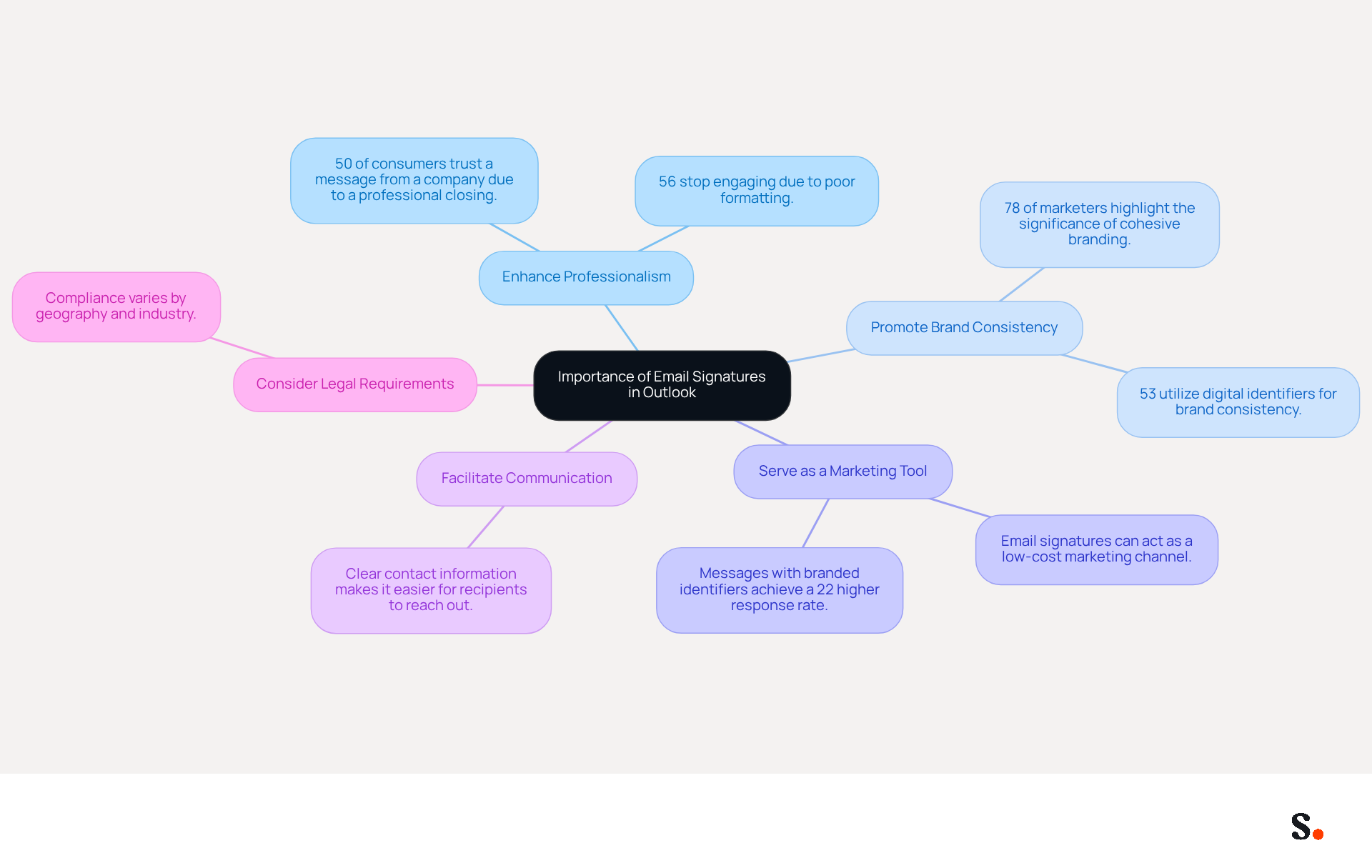
- Enhance Professionalism: Including your name, title, and contact information establishes credibility and fosters trust. In fact, 50% of consumers trust a message from a company due to a professional closing, while 56% stop engaging with a communication due to poor formatting.
- Promote Brand Consistency: Uniform branding across communications reinforces your company's image, with 78% of marketers highlighting the significance of a cohesive branded identity. Furthermore, 53% of marketers utilize digital identifiers to ensure brand consistency throughout the organization, assisting recipients in recognizing and recalling your brand, ultimately improving customer loyalty. With Scribe, you can automate the synchronization of correspondence identifiers with your Google Workspace and Aircall configurations, ensuring that any updates to your team’s information are reflected in real-time without manual input. Scribe's SOC 2 Type II compliance guarantees that your data is secure, allowing you to focus on your marketing strategies with peace of mind.
- Serve as a Marketing Tool: Research shows that messages featuring branded identifiers achieve a 22% higher response rate, emphasizing their effectiveness in driving engagement. Moreover, digital identifiers can act as a high-frequency, low-cost marketing channel, optimizing your promotional efforts. Scribe's automated management of electronic correspondence allows for seamless updates, ensuring that your marketing messages remain consistent and effective.
- Facilitate Communication: When you provide clear contact information, it makes it easier for recipients to get in touch with you, ensuring that your communication is efficient and effective.
- Consider Legal Requirements: Navigating the legal landscape of electronic communications can be complex and varies by geography and industry, ensuring compliance and professionalism in your interactions.
Grasping these advantages highlights the importance of dedicating time to create an engaging digital identifier. As shown in various case studies, such as those emphasizing the effectiveness of digital identifiers in enhancing brand visibility and professional communication, organizations that prioritize management of these identifiers see improved outcomes. This strategic focus not only enhances brand visibility but also drives measurable results in professional communication.
Access Signature Settings in Outlook
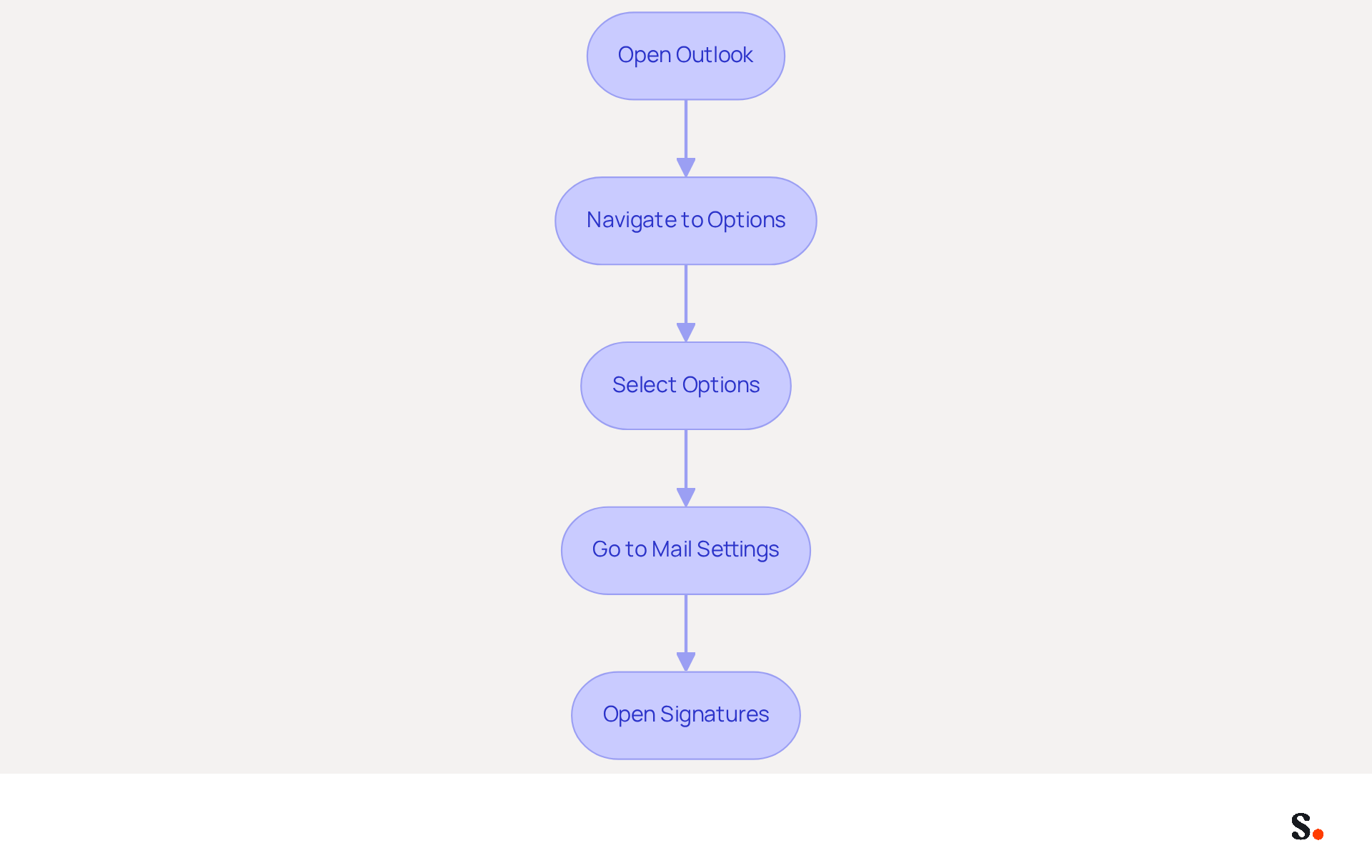
To effectively manage your email signatures in Outlook, it's essential to understand the steps involved in accessing the signature settings:
- Open Outlook: Launch the Outlook application on your computer.
- Navigate to Options: Click on the 'File' tab in the top-left corner.
- Select Options: In the menu that appears, choose 'Options'.
- Go to Mail Settings: In the Outlook Options window, select 'Mail' from the left sidebar.
- Open Signatures: Click on the 'Signatures...' button located in the 'Compose messages' section.
This action opens the Signatures and Stationery window, allowing you to create, edit, and manage your correspondence identifiers.
With 80% of participants viewing a branded electronic mark as vital to a company's identity, it's clear that well-designed email signatures play a crucial role in effective communication. Additionally, 76% of respondents believe that such marks enhance trust in the sender. Therefore, ensuring that your correspondence identifiers are well-designed and consistently utilized is crucial for effective communication and branding.
By integrating Scribe with your Google Workspace, you can significantly simplify the management of email identifiers. With Scribe, you can synchronize identifiers with just one click, eliminating the need for manual updates for each team member. Any modifications made in your Google Workspace, such as relocating teammates or updating their details, will automatically reflect in Scribe, saving you valuable time and ensuring consistency. Furthermore, Scribe is SOC 2 Type II compliant and adheres to GDPR and CCPA regulations, ensuring the safety of your data while enhancing your email management process.
Expert advice indicates that organizations should regularly audit their email settings to maintain compliance and brand consistency, particularly with the transition to the new Outlook, which has shifted management to a cloud-based system. This adaptation is essential for maintaining brand integrity and operational efficiency. Significantly, many organizations struggle with the complexities of managing digital branding effectively, with 35% recognizing centralized management of digital branding as one of their top two most time-consuming IT tasks. This emphasizes the necessity of optimizing this process during the migration.
Create and Customize Your Email Signature
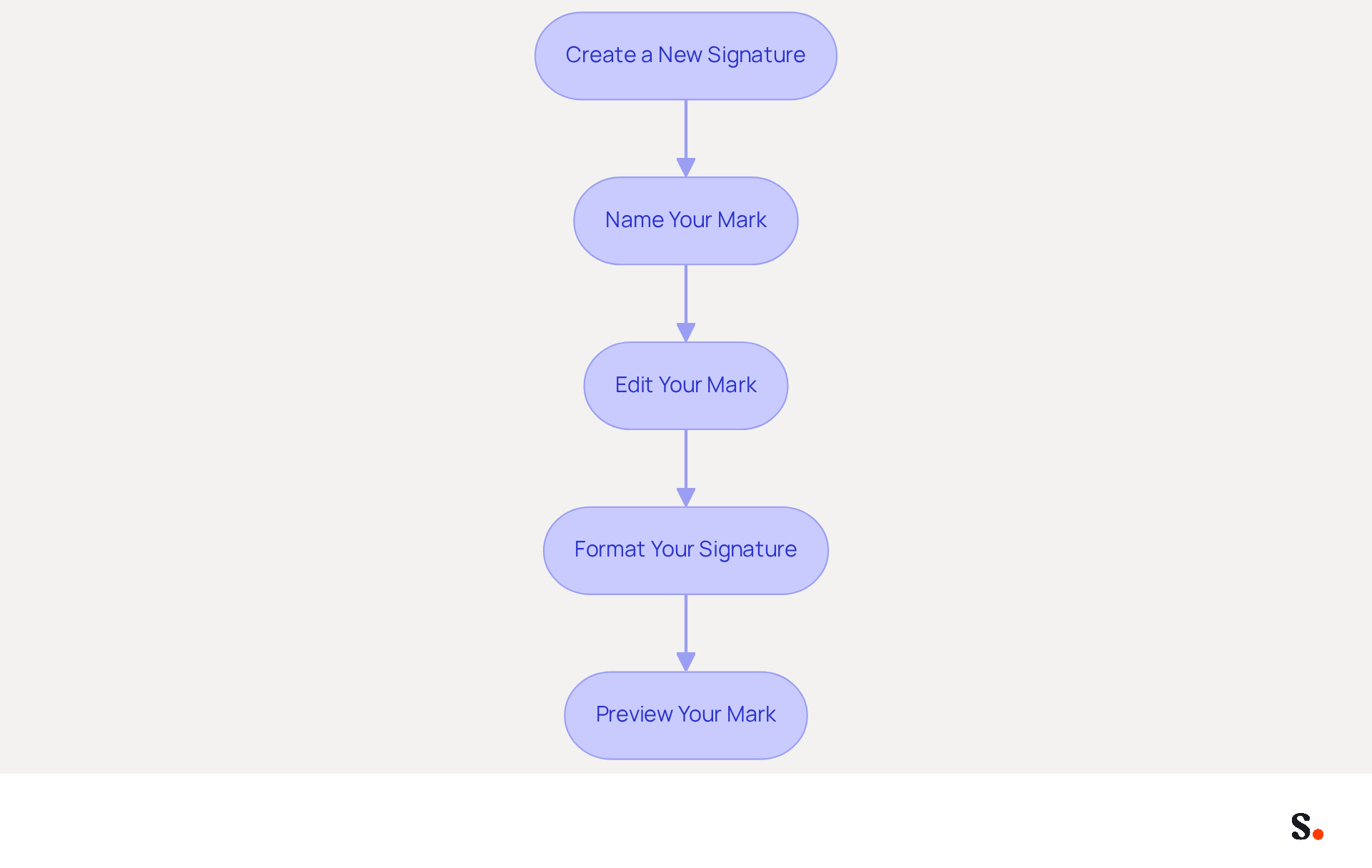
Creating a professional email signature can be a challenge for many, yet it is essential for effective communication. To create and customize your email signature in Outlook, follow these steps:
- Create a New Signature: Open the Signatures and Stationery window and click 'New' to begin the process of creating a new sign-off.
- Name Your Mark: Assign a distinct name to your mark and click 'OK' to proceed.
- Edit Your Mark: In the 'Edit mark' box, input your desired content, including your name, title, company name, and contact information.
- Format Your Signature: Utilize the formatting tools to adjust the font, size, color, and style to align with your organization's identity. You can also incorporate hyperlinks to your website or social media profiles, enhancing engagement and driving traffic.
- Preview Your Mark: Review your mark to ensure it appears professional and is easy to read.
Ultimately, understanding how to insert a signature on Outlook can significantly impact your communication effectiveness and brand perception. Statistics indicate that consistent branded electronic communication identifiers can lead to a 22% increase in response rates, making this a crucial aspect of your communication strategy.
Enhance Your Signature with Images and Links
To effectively enhance your email signature, it is essential to incorporate images and links strategically.
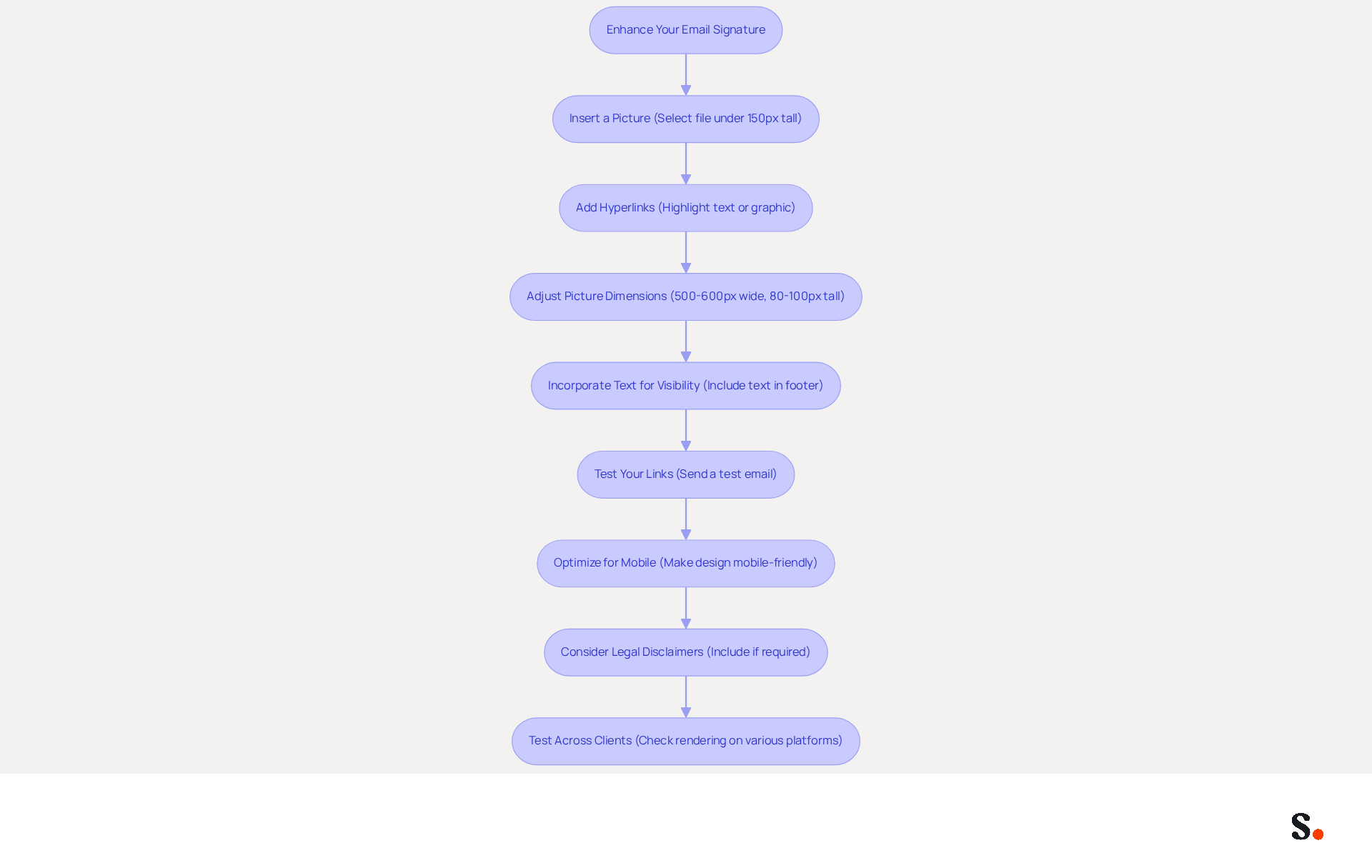
- Insert a Picture: In the 'Edit signature' box, click on the icon for the picture (usually represented by a visual symbol). Select the file you wish to include, such as your company logo, ensuring it is under 150 pixels tall for optimal display.
- Add Hyperlinks: Highlight the text or click on the graphic you want to link. Then, click on the hyperlink icon (usually represented by a chain link). Enter the desired URL and click 'OK'. This allows you to direct recipients to your website or social media platforms, enhancing engagement.
- Adjust Picture Dimensions: Ensure that the visual is suitably sized for your mark. You can resize it by clicking on the graphic and dragging the corners, keeping in mind that a banner should ideally be between 500 to 600 pixels wide and 80 to 100 pixels tall.
- Since some messaging services block visuals by default, this limitation can hinder the effectiveness of your email signature. Therefore, it’s crucial to incorporate text in your footer to ensure visibility and functionality.
- Test Your Links: After saving your custom design, send a test email to yourself to ensure that the links function and the visual displays correctly. Failing to test can lead to missed opportunities and a lack of professionalism.
- Optimize for Mobile: Remember that sign-offs often break on mobile devices, so ensure your design is mobile-friendly to maintain readability.
- Consider Legal Disclaimers: Depending on your industry, including a legal disclaimer in your email can enhance professionalism and compliance.
- Test Across Clients: Finally, test your design across various messaging platforms to ensure it renders correctly and maintains its intended appearance.
Incorporating images and links enhances the visual appeal of your email footer. It also serves as a powerful marketing tool, driving traffic to your online platforms and improving overall engagement statistics. Furthermore, with Scribe, any modifications made in your Aircall configuration will automatically sync with your email identifiers, ensuring consistency across all communications. Scribe also complies with SOC 2 Type II standards, ensuring secure data handling, and integrates seamlessly with Calendly for automatic updates, making it an ideal solution for maintaining brand consistency.
Set Default Signature Preferences and Troubleshoot Issues
To effectively manage your email signatures and resolve potential issues, follow these essential steps:
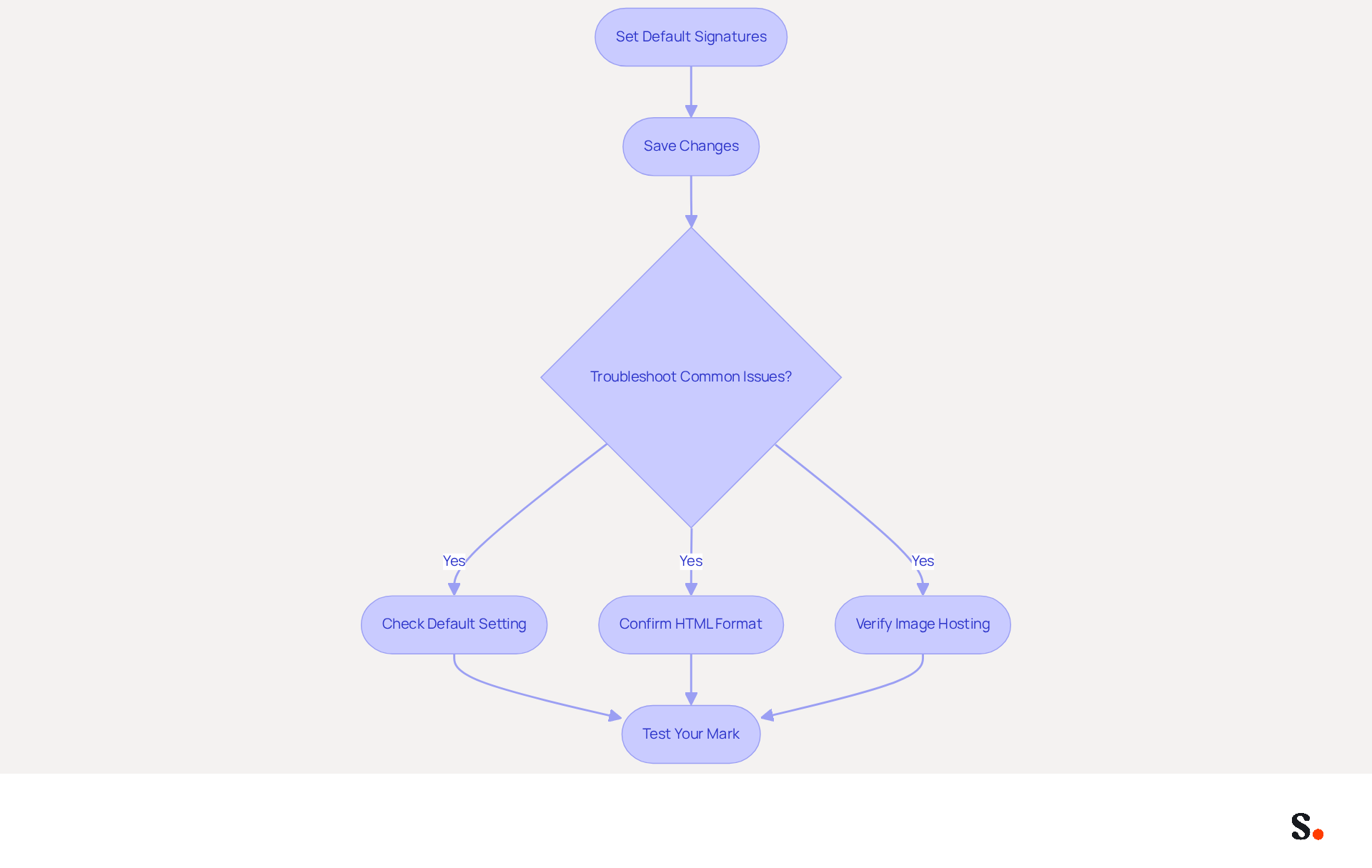
- Set Default Signatures: Open the Signatures and Stationery window. Under 'Choose default signature', select the email account for which you want to set the email designation. Select your newly created mark for 'New messages' and 'Replies/forwards' if desired.
- Save Changes: Click 'OK' to save your settings.
- Troubleshoot Common Issues:
- Many users encounter issues with signatures not displaying correctly; ensure it is set as the default for new messages.
- Confirm that the message format is configured to HTML, as identifiers may not appear correctly in plain text.
- If images are not showing, ensure they are hosted online or embedded correctly.
- Test Your Mark: Send a test message to confirm that your mark appears as intended.
By following these steps, you can ensure that your correspondence footer is consistently applied and understand how to insert a signature on Outlook to troubleshoot any issues that may arise. Research shows that organizations maintaining consistent branded digital footers experience over a 22% increase in response rates, emphasizing the importance of effective footer management. Furthermore, by syncing your Google Workspace with Scribe, any updates to your teammates' information will be automatically reflected in your email signatures, saving you time and ensuring consistency across all communications. With Scribe's SOC 2 Type II certification and adherence to GDPR and CCPA, you can trust that your data is handled securely.
Conclusion
A professional email signature is more than just a digital signature; it is a strategic asset that can significantly influence communication and branding. Recognizing the critical role of email signatures and implementing the outlined steps enables users to manage their digital identifiers effectively, ensuring that each email sent conveys professionalism and reinforces brand identity.
Throughout this guide, key insights have been shared, including the significance of a well-crafted signature in establishing credibility, the benefits of uniform branding, and the role of digital identifiers in driving engagement. The integration of Scribe further simplifies this process, allowing for seamless updates and compliance with security standards such as SOC 2 Type II, GDPR, and CCPA. Using Scribe, organizations can ensure their email signatures reflect consistent branding and deliver measurable marketing returns, making it an invaluable tool for marketing and IT teams alike.
The choice to invest time in crafting and managing email signatures is crucial for professionals aiming to elevate their communication strategy. By leveraging tools like Scribe, organizations can not only streamline their email signature management but also ensure that their branding remains consistent and impactful. The decision to invest in email signature management can redefine how organizations communicate and present their brand to the world.
Frequently Asked Questions
Why are email signatures important in professional communication?
Email signatures enhance professionalism, promote brand consistency, serve as a marketing tool, facilitate communication, and help ensure compliance with legal requirements.
How do email signatures enhance professionalism?
Including your name, title, and contact information in your email signature establishes credibility and fosters trust, with studies showing that 50% of consumers trust messages from companies with professional closings.
What role do email signatures play in brand consistency?
Uniform branding across communications reinforces a company's image, with 78% of marketers emphasizing the importance of a cohesive branded identity. Digital identifiers help recipients recognize and recall your brand, improving customer loyalty.
How can Scribe assist with managing email signatures?
Scribe automates the synchronization of correspondence identifiers with Google Workspace and Aircall configurations, ensuring real-time updates to your team’s information without manual input.
What marketing benefits do email signatures provide?
Messages featuring branded identifiers achieve a 22% higher response rate and can act as a high-frequency, low-cost marketing channel, optimizing promotional efforts.
How can I access the signature settings in Outlook?
To access signature settings in Outlook, open the application, click on the 'File' tab, select 'Options', go to 'Mail', and then click on the 'Signatures...' button in the 'Compose messages' section.
Why is it important to have well-designed email signatures?
Well-designed email signatures are vital to a company's identity, with 80% of participants viewing them as essential, and 76% believing they enhance trust in the sender.
How does Scribe ensure data security while managing email signatures?
Scribe is SOC 2 Type II compliant and adheres to GDPR and CCPA regulations, ensuring the safety of your data while enhancing your email management process.
What should organizations do to maintain compliance and brand consistency with email signatures?
Organizations should regularly audit their email settings, particularly with the transition to the new Outlook, to maintain brand integrity and operational efficiency.
What challenges do organizations face in managing digital branding?
Many organizations find managing digital branding complex, with 35% recognizing centralized management of digital branding as one of their top two most time-consuming IT tasks.
List of Sources
- Understand the Importance of Email Signatures in Outlook
- Why Email Signatures Must Be In Your 2026 Marketing Plan | Rocketseed (https://rocketseed.com/blog/2026-marketing-plan-email-signatures)
- Exclaimer Research: 67% of Marketers Expect Email Signatures to Support With Lead Gen In 2023 (https://businesswire.com/news/home/20230612141095/en/Exclaimer-Research-67-of-Marketers-Expect-Email-Signatures-to-Support-With-Lead-Gen-In-2023)
- Email signature statistics: Why every business should optimize their email signatures — Stripo.email (https://stripo.email/blog/email-signature-statistics-why-every-business-should-optimize-their-email-signatures)
- Email Signature Statistics: A Closer Look at Email Signatures in 2026 (https://mysignature.io/blog/email-signature-statistics)
- The impact of email signatures on your branding (https://signitic.com/en/resources/the-impact-of-email-signatures-on-your-branding)
- Access Signature Settings in Outlook
- Email Signature Statistics: A Closer Look at Email Signatures in 2026 (https://mysignature.io/blog/email-signature-statistics)
- The New Outlook for Windows: An IT Guide to Email Signatures (https://exclaimer.com/email-signature-handbook/new-outlook-windows-email-signatures)
- What's new in new Outlook for Windows | Microsoft Support (https://support.microsoft.com/en-us/outlook/getstarted/what-s-new-in-new-outlook-for-windows)
- 40+ Email Signature Statistics for 2026 (Data + Insights) (https://wavecnct.com/blogs/email-signature-statistics)
- Create and Customize Your Email Signature
- 40+ Email Signature Statistics for 2026 (Data + Insights) (https://wavecnct.com/blogs/email-signature-statistics)
- The impact of email signatures on your branding (https://signitic.com/en/resources/the-impact-of-email-signatures-on-your-branding)
- How to add and change an email signature in Outlook | Microsoft Support (https://support.microsoft.com/en-us/outlook/mail/how-to-add-and-change-an-email-signature-in-outlook)
- Create an email signature from a template | Microsoft Support (https://support.microsoft.com/en-us/outlook/create-an-email-signature-from-a-template)
- Enhance Your Signature with Images and Links
- Best practices for business email signatures in 2026 (https://bybrand.io/blog/best-practices)
- The Complete Email Signature Guide 2026: Best Practices and Policy (https://opensense.com/complete-email-signature-guide)
- How do I design a pretty, reliable & clickable email signature? (https://launchthedamnthing.com/blog/design-custom-clickable-pretty-reliable-branded-email-signature)
- 40+ Email Signature Statistics for 2026 (Data + Insights) (https://wavecnct.com/blogs/email-signature-statistics)
- Set Default Signature Preferences and Troubleshoot Issues
- How to solve problems with email signatures in Microsoft 365? (https://mail-signatures.com/articles/problems-email-signatures-office-365)
- 40+ Email Signature Statistics for 2026 (Data + Insights) (https://wavecnct.com/blogs/email-signature-statistics)
- Outlook Signature Not Working in Office 365: Causes & Fixes (https://exclaimer.com/email-signature-handbook/outlook-signature-not-working-in-office-365)
- Email Signature Troubleshooting - Problems & Solutions - Gimmio (https://blog.gimm.io/email-signature-troubleshooting)
Get started with Scribe
Create your signature in minutes
Free 14-day trial — no credit card.