How to Make Email Signature Automatic in Outlook: A Step-by-Step Guide
In today's digital landscape, effective email communication is paramount for establishing professional relationships. Automatic email signatures in Outlook not
Sophie Grant
Email Signature Specialist, Scribe
On this page
- Introduction
- Understand the Importance of Automatic Email Signatures in Outlook
- Access Signature Settings in Outlook
- Create and Customize Your Email Signature
- Set Your Signature as Default for New Emails and Replies
- Troubleshoot Common Issues with Automatic Signatures
- Conclusion
- Frequently Asked Questions
- List of Sources
Introduction
In today's digital landscape, effective email communication is paramount for establishing professional relationships. Automatic email signatures in Outlook not only enhance professionalism but also streamline branding efforts across organizations. This guide delves into the step-by-step process of setting up automatic signatures, revealing how this feature can significantly reduce administrative workload, maintain consistent branding, and enhance user engagement, as evidenced by recent studies.
However, users often face challenges that hinder the effectiveness of automatic signatures. Understanding and addressing these challenges is vital for ensuring that email communication remains effective and professional.
Understand the Importance of Automatic Email Signatures in Outlook
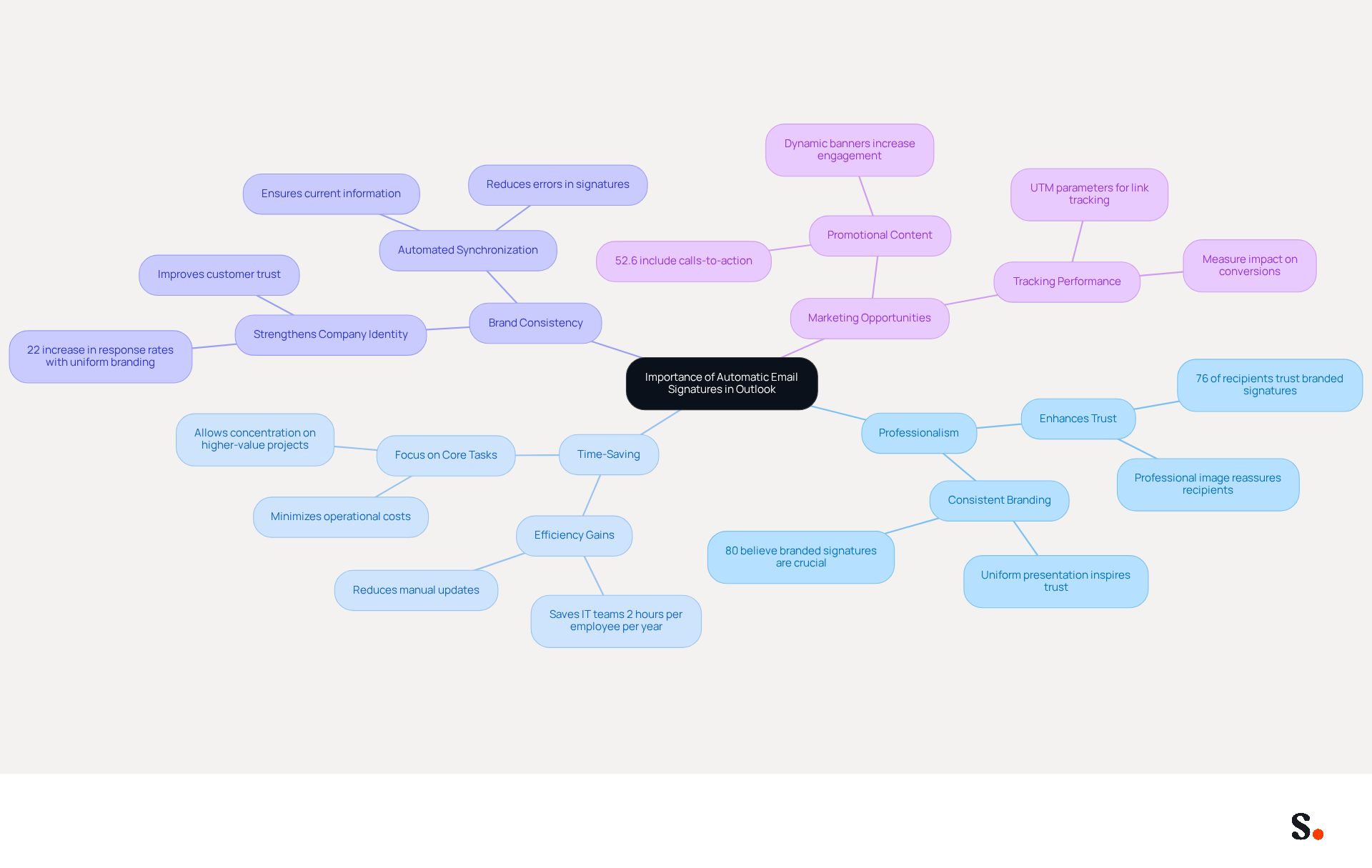
In today's fast-paced business environment, maintaining a professional image through automated identifiers in Outlook is essential. Here are key reasons to implement automatic signatures with Scribe:
- Professionalism: An automatic signature guarantees that every email sent includes your contact information and branding, enhancing the polished appearance of your communications. Research shows that 76% of recipients believe that branded digital identifiers enhance their trust in the sender, emphasizing the significance of a professional presentation.
- Time-Saving: Automating the signing process with Scribe removes the necessity to manually insert your mark in every correspondence, allowing you to concentrate on more important tasks. This efficiency can save IT teams about two hours each year per employee, allowing for better resource use. With Scribe, your teammates' information is auto-filled using your business phone system, and changes made in your Aircall configuration are automatically reflected in your identifiers, ensuring effortless updates without additional action from your team.
- Brand Consistency: Uniform branding across all communications strengthens your company’s identity and builds trust with recipients. Organizations that maintain uniform messaging formats report a 22% increase in response rates, showing how cohesive branding can significantly boost engagement rates. Scribe's automated synchronization guarantees that your correspondence identifiers are consistently current, enhancing brand uniformity effortlessly.
- Marketing Opportunities: Interestingly, more than half of users include a call-to-action in their emails, indicating that recipients are open to promotional content. With Scribe's SOC 2 Type II compliance, you can manage digital identifiers securely while utilizing them for marketing purposes.
Comprehending these advantages highlights the importance of understanding how to make email signature automatic in Outlook with Scribe, which will be further examined in the subsequent sections.
Access Signature Settings in Outlook
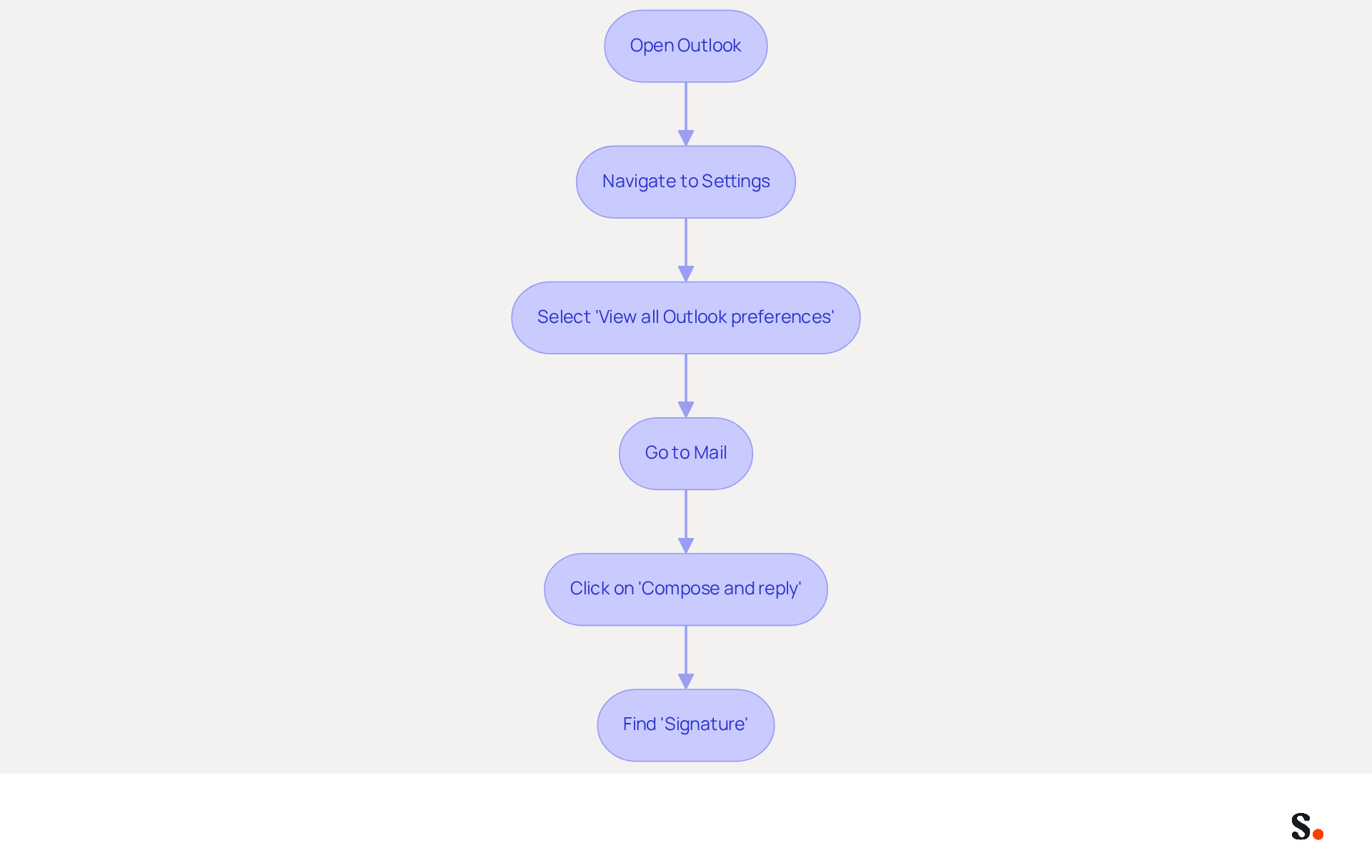
Knowing how to make email signature automatic in Outlook is crucial for maintaining professionalism in your communications. To do this, start by accessing the signature options. Follow these steps:
- Open Outlook: Launch the Outlook application on your computer.
- Navigate to Settings: Click on the gear icon (⚙️) located in the top right corner of the Outlook window.
- Select 'View all Outlook preferences': Scroll down and click on this option to access the complete preferences menu.
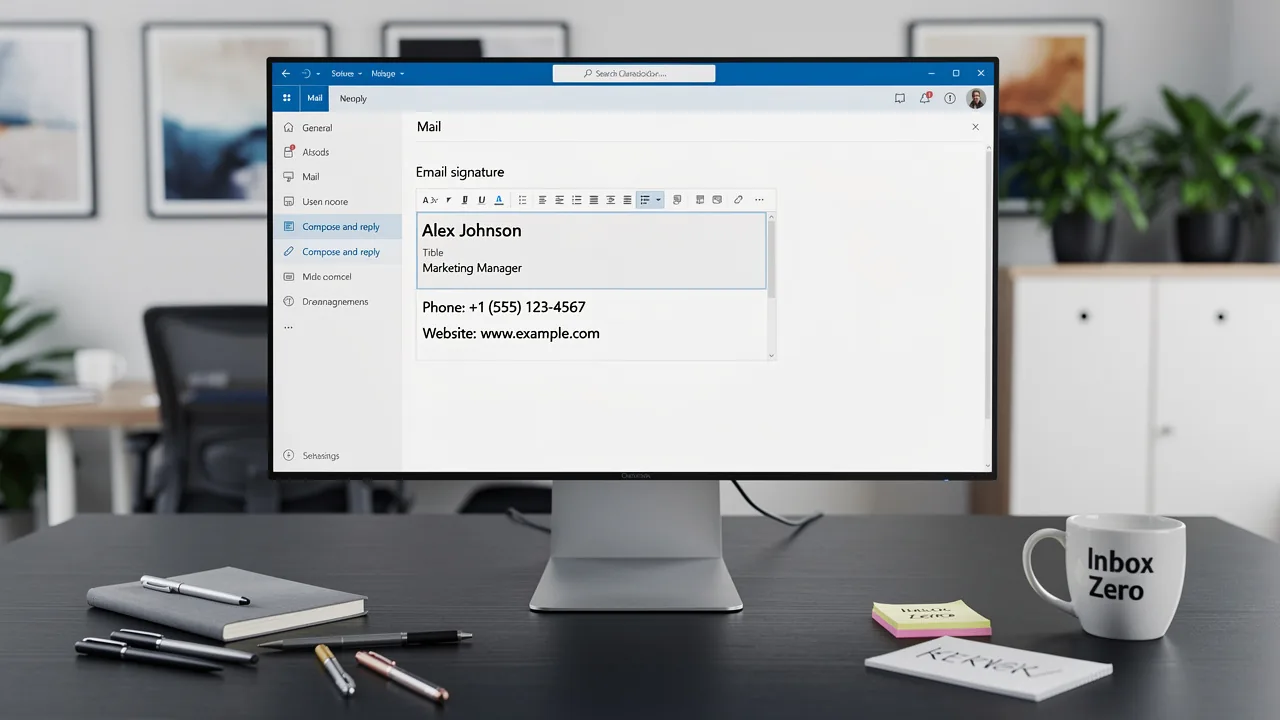
- Go to Mail: In the settings menu, select 'Mail' from the left sidebar.
- Click on 'Compose and reply': This section includes the options for message identifiers.
- Find 'Signature': Here, you will see the option to create and manage your signatures.
Before you can sync your Google Workspace with the application, ensure you grant the necessary permissions. You must be a Super Admin of your service provider to allow Scribe to connect and sync your data.
By following these steps, you will learn how to make email signature automatic in Outlook and effectively personalize your message footer. Considering that 76% of consumers indicate heightened trust from receiving branded electronic communications, maintaining a professional appearance is essential. Additionally, organizations that implement consistent branded signatures can see a 22% increase in response rates, highlighting the effectiveness of well-managed email signatures in enhancing communication and engagement.
To further streamline this process, syncing your Google Workspace with the application ensures that your team's information remains current and consistent. This synchronization allows for automatic updates of your teammates' information, ensuring accuracy and consistency across all communications. Additionally, with Scribe's SOC 2 Type II compliance, you can trust that your data is secure while managing your correspondence efficiently.
Ultimately, ensuring your email signatures are up-to-date can significantly impact your organization's communication effectiveness and brand perception.
Create and Customize Your Email Signature
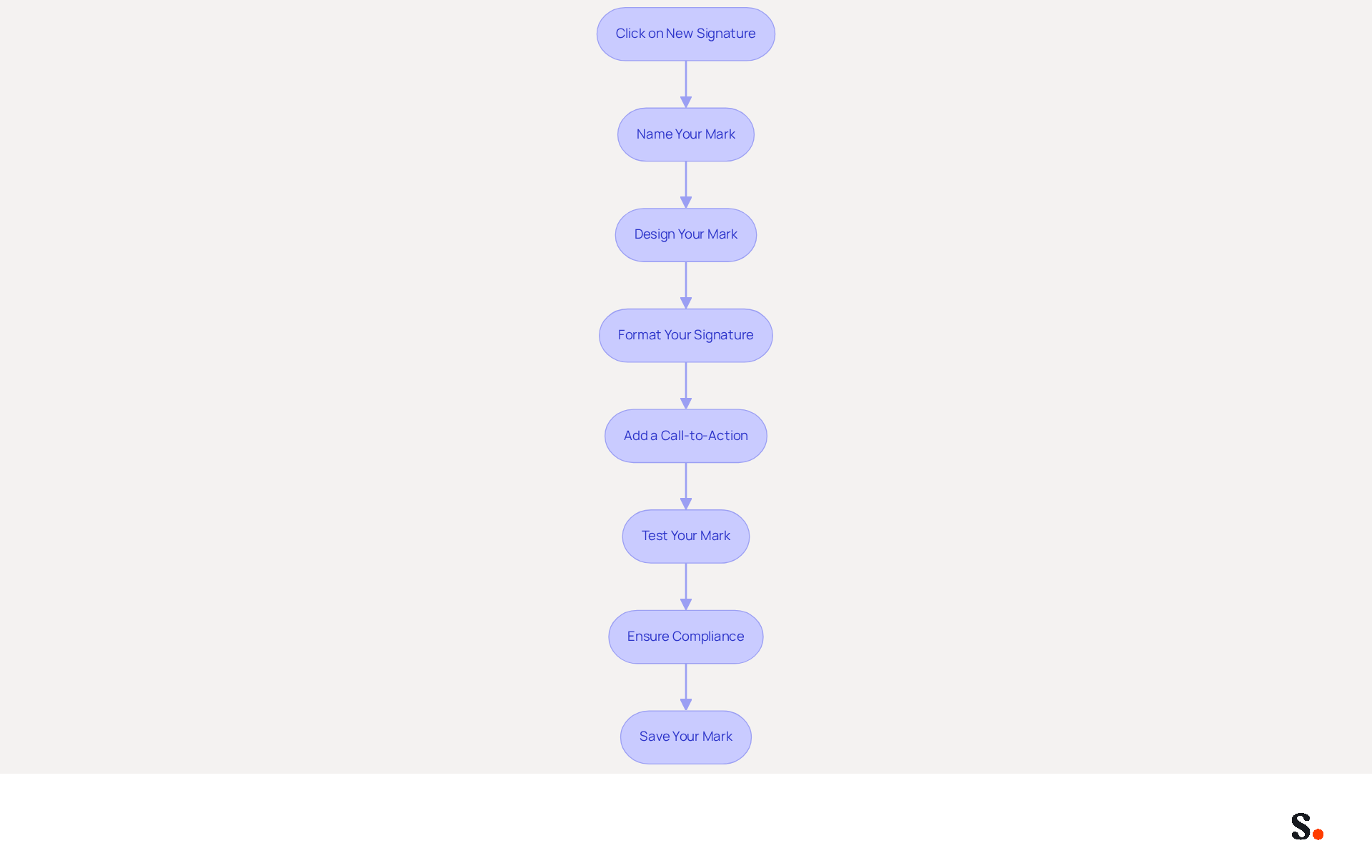
To enhance your brand's visibility and credibility, it's essential to learn how to make email signature automatic in Outlook 2026. Follow these straightforward steps to create and customize your email signature:
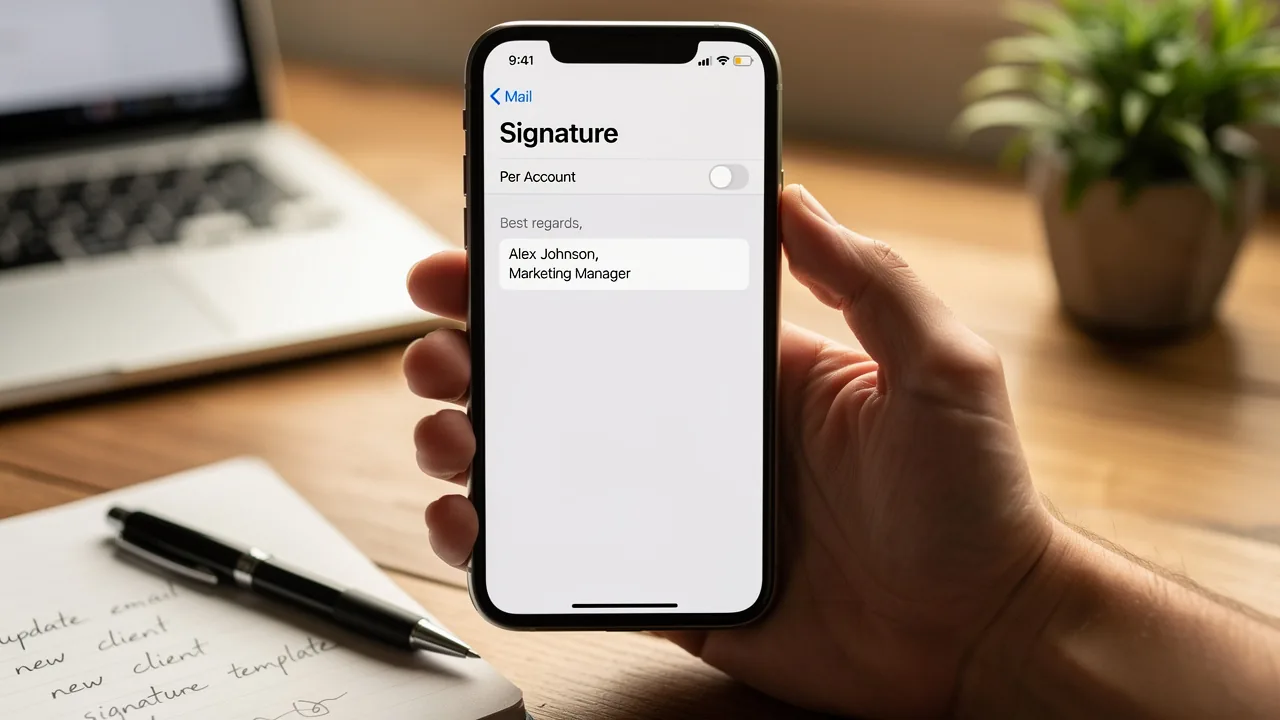
- Click on 'New Signature': Navigate to the email settings and click the 'New' button to begin the creation process.
- Name Your Mark: Assign a name to your mark (e.g., 'Work Mark') and click 'OK' to proceed.
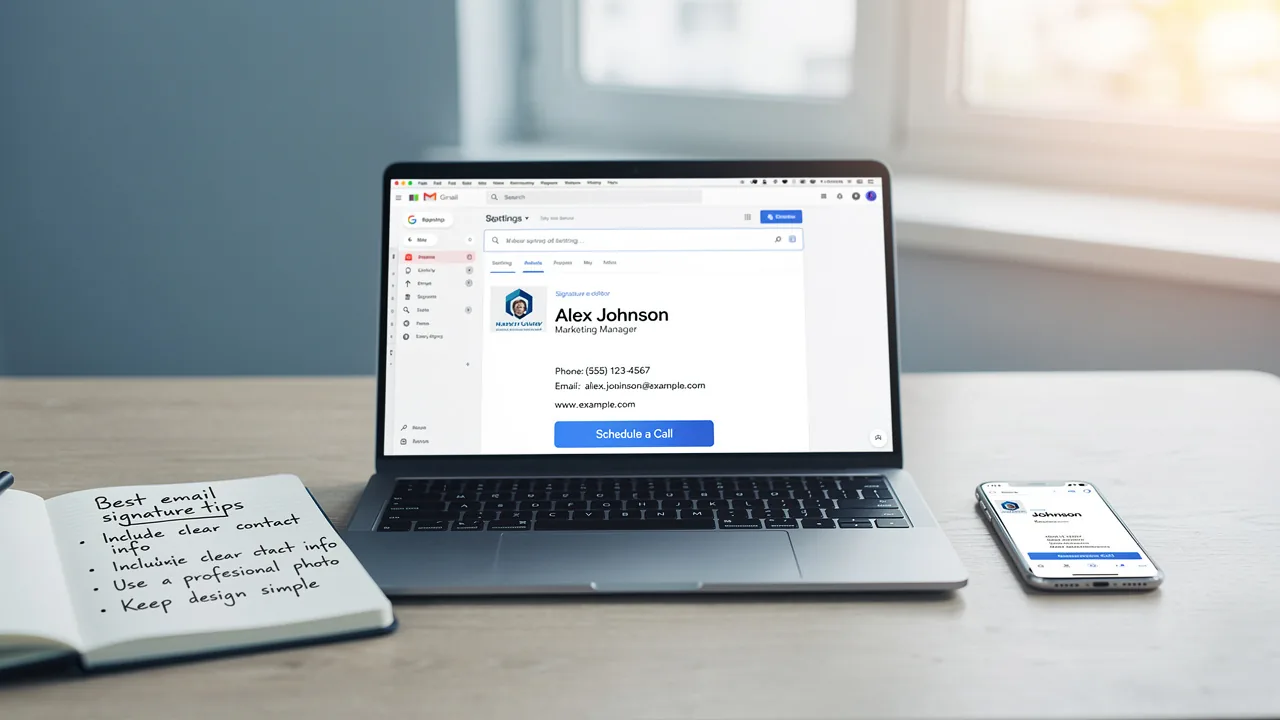
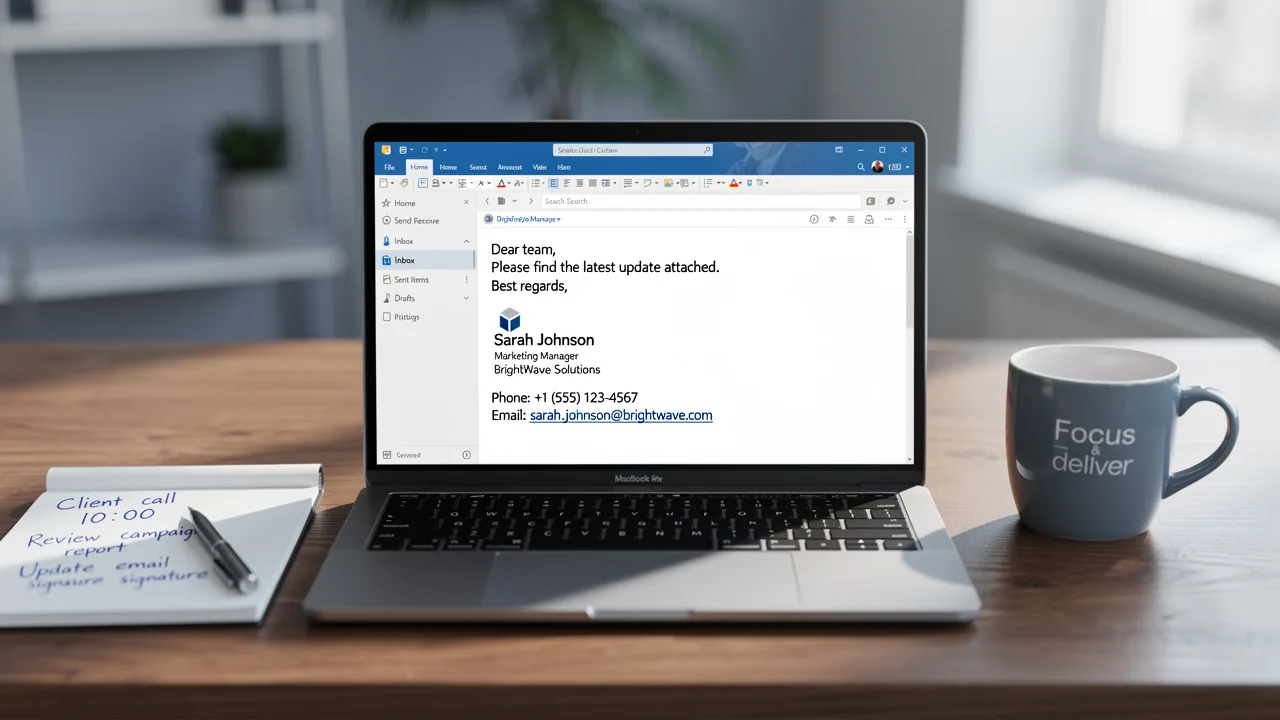
- Design Your Mark: In the editing box, input your text for the mark. Essential components to include are:
- Your full name
- Job title
- Company name
- Contact information (phone number, email address)
- Company logo or image (if applicable)
- Format Your Signature: Utilize the formatting options to adjust the font, size, color, and alignment to align with your brand’s style. Adding hyperlinks to your social media profiles or company website can enhance connectivity and build trust with potential clients.
- Add a Call-to-Action: Incorporate a call-to-action (CTA) such as a link to your latest blog post or a promotional offer. Studies indicate that email signatures with strategic CTAs can increase engagement by as much as 40% compared to standard sign-offs. Furthermore, organizations utilizing centralized management of approvals report 85% improved brand consistency across teams.
- Test Your Mark: Before finalizing, testing across devices can reveal compatibility issues that may affect your professional image. This tool simplifies the process by syncing updates from your business phone system, keeping your signature current.
- Ensure Compliance: Remember to check that your email footer complies with global privacy regulations, which is crucial for maintaining professionalism and trust. With Scribe's SOC 2 Type II compliance, you can be assured that your data handling meets stringent security standards.
- Save Your Mark: After finalizing your design, click 'Save' to store your mark.
By following these steps, you will understand how to make email signature automatic in Outlook, allowing you to craft a personalized email signature that boosts your professional image and strengthens your brand identity in every message. Ultimately, a thoughtfully designed email signature can serve as a powerful tool for fostering connections and elevating your brand's presence.
Set Your Signature as Default for New Emails and Replies
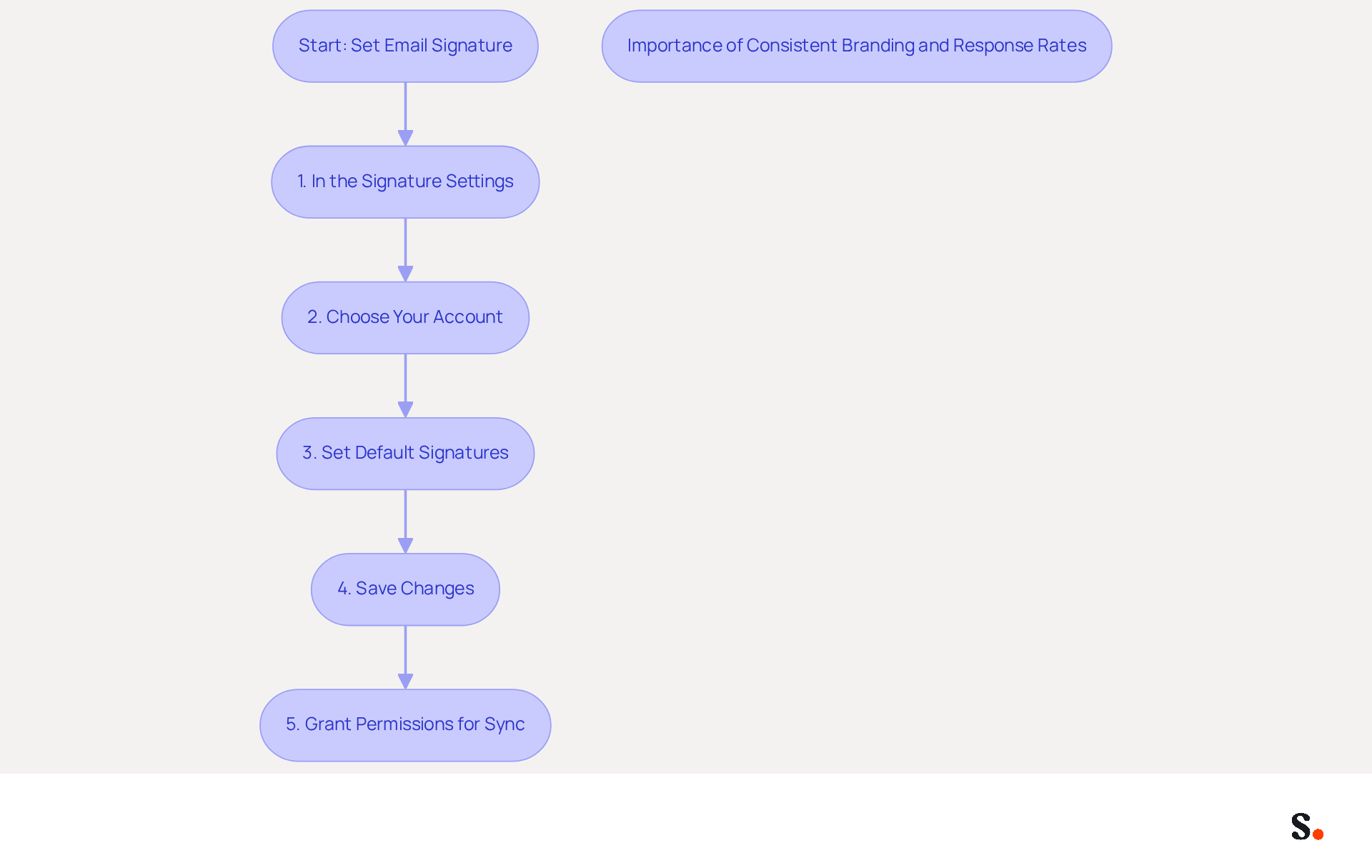
To ensure your newly created sign-off is automatically included in all your messages, you should understand how to make email signature automatic in Outlook. Here’s how:
- In the Signature Settings: After creating your sign-off, navigate to the section labeled 'Choose default sign-off'.
- Choose Your Account: If you have multiple accounts configured in Outlook, select the one for which you want to set the personal message.
- Set Default Signatures: Under 'New messages', choose your newly created template from the dropdown menu. Repeat this for 'Replies/forwards' if you want the identifier to appear in those messages as well.
- Save Changes: Click 'Save' to apply your settings.
By following these steps, you will learn how to make email signature automatic in Outlook, ensuring your name appears automatically in all new messages and helping you maintain a professional image. Consistently refreshing your identifier is essential, as 89.9% of professionals utilize a single digital identifier and modify it rarely, which can result in lost chances for brand engagement. Consistent branding through signatures can increase response rates by over 22%, making it essential to keep your signature current and reflective of your professional identity.
Furthermore, to enable one-click synchronization with the application, you must grant permission for it to connect with your provider, and you need to be a Super Admin of your provider to provide these permissions. Syncing your Google Workspace with the app makes this process even smoother. This tool enables one-click synchronization, ensuring that any modifications made in your provider directory are automatically reflected in your message footers. This not only saves time but also enhances your branding efforts while maintaining compliance with security standards like SOC 2 Type II. With Scribe, you can manage your correspondence identifiers independently after the initial IT setup, ensuring 100% brand consistency across your organization.
Troubleshoot Common Issues with Automatic Signatures
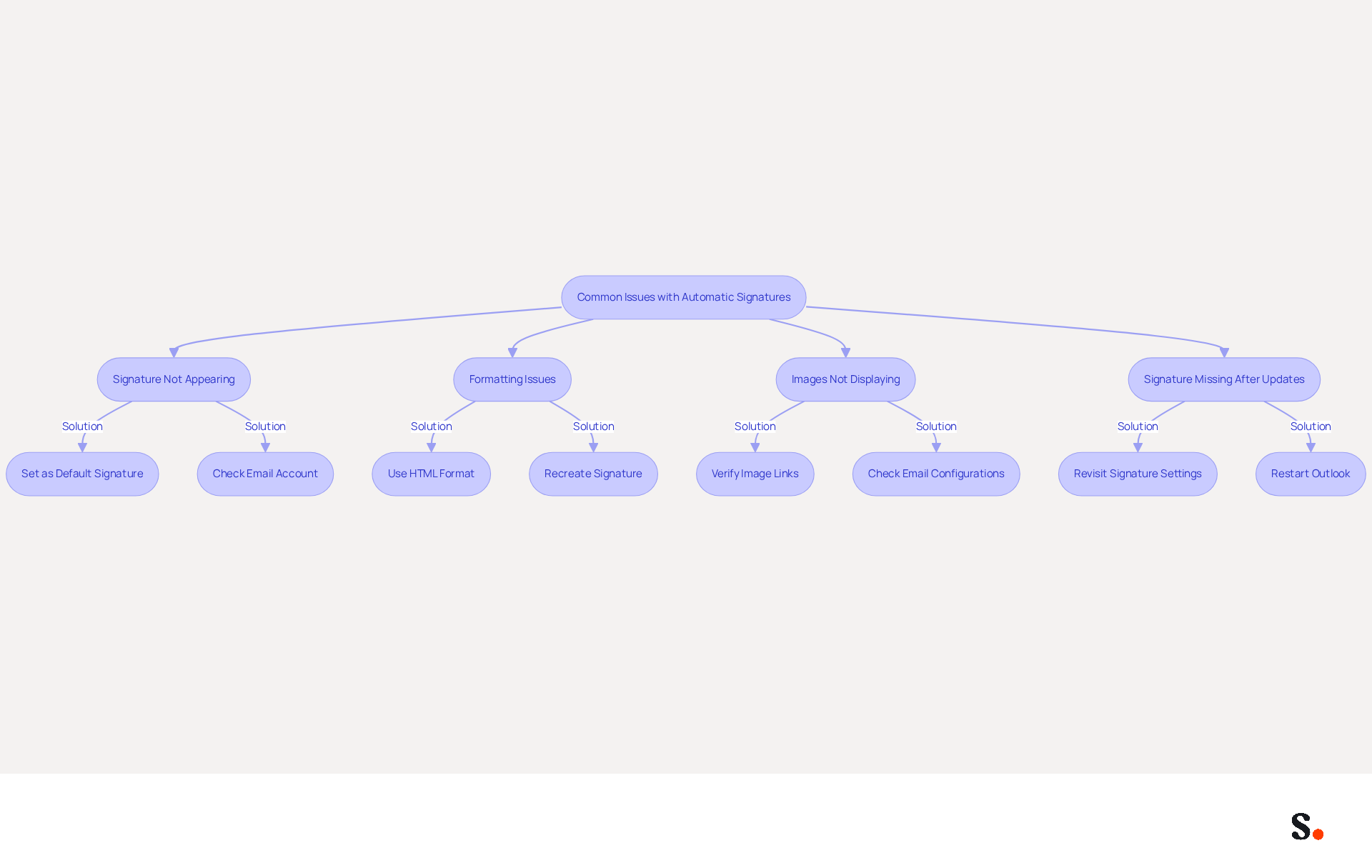
Despite configuring how to make email signature automatic in Outlook, many users still face challenges. Here are common problems and their solutions:
-
Signature Not Appearing: Many users encounter issues with signatures not appearing in their emails:
- Ensure you have set it as the default signature in the settings.
- Check if you are using the correct account if you have multiple accounts. Many IT teams rely on manual methods for managing electronic communications, leading to inconsistencies.
-
Formatting Issues: If your signature looks different than expected:
- Make sure you are using HTML format for your emails, as plain text may strip formatting. Formatting issues often arise from the email client's interpretation of HTML, leading to discrepancies in appearance.
- Recreate the autograph using the formatting tools in the customization options to ensure compatibility across devices.
-
Images Not Displaying: If images in your signature are not appearing:
- Ensure the images are hosted online or properly linked in the signature settings. Images may not display correctly if they are not embedded properly, which is a frequently encountered issue.
- Verify your email configurations to ensure images are permitted, as some clients block images by default.
-
Signature Missing After Updates: If your signature disappears after an Outlook update:
- Revisit the signature settings to ensure your signature is still saved and set as default. Updates can reset local settings, often resulting in the removal of saved identifiers.
- Restart Outlook to refresh the application, as this can resolve temporary glitches that prevent the display of email identifiers.
- If you are using Scribe and have synced your Google Workspace, any changes in your team’s information will automatically reflect in Scribe, minimizing the risk of approvals disappearing after updates.
By proactively addressing these issues, you can enhance the professionalism of your email communications, especially by learning how to make email signature automatic in Outlook. Regular audits of your email signature settings can help maintain consistency and effectiveness, as 25.1% of organizations use email signatures to keep corporate communication consistent.
Conclusion
Implementing automatic email signatures in Outlook is essential for organizations seeking to enhance professionalism and brand consistency in communications. By automating this process with Scribe, businesses can ensure that every email sent reflects their brand identity, saves time, and fosters trust with recipients. Once IT sets it up, marketing teams can easily manage signatures on their own, keeping control over branding efforts, ultimately leading to improved engagement and response rates.
Throughout this guide, key steps have been outlined to help users access signature settings, create and customize their signatures, and troubleshoot common issues. Consistent branding through professional email signatures is crucial for effective communication, as studies indicate that cohesive email signatures can significantly boost response rates and enhance overall communication effectiveness. Additionally, Scribe's compliance with SOC 2 Type II standards ensures that organizations can manage their email signatures securely while leveraging them for marketing opportunities.
In conclusion, adopting automatic email signatures in Outlook is a strategic move that enhances communication effectiveness and drives better marketing ROI. By embracing automated signatures, organizations can not only streamline their processes but also significantly enhance their communication effectiveness and brand presence.
Frequently Asked Questions
Why are automatic email signatures important in Outlook?
Automatic email signatures enhance professionalism by ensuring every email includes your contact information and branding, which builds trust with recipients. They also save time by automating the signing process, promote brand consistency, and provide marketing opportunities.
How does using Scribe improve email signature management?
Scribe automates the email signature process, allowing for auto-filled information from your business phone system and ensuring that any changes made in your Aircall configuration are automatically reflected in your signatures. This saves time and ensures consistency.
What are the steps to access signature settings in Outlook?
To access signature settings in Outlook, follow these steps: 1. Open Outlook. 2. Click on the gear icon (⚙️) in the top right corner. 3. Select 'View all Outlook preferences.' 4. Choose 'Mail' from the left sidebar. 5. Click on 'Compose and reply.' 6. Find the 'Signature' option to create and manage your signatures.
What permissions are needed to sync Google Workspace with Outlook for Scribe?
You must be a Super Admin of your service provider to grant the necessary permissions for Scribe to connect and sync your data with Google Workspace.
How does brand consistency affect communication effectiveness?
Maintaining uniform branding across communications strengthens a company’s identity and builds trust with recipients. Organizations with consistent messaging formats report a 22% increase in response rates, indicating that cohesive branding significantly boosts engagement.
What compliance does Scribe offer for managing digital identifiers?
Scribe is SOC 2 Type II compliant, ensuring that your data is managed securely while utilizing digital identifiers for marketing purposes.
List of Sources
- Understand the Importance of Automatic Email Signatures in Outlook
- 40+ Email Signature Statistics for 2026 (Data + Insights) (https://wavecnct.com/blogs/email-signature-statistics)
- The impact of email signatures on your branding (https://signitic.com/en/resources/the-impact-of-email-signatures-on-your-branding)
- Maximize Your Marketing Impact with Auto Signatures in Outlook (https://scribe-mail.com/en-US/blog/maximize-your-marketing-impact-with-auto-signatures-in-outlook)
- Research Recap: Branded Email Signatures Increase Company Recognition, Trust - Demand Gen Report (https://demandgenreport.com/industry-news/research-recap-branded-email-signatures-increase-company-recognition-trust/47252)
- How Automated Email Signatures in Outlook Can Help Businesses Spread Their Marketing Message (https://linkedin.com/pulse/how-automated-email-signatures-outlook-can-help-businesses-spread-gc5we)
- Access Signature Settings in Outlook
- How To Add An Email Signature in Outlook (2026) (https://hubspot.com/email-signature-generator/add-signature-outlook)
- How to add and change an email signature in Outlook | Microsoft Support (https://support.microsoft.com/en-us/outlook/mail/how-to-add-and-change-an-email-signature-in-outlook)
- The New Outlook for Windows: An IT Guide to Email Signatures (https://exclaimer.com/email-signature-handbook/new-outlook-windows-email-signatures)
- 40+ Email Signature Statistics for 2026 (Data + Insights) (https://wavecnct.com/blogs/email-signature-statistics)
- Email Signature Statistics: A Closer Look at Email Signatures in 2026 (https://mysignature.io/blog/email-signature-statistics)
- Create and Customize Your Email Signature
- Top 10+ best practices for email signatures design in 2026 (https://mysignature.io/blog/email-signature-best-practices)
- Email Signature Design Trends in 2026: What Works and What to Drop (https://bulksignature.com/blog/email-signature-design-trends)
- Email Signature Best Practices - NEWOLDSTAMP (https://newoldstamp.com/blog/email-signature-best-practices)
- Email Signature Design Guide: Best Practices and Examples (https://designmodo.com/email-signature)
- Email Signature Best Practices Guide With Examples - MailerLite (https://mailerlite.com/blog/email-signature-best-practices)
- Set Your Signature as Default for New Emails and Replies
- 40+ Email Signature Statistics for 2026 (Data + Insights) (https://wavecnct.com/blogs/email-signature-statistics)
- How To Add An Email Signature in Outlook (2026) (https://hubspot.com/email-signature-generator/add-signature-outlook)
- Email signature statistics: Why every business should optimize their email signatures — Stripo.email (https://stripo.email/blog/email-signature-statistics-why-every-business-should-optimize-their-email-signatures)
- Troubleshoot Common Issues with Automatic Signatures
- Email signature statistics: Why every business should optimize their email signatures — Stripo.email (https://stripo.email/blog/email-signature-statistics-why-every-business-should-optimize-their-email-signatures)
- How to solve problems with email signatures in Microsoft 365? (https://mail-signatures.com/articles/problems-email-signatures-office-365)
- Outlook Signature Disappears? 6 Common Problems + Fixes (https://conbool.com/blog/outlook-signature-disappears-fixes-problems)
- My Outlook auto signature is not working on some email accounts, and I can't access Signature Edit. any ideas? - Microsoft Q&A (https://learn.microsoft.com/en-us/answers/questions/5563621/my-outlook-auto-signature-is-not-working-on-some-e)
- Outlook Signature Not Working in Office 365: Causes & Fixes (https://exclaimer.com/email-signature-handbook/outlook-signature-not-working-in-office-365)
Get started with Scribe
Create your signature in minutes
Free 14-day trial — no credit card.